wheel CHEVROLET CAMARO SS 2020 User Guide
[x] Cancel search | Manufacturer: CHEVROLET, Model Year: 2020, Model line: CAMARO SS, Model: CHEVROLET CAMARO SS 2020Pages: 362, PDF Size: 6.08 MB
Page 93 of 362
Chevrolet Camaro Owner Manual (GMNA-Localizing-U.S./Canada/Mexico-
13556304) - 2020 - CRC - 5/10/19
92 Instruments and Controls
Controls
Steering Wheel
Adjustment
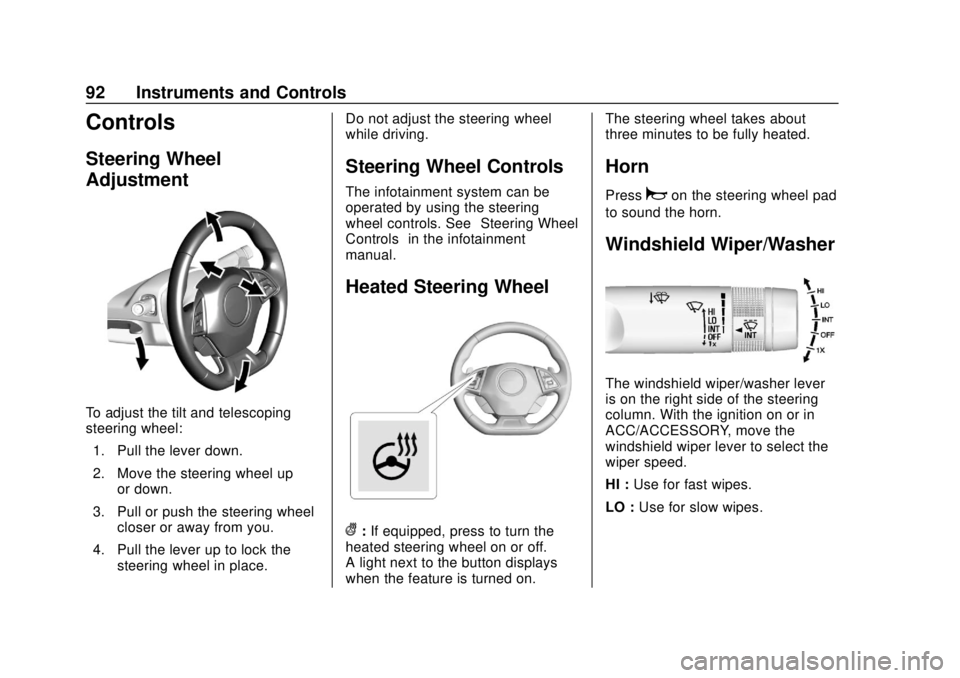
To adjust the tilt and telescoping
steering wheel:1. Pull the lever down.
2. Move the steering wheel up or down.
3. Pull or push the steering wheel closer or away from you.
4. Pull the lever up to lock the steering wheel in place. Do not adjust the steering wheel
while driving.
Steering Wheel Controls
The infotainment system can be
operated by using the steering
wheel controls. See
“Steering Wheel
Controls” in the infotainment
manual.
Heated Steering Wheel
(: If equipped, press to turn the
heated steering wheel on or off.
A light next to the button displays
when the feature is turned on. The steering wheel takes about
three minutes to be fully heated.
Horn
Pressaon the steering wheel pad
to sound the horn.
Windshield Wiper/Washer
The windshield wiper/washer lever
is on the right side of the steering
column. With the ignition on or in
ACC/ACCESSORY, move the
windshield wiper lever to select the
wiper speed.
HI : Use for fast wipes.
LO : Use for slow wipes.
Page 101 of 362

Chevrolet Camaro Owner Manual (GMNA-Localizing-U.S./Canada/Mexico-
13556304) - 2020 - CRC - 5/10/19
100 Instruments and Controls
See the Camaro High Performance
supplement for more information.
Reconfigurable Instrument
Cluster
To change the theme for the uplevel
cluster:1. Find the Options page in one of the interactive display zones on
the cluster.
2. Press SEL to enter the Options menu.
3. Scroll down to highlight Display Theme, then press
pto enter
the Display Theme menu.
4. Press SEL to select the desired cluster configuration.
5. Exit the Display Theme menu by pressing
o.
Cluster Menu
There is an interactive display area
in the center of the instrument
cluster.
Use the right steering wheel control
to open and scroll through the
different items and displays.
Press
oto access the cluster
applications. Use
worxto scroll
through the list of applications.
Press SEL to select the application
from the list.
. Info. This is where you can view
the Driver Information Center
(DIC) displays. See Driver
Information Center (DIC) 0116.
. Performance (Uplevel Cluster)
. Audio (If Equipped)
. Phone (If Equipped) .
Navigation (If Equipped)
. Options
Performance (Uplevel Cluster)
Press SEL to enter the Performance
menu. Use
worxto scroll
through the available items.
Friction Bubble : A four quadrant
visual display, indicative of the four
corners of the car, with a “bubble”
showing where the most inertia is
being exerted on the vehicle.
Performance Timer : Press
p
when Performance Timer is
displayed to enter the menu. Use
w
orxto select an interval. Press
SEL to save it. On the next
acceleration, the performance time
will record the time. To reset the
timer, highlight Reset and
press SEL.
Page 103 of 362

Chevrolet Camaro Owner Manual (GMNA-Localizing-U.S./Canada/Mexico-
13556304) - 2020 - CRC - 5/10/19
102 Instruments and Controls
this feature can be turned off by
pressing SEL while viewing this
page. If the selected speed limit is
exceeded, a pop-up warning is
displayed with a chime.
Display Theme (Uplevel) :Press
SEL while Display Theme is
highlighted to change the
configuration of the uplevel cluster.
See “Reconfigurable Instrument
Cluster” earlier in this section.
Launch Control : If equipped, the
Launch Control display allows the
driver to adjust the parameters of
the Launch Control System. See
Track Events and Competitive
Driving 0157.
Head-Up Display (HUD)
Rotation : If equipped, this feature
allows for adjusting the angle of the
HUD image. Press SEL on the
steering wheel controls while
Head-Up Display Rotation is
highlighted to enter Adjust Mode.
Press
worxto highlight OK, then
press SEL to save the setting. Cancel can also be selected to
cancel the setting. The vehicle must
be on P (Park).
Info Pages :
Press
pwhile Info
Pages is highlighted to select the
items to be displayed in the DIC info
displays. See Driver Information
Center (DIC) 0116.
Software Info : Displays open
source software information.
Speedometer
The speedometer shows the
vehicle's speed in either kilometers
per hour (km/h) or miles per
hour (mph).
Odometer
The odometer shows how far the
vehicle has been driven, in either
kilometers or miles.
Trip Odometer
The trip odometer shows how far
the vehicle has been driven since
the trip odometer was last reset. The trip odometer is accessed and
reset through the Driver Information
Center (DIC). See
Driver
Information Center (DIC) 0116.
Tachometer
The tachometer displays the engine
speed in revolutions per
minute (rpm).
Caution
If the engine is operated with the
rpm’s in the warning area at the
high end of the tachometer, the
vehicle could be damaged, and
the damage would not be covered
by the vehicle warranty. Do not
operate the engine with the rpm’s
in the warning area.
Page 112 of 362

Chevrolet Camaro Owner Manual (GMNA-Localizing-U.S./Canada/Mexico-
13556304) - 2020 - CRC - 5/10/19
Instruments and Controls 111
.Poor fuel quality can cause
inefficient engine operation and
poor driveability, which may go
away once the engine is warmed
up. If this occurs, change the
fuel brand. It may require at
least one full tank of the proper
fuel to turn the light off. See
Recommended Fuel (3.6L
V6 Engine) 0213 or
Recommended Fuel (2.0L L4
Turbo Engine and 6.2L
V8 Engine) 0213 or
Recommended Fuel (6.2L V8
Supercharged Engine) 0214.
If the light remains on, see your
dealer.
Emissions Inspection and
Maintenance Programs
If the vehicle requires an Emissions
Inspection/Maintenance test, the
test equipment will likely connect to
the vehicle's Data Link
Connector (DLC).
The DLC is under the instrument
panel to the left of the steering
wheel. Connecting devices that are
not used to perform an Emissions
Inspection/Maintenance test or to
service the vehicle may affect
vehicle operation. See Add-On
Electrical Equipment 0218. See
your dealer if assistance is needed.
The vehicle may not pass
inspection if:
. The light is on when the engine
is running.
. The light does not come on
when the ignition is in
Service Mode.
. Critical emission control systems
have not been completely
diagnosed. If this happens, the
vehicle would not be ready for
inspection and might require
several days of routine driving before the system is ready for
inspection. This can happen if
the 12-volt battery has recently
been replaced or run down, or if
the vehicle has been recently
serviced.
See your dealer if the vehicle will
not pass or cannot be made ready
for the test.
Brake System Warning
Light
MetricEnglish
This light should come on briefly
when the vehicle is turned on. If it
does not come on then, have it fixed
so it will be ready to warn you if
there is a problem.
If the light comes on and stays on at
start up, there is a brake problem.
Have the brake system inspected
right away.
Page 114 of 362
Chevrolet Camaro Owner Manual (GMNA-Localizing-U.S./Canada/Mexico-
13556304) - 2020 - CRC - 5/10/19
Instruments and Controls 113
Antilock Brake System
(ABS) Warning Light
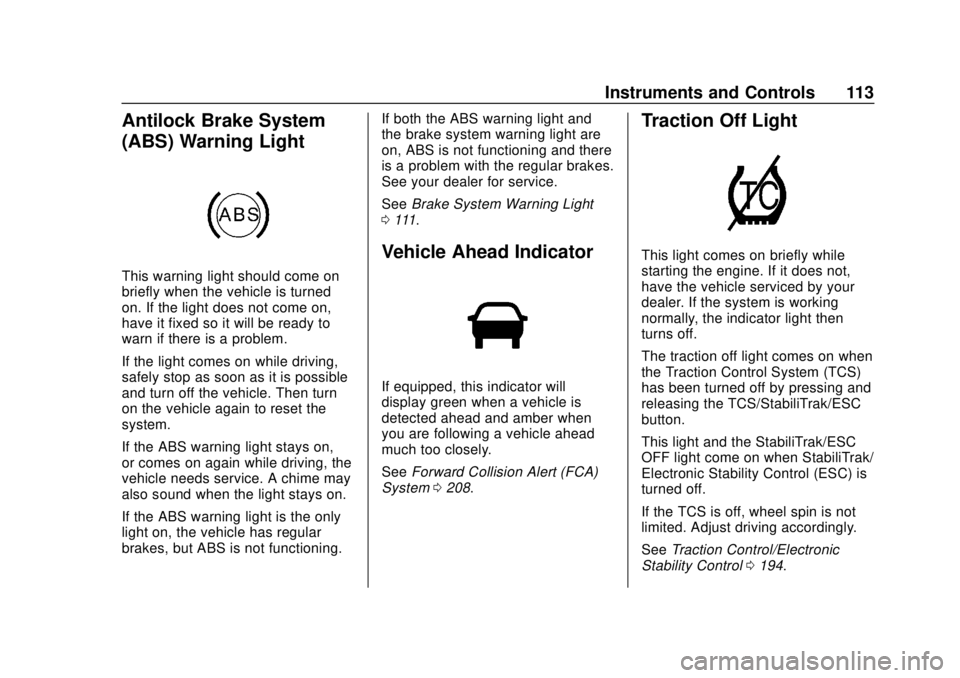
This warning light should come on
briefly when the vehicle is turned
on. If the light does not come on,
have it fixed so it will be ready to
warn if there is a problem.
If the light comes on while driving,
safely stop as soon as it is possible
and turn off the vehicle. Then turn
on the vehicle again to reset the
system.
If the ABS warning light stays on,
or comes on again while driving, the
vehicle needs service. A chime may
also sound when the light stays on.
If the ABS warning light is the only
light on, the vehicle has regular
brakes, but ABS is not functioning.If both the ABS warning light and
the brake system warning light are
on, ABS is not functioning and there
is a problem with the regular brakes.
See your dealer for service.
See
Brake System Warning Light
0 111.
Vehicle Ahead Indicator
If equipped, this indicator will
display green when a vehicle is
detected ahead and amber when
you are following a vehicle ahead
much too closely.
See Forward Collision Alert (FCA)
System 0208.
Traction Off Light
This light comes on briefly while
starting the engine. If it does not,
have the vehicle serviced by your
dealer. If the system is working
normally, the indicator light then
turns off.
The traction off light comes on when
the Traction Control System (TCS)
has been turned off by pressing and
releasing the TCS/StabiliTrak/ESC
button.
This light and the StabiliTrak/ESC
OFF light come on when StabiliTrak/
Electronic Stability Control (ESC) is
turned off.
If the TCS is off, wheel spin is not
limited. Adjust driving accordingly.
See Traction Control/Electronic
Stability Control 0194.
Page 117 of 362
Chevrolet Camaro Owner Manual (GMNA-Localizing-U.S./Canada/Mexico-
13556304) - 2020 - CRC - 5/10/19
116 Instruments and Controls
High-Beam On Light
This light comes on when the
high-beam headlamps are in use.
SeeHeadlamp High/Low-Beam
Changer 0130.
Lamps On Reminder
This light comes on when the
exterior lamps are in use, except
when only the Daytime Running
Lamps (DRL) are active. See
Exterior Lamp Controls 0130.
Cruise Control Light
The cruise control light is white
when the cruise control is on and
ready, and turns green when the
cruise control is set and active.
The light goes out when the cruise
control is turned off. See Cruise
Control 0202.
Door Ajar Light
This light comes on when a door is
open or not securely latched. Before
driving, check that all doors are
properly closed.
Information Displays
Driver Information
Center (DIC)
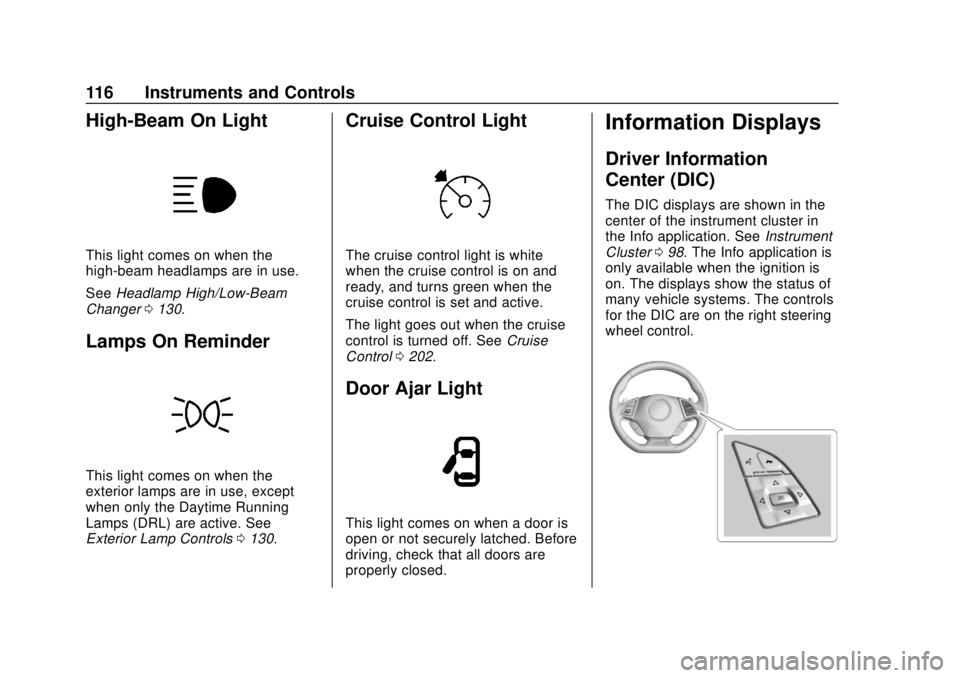
The DIC displays are shown in the
center of the instrument cluster in
the Info application. See Instrument
Cluster 098. The Info application is
only available when the ignition is
on. The displays show the status of
many vehicle systems. The controls
for the DIC are on the right steering
wheel control.
Page 122 of 362
Chevrolet Camaro Owner Manual (GMNA-Localizing-U.S./Canada/Mexico-
13556304) - 2020 - CRC - 5/10/19
Instruments and Controls 121
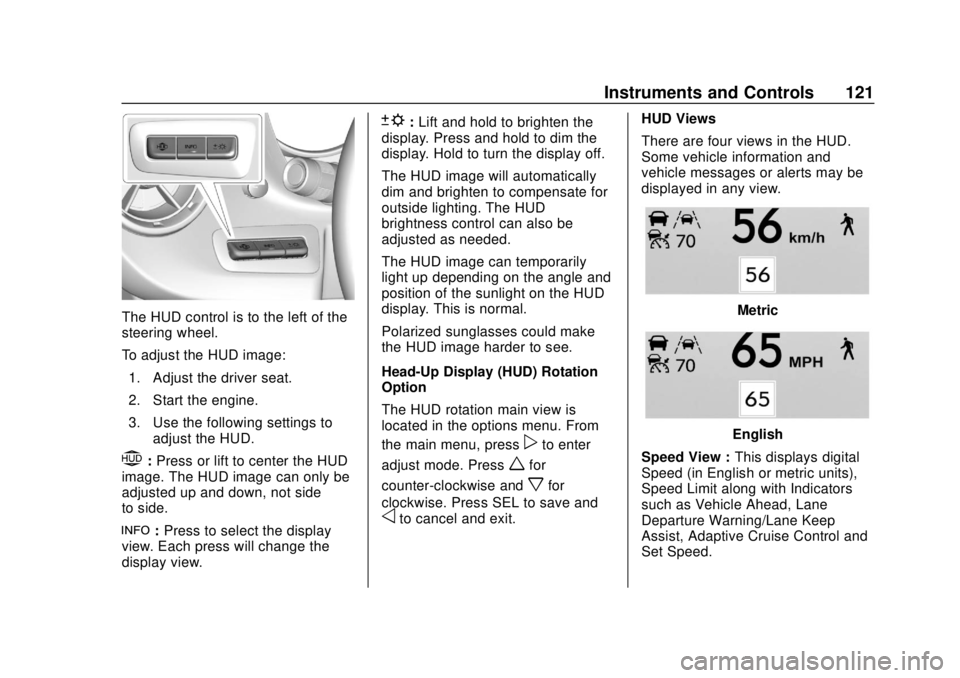
The HUD control is to the left of the
steering wheel.
To adjust the HUD image:1. Adjust the driver seat.
2. Start the engine.
3. Use the following settings to adjust the HUD.
$:Press or lift to center the HUD
image. The HUD image can only be
adjusted up and down, not side
to side.
!: Press to select the display
view. Each press will change the
display view.
D: Lift and hold to brighten the
display. Press and hold to dim the
display. Hold to turn the display off.
The HUD image will automatically
dim and brighten to compensate for
outside lighting. The HUD
brightness control can also be
adjusted as needed.
The HUD image can temporarily
light up depending on the angle and
position of the sunlight on the HUD
display. This is normal.
Polarized sunglasses could make
the HUD image harder to see.
Head-Up Display (HUD) Rotation
Option
The HUD rotation main view is
located in the options menu. From
the main menu, press
pto enter
adjust mode. Press
wfor
counter-clockwise and
xfor
clockwise. Press SEL to save and
oto cancel and exit. HUD Views
There are four views in the HUD.
Some vehicle information and
vehicle messages or alerts may be
displayed in any view.
Metric
English
Speed View : This displays digital
Speed (in English or metric units),
Speed Limit along with Indicators
such as Vehicle Ahead, Lane
Departure Warning/Lane Keep
Assist, Adaptive Cruise Control and
Set Speed.
Page 123 of 362

Chevrolet Camaro Owner Manual (GMNA-Localizing-U.S./Canada/Mexico-
13556304) - 2020 - CRC - 5/10/19
122 Instruments and Controls
Metric
English
Audio/Phone View : This displays
digital speed, indicators from Speed
view along with audio/phone
information.
All HUD views may briefly display
audio information when the steering
wheel controls are used to adjust
the audio settings appearing in the
instrument cluster.
Incoming phone calls appearing in
the instrument cluster may also
display in any HUD view.
Metric
English
Navigation View : This displays
digital speed, indicators from Speed
view along with Turn-by-Turn
Navigation information in some
vehicles. When navigation routing is
not active, the compass heading is
displayed.
Metric
English
Performance View : This displays
digital speed, indicators from speed
view along with rpm reading,
transmission positions, gear shift
indicator (if equipped), Shift Timing
Light Position (if equipped), and
lateral acceleration (G) indicators.
If equipped, the shift timing lights at
the top of the display will appear
with increases in engine rpm. The
rows of lights get closer together as
the shift point gets closer. Shift the
transmission before the lights come
together in the display. Shift
Page 127 of 362

Chevrolet Camaro Owner Manual (GMNA-Localizing-U.S./Canada/Mexico-
13556304) - 2020 - CRC - 5/10/19
126 Instruments and Controls
Touch Off or On.
Collision/Detection Systems
Touch and the following may
display:
.Lane Change Alert
. Park Assist
. Rear Camera Park Assist
Symbols
. Rear Cross Traffic Alert
Lane Change Alert
This allows the Lane Change Alert
feature to be turned on or off. See
Lane Change Alert (LCA) 0211.
When Lane Change Alert is
disabled, Side Blind Zone Alert is
also disabled.
Touch Off or On.
Park Assist
If equipped, this feature can assist
in backing up and parking the
vehicle. See Assistance Systems for
Parking or Backing 0206.
Touch Off or On. Rear Camera Park Assist Symbols
This setting enables the Rear
Camera Park Assist Symbols. See
Assistance Systems for Parking or
Backing
0206.
Touch Off or On.
Rear Cross Traffic Alert
This allows the Rear Cross Traffic
Alert feature to be turned on or off.
See “Rear Cross Traffic Alert” in
Assistance Systems for Parking or
Backing 0206.
Touch Off or On.
Comfort and Convenience
Touch and the following may
display:
. Chime Volume
. Reverse Tilt Mirror
Chime Volume
This setting determines the chime
volume level.
Touch the controls on the
infotainment display to adjust the
volume. Reverse Tilt Mirror
When on, both the driver and
passenger, driver, or passenger
outside mirrors will tilt downward
when the vehicle is shifted to
R (Reverse) to improve visibility of
the ground near the rear wheels.
They will return to their previous
driving position when the vehicle is
shifted out of R (Reverse) or the
engine is turned off.
Touch Off, On - Driver and
Passenger, On - Driver, or On -
Passenger.
Lighting
Touch and the following may
display:
.
Ambient Lighting
. Vehicle Locator Lights
. Exit Lighting
Ambient Lighting
This setting allows the selection of
available colors for the ambient
lighting in the vehicle.
Page 130 of 362

Chevrolet Camaro Owner Manual (GMNA-Localizing-U.S./Canada/Mexico-
13556304) - 2020 - CRC - 5/10/19
Instruments and Controls 129
ACCESSORY to off if the driver
door is open or opened. See
Memory Seats044.
Touch Off or On.
Teen Driver
See “Teen Driver” under“Settings”
in the infotainment manual.
Valet Mode
This will lock the infotainment
system and steering wheel controls.
It may also limit access to vehicle
storage locations, if equipped.
To enable valet mode:
1. Enter a four-digit code on the keypad.
2. Touch Enter to go to the confirmation screen.
3. Re-enter the four-digit code.
Touch Lock or Unlock to lock or
unlock the system. Touch Back to
go back to the previous menu.