ECO mode CHEVROLET CAMARO ZL1 2017 User Guide
[x] Cancel search | Manufacturer: CHEVROLET, Model Year: 2017, Model line: CAMARO ZL1, Model: CHEVROLET CAMARO ZL1 2017Pages: 391, PDF Size: 6.65 MB
Page 146 of 391
Chevrolet Camaro Owner Manual (GMNA-Localizing-U.S./Canada/Mexico-
9804281) - 2017 - crc - 4/25/16
Instruments and Controls 145
.Display
. Rear Camera
. Return to Factory Settings
. Software Information
Detailed information for each menu
follows.
Time and Date
Manually set the time and date. See
Clock 0105.
Driving Mode
Select and the following may
display:
.
Engine Sound Management
. Steering
Engine Sound Management
Select Engine Sound Management,
then choose from the available
options. See Driver Mode
Control 0236.
Steering
Select Steering, then choose from
the available options. See Driver
Mode Control 0236.
Language (Language)
Select Language, then select from
the available language(s).
The selected language will display
on the system, and voice
recognition will reflect the selected
language.
Valet Mode
This will lock the infotainment
system and steering wheel controls.
It may also limit access to vehicle
storage locations (if equipped).
To enable valet mode:
1. Enter a four-digit code on the keypad.
2. Touch Enter to go to the confirmation screen.
3. Re-enter the four-digit code.
Touch LOCK or UNLOCK to lock or
unlock the system. Touch Back to
go back to the previous menu.
Teen Driver
See “Teen Driver” under“Settings”
in the infotainment manual.
Radio
Press and the following may
display:
. Manage Favorites
. Number of Favorites Shown
. Audible Touch Feedback
. Text Scroll
. Tone Settings
. Auto Volume
. Maximum Startup Volume
. Audio Cue Volume
Manage Favorites
This allows favorites to be edited.
See “Storing a Station as a
Favorite” inAM-FM Radio 0166 or
“Manage Favorites” in“Settings”
under “Radio” in the infotainment
manual.
Number of Favorites Shown
Press to set the number of favorites
to display.
Page 160 of 391
Chevrolet Camaro Owner Manual (GMNA-Localizing-U.S./Canada/Mexico-
9804281) - 2017 - crc - 4/25/16
Lighting 159
Interior Lamps
Interior Spectrum Lighting
If equipped, this feature allows for
choosing the color of the interior
lighting in the vehicle.
To access, press
{on the
faceplate, then touch LIGHTING to
display the settings screen.
Touch to select from the following:
OFF : Turns the feature off.
LIGHT STRIPS : Turns on standard
mode. Touch the light strip color to
select a color for the interior lighting.
SHOW MODE : When the shift
lever is in P (Park) (automatic
transmission) or the park brake is
applied (manual transmission),
touch to turn the feature on in colors
chosen by the vehicle. When the
shift lever is not in P (Park) or the
park brake is not applied, the
interior color will default to the last
active color selected in light
strips mode. LINK TO DRIVE MODE :
The light
color is matched to the color being
used for the drive mode.
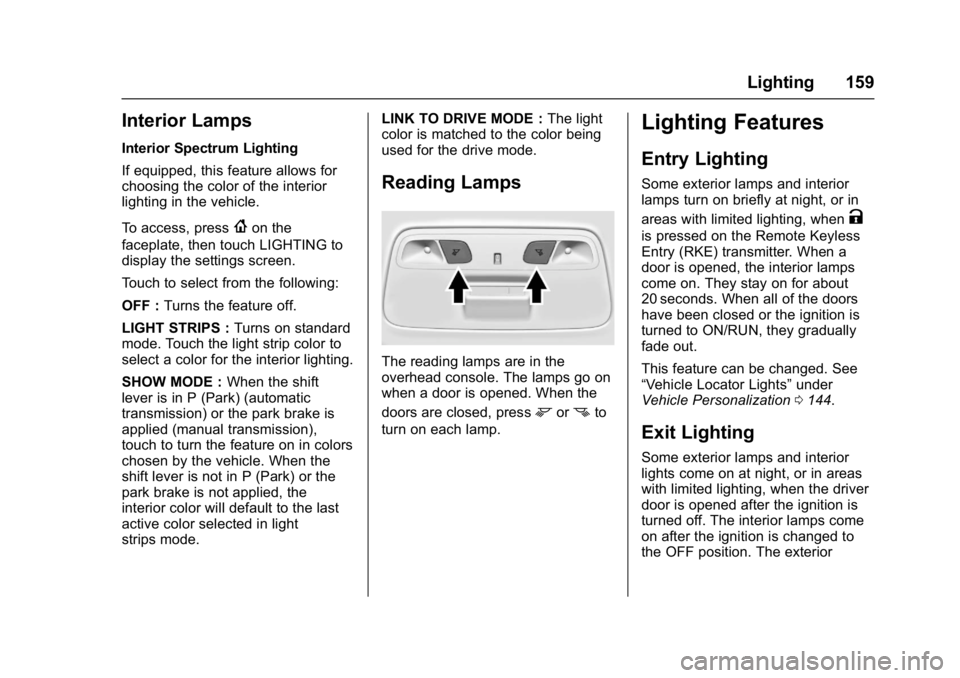
Reading Lamps
The reading lamps are in the
overhead console. The lamps go on
when a door is opened. When the
doors are closed, press
mornto
turn on each lamp.
Lighting Features
Entry Lighting
Some exterior lamps and interior
lamps turn on briefly at night, or in
areas with limited lighting, when
K
is pressed on the Remote Keyless
Entry (RKE) transmitter. When a
door is opened, the interior lamps
come on. They stay on for about
20 seconds. When all of the doors
have been closed or the ignition is
turned to ON/RUN, they gradually
fade out.
This feature can be changed. See
“Vehicle Locator Lights” under
Vehicle Personalization 0144.
Exit Lighting
Some exterior lamps and interior
lights come on at night, or in areas
with limited lighting, when the driver
door is opened after the ignition is
turned off. The interior lamps come
on after the ignition is changed to
the OFF position. The exterior
Page 173 of 391
Chevrolet Camaro Owner Manual (GMNA-Localizing-U.S./Canada/Mexico-
9804281) - 2017 - crc - 4/25/16
172 Infotainment System
Using USB Storage Devices and
iPod/iPhone
.Use a USB or flash memory type
storage device. Do not connect
using a USB adaptor.
. Do not connect and reconnect
the USB device repeatedly in a
short time, as this may cause
static electricity and problems
using the device.
. Use a USB device with a metal
connecting terminal.
. Connection with i-Stick Type
USB storage devices may be
faulty due to vehicle vibration.
. Do not touch the USB
connecting terminal.
. Only USB storage devices
formatted in FAT16/32 or exFAT
file systems are recognized.
NTFS and other file systems are
not recognized.
. The time it takes to process files
will depend on the USB storage
device type and capacity, and
the type of files stored. .
Some USB storage device files
may not be compatible.
. Up to two USB devices and one
iPod can be played through a
USB hub. All devices may not be
supported, depending on the
performance of the USB hub.
If there is not enough power
supply, it may not operate
normally.
. Do not disconnect the USB
storage device while it is playing.
This may cause damage to the
product or affect the
performance of the USB device.
. Disconnect the USB storage
device when the ignition is
turned off. If the ignition is turned
on while the USB device is
connected, the USB device may
be damaged or may not operate
normally.
. USB storage devices can only
be connected for playing music,
viewing photo files,
or upgrading. .
Do not use the USB terminal to
charge USB accessory
equipment. The heat generated
may cause performance issues
or damage.
. Music files to which Digital Right
Management (DRM) is applied
cannot be played.
. USB storage device that has a
capacity limit of no more than
5,000 files, such as music,
photo, video, 15 levels of folder
structure. Normal usage cannot
be guaranteed for a storage
device that exceeds this limit.
The iPod/iPhone can play all
music files that are supported.
The music file lists will only
display up to 5,000 files on the
screen. These files are sorted in
alphabetical order.
. Some iPod/iPhone product
models may not support the
connectivity or functionality of
this product.
Page 175 of 391
Chevrolet Camaro Owner Manual (GMNA-Localizing-U.S./Canada/Mexico-
9804281) - 2017 - crc - 4/25/16
174 Infotainment System
Changing to Next/Previous Files
.Touch
lto change to the
next file.
. Touch
gwithin five seconds of
the playback time to play the
previous file.
Returning to the Beginning of the
Current File
Touch
gafter five seconds of the
playback time.
Scanning Forward or Backward
Touch and hold
gorlduring
playback to rewind or fast forward.
Release the button to resume
playback at normal speed.
Playing Files Randomly
Touch
Zduring playback.
. ON: Plays all files randomly.
. OFF: Returns to normal
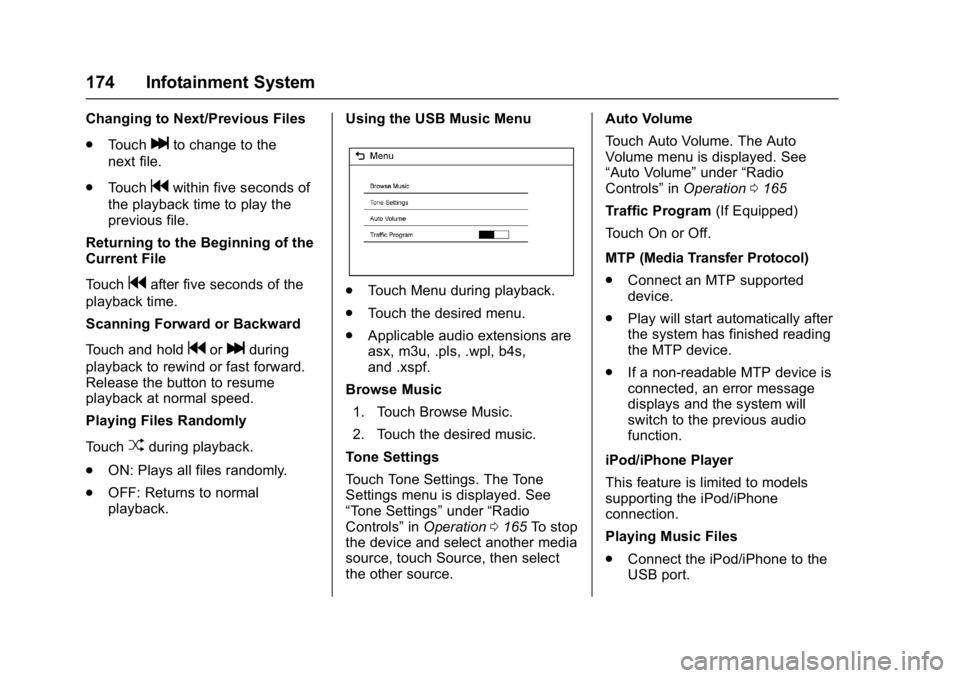
playback. Using the USB Music Menu
.
Touch Menu during playback.
. Touch the desired menu.
. Applicable audio extensions are
asx, m3u, .pls, .wpl, b4s,
and .xspf.
Browse Music 1. Touch Browse Music.
2. Touch the desired music.
Tone Settings
Touch Tone Settings. The Tone
Settings menu is displayed. See
“Tone Settings” under“Radio
Controls” inOperation 0165 To stop
the device and select another media
source, touch Source, then select
the other source. Auto Volume
Touch Auto Volume. The Auto
Volume menu is displayed. See
“Auto Volume”
under“Radio
Controls” inOperation 0165
Traffic Program (If Equipped)
Touch On or Off.
MTP (Media Transfer Protocol)
. Connect an MTP supported
device.
. Play will start automatically after
the system has finished reading
the MTP device.
. If a non-readable MTP device is
connected, an error message
displays and the system will
switch to the previous audio
function.
iPod/iPhone Player
This feature is limited to models
supporting the iPod/iPhone
connection.
Playing Music Files
. Connect the iPod/iPhone to the
USB port.
Page 176 of 391
Chevrolet Camaro Owner Manual (GMNA-Localizing-U.S./Canada/Mexico-
9804281) - 2017 - crc - 4/25/16
Infotainment System 175
.Play will start from the previously
played point after the system
has finished reading the USB
device.
. If a non-readable USB device is
connected, an error message
displays and the system will
switch to the previous audio
function.
If the iPod/iPhone is already
connected:
1. Press
{.
2. Touch AUDIO.
3. Touch Source.
4. Touch iPod.
To stop the device and select
another media source, touch
Source, then select the other
source.
To remove the device, select
another function, then remove the
device.
Pause
. Touch
jto pause.
. Touch
rto resume. Changing to Next/Previous Song
.
Touch
lto change to the
next song.
. Touch
gwithin two seconds of
the playback time to play the
previous file.
Returning to the Beginning of the
Current File
Touch
gafter two seconds of the
playback time.
Scanning Forward or Backward
Touch and hold
gorlduring
playback to rewind or fast forward.
Release the button to resume
playback at normal speed.
Playing Files Randomly
Touch
Zduring playback.
. ON: Plays all files randomly.
. OFF: Returns to normal
playback.
Using the iPod Menu
. Touch Menu during playback.
. Touch the appropriate
play mode. Browse Music
1. Touch Browse Music.
2. Touch the desired music.
Tone Settings
Touch Tone Settings. The Tone
Settings menu is displayed. See
“Tone Settings” under“Radio
Controls” inOperation 0165
Auto Volume
Touch Auto Volume. The Auto
Volume menu is displayed. See
“Auto Volume” under“Radio
Controls” inOperation 0165.
Picture System Information
The infotainment system can view
picture files stored on a USB
storage device and devices that
support Media Transfer
Protocol (MTP).
.
Supported file extensions: .jpg,
.bmp, .png, .gif.
. Animated GIF files are not
supported.
. Some files may not operate due
to a different recording format or
the condition of the file.
Page 182 of 391
Chevrolet Camaro Owner Manual (GMNA-Localizing-U.S./Canada/Mexico-
9804281) - 2017 - crc - 4/25/16
Infotainment System 181
steering. The numerical steering
angle displays below the
graphic.
. StabiliTrak Active Indicator: The
graphic only displays if the
active handling systems are
activated.
. Performance Traction
Management (PTM) Mode:
Displays the current PTM mode.
The options are Wet, Dry, Sport
1, Sport 2, or Race.
. Current Lap Time: Displays the
elapsed lap time if the finish line
is defined and the vehicle has
crossed the defined finish line at
least once.
. Event Odometer: Displays the
distance driven since the
recording began.
. Drive Mode: Displays the
vehicle’s current drive mode. Performance Timing:
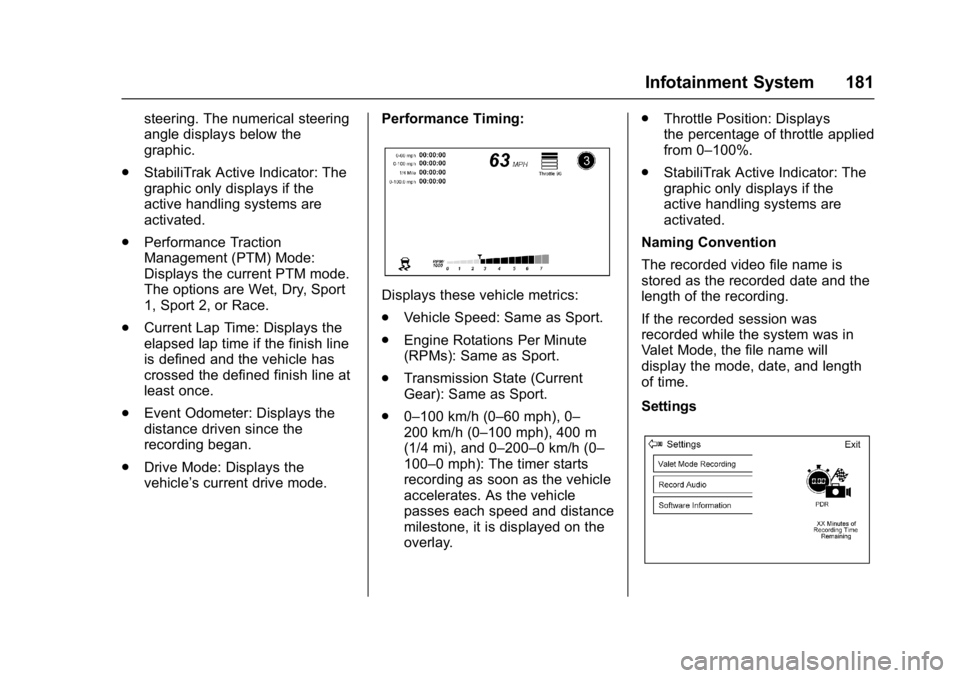
Displays these vehicle metrics:
.
Vehicle Speed: Same as Sport.
. Engine Rotations Per Minute
(RPMs): Same as Sport.
. Transmission State (Current
Gear): Same as Sport.
. 0–100 km/h (0–60 mph), 0–
200 km/h (0–100 mph), 400 m
(1/4 mi), and 0–200–0 km/h (0–
100–0 mph): The timer starts
recording as soon as the vehicle
accelerates. As the vehicle
passes each speed and distance
milestone, it is displayed on the
overlay. .
Throttle Position: Displays
the percentage of throttle applied
from 0–100%.
. StabiliTrak Active Indicator: The
graphic only displays if the
active handling systems are
activated.
Naming Convention
The recorded video file name is
stored as the recorded date and the
length of the recording.
If the recorded session was
recorded while the system was in
Valet Mode, the file name will
display the mode, date, and length
of time.
Settings
Page 183 of 391
Chevrolet Camaro Owner Manual (GMNA-Localizing-U.S./Canada/Mexico-
9804281) - 2017 - crc - 4/25/16
182 Infotainment System
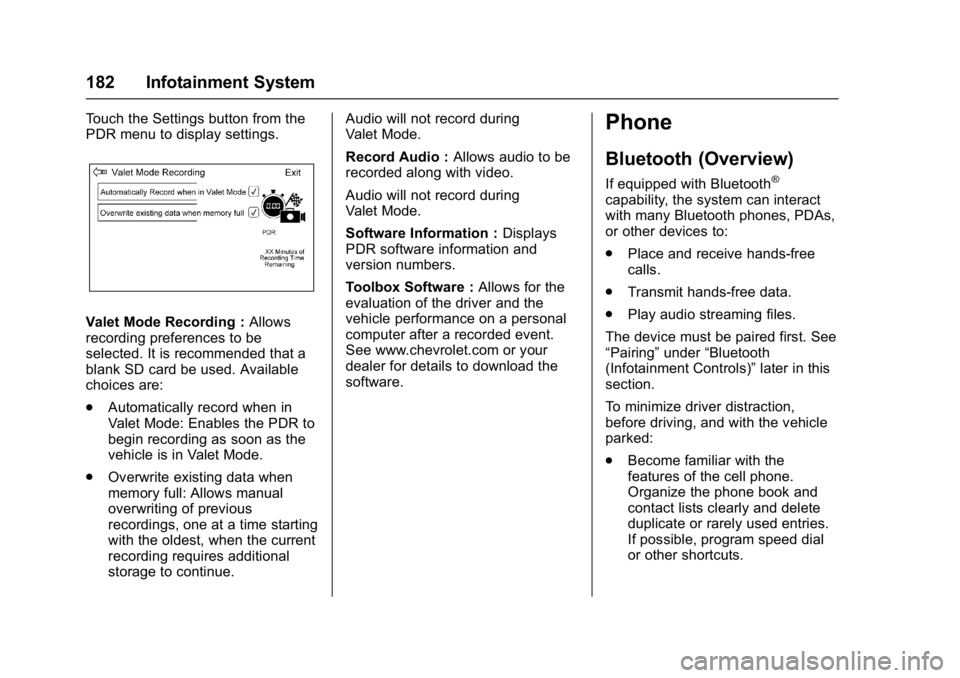
Touch the Settings button from the
PDR menu to display settings.
Valet Mode Recording :Allows
recording preferences to be
selected. It is recommended that a
blank SD card be used. Available
choices are:
. Automatically record when in
Valet Mode: Enables the PDR to
begin recording as soon as the
vehicle is in Valet Mode.
. Overwrite existing data when
memory full: Allows manual
overwriting of previous
recordings, one at a time starting
with the oldest, when the current
recording requires additional
storage to continue. Audio will not record during
Valet Mode.
Record Audio :
Allows audio to be
recorded along with video.
Audio will not record during
Valet Mode.
Software Information : Displays
PDR software information and
version numbers.
Toolbox Software : Allows for the
evaluation of the driver and the
vehicle performance on a personal
computer after a recorded event.
See www.chevrolet.com or your
dealer for details to download the
software.
Phone
Bluetooth (Overview)
If equipped with Bluetooth®
capability, the system can interact
with many Bluetooth phones, PDAs,
or other devices to:
. Place and receive hands-free
calls.
. Transmit hands-free data.
. Play audio streaming files.
The device must be paired first. See
“Pairing” under“Bluetooth
(Infotainment Controls)” later in this
section.
To minimize driver distraction,
before driving, and with the vehicle
parked:
. Become familiar with the
features of the cell phone.
Organize the phone book and
contact lists clearly and delete
duplicate or rarely used entries.
If possible, program speed dial
or other shortcuts.
Page 188 of 391
Chevrolet Camaro Owner Manual (GMNA-Localizing-U.S./Canada/Mexico-
9804281) - 2017 - crc - 4/25/16
Infotainment System 187
.Bluetooth music can be played
only when a Bluetooth device
has been connected. To play
Bluetooth music, connect the
Bluetooth phone to the
infotainment system.
. If the Bluetooth device is
disconnected while playing
phone music, the music is
discontinued. The audio
streaming function may not be
supported in some Bluetooth
phones. Only one function can
be used at a time between the
Bluetooth hands-free or Phone
music function. For example,
if you convert to Bluetooth
hands-free while playing Phone
music, the music is
discontinued. Playing music from
the car is not possible when
there are no music files stored in
the cell phone.
Playing Bluetooth Music
1. Press
{.
2. Touch AUDIO.
3. Touch Source.
4. Touch Bluetooth. Pause
Touch
jto pause.
Touch
rto resume.
Playing the Next Song
Touch
l.
Playing the Previous Song
Touch
gwithin two seconds of
playback time to play the
previous song.
Returning to the Beginning of the
Current Song
Touch
gafter two seconds of
playback time.
Search
Touch and hold
gorlto rewind
or fast forward.
Playing Music Randomly
Touch
Zduring playback. Touch
again to return to normal play.
This function may not be supported
depending on the Bluetooth device. Do not change the track too quickly
when playing Bluetooth music.
Conditions that may occur when
playing Bluetooth music:
.
It takes time to transmit data
from the Bluetooth device to the
infotainment system.
. If the cell phone or Bluetooth
device is not in the waiting
screen mode, it may not
automatically play.
. The infotainment system
transmits the order to play from
the Bluetooth device in the
Bluetooth music play mode.
If this is done in a different
mode, then the device transmits
the order to stop. Depending on
the Bluetooth device options,
this order to play/stop may take
time to activate.
. If the Bluetooth music playback
is not functioning, then check to
see if the Bluetooth device is in
the waiting screen mode.
. Sounds may be cut off during
the Bluetooth music playback.
Page 200 of 391
Chevrolet Camaro Owner Manual (GMNA-Localizing-U.S./Canada/Mexico-
9804281) - 2017 - crc - 4/25/16
Climate Controls 199
Air Vents
Use the air outlets in the center and
on the side of the instrument panel
to direct the airflow. Use the center
knobs on the air outlets to open or
close off the airflow.
Operation Tips
.In defog or defrost mode, warm
air flows from side air outlets. To
improve side window defogging
or defrosting, direct side air
outlets toward the side windows.
. Clear away any ice, snow,
or leaves from air inlets at the
base of the windshield that could
block the flow of air into the
vehicle.
. Keep the path under the front
seats clear of objects to help
circulate the air inside of the
vehicle more effectively.
. Use of non-GM approved hood
deflectors can adversely affect
the performance of the system.
Check with your dealer before
adding equipment to the outside
of the vehicle.
Maintenance
Passenger Compartment
Air Filter
The passenger compartment air
filter reduces dust, pollen, and other
airborne irritants from outside air
that is pulled into the vehicle. The
filter will need to be replaced
periodically. See Maintenance
Schedule 0336.
Using the climate control system
without an air filter installed is not
recommended. Water or other
debris could enter the system and
result in leaks or noises. Always
install a new filter when removing
the old filter.
For more information on filter
replacement, see your dealer.
Service
All vehicles have a label underhood
that identifies the refrigerant used in
the vehicle. The refrigerant system
should only be serviced by trained
and certified technicians. The air
conditioning evaporator should never be repaired or replaced by
one from a salvage vehicle.
It should only be replaced by a new
evaporator to ensure proper and
safe operation.
During service, all refrigerants
should be reclaimed with proper
equipment. Venting refrigerants
directly to the atmosphere is harmful
to the environment and may also
create unsafe conditions based on
inhalation, combustion, frostbite,
or other health-based concerns.
Page 201 of 391
Chevrolet Camaro Owner Manual (GMNA-Localizing-U.S./Canada/Mexico-
9804281) - 2017 - crc - 4/25/16
200 Driving and Operating
Driving and
Operating
Driving Information
Distracted Driving . . . . . . . . . . . . 201
Defensive Driving . . . . . . . . . . . . . 201
Drunk Driving . . . . . . . . . . . . . . . . . 201
Control of a Vehicle . . . . . . . . . . . 202
Braking . . . . . . . . . . . . . . . . . . . . . . . 202
Steering . . . . . . . . . . . . . . . . . . . . . . 202
Off-Road Recovery . . . . . . . . . . . 203
Loss of Control . . . . . . . . . . . . . . . 203
Track Events and CompetitiveDriving . . . . . . . . . . . . . . . . . . . . . . 204
Driving on Wet Roads . . . . . . . . 208
Hill and Mountain Roads . . . . . 209
Winter Driving . . . . . . . . . . . . . . . . 210
If the Vehicle Is Stuck . . . . . . . . . 211
Vehicle Load Limits . . . . . . . . . . . 212
Starting and Operating
New Vehicle Break-In . . . . . . . . . 215
Ignition Positions . . . . . . . . . . . . . 216
Starting the Engine . . . . . . . . . . . 218
Engine Heater . . . . . . . . . . . . . . . . 220
Retained Accessory Power (RAP) . . . . . . . . . . . . . . . . 221
Shifting Into Park . . . . . . . . . . . . . 221
Shifting out of Park . . . . . . . . . . . 222 Parking . . . . . . . . . . . . . . . . . . . . . . . 223
Parking over Things
That Burn . . . . . . . . . . . . . . . . . . . 223
Active Fuel Management
®. . . . 223
Extended Parking . . . . . . . . . . . . 223
Engine Exhaust
Engine Exhaust . . . . . . . . . . . . . . 224
Running the Vehicle While
Parked . . . . . . . . . . . . . . . . . . . . . . 224
Automatic Transmission
Automatic Transmission . . . . . . 225
Manual Mode . . . . . . . . . . . . . . . . . 227
Manual Transmission
Manual Transmission . . . . . . . . . 229
Active Rev Match . . . . . . . . . . . . . 231
Brakes
Antilock BrakeSystem (ABS) . . . . . . . . . . . . . . . 232
Electric Parking Brake . . . . . . . . 232
Brake Assist . . . . . . . . . . . . . . . . . . 234
Hill Start Assist (HSA) . . . . . . . . 234
Ride Control Systems
Traction Control/Electronic Stability Control . . . . . . . . . . . . . 235
Driver Mode Control . . . . . . . . . . 236
Competitive Driving Mode . . . . 240
Limited-Slip Rear Axle . . . . . . . . 242
Cruise Control
Cruise Control . . . . . . . . . . . . . . . . 242
Driver Assistance Systems
Driver Assistance Systems . . . 245
Assistance Systems for Parking or Backing . . . . . . . . . . 246
Side Blind Zone Alert (SBZA) . . . . . . . . . . . . . . . . 248
Lane Change Alert (LCA) . . . . . 248
Fuel
Fuel . . . . . . . . . . . . . . . . . . . . . . . . . . 250
California Fuel Requirements . . . . . . . . . . . . . . . 251
Fuels in Foreign Countries . . . 251
Fuel Additives . . . . . . . . . . . . . . . . 251
Filling the Tank . . . . . . . . . . . . . . . 252
Filling a Portable Fuel Container . . . . . . . . . . . . . . . . . . . 253
Trailer Towing
General TowingInformation . . . . . . . . . . . . . . . . . . 254
Conversions and Add-Ons
Add-On ElectricalEquipment . . . . . . . . . . . . . . . . . . 254