display CHEVROLET CAMARO ZL1 2017 Owner's Manual
[x] Cancel search | Manufacturer: CHEVROLET, Model Year: 2017, Model line: CAMARO ZL1, Model: CHEVROLET CAMARO ZL1 2017Pages: 391, PDF Size: 6.65 MB
Page 106 of 391
Chevrolet Camaro Owner Manual (GMNA-Localizing-U.S./Canada/Mexico-
9804281) - 2017 - crc - 4/25/16
Instruments and Controls 105
{Warning
In freezing weather, do not use
the washer until the windshield is
warmed. Otherwise the washer
fluid can form ice on the
windshield, blocking your vision.
Clear snow and ice from the wiper
blades and windshield before using
them. If frozen to the windshield,
carefully loosen or thaw them.
Damaged blades should be
replaced. See Wiper Blade
Replacement 0281.
Heavy snow or ice can overload the
wiper motor.
Wiper Parking
If the ignition is turned to OFF while
the wipers are on LO, HI, or INT,
they will immediately stop.
If the windshield wiper lever is then
moved to OFF before the driver
door is opened or within 10 minutes,
the wipers will restart and move to
the base of the windshield. If the ignition is turned to OFF while
the wipers are performing wipes due
to windshield washing, the wipers
continue to run until they reach the
base of the windshield.
Compass
The vehicle has a compass display
in the Driver Information
Center (DIC). The compass receives
its heading and other information
from the Global Positioning
System (GPS) antenna, StabiliTrak,
and vehicle speed information.
Avoid covering the GPS antenna,
located on the roof, for long periods
of time with objects that may
interfere with the antenna's ability to
receive a satellite signal. The
compass system is designed to
operate for a certain number of
miles or degrees of turn before
needing a signal from the GPS
satellites. When the compass
display shows CAL, drive the
vehicle for a short distance in an
open area where it can receive a
GPS signal. The compass system
will automatically determine when
the GPS signal is restored and
provide a heading again.
Clock
Base Radio
The infotainment system controls
are used to access the time and
date settings through the menu
system. See
Operation0165 on
how to use the menu system.
Setting the Time and Date
When Auto Set is enabled the time
cannot be manually set.
1. Press
{, then touch
SETTINGS.
2. Touch Time and Date, then Set Time or Set Date.
3. Touch + or −to adjust the
value.
4. Touch
RorQto adjust AM or
PM for 12 hour format.
5. Touch
0.
Page 107 of 391
Chevrolet Camaro Owner Manual (GMNA-Localizing-U.S./Canada/Mexico-
9804281) - 2017 - crc - 4/25/16
106 Instruments and Controls
Auto Set
1. Press{, then touch
SETTINGS.
2. Touch Time and Date, then Auto Set.
3. Select from the available selections.
4. Touch
0.
Setting the 12/24 Hour Format
1. Press{, then touch
SETTINGS.
2. Touch Time and Date, then select 12h or 24h format.
3. Touch
0.
Setting the Month and Day
Format
1. Press{, then touch
SETTINGS.
2. Touch Time and Date, then Set Date Format. 3. Select DD/MM/YYYY (day/
month/year), MM/DD/YYYY
(month/day/year), or YYYY/
MM/DD (year/month/day)
format.
4. Touch
0.
Uplevel Radio Using Faceplate
Controls
To set the time or date: 1. Select Home Page, then select SETTINGS.
2. Select Time and Date, then the desired function.
3. Turn the MENU knob to increase or decrease the value.
4. Press the MENU knob to go to the next value. After the last
value is selected, the system
will update and return to the
Settings menu. Press
oBACK
to go to the last menu and
save the changes.
Auto Set requires OnStar
subscription. If auto timing is set, the time
displayed on the clock may not
update immediately when driving
into a new time zone.
To set the clock display:
1. Select SETTINGS from the Home Page, then select Time
and Date.
2. Select Clock Display.
3. Turn the MENU knob to Off or On.
4. Press the MENU knob to select.
Press
oBACK to go to the last
menu and save the changes.
Uplevel Radio Using
Touchscreen Controls
The infotainment system controls
are used to access the time and
date settings through the menu
system. See “Using the System”
under “Introduction” in the
infotainment manual.
Page 108 of 391
Chevrolet Camaro Owner Manual (GMNA-Localizing-U.S./Canada/Mexico-
9804281) - 2017 - crc - 4/25/16
Instruments and Controls 107
To set the time:1. Touch SETTINGS from the Home Page, then touch Time
and Date.
2. Touch Set Time and touch
«
orªto increase or decrease
hours, minutes, and AM or PM.
Touch 12–24 Hr for 12 or
24 hour clock.
3. Touch
}to go back to the
previous menu.
Auto Set requires OnStar
subscription.
If auto timing is set, the time
displayed on the clock may not
update immediately when driving
into a new time zone.
To set the date: 1. Touch SETTINGS from the Home Page, then touch Time
and Date.
2. Touch Set Date and touch
«
orªto increase or decrease
month, day, or year. 3. Touch
}to go back to the
previous menu.
To set the clock display: 1. Touch SETTINGS and touch Time and Date.
2. Touch Clock Display and touch OFF or ON to turn the clock
display off or on.
3. Touch
}to go back to the
previous menu.
The clock settings can also be
accessed by touching the time
display, then touching Set.
Power Outlets
The vehicle has an accessory
power outlet on the center floor
console in front of the cupholders.
It can be used to plug in electrical
equipment, such as a cell phone or
an MP3 player.
The accessory power outlet does
not work when the ignition is turned
off and the driver door is opened.
This helps to preserve the battery
life of the vehicle. Certain power accessory plugs may
not be compatible with the
accessory power outlet and could
overload vehicle and adapter fuses.
If a problem is experienced, see
your dealer.
Caution
Adding any electrical equipment
to the vehicle may damage it or
keep other components from
working as they should. The
repairs would not be covered by
the vehicle warranty. Do not use
equipment exceeding
maximum amperage rating of
15 amperes. Check with your
dealer before adding electrical
equipment.
When adding electrical equipment,
be sure to follow the proper
installation instructions included with
the equipment. See Add-On
Electrical Equipment 0254.
Page 110 of 391
Chevrolet Camaro Owner Manual (GMNA-Localizing-U.S./Canada/Mexico-
9804281) - 2017 - crc - 4/25/16
Instruments and Controls 109
To charge a mobile device:1. Remove all objects from the charging pad. The system may
not charge if there are any
objects on the charging pad.
2. Place the mobile device face up on the charging pad.
3. The
$will display on theVon
the infotainment screen. This
indicates that the mobile device
is properly positioned and
charging. If a phone is placed
on the charging pad and
$does
not display, remove the phone
from the pad, turn 180 degrees
and wait three seconds before
placing/aligning the phone on
the pad again.
Warning Lights,
Gauges, and
Indicators
Warning lights and gauges can
signal that something is wrong
before it becomes serious enough
to cause an expensive repair or
replacement. Paying attention to the
warning lights and gauges could
prevent injury.
Some warning lights come on briefly
when the engine is started to
indicate they are working. When
one of the warning lights comes on
and stays on while driving, or when
one of the gauges shows there may
be a problem, check the section that
explains what to do. Waiting to do
repairs can be costly and even
dangerous.
Page 113 of 391
Chevrolet Camaro Owner Manual (GMNA-Localizing-U.S./Canada/Mexico-
9804281) - 2017 - crc - 4/25/16
112 Instruments and Controls
See the High Performance
supplement for more information.
Reconfigurable Instrument
Cluster
To change the theme for the uplevel
cluster:1. Find the Options page in one of the interactive display zones on
the cluster.
2. Press SEL to enter the Options menu.
3. Scroll down to highlight Display Option, then press
pto enter
the Display Option menu.
4. Press SEL to select the desired cluster configuration.
5. Exit the Display Option menu by pressing
o.
Cluster Menu
There is an interactive display area
in the center of the instrument
cluster.
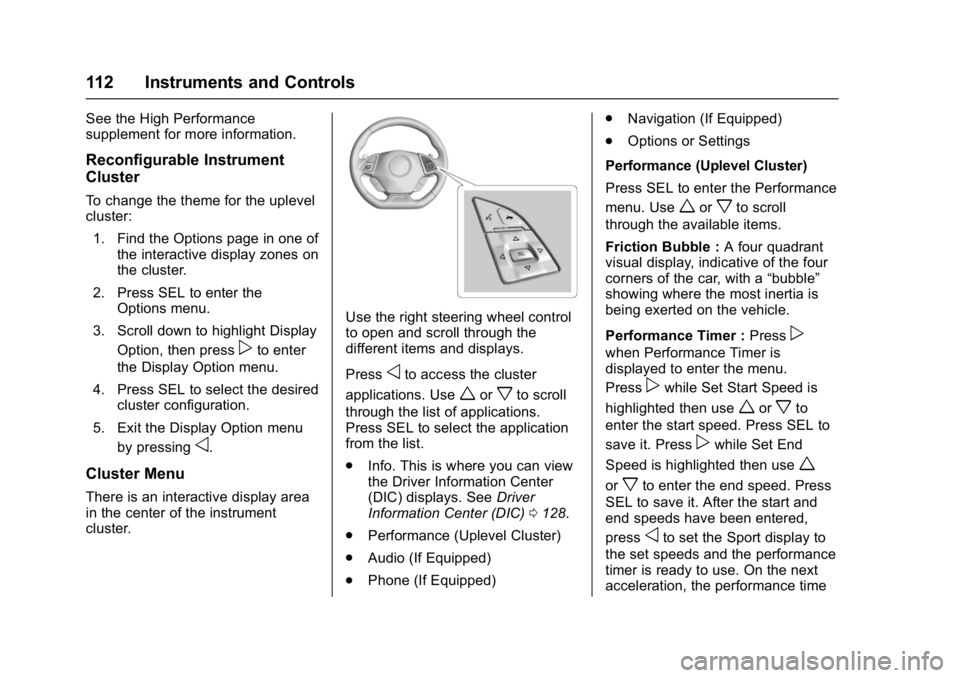
Use the right steering wheel control
to open and scroll through the
different items and displays.
Press
oto access the cluster
applications. Use
worxto scroll
through the list of applications.
Press SEL to select the application
from the list.
. Info. This is where you can view
the Driver Information Center
(DIC) displays. See Driver
Information Center (DIC) 0128.
. Performance (Uplevel Cluster)
. Audio (If Equipped)
. Phone (If Equipped) .
Navigation (If Equipped)
. Options or Settings
Performance (Uplevel Cluster)
Press SEL to enter the Performance
menu. Use
worxto scroll
through the available items.
Friction Bubble : A four quadrant
visual display, indicative of the four
corners of the car, with a “bubble”
showing where the most inertia is
being exerted on the vehicle.
Performance Timer : Press
p
when Performance Timer is
displayed to enter the menu.
Press
pwhile Set Start Speed is
highlighted then use
worxto
enter the start speed. Press SEL to
save it. Press
pwhile Set End
Speed is highlighted then use
w
orxto enter the end speed. Press
SEL to save it. After the start and
end speeds have been entered,
press
oto set the Sport display to
the set speeds and the performance
timer is ready to use. On the next
acceleration, the performance time
Page 114 of 391
Chevrolet Camaro Owner Manual (GMNA-Localizing-U.S./Canada/Mexico-
9804281) - 2017 - crc - 4/25/16
Instruments and Controls 113
will record the time. To reset the
timer, highlight Reset on the
performance timer menu and
press SEL.
G-Force :Gives the driver an
indication of the vehicle
performance in cornering. The
G-force is displayed in the center of
the DIC as a numerical value.
Lap Timer : Use to start, stop,
or reset the lap timer. A stopwatch
icon will be displayed when the lap
timer is active. Press SEL while the
Lap Timer page is active to start the
timer. If the lamp timer is active,
pressing SEL on any page will stop
the current lap timer and start a new
lap. Also, pressing and holding SEL
on any page will stop the lap timer.
Oil Temperature : Shows the
current oil temperature in either
degrees Celsius (°C) or degrees
Fahrenheit (°F).
Oil Pressure : Shows the current oil
pressure in either kilopascal (kPa) or
in pounds per square inch (psi). Transmission Fluid
Temperature :
Shows the
temperature of the transmission fluid
in either degrees Celsius (°C) or
degrees Fahrenheit (°F).
Audio
If equipped, while the audio app is
open, use
worxto change the
radio station or seek to the next or
previous track, depending on the
current audio source. Press
pto
enter the Audio menu. In the Audio
menu browse for music, select from
the favorites, or change the audio
source.
Phone
If equipped, press
pto enter the
Phone menu. In the Phone menu,
if there is no active phone call, view
recent calls, or scroll through
contacts. If there is an active call,
mute or unmute the phone or switch
to handset or hands-free operation. Navigation
If equipped, press
pto enter the
Navigation menu. This displays a
map or turn by turn directions.
If there is no active route, press
p
to resume the last route and turn the
voice prompts on/off. If there is an
active route, press SEL to cancel
route guidance or turn the voice
prompts on/off.
Options or Settings
Press SEL to enter the Options or
Settings menu. Use
worxto
scroll through items in the menu.
Units : Press
pwhile Units is
displayed to enter the Units menu.
Choose US or Metric units by
pressing SEL while the desired item
is highlighted.
Speed Warning : The Speed
Warning display allows the driver to
set a speed that they do not want to
exceed. To set the Speed Warning,
press
pwhen Speed Warning is
displayed. Enable the speed
warning and then use
worxto
Page 115 of 391

Chevrolet Camaro Owner Manual (GMNA-Localizing-U.S./Canada/Mexico-
9804281) - 2017 - crc - 4/25/16
114 Instruments and Controls
adjust the value. Press SEL to set
the speed. Once the speed is set,
this feature can be turned off by
pressing SEL while viewing this
page. If the selected speed limit is
exceeded, a pop-up warning is
displayed with a chime.
Display Option (Uplevel) :Press
SEL while Display Option is
highlighted to change the
configuration of the uplevel cluster.
See “Reconfigurable Instrument
Cluster” earlier in this section.
Info Pages : Press
pwhile Info
Pages is highlighted to select the
items to be displayed in the DIC info
displays. See Driver Information
Center (DIC) 0128.
Software Info : Press
pwhile
Software Info is highlighted to
display open source software
information.
Speedometer
The speedometer shows the
vehicle's speed in either kilometers
per hour (km/h) or miles per
hour (mph).
Odometer
The odometer shows how far the
vehicle has been driven, in either
kilometers or miles.
Trip Odometer
The trip odometer shows how far
the vehicle has been driven since
the trip odometer was last reset.
The trip odometer is accessed and
reset through the Driver Information
Center (DIC). See Driver
Information Center (DIC) 0128.
Tachometer
The tachometer displays the engine
speed in revolutions per
minute (rpm).
Caution
If the engine is operated with the
rpm’s in the warning area at the
high end of the tachometer, the
vehicle could be damaged, and
the damage would not be covered
(Continued)
Caution (Continued)
by the vehicle warranty. Do not
operate the engine with the rpm’s
in the warning area.
Fuel Gauge
Metric Base Level Cluster
Page 117 of 391
Chevrolet Camaro Owner Manual (GMNA-Localizing-U.S./Canada/Mexico-
9804281) - 2017 - crc - 4/25/16
116 Instruments and Controls
English
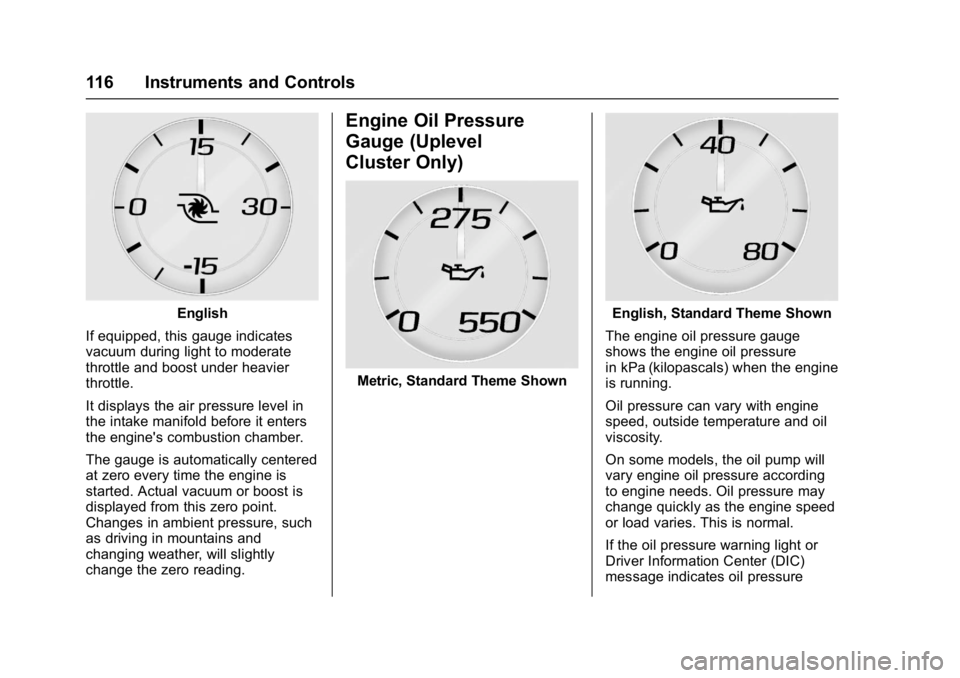
If equipped, this gauge indicates
vacuum during light to moderate
throttle and boost under heavier
throttle.
It displays the air pressure level in
the intake manifold before it enters
the engine's combustion chamber.
The gauge is automatically centered
at zero every time the engine is
started. Actual vacuum or boost is
displayed from this zero point.
Changes in ambient pressure, such
as driving in mountains and
changing weather, will slightly
change the zero reading.
Engine Oil Pressure
Gauge (Uplevel
Cluster Only)
Metric, Standard Theme Shown
English, Standard Theme Shown
The engine oil pressure gauge
shows the engine oil pressure
in kPa (kilopascals) when the engine
is running.
Oil pressure can vary with engine
speed, outside temperature and oil
viscosity.
On some models, the oil pump will
vary engine oil pressure according
to engine needs. Oil pressure may
change quickly as the engine speed
or load varies. This is normal.
If the oil pressure warning light or
Driver Information Center (DIC)
message indicates oil pressure
Page 122 of 391
Chevrolet Camaro Owner Manual (GMNA-Localizing-U.S./Canada/Mexico-
9804281) - 2017 - crc - 4/25/16
Instruments and Controls 121
Charging System Light
The charging system light comes on
briefly when the ignition is turned
on, but the engine is not running, as
a check to show the light is working.
It should go out when the engine is
started.
If the light stays on or comes on
while driving, there may be a
problem with the electrical charging
system. Have it checked by your
dealer. Driving while this light is on
could drain the battery.
When this light comes on, the Driver
Information Center (DIC) also
displays a message. SeeBattery
Voltage and Charging
Messages 0135.
If a short distance must be driven
with the light on, be sure to turn off
all accessories, such as the radio
and air conditioner.
Malfunction Indicator
Lamp (Check Engine
Light)
This light is part of the vehicle’s
emission control on-board
diagnostic system. If this light is on
while the engine is running, a
malfunction has been detected and
the vehicle may require service. The
light should come on to show that it
is working when the ignition is in
Service Only Mode. See Ignition
Positions 0216.
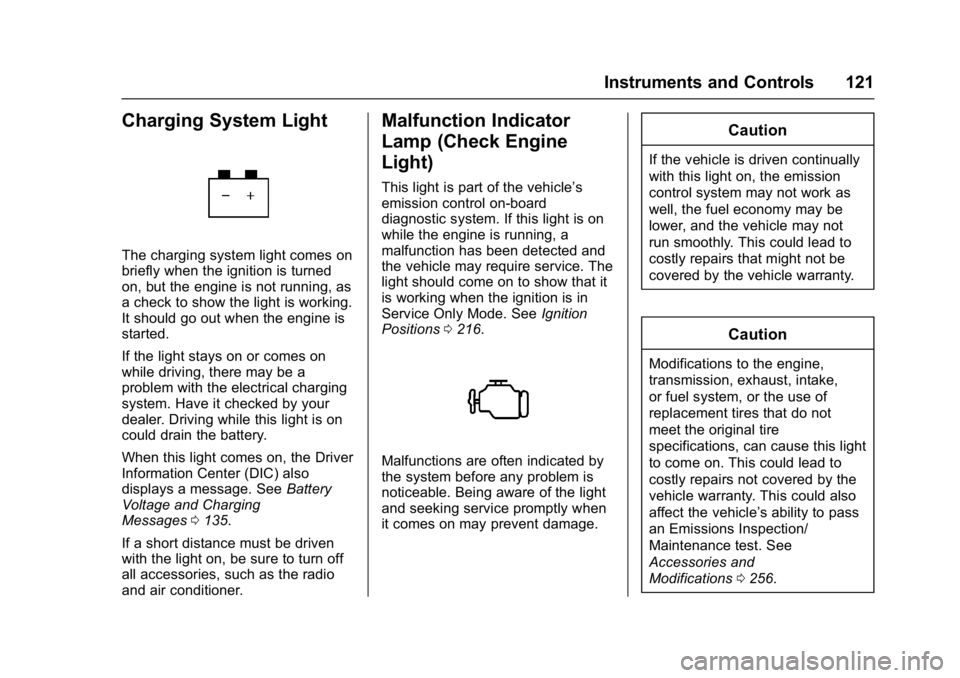
Malfunctions are often indicated by
the system before any problem is
noticeable. Being aware of the light
and seeking service promptly when
it comes on may prevent damage.
Caution
If the vehicle is driven continually
with this light on, the emission
control system may not work as
well, the fuel economy may be
lower, and the vehicle may not
run smoothly. This could lead to
costly repairs that might not be
covered by the vehicle warranty.
Caution
Modifications to the engine,
transmission, exhaust, intake,
or fuel system, or the use of
replacement tires that do not
meet the original tire
specifications, can cause this light
to come on. This could lead to
costly repairs not covered by the
vehicle warranty. This could also
affect the vehicle’s ability to pass
an Emissions Inspection/
Maintenance test. See
Accessories and
Modifications 0256.
Page 124 of 391
Chevrolet Camaro Owner Manual (GMNA-Localizing-U.S./Canada/Mexico-
9804281) - 2017 - crc - 4/25/16
Instruments and Controls 123
before the system is ready for
inspection. This can happen if
the 12-volt battery has recently
been replaced or run down, or if
the vehicle has been recently
serviced.
See your dealer if the vehicle will
not pass or cannot be made ready
for the test.
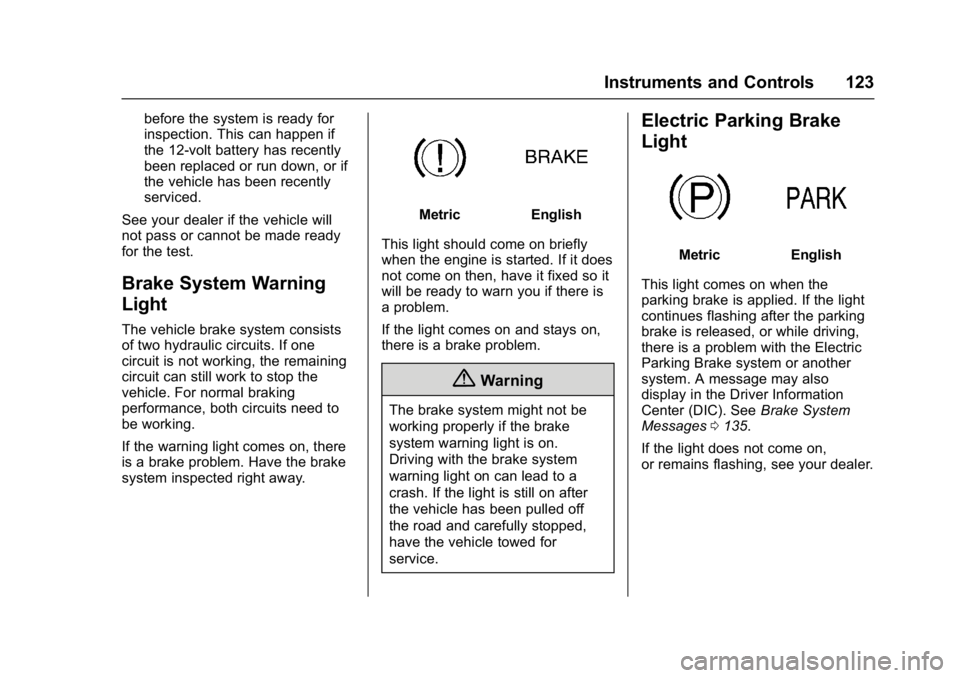
Brake System Warning
Light
The vehicle brake system consists
of two hydraulic circuits. If one
circuit is not working, the remaining
circuit can still work to stop the
vehicle. For normal braking
performance, both circuits need to
be working.
If the warning light comes on, there
is a brake problem. Have the brake
system inspected right away.
MetricEnglish
This light should come on briefly
when the engine is started. If it does
not come on then, have it fixed so it
will be ready to warn you if there is
a problem.
If the light comes on and stays on,
there is a brake problem.
{Warning
The brake system might not be
working properly if the brake
system warning light is on.
Driving with the brake system
warning light on can lead to a
crash. If the light is still on after
the vehicle has been pulled off
the road and carefully stopped,
have the vehicle towed for
service.
Electric Parking Brake
Light
MetricEnglish
This light comes on when the
parking brake is applied. If the light
continues flashing after the parking
brake is released, or while driving,
there is a problem with the Electric
Parking Brake system or another
system. A message may also
display in the Driver Information
Center (DIC). See Brake System
Messages 0135.
If the light does not come on,
or remains flashing, see your dealer.