Home CHEVROLET CAPTIVA SPORT 2014 Infotainment System Guide
[x] Cancel search | Manufacturer: CHEVROLET, Model Year: 2014, Model line: CAPTIVA SPORT, Model: CHEVROLET CAPTIVA SPORT 2014Pages: 92, PDF Size: 0.7 MB
Page 21 of 92
Black plate (21,1)Chevrolet Captiva Sport Infotainment System (GMNA-Localizing-US/Canada-
6225549) - 2014 - 2nd crc - 9/16/13
Infotainment System 21
2. Use one of the following tolaunch:
.Press Pandora on the
Home Page.
.PressJ/0and say
“Pandora” or“Play
Pandora.”
.Press the SRCE button and
select from the source
ribbon of options.
If nothing happens when the
available Pandora screen button is
pressed, download the latest
Pandora application to the device
and retry. Also, verify you are in a
good signal area.
Launch Using a BlackBerry Phone
The phone must be unlocked. To
launch Pandora service:
1. Pair the BlackBerry phone using Bluetooth. 2. Use one of the following to
launch:
.Press Pandora on the
Home Page.
.PressJ/0and say
“Pandora” or“Tune
Pandora.”
.Press the SRCE button and
select from the source
ribbon of options.
If nothing happens when the
available Pandora screen button is
pressed, download the latest
Pandora application to the device
and retry. Also, verify you are in a
good signal area.
If the “Please See Device” message
is shown, the login screen may
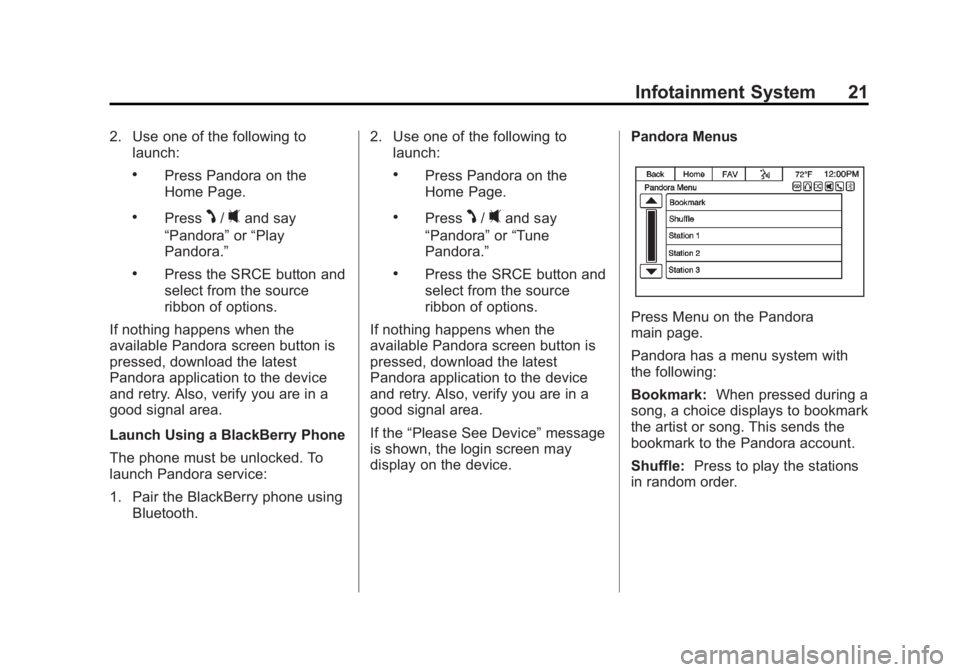
display on the device. Pandora Menus
Press Menu on the Pandora
main page.
Pandora has a menu system with
the following:
Bookmark:
When pressed during a
song, a choice displays to bookmark
the artist or song. This sends the
bookmark to the Pandora account.
Shuffle: Press to play the stations
in random order.
Page 24 of 92
Black plate (24,1)Chevrolet Captiva Sport Infotainment System (GMNA-Localizing-US/Canada-
6225549) - 2014 - 2nd crc - 9/16/13
24 Infotainment System
See www.pandora.com/help for
more information. If the service will
not work, see your dealer for
assistance.
Stitcher Internet Radio
Stitcher
Stitcher SmartRadio is an Internet
radio service that streams news,
sports, and entertainment shows
through the audio system. Create
personalized, on-demand stations or
discover new shows through
Stitcher’s preset stations. To set up
an account, or for more information,
see www.stitcher.com. Stitcher may
be available as a worldwide Internet
service.
A phone or tablet with Internet
connection is required for this
application. Personal cell phone
data plans are used. Make sure the
latest version is installed on the
device and the volume is turned up. To install Stitcher:
.On an Android phone or Android
Tablet, go to the Google Play
Market and search for Stitcher.
Install to the phone, not to the
SD card.
.On an iPhone, iPad, or iPod
touch, go to the iTunes Store
and search for Stitcher.
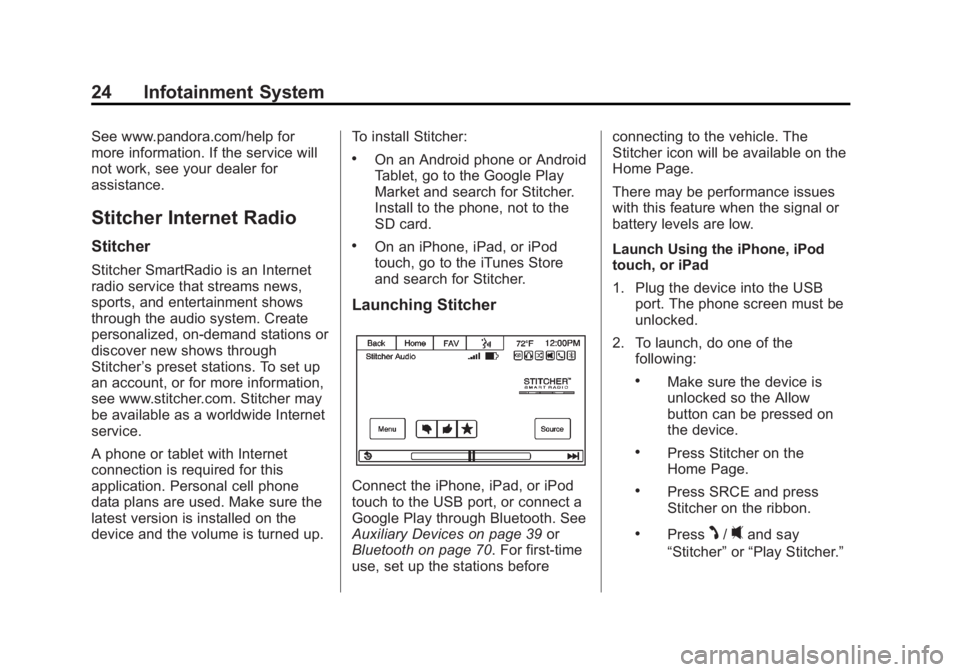
Launching Stitcher
Connect the iPhone, iPad, or iPod
touch to the USB port, or connect a
Google Play through Bluetooth. See
Auxiliary Devices on page 39
or
Bluetooth on page 70. For first-time
use, set up the stations before connecting to the vehicle. The
Stitcher icon will be available on the
Home Page.
There may be performance issues
with this feature when the signal or
battery levels are low.
Launch Using the iPhone, iPod
touch, or iPad
1. Plug the device into the USB
port. The phone screen must be
unlocked.
2. To launch, do one of the following:
.Make sure the device is
unlocked so the Allow
button can be pressed on
the device.
.Press Stitcher on the
Home Page.
.Press SRCE and press
Stitcher on the ribbon.
.PressJ/0and say
“Stitcher” or“Play Stitcher.”
Page 25 of 92
Black plate (25,1)Chevrolet Captiva Sport Infotainment System (GMNA-Localizing-US/Canada-
6225549) - 2014 - 2nd crc - 9/16/13
Infotainment System 25
To relaunch Stitcher, press the
Stitcher source again from either the
Home Page or source ribbon.
If nothing happens when the
available Stitcher screen button is
pressed, download the latest
Stitcher application to the device
and retry. Also, verify you are in a
good signal area.
Stitcher will always be highlighted
on the Home Page when an iPhone,
iPad, or iPod touch is connected
using the USB port. To use, log into
your account.
If the“Please See Device” message
is shown, the login screen may
display on the device.
Launch Using an Android Phone
1. Pair the Android phone using Bluetooth.
2. Use one of the following to launch:
.Press Stitcher on the
Home Page.
.Press SRCE and press
Stitcher on the ribbon.
.PressJ/0and say
“Stitcher” or“Play Stitcher.”
After Stitcher has been launched,
press the Stitcher icon to access
Stitcher features.
If nothing happens when the
available Stitcher screen button is
pressed, download the latest
Stitcher application to the device
and retry. Also, verify you are in a
good signal area.
If the “Please See Device” message
is shown, the login screen may
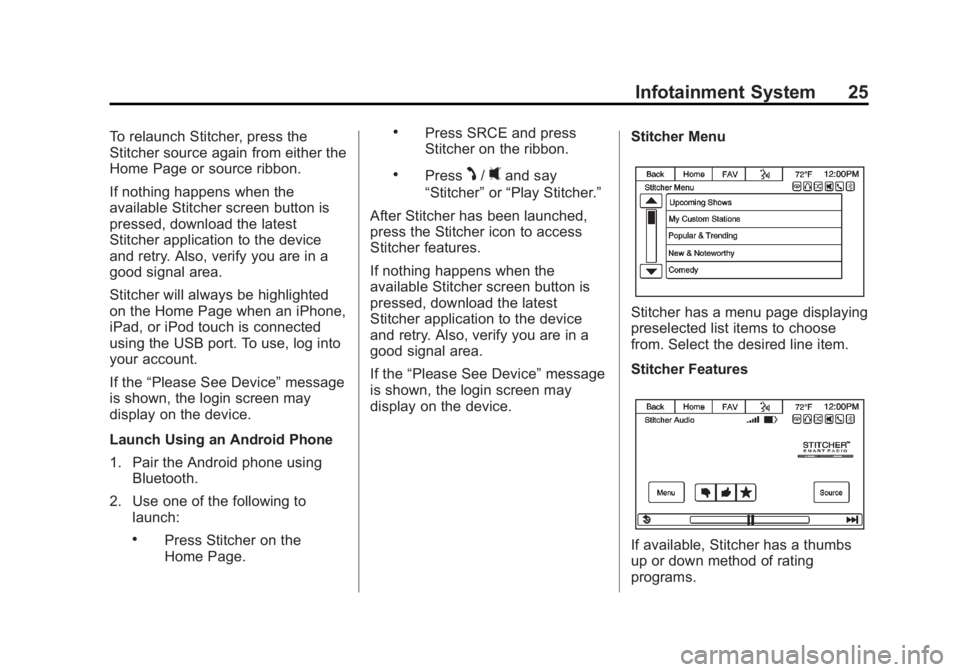
display on the device. Stitcher Menu
Stitcher has a menu page displaying
preselected list items to choose
from. Select the desired line item.
Stitcher Features
If available, Stitcher has a thumbs
up or down method of rating
programs.
Page 27 of 92
Black plate (27,1)Chevrolet Captiva Sport Infotainment System (GMNA-Localizing-US/Canada-
6225549) - 2014 - 2nd crc - 9/16/13
Infotainment System 27
.For Android devices, check that
the device is paired with the
vehicle, and the Bluetooth icon
on the display is highlighted.
.For iPhone, iPod touch, or iPad
devices, check that the USB
cable is connected to the USB
port and the screen is unlocked.
.Close Stitcher on the device and
launch again. Devices that allow
multitasking may require an
extra step to quit the Stitcher
application. See the cell phone
manufacturer's user guide.
Thumbs Up or Thumbs Down
Error
If there is an error trying to rate a
song with the
,or-buttons, the
message “Thumbs Down Error” or
“Thumbs Up Error” may display.
Press OK to retry.
Loss of Audio
Loss of Stitcher audio can happen
in different ways:
.Weak or lost data connection.
.Device needs to be charged.
.Application needs to be
relaunched.
.Connection between the phone
and radio was lost.
.If any iPhone, iPod touch,
or iPad is connected to
Bluetooth and the dock
connector, unplug the dock
connector and plug it in again.
.Volume is too low. Turn up the
volume on the device.
If the connection is lost between the
application and device, a message
“Please unlock your phone or restart
the phone app and try again” may
display. Press OK to retry.
Common Stitcher Messages
Paused or Audio Paused:
Playback is paused on the radio or
device. Press
kor play on the
radio page for Stitcher source.
No Stations Found: Logged in but
no stations have been created.
Press OK to continue. Communication Failure or
Application Unexpectedly Quit or
Network Connection Could Not
Be Established:
Communication
failure between the radio and the
phone application, or between the
phone and data connection, or the
device is locked.
See www.stitcher.com/help for more
information. If the service will not
work, see your dealer for
assistance.
Pictures
Pictures can only be viewed using
USB devices. If pictures are on an
SD card, transfer to a USB device
or use a USB-SD adapter.
A maximum 5Mb uncompressed
photo size is supported, however to
achieve this, use a 4 Megapixel or
lower resolution camera setting.
Only jpeg, bmp, gif, and png files
are supported.
1. Press the Picture Viewer screen icon on the Home Page.
Page 29 of 92
Black plate (29,1)Chevrolet Captiva Sport Infotainment System (GMNA-Localizing-US/Canada-
6225549) - 2014 - 2nd crc - 9/16/13
Infotainment System 29
difficulty in loading and ejecting.
If these problems occur, check the
disc for damage or try a known
good disc.
To avoid damage to the CD player:
.Do not use scratched or
damaged discs.
.Do not apply labels to discs. The
labels could get caught in the
player.
.Insert only one disc at a time.
.Keep the loading slot free of
foreign materials, liquids, and
debris.
.Use a marking pen to label the
top of the disc.
Loading and Ejecting Discs
To load a disc:
1. Turn the radio on.
2. Insert a disc into the slot, labelside up. The player pulls it in the
rest of the way. If the disc is damaged or improperly loaded,
an error message displays,
“Disc
error.” The disc ejects.
The disc automatically plays once
loaded.
Press
Zto eject a disc from the
CD player. If the disc is not removed
within a short period of time, it is
automatically pulled back into the
player.
Playing an Audio CD
1. Make sure the disc is inserted in the player. Press the Disc
screen icon from the Home Page
or from the SRCE/Source
banner.
2. From the CD screen, press the Menu screen button to display
the list of Tracks/Songs.
3. Press on the desired track to play. On the CD main page, a track
number displays at the beginning of
each track. Song, Artist, elapsed
time, and Album information
displays when available.
Use the following controls to select
or manipulate the desired track:
©SEEK (Previous):
.Press to seek to the beginning of
the current or previous track.
If the track has been playing for
less than eight seconds, it seeks
to the previous track. If longer
than eight seconds, the current
track starts from the beginning.
SEEK
¨(Next):
.Press to seek to the next track.
To fast forward or reverse through a
track, press the
[orrat the
bottom of the screen. Press the
Play/Pause button at the bottom of
the screen to resume play or pause
if not fast forwarding or fast
reversing.
Page 34 of 92
Black plate (34,1)Chevrolet Captiva Sport Infotainment System (GMNA-Localizing-US/Canada-
6225549) - 2014 - 2nd crc - 9/16/13
34 Infotainment System
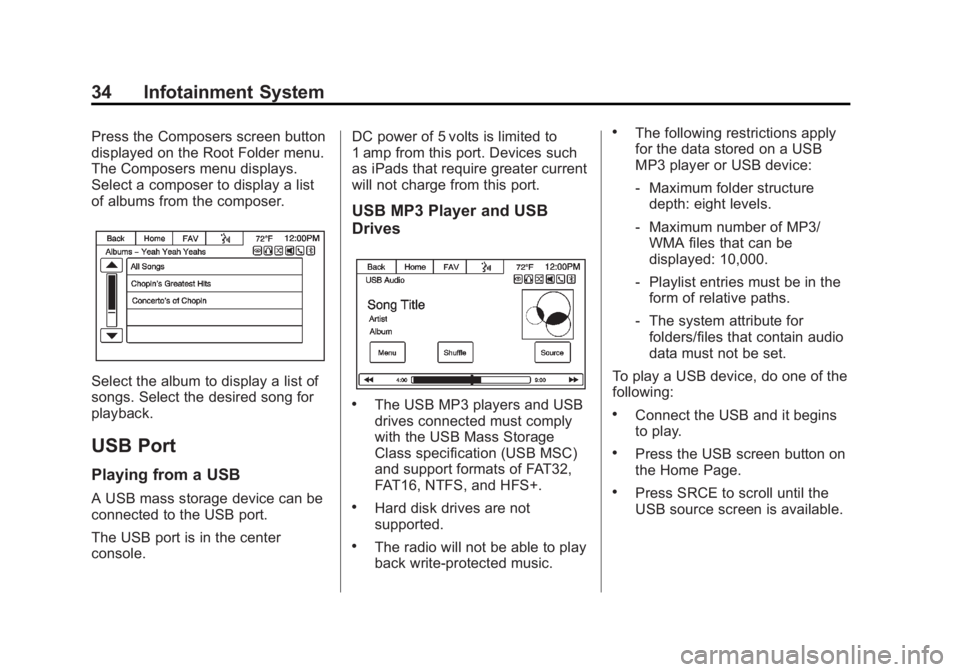
Press the Composers screen button
displayed on the Root Folder menu.
The Composers menu displays.
Select a composer to display a list
of albums from the composer.
Select the album to display a list of
songs. Select the desired song for
playback.
USB Port
Playing from a USB
A USB mass storage device can be
connected to the USB port.
The USB port is in the center
console.DC power of 5 volts is limited to
1 amp from this port. Devices such
as iPads that require greater current
will not charge from this port.
USB MP3 Player and USB
Drives
.The USB MP3 players and USB
drives connected must comply
with the USB Mass Storage
Class specification (USB MSC)
and support formats of FAT32,
FAT16, NTFS, and HFS+.
.Hard disk drives are not
supported.
.The radio will not be able to play
back write-protected music.
.The following restrictions apply
for the data stored on a USB
MP3 player or USB device:
‐
Maximum folder structure
depth: eight levels.
‐ Maximum number of MP3/
WMA files that can be
displayed: 10,000.
‐ Playlist entries must be in the
form of relative paths.
‐ The system attribute for
folders/files that contain audio
data must not be set.
To play a USB device, do one of the
following:
.Connect the USB and it begins
to play.
.Press the USB screen button on
the Home Page.
.Press SRCE to scroll until the
USB source screen is available.
Page 39 of 92
Black plate (39,1)Chevrolet Captiva Sport Infotainment System (GMNA-Localizing-US/Canada-
6225549) - 2014 - 2nd crc - 9/16/13
Infotainment System 39
Auxiliary Devices
This vehicle has an auxiliary input
jack in the front of the radio.
This jack is not an audio output. Do
not plug headphones into the
auxiliary input jack. Set up any
auxiliary device while the vehicle is
in P (Park).
The device volume may need
adjusting for good sound.
Connect a 3.5 mm (1/8 in) cable
from the auxiliary device to the
auxiliary input jack. When a device
is connected, the system
automatically begins playing audio
from the device over the vehicle
speakers.
If an auxiliary device has already
been connected, but a different
source is currently active, do one of
the following:
.Press SRCE to scroll all of the
available audio source screens,
until the AUX source screen is
selected.
.Say“Play Front AUX” using
voice recognition to play the
auxiliary device.
.Press on the Front AUX icon
through the Home Page.
Bluetooth Audio
If equipped, music may be played
from a paired Bluetooth device. See
“Pairing a New Bluetooth Device”
under Bluetooth on page 70.
Devices using AVCRP 1.3 profiles
are supported.
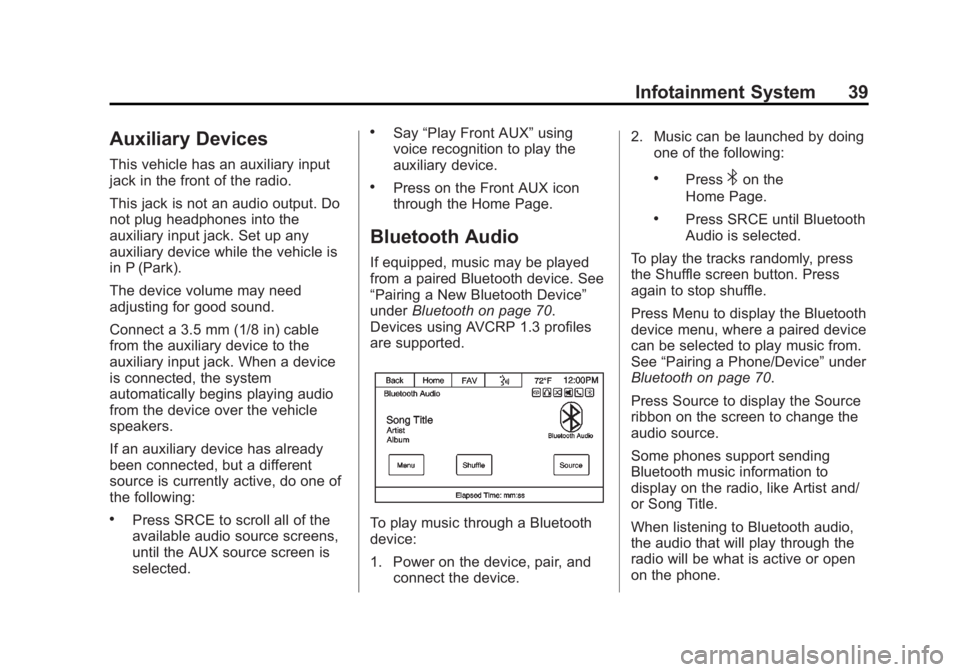
To play music through a Bluetooth
device:
1. Power on the device, pair, and connect the device. 2. Music can be launched by doing
one of the following:
.Press4on the
Home Page.
.Press SRCE until Bluetooth
Audio is selected.
To play the tracks randomly, press
the Shuffle screen button. Press
again to stop shuffle.
Press Menu to display the Bluetooth
device menu, where a paired device
can be selected to play music from.
See “Pairing a Phone/Device” under
Bluetooth on page 70.
Press Source to display the Source
ribbon on the screen to change the
audio source.
Some phones support sending
Bluetooth music information to
display on the radio, like Artist and/
or Song Title.
When listening to Bluetooth audio,
the audio that will play through the
radio will be what is active or open
on the phone.
Page 40 of 92
Black plate (40,1)Chevrolet Captiva Sport Infotainment System (GMNA-Localizing-US/Canada-
6225549) - 2014 - 2nd crc - 9/16/13
40 Infotainment System
Navigation
Using the Navigation
System
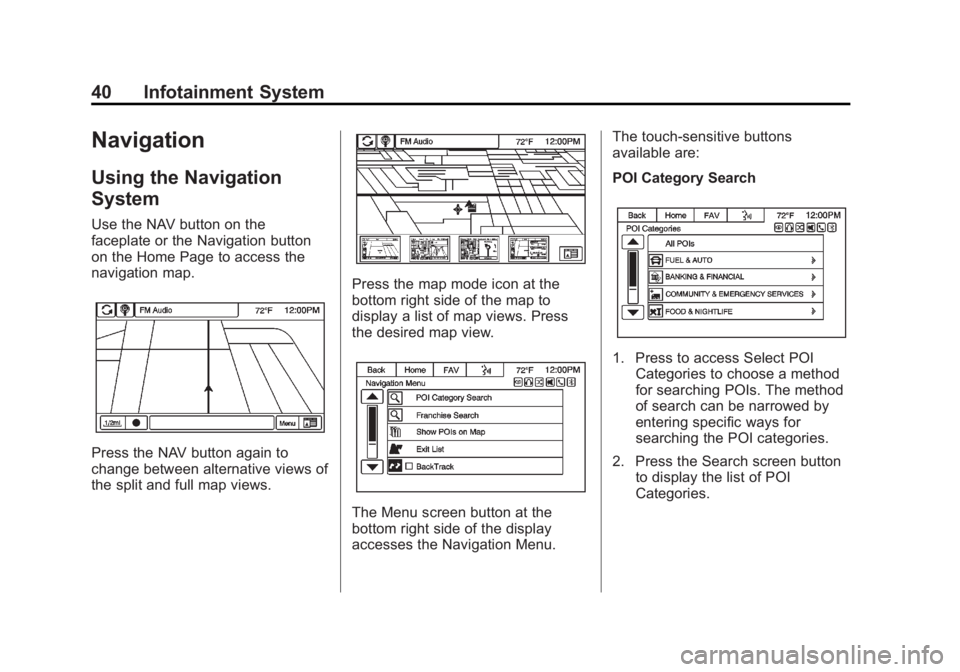
Use the NAV button on the
faceplate or the Navigation button
on the Home Page to access the
navigation map.
Press the NAV button again to
change between alternative views of
the split and full map views.
Press the map mode icon at the
bottom right side of the map to
display a list of map views. Press
the desired map view.
The Menu screen button at the
bottom right side of the display
accesses the Navigation Menu.The touch-sensitive buttons
available are:
POI Category Search
1. Press to access Select POI
Categories to choose a method
for searching POIs. The method
of search can be narrowed by
entering specific ways for
searching the POI categories.
2. Press the Search screen button to display the list of POI
Categories.
Page 42 of 92
Black plate (42,1)Chevrolet Captiva Sport Infotainment System (GMNA-Localizing-US/Canada-
6225549) - 2014 - 2nd crc - 9/16/13
42 Infotainment System
There are two methods to change
the map scale:
.Press + or−next to the map
scale button on the left bottom
corner of the map screen to
change the zoom level.
.Press the actual scale bar at the
bottom of the map to the desired
increment of zoom.
The map scale bar times out if
the zoom level is not changed
within a few seconds.
The scale can be configured for
metric or English units. To change
from metric to English or vice versa,
see “Driver Information Center
(DIC)” in the owner manual.
Scroll Features
.To scroll within the map, touch
anywhere on the map screen
and the scroll symbol displays.
.Press the map to center at the
desired location.
.Press and hold the screen in any
direction outside the scroll
symbol to scroll the map in that
direction.
.Scroll speed increases when
touching closer to the edge of
the screen.
.Press NAV on the faceplate to
exit map scrolling and return to
the current vehicle location on
the map.
Press the cycling arrows at the top
of the map screen to toggle from the
normal top bar (audio information
bar) to the Back, Home, FAV, and
local voice recognition icon.
Maps
This section includes basic
information about the map
database.
The maps are stored in the
navigation system.
Detailed Areas
Road network attributes are
contained in the map database for
detailed areas. Attributes include
information such as street names,
street addresses, and turn
restrictions. A detailed area includes
all major highways, service roads,
and residential roads. The detailed
areas include points of interest
(POIs) such as restaurants, airports,
banks, hospitals, police stations,
gas stations, tourist attractions, and
historical monuments. The map
database may not include data for
newly constructed areas or map
database corrections that are
completed after production of the
Page 44 of 92
Black plate (44,1)Chevrolet Captiva Sport Infotainment System (GMNA-Localizing-US/Canada-
6225549) - 2014 - 2nd crc - 9/16/13
44 Infotainment System
Press this screen symbol to change
to 3D mode.
The 3D symbol is the same as the
Heading up symbol, but the map is
in 3D.
Press this again to change back to
the North up symbol.
The No GPS symbol appears when
there is no Global Positioning
System (GPS) satellite signal.
The Map Mode icon at the bottom of
a map screen brings up the map
modes pop-up screen.
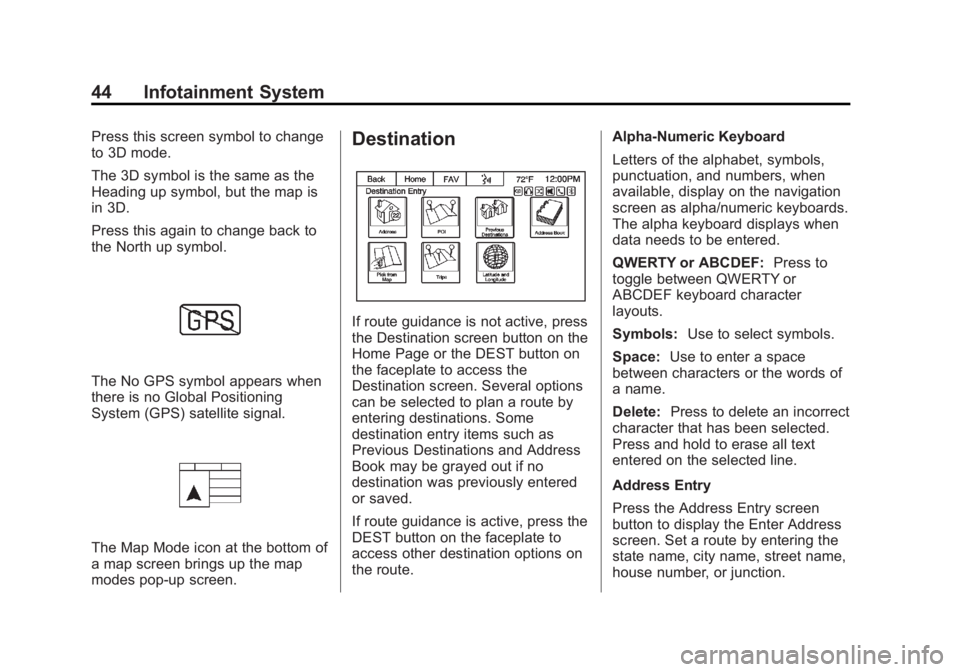
Destination
If route guidance is not active, press
the Destination screen button on the
Home Page or the DEST button on
the faceplate to access the
Destination screen. Several options
can be selected to plan a route by
entering destinations. Some
destination entry items such as
Previous Destinations and Address
Book may be grayed out if no
destination was previously entered
or saved.
If route guidance is active, press the
DEST button on the faceplate to
access other destination options on
the route.Alpha-Numeric Keyboard
Letters of the alphabet, symbols,
punctuation, and numbers, when
available, display on the navigation
screen as alpha/numeric keyboards.
The alpha keyboard displays when
data needs to be entered.
QWERTY or ABCDEF:
Press to
toggle between QWERTY or
ABCDEF keyboard character
layouts.
Symbols: Use to select symbols.
Space: Use to enter a space
between characters or the words of
a name.
Delete: Press to delete an incorrect
character that has been selected.
Press and hold to erase all text
entered on the selected line.
Address Entry
Press the Address Entry screen
button to display the Enter Address
screen. Set a route by entering the
state name, city name, street name,
house number, or junction.