buttons CHEVROLET CAPTIVA SPORT 2014 Infotainment System Guide
[x] Cancel search | Manufacturer: CHEVROLET, Model Year: 2014, Model line: CAPTIVA SPORT, Model: CHEVROLET CAPTIVA SPORT 2014Pages: 92, PDF Size: 0.7 MB
Page 31 of 92
Black plate (31,1)Chevrolet Captiva Sport Infotainment System (GMNA-Localizing-US/Canada-
6225549) - 2014 - 2nd crc - 9/16/13
Infotainment System 31
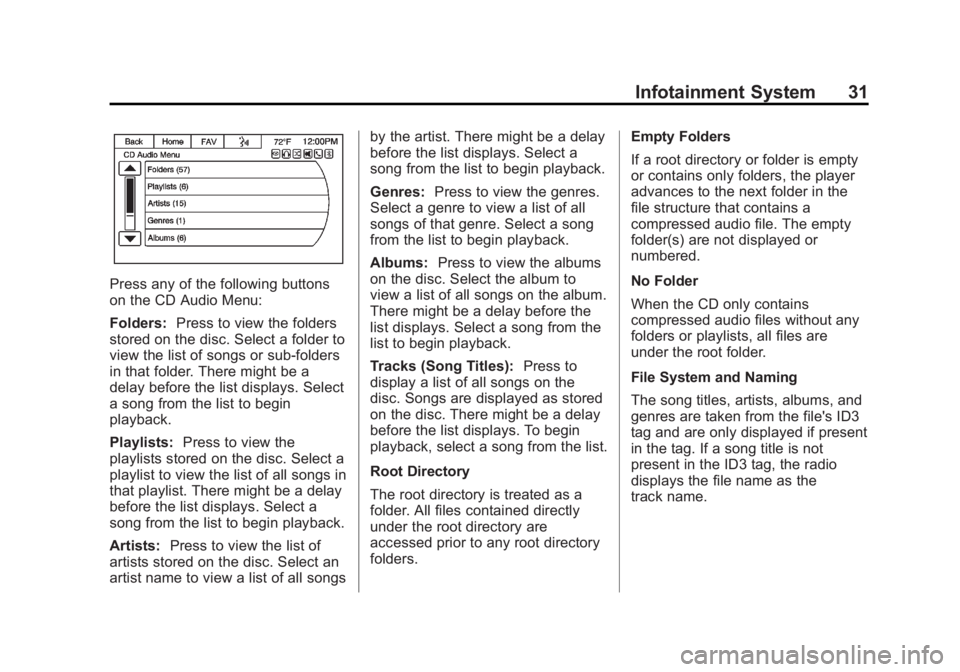
Press any of the following buttons
on the CD Audio Menu:
Folders:Press to view the folders
stored on the disc. Select a folder to
view the list of songs or sub-folders
in that folder. There might be a
delay before the list displays. Select
a song from the list to begin
playback.
Playlists: Press to view the
playlists stored on the disc. Select a
playlist to view the list of all songs in
that playlist. There might be a delay
before the list displays. Select a
song from the list to begin playback.
Artists: Press to view the list of
artists stored on the disc. Select an
artist name to view a list of all songs by the artist. There might be a delay
before the list displays. Select a
song from the list to begin playback.
Genres:
Press to view the genres.
Select a genre to view a list of all
songs of that genre. Select a song
from the list to begin playback.
Albums: Press to view the albums
on the disc. Select the album to
view a list of all songs on the album.
There might be a delay before the
list displays. Select a song from the
list to begin playback.
Tracks (Song Titles): Press to
display a list of all songs on the
disc. Songs are displayed as stored
on the disc. There might be a delay
before the list displays. To begin
playback, select a song from the list.
Root Directory
The root directory is treated as a
folder. All files contained directly
under the root directory are
accessed prior to any root directory
folders. Empty Folders
If a root directory or folder is empty
or contains only folders, the player
advances to the next folder in the
file structure that contains a
compressed audio file. The empty
folder(s) are not displayed or
numbered.
No Folder
When the CD only contains
compressed audio files without any
folders or playlists, all files are
under the root folder.
File System and Naming
The song titles, artists, albums, and
genres are taken from the file's ID3
tag and are only displayed if present
in the tag. If a song title is not
present in the ID3 tag, the radio
displays the file name as the
track name.
Page 40 of 92
Black plate (40,1)Chevrolet Captiva Sport Infotainment System (GMNA-Localizing-US/Canada-
6225549) - 2014 - 2nd crc - 9/16/13
40 Infotainment System
Navigation
Using the Navigation
System
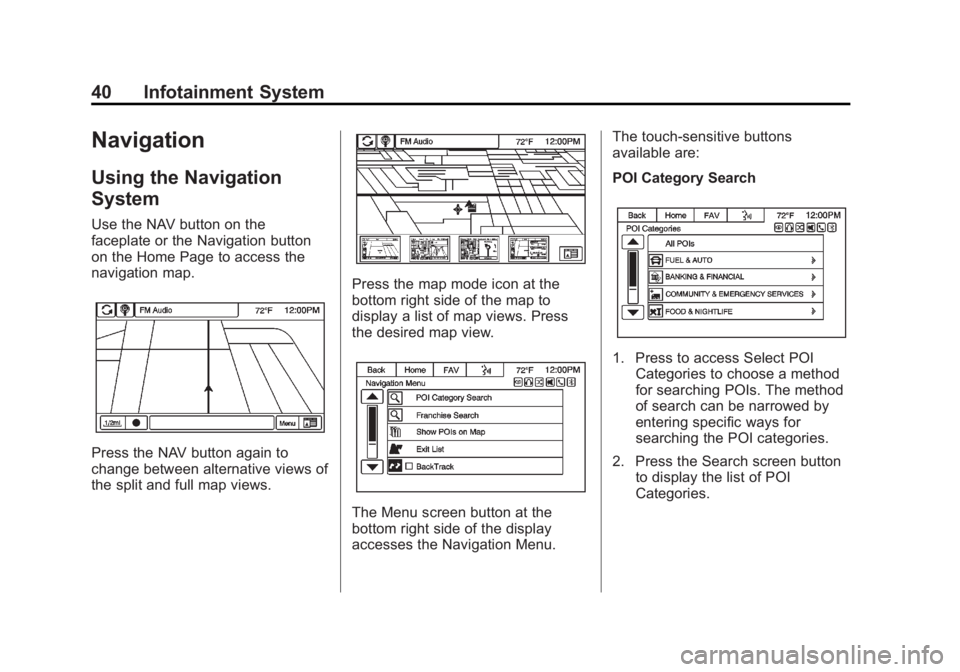
Use the NAV button on the
faceplate or the Navigation button
on the Home Page to access the
navigation map.
Press the NAV button again to
change between alternative views of
the split and full map views.
Press the map mode icon at the
bottom right side of the map to
display a list of map views. Press
the desired map view.
The Menu screen button at the
bottom right side of the display
accesses the Navigation Menu.The touch-sensitive buttons
available are:
POI Category Search
1. Press to access Select POI
Categories to choose a method
for searching POIs. The method
of search can be narrowed by
entering specific ways for
searching the POI categories.
2. Press the Search screen button to display the list of POI
Categories.
Page 53 of 92
Black plate (53,1)Chevrolet Captiva Sport Infotainment System (GMNA-Localizing-US/Canada-
6225549) - 2014 - 2nd crc - 9/16/13
Infotainment System 53
Driving on a Route
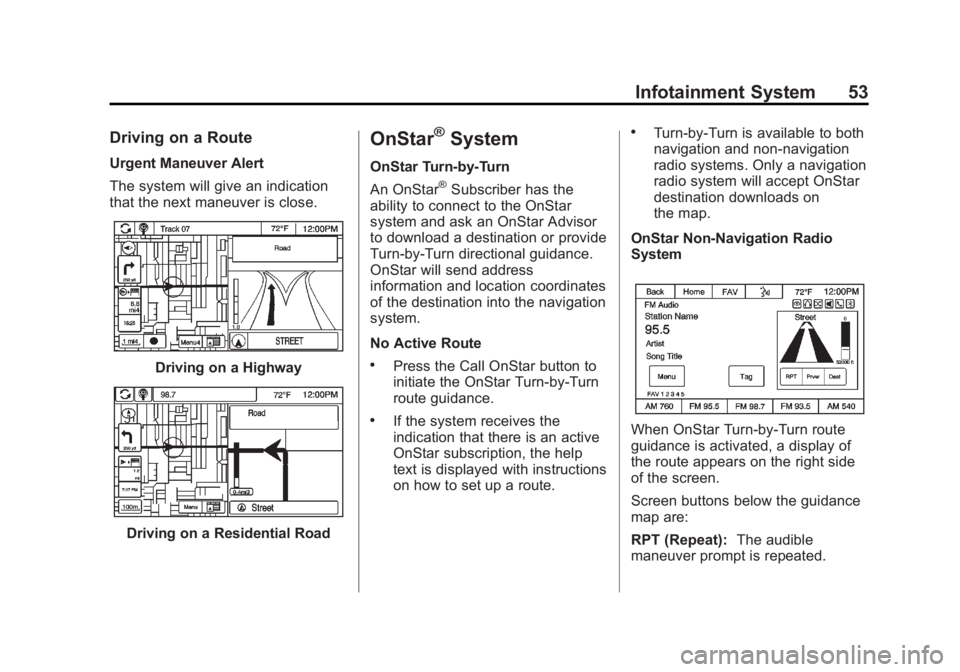
Urgent Maneuver Alert
The system will give an indication
that the next maneuver is close.
Driving on a Highway
Driving on a Residential Road
OnStar®System
OnStar Turn-by-Turn
An OnStar
®Subscriber has the
ability to connect to the OnStar
system and ask an OnStar Advisor
to download a destination or provide
Turn-by-Turn directional guidance.
OnStar will send address
information and location coordinates
of the destination into the navigation
system.
No Active Route
.Press the Call OnStar button to
initiate the OnStar Turn-by-Turn
route guidance.
.If the system receives the
indication that there is an active
OnStar subscription, the help
text is displayed with instructions
on how to set up a route.
.Turn-by-Turn is available to both
navigation and non-navigation
radio systems. Only a navigation
radio system will accept OnStar
destination downloads on
the map.
OnStar Non-Navigation Radio
System
When OnStar Turn-by-Turn route
guidance is activated, a display of
the route appears on the right side
of the screen.
Screen buttons below the guidance
map are:
RPT (Repeat): The audible
maneuver prompt is repeated.
Page 63 of 92
Black plate (63,1)Chevrolet Captiva Sport Infotainment System (GMNA-Localizing-US/Canada-
6225549) - 2014 - 2nd crc - 9/16/13
Infotainment System 63
Voice Recognition
Voice recognition allows for
hands-free operation within the
audio and phone applications. This
feature can be started by pressing
either the
J/0button on the
steering wheel or the voice
recognition icon on the touch screen
display.
However, not all features within
these areas are supported by voice
commands. Generally, only complex
tasks that require multiple manual
interactions to complete are
supported by voice commands.
For example, tasks that take more
than one or two button presses such
as selecting a song or artist to play
from a media device would be
supported by voice commands.
Other tasks, like adjusting the
volume or seeking up or down are
audio features that are easily
performed by pressing one or two
buttons, and are not supported by
voice commands. Most voice commands, except for
voice keypad, can be completed in
a single command. If the task takes
more than one command to
complete, the first command would
be to indicate the kind of task that is
to be performed. The system will
reply, prompting dialog to help
speak the necessary information.
Voice recognition can be used when
the ignition is on or when Retained
Accessory Power (RAP) is active.
See
“Retained Accessory Power
(RAP)” in the owner manual.
Using Voice Recognition
Voice recognition becomes available
once the system has been
initialized. Initialization takes place
when the ignition is turned on. This
may take a few moments.
1. Press
J/0on the steering
wheel control to activate voice
recognition, or press the voice recognition icon on the
infotainment touch screen on the
radio.
.If voice recognition is
started, the lists and
controls are verbal and the
visual displays through the
radio. The commands may
then be touched or spoken.
2. The audio system mutes and the system plays a prompt followed
by a beep.
3. Wait until after the beep completes, then clearly speak
one of the commands described
in this section.
Press
J/0to interrupt any
voice recognition. This will
terminate the prompt. The beep
is heard immediately, and a
command can be stated without
having to wait.
Page 64 of 92
Black plate (64,1)Chevrolet Captiva Sport Infotainment System (GMNA-Localizing-US/Canada-
6225549) - 2014 - 2nd crc - 9/16/13
64 Infotainment System
There are two voice prompt modes
supported:
.Long verbal prompts: The longer
prompts provide more
information regarding the
supported actions for that voice
recognition session.
.Short prompts: The short
prompts provide simple setup
and action commands.
The voice prompt modes can be
changed in the Voice Recognition
Menu from the Settings icon on the
Home Page.
If a command is not heard during a
short period of time, the voice
recognition process times out. Prompts and Screen Displays
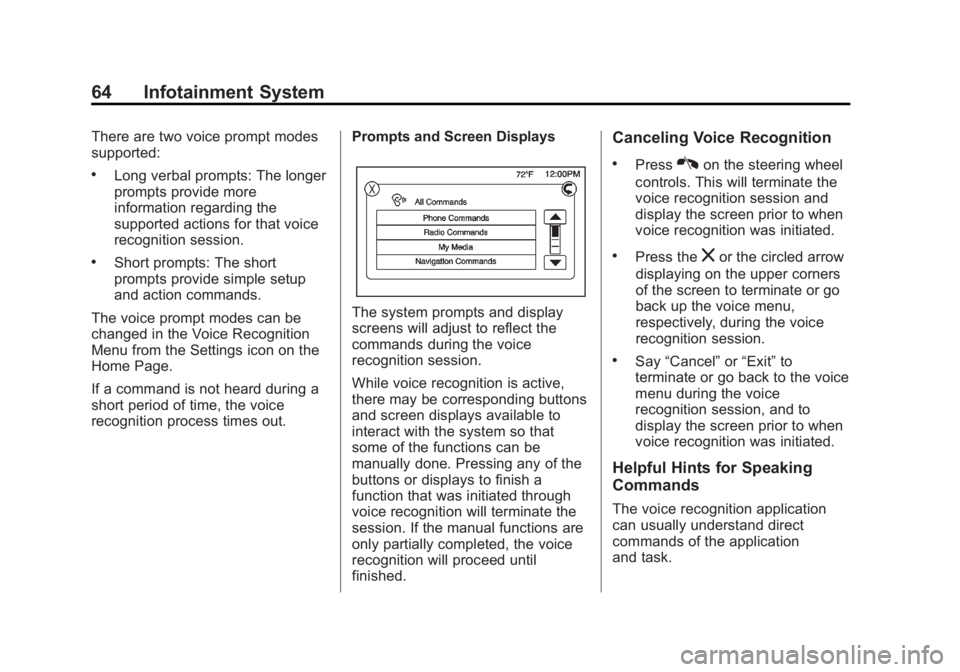
The system prompts and display
screens will adjust to reflect the
commands during the voice
recognition session.
While voice recognition is active,
there may be corresponding buttons
and screen displays available to
interact with the system so that
some of the functions can be
manually done. Pressing any of the
buttons or displays to finish a
function that was initiated through
voice recognition will terminate the
session. If the manual functions are
only partially completed, the voice
recognition will proceed until
finished.
Canceling Voice Recognition
.PressKon the steering wheel
controls. This will terminate the
voice recognition session and
display the screen prior to when
voice recognition was initiated.
.Press thezor the circled arrow
displaying on the upper corners
of the screen to terminate or go
back up the voice menu,
respectively, during the voice
recognition session.
.Say “Cancel” or“Exit” to
terminate or go back to the voice
menu during the voice
recognition session, and to
display the screen prior to when
voice recognition was initiated.
Helpful Hints for Speaking
Commands
The voice recognition application
can usually understand direct
commands of the application
and task.
Page 71 of 92
Black plate (71,1)Chevrolet Captiva Sport Infotainment System (GMNA-Localizing-US/Canada-
6225549) - 2014 - 2nd crc - 9/16/13
Infotainment System 71
To minimize driver distraction,
before driving, and with the vehicle
parked:
.Become familiar with the
features of the cell phone.
Organize the phone book and
contact lists clearly and delete
duplicate or rarely used entries.
If possible, program speed dial
or other shortcuts.
.Review the controls and
operation of the infotainment
system.
.Pair cell phone(s) to the vehicle.
The system may not work with
all cell phones. See“Pairing”in
this section.
.See “Deleting a Paired Phone”
in this section.
{Warning
When using a cell phone, it can
be distracting to look too long or
too often at the screen of the
phone or the infotainment system.
Taking your eyes off the road too
long or too often could cause a
crash resulting in injury or death.
Focus your attention on driving.
Vehicles with a Bluetooth system
can use a Bluetooth-capable cell
phone with a Hands-Free Profile to
make and receive phone calls. The
infotainment system and voice
recognition are used to control the
system. The system can be used
while in ON/RUN or ACC/
ACCESSORY. The range of the
Bluetooth system can be up to 9.1 m
(30 ft). Not all phones support all
functions and not all phones work
with the Bluetooth system. See
www.gm.com/bluetooth for more
information about compatible
phones.
Bluetooth Controls
Use the buttons on the infotainment
system and the steering wheel to
operate the Bluetooth system.
Steering Wheel Controls
b/g(Mute/Push to Talk):
.Press to answer incoming calls,
confirm system information, and
start voice recognition.
.Press and hold to mute the
radio.
Infotainment System Controls
For information about how to
navigate the menu system using the
infotainment controls, see Overview
on page 4.
Using Voice Recognition
The voice recognition system uses
commands to control the system
and dial phone numbers.
To use voice recognition, press
b
/gon the steering wheel.
Page 79 of 92
Black plate (79,1)Chevrolet Captiva Sport Infotainment System (GMNA-Localizing-US/Canada-
6225549) - 2014 - 2nd crc - 9/16/13
Infotainment System 79
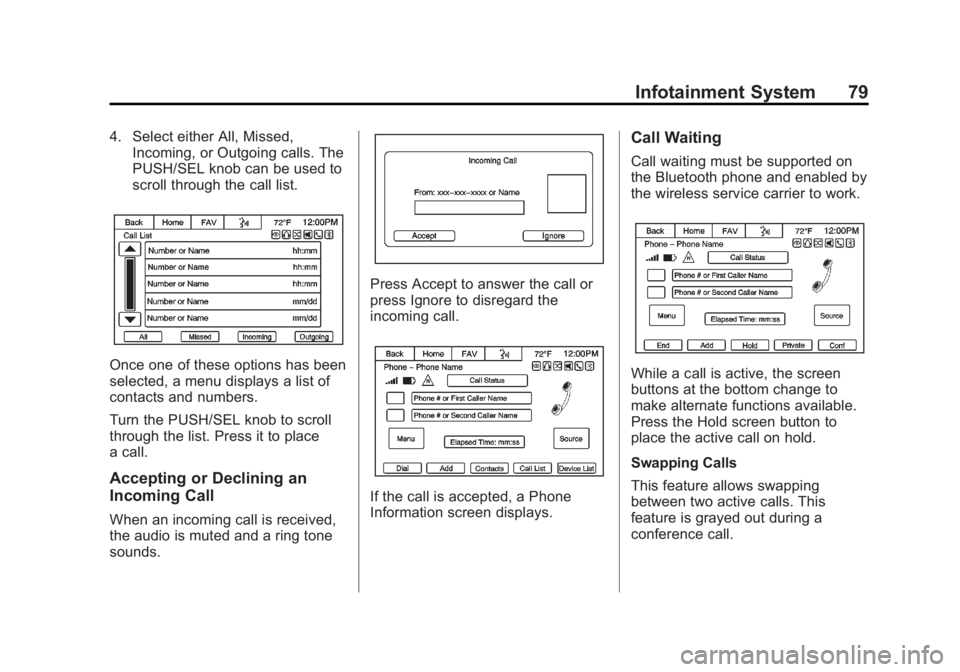
4. Select either All, Missed,Incoming, or Outgoing calls. The
PUSH/SEL knob can be used to
scroll through the call list.
Once one of these options has been
selected, a menu displays a list of
contacts and numbers.
Turn the PUSH/SEL knob to scroll
through the list. Press it to place
a call.
Accepting or Declining an
Incoming Call
When an incoming call is received,
the audio is muted and a ring tone
sounds.
Press Accept to answer the call or
press Ignore to disregard the
incoming call.
If the call is accepted, a Phone
Information screen displays.
Call Waiting
Call waiting must be supported on
the Bluetooth phone and enabled by
the wireless service carrier to work.
While a call is active, the screen
buttons at the bottom change to
make alternate functions available.
Press the Hold screen button to
place the active call on hold.
Swapping Calls
This feature allows swapping
between two active calls. This
feature is grayed out during a
conference call.