change time CHEVROLET CAPTIVA SPORT 2014 Infotainment System Guide
[x] Cancel search | Manufacturer: CHEVROLET, Model Year: 2014, Model line: CAPTIVA SPORT, Model: CHEVROLET CAPTIVA SPORT 2014Pages: 92, PDF Size: 0.7 MB
Page 65 of 92
Black plate (65,1)Chevrolet Captiva Sport Infotainment System (GMNA-Localizing-US/Canada-
6225549) - 2014 - 2nd crc - 9/16/13
Infotainment System 65
An example of a direct command
would be,“Phone.”The system may
answer with a prompt of, “Say Call
followed by the number or contact
name.” The direct command for this
task would be, “Call 555-1212.”
If the phone number has been
saved as a name or place, the direct
command would be, “Call David’s
office number.”
Directed Dialog
A directed dialog is an interaction
between a person speaking the
command and the system prompting
for specific information necessary to
complete the task. Many times the
system may repeat what the person
has stated as a command. This is
done as a confirmation to make
sure the command is understood.
Voice Recognition for the
Radio
All audio screens have a voice
recognition button to launch an
audio voice recognition session.
If browsing the radio when the voice button is pressed, the voice
recognition screens for radio
display.
The following list shows radio
features that are controllable by
voice recognition commands.
A voice recognition command would
have to include all necessary
instructions for the system to carry
out each command:
help:
Voice control help for radio
functionality.
tune FM: Most recently tuned FM
station.
tune AM: Most recently tuned AM
station.
tune XM: Most recently tuned
SiriusXM channel.
tune FM
radio frequency.
tune AM
radio frequency. tune XM
Listen to an
SiriusXM channel (by number).
tune XM
to an SiriusXM channel (by name).
Pandora Commands
For each voice recognition
command, tap the
b/gbutton on
the steering wheel or on the screen
to direct the stated commands. An
example of a simple direct
command is, “Play Pandora.”
[please / I want [you] to / I would
like to / I wanna / I’d like to] (tune
[to] / play / goto / change to)
([station] / [favorite])
system to call the Pandora
application up on the paired,
connected phone device. Playback
begins where it left off, unless the
station called is instructed
differently.
bookmark song: Instructs the
system to save the selected song
for later recall.
Page 73 of 92
Black plate (73,1)Chevrolet Captiva Sport Infotainment System (GMNA-Localizing-US/Canada-
6225549) - 2014 - 2nd crc - 9/16/13
Infotainment System 73
4. When a device is discovered,the screen changes to the
pairing screen. If the Bluetooth
device does not connect to the
radio within 60 seconds, the
screen times out, returns to the
Bluetooth Device List, and
cancels the discoverable
process.
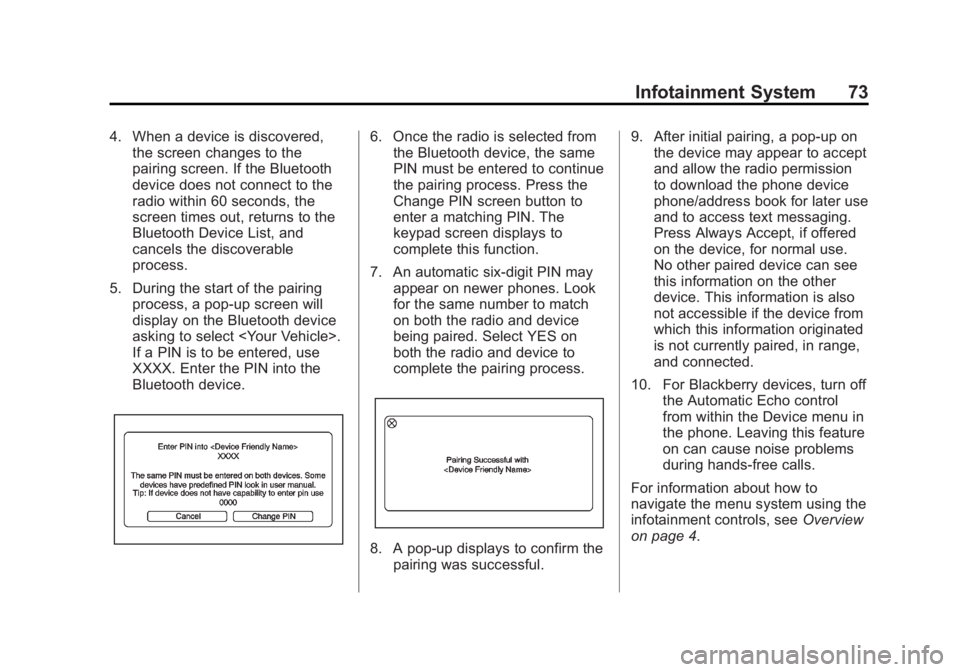
5. During the start of the pairing process, a pop-up screen will
display on the Bluetooth device
asking to select
If a PIN is to be entered, use
XXXX. Enter the PIN into the
Bluetooth device.6. Once the radio is selected fromthe Bluetooth device, the same
PIN must be entered to continue
the pairing process. Press the
Change PIN screen button to
enter a matching PIN. The
keypad screen displays to
complete this function.
7. An automatic six-digit PIN may appear on newer phones. Look
for the same number to match
on both the radio and device
being paired. Select YES on
both the radio and device to
complete the pairing process.
8. A pop-up displays to confirm thepairing was successful. 9. After initial pairing, a pop-up on
the device may appear to accept
and allow the radio permission
to download the phone device
phone/address book for later use
and to access text messaging.
Press Always Accept, if offered
on the device, for normal use.
No other paired device can see
this information on the other
device. This information is also
not accessible if the device from
which this information originated
is not currently paired, in range,
and connected.
10. For Blackberry devices, turn off the Automatic Echo control
from within the Device menu in
the phone. Leaving this feature
on can cause noise problems
during hands-free calls.
For information about how to
navigate the menu system using the
infotainment controls, see Overview
on page 4.
Page 74 of 92
Black plate (74,1)Chevrolet Captiva Sport Infotainment System (GMNA-Localizing-US/Canada-
6225549) - 2014 - 2nd crc - 9/16/13
74 Infotainment System
Pairing
A Bluetooth-enabled cell phone
must be paired to the Bluetooth
system and then connected to the
vehicle before it can be used. See
your cell phone manufacturer's user
guide for Bluetooth functions before
pairing the cell phone. If a Bluetooth
phone is not connected, calls can
be made using OnStar Hands-Free
Calling, if available. See“OnStar”in
the owner manual.
Pairing Information
.Up to 10 cell phones can be
paired to the Bluetooth system.
Up to a total of 10,000 phone
contacts and numbers can be
stored across 10 paired phones.
.The system will attempt to
connect to the last known
connected device if multiple
paired devices are in range of
the system.
.The pairing process is disabled
when the vehicle is moving.
.Pairing only needs to be
completed once, unless the
pairing information on the cell
phone changes or the cell phone
is deleted from the system.
.Only one paired cell phone can
be connected to the Bluetooth
system at a time.
.If multiple paired cell phones are
within range of the system, the
system connects to the first
available paired cell phone in the
order that they were last
connected. The radio will
attempt to connect to the last
connected device to the system.
To link to a different paired
phone, see “Connecting to a
Different Phone” later in this
section.
Pairing a Phone
Pairing is not allowed while the
vehicle is in motion.
1. Select Settings from the Home Page, or say, “Pair Phone”after
starting a voice recognition
session. 2. Select Bluetooth Device List.
3. Select New Device (Phone).
A four or six-digit Personal
Identification Number (PIN)
appears on the display.
4. Start the pairing process on the cell phone to be paired to the
vehicle. See the cell phone
manufacturer's user guide for
information on this process.
5. Locate the vehicle named in the list on the cell phone. Follow the
instructions on the cell phone to
enter and confirm the PIN
provided in Step 3. After the PIN
is entered, the system prompts
you to indicate pairing is
successful. The name of the
paired device depends on the
device and how it is set up. The
radio will automatically use the
vehicle name. The system
responds with “
has been successfully paired”
after the pairing process is
complete.
Page 86 of 92
Black plate (86,1)Chevrolet Captiva Sport Infotainment System (GMNA-Localizing-US/Canada-
6225549) - 2014 - 2nd crc - 9/16/13
86 Infotainment System
Text Messaging Settings
Text Messaging settings are
available from the Settings Home
Page icon.
.Select Text Message Options
from the Settings menu list.
.Select Incoming Text Alert from
the Text Message Options menu
list to enable/disable the new
incoming message display
pop-up and alert sound.
.Select Append Text Signature
from the Text Message Options
menu list to enable/disable the
vehicle signature appended to
messages sent from the radio
("Sent from my
Trademarks and
License Agreements
FCC Information
See“Radio Frequency Statement”
in the owner manual.
“Made for iPod” and“Made for
iPhone” mean that an electronic
accessory has been designed to
connect specifically to iPod or
iPhone and has been certified by
the developer to meet Apple
performance standards.
iPod and iPhone are trademarks of
Apple Computer, Inc., registered in
the U.S. and other countries.
Fees and Taxes: Subscription fee,
taxes, one time activation fee, and
other fees may apply. Subscription
fee is consumer only. All fees and
programming subject to change.
Subscriptions subject to Customer
Agreement available at
www.siriusxm.com. SiriusXM
®
service only available in the
48 contiguous United States.
Explicit Language Notice: Channels
with frequent explicit language are
indicated with an “XL”preceding the
channel name. Channel blocking is
available for SiriusXM Satellite
Radio receivers by notifying
SiriusXM:
.USA Customers: See
www.siriusxm.com or call
1-866-635-2349.