navigation CHEVROLET CAPTIVA SPORT 2014 Infotainment System Guide
[x] Cancel search | Manufacturer: CHEVROLET, Model Year: 2014, Model line: CAPTIVA SPORT, Model: CHEVROLET CAPTIVA SPORT 2014Pages: 92, PDF Size: 0.7 MB
Page 43 of 92
Black plate (43,1)Chevrolet Captiva Sport Infotainment System (GMNA-Localizing-US/Canada-
6225549) - 2014 - 2nd crc - 9/16/13
Infotainment System 43
system. The navigation system
provides full route guidance in the
detailed map areas.
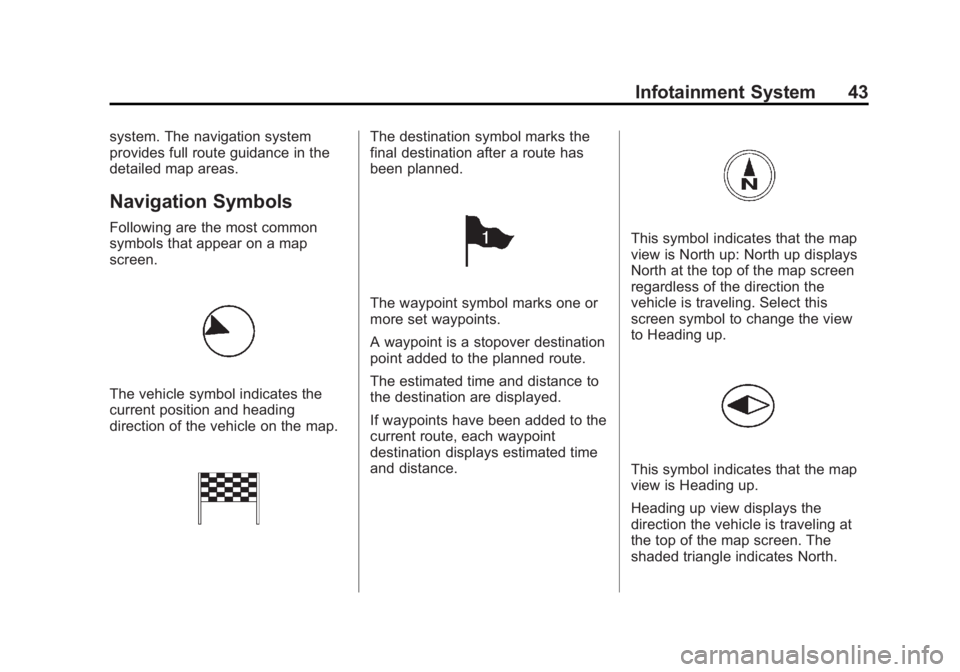
Navigation Symbols
Following are the most common
symbols that appear on a map
screen.
The vehicle symbol indicates the
current position and heading
direction of the vehicle on the map.
The destination symbol marks the
final destination after a route has
been planned.
The waypoint symbol marks one or
more set waypoints.
A waypoint is a stopover destination
point added to the planned route.
The estimated time and distance to
the destination are displayed.
If waypoints have been added to the
current route, each waypoint
destination displays estimated time
and distance.
This symbol indicates that the map
view is North up: North up displays
North at the top of the map screen
regardless of the direction the
vehicle is traveling. Select this
screen symbol to change the view
to Heading up.
This symbol indicates that the map
view is Heading up.
Heading up view displays the
direction the vehicle is traveling at
the top of the map screen. The
shaded triangle indicates North.
Page 44 of 92
Black plate (44,1)Chevrolet Captiva Sport Infotainment System (GMNA-Localizing-US/Canada-
6225549) - 2014 - 2nd crc - 9/16/13
44 Infotainment System
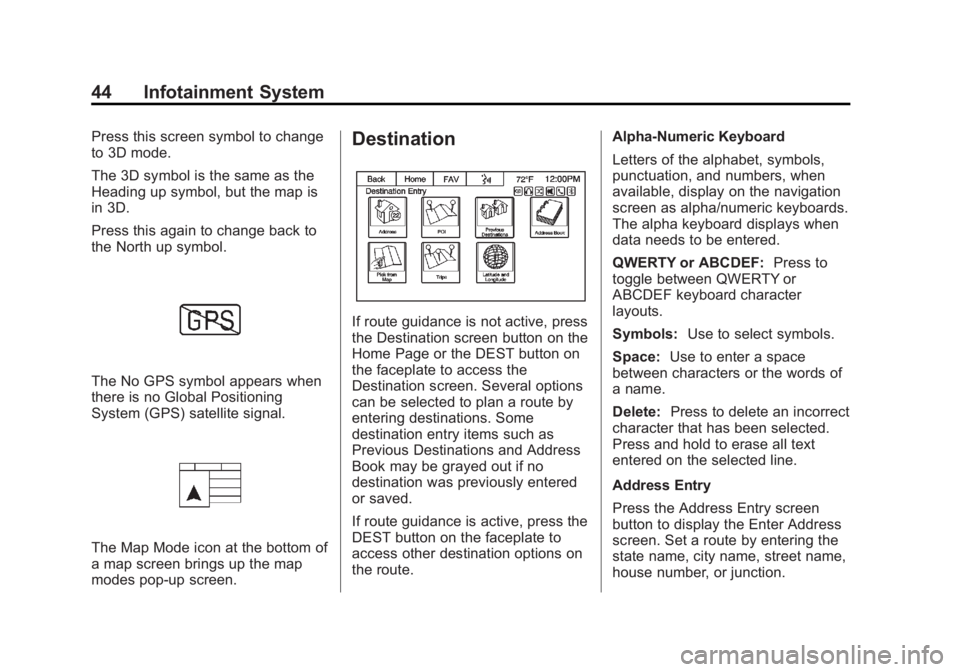
Press this screen symbol to change
to 3D mode.
The 3D symbol is the same as the
Heading up symbol, but the map is
in 3D.
Press this again to change back to
the North up symbol.
The No GPS symbol appears when
there is no Global Positioning
System (GPS) satellite signal.
The Map Mode icon at the bottom of
a map screen brings up the map
modes pop-up screen.
Destination
If route guidance is not active, press
the Destination screen button on the
Home Page or the DEST button on
the faceplate to access the
Destination screen. Several options
can be selected to plan a route by
entering destinations. Some
destination entry items such as
Previous Destinations and Address
Book may be grayed out if no
destination was previously entered
or saved.
If route guidance is active, press the
DEST button on the faceplate to
access other destination options on
the route.Alpha-Numeric Keyboard
Letters of the alphabet, symbols,
punctuation, and numbers, when
available, display on the navigation
screen as alpha/numeric keyboards.
The alpha keyboard displays when
data needs to be entered.
QWERTY or ABCDEF:
Press to
toggle between QWERTY or
ABCDEF keyboard character
layouts.
Symbols: Use to select symbols.
Space: Use to enter a space
between characters or the words of
a name.
Delete: Press to delete an incorrect
character that has been selected.
Press and hold to erase all text
entered on the selected line.
Address Entry
Press the Address Entry screen
button to display the Enter Address
screen. Set a route by entering the
state name, city name, street name,
house number, or junction.
Page 49 of 92
Black plate (49,1)Chevrolet Captiva Sport Infotainment System (GMNA-Localizing-US/Canada-
6225549) - 2014 - 2nd crc - 9/16/13
Infotainment System 49
4. Press the Start Trip screenbutton. The route calculates.
Deleting a trip:
Current routes must be canceled
before deleting a trip.
1. Press the Home Page Destination icon or DEST
faceplate button to display the
Trips screen button.
2. Press this button to display the list of available trips.
3. Select the trip to be deleted.
4. Press Edit Trip.
5. Press Delete Trip.
Changing the trip name:
1. Press the Home Page Destination or DEST faceplate
button to display the Trips
screen button. Press this button
to display the list of available
trips. Select the trip to edit.
2. Press Edit Trip.
3. Select Edit Name. 4. Using the keypad, enter
the name.
5. Press OK. The new name will be in the Trips List.
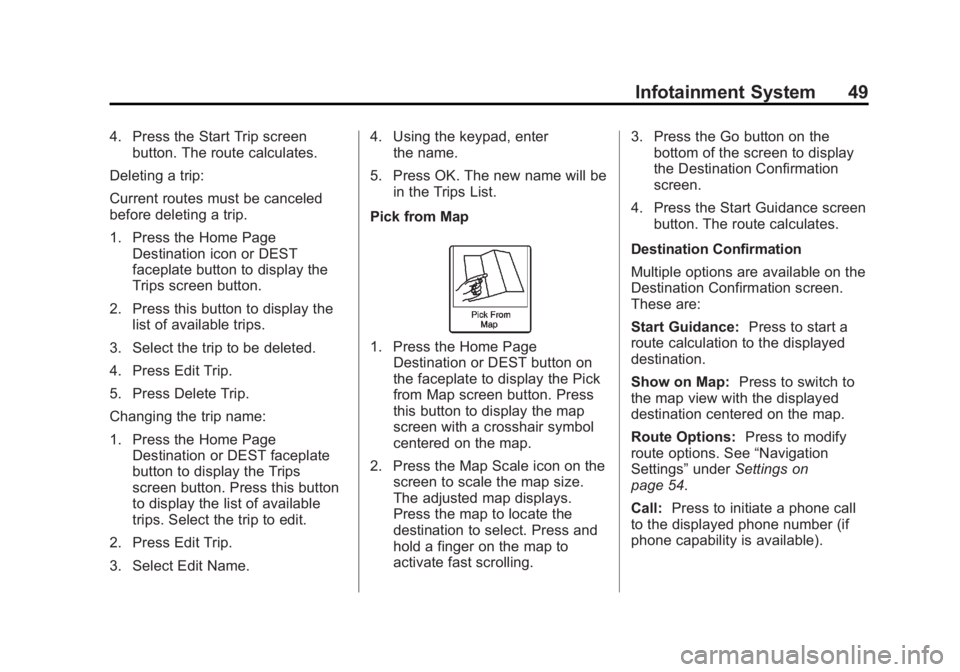
Pick from Map
1. Press the Home Page Destination or DEST button on
the faceplate to display the Pick
from Map screen button. Press
this button to display the map
screen with a crosshair symbol
centered on the map.
2. Press the Map Scale icon on the screen to scale the map size.
The adjusted map displays.
Press the map to locate the
destination to select. Press and
hold a finger on the map to
activate fast scrolling. 3. Press the Go button on the
bottom of the screen to display
the Destination Confirmation
screen.
4. Press the Start Guidance screen button. The route calculates.
Destination Confirmation
Multiple options are available on the
Destination Confirmation screen.
These are:
Start Guidance: Press to start a
route calculation to the displayed
destination.
Show on Map: Press to switch to
the map view with the displayed
destination centered on the map.
Route Options: Press to modify
route options. See “Navigation
Settings” underSettings on
page 54.
Call: Press to initiate a phone call
to the displayed phone number (if
phone capability is available).
Page 50 of 92
Black plate (50,1)Chevrolet Captiva Sport Infotainment System (GMNA-Localizing-US/Canada-
6225549) - 2014 - 2nd crc - 9/16/13
50 Infotainment System
Save:Press to save the displayed
destination into the address book.
If the displayed destination is
already stored in the address book,
Edit will show as the menu item.
Save as Home: Press to save the
displayed destination as your home
destination. The home destination
will be stored at the top of the list of
destinations in the address book.
Route Preview: Press to preview
the selected route on the map.
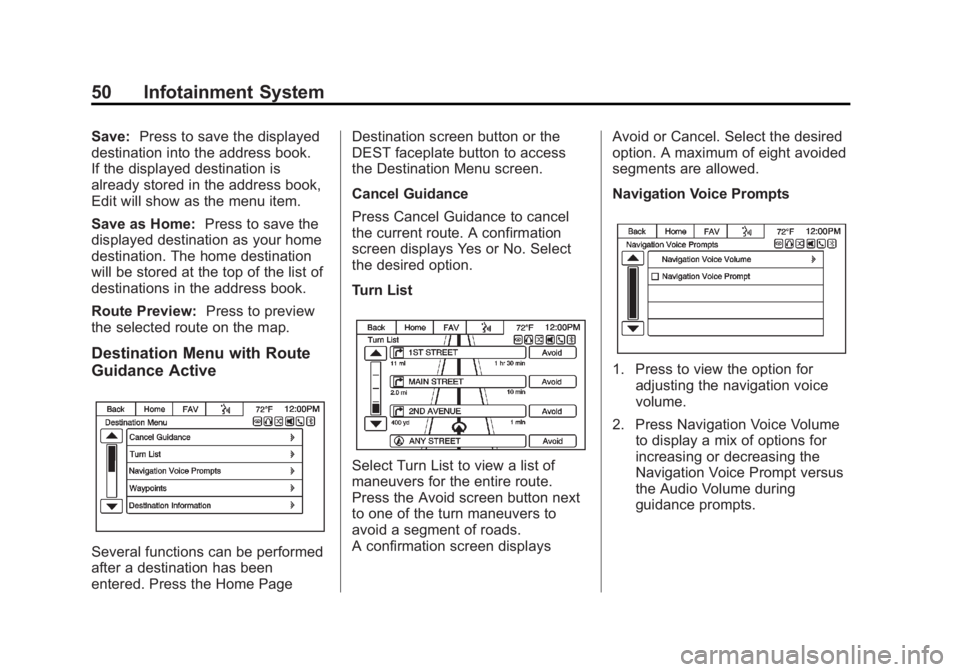
Destination Menu with Route
Guidance Active
Several functions can be performed
after a destination has been
entered. Press the Home Page Destination screen button or the
DEST faceplate button to access
the Destination Menu screen.
Cancel Guidance
Press Cancel Guidance to cancel
the current route. A confirmation
screen displays Yes or No. Select
the desired option.
Turn List
Select Turn List to view a list of
maneuvers for the entire route.
Press the Avoid screen button next
to one of the turn maneuvers to
avoid a segment of roads.
A confirmation screen displays
Avoid or Cancel. Select the desired
option. A maximum of eight avoided
segments are allowed.
Navigation Voice Prompts
1. Press to view the option for
adjusting the navigation voice
volume.
2. Press Navigation Voice Volume to display a mix of options for
increasing or decreasing the
Navigation Voice Prompt versus
the Audio Volume during
guidance prompts.
Page 52 of 92
Black plate (52,1)Chevrolet Captiva Sport Infotainment System (GMNA-Localizing-US/Canada-
6225549) - 2014 - 2nd crc - 9/16/13
52 Infotainment System
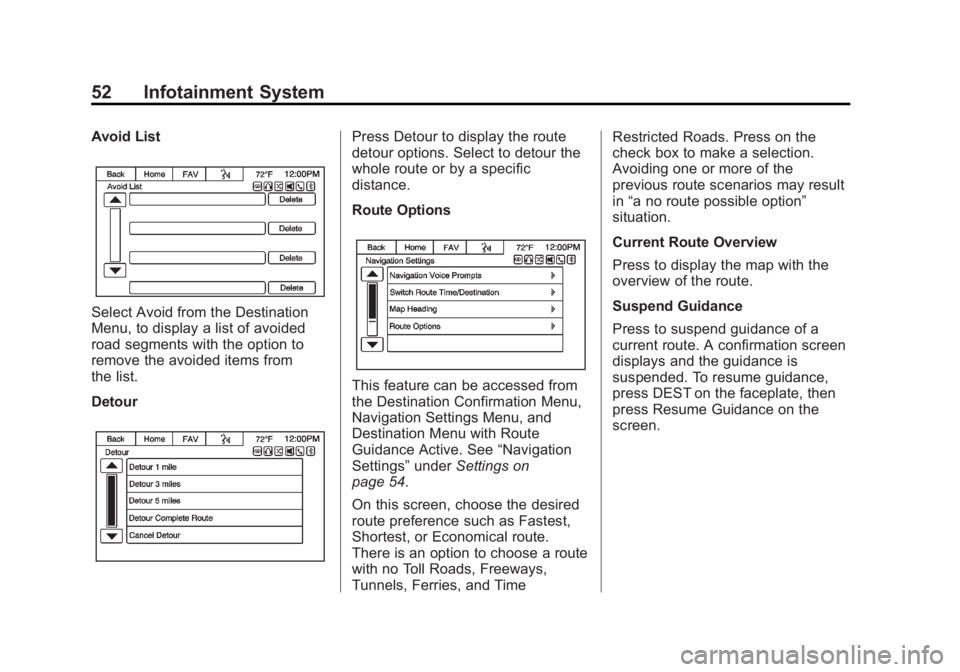
Avoid List
Select Avoid from the Destination
Menu, to display a list of avoided
road segments with the option to
remove the avoided items from
the list.
Detour
Press Detour to display the route
detour options. Select to detour the
whole route or by a specific
distance.
Route Options
This feature can be accessed from
the Destination Confirmation Menu,
Navigation Settings Menu, and
Destination Menu with Route
Guidance Active. See“Navigation
Settings” underSettings on
page 54.
On this screen, choose the desired
route preference such as Fastest,
Shortest, or Economical route.
There is an option to choose a route
with no Toll Roads, Freeways,
Tunnels, Ferries, and Time Restricted Roads. Press on the
check box to make a selection.
Avoiding one or more of the
previous route scenarios may result
in
“a no route possible option”
situation.
Current Route Overview
Press to display the map with the
overview of the route.
Suspend Guidance
Press to suspend guidance of a
current route. A confirmation screen
displays and the guidance is
suspended. To resume guidance,
press DEST on the faceplate, then
press Resume Guidance on the
screen.
Page 53 of 92
Black plate (53,1)Chevrolet Captiva Sport Infotainment System (GMNA-Localizing-US/Canada-
6225549) - 2014 - 2nd crc - 9/16/13
Infotainment System 53
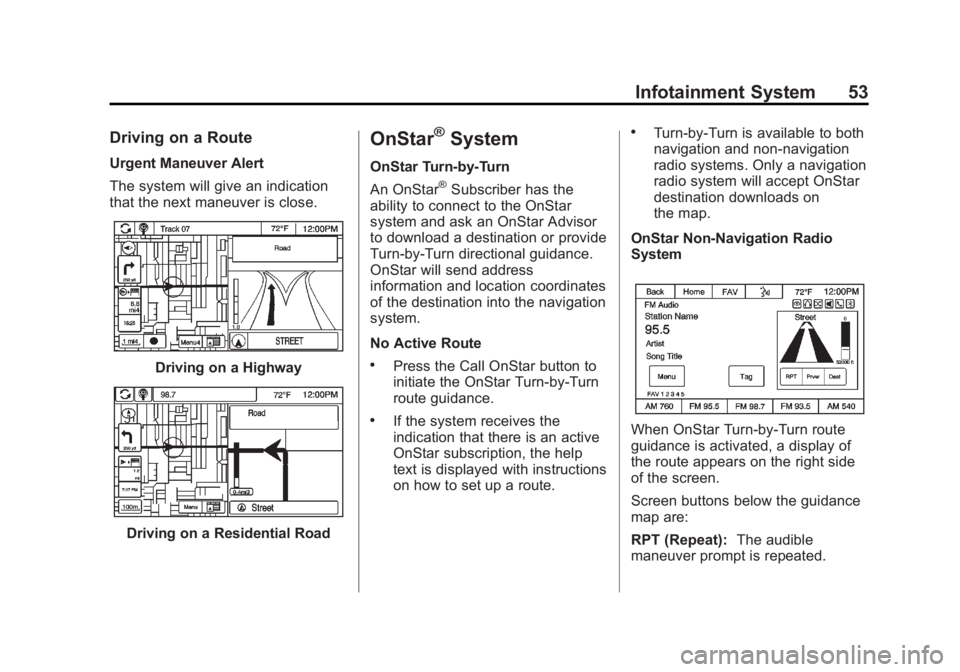
Driving on a Route
Urgent Maneuver Alert
The system will give an indication
that the next maneuver is close.
Driving on a Highway
Driving on a Residential Road
OnStar®System
OnStar Turn-by-Turn
An OnStar
®Subscriber has the
ability to connect to the OnStar
system and ask an OnStar Advisor
to download a destination or provide
Turn-by-Turn directional guidance.
OnStar will send address
information and location coordinates
of the destination into the navigation
system.
No Active Route
.Press the Call OnStar button to
initiate the OnStar Turn-by-Turn
route guidance.
.If the system receives the
indication that there is an active
OnStar subscription, the help
text is displayed with instructions
on how to set up a route.
.Turn-by-Turn is available to both
navigation and non-navigation
radio systems. Only a navigation
radio system will accept OnStar
destination downloads on
the map.
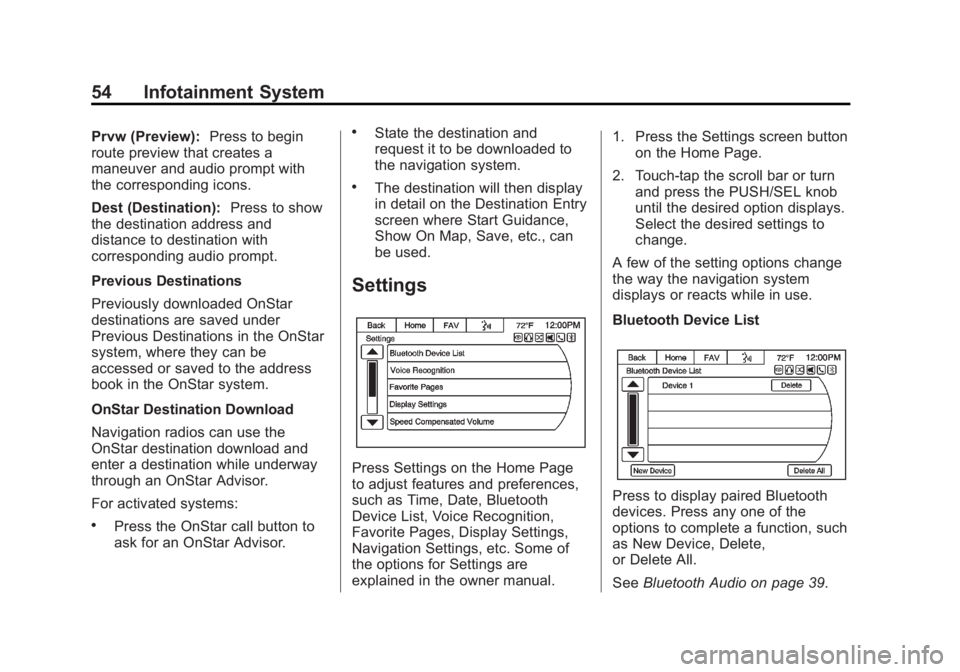
OnStar Non-Navigation Radio
System
When OnStar Turn-by-Turn route
guidance is activated, a display of
the route appears on the right side
of the screen.
Screen buttons below the guidance
map are:
RPT (Repeat): The audible
maneuver prompt is repeated.
Page 54 of 92
Black plate (54,1)Chevrolet Captiva Sport Infotainment System (GMNA-Localizing-US/Canada-
6225549) - 2014 - 2nd crc - 9/16/13
54 Infotainment System
Prvw (Preview):Press to begin
route preview that creates a
maneuver and audio prompt with
the corresponding icons.
Dest (Destination): Press to show
the destination address and
distance to destination with
corresponding audio prompt.
Previous Destinations
Previously downloaded OnStar
destinations are saved under
Previous Destinations in the OnStar
system, where they can be
accessed or saved to the address
book in the OnStar system.
OnStar Destination Download
Navigation radios can use the
OnStar destination download and
enter a destination while underway
through an OnStar Advisor.
For activated systems:
.Press the OnStar call button to
ask for an OnStar Advisor.
.State the destination and
request it to be downloaded to
the navigation system.
.The destination will then display
in detail on the Destination Entry
screen where Start Guidance,
Show On Map, Save, etc., can
be used.
Settings
Press Settings on the Home Page
to adjust features and preferences,
such as Time, Date, Bluetooth
Device List, Voice Recognition,
Favorite Pages, Display Settings,
Navigation Settings, etc. Some of
the options for Settings are
explained in the owner manual. 1. Press the Settings screen button
on the Home Page.
2. Touch-tap the scroll bar or turn and press the PUSH/SEL knob
until the desired option displays.
Select the desired settings to
change.
A few of the setting options change
the way the navigation system
displays or reacts while in use.
Bluetooth Device List
Press to display paired Bluetooth
devices. Press any one of the
options to complete a function, such
as New Device, Delete,
or Delete All.
See Bluetooth Audio on page 39.
Page 55 of 92
Black plate (55,1)Chevrolet Captiva Sport Infotainment System (GMNA-Localizing-US/Canada-
6225549) - 2014 - 2nd crc - 9/16/13
Infotainment System 55
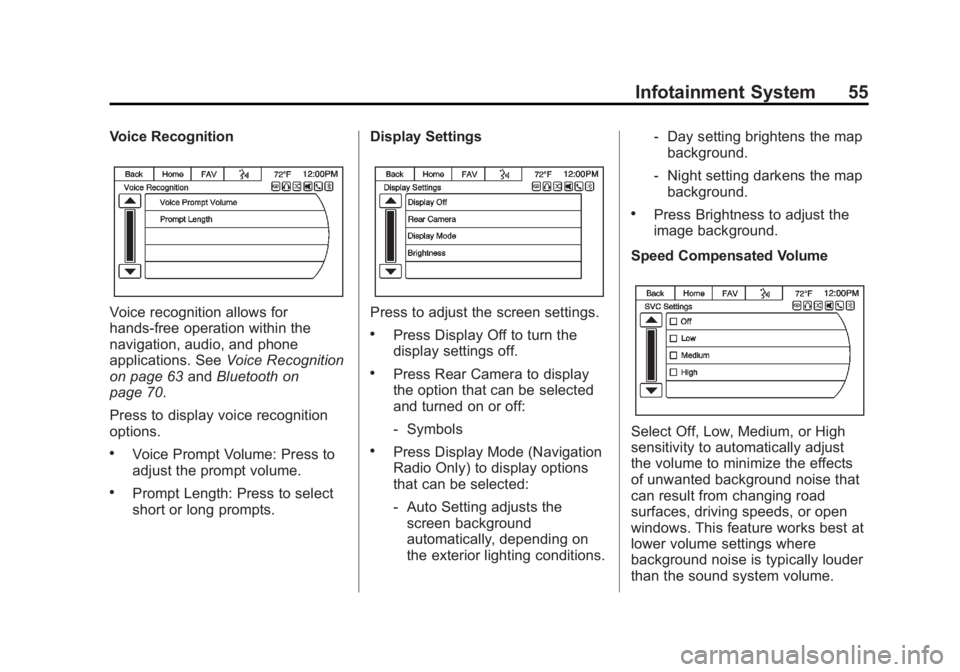
Voice Recognition
Voice recognition allows for
hands-free operation within the
navigation, audio, and phone
applications. SeeVoice Recognition
on page 63 andBluetooth on
page 70.
Press to display voice recognition
options.
.Voice Prompt Volume: Press to
adjust the prompt volume.
.Prompt Length: Press to select
short or long prompts. Display Settings
Press to adjust the screen settings.
.Press Display Off to turn the
display settings off.
.Press Rear Camera to display
the option that can be selected
and turned on or off:
‐
Symbols
.Press Display Mode (Navigation
Radio Only) to display options
that can be selected:
‐Auto Setting adjusts the
screen background
automatically, depending on
the exterior lighting conditions. ‐
Day setting brightens the map
background.
‐ Night setting darkens the map
background.
.Press Brightness to adjust the
image background.
Speed Compensated Volume
Select Off, Low, Medium, or High
sensitivity to automatically adjust
the volume to minimize the effects
of unwanted background noise that
can result from changing road
surfaces, driving speeds, or open
windows. This feature works best at
lower volume settings where
background noise is typically louder
than the sound system volume.
Page 58 of 92
Black plate (58,1)Chevrolet Captiva Sport Infotainment System (GMNA-Localizing-US/Canada-
6225549) - 2014 - 2nd crc - 9/16/13
58 Infotainment System
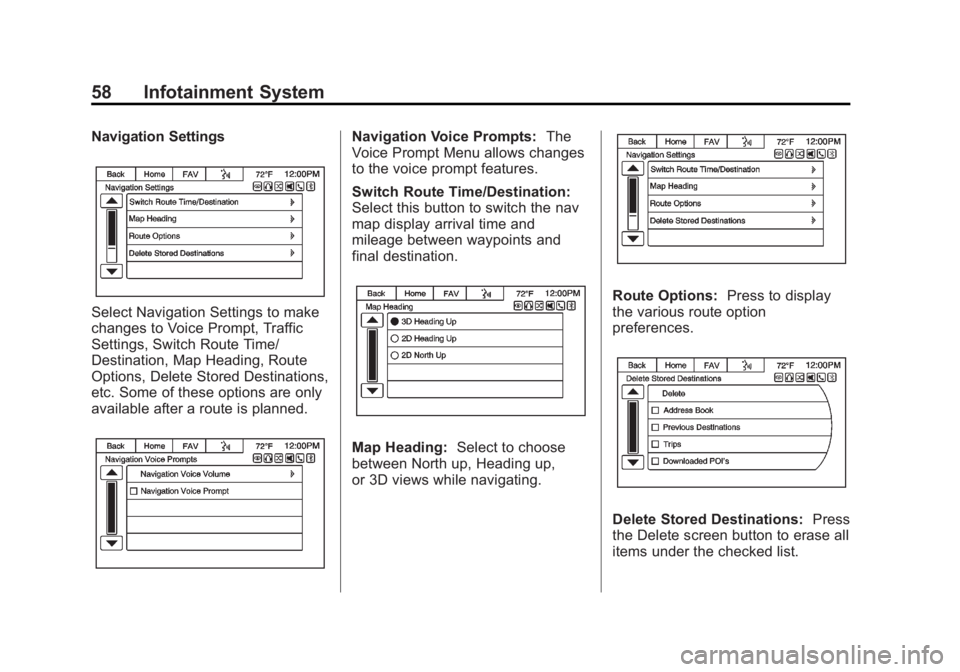
Navigation Settings
Select Navigation Settings to make
changes to Voice Prompt, Traffic
Settings, Switch Route Time/
Destination, Map Heading, Route
Options, Delete Stored Destinations,
etc. Some of these options are only
available after a route is planned.
Navigation Voice Prompts:The
Voice Prompt Menu allows changes
to the voice prompt features.
Switch Route Time/Destination:
Select this button to switch the nav
map display arrival time and
mileage between waypoints and
final destination.
Map Heading: Select to choose
between North up, Heading up,
or 3D views while navigating.
Route Options: Press to display
the various route option
preferences.
Delete Stored Destinations: Press
the Delete screen button to erase all
items under the checked list.
Page 60 of 92
Black plate (60,1)Chevrolet Captiva Sport Infotainment System (GMNA-Localizing-US/Canada-
6225549) - 2014 - 2nd crc - 9/16/13
60 Infotainment System
Display Mode:Press Display
Mode to change the screen
background. This setting controls
map colors.
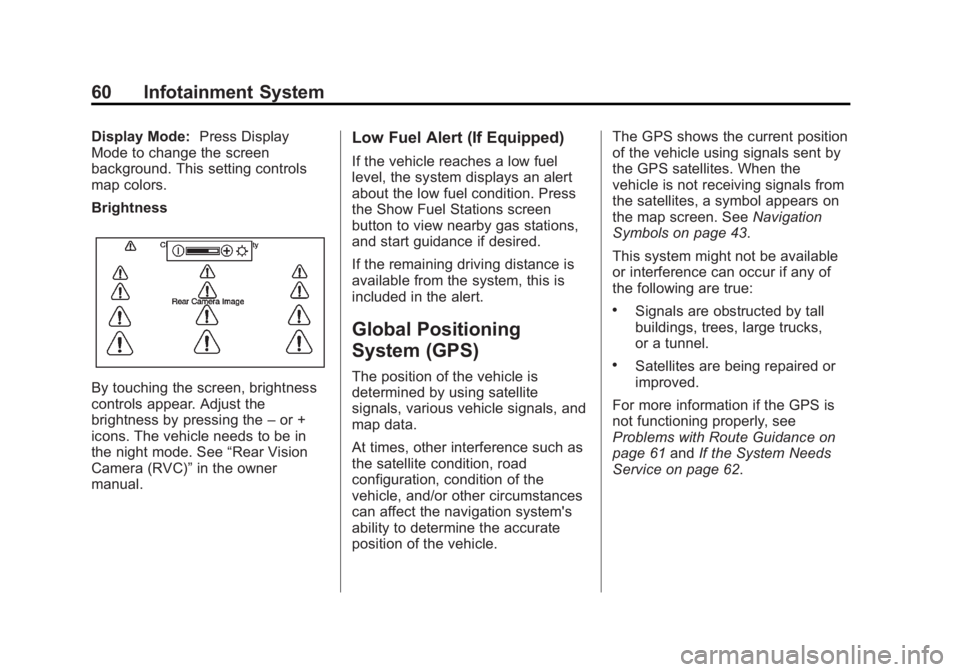
Brightness
By touching the screen, brightness
controls appear. Adjust the
brightness by pressing the –or +
icons. The vehicle needs to be in
the night mode. See “Rear Vision
Camera (RVC)” in the owner
manual.
Low Fuel Alert (If Equipped)
If the vehicle reaches a low fuel
level, the system displays an alert
about the low fuel condition. Press
the Show Fuel Stations screen
button to view nearby gas stations,
and start guidance if desired.
If the remaining driving distance is
available from the system, this is
included in the alert.
Global Positioning
System (GPS)
The position of the vehicle is
determined by using satellite
signals, various vehicle signals, and
map data.
At times, other interference such as
the satellite condition, road
configuration, condition of the
vehicle, and/or other circumstances
can affect the navigation system's
ability to determine the accurate
position of the vehicle. The GPS shows the current position
of the vehicle using signals sent by
the GPS satellites. When the
vehicle is not receiving signals from
the satellites, a symbol appears on
the map screen. See
Navigation
Symbols on page 43.
This system might not be available
or interference can occur if any of
the following are true:
.Signals are obstructed by tall
buildings, trees, large trucks,
or a tunnel.
.Satellites are being repaired or
improved.
For more information if the GPS is
not functioning properly, see
Problems with Route Guidance on
page 61 andIf the System Needs
Service on page 62.