radio CHEVROLET CAPTIVA SPORT 2014 Infotainment System Guide
[x] Cancel search | Manufacturer: CHEVROLET, Model Year: 2014, Model line: CAPTIVA SPORT, Model: CHEVROLET CAPTIVA SPORT 2014Pages: 92, PDF Size: 0.7 MB
Page 15 of 92
Black plate (15,1)Chevrolet Captiva Sport Infotainment System (GMNA-Localizing-US/Canada-
6225549) - 2014 - 2nd crc - 9/16/13
Infotainment System 15
.EQ (Equalizer) (If Equipped):
Press
oorpto scroll through
the preset EQ options.
.Stereo/DSP Mode (If Equipped):
Press
oorpto scroll through
the preset Digital Signal
Processing (DSP) or toggle
between Stereo modes.
.Fade: Press the F button to fade
the audio to the front speakers.
Press the R button to fade the
audio to the rear speakers. The
middle position balances the
sound between the front and
rear speakers.
.Balance: Press the L button to
balance the audio to the left
speakers. Press the R button to
balance the audio to the right
speakers. The middle position
balances the sound between the
left and right speakers.
Finding a Station
Press the SRCE button to go to the
currently playing source. Press it
again to select a different source.
Turn the PUSH/SEL knob to find a
radio station. To select a preset
station, press FAV to scroll through
the favorite banner. Press the
desired station on the banner.
Seeking a Station
Press
©SEEK or SEEK¨to search
for a station.
Press and hold the
©SEEK or
SEEK
¨to scan up or down the
band, pausing on each station for
five seconds. Press
©SEEK or
SEEK
¨again to cancel. AM
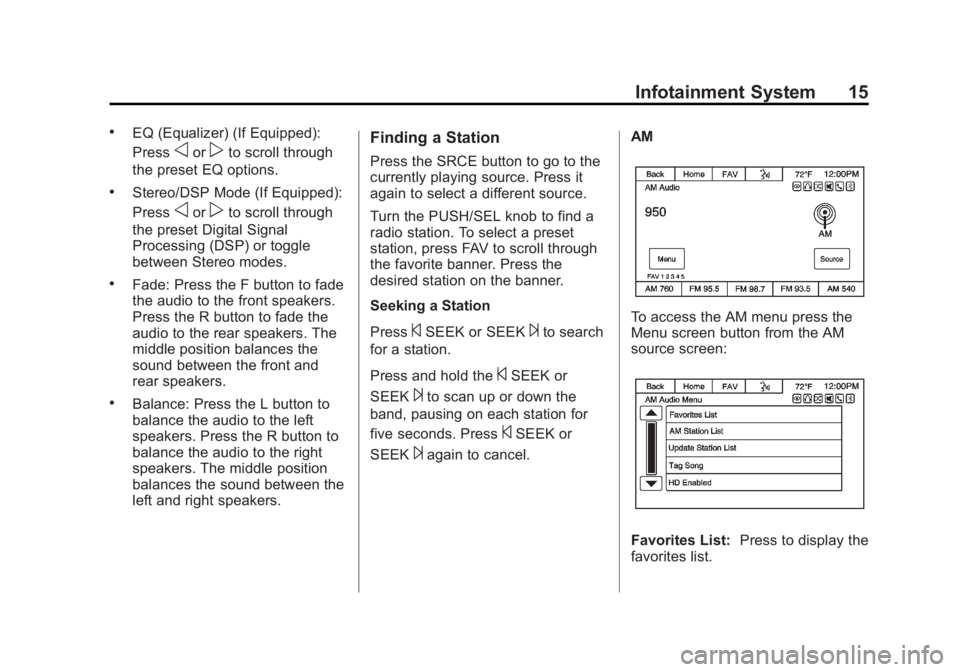
To access the AM menu press the
Menu screen button from the AM
source screen:
Favorites List:
Press to display the
favorites list.
Page 16 of 92
Black plate (16,1)Chevrolet Captiva Sport Infotainment System (GMNA-Localizing-US/Canada-
6225549) - 2014 - 2nd crc - 9/16/13
16 Infotainment System
AM Station List:The station list
may need to be updated before
pressing to display a list of AM
stations.
Update Station List: Press to
update and then display the list of
AM stations.
Tag Song: Press to tag a song to
download to an iPod when it is
connected, and to purchase it at a
later time. Song tagging is only
available while listening to an HD
broadcast.
HD Enabled/Disabled: Press to
enable or disable the HD Radio
®
function. FM
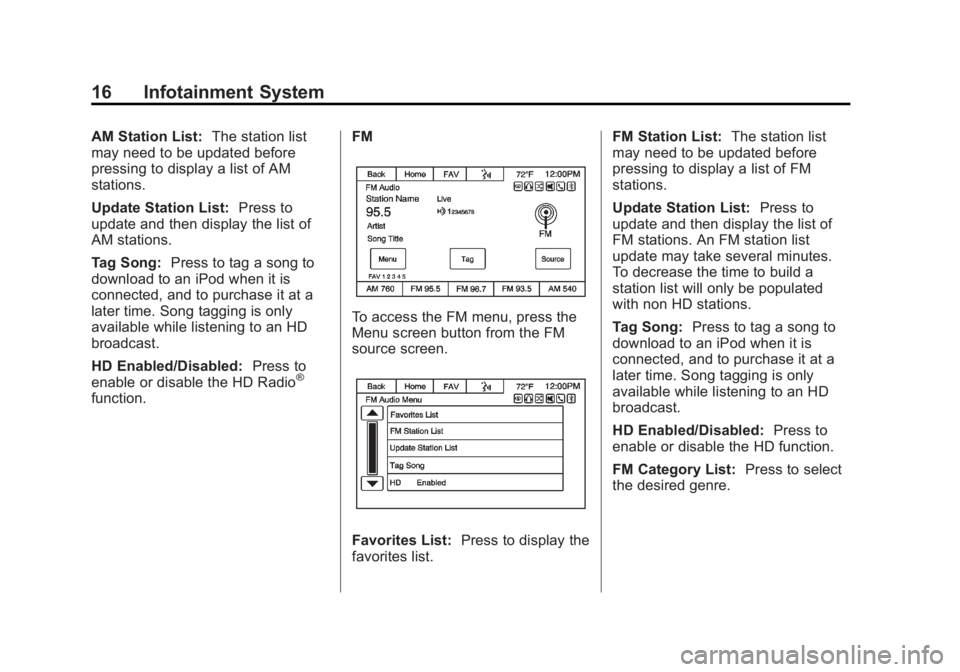
To access the FM menu, press the
Menu screen button from the FM
source screen.
Favorites List:
Press to display the
favorites list. FM Station List:
The station list
may need to be updated before
pressing to display a list of FM
stations.
Update Station List: Press to
update and then display the list of
FM stations. An FM station list
update may take several minutes.
To decrease the time to build a
station list will only be populated
with non HD stations.
Tag Song: Press to tag a song to
download to an iPod when it is
connected, and to purchase it at a
later time. Song tagging is only
available while listening to an HD
broadcast.
HD Enabled/Disabled: Press to
enable or disable the HD function.
FM Category List: Press to select
the desired genre.
Page 17 of 92
Black plate (17,1)Chevrolet Captiva Sport Infotainment System (GMNA-Localizing-US/Canada-
6225549) - 2014 - 2nd crc - 9/16/13
Infotainment System 17
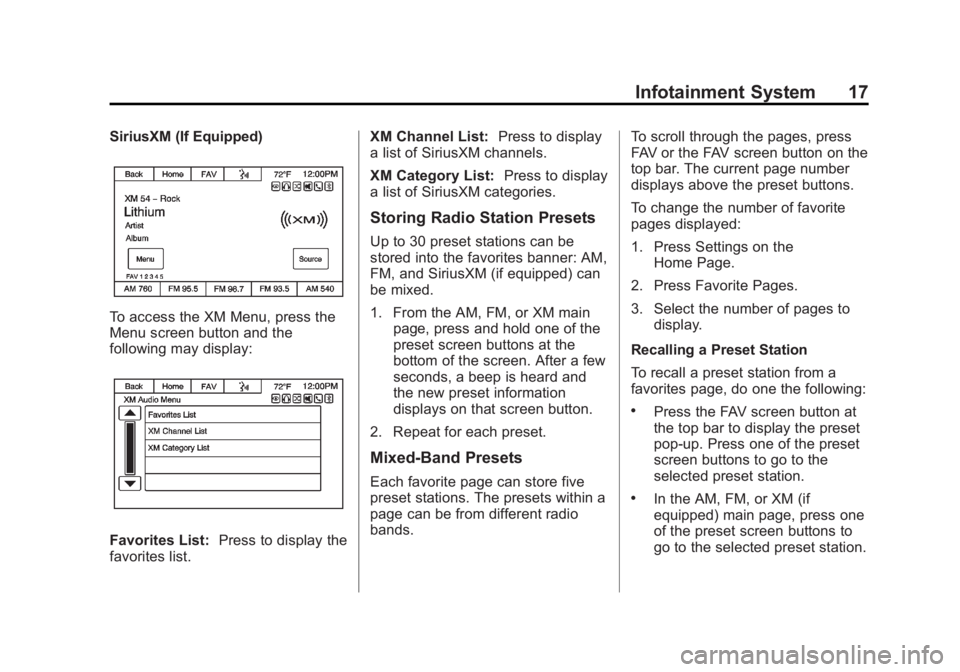
SiriusXM (If Equipped)
To access the XM Menu, press the
Menu screen button and the
following may display:
Favorites List:Press to display the
favorites list. XM Channel List:
Press to display
a list of SiriusXM channels.
XM Category List: Press to display
a list of SiriusXM categories.
Storing Radio Station Presets
Up to 30 preset stations can be
stored into the favorites banner: AM,
FM, and SiriusXM (if equipped) can
be mixed.
1. From the AM, FM, or XM main page, press and hold one of the
preset screen buttons at the
bottom of the screen. After a few
seconds, a beep is heard and
the new preset information
displays on that screen button.
2. Repeat for each preset.
Mixed-Band Presets
Each favorite page can store five
preset stations. The presets within a
page can be from different radio
bands. To scroll through the pages, press
FAV or the FAV screen button on the
top bar. The current page number
displays above the preset buttons.
To change the number of favorite
pages displayed:
1. Press Settings on the
Home Page.
2. Press Favorite Pages.
3. Select the number of pages to display.
Recalling a Preset Station
To recall a preset station from a
favorites page, do one the following:
.Press the FAV screen button at
the top bar to display the preset
pop-up. Press one of the preset
screen buttons to go to the
selected preset station.
.In the AM, FM, or XM (if
equipped) main page, press one
of the preset screen buttons to
go to the selected preset station.
Page 18 of 92
Black plate (18,1)Chevrolet Captiva Sport Infotainment System (GMNA-Localizing-US/Canada-
6225549) - 2014 - 2nd crc - 9/16/13
18 Infotainment System
HD Radio Technology
HD Radio Technology is a free
service with features like static-free
sound, more programming choices
on local FM HD2/HD3/HD4/HD5/
HD6/HD7 channels, on-screen
information such as artist and song
title, as well as album art if the
station is broadcasting it. Some HD
Radio stations broadcast station art
and album art as part of the HD
service. HD Radio station art is
stored in the radio and may take up
to five minutes to learn for each
station that supports station art.
Album art is broadcast at the
beginning of songs. If tuning into the
middle of a song, the art may not be
available.
HD Radio Technology Station
Access
To access HD Radio stations:
1. Tune the radio to the station.If the station is broadcasting HD
Radio Technology, the radio will automatically switch to digital
audio and will have an orange
HD logo.
2. Press
©SEEK or SEEK¨to
tune to the previous or next HD
sub channel.
There might be a delay before the
station starts playing while the
signal is processed.
The HD Radio channel number is
indicated next to the logo.
HD Radio channels can be saved
as favorites. Songs can be tagged
for download to a connected
iPhone
®or iPod touch®. See
AM-FM Radio on page 14 orUSB
Port on page 34.
For a list of all channels, see
www.hdradio.com. HD Radio Technology
Troubleshooting
Digital Audio Delay:
Once tuned
to an HD station, there may be up to
an eight second wait for the signal
to process and start playing. This is
indicated by an orange HD icon.
Volume Change, Audio Skip,
Echo, Digital Audio Lost: Station
signal strength may be weak or the
station is out of range. Verify proper
reception on another channel.
If listening to channel HD1 and the
signal is losing reception, the radio
will go back to the main non-HD
Radio station.
If listening to channels HD2 to
HD7 and the signal is losing
reception, the radio mutes until the
signal can be recovered or until the
station is changed.
Digital HD broadcasting signals are
weaker than the normal signal
strength of the analog station, so
HD listening may not deliver the
same range as non-HD station
Page 19 of 92
Black plate (19,1)Chevrolet Captiva Sport Infotainment System (GMNA-Localizing-US/Canada-
6225549) - 2014 - 2nd crc - 9/16/13
Infotainment System 19
listening. The radio will indicate loss
of HD signal by displaying“No HD
Signal.”
Satellite Radio
Vehicles with a valid SiriusXM®
satellite radio subscription can
receive SiriusXM programming.
SiriusXM satellite radio has a wide
variety of programming and
commercial-free music, coast to
coast, and in digital-quality sound.
For more information, see
www.siriusxm.com or call
1-866-635-2349 in the U.S.
When SiriusXM is active, the station
name, number, category name,
song title, and artist display on the
screen. SiriusXM may update the
background picture at any time.
SiriusXM Categories
SiriusXM stations are organized in
categories.
Adding or Removing SiriusXM
Categories
Using the Home Page:
1. Press the Settings screen button on the Home Page.
2. Select XM Categories.
3. Select or deselect a category. A checkmark will indicate that
the category is selected.
Press “Restore All” to restore all
SiriusXM categories.
Using the XM playing screen:
1. Press the Menu screen button.
2. Select XM Category List.
3. Select or deselect a category. A checkmark will indicate that
the category is selected.
Pandora Internet Radio
Pandora®
Pandora is a free Internet radio
service that streams personalized
radio stations based on artists,
songs, genres, and comedians.
Create stations with the Pandora
application downloaded on a phone
or device, then use
-(thumbs up)
or
,(thumbs down) to personalize
stations. To set up an account, or for
more information, go to
www.pandora.com. Pandora may
not be available in Mexico.
A phone or tablet with Internet
connection is required for this
application. Personal cell phone
data plans are used. Make sure the
latest version is installed on the
device and the volume is turned up.
Page 23 of 92
Black plate (23,1)Chevrolet Captiva Sport Infotainment System (GMNA-Localizing-US/Canada-
6225549) - 2014 - 2nd crc - 9/16/13
Infotainment System 23
.Check that there is good signal
strength. The signal strength and
phone battery level can be
checked on the radio screen.
.Have at least one station
created.
.For Android and BlackBerry
devices, check that the device is
paired with the vehicle, and the
Bluetooth icon on the display is
highlighted.
.For iPhone, iPod touch, or iPad
devices, check that the USB
cable is connected to the USB
port and the screen is unlocked.
.Close Pandora on the device
and launch again. Devices that
allow multitasking may require
an extra step to quit the Pandora
application. See the cell phone
manufacturer's user guide.Thumbs Up or Thumbs Down
Error
If there is an error trying to rate a
song with the
,or-buttons, the
message “Thumbs Down Error” or
“Thumbs Up Error” may display.
Press OK to retry.
Loss of Audio
Loss of Pandora audio can happen
in different ways:
.Weak or lost data connection.
The signal strength and phone
battery level can be checked on
the radio screen.
.Device needs to be charged.
.Application needs to be
relaunched.
.Connection between the phone
and radio was lost.
.If any iPhone, iPod touch,
or iPad is connected to
Bluetooth and the dock
connector, unplug the dock
connector and plug it in again.
.Volume is too low. Turn up the
volume on the device.
If the connection is lost between the
application and device, a message
“Please unlock your phone or restart
the phone app and try again” may
display. Press OK to retry.
Common Pandora Messages
Paused or Audio Paused:
Playback is paused on the radio or
device. Press the
rbutton in the
middle of the time bar on the bottom
of the screen to play or press the
j
button to pause.
No Stations Found: Logged in but
no stations have been created.
Communication Failure or
Application Unexpectedly Quit or
Network Connection Could Not
Be Established: Communication
failure between the radio and the
phone application, or between the
phone and data connection, or the
device is locked.
Page 24 of 92
Black plate (24,1)Chevrolet Captiva Sport Infotainment System (GMNA-Localizing-US/Canada-
6225549) - 2014 - 2nd crc - 9/16/13
24 Infotainment System
See www.pandora.com/help for
more information. If the service will
not work, see your dealer for
assistance.
Stitcher Internet Radio
Stitcher
Stitcher SmartRadio is an Internet
radio service that streams news,
sports, and entertainment shows
through the audio system. Create
personalized, on-demand stations or
discover new shows through
Stitcher’s preset stations. To set up
an account, or for more information,
see www.stitcher.com. Stitcher may
be available as a worldwide Internet
service.
A phone or tablet with Internet
connection is required for this
application. Personal cell phone
data plans are used. Make sure the
latest version is installed on the
device and the volume is turned up. To install Stitcher:
.On an Android phone or Android
Tablet, go to the Google Play
Market and search for Stitcher.
Install to the phone, not to the
SD card.
.On an iPhone, iPad, or iPod
touch, go to the iTunes Store
and search for Stitcher.
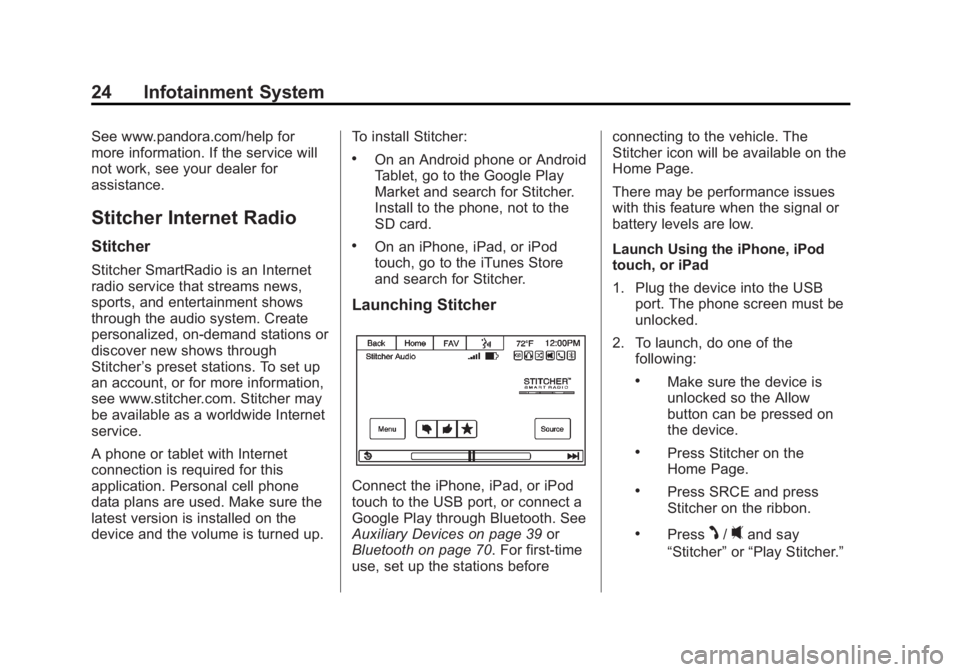
Launching Stitcher
Connect the iPhone, iPad, or iPod
touch to the USB port, or connect a
Google Play through Bluetooth. See
Auxiliary Devices on page 39
or
Bluetooth on page 70. For first-time
use, set up the stations before connecting to the vehicle. The
Stitcher icon will be available on the
Home Page.
There may be performance issues
with this feature when the signal or
battery levels are low.
Launch Using the iPhone, iPod
touch, or iPad
1. Plug the device into the USB
port. The phone screen must be
unlocked.
2. To launch, do one of the following:
.Make sure the device is
unlocked so the Allow
button can be pressed on
the device.
.Press Stitcher on the
Home Page.
.Press SRCE and press
Stitcher on the ribbon.
.PressJ/0and say
“Stitcher” or“Play Stitcher.”
Page 26 of 92
Black plate (26,1)Chevrolet Captiva Sport Infotainment System (GMNA-Localizing-US/Canada-
6225549) - 2014 - 2nd crc - 9/16/13
26 Infotainment System
My Favorites:Displays a list of
favorite stations and shows. Select
and store programs as favorites on
the device and then access them
through My Favorites.
Stitcher Station Categories:
Displays categories by topic. When
a category then subcategory is
selected, the radio will start playing
the first program in that
subcategory.
Turn the PUSH/SEL knob to bring
up the first 24 stations of that
subcategory.
Current Station Playlist: While
listening to show, turn the PUSH/
SEL knob to display the menu list of
shows available for the current
station.
q(Favorites): When pressed, the
current show is added to the
favorites station.
,(Thumbs Down): When
pressed, Stitcher changes to the
next show. This helps Stitcher
provide a personalized listening
experience.
-(Thumbs Up): When pressed,
Stitcher stores this information and
is highlighted for the remainder of
the show. This helps Stitcher
provide a personalized listening
experience.
d(Next Show): When pressed,
Stitcher changes to the next show.
k(Play/Pause): Press on the
radio to pause playback. Press
again to resume.
(Back 30 Seconds): When
pressed, Stitcher rewinds the
currently playing show 30 seconds
and resumes play.
Stitcher Troubleshooting
Unable to Connect Device to
Vehicle
If the device is unable to connect to
the USB or Bluetooth:
1. Turn the vehicle off.
2. Remove the key from the ignition.
3. Open and close the driver door, wait about one minute, and try to
connect the device again.
Unable to Start Stitcher
If the device is unable to launch
Stitcher:
.Check that the latest version of
Stitcher is installed.
.Check that there is an active
account logged into Stitcher.
.Check that you have good signal
strength.
.Have at least one station
created.
Page 27 of 92
Black plate (27,1)Chevrolet Captiva Sport Infotainment System (GMNA-Localizing-US/Canada-
6225549) - 2014 - 2nd crc - 9/16/13
Infotainment System 27
.For Android devices, check that
the device is paired with the
vehicle, and the Bluetooth icon
on the display is highlighted.
.For iPhone, iPod touch, or iPad
devices, check that the USB
cable is connected to the USB
port and the screen is unlocked.
.Close Stitcher on the device and
launch again. Devices that allow
multitasking may require an
extra step to quit the Stitcher
application. See the cell phone
manufacturer's user guide.
Thumbs Up or Thumbs Down
Error
If there is an error trying to rate a
song with the
,or-buttons, the
message “Thumbs Down Error” or
“Thumbs Up Error” may display.
Press OK to retry.
Loss of Audio
Loss of Stitcher audio can happen
in different ways:
.Weak or lost data connection.
.Device needs to be charged.
.Application needs to be
relaunched.
.Connection between the phone
and radio was lost.
.If any iPhone, iPod touch,
or iPad is connected to
Bluetooth and the dock
connector, unplug the dock
connector and plug it in again.
.Volume is too low. Turn up the
volume on the device.
If the connection is lost between the
application and device, a message
“Please unlock your phone or restart
the phone app and try again” may
display. Press OK to retry.
Common Stitcher Messages
Paused or Audio Paused:
Playback is paused on the radio or
device. Press
kor play on the
radio page for Stitcher source.
No Stations Found: Logged in but
no stations have been created.
Press OK to continue. Communication Failure or
Application Unexpectedly Quit or
Network Connection Could Not
Be Established:
Communication
failure between the radio and the
phone application, or between the
phone and data connection, or the
device is locked.
See www.stitcher.com/help for more
information. If the service will not
work, see your dealer for
assistance.
Pictures
Pictures can only be viewed using
USB devices. If pictures are on an
SD card, transfer to a USB device
or use a USB-SD adapter.
A maximum 5Mb uncompressed
photo size is supported, however to
achieve this, use a 4 Megapixel or
lower resolution camera setting.
Only jpeg, bmp, gif, and png files
are supported.
1. Press the Picture Viewer screen icon on the Home Page.
Page 28 of 92
Black plate (28,1)Chevrolet Captiva Sport Infotainment System (GMNA-Localizing-US/Canada-
6225549) - 2014 - 2nd crc - 9/16/13
28 Infotainment System
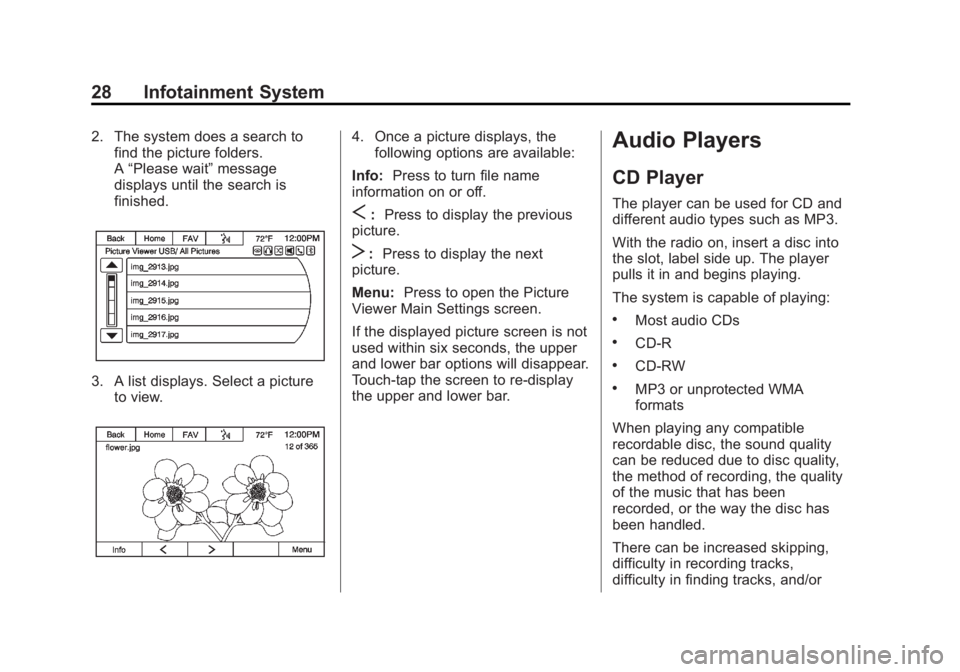
2. The system does a search tofind the picture folders.
A“Please wait” message
displays until the search is
finished.
3. A list displays. Select a picture to view.
4. Once a picture displays, thefollowing options are available:
Info: Press to turn file name
information on or off.
S: Press to display the previous
picture.
T: Press to display the next
picture.
Menu: Press to open the Picture
Viewer Main Settings screen.
If the displayed picture screen is not
used within six seconds, the upper
and lower bar options will disappear.
Touch-tap the screen to re-display
the upper and lower bar.
Audio Players
CD Player
The player can be used for CD and
different audio types such as MP3.
With the radio on, insert a disc into
the slot, label side up. The player
pulls it in and begins playing.
The system is capable of playing:
.Most audio CDs
.CD-R
.CD-RW
.MP3 or unprotected WMA
formats
When playing any compatible
recordable disc, the sound quality
can be reduced due to disc quality,
the method of recording, the quality
of the music that has been
recorded, or the way the disc has
been handled.
There can be increased skipping,
difficulty in recording tracks,
difficulty in finding tracks, and/or