reset CHEVROLET COBALT 2005 1.G User Guide
[x] Cancel search | Manufacturer: CHEVROLET, Model Year: 2005, Model line: COBALT, Model: CHEVROLET COBALT 2005 1.GPages: 362, PDF Size: 2.35 MB
Page 144 of 362
SECURITY
If your vehicle has the remote keyless entry system, this
feature allows you to select the method used to arm
the vehicle’s security system. When SECURITY appears
on the display, press the reset button to scroll through
the available settings:
RKE (Remote Keyless Entry) (default):The content
theft-deterrent system will arm when the lock button
on the remote keyless entry transmitter is pressed
or when the power door lock switch is pressed.
PASSIVE:The content theft-deterrent system will arm
itself 60 seconds after the ignition has been turned
off and all of the doors have been closed.
SeeContent Theft-Deterrent on page 2-14for more
information.
Choose one of the available settings and press the
information button to select it and move on to the next
feature.
LANGUAGE
This feature allows you to select the language in which
the DIC will display. Press the reset button to scroll
through the available settings:
ENGLISH (default):The DIC will display all information
in English.
FRENCH:The DIC will display all information in
French.
SPANISH:The DIC will display all information in
Spanish.
GERMAN:The DIC will display all information in
German.
Choose one of the available settings and press the
information button to select it and exit out of the
personalization menu mode.
3-44
Page 147 of 362

DISP (Display):Press this knob to switch the display
between the time radio station frequency. When
the ignition is off, press this knob to display the time.
To change the default on the display, press the
DISP knob until you see the display you want, then hold
the knob for two seconds. The radio will produce a
beep and the selected display will now be the default.
Finding a Station
BAND:Press this button to switch between FM1, FM2,
and AM. The display will show the selection.
ADJ (Adjust):Turn this knob to select radio stations.
©SEEK¨:Press the right or left arrow to go to
the next or to the previous station and stay there.
To scan stations, press and hold either arrow for
two seconds until you hear a beep. The radio will go to
a station, play for a few seconds, then go on to the
next station. Press either arrow again to stop scanning.
To scan preset stations, press and hold either arrow
for more than four seconds until you hear two beeps.
The radio will go to the rst preset station stored on the
pushbuttons, play for a few seconds, then go on to
the next preset station. Press either arrow again to stop
scanning presets.
The radio will only seek and scan stations with a strong
signal that are in the selected band.
Setting Preset Stations
Up to 18 stations (six FM1, six FM2, and six AM), can
be programmed on the six numbered pushbuttons,
by performing the following steps:
1. Turn the radio on.
2. Press BAND to select FM1, FM2, or AM.
3. Tune in the desired station.
4. Press and hold one of the six numbered
pushbuttons until you hear a beep. Whenever that
numbered pushbutton is pressed, the station
that was set will return.
5. Repeat the steps for each pushbutton.
Setting the Tone (Bass/Treble)
EQ (Tone):To adjust the bass or the treble, press and
release the EQ button until BASS or TREB appears
on the display. Turn the ADJ knob to increase or
to decrease. The display will show the bass or treble
level. If a station is weak or noisy, decrease the treble.
To adjust bass or treble to the middle position, select
BASS or TREB. Then press and hold the EQ button for
more than two seconds. You will hear a beep and
the level will be adjusted to the middle position.
3-47
Page 153 of 362
©SEEK¨:Press the right or the left arrow to go to
the next or to the previous station and stay there.
To scan stations, press and hold either arrow for
two seconds until you hear a beep. The radio will go to
a station, play for a few seconds, then go on to the
next station. Press either arrow again to stop scanning.
To scan preset stations, press and hold either arrow
for more than four seconds until you hear two beeps.
The radio will go to the rst preset station stored on the
pushbuttons, play for a few seconds, then go on to
the next preset station. Press either arrow again to stop
scanning presets.
The radio will only seek and scan stations with a strong
signal that are in the selected band.
Setting Preset Stations
Up to 30 stations (six FM1, six FM2, and six AM,
six XM1 and six XM2 (if equipped)), can be programmed
on the six numbered pushbuttons, by performing the
following steps:
1. Turn the radio on.
2. Press BAND to select FM1, FM2, AM, or XM1
or XM2.
3. Tune in the desired station.
4. Press AUTO EQ to select the equalization.5. Press and hold one of the six numbered
pushbuttons until you hear a beep. Whenever that
numbered pushbutton is pressed, the station
that was set will return and the equalization that
was selected will be stored for that pushbutton.
6. Repeat the steps for each pushbutton.
Setting the Tone (Bass/Treble)
EQ (Tone):To adjust the bass or the treble, press and
release the EQ button until BASS or TREBLE appears
on the display. Turn the ADJ knob to increase or to
decrease. The display will show the bass or treble level.
If a station is weak or noisy, decrease the treble.
To adjust bass or treble to the middle position, select
BASS or TREBLE. Then press and hold the EQ button
for more than two seconds. You will hear a beep
and the level will be adjusted to the middle position.
To adjust the tone controls to the middle position, rst end
out of tone by pressing another button, causing the radio
to perform that function, or by waiting ve seconds for the
display to return to the default display. Then press and
hold the EQ button for more than two seconds until you
hear a beep. ALL CENTERED will appear on the display.
AUTO EQ (Automatic Equalization):Press this button
to select customized equalization settings designed
for country, jazz, talk, pop, rock, and classical.
3-53
Page 156 of 362
XM™ Radio Messages
Radio Display
MessageCondition Action Required
XL (Explicit Language
Channels)XL on the radio display,
after the channel name,
indicates content with
explicit language.These channels, or any others, can be blocked at a
customer’s request, by calling 1-800-852-XMXM (9696).
Updating Updating encryption code The encryption code in the receiver is being updated, and
no action is required. This process should take no longer
than 30 seconds.
No Signal Loss of signal The system is functioning correctly, but the vehicle is in a
location that is blocking the XM™ signal. When you move
into an open area, the signal should return.
Loading XM Acquiring channel audio
(after 4 second delay)The audio system is acquiring and processing audio and
text data. No action is needed. This message should
disappear shortly.
Off Air Channel not in service This channel is not currently in service. Tune to another
channel.
CH Unavl Channel no longer
availableThis previously assigned channel is no longer assigned.
Tune to another station. If this station was one of the
presets, choose another station for that preset button.
No Info Artist Name/Feature not
availableNo artist information is available at this time on this
channel. The system is working properly.
No Info Song/Program Title not
availableNo song title information is available at this time on this
channel. The system is working properly.
3-56
Page 162 of 362

DISP (Display):When the ignition is off, press this
knob to display the time.
For RDS, press the DISP knob to change what appears
on the display. The display options are station name,
RDS station frequency, PTY, and the name of the
program (if available).
For XM™ (if equipped), press the DISP knob while in
XM™ mode to retrieve four different categories of
information related to the current song or channel: Artist,
Song Title, Category or PTY, Channel
Number/Channel Name.
To change the default on the display, press the DISP
knob until you see the display you want, then hold
the knob for two seconds. The radio will produce a beep
and the selected display will now be the default.Finding a Station
BAND:Press this button to switch between FM1, FM2,
AM, or XM1 or XM2 (if equipped). The display will
show the selection.
ADJ (Adjust):Turn this knob to select radio stations.
©SEEK¨:Press the right or the left arrow to
go to the next or to the previous station and stay there.
To scan stations, press and hold either arrow for
two seconds until you hear a beep. The radio will go to
a station, play for a few seconds, then go on to the
next station. Press either arrow again to stop scanning.
To scan preset stations, press and hold either arrow
for more than four seconds until you hear two beeps.
The radio will go to the rst preset station stored on the
pushbuttons, play for a few seconds, then go on to
the next preset station. Press either arrow again to stop
scanning presets.
The radio will only seek and scan stations with a strong
signal that are in the selected band.
3-62
Page 163 of 362

Setting Preset Stations
Up to 30 stations (six FM1, six FM2, and six AM,
six XM1 and six XM2 (if equipped)), can be programmed
on the six numbered pushbuttons, by performing the
following steps:
1. Turn the radio on.
2. Press BAND to select FM1, FM2, AM, or XM1
or XM2.
3. Tune in the desired station.
4. Press AUTO EQ to select the equalization.
5. Press and hold one of the six numbered
pushbuttons until you hear a beep. Whenever that
numbered pushbutton is pressed, the station
that was set will return and the equalization that
was selected will be stored for that pushbutton.
6. Repeat the steps for each pushbutton.
Setting the Tone (Bass/Treble)
EQ (Tone):To adjust the bass or the treble, press and
release the EQ button until BASS or TREBLE appears
on the display. Turn the ADJ knob to increase or to
decrease. The display will show the bass or treble level.
If a station is weak or noisy, decrease the treble.
To adjust bass or treble to the middle position, select
BASS or TREBLE. Then press and hold the EQ button
for more than two seconds. You will hear a beep
and the level will be adjusted to the middle position.
To adjust the tone controls to the middle position, rst end
out of tone by pressing another button, causing the radio
to perform that function, or by waiting ve seconds for the
display to return to the default display. Then press and
hold the EQ button for more than two seconds until you
hear a beep. ALL CENTERED will appear on the display.
AUTO EQ (Automatic Equalization):Press this button
to select customized equalization settings designed
for country, jazz, talk, pop, rock, and classical.
3-63
Page 166 of 362

XM™ Radio Messages
Radio Display
MessageCondition Action Required
XL (Explicit Language
Channels)XL on the radio display,
after the channel name,
indicates content with
explicit language.These channels, or any others, can be blocked at a
customer’s request, by calling 1-800-852-XMXM (9696).
Updating Updating encryption code The encryption code in the receiver is being updated, and
no action is required. This process should take no longer
than 30 seconds.
No Signal Loss of signal The system is functioning correctly, but the vehicle is in a
location that is blocking the XM™ signal. When you move
into an open area, the signal should return.
Loading XM Acquiring channel audio
(after 4 second delay)The audio system is acquiring and processing audio and
text data. No action is needed. This message should
disappear shortly.
Off Air Channel not in service This channel is not currently in service. Tune to another
channel.
CH Unavl Channel no longer
availableThis previously assigned channel is no longer assigned.
Tune to another station. If this station was one of the
presets, choose another station for that preset button.
No Info Artist Name/Feature not
availableNo artist information is available at this time on this
channel. The system is working properly.
No Info Song/Program Title not
availableNo song title information is available at this time on this
channel. The system is working properly.
3-66
Page 175 of 362

Audio Steering Wheel Controls
If your vehicle has this feature, some audio controls can
be adjusted at the steering wheel. They include the
following:
xSEEKw:Press the up or the down arrow to go to
the next or to the previous radio station and stay
there. The radio will only seek stations with a strong
signal that are in the selected band.
When a CD is playing, press the up or the down arrow
to go to the next or previous track.
BAND:Press this button to switch between FM1, FM2,
AM, or XM1 or XM2 (if equipped).1–6 (Preset Pushbuttons):Press this button to play
stations that are programmed on the radio preset
pushbuttons. The radio will only seek preset stations
with a strong signal that are in the selected band.
xuw(Volume):Press the up or the down arrow
to increase or to decrease the volume.
>(Mute):Press this button to silence the system.
Press this button again, or any other radio button, to turn
the sound on.
Mute is unavailable when OnStar™ (if equipped)
is active.
SRCE (Source):Press this button to switch between
listening to the radio and a CD. The inactive CD
will remain safely inside the radio for future listening.
Radio Reception
AM
The range for most AM stations is greater than for FM,
especially at night. The longer range can cause
station frequencies to interfere with each other. Static
can occur on AM stations caused by things like
storms and power lines. Try reducing the treble to
reduce this noise.
3-75
Page 239 of 362
Notice:If you use oils that do not have the
GM4718M Standard designation, you can cause
engine damage not covered by your warranty.
SAE 5W-30
As shown in the viscosity chart, SAE 5W-30 is best
for your vehicle.
These numbers on an oil container show its
viscosity, or thickness. Do not use other viscosity
oils such as SAE 20W-50.
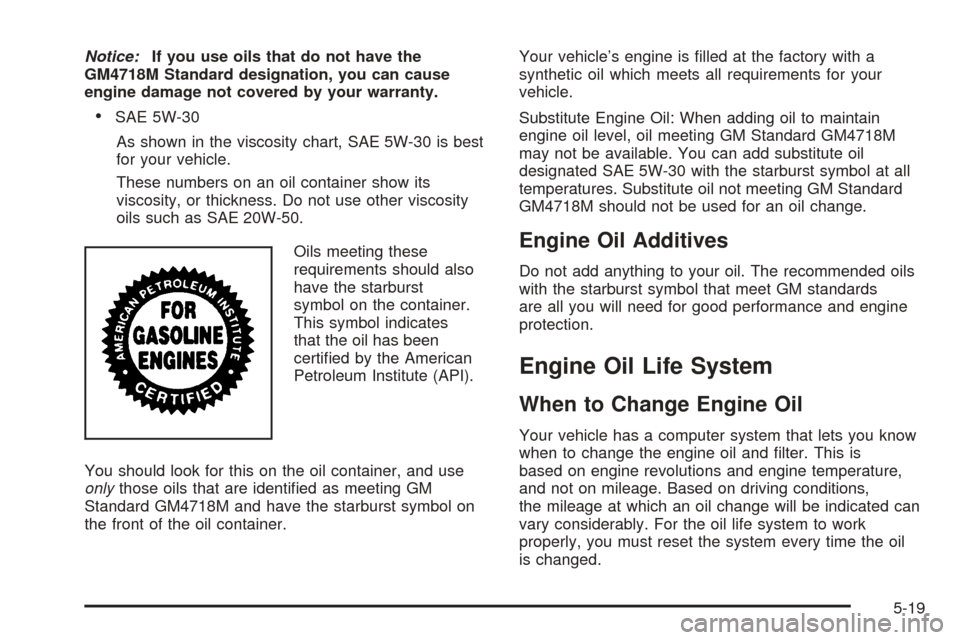
Oils meeting these
requirements should also
have the starburst
symbol on the container.
This symbol indicates
that the oil has been
certied by the American
Petroleum Institute (API).
You should look for this on the oil container, and use
onlythose oils that are identied as meeting GM
Standard GM4718M and have the starburst symbol on
the front of the oil container.Your vehicle’s engine is lled at the factory with a
synthetic oil which meets all requirements for your
vehicle.
Substitute Engine Oil: When adding oil to maintain
engine oil level, oil meeting GM Standard GM4718M
may not be available. You can add substitute oil
designated SAE 5W-30 with the starburst symbol at all
temperatures. Substitute oil not meeting GM Standard
GM4718M should not be used for an oil change.
Engine Oil Additives
Do not add anything to your oil. The recommended oils
with the starburst symbol that meet GM standards
are all you will need for good performance and engine
protection.
Engine Oil Life System
When to Change Engine Oil
Your vehicle has a computer system that lets you know
when to change the engine oil and lter. This is
based on engine revolutions and engine temperature,
and not on mileage. Based on driving conditions,
the mileage at which an oil change will be indicated can
vary considerably. For the oil life system to work
properly, you must reset the system every time the oil
is changed.
5-19
Page 240 of 362
When the system has calculated that oil life has been
diminished, it will indicate that an oil change is
necessary. A CHANGE OIL SOON message in the
Driver Information Center (DIC) will come on. SeeDIC
Warnings and Messages on page 3-37. Change
your oil as soon as possible within the next 600 miles
(1 000 km). It is possible that, if you are driving
under the best conditions, the oil life system may not
indicate that an oil change is necessary for over a year.
However, your engine oil and lter must be changed
at least once a year and at this time the system must be
reset. Your dealer has GM-trained service people who
will perform this work using genuine GM parts and reset
the system. It is also important to check your oil
regularly and keep it at the proper level.
If the system is ever reset accidentally, you must
change your oil at 3,000 miles (5 000 km) since your
last oil change. Remember to reset the oil life system
whenever the oil is changed.
How to Reset the Engine Oil Life
System
The Engine Oil Life System calculates when to change
your engine oil and lter based on vehicle use.
Anytime your oil is changed, reset the system so it can
calculate when the next oil change is required. If a
situation occurs where you change your oil prior to a
CHANGE OIL SOON message being turned on,
reset the system.After changing the engine oil, the system must be reset
as follows:
1. Turn the ignition to RUN, with the engine off.
2. Press the information and reset buttons on the DIC
at the same time to enter the personalization menu.
SeeDIC Vehicle Personalization on page 3-40.
3. Press the information button to scroll through the
available personalization menu modes until the
DIC display shows OIL-LIFE RESET.
4. Press and hold the reset button until the DIC
display shows ACKNOWLEDGED. This will tell you
the system has been reset.
5. Turn the key to LOCK.
If the CHANGE OIL SOON message comes back on
when you start your vehicle, the engine oil life system
has not reset. Repeat the reset procedure.
What to Do with Used Oil
Used engine oil contains certain elements that may be
unhealthy for your skin and could even cause cancer.
Do not let used oil stay on your skin for very long. Clean
your skin and nails with soap and water, or a good
hand cleaner. Wash or properly dispose of clothing or
rags containing used engine oil. See the manufacturer’s
warnings about the use and disposal of oil products.
5-20