change time CHEVROLET COLORADO 2004 1.G Owners Manual
[x] Cancel search | Manufacturer: CHEVROLET, Model Year: 2004, Model line: COLORADO, Model: CHEVROLET COLORADO 2004 1.GPages: 414, PDF Size: 2.71 MB
Page 2 of 414
GENERAL MOTORS, GM, the GM Emblem,
CHEVROLET, and the CHEVROLET Emblem are
registered trademarks and the name COLORADO is a
trademark of General Motors Corporation.
This manual includes the latest information at the time it
was printed. We reserve the right to make changes
after that time without further notice. For vehicles rst
sold in Canada, substitute the name “General Motors of
Canada Limited” for Chevrolet Motor Division whenever
it appears in this manual.
Please keep this manual in your vehicle, so it will be
there if you ever need it when you’re on the road. If you
sell the vehicle, please leave this manual in it so the
new owner can use it.
Litho in U.S.A.
Part No. C2440 B First Edition©
Copyright General Motors Corporation 12/23/03
All Rights Reserved
Canadian Owners
A French language copy of this manual can be obtained
from your dealer or from:
Helm, Incorporated
P.O. Box 07130
Detroit, MI 48207
How to Use This Manual
Many people read the owner manual from beginning to
end when they rst receive their new vehicle. If this
is done, it can help you learn about the features
and controls for the vehicle. Pictures and words work
together in the owner manual to explain things.
Index
A good place to quickly locate information about the
vehicle is the Index in the back of the manual. It is an
alphabetical list of what is in the manual, and the
page number where it can be found.
ii
Page 88 of 414
Battery Replacement
Under normal use, the battery in your remote keyless
entry transmitter should last about two years.
You can tell the battery is weak if the transmitter will not
work at the normal range in any location. If you have
to get close to your vehicle before the transmitter works,
it is probably time to change the battery.
Notice:When replacing the battery, use care not to
touch any of the circuitry. Static from your body
transferred to these surfaces may damage
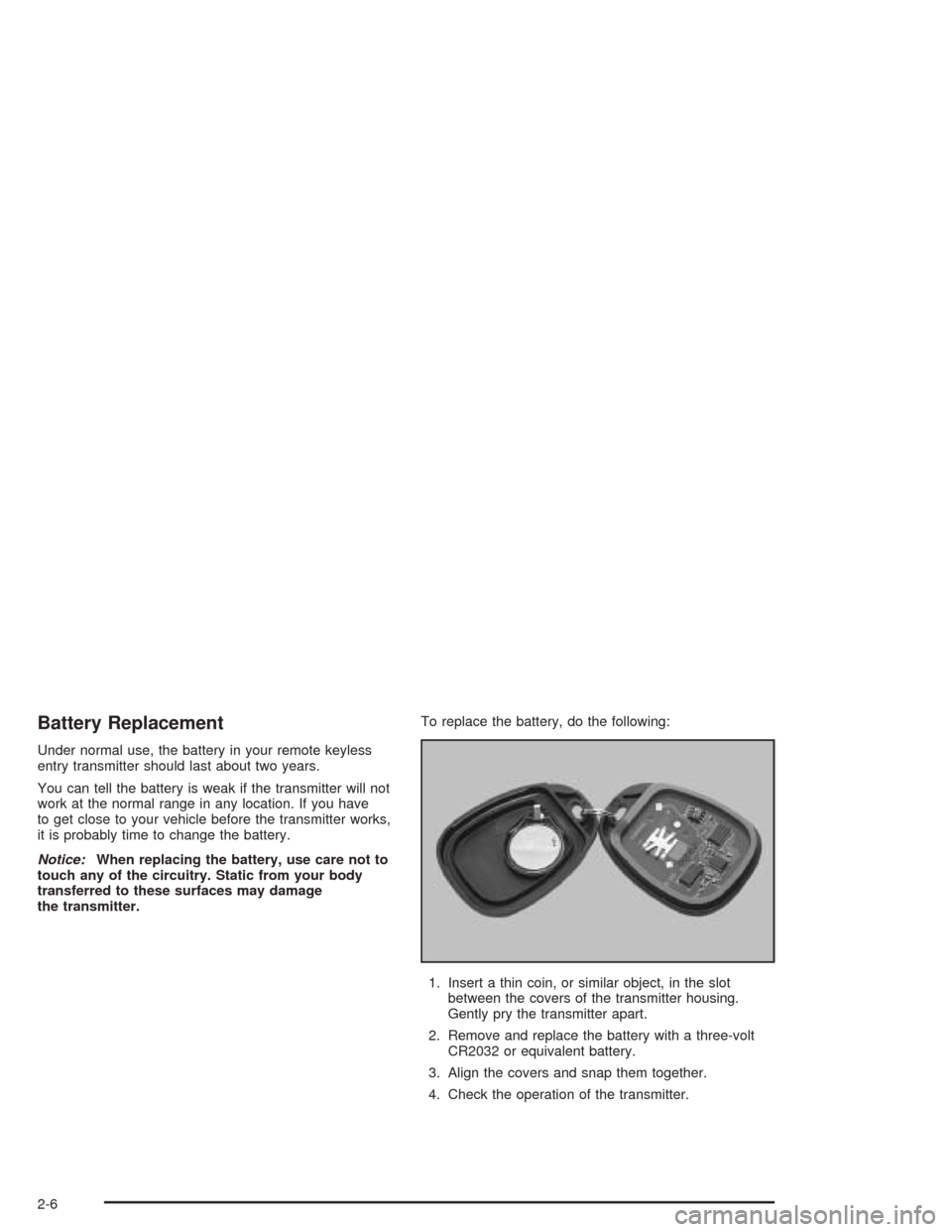
the transmitter.To replace the battery, do the following:
1. Insert a thin coin, or similar object, in the slot
between the covers of the transmitter housing.
Gently pry the transmitter apart.
2. Remove and replace the battery with a three-volt
CR2032 or equivalent battery.
3. Align the covers and snap them together.
4. Check the operation of the transmitter.
2-6
Page 102 of 414
Starting Your Engine
1. With your foot off the accelerator pedal, turn the
ignition key to START. When the engine starts,
let go of the key. The idle speed will go down as
your engine gets warm.
Notice:Holding your key in START for longer than
15 seconds at a time will cause your battery to
be drained much sooner. And the excessive heat
can damage your starter motor. Wait about
15 seconds between each try to help avoid draining
your battery or damaging your starter.
2. If the engine does not start within 10 seconds, push
the accelerator pedal all the way to the oor, while
you hold the ignition key in START. When the
engine starts, let go of the key and let up on the
accelerator pedal. Wait about 15 seconds between
each try.
Depending on the outside temperature, the engine
starter may continue cranking the engine up to
approximately four seconds after you release the
ignition key. This is normal.When starting your engine in very cold weather
(below 0°F or 18°C), do this:
1. With your foot off the accelerator pedal, turn the
ignition key to START and hold it there up to
15 seconds. When the engine starts, let go of
the key.
2. If your engine still will not start (or starts but then
stops), it could be ooded with too much gasoline.
Try pushing your accelerator pedal all the way
to the oor and holding it there as you hold the key
in START for about three seconds. When the
engine starts, let go of the key and accelerator. If
the vehicle starts briey but then stops again, do the
same thing, but this time keep the pedal down for
ve or six seconds. This clears the extra gasoline
from the engine.
Notice:Your engine is designed to work with the
electronics in your vehicle. If you add electrical
parts or accessories, you could change the way the
engine operates. Before adding electrical equipment,
check with your dealer. If you do not, your engine
might not perform properly.
2-20
Page 120 of 414
Manual Rearview Mirror
with OnStar
®
Your vehicle may have a manual rearview mirror with
the OnStar®System and map lamps.
Mirror Operation
You can adjust the mirror for day or night driving. Press
the tab forward (away from you) for day driving. Pull
the tab back (toward you) for night driving.
There are also three OnStar
®buttons located at the
bottom of the mirror. See your dealer for more
information on the system and how to subscribe to
OnStar
®. SeeOnStar®System on page 2-42for more
information about the services OnStar®provides.
Map Lamps
The mirror has map lamps located at the bottom of the
mirror. To manually turn the lamps on or off, press
the button next to each lamp.
Cleaning the Mirror
When cleaning the mirror, use a paper towel or similar
material dampened with glass cleaner. Do not spray
glass cleaner directly on the mirror housing.
Automatic Dimming Rearview
Mirror with Compass and
Temperature Display
Your vehicle may have an automatic dimming rearview
mirror with a compass, temperature display, and
map lamps.
Mirror Operation
The mirror automatically changes to reduce glare from
headlamps behind you. A time delay feature prevents
rapid changing from the day to night positions while
driving under lights and through traffic.
P(On/Off):The automatic dimming feature is
automatically activated when the vehicle is started. The
automatic dimming feature is turned on or off by
pressing this button located on the lower part of the
mirror. Press and hold the button for up to three seconds
to turn this feature on or off.
T(Indicator Light):This light will turn on when the
automatic dimming feature is active.
2-38
Page 135 of 414
AUTO:Turn the knob to this position to automatically
turn on the headlamps at normal brightness, together
with the following:
Sidemarker Lamps
Taillamps
Parking Lamps
Instrument Panel Lights
See “Automatic Headlamp System” following, for
more information.
;(Parking Lamps):Turn the knob to this position to
turn on the parking lamps, together with the following:
Sidemarker Lamps
Taillamps
License Plate Lamps
Instrument Panel Lights
2(Headlamps):Turn the knob to this position to turn
on the headlamps, together with the previously listed
lamps and lights.
You can switch your headlamps from low to high beam
by pushing the turn signal/multifunction lever toward
the instrument panel.
Automatic Headlamp System
Your vehicle may be equipped with this feature. When it
is dark enough outside, your automatic headlamp
system will turn on your headlamps at the normal
brightness along with other lamps such as the taillamps,
sidemarker, parking lamps and the instrument panel
lights. The radio lights may also be dim.
Your vehicle may have a light sensor located on the top
of the instrument panel. Be sure it is not covered, or
the system will be on whenever the ignition is on.
The system may also turn on your headlamps when
driving through a parking garage, heavy overcast
weather or a tunnel. This is normal.
There is a delay in the transition between the daytime
and nighttime operation of the Daytime Running
Lamps (DRL) and the automatic headlamp system so
that driving under bridges or bright overhead street lights
does not affect the system. The DRL and automatic
headlamp system will only be affected when the
light sensor sees a change in lighting lasting longer than
the delay.
If you start your vehicle in a dark garage, the automatic
headlamp system will come on immediately. Once
you leave the garage, it will take approximately several
seconds for the automatic headlamp system to
change to DRL if it is light outside.
3-7
Page 141 of 414
Mode Buttons
@
(Recirculation):If your vehicle has air
conditioning, you will have the recirculation feature. This
mode recirculates air inside the cabin, and prevents
outside air from coming in the vehicle. It can be used to
prevent outside odors from entering your vehicle and
cool the air inside your vehicle more quickly. Press this
button to turn the recirculation mode on or off. An
indicator light on the button will come on to let you know
the recirculation mode is activated.
Recirculation is only available in the bi-level and vent
modes. If you push the recirculation button while
the system is in any other mode, the light on the button
will ash to indicate that recirculation is not available.
#(Air Conditioning):Your vehicle may have air
conditioning. Press this button to turn the air-conditioning
system on or off. An indicator light on the button will
come on to let you know the air conditioning is activated.
When the system is on, this setting cools and
dehumidies the air entering your vehicle.
The air conditioning will not function if the fan is
turned off.You may notice a slight change in engine performance
when the air conditioning compressor shuts off and
turns on again. This is normal. The system is designed
to make adjustments to help with fuel economy while
still maintaining the selected temperature.
The air conditioning system removes moisture from the
air, so you may sometimes notice a small amount of
water dripping underneath your vehicle while idling
or after turning off the engine. This is normal.
Defogging and Defrosting
Fog on the inside of windows is a result of high humidity
(moisture) condensing on the cool window glass. This
can be minimized if the climate control system is
used properly. There are two modes to clear fog or frost
from your windshield and side windows. Use the
defog mode to clear the windows of fog or moisture and
warm the passengers. Use the defrost mode to
remove fog or frost from the windshield more quickly.
For best results, clear all snow and ice from the
windshield before defrosting.
Turn the mode knob on the climate control panel
clockwise to select the defog or defrost modes.
3-13
Page 160 of 414
Remote Keyless Entry Feedback
With the vehicle’s engine off, and the ignition in the
LOCK position, press and hold the lock and unlock
buttons on the remote keyless entry transmitter at the
same time. Hold both buttons until the DIC displays the
current remote feedback mode, then press and hold
the trip odometer reset stem for approximately two
seconds to switch between modes. The following are
the mode choices:
RFA 1 (default):The parking lamps will ash when you
press the lock and unlock buttons on the remote
keyless entry transmitter.
RFA 2:The parking lamps will ash when you press
the lock and unlock buttons on the remote keyless entry
transmitter, and the horn will chirp when the lock
button is pressed.
RFA 3:The parking lamps will ash and the horn will
chirp when you press the lock and unlock buttons on the
remote keyless entry transmitter.
RFA 4:There is no feedback when you press the
lock and unlock buttons on the remote keyless
entry transmitter.
Language
You can choose the language in which the DIC
information is displayed. With the ignition off, and the
key in the ON position, press the reset stem until
LANGUAGE is displayed. While LANGUAGE is on the
display, press and hold the reset stem for approximately
two seconds until the language changes from
ENGLISH to the language you desire. You can choose
from English, Spanish, or French (Canada Only).
DIC Warnings and Messages
Warning messages are displayed on the DIC to notify
the driver that the status of the vehicle has changed and
that some action may be needed by the driver to
correct the condition. More than one message may
appear at one time. They will appear one after the other.
The messages are displayed for three seconds each.
Some messages may not require immediate action
but you should press and release the trip odometer reset
stem to acknowledge that you received the message
and clear it from the display. Each message must
be acknowledged individually. Some messages cannot
be cleared from the display because they are more
urgent. These messages require action before they can
be removed from the DIC display. The following are
the possible messages that can be displayed and some
information about them.
3-32
Page 168 of 414
AUTO VOL (Automatic Volume):With automatic
volume, the audio system will adjust automatically to
make up for road and wind noise as you drive by
increasing the volume as vehicle speed increases.
Set the volume at the desired level. Press this button to
select LOW, MEDIUM, or HIGH. AVOL will appear
on the display. Each higher setting will provide more
volume compensation at faster vehicle speeds. To turn
automatic volume off, press this button until AVOL
OFF appears on the display.
DISPL (Display):Press this knob to switch the display
between the radio station frequency and the time.
When the ignition is off, press this knob to display
the time.
For RDS, press the DISPL knob to change what
appears on the display while using RDS. The display
options are station name, RDS station frequency, PTY,
and the name of the program (if available).
To change the default on the display, press the DISPL
knob until you see the display you want, then hold
the knob for two seconds. The radio will produce one
beep and the selected display will now be the default.Finding a Station
BAND:Press this button to switch between FM1, FM2,
or AM. The display will show the selection.
TUNE:Turn this knob to select radio stations.
qSEEKr:Press the right or the left arrow to go to
the next or to the previous station and stay there.
The radio will only seek stations with a strong signal
that are in the selected band.
qSCANr:Press and hold either arrow for more
than two seconds. SCAN will appear on the display and
you will hear a beep. The radio will go to a station,
play for a few seconds, then go on to the next station.
Press either arrow again to stop scanning.
To scan preset stations, press and hold either arrow for
more than four seconds. PSCN will appear on the
display and you will hear two beeps. The radio will go to
the rst preset station, play for a few seconds, then
go on to the next preset station. Press either arrow again
or one of the pushbuttons to stop scanning.
The radio will only scan stations with a strong signal
that are in the selected band.
3-40
Page 174 of 414
3 REV (Reverse):Press and hold this pushbutton to
reverse quickly within a track. Press and hold this
pushbutton for less than two seconds to reverse at six
times the normal playing speed. Press and hold it
for more than two seconds to reverse at 17 times the
normal playing speed. Release this pushbutton to
play the passage. ET and the elapsed time of the track
will appear on the display.
4 FWD (Forward):Press and hold this pushbutton to
advance quickly within a track. Press and hold this
pushbutton for less than two seconds to advance at six
times the normal playing speed. Press and hold it for
more than two seconds to advance at 17 times the
normal playing speed. Release this pushbutton to play
the passage. ET and the elapsed time of the track
will appear on the display.
6 RDM (Random):Press this pushbutton to hear the
tracks in random, rather than sequential, order. RDM ON
will appear on the display. RDM T and the track
number will appear on the display when each track
starts to play. Press this pushbutton again to turn
off random play. RDM OFF will appear on the display.
qSEEKr:Press the left arrow to go to the start
of the current or to the previous track. Press the
right arrow to go to the start of the next track. If either
arrow is held or pressed more than once, the player will
continue moving backward or forward through the CD.
qSCANr:To scan the CD, press and hold either
SCAN arrow for more than two seconds until SCAN
appears on the display and you hear a beep. Use this
feature to listen to 10 seconds of each track of the CD.
Press either SCAN arrow again, to stop scanning.
DISPL (Display):Press this knob to see how long the
current track has been playing. ET and the elapsed time
of the track will appear on the display. To change the
default on the display, track or elapsed time, press this
knob until you see the display you want, then hold the
knob for two seconds. The radio will produce one beep
and the selected display will now be the default.
BAND:Press this button to listen to the radio when a
CD is playing. The inactive CD will remain safely
inside the radio for future listening
CD AUX (Auxiliary):Press this button to play a CD
when listening to the radio. The CD symbol will appear
on the display when a CD is loaded.
Z(Eject):Press this button to stop a CD when it is
playing or to eject a CD when it is not playing. Eject
may be activated with either the ignition or radio off. CDs
may be loaded with the ignition and radio off if this
button is pressed rst.
3-46
Page 176 of 414
AUTO VOL (Automatic Volume):With automatic
volume, your audio system will adjust automatically to
make up for road and wind noise as you drive.
Set the volume at the desired level. Press this button to
select MIN, MED, or MAX. Each higher setting will
allow for more volume compensation at faster vehicle
speeds. Then, as you drive, automatic volume increases
the volume, as necessary, to overcome noise at any
speed. The volume level should always sound the same
to you as you drive. If you do not want to use automatic
volume, select OFF.
RCL (Recall):Press this knob to switch the display
between the radio station frequency and the time. Press
this knob with the ignition off to display the time.
To change the default on the display, press the RCL
knob until you see the display you want, then hold the
knob until the display ashes. The selected display
will now be the default.Finding a Station
BAND:Press this button to switch between FM1, FM2,
AM. The display will show your selection.
TUNE:Turn this knob to select radio stations.
sSEEKt:Press the right or the left arrow to go to
the next or to the previous station and stay there.
The radio will seek only to stations that are in the
selected band and only to those with a strong signal.
sSCANt:Press and hold either SCAN arrow
for two seconds until SC appears on the display and
you hear a beep. The radio will go to a station, play for
a few seconds, then go on to the next station. Press
either SCAN arrow again to stop scanning.
To scan preset stations, press and hold either SCAN
arrow for more than four seconds. PRESET SCAN will
appear on the display and you will hear a double
beep. The radio will go to a preset station stored on
your pushbuttons, play for a few seconds, then go on to
the next preset station. Press either SCAN arrow
again to stop scanning presets.
The radio will scan only to stations that are in the
selected band and only to those with a strong signal.
3-48