buttons CHEVROLET COLORADO 2015 2.G Owners Manual
[x] Cancel search | Manufacturer: CHEVROLET, Model Year: 2015, Model line: COLORADO, Model: CHEVROLET COLORADO 2015 2.GPages: 431, PDF Size: 5.74 MB
Page 15 of 431
Black plate (8,1)Chevrolet Colorado Owner Manual (GMNA-Localizing-U.S./Canada-
7586788) - 2015 - crc - 2/9/15
1-8 In Brief
To return the seatback to the upright
position:
1. Lift the lever fully withoutapplying pressure to the
seatback.
2. Push and pull on the seatback to make sure it is locked.
See Reclining Seatbacks on
page 3-4.
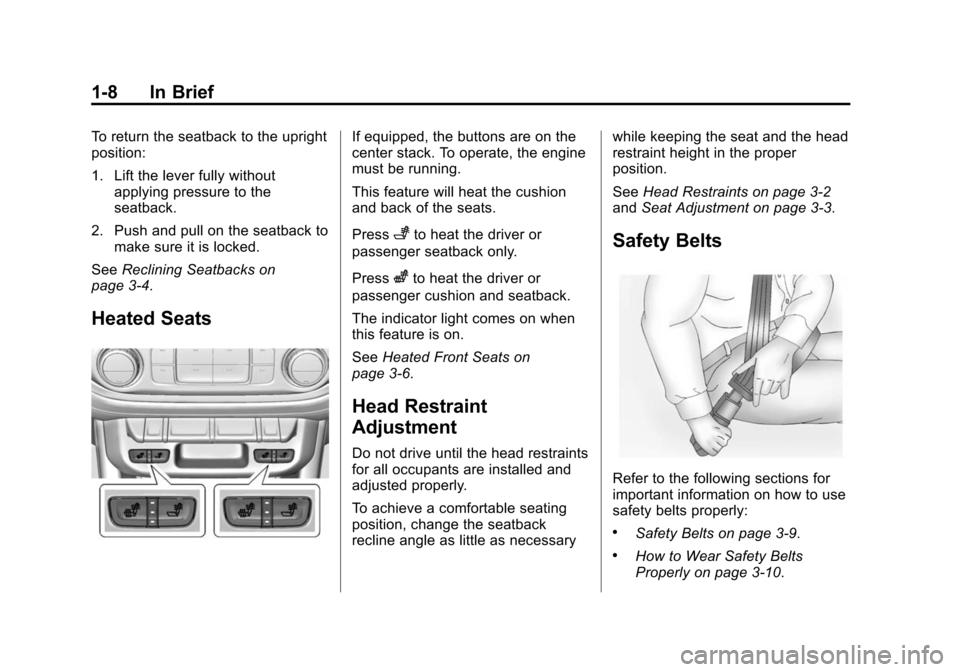
Heated Seats
If equipped, the buttons are on the
center stack. To operate, the engine
must be running.
This feature will heat the cushion
and back of the seats.
Press
+to heat the driver or
passenger seatback only.
Press
zto heat the driver or
passenger cushion and seatback.
The indicator light comes on when
this feature is on.
See Heated Front Seats on
page 3-6.
Head Restraint
Adjustment
Do not drive until the head restraints
for all occupants are installed and
adjusted properly.
To achieve a comfortable seating
position, change the seatback
recline angle as little as necessary while keeping the seat and the head
restraint height in the proper
position.
See
Head Restraints on page 3-2
and Seat Adjustment on page 3-3.
Safety Belts
Refer to the following sections for
important information on how to use
safety belts properly:
.Safety Belts on page 3-9.
.How to Wear Safety Belts
Properly on page 3-10.
Page 45 of 431
Black plate (16,1)Chevrolet Colorado Owner Manual (GMNA-Localizing-U.S./Canada-
7586788) - 2015 - crc - 2/9/15
2-16 Keys, Doors, and Windows
2. When checking for traffic orbefore changing a lane, look at
the main driver/passenger side
mirror to observe traffic in the
adjacent lane, behind your
vehicle. Check the blind spot
mirror for a vehicle in the blind
zone. Then, glance over your
shoulder to double check before
moving slowly into the
adjacent lane.Interior Mirrors
Interior Rearview Mirrors
Adjust the rearview mirror for a clear
view of the area behind your
vehicle.
If equipped with OnStar, the vehicle
may have three control buttons at
the bottom of the mirror. See your
dealer for more information about
OnStar and how to subscribe to it.
See OnStar Overview on page 14-1.
Do not spray glass cleaner directly
on the mirror. Use a soft towel
dampened with water.
Manual Rearview Mirror
If equipped, push the tab forward for
daytime use and pull it rearward for
nighttime use to avoid glare from
the headlamps from behind.
Automatic Dimming
Rearview Mirror
If equipped, the mirror will
automatically reduce the glare of the
headlamps from behind. The
dimming feature comes on each
time the vehicle is started.
Page 55 of 431
Black plate (6,1)Chevrolet Colorado Owner Manual (GMNA-Localizing-U.S./Canada-
7586788) - 2015 - crc - 2/9/15
3-6 Seats and Restraints
2. Push and pull on the seatback tomake sure it is locked.
Heated Front Seats
{Warning
If you cannot feel temperature
change or pain to the skin, the
seat heater may cause burns. To
reduce the risk of burns, people
with such a condition should use
care when using the seat heater,
especially for long periods of
time. Do not place anything on
the seat that insulates against
heat, such as a blanket, cushion,
cover, or similar item. This may
cause the seat heater to
overheat. An overheated seat
heater may cause a burn or may
damage the seat.
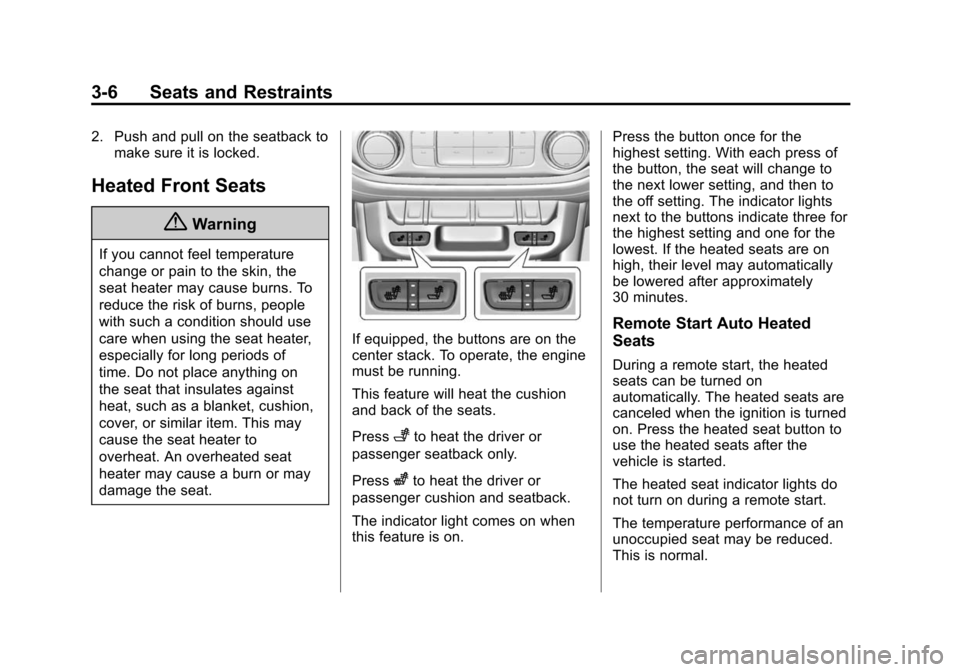
If equipped, the buttons are on the
center stack. To operate, the engine
must be running.
This feature will heat the cushion
and back of the seats.
Press
+to heat the driver or
passenger seatback only.
Press
zto heat the driver or
passenger cushion and seatback.
The indicator light comes on when
this feature is on. Press the button once for the
highest setting. With each press of
the button, the seat will change to
the next lower setting, and then to
the off setting. The indicator lights
next to the buttons indicate three for
the highest setting and one for the
lowest. If the heated seats are on
high, their level may automatically
be lowered after approximately
30 minutes.
Remote Start Auto Heated
Seats
During a remote start, the heated
seats can be turned on
automatically. The heated seats are
canceled when the ignition is turned
on. Press the heated seat button to
use the heated seats after the
vehicle is started.
The heated seat indicator lights do
not turn on during a remote start.
The temperature performance of an
unoccupied seat may be reduced.
This is normal.
Page 102 of 431
Black plate (53,1)Chevrolet Colorado Owner Manual (GMNA-Localizing-U.S./Canada-
7586788) - 2015 - crc - 2/9/15
Seats and Restraints 3-53
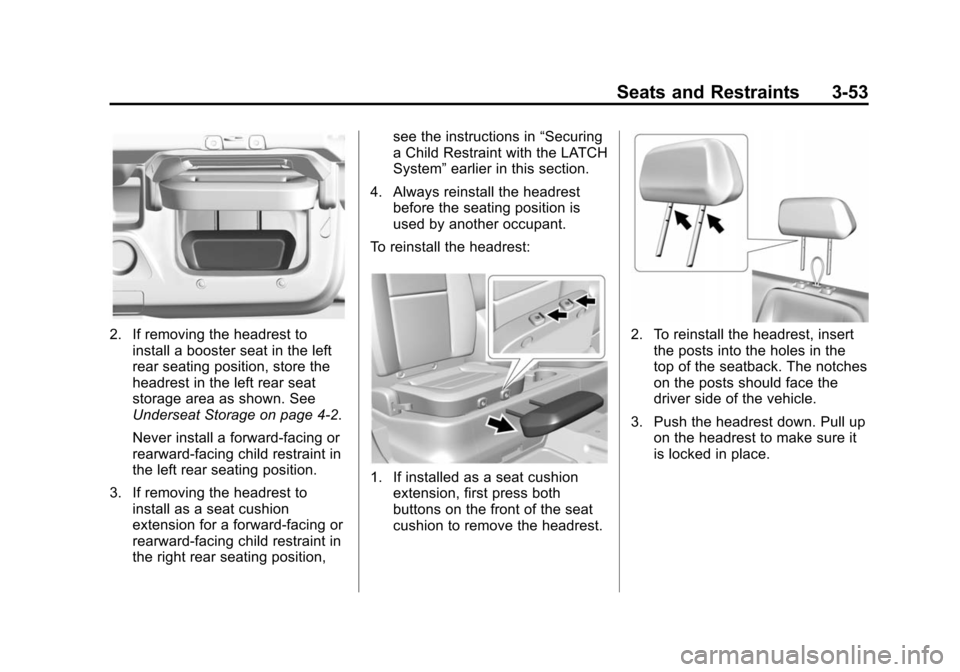
2. If removing the headrest toinstall a booster seat in the left
rear seating position, store the
headrest in the left rear seat
storage area as shown. See
Underseat Storage on page 4-2.
Never install a forward-facing or
rearward-facing child restraint in
the left rear seating position.
3. If removing the headrest to install as a seat cushion
extension for a forward-facing or
rearward-facing child restraint in
the right rear seating position, see the instructions in
“Securing
a Child Restraint with the LATCH
System” earlier in this section.
4. Always reinstall the headrest before the seating position is
used by another occupant.
To reinstall the headrest:
1. If installed as a seat cushion extension, first press both
buttons on the front of the seat
cushion to remove the headrest.
2. To reinstall the headrest, insertthe posts into the holes in the
top of the seatback. The notches
on the posts should face the
driver side of the vehicle.
3. Push the headrest down. Pull up on the headrest to make sure it
is locked in place.
Page 138 of 431

Black plate (23,1)Chevrolet Colorado Owner Manual (GMNA-Localizing-U.S./Canada-
7586788) - 2015 - crc - 2/9/15
Instruments and Controls 5-23
Cruise Control Light
The cruise control light is white
when the cruise control is on and
ready, and turns green when the
cruise control is set and active.
The light goes out when the cruise
control is turned off. SeeCruise
Control on page 9-45.
Information Displays
Driver Information
Center (DIC)
The DIC displays information about
your vehicle. It also displays
warning messages if a system
problem is detected. See Vehicle
Messages on page 5-26. All
messages appear in the DIC display
in the center of the instrument
cluster.
DIC Operation and Displays
The DIC has different displays
which can be accessed by using the
DIC buttons on the turn signal lever.
DIC Buttons
1. SET/CLR: Press to set, or press
and hold to clear, the menu item
displayed.
2.
w x: Use the band to scroll
through the items in each menu.
3. MENU: Press to display the Trip/
Fuel Menu, the Vehicle
Information Menu, and the ECO
Menu. This button is also used
to return to or exit the last
screen displayed on the DIC.
Trip/Fuel Menu (TRIP) Items
Press MENU on the turn signal
lever until the TRIP menu displays.
Use
w xto scroll through the
menu items. Not all items are
available on every vehicle. The
following is a list of all possible
menu items:
Digital Speed: Displays how fast
the vehicle is moving in either
kilometers per hour (km/h) or miles
per hour (mph). The speedometer
cannot be reset.
Page 165 of 431
Black plate (2,1)Chevrolet Colorado Owner Manual (GMNA-Localizing-U.S./Canada-
7586788) - 2015 - crc - 2/9/15
7-2 Infotainment System
The infotainment system has built-in
features intended to help avoid
distraction by disabling some
functions when driving. These
functions may gray out when they
are unavailable. Many infotainment
features are also available through
the instrument cluster and steering
wheel controls.
Before driving:
.Become familiar with the
operation, faceplate buttons, and
screen buttons.
.Set up the audio by presetting
favorite stations, setting the
tone, and adjusting the
speakers.
.Set up phone numbers in
advance so they can be called
easily by pressing a single
button or by using a single voice
command if equipped with
Bluetooth phone capability.
See Defensive Driving on page 9-3. To play the infotainment system with
the ignition off, see
Retained
Accessory Power (RAP) on
page 9-24.
Theft-Deterrent Feature
TheftLock®is designed to
discourage theft of the vehicle's
radio by learning a portion of the
Vehicle Identification Number (VIN).
The radio does not operate if it is
stolen or moved to a different
vehicle.
Overview
Infotainment System Overview
The infotainment system is
controlled by using the buttons on
the faceplate.
Page 175 of 431
Black plate (12,1)Chevrolet Colorado Owner Manual (GMNA-Localizing-U.S./Canada-
7586788) - 2015 - crc - 2/9/15
7-12 Infotainment System
.For an iPhone, check that the
USB cable is connected to the
USB port and the screen is
unlocked.
.Close Pandora on the device
and launch again. Devices that
allow multitasking may require
an extra step to quit the Pandora
application. See the cell phone
manufacturer's user guide.
Thumbs Up or Thumbs Down
Error
If there is an error trying to rate a
track with the
,or-buttons, the
message “Thumbs Down Error” or
“Thumbs Up Error” will display.
Press OK to dismiss.
Loss of Audio
Loss of Pandora audio can happen
in different ways:
.Weak or lost data connection.
.Device needs to be charged.
.Application needs to be
relaunched.
.Connection between phone and
radio lost.
.An iPhone is connected to both
Bluetooth and the USB port.
Playback can be resumed from
a loss of audio by double
tapping on the iPhone home
button then scrolling through the
icons to find an icon that allows
a change of flow between
Bluetooth and USB cable.
Volume and song selection may
be controlled using the
Infotainment controls or on the
phone/device. If Pandora is
selected and nothing is heard,
check the volume setting on
both phone/device and the
Infotainment system.
Common Pandora Messages
Pandora Error/Please Check
Device: Not signed in or Pandora
is down for maintenance.
No Stations Available: No stations
are available on the Pandora server
through the connected device. Action Unavailable. Please Check
Device Connection:
A few
conditions for loss of Internet
connection are:
.The connected device loses its
cellular connection.
.The device does not support
Internet connectivity.
.The device is not in the vehicle.
.The Bluetooth signal is lost.
No skips remaining for this
station or permitted during
advertisements:
.The maximum Pandora skip limit
has been reached according to
the plan that was obtained.
.Skipping an advertisement was
tried.
See www.pandora.com/help. If the
service will not work, see a dealer
for assistance.
Page 182 of 431
Black plate (19,1)Chevrolet Colorado Owner Manual (GMNA-Localizing-U.S./Canada-
7586788) - 2015 - crc - 2/9/15
Infotainment System 7-19
Voice Recognition
If equipped, voice recognition allows
for hands-free operation within the
audio and phone applications. This
feature can be started by pressing
the button below
gon the
infotainment screen.
However, not all features within
these areas are supported by voice
commands. Generally, only complex
tasks that require multiple manual
interactions to complete are
supported by voice commands.
For example, tasks that take more
than one or two button presses such
as selecting a song or artist to play
from a media device would be
supported by voice commands.
Other tasks, like adjusting the
volume or seeking up or down are
audio features that are easily
performed by pressing one or two
buttons, and are not supported by
voice commands. In general there are flexible ways to
speak commands for completing the
tasks. Most of them, except
destination entry and voice keypad,
can be completed in a single
command. If the task takes more
than one command to complete, the
first command would be to indicate
the kind of task that is to be
performed. The system replies with
prompts that lead through a dialog
to enter the necessary information.
Voice recognition can be used when
the ignition is on or when Retained
Accessory Power (RAP) is active.
See
Retained Accessory Power
(RAP) on page 9-24.
Using Voice Recognition
Voice recognition becomes available
once the system has been
initialized. This begins when the
ignition is turned on. Initialization
may take a few moments. 1. Press the button below the
g
screen button.
When voice recognition is
started from the infotainment
screen, the selections and visual
dialog content are displayed on
both the center stack display
and the instrument cluster
display.
2. The audio system mutes and the system plays a prompt followed
by a beep.
3. Wait until the beep stops, then clearly speak one of the
commands described in this
section.
Press the button below the
g
screen button to interrupt any
voice recognition system prompt.
For example, if the prompt
seems to be taking too long to
finish, press the button below
the
gscreen button again and
the beep should happen
right away.
Page 183 of 431
Black plate (20,1)Chevrolet Colorado Owner Manual (GMNA-Localizing-U.S./Canada-
7586788) - 2015 - crc - 2/9/15
7-20 Infotainment System
There are two voice prompt modes
supported:
.Long verbal prompts: The longer
prompts provide more
information regarding the
supported actions.
.Short prompts: The short
prompts provide simple
instructions about what can be
stated.
If a command is not spoken, the
voice recognition system says a
help prompt.
Prompts and Screen Displays
While a voice recognition session is
active, there will be corresponding
buttons on screens displayed.
Manual interaction in the voice
recognition session is permitted.
Interaction during a voice session
may be completed entirely using
voice commands, or some
selections may expedite a session.
If a selection is made using a
manual control, the dialog will
progress in the same way as if the selection was made through a voice
command. Once the system is able
to complete the task, or the session
is terminated, the voice recognition
dialog stops.
An example of this type of manual
intervention is pressing on an entry
of a displayed number list instead of
speaking the number associated
with the entry desired.
Canceling Voice Recognition
.Select the Home screen button
to terminate the voice
recognition session which was
initiated by selecting
gon the
infotainment screen.
.Select or say “Cancel”or“Exit”
to terminate the voice
recognition session and display
the screen from which voice
recognition was initiated.
Helpful Hints for Speaking
Commands
Voice recognition can understand
commands that are either naturally
stated in sentence form (English
only), or direct commands that state
the application and the task.
For languages that do not support
natural language commands in
sentence form, use the direct
commands shown as examples on
the display screen.
For best results:
.Listen for the prompt and wait
for the beep before saying a
command or reply.
.Say “Help” or look at the screen
display for commands.
.Voice recognition system
prompts can be interrupted
during a prompt by selecting
g
again.
For example, if the prompt
seems to be taking too long to
finish, or if what is being
Page 258 of 431
Black plate (45,1)Chevrolet Colorado Owner Manual (GMNA-Localizing-U.S./Canada-
7586788) - 2015 - crc - 2/9/15
Driving and Operating 9-45
HDC can maintain vehicle speeds
between 4 and 30 km/h (3 and
19 mph) on an incline greater than
or equal to a 10% grade. A blinking
HDC light indicates that the system
is actively applying the brakes to
maintain vehicle speed.
When HDC is set, that is the initial
set speed. It can be increased or
decreased by applying the
accelerator or brake pedal. Smaller
HDC speed control adjustments are
accomplished using the cruise up or
down buttons. Each tap of the
+RES will increase the set speed by
0.8 km/h (0.5 mph), while each tap
of the SET–will decrease the set
speed by 0.8 km/h (0.5 mph). This
adjusted speed becomes the new
set speed. HDC will remain enabled between
30 and 60 km/h (19 and 37 mph),
however vehicle speed cannot be
set or maintained in this range.
It will automatically disable
if the vehicle speed is above
80 km/h (50 mph) or above
60 km/h (37 mph) for at least
30 seconds.
5must be pressed
again to re-enable HDC.
When enabled, if the vehicle is at a
speed above 30 km/h (19 mph) and
less than 60 km/h (37 mph), a DIC
message will display instructing the
driver to reduce speed for HDC
operation.
Cruise control will not function while
HDC is enabled and vehicle speed
is below 40 km/h (25 mph).
Cruise Control
With cruise control a speed of about
40 km/h (25 mph) or more can be
maintained without keeping your
foot on the accelerator. Cruise
control does not work at speeds
below about 40 km/h (25 mph).
{Warning
Cruise control can be dangerous
where you cannot drive safely at
a steady speed. Do not use
cruise control on winding roads or
in heavy traffic.
Cruise control can be dangerous
on slippery roads. On such roads,
fast changes in tire traction can
cause excessive wheel slip, and
you could lose control. Do not use
cruise control on slippery roads.
If equipped with a manual
transmission, the cruise control will
remain active when the gears are
shifted. The cruise is deactivated if