USB CHEVROLET COLORADO 2016 2.G User Guide
[x] Cancel search | Manufacturer: CHEVROLET, Model Year: 2016, Model line: COLORADO, Model: CHEVROLET COLORADO 2016 2.GPages: 396, PDF Size: 6.6 MB
Page 157 of 396
Chevrolet Colorado Owner Manual (GMNA-Localizing-U.S/Canada/Mexico-
9159327) - 2016 - crc - 8/28/15
156 Infotainment System
Radio
AM-FM Radio
Playing the Radio
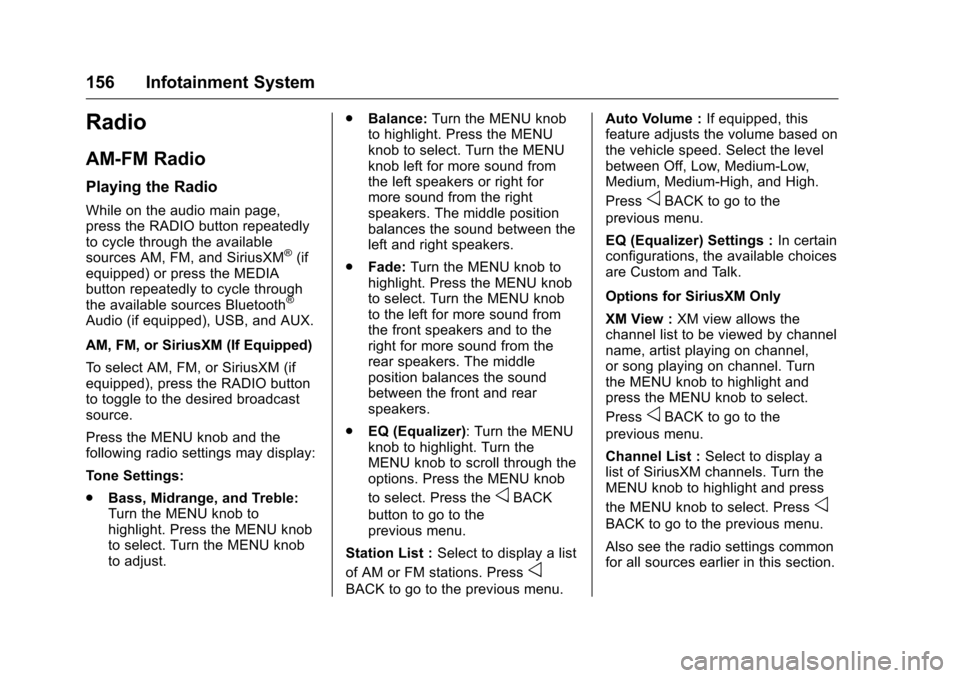
While on the audio main page,
press the RADIO button repeatedly
to cycle through the available
sources AM, FM, and SiriusXM
®(if
equipped) or press the MEDIA
button repeatedly to cycle through
the available sources Bluetooth
®
Audio (if equipped), USB, and AUX.
AM, FM, or SiriusXM (If Equipped)
To select AM, FM, or SiriusXM (if
equipped), press the RADIO button
to toggle to the desired broadcast
source.
Press the MENU knob and the
following radio settings may display:
Tone Settings:
. Bass, Midrange, and Treble:
Turn the MENU knob to
highlight. Press the MENU knob
to select. Turn the MENU knob
to adjust. .
Balance: Turn the MENU knob
to highlight. Press the MENU
knob to select. Turn the MENU
knob left for more sound from
the left speakers or right for
more sound from the right
speakers. The middle position
balances the sound between the
left and right speakers.
. Fade: Turn the MENU knob to
highlight. Press the MENU knob
to select. Turn the MENU knob
to the left for more sound from
the front speakers and to the
right for more sound from the
rear speakers. The middle
position balances the sound
between the front and rear
speakers.
. EQ (Equalizer): Turn the MENU
knob to highlight. Turn the
MENU knob to scroll through the
options. Press the MENU knob
to select. Press the
oBACK
button to go to the
previous menu.
Station List : Select to display a list
of AM or FM stations. Press
o
BACK to go to the previous menu. Auto Volume :
If equipped, this
feature adjusts the volume based on
the vehicle speed. Select the level
between Off, Low, Medium-Low,
Medium, Medium-High, and High.
Press
oBACK to go to the
previous menu.
EQ (Equalizer) Settings : In certain
configurations, the available choices
are Custom and Talk.
Options for SiriusXM Only
XM View : XM view allows the
channel list to be viewed by channel
name, artist playing on channel,
or song playing on channel. Turn
the MENU knob to highlight and
press the MENU knob to select.
Press
oBACK to go to the
previous menu.
Channel List : Select to display a
list of SiriusXM channels. Turn the
MENU knob to highlight and press
the MENU knob to select. Press
o
BACK to go to the previous menu.
Also see the radio settings common
for all sources earlier in this section.
Page 159 of 396
Chevrolet Colorado Owner Manual (GMNA-Localizing-U.S/Canada/Mexico-
9159327) - 2016 - crc - 8/28/15
158 Infotainment System
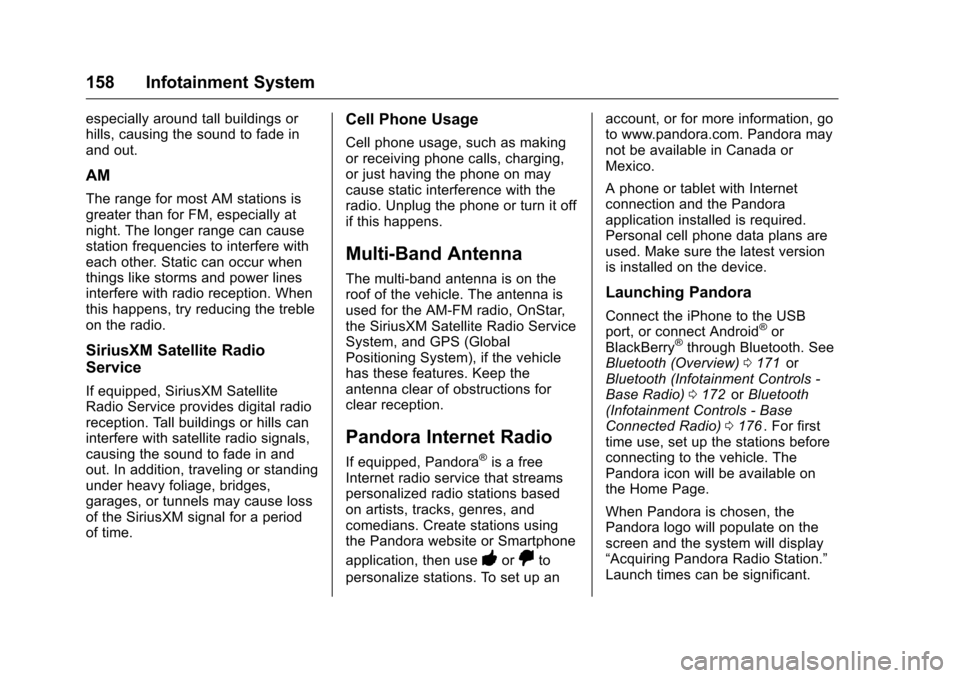
especially around tall buildings or
hills, causing the sound to fade in
and out.
AM
The range for most AM stations is
greater than for FM, especially at
night. The longer range can cause
station frequencies to interfere with
each other. Static can occur when
things like storms and power lines
interfere with radio reception. When
this happens, try reducing the treble
on the radio.
SiriusXM Satellite Radio
Service
If equipped, SiriusXM Satellite
Radio Service provides digital radio
reception. Tall buildings or hills can
interfere with satellite radio signals,
causing the sound to fade in and
out. In addition, traveling or standing
under heavy foliage, bridges,
garages, or tunnels may cause loss
of the SiriusXM signal for a period
of time.
Cell Phone Usage
Cell phone usage, such as making
or receiving phone calls, charging,
or just having the phone on may
cause static interference with the
radio. Unplug the phone or turn it off
if this happens.
Multi-Band Antenna
The multi-band antenna is on the
roof of the vehicle. The antenna is
used for the AM-FM radio, OnStar,
the SiriusXM Satellite Radio Service
System, and GPS (Global
Positioning System), if the vehicle
has these features. Keep the
antenna clear of obstructions for
clear reception.
Pandora Internet Radio
If equipped, Pandora®is a free
Internet radio service that streams
personalized radio stations based
on artists, tracks, genres, and
comedians. Create stations using
the Pandora website or Smartphone
application, then use
-or,to
personalize stations. To set up an account, or for more information, go
to www.pandora.com. Pandora may
not be available in Canada or
Mexico.
A phone or tablet with Internet
connection and the Pandora
application installed is required.
Personal cell phone data plans are
used. Make sure the latest version
is installed on the device.
Launching Pandora
Connect the iPhone to the USB
port, or connect Android®or
BlackBerry®through Bluetooth. See
Bluetooth (Overview) 0171iior
Bluetooth (Infotainment Controls -
Base Radio) 0172
iior Bluetooth
(Infotainment Controls - Base
Connected Radio) 0176
ii. For first
time use, set up the stations before
connecting to the vehicle. The
Pandora icon will be available on
the Home Page.
When Pandora is chosen, the
Pandora logo will populate on the
screen and the system will display
“Acquiring Pandora Radio Station.”
Launch times can be significant.
Page 160 of 396
Chevrolet Colorado Owner Manual (GMNA-Localizing-U.S/Canada/Mexico-
9159327) - 2016 - crc - 8/28/15
Infotainment System 159
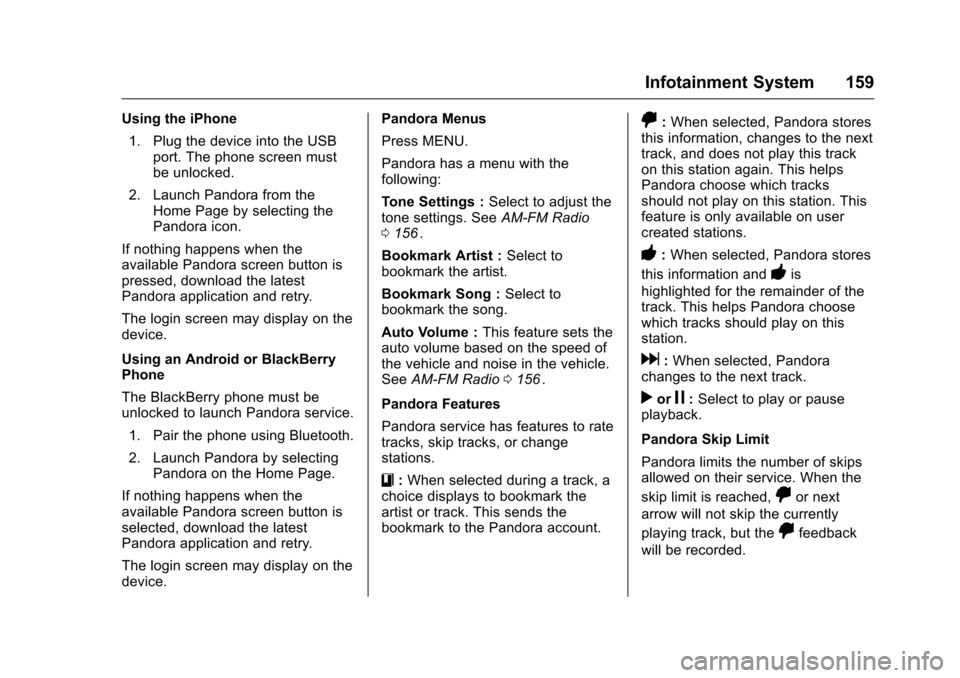
Using the iPhone1. Plug the device into the USB port. The phone screen must
be unlocked.
2. Launch Pandora from the Home Page by selecting the
Pandora icon.
If nothing happens when the
available Pandora screen button is
pressed, download the latest
Pandora application and retry.
The login screen may display on the
device.
Using an Android or BlackBerry
Phone
The BlackBerry phone must be
unlocked to launch Pandora service.
1. Pair the phone using Bluetooth.
2. Launch Pandora by selecting Pandora on the Home Page.
If nothing happens when the
available Pandora screen button is
selected, download the latest
Pandora application and retry.
The login screen may display on the
device. Pandora Menus
Press MENU.
Pandora has a menu with the
following:
Tone Settings :
Select to adjust the
tone settings. See AM-FM Radio
0 156
ii.
Bookmark Artist : Select to
bookmark the artist.
Bookmark Song : Select to
bookmark the song.
Auto Volume : This feature sets the
auto volume based on the speed of
the vehicle and noise in the vehicle.
See AM-FM Radio 0156
ii.
Pandora Features
Pandora service has features to rate
tracks, skip tracks, or change
stations.
}: When selected during a track, a
choice displays to bookmark the
artist or track. This sends the
bookmark to the Pandora account.
,: When selected, Pandora stores
this information, changes to the next
track, and does not play this track
on this station again. This helps
Pandora choose which tracks
should not play on this station. This
feature is only available on user
created stations.
-: When selected, Pandora stores
this information and
-is
highlighted for the remainder of the
track. This helps Pandora choose
which tracks should play on this
station.
d: When selected, Pandora
changes to the next track.
rorj: Select to play or pause
playback.
Pandora Skip Limit
Pandora limits the number of skips
allowed on their service. When the
skip limit is reached,
,or next
arrow will not skip the currently
playing track, but the
,feedback
will be recorded.
Page 161 of 396
Chevrolet Colorado Owner Manual (GMNA-Localizing-U.S/Canada/Mexico-
9159327) - 2016 - crc - 8/28/15
160 Infotainment System
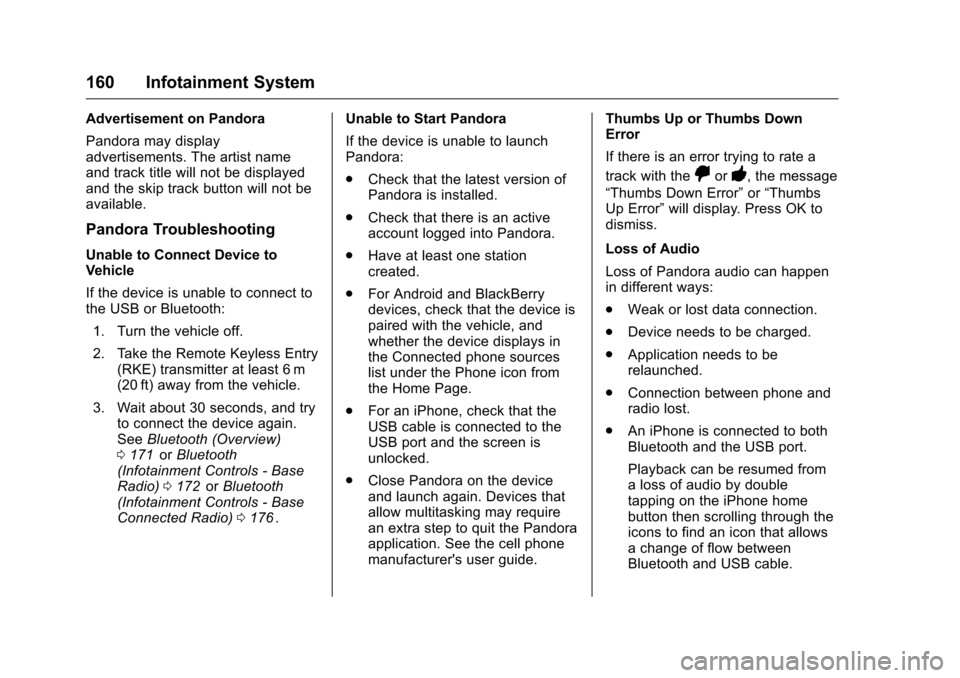
Advertisement on Pandora
Pandora may display
advertisements. The artist name
and track title will not be displayed
and the skip track button will not be
available.
Pandora Troubleshooting
Unable to Connect Device to
Vehicle
If the device is unable to connect to
the USB or Bluetooth:1. Turn the vehicle off.
2. Take the Remote Keyless Entry (RKE) transmitter at least 6 m
(20 ft) away from the vehicle.
3. Wait about 30 seconds, and try to connect the device again.
See Bluetooth (Overview)
0 171
iior Bluetooth
(Infotainment Controls - Base
Radio) 0172
iior Bluetooth
(Infotainment Controls - Base
Connected Radio) 0176
ii. Unable to Start Pandora
If the device is unable to launch
Pandora:
.
Check that the latest version of
Pandora is installed.
. Check that there is an active
account logged into Pandora.
. Have at least one station
created.
. For Android and BlackBerry
devices, check that the device is
paired with the vehicle, and
whether the device displays in
the Connected phone sources
list under the Phone icon from
the Home Page.
. For an iPhone, check that the
USB cable is connected to the
USB port and the screen is
unlocked.
. Close Pandora on the device
and launch again. Devices that
allow multitasking may require
an extra step to quit the Pandora
application. See the cell phone
manufacturer's user guide. Thumbs Up or Thumbs Down
Error
If there is an error trying to rate a
track with the
,or-, the message
“Thumbs Down Error” or“Thumbs
Up Error” will display. Press OK to
dismiss.
Loss of Audio
Loss of Pandora audio can happen
in different ways:
. Weak or lost data connection.
. Device needs to be charged.
. Application needs to be
relaunched.
. Connection between phone and
radio lost.
. An iPhone is connected to both
Bluetooth and the USB port.
Playback can be resumed from
a loss of audio by double
tapping on the iPhone home
button then scrolling through the
icons to find an icon that allows
a change of flow between
Bluetooth and USB cable.
Page 162 of 396
Chevrolet Colorado Owner Manual (GMNA-Localizing-U.S/Canada/Mexico-
9159327) - 2016 - crc - 8/28/15
Infotainment System 161
Volume and song selection may
be controlled using the
Infotainment controls or on the
phone/device. If Pandora is
selected and nothing is heard,
check the volume setting on
both phone/device and the
Infotainment system.
Common Pandora Messages
Pandora Error/Please Check
Device : Not signed in or Pandora
is down for maintenance.
No Stations Available : No stations
are available on the Pandora server
through the connected device.
Action Unavailable. Please Check
Device Connection : A few
conditions for loss of Internet
connection are:
. The connected device loses its
cellular connection.
. The device does not support
Internet connectivity.
. The device is not in the vehicle.
. The Bluetooth signal is lost. No Skips Remaining For This
Station or Permitted During
Advertisements :
.
The maximum Pandora skip limit
has been reached according to
the plan that was obtained.
. Skipping an advertisement was
tried.
See www.pandora.com/help. If the
service will not work, see a dealer
for assistance.Audio Players
USB Port
Playing from a USB
A USB mass storage device can be
connected to the USB port.
There is a USB port on the front or
under the armrest of the center
console. See Center Console
Storage 0100
ii.
USB MP3 Player and USB Drives
. The USB MP3 players and USB
drives connected must comply
with the USB Mass Storage
Class specification (USB MSC).
. Hard disk drives are not
supported.
To play a USB device:
. Connect the USB.
. Press the MEDIA button on the
faceplate until the connected
device is shown.
Page 163 of 396
Chevrolet Colorado Owner Manual (GMNA-Localizing-U.S/Canada/Mexico-
9159327) - 2016 - crc - 8/28/15
162 Infotainment System
While the USB source is active,
press the corresponding faceplate
button for the icons on the screen to
operate USB function:
.
t(Seek Previous/Fast
Reverse)
.
u(Seek Next/Fast Forward)
.
j/r(Play/Pause)
.
Z(Shuffle)
USB Menu
Press the MENU knob to display the
USB menu and the following may
display:
Browse : Select to display the files
and folders on the USB device.
Tone Settings : Select to adjust
Bass, Midrange, Treble, Balance,
Fade, and EQ (Equalizer).
Auto Volume : If equipped, this
feature adjusts the volume based on
vehicle speed and ambient noise.
EQ (Equalizer) : If equipped, this
feature adjusts the equalizer
settings. See “EQ (Equalizer)
Settings” inAM-FM Radio 0156
ii.
Playing from an iPod®/iPad®/
iPhone®
This feature supports the following
devices:
. iPod nano
®(1st, 2nd, 3rd, and
4th generation)
. iPod with video (5.0 and 5.5
generation)
. iPod classic
®(6th generation)
. iPod touch
®(1st and 2nd
generation)
. iPad
. iPhone 3G and newer
There may be problems with
operation and function in the
following situations:
. When connecting a device with
a more recent version of the
firmware installed than is
supported by the infotainment
system.
. When connecting a device on
which firmware from other
providers is installed. To connect and control a device:
1. Connect one end of the standard USB cable to the
device's dock connector.
2. Connect the other end to a USB port in the center console.
See Center Console Storage
0 100
ii.
3. Press the MEDIA button to select the source.
The music information displays on
the radio’s display and begins
playing through the vehicle’s audio
system.
The device battery recharges
automatically while the vehicle is on.
When the vehicle is off while a
device is connected using the USB
cable, the device battery stops
charging and the device will
automatically turn off.
If the device is an unsupported
model, it can still be listened to in
the vehicle by connecting to the
auxiliary input jack using a standard
3.5 mm (1/8 in) stereo cable.
Page 393 of 396
Chevrolet Colorado Owner Manual (GMNA-Localizing-U.S/Canada/Mexico-
9159327) - 2016 - crc - 8/28/15
392 Index
OrderingService Publications . . . . . . . . . . 370
Outlets Power . . . . . . . . . . . . . . . . . . . . . . . . 105
Overheating, Engine . . . . . . . . . . . . 274
Overview . . . . . . . . . . . . . . . . . . . . . . . 152
P
Pandora Internet Radio . . . . . . . . . 158
Park Shifting Into . . . . . . . . . . . . . . . . . . . 217
Shifting Out of . . . . . . . . . . . . . . . . 218
Parking . . . . . . . . . . . . . . . . . . . . . . . . . 218 Brake . . . . . . . . . . . . . . . . . . . . . . . . . 233
Brake and P (Park)Mechanism Check . . . . . . . . . . 282
Over Things That Burn . . . . . . . 219
Passenger Airbag Status Indicator . . . . . . . . . . . . . . . . . . . . . . 114
Passenger Compartment Air Filter . . . . . . . . . . . . . . . . . . . . . . . . . . 192
Passenger Sensing System . . . . . 62
Perchlorate Materials Requirements, California . . . . . . 259
Personalization Vehicle . . . . . . . . . . . . . . . . . . . . . . . 137
Phone Bluetooth . . . . . . . . . . . 171, 172, 176 Port
USB . . . . . . . . . . . . . . . . . . . . . . . . . . 161
Power Door Locks . . . . . . . . . . . . . . . . . . . . . 32
Mirrors . . . . . . . . . . . . . . . . . . . . . . . . . . 37
Outlets . . . . . . . . . . . . . . . . . . . . . . . 105
Protection, Battery . . . . . . . . . . . . 149
Retained Accessory (RAP) . . . 214
Seat Adjustment . . . . . . . . . . . . . . . . 45
Windows . . . . . . . . . . . . . . . . . . . . . . . 39
Pregnancy, Using Safety Belts . . . 55
Privacy
Vehicle Data Recording . . . . . . . 372
Program Courtesy Transportation . . . . . . 367
Proposition
65 Warning,
California . . . . . . . . . . . .259, 279, 327
R
Radio Frequency Statement . . . . 371
Radio Reception . . . . . . . . . . . . . . . . 157
RadiosAM-FM Radio . . . . . . . . . . . . . . . . . 156
Satellite . . . . . . . . . . . . . . . . . . . . . . . 157
Reading Lamps . . . . . . . . . . . . . . . . . 148
Rear Axle . . . . . . . . . . . . . . . . . . . . . . . 280
Rear Seat Armrest . . . . . . . . . . . . . . . 50
Rear Seats . . . . . . . . . . . . . . . . . . . . . . 48 Rear Vision Camera (RVC) . . . . . 240
Rear Windows . . . . . . . . . . . . . . . . . . . 41
Rearview Mirrors . . . . . . . . . . . . . . . . 39
Automatic Dimming . . . . . . . . . . . . . 39
Reclining Seatbacks . . . . . . . . . . . . . 46
Recognition Voice . . . . . . . . . . . . . . . . . . . . . . . . . 165
Recommended Fluids and Lubricants . . . . . . . . . . . . . . . . . . . . . 353
Records Maintenance . . . . . . . . . . . . . . . . . . 356
Recreational Vehicle Towing . . . . 330
Reimbursement Program, GM Mobility . . . . . . . . . . . . . . . . . . . 364
Remote Keyless Entry (RKE) System . . . . . . . . . . . . . . . . . . . . . . . . . 28
Remote Vehicle Start . . . . . . . . . . . . 30
Replacement Bulbs . . . . . . . . . . . . . 286
Replacement Parts Airbags . . . . . . . . . . . . . . . . . . . . . . . . . 68
Maintenance . . . . . . . . . . . . . . . . . . 355
Replacing Airbag System . . . . . . . . 68
Replacing LATCH System Parts after a Crash . . . . . . . . . . . . . 89
Replacing Safety Belt System
Parts after a Crash . . . . . . . . . . . . . 56
Reporting Safety Defects Canadian Government . . . . . . . . 372
Page 396 of 396
Chevrolet Colorado Owner Manual (GMNA-Localizing-U.S/Canada/Mexico-
9159327) - 2016 - crc - 8/28/15
Index 395
TrailerSway Control (TSC) . . . . . . . . . . 256
Towing . . . . . . . . . . . . . . . . . . . . . . . . 251
Transfer Case . . . . . . . . . . . . . . . . . . 226
Transmission Automatic . . . . . . . . . . . . . . . . . . . . . 220
Fluid, Automatic . . . . . . . . . . . . . . 268
Fluid, Manual . . . . . . . . . . . . . . . . . 269
Messages . . . . . . . . . . . . . . . . . . . . 135
Transportation Program, Courtesy . . . . . . . . . . . . . . . . . . . . . . 367
Trip Odometer . . . . . . . . . . . . . . . . . . 111
Truck-Camper Loading Information . . . . . . . . . . . . . . . . . . . . 211
Turn and Lane-Change Signals . . . . . . . . . . . . . . . . . . . . . . . . 146
Turn Signal Bulb Replacement . . . . . . . . . . . . 285
U
Underseat Storage . . . . . . . . . . . . . 100
Uniform Tire Quality Grading . . . 312
Up-Shift Light . . . . . . . . . . . . . . . . . . . 118
UpdatesSoftware . . . . . . . . . . . . . . . . . . . . . . 155
USB Port . . . . . . . . . . . . . . . . . . . . . . . 161
Using This Manual . . . . . . . . . . . . . . . . 2
V
Vehicle
Alarm System . . . . . . . . . . . . . . . . . . 34
Canadian Owners . . . . . . . . . . . . . . . 2
Control . . . . . . . . . . . . . . . . . . . . . . . 195
Identification Number (VIN) . . . 357
Load Limits . . . . . . . . . . . . . . . . . . . 205
Messages . . . . . . . . . . . . . . . . . . . . 129
Personalization . . . . . . . . . . . . . . . 137
Reminder Messages . . . . . . . . . . 136
Remote Start . . . . . . . . . . . . . . . . . . . 30
Security . . . . . . . . . . . . . . . . . . . . . . . . 34
Speed Messages . . . . . . . . . . . . . 136
Towing . . . . . . . . . . . . . . . . . . . . . . . . 329
Vehicle Ahead Indicator . . . . . . . . 119
Vehicle Care Tire Pressure . . . . . . . . . . . . . . . . . 302
Vehicle Data Recording and Privacy . . . . . . . . . . . . . . . . . . . . . . . . 372
Ventilation, Air . . . . . . . . . . . . . . . . . . 191
Visors . . . . . . . . . . . . . . . . . . . . . . . . . . . 42
Voice Recognition . . . . . . . . . . . . . . 165
W
Warning Brake System Light . . . . . . . . . . . .117
Caution and Danger . . . . . . . . . . . . . 3 Warning (cont'd)
Lane Departure (LDW) . . . . . . . 244
Warning Lights, Gauges, and Indicators . . . . . . . . . . . . . . . . . . . . . 106
Warnings Hazard Flashers . . . . . . . . . . . . . . 146
Washer Fluid . . . . . . . . . . . . . . . . . . . 276
Wheels Alignment and Tire Balance . . 313
Different Size . . . . . . . . . . . . . . . . . .311
Replacement . . . . . . . . . . . . . . . . . 313
When It Is Time for New Tires . . . . . . . . . . . . . . . . . . . . . . . . . . 309
Where to Put the Restraint . . . . . . 74
Windows . . . . . . . . . . . . . . . . . . . . . . . . 39
Power . . . . . . . . . . . . . . . . . . . . . . . . . . 39
Rear . . . . . . . . . . . . . . . . . . . . . . . . . . . . 41
Windshield
Wiper/Washer . . . . . . . . . . . . . . . . 103
Winter Driving . . . . . . . . . . . . . . . . . . . . . . . . 203
Winter Tires . . . . . . . . . . . . . . . . . . . . 296
Wiper Blade Replacement . . . . . . 283