bluetooth CHEVROLET COLORADO 2016 2.G Owner's Manual
[x] Cancel search | Manufacturer: CHEVROLET, Model Year: 2016, Model line: COLORADO, Model: CHEVROLET COLORADO 2016 2.GPages: 396, PDF Size: 6.6 MB
Page 175 of 396
Chevrolet Colorado Owner Manual (GMNA-Localizing-U.S/Canada/Mexico-
9159327) - 2016 - crc - 8/28/15
174 Infotainment System
Accept and Allow. The phone
book may not be available if
not accepted.
7. Repeat Steps 1–6 to pair additional phones or devices.
Listing All Paired and Connected
Phones 1. To list all paired devices, from the Home Page turn the MENU
knob, then press to select the
PHONE screen button.
2. Turn the MENU knob and press to select Manage
Phones.
Deleting a Paired Phone 1. From the Home Page, turn the MENU knob, then press to
select the PHONE screen
button.
2. Turn the MENU knob and press to select Manage
Phones.
3. Turn the MENU knob to highlight the phone to be
deleted. 4. Press the button below the
DELETE screen button to
delete the highlighted device.
5. A confirmation screen is displayed. Press the button just
below the DELETE screen
button to confirm deletion.
Connecting to a Different Phone 1. From the Home Page, turn the MENU knob, then press to
select the PHONE screen
button.
2. Turn the MENU knob and press to select Manage
Phones.
3. Turn the MENU knob to highlight the phone to be
connected.
4. Press the button just below the CONNECT screen button to
connect to the highlighted
device.
Phone Menu
Once a phone is connected and
selected, the following may display: Recent Calls :
Turn the MENU
knob to highlight Recent Calls and
press to select.
Contacts : Turn the MENU knob to
highlight Contacts and press to
select.
Keypad : Turn the MENU knob to
highlight Keypad and press to
select.
Active Call : Turn the MENU knob
to highlight Active Call and press to
select and display the active call
screen.
Manage Phones : Turn the MENU
knob to highlight Manage Phones
and press to select.
Making a Call Using Contacts
and Recent Calls
For cell phones that support the
Contacts and Recent Calls feature,
the Bluetooth system can use the
contacts stored on your cell phone
to make calls. See your cell phone
manufacturer ’s user guide or
contact your wireless provider to
find out if this feature is supported
by your phone.
Page 177 of 396
Chevrolet Colorado Owner Manual (GMNA-Localizing-U.S/Canada/Mexico-
9159327) - 2016 - crc - 8/28/15
176 Infotainment System
Declining a Call
To decline a call, do one of the
following:
.Press the button just below the
IGNORE screen button.
. Do nothing.
Call Waiting
Call waiting must be supported on
the Bluetooth phone and enabled by
the wireless service carrier to work.
Accepting a Call Waiting Call
To accept a call waiting call, press
the button just below the SWITCH
screen button.
Declining a Call Waiting Call
To decline a call waiting call, do one
of the following:
.Press the button just below the
IGNORE screen button.
. Do nothing.
Ending a Call
To end a call, press the button just
below the END screen button.
Dual Tone Multi-Frequency
(DTMF) Tones
The in-vehicle Bluetooth system can
send numbers during a call. This is
used when calling a menu-driven
phone system.
1. When a call is active, press the button just below the KEYPAD
screen button.
2. Turn the MENU knob to highlight the first digit and
press to select.
If not initially in the phone
application, from the Home Page,
turn the MENU knob, then press to
select the PHONE screen button.
From the PHONE main menu, turn
the MENU knob to highlight Active
Call and press to select.
Bluetooth (Infotainment
Controls - Base
Connected Radio)
For information about how to
navigate the menu system using the
infotainment controls, see Overview
0 152
ii.
Switching to Handset or
Hands-Free Mode
To switch between handset or
hands-free mode, from the Home
Page select the PHONE to display
Call View.
.
While the active call is
hands-free, press the Handset
screen button to switch to the
handset mode. The screen
button changes to Hands-Free
once the Bluetooth device
confirms it is operating as
handset.
. While the active call is handset,
select the Hands-Free screen
button to switch to the
hands-free mode. The screen
button changes to Handset once
the Bluetooth device confirms it
is operating as hands-free.
Pairing
A Bluetooth-enabled cell phone
must be paired to the Bluetooth
system and then connected to the
vehicle before it can be used. See
your cell phone manufacturer's user
guide for Bluetooth functions before
Page 178 of 396
Chevrolet Colorado Owner Manual (GMNA-Localizing-U.S/Canada/Mexico-
9159327) - 2016 - crc - 8/28/15
Infotainment System 177
pairing the cell phone. If a Bluetooth
phone is not connected, calls can
be made using OnStar Hands-Free
Calling, if available. SeeOnStar
Overview 0375
ii.
Pairing Information
. Up to 10 cell phones can be
paired to the Bluetooth system.
. The pairing process is disabled
when the vehicle is moving.
. Pairing only needs to be
completed once per phone,
unless the pairing information on
the cell phone changes or the
cell phone is deleted from the
system.
. Only one paired cell phone can
be connected to the Bluetooth
system at a time.
. If multiple paired cell phones are
within range of the system, the
system connects to the most
recently connected device. To
connect to a different paired
phone, see “Connecting to a
Different Phone” later in this
section. Pairing a Phone or Device
1. From the Home Page, turn the MENU knob to access the
PHONE screen button, then
press the MENU knob to select
the PHONE screen button. If a
device has been previously
paired, the main Phone menu
will be shown. If no devices
have been paired, Step 2 can
be skipped.
2. Turn the MENU knob and press to select Manage
Phones.
3. Press the button just below the PAIR/screen button. A four-digit
Personal Identification Number
(PIN) appears on the display.
The PIN may be used in
Step 5.
4. Start the pairing process on the cell phone to be paired to the
vehicle. See the cell phone
manufacturer's user guide for
information on this process.
5. Locate “Chevrolet MyLink” on
the display. Follow the
instructions on the cell phone to enter the PIN provided in
Step 3 or confirm the six-digit
code shown on the display.
After the PIN is successfully
entered or the code is
confirmed, the system
responds with
“
has been successfully paired”
when the pairing process is
complete.
6. If “Chevrolet MyLink” does not
appear, turn the phone off or
remove the phone battery and
retry.
7. If the phone prompts to accept connection or allow phone
book download, select always
accept and allow. The phone
book may not be available if
not accepted.
8. Repeat Steps 1−7 to pair additional phones.
Listing All Paired and Connected
Phones 1. To list all paired devices, from the Home Page turn the MENU
knob, then press to select the
PHONE screen button.
Page 179 of 396
Chevrolet Colorado Owner Manual (GMNA-Localizing-U.S/Canada/Mexico-
9159327) - 2016 - crc - 8/28/15
178 Infotainment System
2. Turn the MENU knob andpress to select Manage
Phones.
Deleting a Paired Phone 1. From the Home Page, turn the MENU knob, then press to
select the PHONE screen
button.
2. Turn the MENU knob and press to select Manage
Phones.
3. Turn the MENU knob to highlight the phone to be
deleted.
4. Press the button below the DROP screen button to
disconnect the highlighted
device.
5. Press the button below the DELETE screen button to
delete the highlighted device.
6. A confirmation screen is displayed. Press the button just
below the DELETE screen
button to confirm deletion. Connecting to a Different Phone
1. From the Home Page, turn the MENU knob, then press to
select the PHONE screen
button.
2. Turn the MENU knob and press to select Manage
Phones.
3. Turn the MENU knob to highlight the phone to be
connected.
4. Press the button just below the CONNECT screen button to
connect to the highlighted
device.
Phone Menu
Once a phone is connected and
selected, the following may display:
Recent Calls : Turn the MENU
knob to highlight Recent Calls and
press to select.
Contacts : Turn the MENU knob to
highlight Contacts and press to
select. Keypad :
Turn the MENU knob to
highlight Keypad and press to
select.
Active Call : Turn the MENU knob
to highlight Active Call and press to
select and display the active call
screen.
Manage Phones : Turn the MENU
knob to highlight Manage Phones
and press to select.
Making a Call Using Contacts
and Recent Calls
For cell phones that support the
Contacts and Recent Calls feature,
the Bluetooth system can use the
contacts stored on your cell phone
to make calls. See your cell phone
manufacturer ’s user guide or
contact your wireless provider to
find out if this feature is supported
by your phone.
If the phone prompts to allow phone
book download during the pairing
process, select Always Accept and
Allow. The phone book may not be
available if not accepted.
Page 181 of 396
Chevrolet Colorado Owner Manual (GMNA-Localizing-U.S/Canada/Mexico-
9159327) - 2016 - crc - 8/28/15
180 Infotainment System
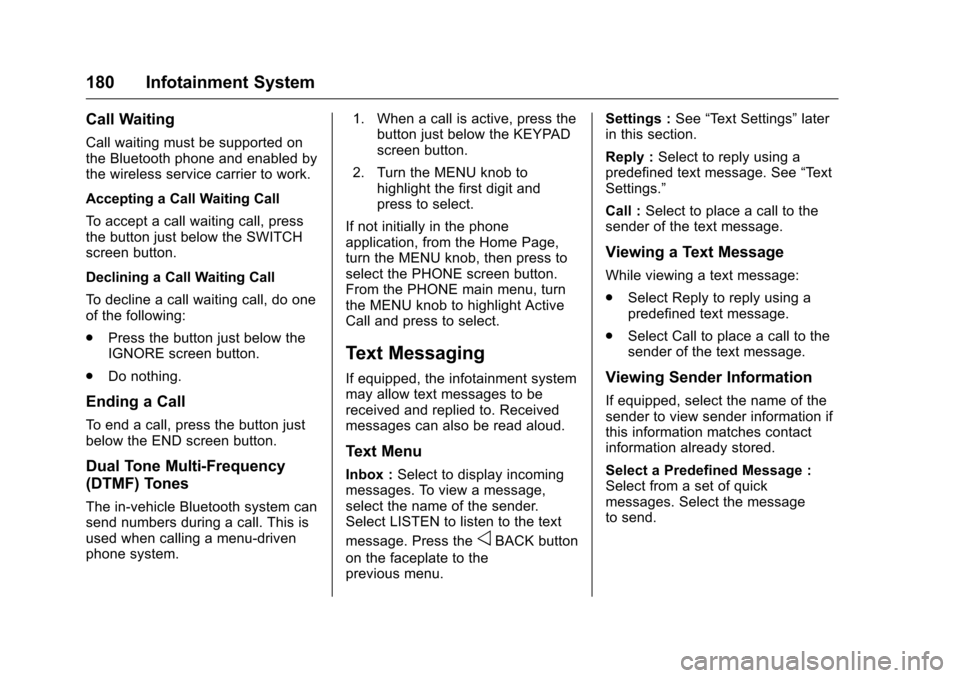
Call Waiting
Call waiting must be supported on
the Bluetooth phone and enabled by
the wireless service carrier to work.
Accepting a Call Waiting Call
To accept a call waiting call, press
the button just below the SWITCH
screen button.
Declining a Call Waiting Call
To decline a call waiting call, do one
of the following:
.Press the button just below the
IGNORE screen button.
. Do nothing.
Ending a Call
To end a call, press the button just
below the END screen button.
Dual Tone Multi-Frequency
(DTMF) Tones
The in-vehicle Bluetooth system can
send numbers during a call. This is
used when calling a menu-driven
phone system. 1. When a call is active, press the
button just below the KEYPAD
screen button.
2. Turn the MENU knob to highlight the first digit and
press to select.
If not initially in the phone
application, from the Home Page,
turn the MENU knob, then press to
select the PHONE screen button.
From the PHONE main menu, turn
the MENU knob to highlight Active
Call and press to select.
Text Messaging
If equipped, the infotainment system
may allow text messages to be
received and replied to. Received
messages can also be read aloud.
Text Menu
Inbox : Select to display incoming
messages. To view a message,
select the name of the sender.
Select LISTEN to listen to the text
message. Press the
oBACK button
on the faceplate to the
previous menu. Settings :
See“Text Settings” later
in this section.
Reply : Select to reply using a
predefined text message. See “Text
Settings.”
Call : Select to place a call to the
sender of the text message.
Viewing a Text Message
While viewing a text message:
. Select Reply to reply using a
predefined text message.
. Select Call to place a call to the
sender of the text message.
Viewing Sender Information
If equipped, select the name of the
sender to view sender information if
this information matches contact
information already stored.
Select a Predefined Message :
Select from a set of quick
messages. Select the message
to send.
Page 183 of 396
Chevrolet Colorado Owner Manual (GMNA-Localizing-U.S/Canada/Mexico-
9159327) - 2016 - crc - 8/28/15
182 Infotainment System
iPod shuffle®, and iPod touch®are
trademarks of Apple Inc., registered
in the U.S. and other countries.
Fees and Taxes: Subscription fee,
taxes, one time activation fee, and
other fees may apply. Subscription
fee is consumer only. All fees and
programming subject to change.
Subscriptions subject to Customer
Agreement available at
www.siriusxm.com. SiriusXM
®
service only available in the
48 contiguous United States and
Canada.
In Canada: Some deterioration of
service may occur in extreme
northern latitudes. This is beyond
the control of SiriusXM
®Satellite
Radio. Explicit Language Notice: Channels
with frequent explicit language are
indicated with an
“XL”preceding the
channel name. Channel blocking is
available for SiriusXM Satellite
Radio receivers by notifying
SiriusXM:
. USA Customers —See
www.siriusxm.com or call
1-866-635–2349.
. Canadian Customers —See
www.xmradio.ca or call
1-877-209-0079.
It is prohibited to copy, decompile,
disassemble, reverse engineer,
hack, manipulate, or otherwise
make available any technology or
software incorporated in receivers
compatible with the SiriusXM
®
Satellite Radio System or that
support the SiriusXM website, the
Online Service or any of its content.
Furthermore, the AMBER voice
compression software included in
this product is protected by
intellectual property rights including
patent rights, copyrights, and trade
secrets of Digital Voice
Systems, Inc. General Requirements:
1. A License Agreement from SiriusXM
®is required for any
product that incorporates
SiriusXM Technology and/or for
use of any of the SiriusXM
marks to be manufactured,
distributed, or marketed in the
SiriusXM Service Area.
2. For products to be distributed, marketed, and/or sold in
Canada, a separate agreement
is required with Canadian
Satellite Radio Inc. (operating
as SiriusXM Canada).
Other Information
The Bluetooth®word mark and
logos are owned by the Bluetooth®
SIG, Inc. and any use of such marks
by General Motors is under license.
Other trademarks and trade names
are those of their respective owners.
Page 387 of 396
Chevrolet Colorado Owner Manual (GMNA-Localizing-U.S/Canada/Mexico-
9159327) - 2016 - crc - 8/28/15
386 Index
AudioBluetooth . . . . . . . . . . . . . . . . . . . . . 164
Theft-Deterrent Feature . . . . . . . 151
Automatic Climate Control System . . . . . . . 189
Door Locks . . . . . . . . . . . . . . . . . . . . . 32
Headlamp System . . . . . . . . . . . . 145
Transmission . . . . . . . . . . . . . . . . . 220
Transmission Fluid . . . . . . . . . . . 268
Automatic Transmission Manual Mode . . . . . . . . . . . . . . . . . 223
Shift Lock Control Function
Check . . . . . . . . . . . . . . . . . . . . . . . 282
Auxiliary Jack . . . . . . . . . . . . . . . . . . . 164
Axle, Front . . . . . . . . . . . . . . . . . . . . . . 280
Axle, Rear . . . . . . . . . . . . . . . . . . . . . . 280
B
Battery Load Management . . . . . . . . . . . . 149
Power Protection . . . . . . . . . . . . . 149
Voltage and ChargingMessages . . . . . . . . . . . . . . . . . . . 129
Battery - North America . . . . 279, 327
Blade Replacement, Wiper . . . . . 283
Blind Spot Mirrors . . . . . . . . . . . . . . . 37
Bluetooth Overview . . . . . . . . . . . 171, 172, 176 Bluetooth Audio . . . . . . . . . . . . . . . . 164
Brake
System Warning Light . . . . . . . . .117
Brakes . . . . . . . . . . . . . . . . . . . . . . . . . . 277 Antilock . . . . . . . . . . . . . . . . . . . . . . . 233
Assist . . . . . . . . . . . . . . . . . . . . . . . . . 234
Fluid . . . . . . . . . . . . . . . . . . . . . . . . . . 278
Parking . . . . . . . . . . . . . . . . . . . . . . . 233
System Messages . . . . . . . . . . . . 130
Braking . . . . . . . . . . . . . . . . . . . . . . . . . 195
Break-In, New Vehicle . . . . . . . . . . 211
Bulb Replacement . . . . . . . . . . . . . . 286 Center High-MountedStoplamp (CHMSL) and
Cargo Lamp . . . . . . . . . . . . . . . . . 286
Fog Lamps . . . . . . . . . . . . . . . . . . . 146
Halogen Bulbs . . . . . . . . . . . . . . . . 284
Headlamp Aiming . . . . . . . . . . . . . 284
Headlamps . . . . . . . . . . . . . . . . . . . 284
Headlamps, Front Turn Signal, Sidemarker, and
Parking Lamps . . . . . . . . . . . . . . 284
Taillamps, Turn Signal, Stoplamps, and Back-up
Lamps . . . . . . . . . . . . . . . . . . . . . . 285
Buying New Tires . . . . . . . . . . . . . . . 310
C
Calibration . . . . . . . . . . . . . . . . . . . . . . 104
California Fuel Requirements . . . . . . . . . . . 246
Perchlorate MaterialsRequirements . . . . . . . . . . . . . . . 259
California Proposition
65 Warning . . . . . . . . . .259, 279, 327
Camera
Rear Vision (RVC) . . . . . . . . . . . . 240
Canadian Vehicle Owners . . . . . . . . 2
Capacities and Specifications . . . . . . . . . . . . . . . . . 358
Carbon Monoxide Engine Exhaust . . . . . . . . . . . . . . . 219
Tailgate . . . . . . . . . . . . . . . . . . . . . . . . . 33
Winter Driving . . . . . . . . . . . . . . . . 203
Cargo Lamp . . . . . . . . . . . . . . . . . . . . 147
Caution, Danger, and Warning . . . . 3
Center Console Storage . . . . . . . . 100
Center High-Mounted
Stoplamp (CHMSL) and
Cargo Lamp . . . . . . . . . . . . . . . . . . . 286
Chains, Tire . . . . . . . . . . . . . . . . . . . . 314
Charging System Light . . . . . . . . . 115
Check Ignition Transmission Lock . . . 282
Page 393 of 396
Chevrolet Colorado Owner Manual (GMNA-Localizing-U.S/Canada/Mexico-
9159327) - 2016 - crc - 8/28/15
392 Index
OrderingService Publications . . . . . . . . . . 370
Outlets Power . . . . . . . . . . . . . . . . . . . . . . . . 105
Overheating, Engine . . . . . . . . . . . . 274
Overview . . . . . . . . . . . . . . . . . . . . . . . 152
P
Pandora Internet Radio . . . . . . . . . 158
Park Shifting Into . . . . . . . . . . . . . . . . . . . 217
Shifting Out of . . . . . . . . . . . . . . . . 218
Parking . . . . . . . . . . . . . . . . . . . . . . . . . 218 Brake . . . . . . . . . . . . . . . . . . . . . . . . . 233
Brake and P (Park)Mechanism Check . . . . . . . . . . 282
Over Things That Burn . . . . . . . 219
Passenger Airbag Status Indicator . . . . . . . . . . . . . . . . . . . . . . 114
Passenger Compartment Air Filter . . . . . . . . . . . . . . . . . . . . . . . . . . 192
Passenger Sensing System . . . . . 62
Perchlorate Materials Requirements, California . . . . . . 259
Personalization Vehicle . . . . . . . . . . . . . . . . . . . . . . . 137
Phone Bluetooth . . . . . . . . . . . 171, 172, 176 Port
USB . . . . . . . . . . . . . . . . . . . . . . . . . . 161
Power Door Locks . . . . . . . . . . . . . . . . . . . . . 32
Mirrors . . . . . . . . . . . . . . . . . . . . . . . . . . 37
Outlets . . . . . . . . . . . . . . . . . . . . . . . 105
Protection, Battery . . . . . . . . . . . . 149
Retained Accessory (RAP) . . . 214
Seat Adjustment . . . . . . . . . . . . . . . . 45
Windows . . . . . . . . . . . . . . . . . . . . . . . 39
Pregnancy, Using Safety Belts . . . 55
Privacy
Vehicle Data Recording . . . . . . . 372
Program Courtesy Transportation . . . . . . 367
Proposition
65 Warning,
California . . . . . . . . . . . .259, 279, 327
R
Radio Frequency Statement . . . . 371
Radio Reception . . . . . . . . . . . . . . . . 157
RadiosAM-FM Radio . . . . . . . . . . . . . . . . . 156
Satellite . . . . . . . . . . . . . . . . . . . . . . . 157
Reading Lamps . . . . . . . . . . . . . . . . . 148
Rear Axle . . . . . . . . . . . . . . . . . . . . . . . 280
Rear Seat Armrest . . . . . . . . . . . . . . . 50
Rear Seats . . . . . . . . . . . . . . . . . . . . . . 48 Rear Vision Camera (RVC) . . . . . 240
Rear Windows . . . . . . . . . . . . . . . . . . . 41
Rearview Mirrors . . . . . . . . . . . . . . . . 39
Automatic Dimming . . . . . . . . . . . . . 39
Reclining Seatbacks . . . . . . . . . . . . . 46
Recognition Voice . . . . . . . . . . . . . . . . . . . . . . . . . 165
Recommended Fluids and Lubricants . . . . . . . . . . . . . . . . . . . . . 353
Records Maintenance . . . . . . . . . . . . . . . . . . 356
Recreational Vehicle Towing . . . . 330
Reimbursement Program, GM Mobility . . . . . . . . . . . . . . . . . . . 364
Remote Keyless Entry (RKE) System . . . . . . . . . . . . . . . . . . . . . . . . . 28
Remote Vehicle Start . . . . . . . . . . . . 30
Replacement Bulbs . . . . . . . . . . . . . 286
Replacement Parts Airbags . . . . . . . . . . . . . . . . . . . . . . . . . 68
Maintenance . . . . . . . . . . . . . . . . . . 355
Replacing Airbag System . . . . . . . . 68
Replacing LATCH System Parts after a Crash . . . . . . . . . . . . . 89
Replacing Safety Belt System
Parts after a Crash . . . . . . . . . . . . . 56
Reporting Safety Defects Canadian Government . . . . . . . . 372