display CHEVROLET COLORADO 2016 2.G Repair Manual
[x] Cancel search | Manufacturer: CHEVROLET, Model Year: 2016, Model line: COLORADO, Model: CHEVROLET COLORADO 2016 2.GPages: 396, PDF Size: 6.6 MB
Page 179 of 396
Chevrolet Colorado Owner Manual (GMNA-Localizing-U.S/Canada/Mexico-
9159327) - 2016 - crc - 8/28/15
178 Infotainment System
2. Turn the MENU knob andpress to select Manage
Phones.
Deleting a Paired Phone 1. From the Home Page, turn the MENU knob, then press to
select the PHONE screen
button.
2. Turn the MENU knob and press to select Manage
Phones.
3. Turn the MENU knob to highlight the phone to be
deleted.
4. Press the button below the DROP screen button to
disconnect the highlighted
device.
5. Press the button below the DELETE screen button to
delete the highlighted device.
6. A confirmation screen is displayed. Press the button just
below the DELETE screen
button to confirm deletion. Connecting to a Different Phone
1. From the Home Page, turn the MENU knob, then press to
select the PHONE screen
button.
2. Turn the MENU knob and press to select Manage
Phones.
3. Turn the MENU knob to highlight the phone to be
connected.
4. Press the button just below the CONNECT screen button to
connect to the highlighted
device.
Phone Menu
Once a phone is connected and
selected, the following may display:
Recent Calls : Turn the MENU
knob to highlight Recent Calls and
press to select.
Contacts : Turn the MENU knob to
highlight Contacts and press to
select. Keypad :
Turn the MENU knob to
highlight Keypad and press to
select.
Active Call : Turn the MENU knob
to highlight Active Call and press to
select and display the active call
screen.
Manage Phones : Turn the MENU
knob to highlight Manage Phones
and press to select.
Making a Call Using Contacts
and Recent Calls
For cell phones that support the
Contacts and Recent Calls feature,
the Bluetooth system can use the
contacts stored on your cell phone
to make calls. See your cell phone
manufacturer ’s user guide or
contact your wireless provider to
find out if this feature is supported
by your phone.
If the phone prompts to allow phone
book download during the pairing
process, select Always Accept and
Allow. The phone book may not be
available if not accepted.
Page 181 of 396
Chevrolet Colorado Owner Manual (GMNA-Localizing-U.S/Canada/Mexico-
9159327) - 2016 - crc - 8/28/15
180 Infotainment System
Call Waiting
Call waiting must be supported on
the Bluetooth phone and enabled by
the wireless service carrier to work.
Accepting a Call Waiting Call
To accept a call waiting call, press
the button just below the SWITCH
screen button.
Declining a Call Waiting Call
To decline a call waiting call, do one
of the following:
.Press the button just below the
IGNORE screen button.
. Do nothing.
Ending a Call
To end a call, press the button just
below the END screen button.
Dual Tone Multi-Frequency
(DTMF) Tones
The in-vehicle Bluetooth system can
send numbers during a call. This is
used when calling a menu-driven
phone system. 1. When a call is active, press the
button just below the KEYPAD
screen button.
2. Turn the MENU knob to highlight the first digit and
press to select.
If not initially in the phone
application, from the Home Page,
turn the MENU knob, then press to
select the PHONE screen button.
From the PHONE main menu, turn
the MENU knob to highlight Active
Call and press to select.
Text Messaging
If equipped, the infotainment system
may allow text messages to be
received and replied to. Received
messages can also be read aloud.
Text Menu
Inbox : Select to display incoming
messages. To view a message,
select the name of the sender.
Select LISTEN to listen to the text
message. Press the
oBACK button
on the faceplate to the
previous menu. Settings :
See“Text Settings” later
in this section.
Reply : Select to reply using a
predefined text message. See “Text
Settings.”
Call : Select to place a call to the
sender of the text message.
Viewing a Text Message
While viewing a text message:
. Select Reply to reply using a
predefined text message.
. Select Call to place a call to the
sender of the text message.
Viewing Sender Information
If equipped, select the name of the
sender to view sender information if
this information matches contact
information already stored.
Select a Predefined Message :
Select from a set of quick
messages. Select the message
to send.
Page 182 of 396
Chevrolet Colorado Owner Manual (GMNA-Localizing-U.S/Canada/Mexico-
9159327) - 2016 - crc - 8/28/15
Infotainment System 181
Predefined Messages
These are short text messages that
can be used to send so responses
will not have to be typed.
The messages can be deleted or a
new message can be added.
To add a new message:1. Select Text Settings, then select Manage Predefined
Messages.
2. While in the predefined messages list view, select Add
New Predefined Message and
a keyboard displays.
3. Type a new message and select NEW MSG when done
to add the message. Press the
oBACK button on faceplate to
go back to the predefined
messages list. Select
zto
delete one character at a time.
Memory Full
This message may display if there is
no more room on the phone to store
messages.
Text Settings
Text Alerts : When on, this feature
will display an alert when a new text
message has been received. Select
on or off.
Manage Predefined Messages :
Select to add, change, or delete
predefined messages.
Trademarks and
License Agreements
FCC Information
See Radio Frequency Statement
0 371
ii.
"Made for iPod" and "Made for
iPhone" mean that an electronic
accessory has been designed to
connect specifically to iPod or
iPhone and has been certified by
the developer to meet Apple
performance standards. Apple is not
responsible for the operation of this
device or its compliance with safety
and regulatory standards. Please
note that the use of this accessory
with iPod or iPhone may affect
wireless performance. iPhone
®,
iPod®, iPod classic®, iPod nano®,
Page 186 of 396
Chevrolet Colorado Owner Manual (GMNA-Localizing-U.S/Canada/Mexico-
9159327) - 2016 - crc - 8/28/15
Infotainment System 185
Open Source SW
The open source code used in this
device can be downloaded at the
webpage shown in the information
at the center stack display. Further
information concerning the OSS
licenses is shown in the center
stack display.
QNX
Portions of this software are
copyright © 2008-2013, QNX
Software Systems. All rights
reserved.
Part C–EULA
Copyright 2013, Software Systems
GmbH & Co. KG. All Rights
Reserved.
The product you have purchased
("Product") contains Software
(Runtime Configuration No. 505962;
"Software") which is distributed by
or on behalf of the Product
manufacturer "Manufacturer") under
license from Software Systems Co.
("QSSC"). You may only use the
Software in the Product and in
compliance with the license terms
below. Subject to the terms and conditions
of this License, QSSC hereby
grants you a limited, non-exclusive,
non-transferable license to use the
Software in the Product for the
purpose intended by the
Manufacturer. If permitted by the
Manufacturer, or by applicable law,
you may make one backup copy of
the Software as part of the Product
software. QSSC and its licensors
reserve all license+C31 rights not
expressly granted herein, and retain
all right, title and interest in and to
all copies of the Software, including
all intellectual property rights
therein. Unless required by
applicable law you may not
reproduce, distribute or transfer,
or de-compile, disassemble or
otherwise attempt to unbundle,
reverse engineer, modify or create
derivative works of, the Software.
You agree: (1) not to remove, cover
or alter any proprietary notices,
labels or marks in or on the
Software, and to ensure that all
copies bear any notice contained on
the original; and (2) not to export the
Product or the Software in
contravention of applicable export
control laws.
EXCEPT TO THE EXTENT
OTHERWISE REQUIRED BY
APPLICABLE LAW, QSSC AND ITS
LICENSORS PROVIDE THE
SOFTWARE ON AN "AS IS" BASIS,
WITHOUT WARRANTIES OR
CONDITIONS OF ANY KIND,
EITHER EXPRESS OR IMPLIED
INCLUDING, WITHOUT
LIMITATION, ANY WARRANTIES
OR CONDITIONS OF TITLE,
NON-INFRINGEMENT,
MERCHANTABILITY OR FITNESS
FOR A PARTICULAR PURPOSE.
ANY WARRANTIES OR OTHER
PROVISIONS OFFERED BY THE
MANUFACTURER OR ITS
DISTRIBUTOR(S) THAT DIFFER
FROM THIS LICENSE ARE
OFFERED BY THE
MANUFACTURER OR ITS
DISTRIBUTOR(S) ALONE AND
NOT BY QSSC, ITS AFFILIATES
OR THEIR LICENSORS. YOU
ASSUME ANY RISKS
Page 187 of 396
Chevrolet Colorado Owner Manual (GMNA-Localizing-U.S/Canada/Mexico-
9159327) - 2016 - crc - 8/28/15
186 Infotainment System
ASSOCIATED WITH YOUR USE
OF THE SOFTWARE UNDER THIS
LICENSE.
EXCEPT TO THE EXTENT
OTHERWISE REQUIRED BY
APPLICABLE LAW (SUCH AS IN
THE CASE OF DELIBERATE OR
GROSSLY NEGLIGENT ACTS), IN
NO EVENT SHALL QSSC, ITS
AFFILIATES OR THEIR
LICENSORS BE LIABLE TO YOU
UNDER ANY LEGAL THEORY,
WHETHER IN TORT (INCLUDING
NEGLIGENCE), CONTRACT OR
OTHERWISE, FOR DAMAGES,
INCLUDING ANY DIRECT,
INDIRECT, SPECIAL, INCIDENTAL,
OR CONSEQUENTIAL DAMAGES
OF ANY CHARACTER ARISING AS
A RESULT OF THIS LICENSE OR
OUT OF THE USE OR INABILITY
TO USE THE PRODUCT
(INCLUDING BUT NOT LIMITED
TO DAMAGES FOR LOSS OF
GOODWILL, WORK STOPPAGE,
PRODUCT FAILURE OR
MALFUNCTION, OR ANY AND ALL
OTHER COMMERCIAL DAMAGES
OR LOSSES), EVEN IF QSSC, ITS
AFFILIATES OR THEIRLICENSORS HAVE BEEN
ADVISED OF THE POSSIBILITY
OF SUCH DAMAGES.
WMA
This product is protected by certain
intellectual property rights of
Microsoft. Use or distribution of
such technology outside of this
product is prohibited without a
license from Microsoft.
For more information on the
Software, including any open source
software license terms (and
available source code) as well as
copyright attributions applicable to
the Runtime Configuration indicated
above, please contact the
Manufacturer or contact QSSC at
175 Terence Matthews Crescent,
Kanata, Ontario, Canada K2M 1W8
([email protected]).
END USER NOTICE
The marks of companies displayed
by this product to indicate business
locations are the marks of their
respective owners. The use of such
marks in this product does not imply
any sponsorship, approval,
or endorsement by such companies
of this product.
Page 190 of 396
Chevrolet Colorado Owner Manual (GMNA-Localizing-U.S/Canada/Mexico-
9159327) - 2016 - crc - 8/28/15
Climate Controls 189
Automatic Climate Control System
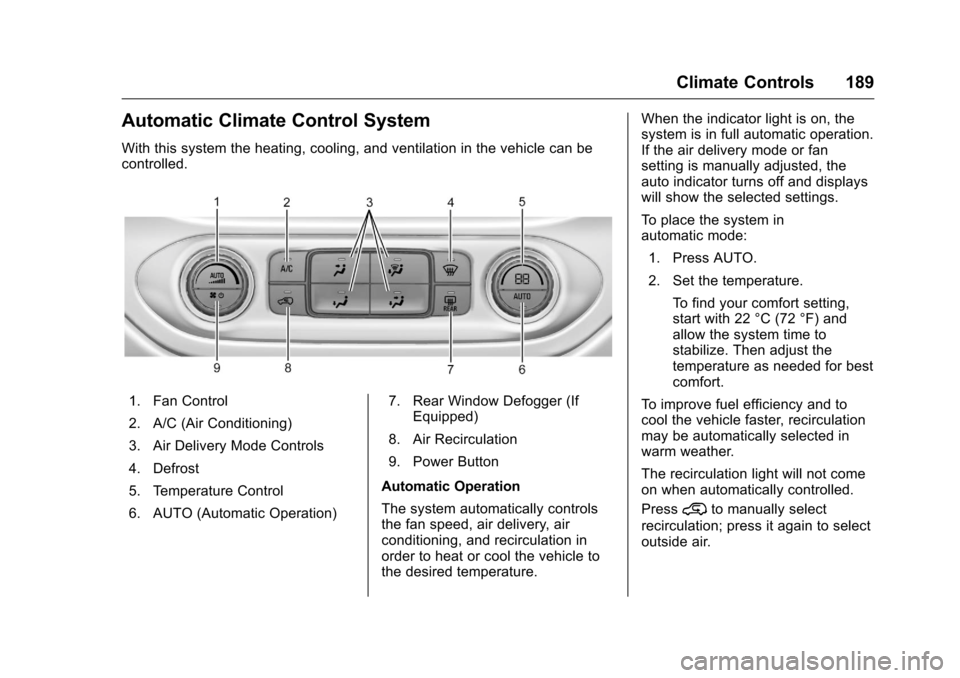
With this system the heating, cooling, and ventilation in the vehicle can be
controlled.
1. Fan Control
2. A/C (Air Conditioning)
3. Air Delivery Mode Controls
4. Defrost
5. Temperature Control
6. AUTO (Automatic Operation)7. Rear Window Defogger (If
Equipped)
8. Air Recirculation
9. Power Button
Automatic Operation
The system automatically controls
the fan speed, air delivery, air
conditioning, and recirculation in
order to heat or cool the vehicle to
the desired temperature. When the indicator light is on, the
system is in full automatic operation.
If the air delivery mode or fan
setting is manually adjusted, the
auto indicator turns off and displays
will show the selected settings.
To place the system in
automatic mode:
1. Press AUTO.
2. Set the temperature.
To find your comfort setting,
start with 22 °C (72 °F) and
allow the system time to
stabilize. Then adjust the
temperature as needed for best
comfort.
To improve fuel efficiency and to
cool the vehicle faster, recirculation
may be automatically selected in
warm weather.
The recirculation light will not come
on when automatically controlled.
Press
@to manually select
recirculation; press it again to select
outside air.
Page 214 of 396
Chevrolet Colorado Owner Manual (GMNA-Localizing-U.S/Canada/Mexico-
9159327) - 2016 - crc - 8/28/15
Driving and Operating 213
Caution
Using a tool to force the key to
turn in the ignition could cause
damage to the switch or break the
key. Use the correct key, make
sure it is all the way in, and turn it
only with your hand. If the key
cannot be turned by hand, see
your dealer.
1 (ACC/ACCESSORY) : This
position lets things like the radio
and the windshield wipers operate
while the engine is off. It also
unlocks the steering wheel. Use this
position if the vehicle must be
pushed or towed.
2 (ON/RUN) : This position can be
used to operate the electrical
accessories and to display some
instrument cluster warning and
indicator lights. This position can
also be used for service and
diagnostics, and to verify the proper
operation of the malfunction
indicator lamp as may be required
for emission inspection purposes.
The switch stays in this position when the engine is running. The
transmission is also unlocked in this
position on automatic transmission
vehicles.
If the key is left in the ACC/
ACCESSORY or ON/RUN position
with the engine off, the battery could
be drained. The vehicle may not
start if the battery is allowed to drain
for an extended period of time.
3 (START) :
This is the position that
starts the engine. When the engine
starts, release the key. The ignition
switch returns to ON/RUN for
driving.
A warning tone will sound when the
driver door is opened, the ignition is
in ACC/ACCESSORY or LOCK/
OFF, and the key is in the ignition.
Starting the Engine
If the vehicle has a diesel engine,
see the Duramax diesel
supplement.
Caution
If you add electrical parts or
accessories, you could change
the way the engine operates. Any
resulting damage would not be
covered by the vehicle warranty.
See Add-On Electrical Equipment
0 257
ii.
Place the transmission in the
proper gear.
Automatic Transmission
Move the shift lever to P (Park) or
N (Neutral). The engine will not start
in any other position. To restart the
engine when the vehicle is already
moving, use N (Neutral) only.
Caution
Do not try to shift to P (Park) if the
vehicle is moving. If you do, you
could damage the transmission.
Shift to P (Park) only when the
vehicle is stopped.
Page 221 of 396
Chevrolet Colorado Owner Manual (GMNA-Localizing-U.S/Canada/Mexico-
9159327) - 2016 - crc - 8/28/15
220 Driving and Operating
Running the Vehicle
While Parked
It is better not to park with the
engine running.
If the vehicle is left with the engine
running, follow the proper steps to
be sure the vehicle will not move.
SeeShifting Into Park 0217
iiand
Engine Exhaust 0219ii. If the vehicle
has a manual transmission, see
Parking 0218
ii.
If parking on a hill and pulling a
trailer, see Driving Characteristics
and Towing Tips 0249
ii.
Automatic
Transmission
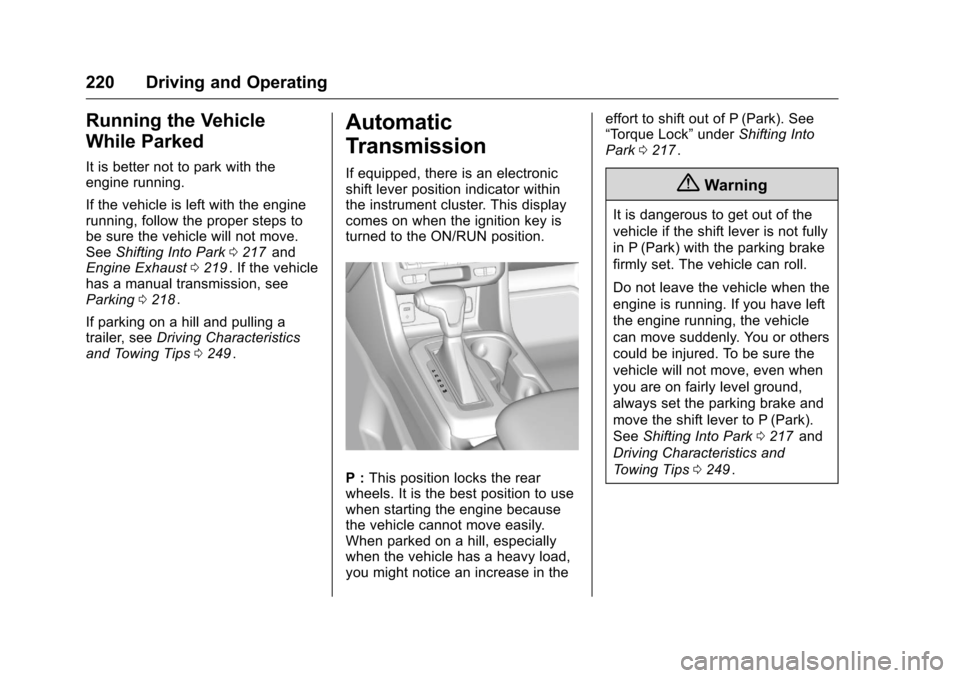
If equipped, there is an electronic
shift lever position indicator within
the instrument cluster. This display
comes on when the ignition key is
turned to the ON/RUN position.
P : This position locks the rear
wheels. It is the best position to use
when starting the engine because
the vehicle cannot move easily.
When parked on a hill, especially
when the vehicle has a heavy load,
you might notice an increase in the effort to shift out of P (Park). See
“Torque Lock”
underShifting Into
Park 0217
ii.
{Warning
It is dangerous to get out of the
vehicle if the shift lever is not fully
in P (Park) with the parking brake
firmly set. The vehicle can roll.
Do not leave the vehicle when the
engine is running. If you have left
the engine running, the vehicle
can move suddenly. You or others
could be injured. To be sure the
vehicle will not move, even when
you are on fairly level ground,
always set the parking brake and
move the shift lever to P (Park).
See Shifting Into Park 0217
iiand
Driving Characteristics and
Towing Tips 0249
ii.
Page 224 of 396
Chevrolet Colorado Owner Manual (GMNA-Localizing-U.S/Canada/Mexico-
9159327) - 2016 - crc - 8/28/15
Driving and Operating 223
Manual Mode
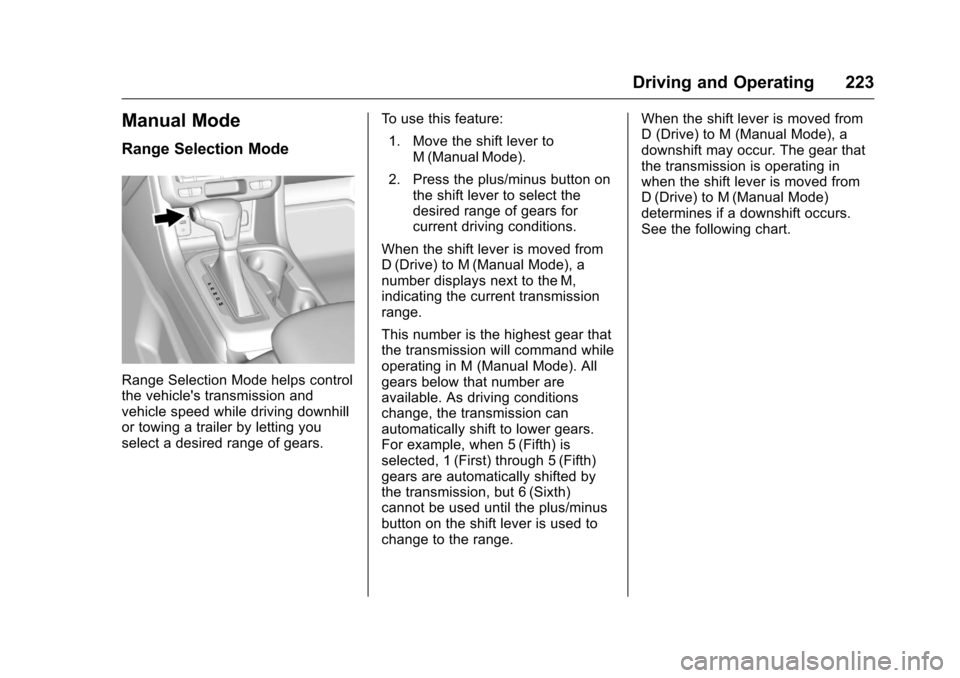
Range Selection Mode
Range Selection Mode helps control
the vehicle's transmission and
vehicle speed while driving downhill
or towing a trailer by letting you
select a desired range of gears.To use this feature:
1. Move the shift lever to M (Manual Mode).
2. Press the plus/minus button on the shift lever to select the
desired range of gears for
current driving conditions.
When the shift lever is moved from
D (Drive) to M (Manual Mode), a
number displays next to the M,
indicating the current transmission
range.
This number is the highest gear that
the transmission will command while
operating in M (Manual Mode). All
gears below that number are
available. As driving conditions
change, the transmission can
automatically shift to lower gears.
For example, when 5 (Fifth) is
selected, 1 (First) through 5 (Fifth)
gears are automatically shifted by
the transmission, but 6 (Sixth)
cannot be used until the plus/minus
button on the shift lever is used to
change to the range. When the shift lever is moved from
D (Drive) to M (Manual Mode), a
downshift may occur. The gear that
the transmission is operating in
when the shift lever is moved from
D (Drive) to M (Manual Mode)
determines if a downshift occurs.
See the following chart.
Page 227 of 396
Chevrolet Colorado Owner Manual (GMNA-Localizing-U.S/Canada/Mexico-
9159327) - 2016 - crc - 8/28/15
226 Driving and Operating
Caution
Shifting to R (Reverse) while the
vehicle is moving forward could
damage the transmission. The
repairs would not be covered by
the vehicle warranty. Shift to
R (Reverse) only after the vehicle
is stopped.
Use R (Reverse), along with the
parking brake, for parking the
vehicle.
Shift Speeds
{Warning
If you skip a gear when
downshifting, you could lose
control of the vehicle. You could
injure yourself or others. Do not
shift down more than one gear at
a time when downshifting.
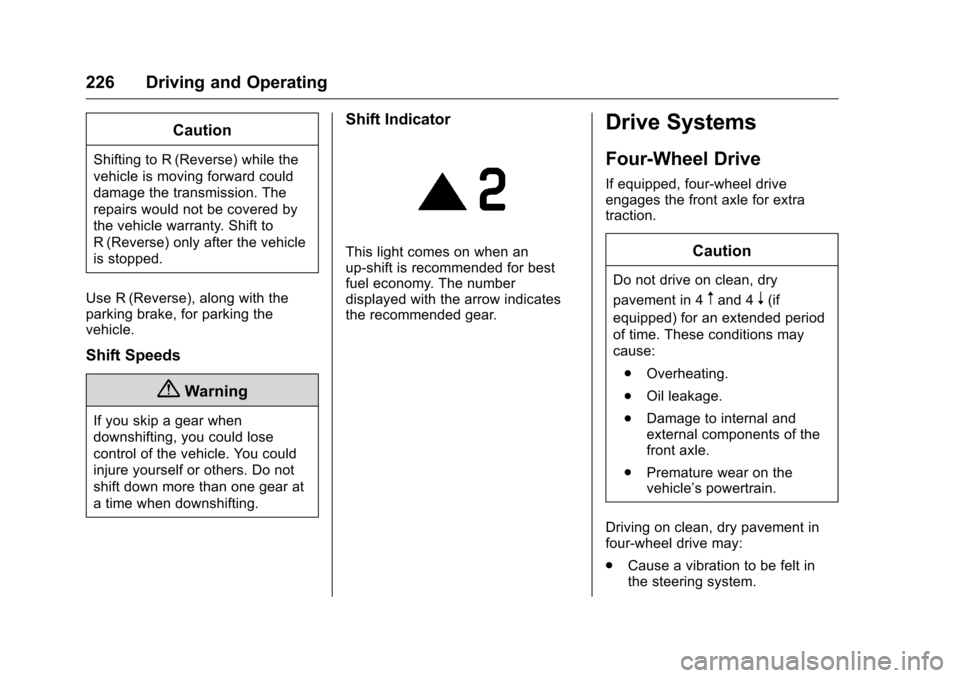
Shift Indicator
This light comes on when an
up-shift is recommended for best
fuel economy. The number
displayed with the arrow indicates
the recommended gear.
Drive Systems
Four-Wheel Drive
If equipped, four-wheel drive
engages the front axle for extra
traction.
Caution
Do not drive on clean, dry
pavement in 4
mand 4n(if
equipped) for an extended period
of time. These conditions may
cause:
. Overheating.
. Oil leakage.
. Damage to internal and
external components of the
front axle.
. Premature wear on the
vehicle’s powertrain.
Driving on clean, dry pavement in
four-wheel drive may:
. Cause a vibration to be felt in
the steering system.