USB port CHEVROLET COLORADO 2017 2.G Owners Manual
[x] Cancel search | Manufacturer: CHEVROLET, Model Year: 2017, Model line: COLORADO, Model: CHEVROLET COLORADO 2017 2.GPages: 419, PDF Size: 7.38 MB
Page 8 of 419

Chevrolet Colorado Owner Manual (GMNA-Localizing-U.S./Canada/Mexico-10122675) - 2017 - crc - 8/22/16
In Brief 7
1.Air Vents0212.
2. Turn Signal Lever. SeeTu r nand Lane-ChangeSignals0149.
Driver Information Center (DIC)Controls. SeeDriverInformation Center (DIC) (BaseLevel)0126orDriverInformation Center (DIC)(Uplevel)0129.
3.Instrument Cluster (BaseLevel)011 0orInstrumentCluster (Uplevel)011 2.
4.Windshield Wiper/Washer0104.
5. Light Sensor. SeeAutomaticHeadlamp System0148.
Vehicle Alarm System Indicator(If Equipped). SeeVehicleAlarm System036.
6.Infotainment0153.
7.Climate Control Systems0208(If Equipped).
Automatic Climate ControlSystem0210(If Equipped).
8.Heated Front Seats048(IfEquipped).
9.Power Outlets0107(IfEquipped).
10. Shift Lever. SeeAutomaticTr a n s m i s s i o n0241orManualTr a n s m i s s i o n0246.
11 .Auxiliary Jack0179.
USB Port (Base Radio)0170orUSB Port (Base Radio withTo u c h s c r e e n )0173.
12.Hazard WarningFlashers0149.
Tr a c t i o n C o n t r o l / E l e c t r o n i cStability Control0256.
Cargo Lamp0150.
Lane Departure Warning(LDW)0264(If Equipped).
Hill Descent Control (HDC)0258(If Equipped).
To w / H a u l M o d e0245(IfEquipped).
13.Steering Wheel Controls0104(If Equipped).
14.Horn0104.
15.Steering Wheel Adjustment0103(Out of View).
16.Cruise Control0259.
Forward Collision Alert (FCA)System0263(If Equipped).
17. Transfer Case Knob (IfEquipped). SeeFour-WheelDrive0247.
18. Hood Release. SeeHood0282.
19.Parking Brake0254.
20. Data Link Connector (DLC)(Out of View). SeeMalfunctionIndicator Lamp (Check EngineLight)011 8.
21.Exterior Lamp Controls0146.
Fog Lamps0149(IfEquipped).
22.Instrument Panel IlluminationControl0150.
Page 21 of 419
Chevrolet Colorado Owner Manual (GMNA-Localizing-U.S./Canada/Mexico-10122675) - 2017 - crc - 8/22/16
20 In Brief
Portable Audio Devices
There is a 3.5 mm (1/8 in) auxiliaryinput jack and USB port on thecenter stack. External devices suchas iPods®,laptopcomputers,MP3players, and USB storage devicesmay be connected, depending onthe audio system.
SeeUSB Port (Base Radio)0170orUSB Port (Base Radio withTo u c h s c r e e n )0173andAuxiliaryJack0179.
Bluetooth®
The Bluetooth®system allows userswith a Bluetooth-enabled cell phoneto make and receive hands-freecalls using the vehicle audio systemand controls.
The Bluetooth-enabled cell phonemust be paired with the in-vehicleBluetooth system before it can beused in the vehicle. Not all phoneswill support all functions.
SeeBluetooth (Overview)0187orBluetooth (Infotainment Controls -Base Radio)0188orBluetooth(Voice Recognition)0192orBluetooth (Infotainment Controls -Base Radio withTo u c h s c r e e n )0197.
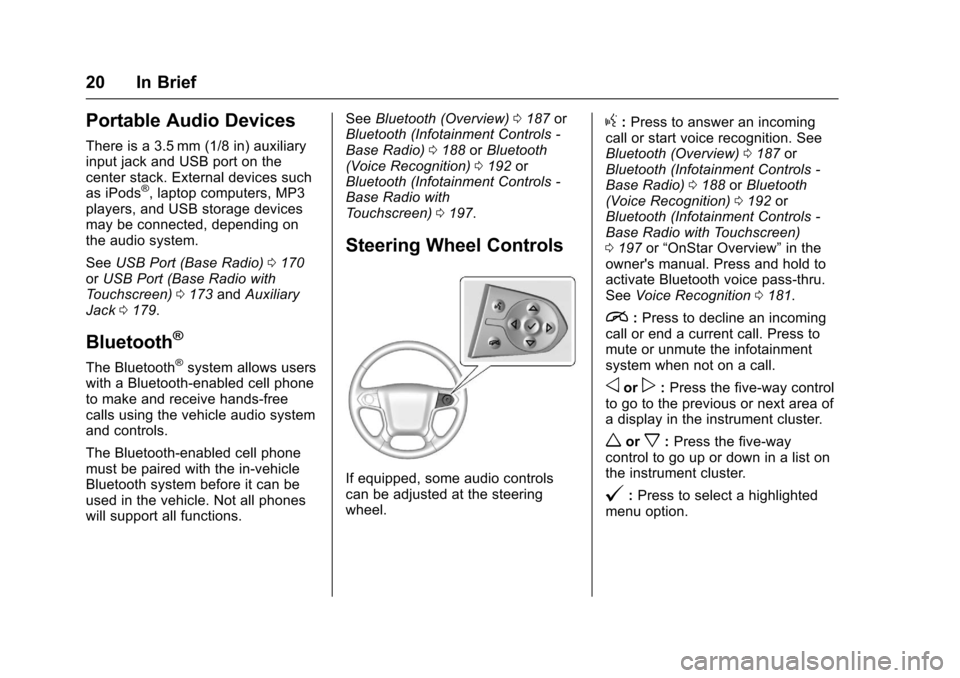
Steering Wheel Controls
If equipped, some audio controlscan be adjusted at the steeringwheel.
g:Press to answer an incomingcall or start voice recognition. SeeBluetooth (Overview)0187orBluetooth (Infotainment Controls -Base Radio)0188orBluetooth(Voice Recognition)0192orBluetooth (Infotainment Controls -Base Radio with Touchscreen)0197or“OnStar Overview”in theowner's manual. Press and hold toactivate Bluetooth voice pass-thru.SeeVoice Recognition0181.
i:Press to decline an incomingcall or end a current call. Press tomute or unmute the infotainmentsystem when not on a call.
oorp:Press the five-way controlto go to the previous or next area ofadisplayintheinstrumentcluster.
worx:Press the five-waycontrol to go up or down in a list onthe instrument cluster.
@:Press to select a highlightedmenu option.
Page 102 of 419
Chevrolet Colorado Owner Manual (GMNA-Localizing-U.S./Canada/Mexico-10122675) - 2017 - crc - 8/22/16
Storage 101
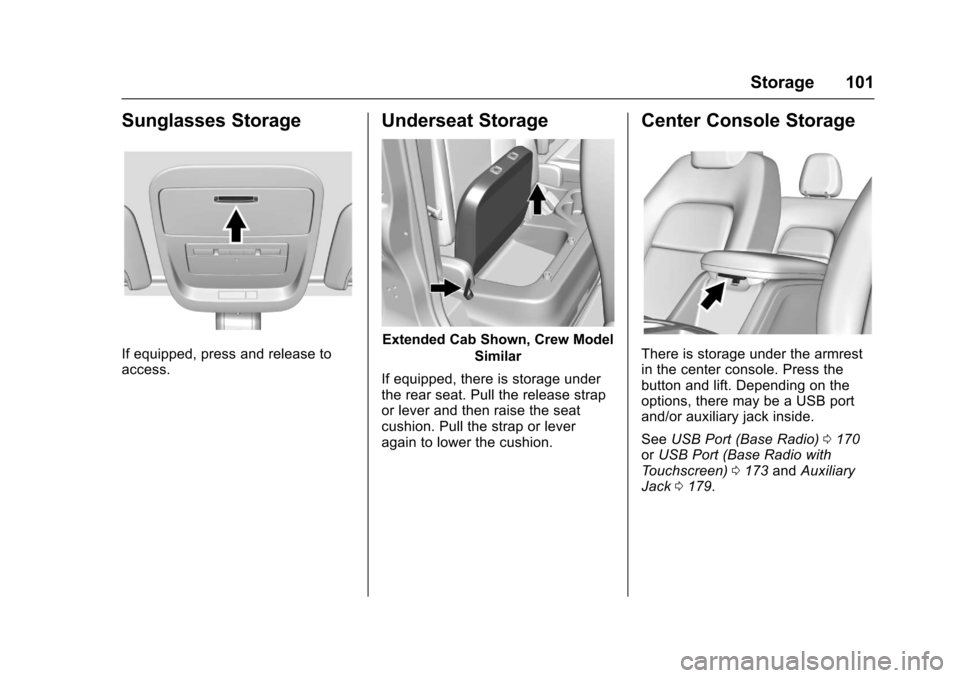
Sunglasses Storage
If equipped, press and release toaccess.
Underseat Storage
Extended Cab Shown, Crew Model
Similar
If equipped, there is storage underthe rear seat. Pull the release strapor lever and then raise the seatcushion. Pull the strap or leveragain to lower the cushion.
Center Console Storage
There is storage under the armrestin the center console. Press thebutton and lift. Depending on theoptions, there may be a USB portand/or auxiliary jack inside.
SeeUSB Port (Base Radio)0170orUSB Port (Base Radio withTo u c h s c r e e n )0173andAuxiliaryJack0179.
Page 108 of 419
Chevrolet Colorado Owner Manual (GMNA-Localizing-U.S./Canada/Mexico-10122675) - 2017 - crc - 8/22/16
Instruments and Controls 107
To s e t t h e c l o c k d i s p l a y :
1. Touch SETTINGS on the HomePage, then touch Timeand Date.
2. Touch Clock Display, thentouch Off or On to turn theclock display off or on.
3. TouchSto go back to the
previous menu.
Power Outlets
For USB charging port locations,seeUSB Port (Base Radio)0170orUSB Port (Base Radio withTo u c h s c r e e n )0173.
Accessory power outlets can beused to plug in electrical equipment,such as a cell phone, MP3player, etc.
The vehicle may have accessorypower outlets:
.On the center stack below theclimate control system,if equipped.
.On the center floor console,if equipped.
.On the rear of the center storageconsole.
Lift the cover to access and replacewhen not in use.
{Warning
Power is always supplied to the
outlets. Do not leave electrical
equipment plugged in when the
vehicle is not in use because the
vehicle could catch fire and cause
injury or death.
Caution
Leaving electrical equipment
plugged in for an extended period
of time while the vehicle is off will
drain the battery. Always unplug
electrical equipment when not in
use and do not plug in equipment
that exceeds the maximum
15 amp rating.
Certain power accessory plugs maynot be compatible with theaccessory power outlet and couldoverload vehicle or adapter fuses.If a problem is experienced, seeyour dealer.
When adding electrical equipment,be sure to follow the properinstallation instructions included withthe equipment. SeeAdd-OnElectrical Equipment0278.
Caution
Hanging heavy equipment from
the power outlet can cause
damage not covered by the
vehicle warranty. The power
outlets are designed for
accessory power plugs only, such
as mobile phone charge cords.
Wireless Charging
If equipped, the vehicle has wirelesscharging in front of the center floorconsole. The system wirelesslycharges one PMA or Qi compatiblemobile device.
Page 144 of 419
Chevrolet Colorado Owner Manual (GMNA-Localizing-U.S./Canada/Mexico-10122675) - 2017 - crc - 8/22/16
Instruments and Controls 143
Remote Start Auto Heat Seats
If equipped and turned on, thisfeature will turn the heated seats onwhen using remote start oncold days.
Select Off or On.
Bluetooth
Select and the following maydisplay:
.Pair New Device
.Device Management
.Ringtones
.Voice Mail Numbers
.Te x t M e s s a g e A l e r t s
Pair New Device
Select to pair a new device. See“Pairing”underBluetooth(Overview)0187orBluetooth(Infotainment Controls - BaseRadio)0188orBluetooth (VoiceRecognition)0192orBluetooth(Infotainment Controls - Base Radiowith Touchscreen)0197or“Pairing”
in“Infotainment Controls”under“Bluetooth”in the infotainmentmanual.
Device Management
Select to connect to a differentphone source, disconnect a phone,or delete a phone.
Ringtones
To u c h t o c h a n g e t h e r i n g t o n e f o rthe specific phone. The phone doesnot need to be connected to changethe ring tones.
Voice Mail Numbers
This feature displays the voice mailnumber for all connected phones.To c h a n g e t h e v o i c e m a i l n u m b e r ,select EDIT or touch the EDITbutton. Type a new number, thenselect SAVE or touch the SAVEbutton.
Text Message Alerts
This allows the feature to be turnedon or off.
Select Off or On.
Apple CarPlay™
Select and the following maydisplay:
.Apple CarPlay
.Manage Apple CarPlay Devices
Apple CarPlay
This feature allows Apple devices tobe connected to the infotainmentsystem through a USB port. See“Apple CarPlay and Android Auto”under“Phone”in the infotainmentmanual.
Select Off or On.
Manage Apple CarPlay Devices
Select to manage Apple devices.Apple CarPlay must be on for thisfeature to be accessed. See“AppleCarPlay and Android Auto”under“Phone”in the infotainment manual.
Android Auto™
Select and the following maydisplay:
.Android Auto
.Manage Android Auto Devices
Page 145 of 419
Chevrolet Colorado Owner Manual (GMNA-Localizing-U.S./Canada/Mexico-10122675) - 2017 - crc - 8/22/16
144 Instruments and Controls
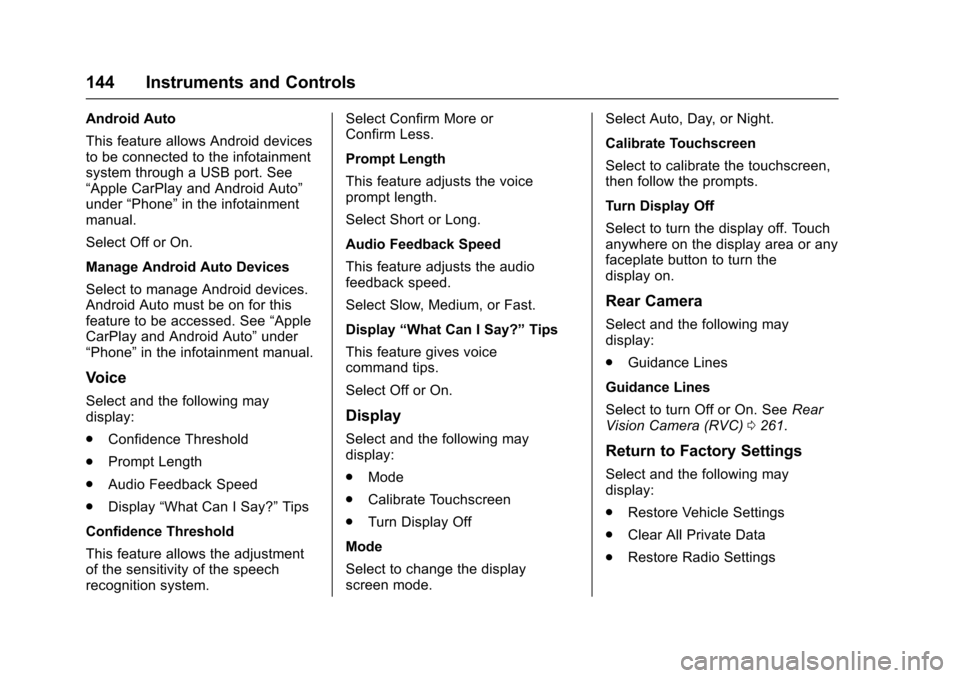
Android Auto
This feature allows Android devicesto be connected to the infotainmentsystem through a USB port. See“Apple CarPlay and Android Auto”under“Phone”in the infotainmentmanual.
Select Off or On.
Manage Android Auto Devices
Select to manage Android devices.Android Auto must be on for thisfeature to be accessed. See“AppleCarPlay and Android Auto”under“Phone”in the infotainment manual.
Voice
Select and the following maydisplay:
.Confidence Threshold
.Prompt Length
.Audio Feedback Speed
.Display“What Can I Say?”Tips
Confidence Threshold
This feature allows the adjustmentof the sensitivity of the speechrecognition system.
Select Confirm More orConfirm Less.
Prompt Length
This feature adjusts the voiceprompt length.
Select Short or Long.
Audio Feedback Speed
This feature adjusts the audiofeedback speed.
Select Slow, Medium, or Fast.
Display“What Can I Say?”Tips
This feature gives voicecommand tips.
Select Off or On.
Display
Select and the following maydisplay:
.Mode
.Calibrate Touchscreen
.Turn Display Off
Mode
Select to change the displayscreen mode.
Select Auto, Day, or Night.
Calibrate Touchscreen
Select to calibrate the touchscreen,then follow the prompts.
Turn Display Off
Select to turn the display off. Touchanywhere on the display area or anyfaceplate button to turn thedisplay on.
Rear Camera
Select and the following maydisplay:
.Guidance Lines
Guidance Lines
Select to turn Off or On. SeeRearVision Camera (RVC)0261.
Return to Factory Settings
Select and the following maydisplay:
.Restore Vehicle Settings
.Clear All Private Data
.Restore Radio Settings
Page 154 of 419
Chevrolet Colorado Owner Manual (GMNA-Localizing-U.S./Canada/Mexico-10122675) - 2017 - crc - 8/22/16
Infotainment System 153
Infotainment
System
Introduction
Infotainment . . . . . . . . . . . . . . . . . . 153Theft-Deterrent Feature . . . . . . 154Overview (Base Radio) . . . . . . . 155Overview (Base Radio withTo u c h s c r e e n ) . . . . . . . . . . . . . . . 1 5 7Home Page (Base Radio) . . . . 158Home Page (Base Radio withTo u c h s c r e e n ) . . . . . . . . . . . . . . . 1 6 0Software Updates . . . . . . . . . . . . 161
Radio
AM-FM Radio (BaseRadio) . . . . . . . . . . . . . . . . . . . . . . 161AM-FM Radio (Base Radiowith Touchscreen) . . . . . . . . . . . 163Satellite Radio (BaseRadio) . . . . . . . . . . . . . . . . . . . . . . 164Satellite Radio (Base Radiowith Touchscreen) . . . . . . . . . . . 165Radio Reception . . . . . . . . . . . . . . 166Multi-Band Antenna . . . . . . . . . . 167Pandora Internet Radio . . . . . . . 167
Audio Players
Avoiding Untrusted MediaDevices . . . . . . . . . . . . . . . . . . . . . 170USB Port (Base Radio) . . . . . . . 170USB Port (Base Radio withTo u c h s c r e e n ) . . . . . . . . . . . . . . . 1 7 3Auxiliary Jack . . . . . . . . . . . . . . . . 179Bluetooth Audio . . . . . . . . . . . . . . 180
Voice Recognition
Voice Recognition . . . . . . . . . . . . 181
Phone
Bluetooth (Overview) . . . . . . . . . 187Bluetooth (InfotainmentControls - Base Radio) . . . . . . 188Bluetooth (VoiceRecognition) . . . . . . . . . . . . . . . . 192Bluetooth (InfotainmentControls - Base Radio withTo u c h s c r e e n ) . . . . . . . . . . . . . . . 1 9 7Te x t M e s s a g i n g . . . . . . . . . . . . . . . 2 0 1
Trademarks and License
Agreements
Trademarks and LicenseAgreements . . . . . . . . . . . . . . . . . 202
Introduction
Infotainment
Base radio information is included inthis manual. See the infotainmentmanual for information on otheravailable infotainment systems.
Read the following pages tobecome familiar with the features.
{Warning
Ta k i n g y o u r e y e s o f f t h e r o a d f o r
too long or too often while using
any infotainment feature can
cause a crash. You or others
could be injured or killed. Do not
give extended attention to
infotainment tasks while driving.
Limit your glances at the vehicle
displays and focus your attention
on driving. Use voice commands
whenever possible.
Page 161 of 419
Chevrolet Colorado Owner Manual (GMNA-Localizing-U.S./Canada/Mexico-10122675) - 2017 - crc - 8/22/16
160 Infotainment System
displays stating all vehiclecustomization settings will berestored to the factory settings.Select Cancel or Confirm.
Clear All Private Data (IfEquipped) :This option clears allprivate information from the vehicle.Select Clear All Private Data. SelectCancel or Confirm.
Restore Radio Settings :Thisoption will restore factory radiosettings. Select Restore RadioSettings. A screen displays statingall personalized radio settings willbe restored back to the factorysettings. Select Cancel or Confirm.
English and Metric Unit
Conversion
To c h a n g e t h e d i s p l a y u n i t s b e t w e e nEnglish and metric units, seeDriverInformation Center (DIC) (BaseLevel)0126orDriver InformationCenter (DIC) (Uplevel)0129orInstrument Cluster (Base Level)011 0orInstrument Cluster(Uplevel)011 2.
Home Page (Base Radio
with Touchscreen)
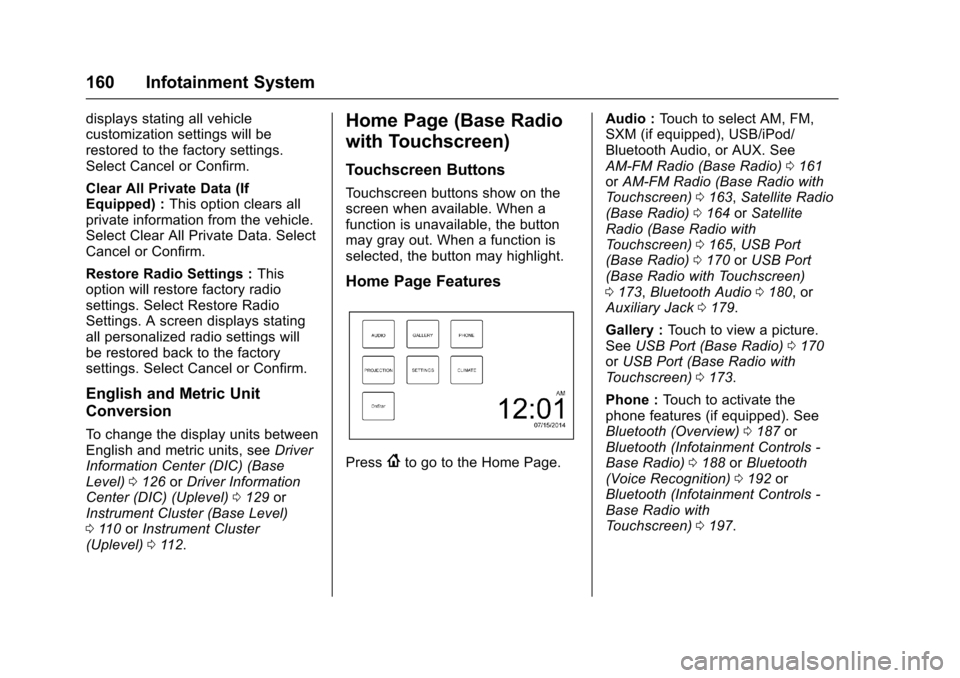
Touchscreen Buttons
To u c h s c r e e n b u t t o n s s h o w o n t h escreen when available. When afunction is unavailable, the buttonmay gray out. When a function isselected, the button may highlight.
Home Page Features
Press{to go to the Home Page.
Audio :To u c h t o s e l e c t A M , F M ,SXM (if equipped), USB/iPod/Bluetooth Audio, or AUX. SeeAM-FM Radio (Base Radio)0161orAM-FM Radio (Base Radio withTo u c h s c r e e n )0163,Satellite Radio(Base Radio)0164orSatelliteRadio (Base Radio withTo u c h s c r e e n )0165,USB Port(Base Radio)0170orUSB Port(Base Radio with Touchscreen)0173,Bluetooth Audio0180,orAuxiliary Jack0179.
Gallery :To u c h t o v i e w a p i c t u r e .SeeUSB Port (Base Radio)0170orUSB Port (Base Radio withTo u c h s c r e e n )0173.
Phone :To u c h t o a c t i v a t e t h ephone features (if equipped). SeeBluetooth (Overview)0187orBluetooth (Infotainment Controls -Base Radio)0188orBluetooth(Voice Recognition)0192orBluetooth (Infotainment Controls -Base Radio withTo u c h s c r e e n )0197.
Page 162 of 419
Chevrolet Colorado Owner Manual (GMNA-Localizing-U.S./Canada/Mexico-10122675) - 2017 - crc - 8/22/16
Infotainment System 161
Projection :To u c h t o a c c e s ssupported devices when connected.SeeUSB Port (Base Radio)0170orUSB Port (Base Radio withTo u c h s c r e e n )0173.
Settings :To u c h t o a c c e s s t h ePersonalization menu. SeeVehiclePersonalization0139.
Climate :To u c h t o a c c e s s t h eClimate menu. SeeClimate ControlSystems0208orAutomaticClimate Control System0210.
OnStar :If equipped, touch toaccess the OnStar menu. SeeOnStar Overview0397.
Software Updates
See the website for moreinformation.
Website Information
In the U.S., see www.chevrolet.com
In Canada, seewww.chevrolet.gm.ca
In Mexico, seewww.chevrolet.com.mx
Radio
AM-FM Radio (Base
Radio)
Playing the Radio
While on the audio main page,press the RADIO button repeatedlyto cycle through the availablesources AM, FM, and SXM (ifequipped) or press the MEDIAbutton repeatedly to cycle throughthe available sources Bluetooth®
Audio (if equipped), USB, and AUX.
The steering wheel controls canalso be used to adjust the volume.SeeSteering Wheel Controls0104.
AM, FM, or SXM (If Equipped)
To s e l e c t A M , F M , o r S X M ( i fequipped), press the RADIO buttonto toggle to the desired broadcastsource.
Press the MENU knob and thefollowing radio settings may display:
To n e S e t t i n g s :
.Bass, Midrange, and Treble:Turn the MENU knob andhighlight. Press the MENU knobto select. Turn the MENU knobto adjust.
.Balance:Turn the MENU knobto highlight. Press the MENUknob to select. Turn the MENUknob left for more sound fromthe left speakers or right formore sound from the rightspeakers. The middle positionbalances the sound between theleft and right speakers.
.Fade:Turn the MENU knob tohighlight. Press the MENU knobto select. Turn the MENU knobto the left for more sound fromthe front speakers and to theright for more sound from therear speakers. The middleposition balances the soundbetween the front and rearspeakers.
Page 168 of 419
Chevrolet Colorado Owner Manual (GMNA-Localizing-U.S./Canada/Mexico-10122675) - 2017 - crc - 8/22/16
Infotainment System 167
AM
The range for most AM stations isgreater than for FM, especially atnight. The longer range can causestation frequencies to interfere witheach other. Static can occur whenthings like storms and power linesinterfere with radio reception. Whenthis happens, try reducing the trebleon the radio.
SiriusXM Satellite Radio
Service
If equipped, SiriusXM SatelliteRadio Service provides digital radioreception. Tall buildings or hills caninterfere with satellite radio signals,causing the sound to fade in andout. In addition, traveling or standingunder heavy foliage, bridges,garages, or tunnels may cause lossof the SiriusXM signal for a periodof time.
Cell Phone Usage
Cell phone usage, such as makingor receiving phone calls, charging,or just having the phone on may
cause static interference with theradio. Unplug the phone or turn it offif this happens.
Multi-Band Antenna
The multi-band antenna is on theroof of the vehicle. The antenna isused for OnStar, the SiriusXMSatellite Radio Service System, andGPS (Global Positioning System),if the vehicle has these features.Keep the antenna clear ofobstructions for clear reception.
Items on the roof of the vehicle caninterfere with the performance of theradio system and OnStar (ifequipped). Make sure themulti-band antenna is notobstructed.
Pandora Internet Radio
If equipped, Pandora®is a freeInternet radio service that streamspersonalized radio stations basedon artists, tracks, genres, andcomedians. Create stations usingthe Pandora website or Smartphone
application, then use-or,to
personalize stations. To set up an
account, or for more information, goto www.pandora.com. Pandora maynot be available in Canada orMexico.
AphoneortabletwithInternetconnection and the Pandoraapplication installed is required.Personal cell phone data plans areused. Make sure the latest versionis installed on the device.
Launching Pandora
Connect an iPhone to the USB port,or connect Android®or BlackBerry®
through Bluetooth. SeeBluetooth(Overview)0187orBluetooth(Infotainment Controls - BaseRadio)0188orBluetooth (VoiceRecognition)0192orBluetooth(Infotainment Controls - Base Radiowith Touchscreen)0197.Forfirsttime use, set up the stations beforeconnecting to the vehicle. ThePandora icon will be available onthe Home Page.
When Pandora is chosen, thePandora logo will populate on thescreen and the system will display“Acquiring Pandora Radio Station.”Launch times can be significant.