radio controls CHEVROLET COLORADO 2017 2.G Owners Manual
[x] Cancel search | Manufacturer: CHEVROLET, Model Year: 2017, Model line: COLORADO, Model: CHEVROLET COLORADO 2017 2.GPages: 419, PDF Size: 7.38 MB
Page 6 of 419
Chevrolet Colorado Owner Manual (GMNA-Localizing-U.S./Canada/Mexico-10122675) - 2017 - crc - 8/22/16
In Brief 5
In Brief
Instrument Panel
Instrument Panel . . . . . . . . . . . . . . . . 6
Initial Drive Information
Initial Drive Information . . . . . . . . . . 8Remote Keyless Entry (RKE)System . . . . . . . . . . . . . . . . . . . . . . . . 8Remote Vehicle Start . . . . . . . . . . . 8Door Locks . . . . . . . . . . . . . . . . . . . . . 9Windows . . . . . . . . . . . . . . . . . . . . . . . . 9Seat Adjustment . . . . . . . . . . . . . . . . 9Heated Seats . . . . . . . . . . . . . . . . . . 11Head Restraint Adjustment . . . . 11Safety Belts . . . . . . . . . . . . . . . . . . . . 11Passenger Sensing System . . . 12Mirror Adjustment . . . . . . . . . . . . . . 12Steering Wheel Adjustment . . . . 13Interior Lighting . . . . . . . . . . . . . . . . 14Exterior Lighting . . . . . . . . . . . . . . . 14Windshield Wiper/Washer . . . . . . 15Climate Controls . . . . . . . . . . . . . . . 15Transmission . . . . . . . . . . . . . . . . . . 17Four-Wheel Drive . . . . . . . . . . . . . . 18
Vehicle Features
Infotainment System . . . . . . . . . . . 19Radio(s) . . . . . . . . . . . . . . . . . . . . . . . 19Satellite Radio . . . . . . . . . . . . . . . . . 19
Portable Audio Devices . . . . . . . . 20Bluetooth®..................... 20Steering Wheel Controls . . . . . . . 20Cruise Control . . . . . . . . . . . . . . . . . 21Driver Information Center (DIC)(Base Level) . . . . . . . . . . . . . . . . . 21Driver Information Center (DIC)(Uplevel) . . . . . . . . . . . . . . . . . . . . . 22Forward Collision Alert (FCA)System . . . . . . . . . . . . . . . . . . . . . . . 22Lane DepartureWarning (LDW) . . . . . . . . . . . . . . . 23Rear Vision Camera (RVC) . . . . 23Power Outlets . . . . . . . . . . . . . . . . . 23
Performance and Maintenance
Traction Control/ElectronicStability Control . . . . . . . . . . . . . . 23Tire Pressure Monitor . . . . . . . . . . 24Fuel (Gasoline) . . . . . . . . . . . . . . . . 24Fuel (Diesel) . . . . . . . . . . . . . . . . . . . 24E85 or FlexFuel . . . . . . . . . . . . . . . . 24Engine Oil Life System . . . . . . . . 25Driving for Better FuelEconomy . . . . . . . . . . . . . . . . . . . . . 25Roadside AssistanceProgram . . . . . . . . . . . . . . . . . . . . . . 26
Page 8 of 419

Chevrolet Colorado Owner Manual (GMNA-Localizing-U.S./Canada/Mexico-10122675) - 2017 - crc - 8/22/16
In Brief 7
1.Air Vents0212.
2. Turn Signal Lever. SeeTu r nand Lane-ChangeSignals0149.
Driver Information Center (DIC)Controls. SeeDriverInformation Center (DIC) (BaseLevel)0126orDriverInformation Center (DIC)(Uplevel)0129.
3.Instrument Cluster (BaseLevel)011 0orInstrumentCluster (Uplevel)011 2.
4.Windshield Wiper/Washer0104.
5. Light Sensor. SeeAutomaticHeadlamp System0148.
Vehicle Alarm System Indicator(If Equipped). SeeVehicleAlarm System036.
6.Infotainment0153.
7.Climate Control Systems0208(If Equipped).
Automatic Climate ControlSystem0210(If Equipped).
8.Heated Front Seats048(IfEquipped).
9.Power Outlets0107(IfEquipped).
10. Shift Lever. SeeAutomaticTr a n s m i s s i o n0241orManualTr a n s m i s s i o n0246.
11 .Auxiliary Jack0179.
USB Port (Base Radio)0170orUSB Port (Base Radio withTo u c h s c r e e n )0173.
12.Hazard WarningFlashers0149.
Tr a c t i o n C o n t r o l / E l e c t r o n i cStability Control0256.
Cargo Lamp0150.
Lane Departure Warning(LDW)0264(If Equipped).
Hill Descent Control (HDC)0258(If Equipped).
To w / H a u l M o d e0245(IfEquipped).
13.Steering Wheel Controls0104(If Equipped).
14.Horn0104.
15.Steering Wheel Adjustment0103(Out of View).
16.Cruise Control0259.
Forward Collision Alert (FCA)System0263(If Equipped).
17. Transfer Case Knob (IfEquipped). SeeFour-WheelDrive0247.
18. Hood Release. SeeHood0282.
19.Parking Brake0254.
20. Data Link Connector (DLC)(Out of View). SeeMalfunctionIndicator Lamp (Check EngineLight)011 8.
21.Exterior Lamp Controls0146.
Fog Lamps0149(IfEquipped).
22.Instrument Panel IlluminationControl0150.
Page 21 of 419
Chevrolet Colorado Owner Manual (GMNA-Localizing-U.S./Canada/Mexico-10122675) - 2017 - crc - 8/22/16
20 In Brief
Portable Audio Devices
There is a 3.5 mm (1/8 in) auxiliaryinput jack and USB port on thecenter stack. External devices suchas iPods®,laptopcomputers,MP3players, and USB storage devicesmay be connected, depending onthe audio system.
SeeUSB Port (Base Radio)0170orUSB Port (Base Radio withTo u c h s c r e e n )0173andAuxiliaryJack0179.
Bluetooth®
The Bluetooth®system allows userswith a Bluetooth-enabled cell phoneto make and receive hands-freecalls using the vehicle audio systemand controls.
The Bluetooth-enabled cell phonemust be paired with the in-vehicleBluetooth system before it can beused in the vehicle. Not all phoneswill support all functions.
SeeBluetooth (Overview)0187orBluetooth (Infotainment Controls -Base Radio)0188orBluetooth(Voice Recognition)0192orBluetooth (Infotainment Controls -Base Radio withTo u c h s c r e e n )0197.
Steering Wheel Controls
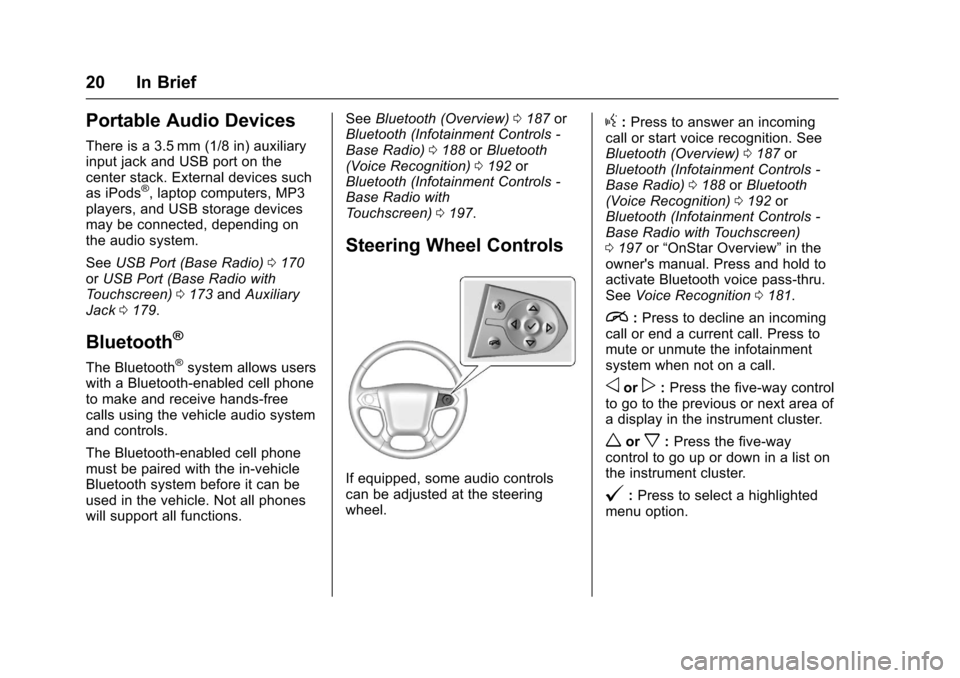
If equipped, some audio controlscan be adjusted at the steeringwheel.
g:Press to answer an incomingcall or start voice recognition. SeeBluetooth (Overview)0187orBluetooth (Infotainment Controls -Base Radio)0188orBluetooth(Voice Recognition)0192orBluetooth (Infotainment Controls -Base Radio with Touchscreen)0197or“OnStar Overview”in theowner's manual. Press and hold toactivate Bluetooth voice pass-thru.SeeVoice Recognition0181.
i:Press to decline an incomingcall or end a current call. Press tomute or unmute the infotainmentsystem when not on a call.
oorp:Press the five-way controlto go to the previous or next area ofadisplayintheinstrumentcluster.
worx:Press the five-waycontrol to go up or down in a list onthe instrument cluster.
@:Press to select a highlightedmenu option.
Page 22 of 419
Chevrolet Colorado Owner Manual (GMNA-Localizing-U.S./Canada/Mexico-10122675) - 2017 - crc - 8/22/16
In Brief 21
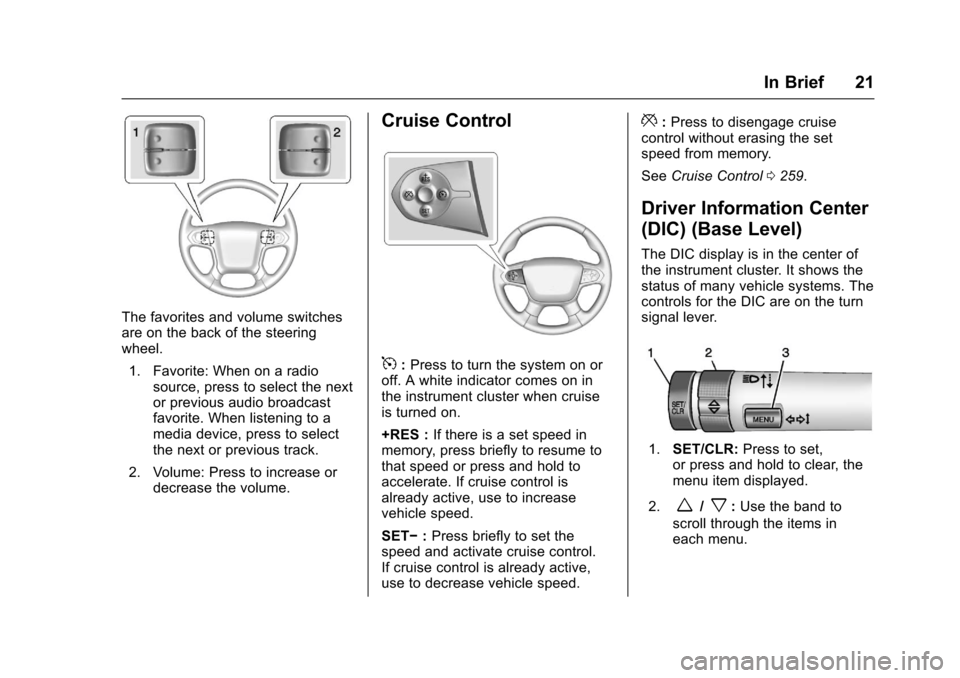
The favorites and volume switchesare on the back of the steeringwheel.
1. Favorite: When on a radiosource, press to select the nextor previous audio broadcastfavorite. When listening to amedia device, press to selectthe next or previous track.
2. Volume: Press to increase ordecrease the volume.
Cruise Control
5:Press to turn the system on oroff. A white indicator comes on inthe instrument cluster when cruiseis turned on.
+RES :If there is a set speed inmemory, press briefly to resume tothat speed or press and hold toaccelerate. If cruise control isalready active, use to increasevehicle speed.
SET✓:Press briefly to set thespeed and activate cruise control.If cruise control is already active,use to decrease vehicle speed.
*:Press to disengage cruisecontrol without erasing the setspeed from memory.
SeeCruise Control0259.
Driver Information Center
(DIC) (Base Level)
The DIC display is in the center ofthe instrument cluster. It shows thestatus of many vehicle systems. Thecontrols for the DIC are on the turnsignal lever.
1.SET/CLR:Press to set,or press and hold to clear, themenu item displayed.
2.w/x:Use the band to
scroll through the items ineach menu.
Page 105 of 419
Chevrolet Colorado Owner Manual (GMNA-Localizing-U.S./Canada/Mexico-10122675) - 2017 - crc - 8/22/16
104 Instruments and Controls
Steering Wheel Controls
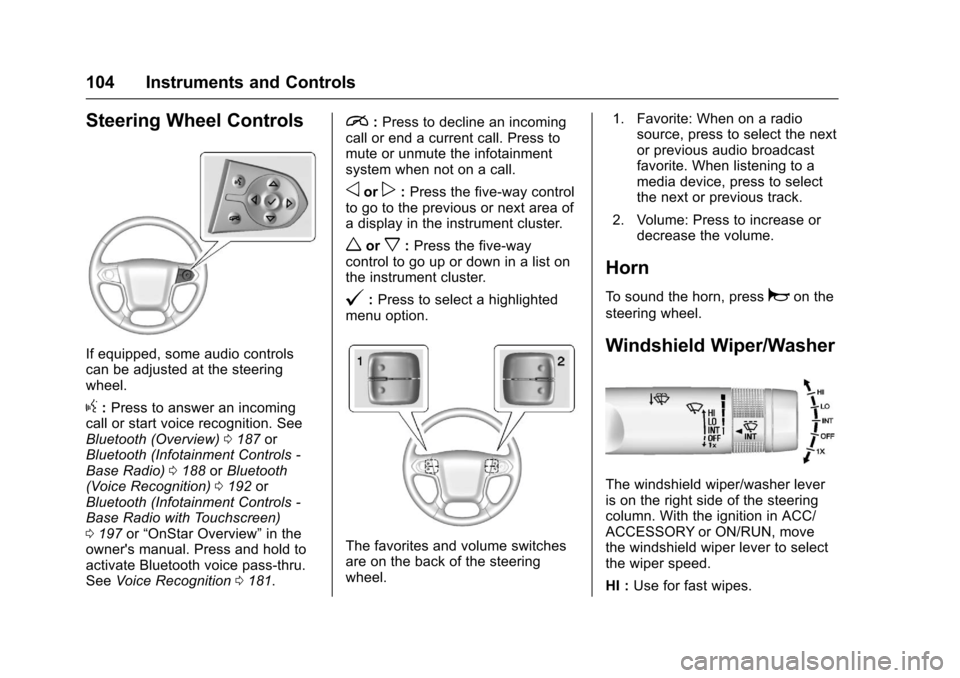
If equipped, some audio controlscan be adjusted at the steeringwheel.
g:Press to answer an incomingcall or start voice recognition. SeeBluetooth (Overview)0187orBluetooth (Infotainment Controls -Base Radio)0188orBluetooth(Voice Recognition)0192orBluetooth (Infotainment Controls -Base Radio with Touchscreen)0197or“OnStar Overview”in theowner's manual. Press and hold toactivate Bluetooth voice pass-thru.SeeVoice Recognition0181.
i:Press to decline an incomingcall or end a current call. Press tomute or unmute the infotainmentsystem when not on a call.
oorp:Press the five-way controlto go to the previous or next area ofadisplayintheinstrumentcluster.
worx:Press the five-waycontrol to go up or down in a list onthe instrument cluster.
@:Press to select a highlightedmenu option.
The favorites and volume switchesare on the back of the steeringwheel.
1. Favorite: When on a radiosource, press to select the nextor previous audio broadcastfavorite. When listening to amedia device, press to selectthe next or previous track.
2. Volume: Press to increase ordecrease the volume.
Horn
To s o u n d t h e h o r n , p r e s saon the
steering wheel.
Windshield Wiper/Washer
The windshield wiper/washer leveris on the right side of the steeringcolumn. With the ignition in ACC/ACCESSORY or ON/RUN, movethe windshield wiper lever to selectthe wiper speed.
HI :Use for fast wipes.
Page 108 of 419
Chevrolet Colorado Owner Manual (GMNA-Localizing-U.S./Canada/Mexico-10122675) - 2017 - crc - 8/22/16
Instruments and Controls 107
To s e t t h e c l o c k d i s p l a y :
1. Touch SETTINGS on the HomePage, then touch Timeand Date.
2. Touch Clock Display, thentouch Off or On to turn theclock display off or on.
3. TouchSto go back to the
previous menu.
Power Outlets
For USB charging port locations,seeUSB Port (Base Radio)0170orUSB Port (Base Radio withTo u c h s c r e e n )0173.
Accessory power outlets can beused to plug in electrical equipment,such as a cell phone, MP3player, etc.
The vehicle may have accessorypower outlets:
.On the center stack below theclimate control system,if equipped.
.On the center floor console,if equipped.
.On the rear of the center storageconsole.
Lift the cover to access and replacewhen not in use.
{Warning
Power is always supplied to the
outlets. Do not leave electrical
equipment plugged in when the
vehicle is not in use because the
vehicle could catch fire and cause
injury or death.
Caution
Leaving electrical equipment
plugged in for an extended period
of time while the vehicle is off will
drain the battery. Always unplug
electrical equipment when not in
use and do not plug in equipment
that exceeds the maximum
15 amp rating.
Certain power accessory plugs maynot be compatible with theaccessory power outlet and couldoverload vehicle or adapter fuses.If a problem is experienced, seeyour dealer.
When adding electrical equipment,be sure to follow the properinstallation instructions included withthe equipment. SeeAdd-OnElectrical Equipment0278.
Caution
Hanging heavy equipment from
the power outlet can cause
damage not covered by the
vehicle warranty. The power
outlets are designed for
accessory power plugs only, such
as mobile phone charge cords.
Wireless Charging
If equipped, the vehicle has wirelesscharging in front of the center floorconsole. The system wirelesslycharges one PMA or Qi compatiblemobile device.
Page 114 of 419
Chevrolet Colorado Owner Manual (GMNA-Localizing-U.S./Canada/Mexico-10122675) - 2017 - crc - 8/22/16
Instruments and Controls 113
If the vehicle has a diesel engine,see the Duramax diesel supplementfor more information.
Cluster Menu
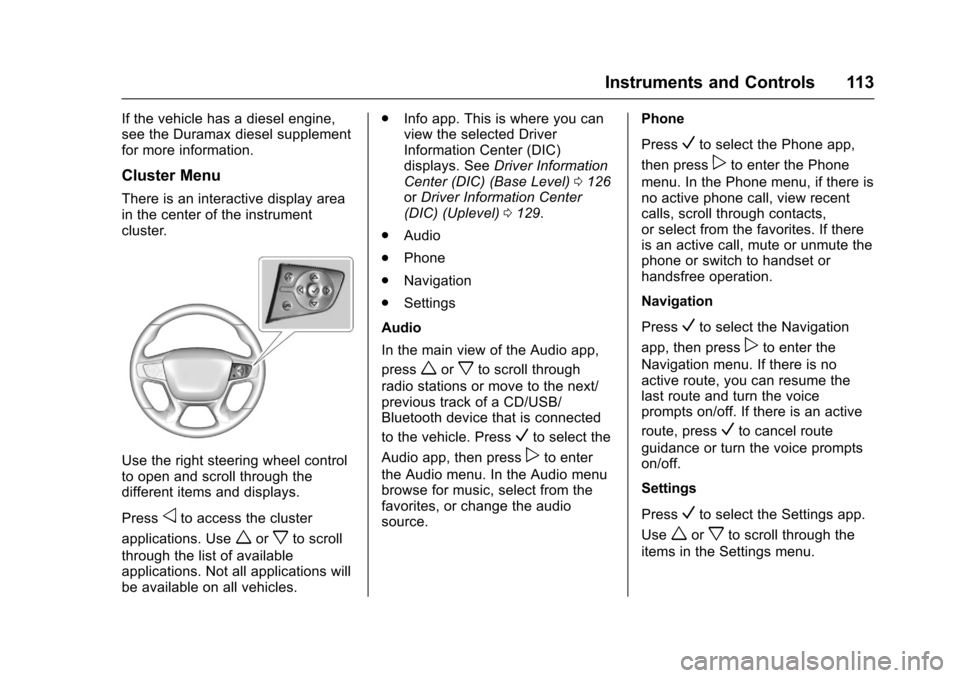
There is an interactive display areain the center of the instrumentcluster.
Use the right steering wheel controlto open and scroll through thedifferent items and displays.
Pressoto access the cluster
applications. Useworxto scroll
through the list of availableapplications. Not all applications willbe available on all vehicles.
.Info app. This is where you canview the selected DriverInformation Center (DIC)displays. SeeDriver InformationCenter (DIC) (Base Level)0126orDriver Information Center(DIC) (Uplevel)0129.
.Audio
.Phone
.Navigation
.Settings
Audio
In the main view of the Audio app,
pressworxto scroll through
radio stations or move to the next/previous track of a CD/USB/Bluetooth device that is connected
to the vehicle. PressVto select the
Audio app, then presspto enter
the Audio menu. In the Audio menubrowse for music, select from thefavorites, or change the audiosource.
Phone
PressVto select the Phone app,
then presspto enter the Phone
menu. In the Phone menu, if there isno active phone call, view recentcalls, scroll through contacts,or select from the favorites. If thereis an active call, mute or unmute thephone or switch to handset orhandsfree operation.
Navigation
PressVto select the Navigation
app, then presspto enter the
Navigation menu. If there is noactive route, you can resume thelast route and turn the voiceprompts on/off. If there is an active
route, pressVto cancel route
guidance or turn the voice promptson/off.
Settings
PressVto select the Settings app.
Useworxto scroll through the
items in the Settings menu.
Page 119 of 419
Chevrolet Colorado Owner Manual (GMNA-Localizing-U.S./Canada/Mexico-10122675) - 2017 - crc - 8/22/16
118 Instruments and Controls
If the word ON or the on symbol islit on the passenger airbag statusindicator, it means that the frontoutboard passenger frontal airbag isallowed to inflate.
If the word OFF or the off symbol islit on the airbag status indicator, itmeans that the passenger sensingsystem has turned off the frontoutboard passenger frontal airbag.
If, after several seconds, both statusindicator lights remain on, or if thereare no lights at all, there may be aproblem with the lights or thepassenger sensing system. Seeyour dealer for service.
{Warning
If the airbag readiness light ever
comes on and stays on, it means
that something may be wrong
with the airbag system. To help
avoid injury to yourself or others,
have the vehicle serviced right
away. SeeAirbag Readiness
Light011 7for more information,
including important safety
information.
Charging System Light
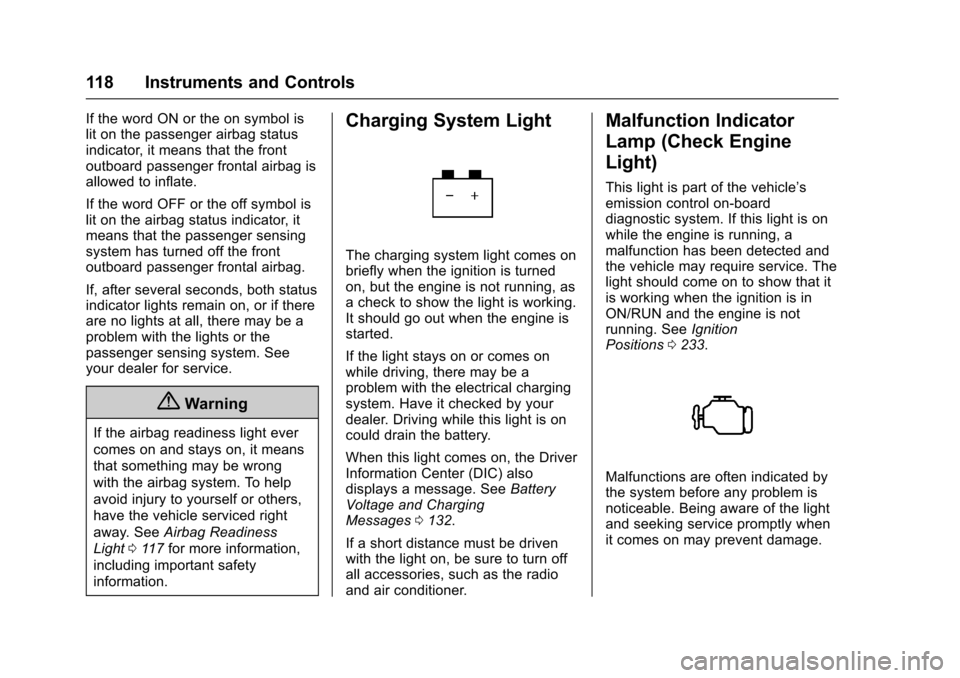
The charging system light comes onbriefly when the ignition is turnedon, but the engine is not running, asachecktoshowthelightisworking.It should go out when the engine isstarted.
If the light stays on or comes onwhile driving, there may be aproblem with the electrical chargingsystem. Have it checked by yourdealer. Driving while this light is oncould drain the battery.
When this light comes on, the DriverInformation Center (DIC) alsodisplays a message. SeeBatteryVoltage and ChargingMessages0132.
If a short distance must be drivenwith the light on, be sure to turn offall accessories, such as the radioand air conditioner.
Malfunction Indicator
Lamp (Check Engine
Light)
This light is part of the vehicle’semission control on-boarddiagnostic system. If this light is onwhile the engine is running, amalfunction has been detected andthe vehicle may require service. Thelight should come on to show that itis working when the ignition is inON/RUN and the engine is notrunning. SeeIgnitionPositions0233.
Malfunctions are often indicated bythe system before any problem isnoticeable. Being aware of the lightand seeking service promptly whenit comes on may prevent damage.
Page 140 of 419
Chevrolet Colorado Owner Manual (GMNA-Localizing-U.S./Canada/Mexico-10122675) - 2017 - crc - 8/22/16
Instruments and Controls 139
TO EXIT 4WD LOW SLOW
TO XXX
If a four-wheel drive shift out ofFour-Wheel Drive Low is requested,but the vehicle speed is too high,this message will display until thecorrect vehicle speed is reached.
TO EXIT 4WD LOW SHIFT TO
NEUTRAL
If a four-wheel drive shift out ofFour-Wheel Drive Low is requested,and the vehicle speed is correct, butthe transmission is not inN(Neutral), this message willdisplay until the transmission isshifted to N (Neutral).
TRANSMISSION HOT IDLE
ENGINE
This message displays and a chimemay sound if the transmission fluidin the vehicle gets hot. Driving withthe transmission fluid temperaturehigh can cause damage to thevehicle. Stop the vehicle and let itidle to allow the transmission tocool. This message clears and thechime stops when the fluidtemperature reaches a safe level.
When towing, use Tow/Haul Modeto prevent damage to the engine ortransmission. SeeTo w / H a u lMode0245.
VEHICLE IN 4WD LOW
This message will display if thevehicle is driven in Four-WheelDrive Low for about 10 minutesabove 72 km/h (45 mph).
Vehicle Reminder
Messages
ICE POSSIBLE DRIVE
WITH CARE
This message is displayed when iceconditions are possible.
Vehicle Speed Messages
REDUCE SPEED FOR HILL
DESCENT CONTROL
This message displays whenattempting to enable Hill DescentControl (HDC) when the vehiclespeed is too high. SeeHill DescentControl (HDC)0258.
Vehicle
Personalization
Use the audio system controls toaccess the personalization menusfor customizing vehicle features.
The following are all possiblepersonalization features. Dependingon the vehicle, some may not beavailable.
Base Radio Audio SystemControls
MENU :Press the center of theknob to enter menus and selectmenu items. Turn the knob to scrollthrough the menus.
oBACK :Press to return to theprevious menu or exit.
Uplevel Radio Audio SystemControls
1. Touch the desired feature todisplay a list of availableoptions.
2. Touch to select the desiredfeature setting.
Page 141 of 419
Chevrolet Colorado Owner Manual (GMNA-Localizing-U.S./Canada/Mexico-10122675) - 2017 - crc - 8/22/16
140 Instruments and Controls
3. PressoBACK on the
faceplate or touch0screen
button to return to the previousmenu or exit.
Turn the vehicle to ON/RUN toaccess the Settings menu, thenselect SETTINGS from the Homepage on the infotainment display.
Personalization Menus
The following list of menu items maybe available:
.Time and Date
.Language (Language)
.Rear Seat Reminder
.Te e n D r i v e r
.Va l e t M o d e
.Radio
.Vehicle
.Bluetooth
.Apple CarPlay
.Android Auto
.Voice
.Display
.Rear Camera
.Return to Factory Settings
.Software Information
Detailed information for each menufollows.
Time and Date
Manually set the time and date. SeeClock0106.
Language (Language)
Select Language, then select fromthe available language(s).
The selected language will displayon the system, and voicerecognition will reflect the selectedlanguage.
Rear Seat Reminder
This allows for a chime and amessage“Look in Rear Seat”whenthe rear door has been openedbefore or during operation of thevehicle.
Select Off or On.
Teen Driver
See“Te e n D r i v e r”under“Settings”in the infotainment manual.
Valet Mode (If Equipped)
This will lock the infotainmentsystem and steering wheel controls.It may also limit access to vehiclestorage locations (if equipped).
To e n a b l e v a l e t m o d e :
1. Enter a four-digit code on thekeypad.
2. Select Enter to go to theconfirmation screen.
3. Re-enter the four-digit code.
To u c h L O C K o r U N L O C K t o l o c k o runlock the system. Touch Back togo back to the previous menu.
Radio
To u c h t o d i s p l a y t h e R a d i o m e n uand the following may display:
.Manage Favorites
.Number of Favorites Shown
.Audible Touch Feedback
.Auto Volume