AUX CHEVROLET COLORADO 2018 Owner's Manual
[x] Cancel search | Manufacturer: CHEVROLET, Model Year: 2018, Model line: COLORADO, Model: CHEVROLET COLORADO 2018Pages: 421, PDF Size: 5.58 MB
Page 8 of 421

Chevrolet Colorado Owner Manual (GMNA-Localizing-U.S./Canada/Mexico-
11349743) - 2018 - crc - 10/12/17
In Brief 7
1.Air Vents 0195.
2. Turn Signal Lever. See Turn
and Lane-Change Signals
0 145.
Driver Information Center (DIC)
(Base Level) Controls (If
Equipped).
See Driver Information Center
(DIC) (Base Level) 0129 or
Driver Information Center (DIC)
(Uplevel) 0131.
3. Instrument Cluster (Upevel)
0114 orInstrument Cluster
(Base Level) 0112.
4. Windshield Wiper/Washer
0107.
5. Light Sensor. See Automatic
Headlamp System 0144.
Vehicle Alarm System Indicator
(If Equipped). See Vehicle
Alarm System 036.
6. Infotainment 0150.
7. Climate Control Systems 0191
(If Equipped).
Automatic Climate Control
System 0193 (If Equipped). 8.
Heated Front Seats 049 (If
Equipped).
9. Power Outlets 0109 (If
Equipped).
10. Shift Lever. SeeAutomatic Transmission
0 224 orManual Transmission
0 229.
11. Auxiliary Jack 0165.
USB Port 0159.
12. Hazard Warning Flashers
0145.
Traction Control/Electronic
Stability Control 0240.
Cargo Lamp 0147.
Lane Departure Warning
(LDW) 0253 (If Equipped).
Hill Descent Control (HDC)
0 243 (If Equipped).
Tow/Haul Mode 0229 (If
Equipped).
Locking Front Axle 0246 (If
Equipped).
Locking Rear Axle 0245 (If
Equipped). 13.
Steering Wheel Controls 0106
(If Equipped).
Driver Information Center (DIC)
(Uplevel) Controls (If
Equipped).
See Driver Information Center
(DIC) (Base Level) 0129 or
Driver Information Center (DIC)
(Uplevel) 0131.
14. Horn 0107.
15. Steering Wheel Adjustment
0106 (Out of View).
16. Cruise Control 0247.
Forward Collision Alert (FCA)
System 0251 (If Equipped).
17. Transfer Case Knob (If Equipped). See Four-Wheel
Drive 0231.
Driver Mode Control (ZR2
Only) 0244 (If Equipped).
18. Hood Release. See Hood
0 277.
19. Parking Brake 0239.
Page 20 of 421
Chevrolet Colorado Owner Manual (GMNA-Localizing-U.S./Canada/Mexico-
11349743) - 2018 - crc - 10/12/17
In Brief 19
4m(Four-Wheel Drive High) :Use
this setting when extra traction is
needed, such as on snowy or icy
roads or in most off-road situations.
N (Neutral) : Shift to this setting
only when towing the vehicle.
See Recreational Vehicle Towing
0 348 orTrailer Towing 0261.
4
n(Four-Wheel Drive Low) :
Choose 4
nwhen driving in deep
sand, mud, or snow, and while
climbing or descending steep hills.
See Four-Wheel Drive 0231.
For ZR2 locking axle information,
see Locking Rear Axle 0245 and
Locking Front Axle 0246.
For ZR2 Off-Road Mode
information, see Driver Mode
Control (ZR2 Only) 0244.
Vehicle Features
Infotainment System
The base radio information is
included in this manual. See the
infotainment manual for information
on the uplevel radios, audio players,
phone, navigation system, Rear
Seat Entertainment (RSE), and
voice or speech recognition,
if equipped.
Radio(s)
O
:Press to turn the system on.
Press and hold to turn it off. When
on, press to mute; press again to
unmute. Turn to increase or
decrease the volume.
RADIO : Press to choose between
FM, AM, and SXM, if equipped.
MEDIA : Press to change the audio
source between USB, AUX, and
Bluetooth
®Audio, if equipped.
{: Press to go to the Home Page.
MENU : Press to select a menu.
g:Press to seek the previous
station.
l: Press to seek the next station.
See Overview 0152 about these
and other radio features.
Storing Radio Station Presets
Up to 25 preset stations from all
bands can be stored in the favorite
lists in any order. Up to five stations
can be stored in each favorite page
and the number of favorite pages
can be set.
To store the station to a position in
the list, while on the active source
main page, such as AM, FM,
or SXM (if equipped), press and
hold a favorites/soft key button on
the center stack.
See “Storing Radio Station Presets”
under AM-FM Radio 0154.
Setting the Clock
See Clock 0108.
Page 21 of 421
Chevrolet Colorado Owner Manual (GMNA-Localizing-U.S./Canada/Mexico-
11349743) - 2018 - crc - 10/12/17
20 In Brief
Satellite Radio
Vehicles with a SiriusXM satellite
radio tuner and a valid SiriusXM
satellite radio subscription can
receive SiriusXM programming.
SiriusXM Satellite Radio
Service
SiriusXM is a satellite radio service
based in the 48 contiguous United
States and 10 Canadian provinces.
SiriusXM satellite radio has a wide
variety of programming and
commercial-free music, coast to
coast, and in digital-quality sound.
A fee is required to receive the
SiriusXM service.
For more information refer to:
.www.siriusxm.com or call
1-888-601-6296 (U.S.).
. www.siriusxm.ca or call
1-877-438-9677 (Canada).
See Satellite Radio 0156.
Portable Audio Devices
There is a 3.5 mm (1/8 in) auxiliary
input jack and USB port on the
center stack. External devices such
as iPods
®, laptop computers, MP3
players, and USB storage devices
may be connected, depending on
the audio system.
See USB Port 0159 andAuxiliary
Jack 0165.
Bluetooth®
The Bluetooth system allows users
with a Bluetooth-enabled cell phone
to make and receive hands-free
calls using the vehicle audio system
and controls.
The Bluetooth-enabled cell phone
must be paired with the in-vehicle
Bluetooth system before it can be
used in the vehicle. Not all phones
will support all functions.
See Bluetooth (Infotainment
Controls) 0178 orBluetooth
(Overview) 0172 orBluetooth
(Voice Recognition) 0174.
Steering Wheel Controls
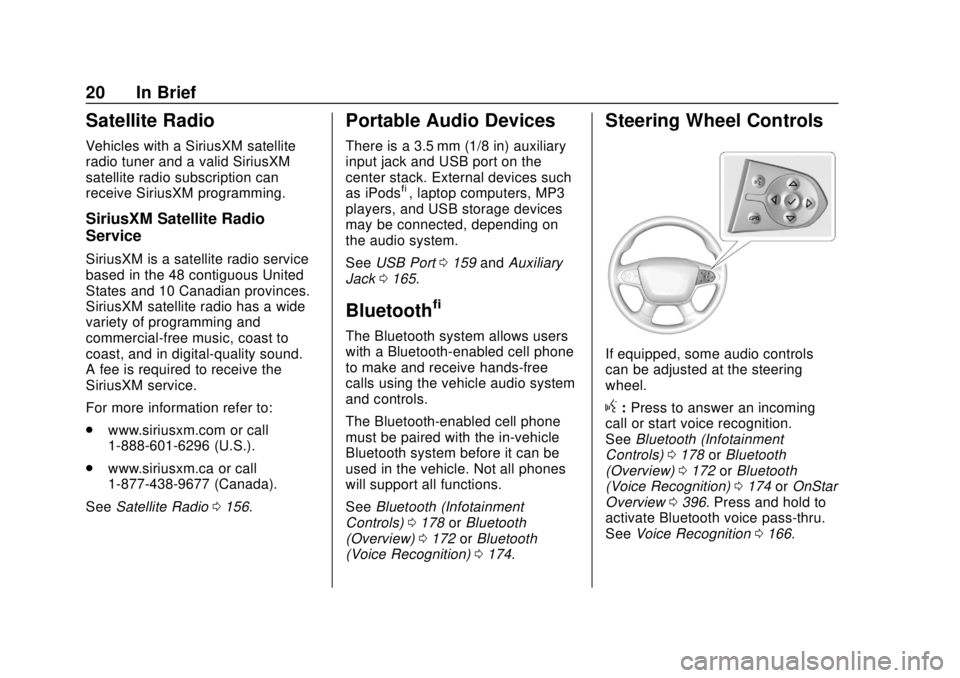
If equipped, some audio controls
can be adjusted at the steering
wheel.
g:Press to answer an incoming
call or start voice recognition.
See Bluetooth (Infotainment
Controls) 0178 orBluetooth
(Overview) 0172 orBluetooth
(Voice Recognition) 0174 orOnStar
Overview 0396. Press and hold to
activate Bluetooth voice pass-thru.
See Voice Recognition 0166.
Page 105 of 421
Chevrolet Colorado Owner Manual (GMNA-Localizing-U.S./Canada/Mexico-
11349743) - 2018 - crc - 10/12/17
104 Storage
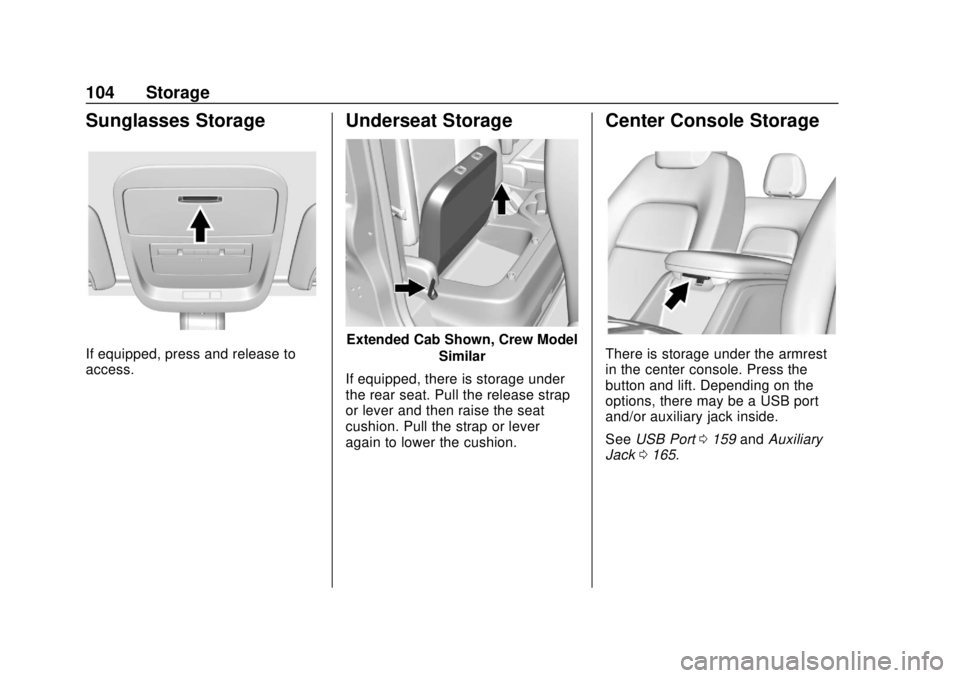
Sunglasses Storage
If equipped, press and release to
access.
Underseat Storage
Extended Cab Shown, Crew ModelSimilar
If equipped, there is storage under
the rear seat. Pull the release strap
or lever and then raise the seat
cushion. Pull the strap or lever
again to lower the cushion.
Center Console Storage
There is storage under the armrest
in the center console. Press the
button and lift. Depending on the
options, there may be a USB port
and/or auxiliary jack inside.
See USB Port 0159 andAuxiliary
Jack 0165.
Page 151 of 421
Chevrolet Colorado Owner Manual (GMNA-Localizing-U.S./Canada/Mexico-
11349743) - 2018 - crc - 10/12/17
150 Infotainment System
Infotainment
System
Introduction
Infotainment . . . . . . . . . . . . . . . . . . 150
Theft-Deterrent Feature . . . . . . 151
Overview . . . . . . . . . . . . . . . . . . . . . 152
Home Page . . . . . . . . . . . . . . . . . . 153
Software Updates . . . . . . . . . . . . 153
Radio
AM-FM Radio . . . . . . . . . . . . . . . . 154
Satellite Radio . . . . . . . . . . . . . . . . 156
Radio Reception . . . . . . . . . . . . . . 157
Multi-Band Antenna . . . . . . . . . . 158
Audio Players
Avoiding Untrusted MediaDevices . . . . . . . . . . . . . . . . . . . . . 159
USB Port . . . . . . . . . . . . . . . . . . . . . 159
Auxiliary Jack . . . . . . . . . . . . . . . . 165
Bluetooth Audio . . . . . . . . . . . . . . 165
Voice Recognition
Voice Recognition . . . . . . . . . . . . 166
Phone
Bluetooth (Overview) . . . . . . . . . 172 Bluetooth (Voice
Recognition) . . . . . . . . . . . . . . . . 174
Bluetooth (Infotainment Controls) . . . . . . . . . . . . . . . . . . . . 178
Text Messaging . . . . . . . . . . . . . . . 183
Apple CarPlay and
Android Auto . . . . . . . . . . . . . . . . 184
Trademarks and License
Agreements
Trademarks and LicenseAgreements . . . . . . . . . . . . . . . . . 185
Introduction
Infotainment
Base radio information is included in
this manual. See the infotainment
manual for information on other
available infotainment systems.
Read the following pages to
become familiar with the features.
{Warning
Taking your eyes off the road for
too long or too often while using
any infotainment feature can
cause a crash. You or others
could be injured or killed. Do not
give extended attention to
infotainment tasks while driving.
Limit your glances at the vehicle
displays and focus your attention
on driving. Use voice commands
whenever possible.
The infotainment system has built-in
features intended to help avoid
distraction by disabling some
Page 154 of 421
Chevrolet Colorado Owner Manual (GMNA-Localizing-U.S./Canada/Mexico-
11349743) - 2018 - crc - 10/12/17
Infotainment System 153
4.6
.Radio: Press and release to
go to the next station or
channel. Press and hold to
fast seek the next strongest
station or channel.
. USB/BT Music/Pictures:
Press and hold to go to the
next content. Press and
hold to fast forward.
5.
#
. Press and release to
access the phone screen,
answer an incoming call,
or access the device home
screen. Press and hold to
access Press to Talk.
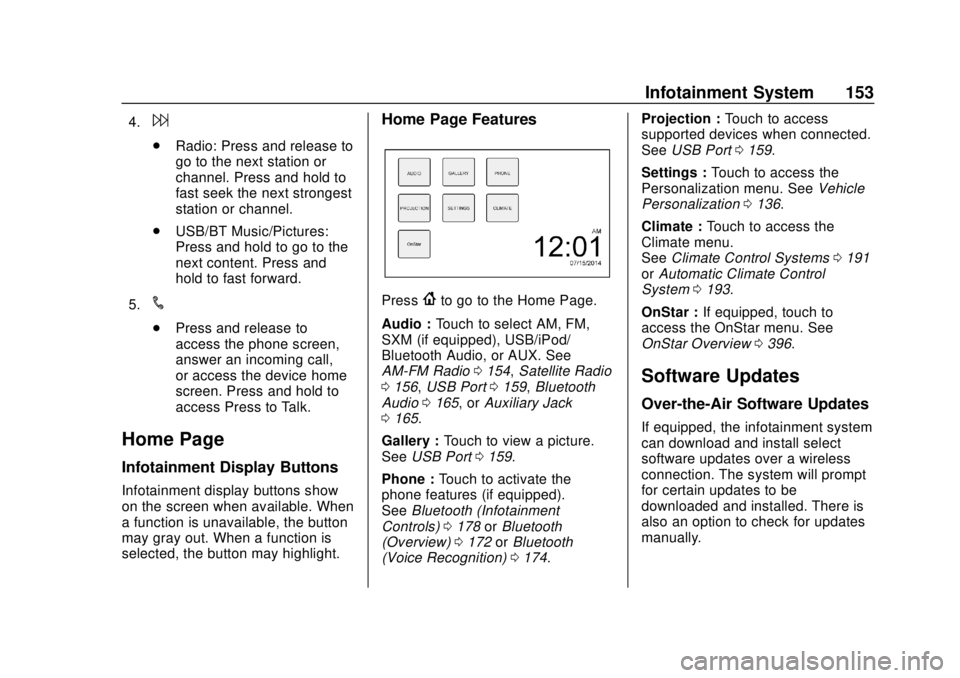
Home Page
Infotainment Display Buttons
Infotainment display buttons show
on the screen when available. When
a function is unavailable, the button
may gray out. When a function is
selected, the button may highlight.
Home Page Features
Press{to go to the Home Page.
Audio : Touch to select AM, FM,
SXM (if equipped), USB/iPod/
Bluetooth Audio, or AUX. See
AM-FM Radio 0154, Satellite Radio
0 156, USB Port 0159, Bluetooth
Audio 0165, or Auxiliary Jack
0 165.
Gallery : Touch to view a picture.
See USB Port 0159.
Phone : Touch to activate the
phone features (if equipped).
See Bluetooth (Infotainment
Controls) 0178 orBluetooth
(Overview) 0172 orBluetooth
(Voice Recognition) 0174. Projection :
Touch to access
supported devices when connected.
See USB Port 0159.
Settings : Touch to access the
Personalization menu. See Vehicle
Personalization 0136.
Climate : Touch to access the
Climate menu.
See Climate Control Systems 0191
or Automatic Climate Control
System 0193.
OnStar : If equipped, touch to
access the OnStar menu. See
OnStar Overview 0396.
Software Updates
Over-the-Air Software Updates
If equipped, the infotainment system
can download and install select
software updates over a wireless
connection. The system will prompt
for certain updates to be
downloaded and installed. There is
also an option to check for updates
manually.
Page 156 of 421
Chevrolet Colorado Owner Manual (GMNA-Localizing-U.S./Canada/Mexico-
11349743) - 2018 - crc - 10/12/17
Infotainment System 155
1. Touch MENU from a sourcescreen.
2. Select Auto Volume.
3. Select the desired setting.
4. Touch
3to go back to the
source screen.
Tone Settings
The tone settings can be set for
each radio band and each audio
player source.
Preset Tone Settings 1. Touch MENU.
2. Touch Tone Settings.
3. Select a preset tone setting. .Bass, Midrange, or Treble:
Touch −or +.
. Fade or Balance: Adjust the
front/rear or left/right
speakers by dragging the
dot in the vehicle image on
the screen. Custom Tone Settings
1. Touch MENU.
2. Touch Tone Settings.
3. Touch Custom. .Bass, Midrange, or Treble:
Touch −or +.
. Fade or Balance: Adjust the
front/rear or left/right
speakers by dragging the
dot in the vehicle image on
the screen.
Touch
3to go back to the source
screen.
Selecting an Auxiliary Device
Connect the auxiliary device to the
AUX input terminal. Play will begin
when the system has finished
reading the information on the
device.
If the AUX device is already
connected, press
{, AUDIO,
Source, then select the device.
Selecting a Station
Seek Tuning
If the radio station is not known:
Press
7or6to automatically
search for available radio stations.
Manual Tuning
Continue touching
toruto
manually change the radio station.
Direct Tune
From the AM or FM menu:
1. Touch Tune.
2. Enter the station number.
3. Touch Go or
toruto go to
the previous or next station.
Favorite
1. Touch
SorTto scroll through
the favorites.
2. Touch the station to select it.
Station List 1. From the AM or FM menu, touch MENU.
Page 160 of 421
Chevrolet Colorado Owner Manual (GMNA-Localizing-U.S./Canada/Mexico-
11349743) - 2018 - crc - 10/12/17
Infotainment System 159
Audio Players
Avoiding Untrusted Media
Devices
When using media devices such as
CDs, DVDs, Blu-ray Discs, SD
cards, USB devices, and mobile
devices, consider the source.
Untrusted media devices could
contain files that affect system
operation or performance. Avoid use
if the content or origin cannot be
trusted.
USB Port
If equipped, there is a USB port for
data and charging in the center
stack, inside the center console,
and/or at the rear of the center
console. For uplevel radios, see the
infotainment manual.
Using the USB Port
The infotainment system can play
music by connecting an auxiliary
device to the USB port.USB Support
The USB port uses the USB 2.0
standard. External devices such as
iPhones/iPods and USB storage
devices may be connected.
USB Supported Devices
.
USB flash drives
. Portable USB hard drives
. iPod/iPhone devices
Not all iPods and USB drives are
compatible with the USB port.
Make sure the iPod has the latest
firmware from Apple for proper
operation. iPod firmware can be
updated using the latest iTunes
application. See www.apple.com/
itunes.
For help with identifying your iPod,
go to www.apple.com/support.
The USB port can play both lower
and upper case .mp3, .wma, .ogg,
and .wav files stored on a USB
storage device. Supported Apple Devices
To view supported devices in the
U.S., see www.my.chevrolet.com/
learned.
To view supported devices in
Canada, see
www.chevroletowner.ca.
For supported devices in Mexico,
see your dealer.
USB Supported File and Folder
Structure
The infotainment system supports:
.
FAT16.
. FAT32.
. exFAT.
Connecting a USB Storage
Device or iPod/iPhone
To connect a USB storage device,
connect the device to the USB port.
To connect an iPod/iPhone, connect
one end of the device’ s cable to the
iPod/iPhone and the other end to
the USB port.
Page 166 of 421
Chevrolet Colorado Owner Manual (GMNA-Localizing-U.S./Canada/Mexico-
11349743) - 2018 - crc - 10/12/17
Infotainment System 165
Auxiliary Jack
If equipped, an AUX jack is located
on the center stack or in the center
console storage. SeeCenter
Console Storage 0104.
Possible auxiliary audio sources
include:
. Laptop computer
. Audio music player
This jack is not an audio output. Do
not plug headphones into the
auxiliary input jack. Auxiliary
devices should be set up while the
vehicle is in P (Park).
Connect a 3.5 mm (1/8 in) cable
from the auxiliary device to the
auxiliary input jack.
Playing Music
Play will begin when the system has
finished reading the information on
the device.
To play the music from the device,
if the device is already connected:
1. Press
{. 2. Touch AUDIO.
3. Touch Source.
4. Touch AUX.
To adjust the tone settings, see
“Tone Settings” in“System Settings”
under AM-FM Radio 0154.
To adjust the auto volume settings,
see “Auto Volume” inAM-FM Radio
0 154.
Bluetooth Audio
If equipped, music may be played
from a paired Bluetooth device. See
“Pairing” inBluetooth (Infotainment
Controls) 0178 orBluetooth
(Overview) 0172 orBluetooth
(Voice Recognition) 0174 for help
pairing a device.
Volume and song selection may be
controlled by using the infotainment
controls or the phone/device.
If Bluetooth Audio is selected and
nothing is heard, check the volume
setting on both the phone/device
and the infotainment system.
Launch music by touching MEDIA
on the Home Page. To play music via Bluetooth:
1. Power on the device, and pair to connect the device.
2. Once paired, go into the audio application from the Home
Page or via the application tray.
Select MEDIA until Bluetooth
displays.
Bluetooth Audio Menu
Touch MENU to display the
Bluetooth Audio menu. The
following may be available:
Tone: Turn the MENU knob to
adjust the tone settings.
Touch
oBACK to go back to the
previous menu.
Manage Bluetooth Devices: Select
to go to the Bluetooth page to add
or delete devices.
When selecting Bluetooth Audio, the
radio may not be able to launch the
audio player on the connected
device to start playing. When the
vehicle is not moving, use the
phone to begin playback.
Page 313 of 421
Chevrolet Colorado Owner Manual (GMNA-Localizing-U.S./Canada/Mexico-
11349743) - 2018 - crc - 10/12/17
312 Vehicle Care
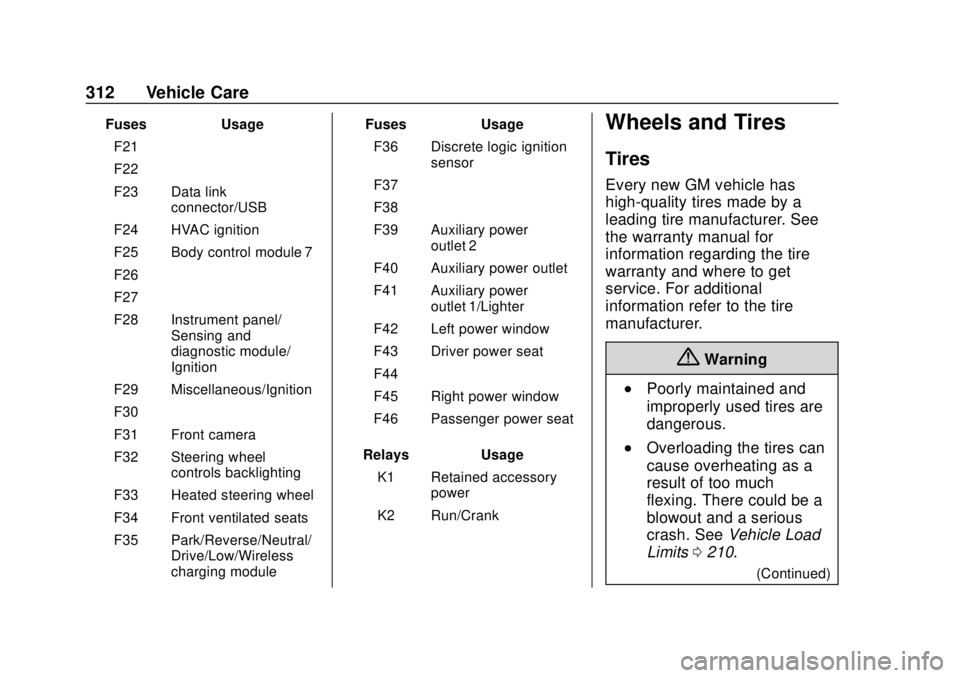
FusesUsage
F21 –
F22 –
F23 Data link connector/USB
F24 HVAC ignition
F25 Body control module 7
F26 –
F27 –
F28 Instrument panel/ Sensing and
diagnostic module/
Ignition
F29 Miscellaneous/Ignition
F30 –
F31 Front camera
F32 Steering wheel controls backlighting
F33 Heated steering wheel
F34 Front ventilated seats
F35 Park/Reverse/Neutral/ Drive/Low/Wireless
charging module Fuses
Usage
F36 Discrete logic ignition sensor
F37 –
F38 –
F39 Auxiliary power outlet 2
F40 Auxiliary power outlet
F41 Auxiliary power outlet 1/Lighter
F42 Left power window
F43 Driver power seat
F44 –
F45 Right power window
F46 Passenger power seat
Relays Usage
K1 Retained accessory power
K2 Run/CrankWheels and Tires
Tires
Every new GM vehicle has
high-quality tires made by a
leading tire manufacturer. See
the warranty manual for
information regarding the tire
warranty and where to get
service. For additional
information refer to the tire
manufacturer.
{Warning
.Poorly maintained and
improperly used tires are
dangerous.
.Overloading the tires can
cause overheating as a
result of too much
flexing. There could be a
blowout and a serious
crash. See Vehicle Load
Limits 0210.
(Continued)