fuel CHEVROLET COLORADO 2022 User Guide
[x] Cancel search | Manufacturer: CHEVROLET, Model Year: 2022, Model line: COLORADO, Model: CHEVROLET COLORADO 2022Pages: 362, PDF Size: 13.62 MB
Page 88 of 362
Chevrolet Colorado Owner Manual (GMNA-Localizing-U.S./Canada/Mexico-
15274222) - 2022 - CRC - 11/2/21
Instruments and Controls 87
{Warning
If the airbag readiness light ever comes
on and stays on, it means that
something may be wrong with the airbag
system. To help avoid injury to yourself
or others, have the vehicle serviced right
away. SeeAirbag Readiness Light 086
for more information, including important
safety information.
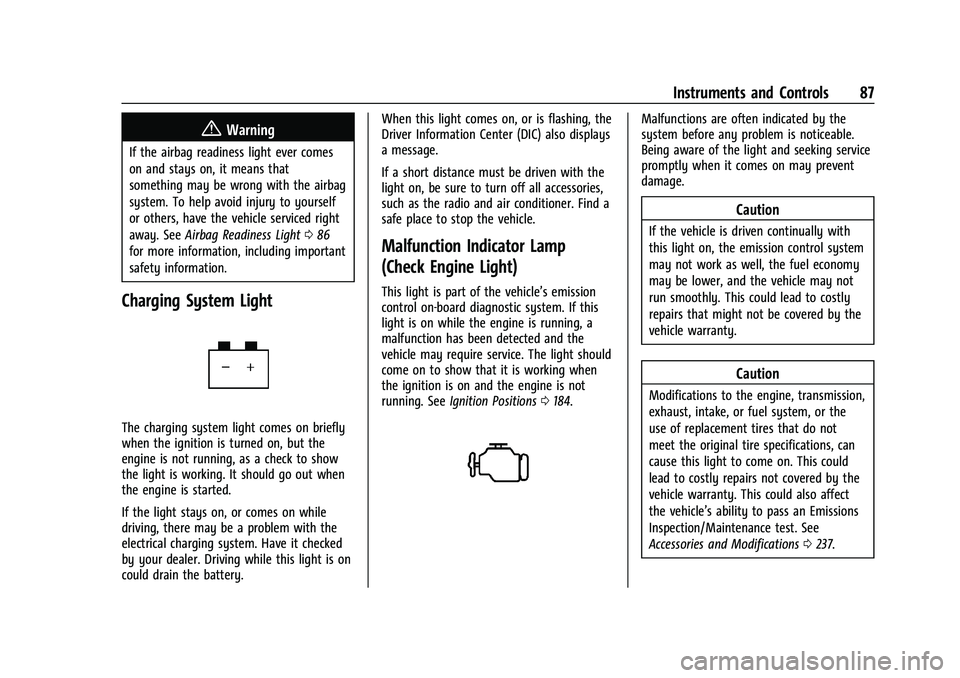
Charging System Light
The charging system light comes on briefly
when the ignition is turned on, but the
engine is not running, as a check to show
the light is working. It should go out when
the engine is started.
If the light stays on, or comes on while
driving, there may be a problem with the
electrical charging system. Have it checked
by your dealer. Driving while this light is on
could drain the battery. When this light comes on, or is flashing, the
Driver Information Center (DIC) also displays
a message.
If a short distance must be driven with the
light on, be sure to turn off all accessories,
such as the radio and air conditioner. Find a
safe place to stop the vehicle.
Malfunction Indicator Lamp
(Check Engine Light)
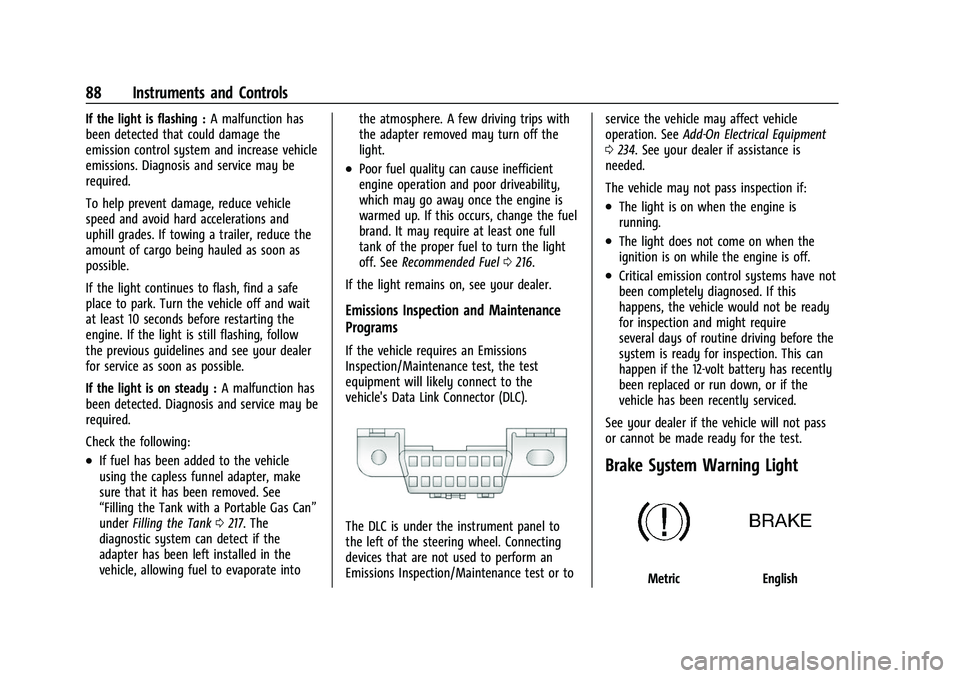
This light is part of the vehicle’s emission
control on-board diagnostic system. If this
light is on while the engine is running, a
malfunction has been detected and the
vehicle may require service. The light should
come on to show that it is working when
the ignition is on and the engine is not
running. See
Ignition Positions 0184.
Malfunctions are often indicated by the
system before any problem is noticeable.
Being aware of the light and seeking service
promptly when it comes on may prevent
damage.
Caution
If the vehicle is driven continually with
this light on, the emission control system
may not work as well, the fuel economy
may be lower, and the vehicle may not
run smoothly. This could lead to costly
repairs that might not be covered by the
vehicle warranty.
Caution
Modifications to the engine, transmission,
exhaust, intake, or fuel system, or the
use of replacement tires that do not
meet the original tire specifications, can
cause this light to come on. This could
lead to costly repairs not covered by the
vehicle warranty. This could also affect
the vehicle’s ability to pass an Emissions
Inspection/Maintenance test. See
Accessories and Modifications 0237.
Page 89 of 362
Chevrolet Colorado Owner Manual (GMNA-Localizing-U.S./Canada/Mexico-
15274222) - 2022 - CRC - 11/2/21
88 Instruments and Controls
If the light is flashing :A malfunction has
been detected that could damage the
emission control system and increase vehicle
emissions. Diagnosis and service may be
required.
To help prevent damage, reduce vehicle
speed and avoid hard accelerations and
uphill grades. If towing a trailer, reduce the
amount of cargo being hauled as soon as
possible.
If the light continues to flash, find a safe
place to park. Turn the vehicle off and wait
at least 10 seconds before restarting the
engine. If the light is still flashing, follow
the previous guidelines and see your dealer
for service as soon as possible.
If the light is on steady : A malfunction has
been detected. Diagnosis and service may be
required.
Check the following:
.If fuel has been added to the vehicle
using the capless funnel adapter, make
sure that it has been removed. See
“Filling the Tank with a Portable Gas Can”
under Filling the Tank 0217. The
diagnostic system can detect if the
adapter has been left installed in the
vehicle, allowing fuel to evaporate into the atmosphere. A few driving trips with
the adapter removed may turn off the
light.
.Poor fuel quality can cause inefficient
engine operation and poor driveability,
which may go away once the engine is
warmed up. If this occurs, change the fuel
brand. It may require at least one full
tank of the proper fuel to turn the light
off. See
Recommended Fuel 0216.
If the light remains on, see your dealer.
Emissions Inspection and Maintenance
Programs
If the vehicle requires an Emissions
Inspection/Maintenance test, the test
equipment will likely connect to the
vehicle's Data Link Connector (DLC).
The DLC is under the instrument panel to
the left of the steering wheel. Connecting
devices that are not used to perform an
Emissions Inspection/Maintenance test or to service the vehicle may affect vehicle
operation. See
Add-On Electrical Equipment
0 234. See your dealer if assistance is
needed.
The vehicle may not pass inspection if:
.The light is on when the engine is
running.
.The light does not come on when the
ignition is on while the engine is off.
.Critical emission control systems have not
been completely diagnosed. If this
happens, the vehicle would not be ready
for inspection and might require
several days of routine driving before the
system is ready for inspection. This can
happen if the 12-volt battery has recently
been replaced or run down, or if the
vehicle has been recently serviced.
See your dealer if the vehicle will not pass
or cannot be made ready for the test.
Brake System Warning Light
MetricEnglish
Page 93 of 362
Chevrolet Colorado Owner Manual (GMNA-Localizing-U.S./Canada/Mexico-
15274222) - 2022 - CRC - 11/2/21
92 Instruments and Controls
the light will come on at every ignition
cycle. SeeTire Pressure Monitor Operation
0 277.
Engine Oil Pressure Light
Caution
Lack of proper engine oil maintenance
can damage the engine. Driving with the
engine oil low can also damage the
engine. The repairs would not be covered
by the vehicle warranty. Check the oil
level as soon as possible. Add oil if
required, but if the oil level is within the
operating range and the oil pressure is
still low, have the vehicle serviced.
Always follow the maintenance schedule
for changing engine oil.
This light should come on briefly as the
engine is started. If it does not come on,
have the vehicle serviced by your dealer. If the light comes on and stays on, it means
that oil is not flowing through the engine
properly. The vehicle could be low on oil
and might have some other system
problem. See your dealer.
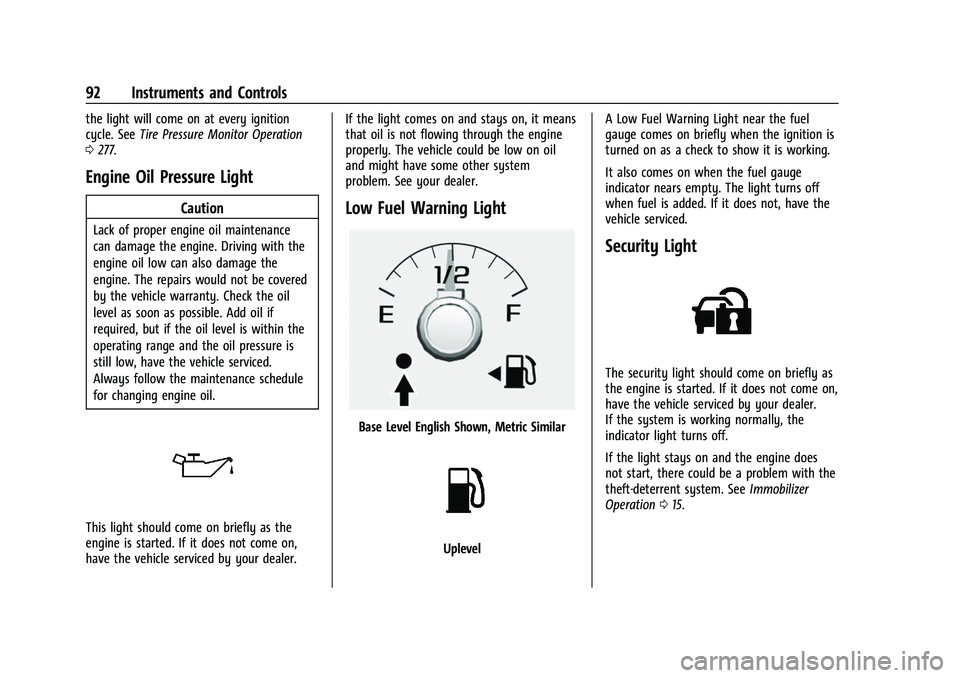
Low Fuel Warning Light
Base Level English Shown, Metric Similar
Uplevel
A Low Fuel Warning Light near the fuel
gauge comes on briefly when the ignition is
turned on as a check to show it is working.
It also comes on when the fuel gauge
indicator nears empty. The light turns off
when fuel is added. If it does not, have the
vehicle serviced.
Security Light
The security light should come on briefly as
the engine is started. If it does not come on,
have the vehicle serviced by your dealer.
If the system is working normally, the
indicator light turns off.
If the light stays on and the engine does
not start, there could be a problem with the
theft-deterrent system. See
Immobilizer
Operation 015.
Page 95 of 362
Chevrolet Colorado Owner Manual (GMNA-Localizing-U.S./Canada/Mexico-
15274222) - 2022 - CRC - 11/2/21
94 Instruments and Controls
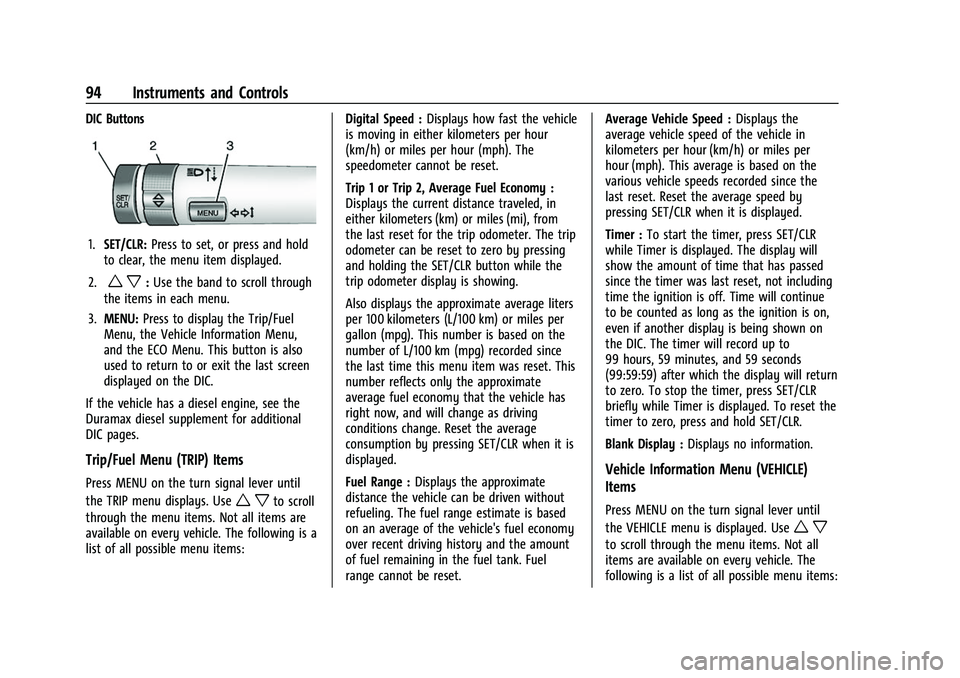
DIC Buttons
1.SET/CLR: Press to set, or press and hold
to clear, the menu item displayed.
2.
w x: Use the band to scroll through
the items in each menu.
3. MENU: Press to display the Trip/Fuel
Menu, the Vehicle Information Menu,
and the ECO Menu. This button is also
used to return to or exit the last screen
displayed on the DIC.
If the vehicle has a diesel engine, see the
Duramax diesel supplement for additional
DIC pages.
Trip/Fuel Menu (TRIP) Items
Press MENU on the turn signal lever until
the TRIP menu displays. Use
w xto scroll
through the menu items. Not all items are
available on every vehicle. The following is a
list of all possible menu items: Digital Speed :
Displays how fast the vehicle
is moving in either kilometers per hour
(km/h) or miles per hour (mph). The
speedometer cannot be reset.
Trip 1 or Trip 2, Average Fuel Economy :
Displays the current distance traveled, in
either kilometers (km) or miles (mi), from
the last reset for the trip odometer. The trip
odometer can be reset to zero by pressing
and holding the SET/CLR button while the
trip odometer display is showing.
Also displays the approximate average liters
per 100 kilometers (L/100 km) or miles per
gallon (mpg). This number is based on the
number of L/100 km (mpg) recorded since
the last time this menu item was reset. This
number reflects only the approximate
average fuel economy that the vehicle has
right now, and will change as driving
conditions change. Reset the average
consumption by pressing SET/CLR when it is
displayed.
Fuel Range : Displays the approximate
distance the vehicle can be driven without
refueling. The fuel range estimate is based
on an average of the vehicle's fuel economy
over recent driving history and the amount
of fuel remaining in the fuel tank. Fuel
range cannot be reset. Average Vehicle Speed :
Displays the
average vehicle speed of the vehicle in
kilometers per hour (km/h) or miles per
hour (mph). This average is based on the
various vehicle speeds recorded since the
last reset. Reset the average speed by
pressing SET/CLR when it is displayed.
Timer : To start the timer, press SET/CLR
while Timer is displayed. The display will
show the amount of time that has passed
since the timer was last reset, not including
time the ignition is off. Time will continue
to be counted as long as the ignition is on,
even if another display is being shown on
the DIC. The timer will record up to
99 hours, 59 minutes, and 59 seconds
(99:59:59) after which the display will return
to zero. To stop the timer, press SET/CLR
briefly while Timer is displayed. To reset the
timer to zero, press and hold SET/CLR.
Blank Display : Displays no information.
Vehicle Information Menu (VEHICLE)
Items
Press MENU on the turn signal lever until
the VEHICLE menu is displayed. Use
w x
to scroll through the menu items. Not all
items are available on every vehicle. The
following is a list of all possible menu items:
Page 96 of 362
Chevrolet Colorado Owner Manual (GMNA-Localizing-U.S./Canada/Mexico-
15274222) - 2022 - CRC - 11/2/21
Instruments and Controls 95
Remaining Oil Life :Displays an estimate of
the oil's remaining useful life. If REMAINING
OIL LIFE 99% is displayed, that means 99%
of the current oil life remains.
When the remaining oil life is low, the
CHANGE ENGINE OIL SOON message will
appear on the display. The oil should be
changed as soon as possible. See Engine Oil
0 242. In addition to the engine oil life
system monitoring the oil life, additional
maintenance is recommended in the
Maintenance Schedule in this manual. See
Maintenance Schedule 0314.
The Oil Life display must be reset after each
oil change. Do not reset the Oil Life display
accidentally at any time other than when
the oil has just been changed. It cannot be
reset accurately until the next oil change. To
reset the engine oil life system, see Engine
Oil Life System 0244.
Oil Pressure : Oil pressure is displayed in
either kilopascal (kPa) or in pounds per
square inch (psi).
Tire Pressure : Displays a vehicle with the
approximate pressures of all four tires. Tire
pressure is displayed in either
kilopascal (kPa) or in pounds per square inch (psi). See
Tire Pressure Monitor System
0 276 and
Tire Pressure Monitor Operation 0277.
Battery Voltage : Displays the current
battery voltage, if equipped. Battery voltage
changes are normal while driving. See
Charging System Light 087. If there is a
problem with the battery charging system,
the DIC will display a message.
Engine Hours : Shows the total number of
hours the engine has run.
Transmission Fluid Temperature : Shows the
temperature of the automatic transmission
fluid in either degrees Celsius (°C) or degrees
Fahrenheit (°F).
Trailer Brake (If Equipped) : TRAILER GAIN
shows the trailer gain setting. This setting
can be adjusted from 0.0 to 10.0 with either
a trailer connected or disconnected.
OUTPUT shows the power output to the
trailer anytime a trailer with electric brakes
is connected. Output is displayed as a bar
graph. Dashes may appear in the OUTPUT
display if a trailer is not connected. Units :
Movew xto change between
Metric or US when the Unit display is active.
Press SET/CLR to confirm the setting. This
will change the displays on the DIC to the
type of measurements you select.
ECO Drive Assist Menu (ECO) Items
This menu is only available on some
vehicles. Press MENU on the turn signal
lever until the ECO menu is displayed. Use
w xto scroll through the menu items.
Not all items are available on every vehicle.
The following is a list of all possible menu
items:
Best Average Fuel Economy : The bottom
displays the best average fuel economy
(AFE) that is achieved for a selected
distance. The top displays a running average
of fuel economy for the most recently
traveled selected distance. The center bar
graph displays the instantaneous fuel
economy. Quickly press the SET/CLR button
to change the settings for the distance
options.
When viewing best AFE, a several second
press and hold of SET/CLR will reset the best
value. The best value will show “- - -“until
the selected distance has been traveled.
Page 97 of 362
Chevrolet Colorado Owner Manual (GMNA-Localizing-U.S./Canada/Mexico-
15274222) - 2022 - CRC - 11/2/21
96 Instruments and Controls
The display provides feedback on how
current driving behavior in the bar graph
affects the running average in the top
display and how well recent driving
compares to the best that has been
achieved.
Driver Information Center (DIC)
(Uplevel)
The DIC displays are shown in the center of
the instrument cluster in the Info app. See
Instrument Cluster081. The displays show
the status of many vehicle systems.
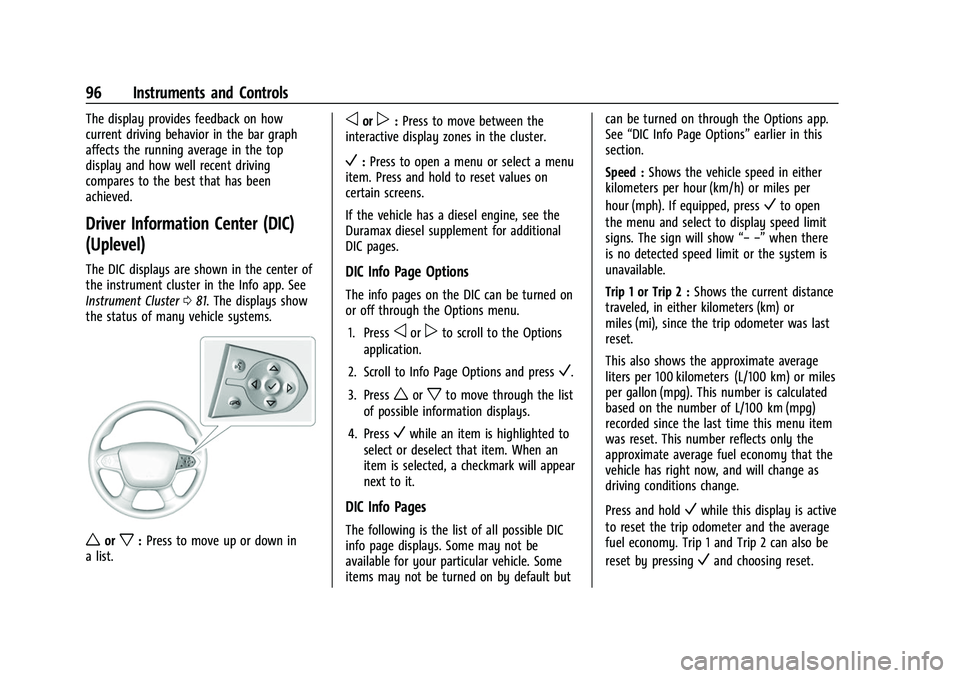
worx: Press to move up or down in
a list.
oorp: Press to move between the
interactive display zones in the cluster.
V: Press to open a menu or select a menu
item. Press and hold to reset values on
certain screens.
If the vehicle has a diesel engine, see the
Duramax diesel supplement for additional
DIC pages.
DIC Info Page Options
The info pages on the DIC can be turned on
or off through the Options menu.
1. Press
oorpto scroll to the Options
application.
2. Scroll to Info Page Options and press
V.
3. Press
worxto move through the list
of possible information displays.
4. Press
Vwhile an item is highlighted to
select or deselect that item. When an
item is selected, a checkmark will appear
next to it.
DIC Info Pages
The following is the list of all possible DIC
info page displays. Some may not be
available for your particular vehicle. Some
items may not be turned on by default but can be turned on through the Options app.
See
“DIC Info Page Options” earlier in this
section.
Speed : Shows the vehicle speed in either
kilometers per hour (km/h) or miles per
hour (mph). If equipped, press
Vto open
the menu and select to display speed limit
signs. The sign will show “− −”when there
is no detected speed limit or the system is
unavailable.
Trip 1 or Trip 2 : Shows the current distance
traveled, in either kilometers (km) or
miles (mi), since the trip odometer was last
reset.
This also shows the approximate average
liters per 100 kilometers (L/100 km) or miles
per gallon (mpg). This number is calculated
based on the number of L/100 km (mpg)
recorded since the last time this menu item
was reset. This number reflects only the
approximate average fuel economy that the
vehicle has right now, and will change as
driving conditions change.
Press and hold
Vwhile this display is active
to reset the trip odometer and the average
fuel economy. Trip 1 and Trip 2 can also be
reset by pressing
Vand choosing reset.
Page 98 of 362
Chevrolet Colorado Owner Manual (GMNA-Localizing-U.S./Canada/Mexico-
15274222) - 2022 - CRC - 11/2/21
Instruments and Controls 97
Fuel Range :Shows the approximate
distance the vehicle can be driven without
refueling. LOW will be displayed when the
vehicle is low on fuel. The fuel range
estimate is based on an average of the
vehicle's fuel economy over recent driving
history and the amount of fuel remaining in
the fuel tank.
Oil Life : Shows an estimate of the oil's
remaining useful life. If REMAINING OIL LIFE
99% is displayed, that means 99% of the
current oil life remains.
When the remaining oil life is low, the
CHANGE ENGINE OIL SOON message will
appear on the display. The oil should be
changed as soon as possible. See Engine Oil
0 242. In addition to the engine oil life
system monitoring the oil life, additional
maintenance is recommended. See
Maintenance Schedule 0314.
The Oil Life display must be reset after each
oil change. It will not reset itself. Do not to
reset the Oil Life display at any time other
than when the oil has just been changed.
It cannot be reset accurately until the next
oil change. To reset the engine oil life
system, press and hold
Vfor several
seconds while the Oil Life display is active.
See Engine Oil Life System 0244. Tire Pressure :
Shows the approximate
pressures of all four tires. Tire pressure is
displayed in either kilopascal (kPa) or in
pounds per square inch (psi). If the pressure
is low, the value for that tire is shown in
amber. See Tire Pressure Monitor System
0 276 and
Tire Pressure Monitor Operation 0277.
Instantaneous Fuel Economy : Displays the
current fuel economy in liters per
100 kilometers (L/100 km) or miles per
gallon (mpg). This number reflects only the
approximate fuel economy that the vehicle
has right now and changes frequently as
driving conditions change. This display
cannot be reset.
Average Vehicle Speed : Displays the
average vehicle speed of the vehicle in
kilometers per hour (km/h) or miles per
hour (mph). This average is based on the
various vehicle speeds recorded since the
last reset. Reset the average speed by
pressing
Vwhen it is displayed.
Fuel Economy : The center displays the
approximate instantaneous fuel economy as
a number and bar graph. Displayed above
the bar graph is a running average of fuel
economy for the most recently traveled
selected distance. Displayed below the bar graph is the best average fuel economy that
has been achieved for the selected distance.
The selected distance is displayed at the top
of the page as
“last xxx mi/km.”
Press
Vto select the distance or reset best
value. Use
wandxto choose the
distance and press
V. Presswandxto
select “Reset Best Score.” Press
Vto reset
the best average fuel economy. After reset,
the best value displays “-,-”until the
selected distance has been traveled.
The display provides information on how
current driving behavior affects the running
average and how well recent driving
compares to the best that has been
achieved for the selected distance.
Engine Hours (Hourmeter) : Shows the total
number of hours the engine has run. The
display also shows the engine idle hours.
Timer : This display can be used as a timer.
To start the timer, press
Vwhile this
display is active. The display will show the
amount of time that has passed since the
timer was last reset. To stop the timer,
press
Vbriefly while this display is active
Page 125 of 362
Chevrolet Colorado Owner Manual (GMNA-Localizing-U.S./Canada/Mexico-
15274222) - 2022 - CRC - 11/2/21
124 Infotainment System
Navigation Map View
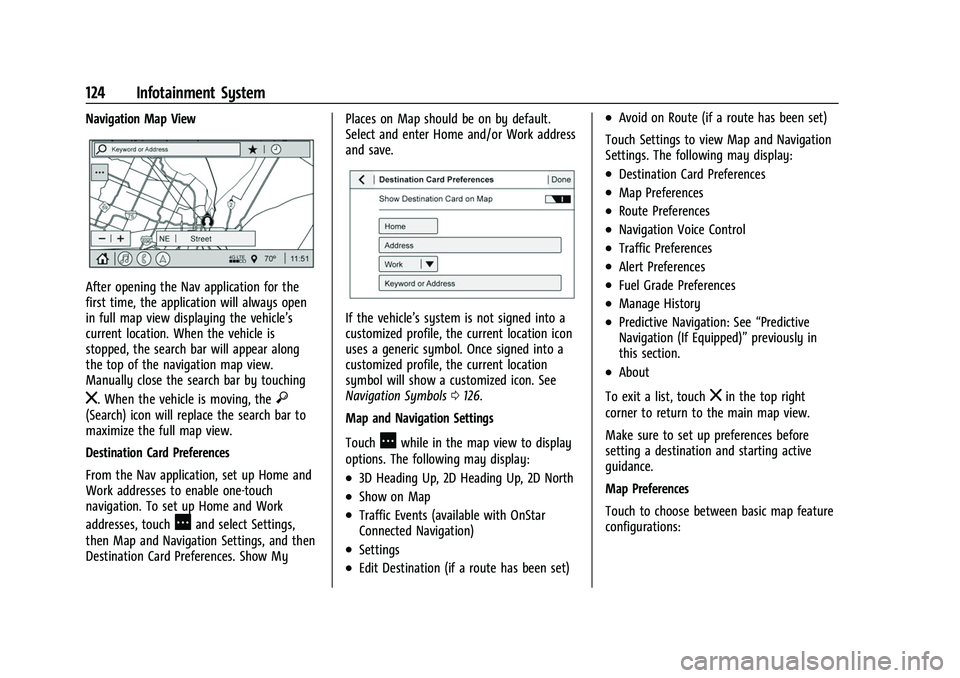
After opening the Nav application for the
first time, the application will always open
in full map view displaying the vehicle’s
current location. When the vehicle is
stopped, the search bar will appear along
the top of the navigation map view.
Manually close the search bar by touching
z. When the vehicle is moving, the}(Search) icon will replace the search bar to
maximize the full map view.
Destination Card Preferences
From the Nav application, set up Home and
Work addresses to enable one-touch
navigation. To set up Home and Work
addresses, touch
Aand select Settings,
then Map and Navigation Settings, and then
Destination Card Preferences. Show My Places on Map should be on by default.
Select and enter Home and/or Work address
and save.
If the vehicle’s system is not signed into a
customized profile, the current location icon
uses a generic symbol. Once signed into a
customized profile, the current location
symbol will show a customized icon. See
Navigation Symbols
0126.
Map and Navigation Settings
Touch
Awhile in the map view to display
options. The following may display:
.3D Heading Up, 2D Heading Up, 2D North
.Show on Map
.Traffic Events (available with OnStar
Connected Navigation)
.Settings
.Edit Destination (if a route has been set)
.Avoid on Route (if a route has been set)
Touch Settings to view Map and Navigation
Settings. The following may display:
.Destination Card Preferences
.Map Preferences
.Route Preferences
.Navigation Voice Control
.Traffic Preferences
.Alert Preferences
.Fuel Grade Preferences
.Manage History
.Predictive Navigation: See “Predictive
Navigation (If Equipped)” previously in
this section.
.About
To exit a list, touch
zin the top right
corner to return to the main map view.
Make sure to set up preferences before
setting a destination and starting active
guidance.
Map Preferences
Touch to choose between basic map feature
configurations:
Page 126 of 362
Chevrolet Colorado Owner Manual (GMNA-Localizing-U.S./Canada/Mexico-
15274222) - 2022 - CRC - 11/2/21
Infotainment System 125
Map Colors
.Auto–Touch to automatically change
modes based on lighting conditions.
.Day (Light)
.Night (Dark)
3D Landmark (Default is On) : Touch On or
Off. When turned on, the system will
display all 3D Landmarks on the map
depending on the zoom level.
3D Building (Default is Off) : Touch On or
Off. When turned on, the system will
display all of the possible 3D building shapes
on the map depending on the zoom level.
Show Terrain in 3D (Default is Off) :
If equipped, touch On or Off. When turned
on, the system will display terrain
information on the map in 3D view.
Auto-Zoom (Default is On) : Touch On or
Off. When turned on, the system will
automatically adjust the zoom level when
the vehicle is approaching a turn. After the
turn is completed, the system automatically
brings the zoom back to the originally set
level. If the vehicle is approaching a turn
with the next turn occurring shortly after,
the Auto-Zoom will remain on until both
turns are completed. Route Preferences
Touch to access the Route Preferences. The
choices are:
.Preferred Route
–Choose from two
different route options: Fastest or
Eco-Friendly.
‐ Fastest would be the route with the
shortest drive time.
‐ Eco-Friendly would be the most
fuel-efficient route.
.Avoid on Current Route –Choose any of
the road features to avoid while on route:
‐ Highways
‐ Unpaved Roads
‐ Ferries
‐ Carpool Lanes
‐ Toll Roads
‐ Tunnels
‐ Country Borders
Navigation Voice Control
Touch to access the voice control setting
display.
.Navigation Volume –To adjust the
volume level, touch the up and down
arrows. If the voice guidance prompt is being heard, volume can also be adjusted
using the knob on the center stack or the
volume switch on the steering wheel.
.Navigation Voice Prompt Level during a
Call. Options available are:
‐
Full Prompt (Selected by default)
‐ Tone Only
‐ None
Traffic Events (If Equipped)
This feature provides a list of events that
are on the route or nearby. Touch
Aand
then select Traffic Events. An OnStar
connected Navigation service plan is
required.
Traffic Preferences (If Equipped)
While in Map View, touch
A, then Settings
and then Map and Navigation Settings to
access Traffic Preferences. When Show
Traffic on Map is turned on, the feature
provides an overview of the traffic flow
using different coded colors. The following
options are available for rerouting:
.Auto Reroute to Better Route –The
system will automatically reroute if the
system detects there is a traffic issue
ahead.
Page 133 of 362
Chevrolet Colorado Owner Manual (GMNA-Localizing-U.S./Canada/Mexico-
15274222) - 2022 - CRC - 11/2/21
132 Infotainment System
Show POI Icons
To see the POI categories, touch Options,
then touch Show on Map. Up to eight
categories of icons can be selected.
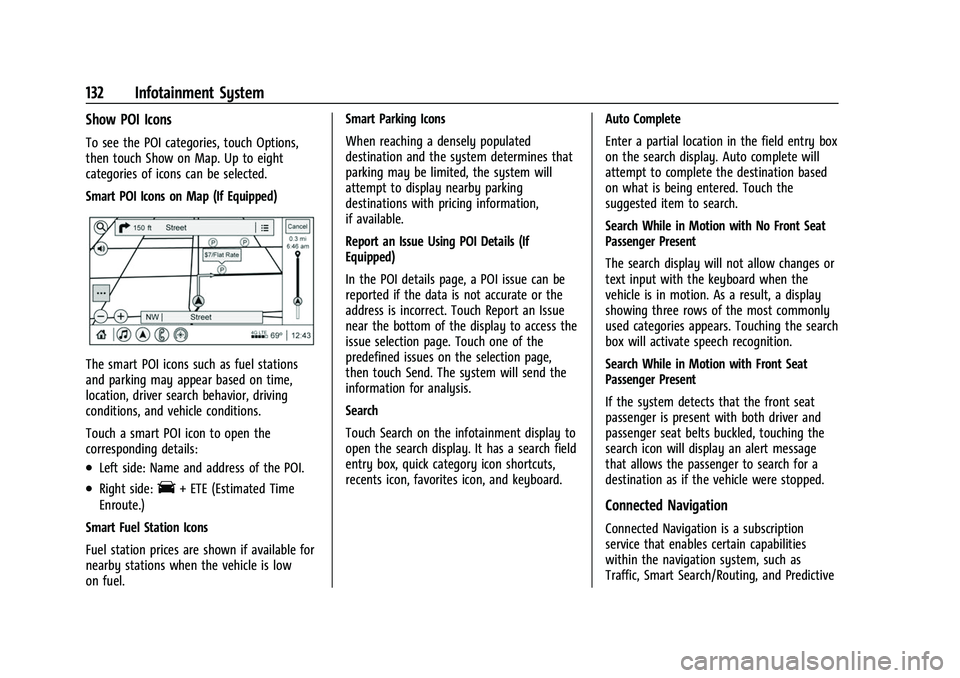
Smart POI Icons on Map (If Equipped)
The smart POI icons such as fuel stations
and parking may appear based on time,
location, driver search behavior, driving
conditions, and vehicle conditions.
Touch a smart POI icon to open the
corresponding details:
.Left side: Name and address of the POI.
.Right side:E+ ETE (Estimated Time
Enroute.)
Smart Fuel Station Icons
Fuel station prices are shown if available for
nearby stations when the vehicle is low
on fuel. Smart Parking Icons
When reaching a densely populated
destination and the system determines that
parking may be limited, the system will
attempt to display nearby parking
destinations with pricing information,
if available.
Report an Issue Using POI Details (If
Equipped)
In the POI details page, a POI issue can be
reported if the data is not accurate or the
address is incorrect. Touch Report an Issue
near the bottom of the display to access the
issue selection page. Touch one of the
predefined issues on the selection page,
then touch Send. The system will send the
information for analysis.
Search
Touch Search on the infotainment display to
open the search display. It has a search field
entry box, quick category icon shortcuts,
recents icon, favorites icon, and keyboard.
Auto Complete
Enter a partial location in the field entry box
on the search display. Auto complete will
attempt to complete the destination based
on what is being entered. Touch the
suggested item to search.
Search While in Motion with No Front Seat
Passenger Present
The search display will not allow changes or
text input with the keyboard when the
vehicle is in motion. As a result, a display
showing three rows of the most commonly
used categories appears. Touching the search
box will activate speech recognition.
Search While in Motion with Front Seat
Passenger Present
If the system detects that the front seat
passenger is present with both driver and
passenger seat belts buckled, touching the
search icon will display an alert message
that allows the passenger to search for a
destination as if the vehicle were stopped.
Connected Navigation
Connected Navigation is a subscription
service that enables certain capabilities
within the navigation system, such as
Traffic, Smart Search/Routing, and Predictive