engine CHEVROLET COLORADO 2022 Owner's Manual
[x] Cancel search | Manufacturer: CHEVROLET, Model Year: 2022, Model line: COLORADO, Model: CHEVROLET COLORADO 2022Pages: 362, PDF Size: 13.62 MB
Page 96 of 362
Chevrolet Colorado Owner Manual (GMNA-Localizing-U.S./Canada/Mexico-
15274222) - 2022 - CRC - 11/2/21
Instruments and Controls 95
Remaining Oil Life :Displays an estimate of
the oil's remaining useful life. If REMAINING
OIL LIFE 99% is displayed, that means 99%
of the current oil life remains.
When the remaining oil life is low, the
CHANGE ENGINE OIL SOON message will
appear on the display. The oil should be
changed as soon as possible. See Engine Oil
0 242. In addition to the engine oil life
system monitoring the oil life, additional
maintenance is recommended in the
Maintenance Schedule in this manual. See
Maintenance Schedule 0314.
The Oil Life display must be reset after each
oil change. Do not reset the Oil Life display
accidentally at any time other than when
the oil has just been changed. It cannot be
reset accurately until the next oil change. To
reset the engine oil life system, see Engine
Oil Life System 0244.
Oil Pressure : Oil pressure is displayed in
either kilopascal (kPa) or in pounds per
square inch (psi).
Tire Pressure : Displays a vehicle with the
approximate pressures of all four tires. Tire
pressure is displayed in either
kilopascal (kPa) or in pounds per square inch (psi). See
Tire Pressure Monitor System
0 276 and
Tire Pressure Monitor Operation 0277.
Battery Voltage : Displays the current
battery voltage, if equipped. Battery voltage
changes are normal while driving. See
Charging System Light 087. If there is a
problem with the battery charging system,
the DIC will display a message.
Engine Hours : Shows the total number of
hours the engine has run.
Transmission Fluid Temperature : Shows the
temperature of the automatic transmission
fluid in either degrees Celsius (°C) or degrees
Fahrenheit (°F).
Trailer Brake (If Equipped) : TRAILER GAIN
shows the trailer gain setting. This setting
can be adjusted from 0.0 to 10.0 with either
a trailer connected or disconnected.
OUTPUT shows the power output to the
trailer anytime a trailer with electric brakes
is connected. Output is displayed as a bar
graph. Dashes may appear in the OUTPUT
display if a trailer is not connected. Units :
Movew xto change between
Metric or US when the Unit display is active.
Press SET/CLR to confirm the setting. This
will change the displays on the DIC to the
type of measurements you select.
ECO Drive Assist Menu (ECO) Items
This menu is only available on some
vehicles. Press MENU on the turn signal
lever until the ECO menu is displayed. Use
w xto scroll through the menu items.
Not all items are available on every vehicle.
The following is a list of all possible menu
items:
Best Average Fuel Economy : The bottom
displays the best average fuel economy
(AFE) that is achieved for a selected
distance. The top displays a running average
of fuel economy for the most recently
traveled selected distance. The center bar
graph displays the instantaneous fuel
economy. Quickly press the SET/CLR button
to change the settings for the distance
options.
When viewing best AFE, a several second
press and hold of SET/CLR will reset the best
value. The best value will show “- - -“until
the selected distance has been traveled.
Page 97 of 362
Chevrolet Colorado Owner Manual (GMNA-Localizing-U.S./Canada/Mexico-
15274222) - 2022 - CRC - 11/2/21
96 Instruments and Controls
The display provides feedback on how
current driving behavior in the bar graph
affects the running average in the top
display and how well recent driving
compares to the best that has been
achieved.
Driver Information Center (DIC)
(Uplevel)
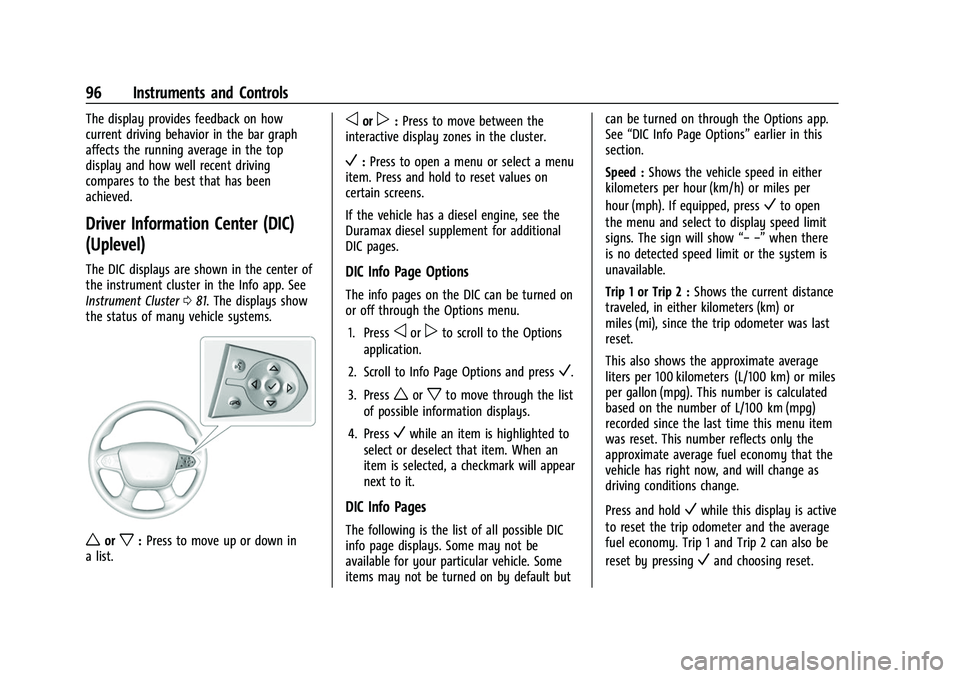
The DIC displays are shown in the center of
the instrument cluster in the Info app. See
Instrument Cluster081. The displays show
the status of many vehicle systems.
worx: Press to move up or down in
a list.
oorp: Press to move between the
interactive display zones in the cluster.
V: Press to open a menu or select a menu
item. Press and hold to reset values on
certain screens.
If the vehicle has a diesel engine, see the
Duramax diesel supplement for additional
DIC pages.
DIC Info Page Options
The info pages on the DIC can be turned on
or off through the Options menu.
1. Press
oorpto scroll to the Options
application.
2. Scroll to Info Page Options and press
V.
3. Press
worxto move through the list
of possible information displays.
4. Press
Vwhile an item is highlighted to
select or deselect that item. When an
item is selected, a checkmark will appear
next to it.
DIC Info Pages
The following is the list of all possible DIC
info page displays. Some may not be
available for your particular vehicle. Some
items may not be turned on by default but can be turned on through the Options app.
See
“DIC Info Page Options” earlier in this
section.
Speed : Shows the vehicle speed in either
kilometers per hour (km/h) or miles per
hour (mph). If equipped, press
Vto open
the menu and select to display speed limit
signs. The sign will show “− −”when there
is no detected speed limit or the system is
unavailable.
Trip 1 or Trip 2 : Shows the current distance
traveled, in either kilometers (km) or
miles (mi), since the trip odometer was last
reset.
This also shows the approximate average
liters per 100 kilometers (L/100 km) or miles
per gallon (mpg). This number is calculated
based on the number of L/100 km (mpg)
recorded since the last time this menu item
was reset. This number reflects only the
approximate average fuel economy that the
vehicle has right now, and will change as
driving conditions change.
Press and hold
Vwhile this display is active
to reset the trip odometer and the average
fuel economy. Trip 1 and Trip 2 can also be
reset by pressing
Vand choosing reset.
Page 98 of 362
Chevrolet Colorado Owner Manual (GMNA-Localizing-U.S./Canada/Mexico-
15274222) - 2022 - CRC - 11/2/21
Instruments and Controls 97
Fuel Range :Shows the approximate
distance the vehicle can be driven without
refueling. LOW will be displayed when the
vehicle is low on fuel. The fuel range
estimate is based on an average of the
vehicle's fuel economy over recent driving
history and the amount of fuel remaining in
the fuel tank.
Oil Life : Shows an estimate of the oil's
remaining useful life. If REMAINING OIL LIFE
99% is displayed, that means 99% of the
current oil life remains.
When the remaining oil life is low, the
CHANGE ENGINE OIL SOON message will
appear on the display. The oil should be
changed as soon as possible. See Engine Oil
0 242. In addition to the engine oil life
system monitoring the oil life, additional
maintenance is recommended. See
Maintenance Schedule 0314.
The Oil Life display must be reset after each
oil change. It will not reset itself. Do not to
reset the Oil Life display at any time other
than when the oil has just been changed.
It cannot be reset accurately until the next
oil change. To reset the engine oil life
system, press and hold
Vfor several
seconds while the Oil Life display is active.
See Engine Oil Life System 0244. Tire Pressure :
Shows the approximate
pressures of all four tires. Tire pressure is
displayed in either kilopascal (kPa) or in
pounds per square inch (psi). If the pressure
is low, the value for that tire is shown in
amber. See Tire Pressure Monitor System
0 276 and
Tire Pressure Monitor Operation 0277.
Instantaneous Fuel Economy : Displays the
current fuel economy in liters per
100 kilometers (L/100 km) or miles per
gallon (mpg). This number reflects only the
approximate fuel economy that the vehicle
has right now and changes frequently as
driving conditions change. This display
cannot be reset.
Average Vehicle Speed : Displays the
average vehicle speed of the vehicle in
kilometers per hour (km/h) or miles per
hour (mph). This average is based on the
various vehicle speeds recorded since the
last reset. Reset the average speed by
pressing
Vwhen it is displayed.
Fuel Economy : The center displays the
approximate instantaneous fuel economy as
a number and bar graph. Displayed above
the bar graph is a running average of fuel
economy for the most recently traveled
selected distance. Displayed below the bar graph is the best average fuel economy that
has been achieved for the selected distance.
The selected distance is displayed at the top
of the page as
“last xxx mi/km.”
Press
Vto select the distance or reset best
value. Use
wandxto choose the
distance and press
V. Presswandxto
select “Reset Best Score.” Press
Vto reset
the best average fuel economy. After reset,
the best value displays “-,-”until the
selected distance has been traveled.
The display provides information on how
current driving behavior affects the running
average and how well recent driving
compares to the best that has been
achieved for the selected distance.
Engine Hours (Hourmeter) : Shows the total
number of hours the engine has run. The
display also shows the engine idle hours.
Timer : This display can be used as a timer.
To start the timer, press
Vwhile this
display is active. The display will show the
amount of time that has passed since the
timer was last reset. To stop the timer,
press
Vbriefly while this display is active
Page 99 of 362
Chevrolet Colorado Owner Manual (GMNA-Localizing-U.S./Canada/Mexico-
15274222) - 2022 - CRC - 11/2/21
98 Instruments and Controls
and the timer is running. To reset the timer
to zero, press and hold
Vwhile this display
is active.
Battery Voltage : Displays the current
battery voltage, if equipped. Battery voltage
changes are normal while driving. See
Charging System Light 087. If there is a
problem with the battery charging system,
the DIC will display a message.
Oil Pressure : Oil pressure is displayed in
either kilopascal (kPa) or in pounds per
square inch (psi).
Engine Hours : Shows the total number of
hours the engine has run.
Off Road Page : This page shows the
traction, four wheel drive, and steering
angle states. When the front or rear axles
are locked, a lock icon is displayed. See
Off-Road Driving 0172.
Transmission Fluid Temperature : Shows the
temperature of the automatic transmission
fluid in either degrees Celsius (°C) or degrees
Fahrenheit (°F).
Trailer Brake (If Equipped) : TRAILER GAIN
shows the trailer gain setting. This setting
can be adjusted from 0.0 to 10.0 with either
a trailer connected or disconnected. OUTPUT shows the power output to the
trailer anytime a trailer with electric brakes
is connected. Output is displayed as a bar
graph. Dashes may appear in the OUTPUT
display if a trailer is not connected.
Blank Page :
Shows no information.
Vehicle Messages
Messages displayed on the DIC indicate the
status of the vehicle or some action that
may be needed to correct a condition.
Multiple messages may appear one after
another.
The messages that do not require
immediate action can be acknowledged and
cleared by pressing
V. The messages that
require immediate action cannot be cleared
until that action is performed.
All messages should be taken seriously;
clearing the message does not correct the
problem.
If a SERVICE message appears, see your
dealer.
Follow the instructions given in the
messages. The system displays messages
regarding the following topics:
.Service Messages
.Fluid Levels
.Vehicle Security
.Brakes
.Steering
.Ride Control Systems
.Driver Assistance Systems
.Cruise Control
.Lighting and Bulb Replacement
.Wiper/Washer Systems
.Doors and Windows
.Seat Belts
.Airbag Systems
.Engine and Transmission
.Tire Pressure
.Battery
Engine Power Messages
ENGINE POWER IS REDUCED
This message displays when the vehicle's
propulsion power is reduced. A reduction in
propulsion power can affect the vehicle's
ability to accelerate. If this message is on,
but there is no observed reduction in
performance, proceed to your destination.
Under certain conditions the performance
may be reduced the next time the vehicle is
driven. The vehicle may be driven while this
Page 100 of 362
Chevrolet Colorado Owner Manual (GMNA-Localizing-U.S./Canada/Mexico-
15274222) - 2022 - CRC - 11/2/21
Instruments and Controls 99
message is on, but maximum acceleration
and speed may be reduced. Anytime this
message stays on, or displays repeatedly,
the vehicle should be taken to your dealer
for service as soon as possible.
Under certain operating conditions,
propulsion will be disabled. Try restarting
after the ignition has been off for
30 seconds.
Vehicle Speed Messages
SPEED LIMITED TO XXX KM/H (MPH)
This message shows that the vehicle speed
has been limited to the speed displayed. The
limited speed is a protection for various
propulsion and vehicle systems, such as
lubrication, thermal, brakes, suspension,
Teen Driver if equipped, or tires.
If equipped with a diesel engine, see the
Duramax Diesel supplement.
Vehicle Personalization
The following are all possible vehicle
personalization features. Depending on the
vehicle, some may not be available.
For System and Apps features and functions,
seeSettings 0144. To access the vehicle personalization menu:
1. Touch the SETTINGS icon on the Home Page of the infotainment display.
2. Touch Vehicle to display a list of available options.
3. Touch to select the desired feature setting.
4. Touch
9orRto turn a feature off or on.
5. Touch
zto go to the top level of the
Settings menu.
The menu may contain the following:
Rear Seat Reminder
This allows for a chime and a message when
the rear door has been opened before or
during operation of the vehicle.
Touch Off or On.
Climate and Air Quality
Touch and the following may display:
.Auto Fan Speed
.Auto Defog
.Auto Rear Defog Auto Fan Speed
This setting specifies the amount of airflow
when the climate control fan setting is
Auto Fan.
Touch Low, Medium, or High.
Auto Defog
This setting automatically turns the front
defogger on when the engine is started.
Touch Off or On.
Auto Rear Defog
This setting automatically turns the rear
defogger on when the engine is started.
Touch Off or On.
Collision/Detection Systems
Touch and the following may display:
.Forward Collision System
.Park Assist
.Rear Camera Park Assist Symbols
Forward Collision System
This setting can alert of a potential crash
with a detected vehicle ahead and can apply
brakes to help reduce a collision’s severity.
Touch Off, Alert, or Alert and Brake.
Page 105 of 362
Chevrolet Colorado Owner Manual (GMNA-Localizing-U.S./Canada/Mexico-
15274222) - 2022 - CRC - 11/2/21
104 Lighting
There is a light sensor on top of the
instrument panel. Do not cover the sensor,
otherwise the headlamps will come on when
they are not needed.
The system may also turn on the headlamps
when driving through a parking garage or
tunnel.
If the vehicle is started in a dark garage, the
automatic headlamp system comes on
immediately. If it is light outside when the
vehicle leaves the garage, there is a slight
delay before the automatic headlamp
system changes to the DRL. During that
delay, the instrument cluster may not be as
bright as usual. Make sure the instrument
panel brightness control is in the full bright
position. SeeInstrument Panel Illumination
Control 0106. When it is bright enough outside, the
headlamps will turn off or may change to
Daytime Running Lamps (DRL).
The automatic headlamp system turns off
when the exterior lamp control is turned to
Oor the ignition is off.
Lights On with Wipers
If the windshield wipers are activated in
daylight with the engine on, and the
exterior lamp control is in AUTO, the
headlamps, parking lamps, and other
exterior lamps come on. The transition time
for the lamps coming on varies based on
wiper speed. When the wipers are not
operating, these lamps turn off. Move the
exterior lamp control to
Oor;to disable
this feature.
Hazard Warning Flashers
|: Press to make the front and rear turn
signal lamps flash on and off. Press again to
turn the flashers off.
When the hazard warning flashers are on,
the vehicle's turn signals will not work.
Turn and Lane-Change Signals
Page 108 of 362
Chevrolet Colorado Owner Manual (GMNA-Localizing-U.S./Canada/Mexico-
15274222) - 2022 - CRC - 11/2/21
Lighting 107
Lighting Features
Entry Lighting
Some exterior lamps and the interior lamps
turn on briefly at night, or in areas with
limited lighting, when
Kis pressed on the
Remote Keyless Entry (RKE) transmitter.
When a door is opened, the interior lamps
come on if the dome lamp control is in the
DOOR position. After about 30 seconds the
exterior lamps turn off. Entry lighting can be
disabled manually by changing the ignition
out of the OFF position, or by pressing the
RKE transmitter
Qbutton.
This feature can be changed. See “Vehicle
Locator Lights” underVehicle Personalization
0 99.
Exit Lighting
Some exterior lamps and interior lamps turn
on when the key is removed from the
ignition.
The exterior and interior lamps remain on
for a set amount of time, then automatically
turn off. If equipped with Keyless Access,
the exterior lamps automatically turn on
when the driver door is opened after the
ignition is turned off. The interior lights turn on when the ignition
is turned off.
The exterior lamps turn off immediately by
turning the exterior lamp control off.
This feature can be changed. See
Vehicle
Personalization 099.
Battery Load Management
The vehicle has Electric Power Management
(EPM), which estimates the battery's
temperature and state of charge. It then
adjusts the voltage for best performance
and extended life of the battery.
When the battery's state of charge is low,
the voltage is raised slightly to quickly bring
the charge back up. When the state of
charge is high, the voltage is lowered
slightly to prevent overcharging. The
voltmeter gauge or the voltage display on
the Driver Information Center (DIC),
if equipped, may show the voltage moving
up or down. This is normal. If there is a
problem, an alert will be displayed.
The battery can be discharged at idle if the
electrical loads are very high. This is true for
all vehicles. This is because the generator (alternator) may not be spinning fast
enough at idle to produce all the power that
is needed for very high electrical loads.
A high electrical load occurs when several of
the following are on, such as: headlamps,
high beams, fog lamps, rear window
defogger, climate control fan at high speed,
heated seats, engine cooling fans, trailer
loads, and loads plugged into accessory
power outlets.
EPM works to prevent excessive discharge of
the battery. It does this by balancing the
generator's output and the vehicle's
electrical needs. It can increase engine idle
speed to generate more power, whenever
needed. It can temporarily reduce the power
demands of some accessories.
Normally, these actions occur in steps or
levels, without being noticeable. In rare
cases at the highest levels of corrective
action, this action may be noticeable to
the driver. If so, a DIC message might be
displayed and it is recommended that the
driver reduce the electrical loads as much as
possible.
Page 111 of 362
Chevrolet Colorado Owner Manual (GMNA-Localizing-U.S./Canada/Mexico-
15274222) - 2022 - CRC - 11/2/21
110 Infotainment System
.Set up the audio by presetting favorite
stations, setting the tone, and adjusting
the speakers.
.Set up phone numbers in advance so they
can be called easily by pressing a single
control or by using a single voice
command.
See Distracted Driving 0169.
Active Noise Cancellation (ANC)
If equipped, ANC reduces engine noise in the
vehicle’s interior. ANC requires the
factory-installed audio system, radio,
speakers, amplifier (if equipped), induction
system, and exhaust system to work
properly. Deactivation is required by your
dealer if related aftermarket equipment is
installed.
Overview
Infotainment System
The infotainment system is controlled by
using the infotainment display, controls on
the center stack, steering wheel controls,
and voice recognition.
Uplevel Radio
1.O(Power)
.Press to turn the power on.
.Press and hold to turn the
power off.
.Press to mute/unmute the system
when on.
.When the power is on and the
system is not muted, a quick
status pane will display when
Ois
pressed. Pressing
Owill mute the
system and trigger this pane to
show a long press is required to
actually power down the system.
.Turn to decrease or increase the
volume.
2.7
.Radio: Press and release to go to
the previous station or channel.
Press and hold to fast seek the
next strongest previous station or
channel. See AM-FM Radio 0116.
.USB/Bluetooth: Press to seek to
the beginning of the current or
previous track. Press and hold to
quickly reverse through a track.
Release to return to playing speed.
See USB Port 0119 or
Bluetooth Audio 0122.
Page 132 of 362
Chevrolet Colorado Owner Manual (GMNA-Localizing-U.S./Canada/Mexico-
15274222) - 2022 - CRC - 11/2/21
Infotainment System 131
This symbol indicates the next guidance
maneuver. Touch it to repeat the last
spoken guidance instruction.
Incident Alert (If Equipped)
During active guidance, if the system
determines that there is an incident ahead
but there is not a better route, the system
will play a tone and show a Quick Notice.
This will only show once per incident.
Incident Reports (If Equipped)
Incident report icons, along with traffic flow
data, display on the map during both active
and inactive guidance.
End Route
Touch Cancel at the top right corner to end
active guidance and return to inactive
guidance. If active guidance is canceled
before the destination has been reached, a
pop-up option to Resume Trip will appear.
Resume Trip
The trip can be resumed if it was canceled
by touching the Resume Trip pop-up option.If the system has determined that the
destination has been reached, either because
the arrival view displayed or the destination
has been passed, the Resume Trip option
will not appear.
Favorites
The navigation favorites can have contacts,
addresses, or POIs that have been saved
through the favorite icon on the
details view.
Accessing Favorites
In the Nav application, view the Favorites
list by touching
Hin the search bar along
the top of the Nav map view. If the search
bar is closed, touch
}and selectH.
Saving Favorites
Favorites can be added from a number of
the system’s applications. Touch the
favorites icon to save content as a favorite.
Renaming Navigation Favorites 1. Touch the Settings icon on the Home Page and touch the System tab.
2. Touch Favorites to access the Manage Favorites option. 3. Touch a saved Navigation favorite to
access the edit icon. Touch the edit icon
to rename the favorite.
4. Touch Save to store the renamed favorite.
Recents
TouchHto access a list of recent
destinations.
Recenter Position Icon
Touch the Recenter Position arrow in the
middle of the map view to reset the map to
the current location.
Last Parked Location
The Last Parked Location is the last location
the vehicle engine was turned off. That
location is displayed in the first row of the
Recents list. Touching the last Parked
Location shows the Address Details view to
either save the address or drive to it. The
Last Parked Location can be deleted by
entering the Edit display. Once the Last
Parked Location is deleted, it no longer
appears in the Recents list, unless the
vehicle is started at that location again.
Page 150 of 362
Chevrolet Colorado Owner Manual (GMNA-Localizing-U.S./Canada/Mexico-
15274222) - 2022 - CRC - 11/2/21
Infotainment System 149
Audio
Depending on the current audio source,
different options will be available.
Touch and the following may display:
.Tone Settings: Touch to adjust Equalizer,
Fade/Balance, or Sound Mode. See
“Infotainment System Sound Menu”in
AM-FM Radio 0116.
.Auto Volume: This feature adjusts the
volume based on the vehicle speed.
Touch Off, Low, Medium-Low, Medium,
Medium-High, or High.
.Bose AudioPilot Noise Compensation
Technology (If Equipped): This feature
adjusts the volume based on the noise in
the vehicle and the speed.
Touch Off or On.
.Manage Favorites: Touch to display a list
of Audio, Mobile Devices, and Navigation
favorites.
Favorites can be moved, renamed,
or deleted.
To move, touch and hold the favorite, and
then drag up or down to rearrange the
position.
.Set Number of Audio Favorites: Touch to
select how many favorites pages can be
viewed from the audio application. The
Auto setting will automatically adjust this
number based on the number of favorites
you have saved. Touch Auto, 5, 10, 15, 20,
25, 30, 35, or 40.
.RDS: This allows the Radio Data System
(RDS) to be turned on or off.
Touch the controls on the infotainment
display to disable or enable.
.HD Radio: This allows HD Radio reception
to be turned on or off.
Touch the controls on the infotainment
display to disable or enable.
.Explicit Content Filter: This setting allows
access to explicit content SiriusXM
channels.
Touch Off or On.
.Manage Phones: Select to connect to a
different phone source, disconnect a
phone, or delete a phone.
.Reset Music Index: This allows the music
index to be reset if you are having
difficulty accessing all of the media
content on your device.
Touch Yes or No. Climate
Touch and the following may display:
.Auto Fan Speed: This setting specifies the
amount of airflow when the climate
control fan setting is Auto Fan.
Touch Low, Medium, or High.
.Air Quality Sensor: This setting switches
the system into Recirculation Mode based
on the quality of the outside air.
Touch Off, Low Sensitivity, or High
Sensitivity.
.Auto Cooled Seats: This setting
automatically turns on and regulates the
ventilated seats when the cabin
temperature is warm.
Touch the controls on the infotainment
display to disable or enable.
.Auto Heated Seats: This setting
automatically turns on and regulates the
heated seats when the cabin temperature
is cool. The auto heated seats can be
turned off by using the heated seat
controls on the center stack.
Touch the controls on the infotainment
display to disable or enable.
.Auto Defog: This setting automatically
turns the front defogger on when the
vehicle engine is started.