USB CHEVROLET COLORADO Z71 2016 Owners Manual
[x] Cancel search | Manufacturer: CHEVROLET, Model Year: 2016, Model line: COLORADO Z71, Model: CHEVROLET COLORADO Z71 2016Pages: 396, PDF Size: 6.57 MB
Page 8 of 396
Chevrolet Colorado Owner Manual (GMNA-Localizing-U.S/Canada/Mexico-
9159327) - 2016 - crc - 8/28/15
In Brief 7
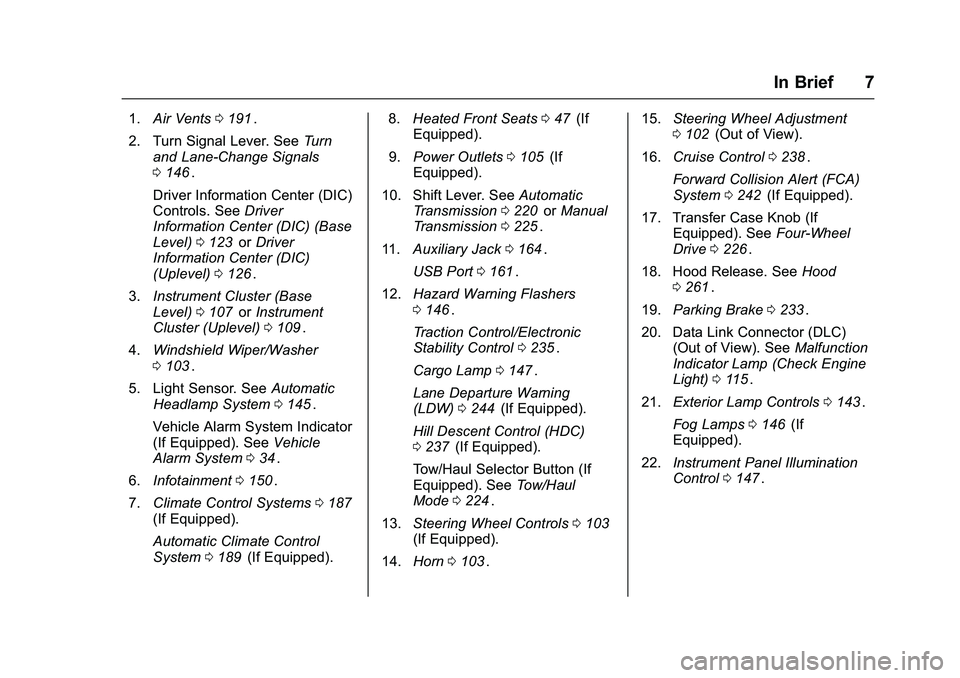
1.Air Vents 0191ii.
2. Turn Signal Lever. See Turn
and Lane-Change Signals
0 146
ii.
Driver Information Center (DIC)
Controls. See Driver
Information Center (DIC) (Base
Level) 0123
iior Driver
Information Center (DIC)
(Uplevel) 0126
ii.
3. Instrument Cluster (Base
Level) 0107
iior Instrument
Cluster (Uplevel) 0109ii.
4. Windshield Wiper/Washer
0103
ii.
5. Light Sensor. See Automatic
Headlamp System 0145
ii.
Vehicle Alarm System Indicator
(If Equipped). See Vehicle
Alarm System 034
ii.
6. Infotainment 0150
ii.
7. Climate Control Systems 0187
ii(If Equipped).
Automatic Climate Control
System 0189
ii(If Equipped). 8.
Heated Front Seats 047
ii(If
Equipped).
9. Power Outlets 0105
ii(If
Equipped).
10. Shift Lever. See Automatic
Transmission 0220
iior Manual
Transmission 0225ii.
11. Auxiliary Jack 0164
ii.
USB Port 0161
ii.
12. Hazard Warning Flashers
0146
ii.
Traction Control/Electronic
Stability Control 0235
ii.
Cargo Lamp 0147
ii.
Lane Departure Warning
(LDW) 0244
ii(If Equipped).
Hill Descent Control (HDC)
0 237
ii(If Equipped).
Tow/Haul Selector Button (If
Equipped). See Tow/Haul
Mode 0224
ii.
13. Steering Wheel Controls 0103
ii(If Equipped).
14. Horn 0103
ii. 15.
Steering Wheel Adjustment
0102
ii(Out of View).
16. Cruise Control 0238
ii.
Forward Collision Alert (FCA)
System 0242
ii(If Equipped).
17. Transfer Case Knob (If Equipped). See Four-Wheel
Drive 0226
ii.
18. Hood Release. See Hood
0 261
ii.
19. Parking Brake 0233
ii.
20. Data Link Connector (DLC) (Out of View). See Malfunction
Indicator Lamp (Check Engine
Light) 0115
ii.
21. Exterior Lamp Controls 0143
ii.
Fog Lamps 0146
ii(If
Equipped).
22. Instrument Panel Illumination
Control 0147
ii.
Page 20 of 396
Chevrolet Colorado Owner Manual (GMNA-Localizing-U.S/Canada/Mexico-
9159327) - 2016 - crc - 8/28/15
In Brief 19
Vehicle Features
Infotainment System
The base radio and base radio with
connectivity information is included
in this manual. See the infotainment
manual for information on the
uplevel radios, audio players,
phone, navigation system, Rear
Seat Entertainment (RSE), and
voice or speech recognition,
if equipped.
Radio(s)
O
:Press to turn the system on.
Press and hold to turn it off. When
on, press to mute; press again to
unmute. Turn to increase or
decrease the volume.
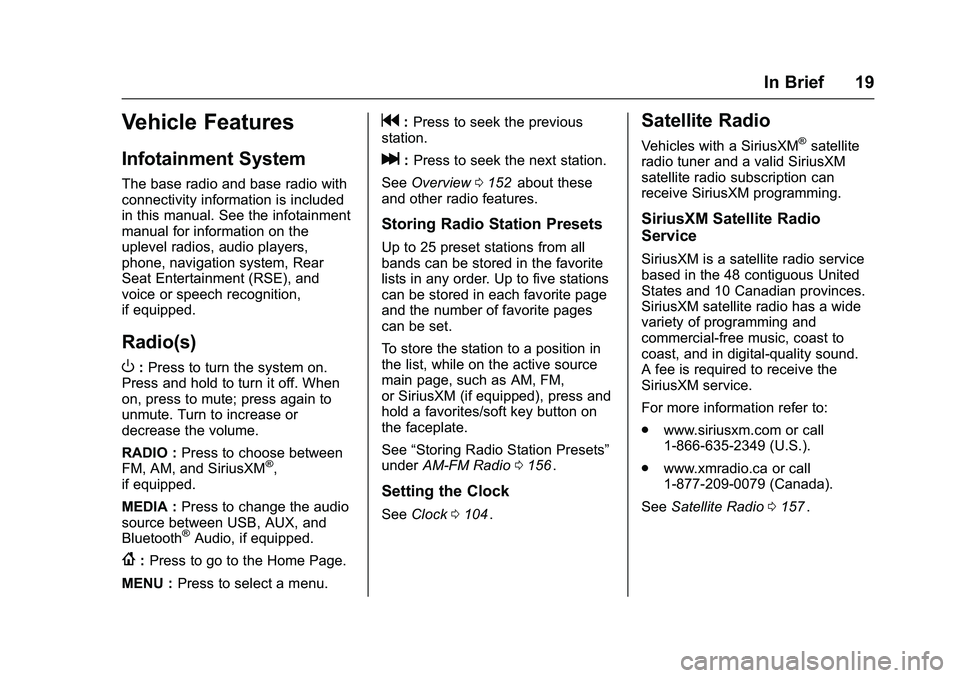
RADIO : Press to choose between
FM, AM, and SiriusXM
®,
if equipped.
MEDIA : Press to change the audio
source between USB, AUX, and
Bluetooth
®Audio, if equipped.
{: Press to go to the Home Page.
MENU : Press to select a menu.
g:Press to seek the previous
station.
l: Press to seek the next station.
See Overview 0152
iiabout these
and other radio features.
Storing Radio Station Presets
Up to 25 preset stations from all
bands can be stored in the favorite
lists in any order. Up to five stations
can be stored in each favorite page
and the number of favorite pages
can be set.
To store the station to a position in
the list, while on the active source
main page, such as AM, FM,
or SiriusXM (if equipped), press and
hold a favorites/soft key button on
the faceplate.
See “Storing Radio Station Presets”
under AM-FM Radio 0156
ii.
Setting the Clock
See Clock 0104ii.
Satellite Radio
Vehicles with a SiriusXM®satellite
radio tuner and a valid SiriusXM
satellite radio subscription can
receive SiriusXM programming.
SiriusXM Satellite Radio
Service
SiriusXM is a satellite radio service
based in the 48 contiguous United
States and 10 Canadian provinces.
SiriusXM satellite radio has a wide
variety of programming and
commercial-free music, coast to
coast, and in digital-quality sound.
A fee is required to receive the
SiriusXM service.
For more information refer to:
. www.siriusxm.com or call
1-866-635-2349 (U.S.).
. www.xmradio.ca or call
1-877-209-0079 (Canada).
See Satellite Radio 0157
ii.
Page 21 of 396
Chevrolet Colorado Owner Manual (GMNA-Localizing-U.S/Canada/Mexico-
9159327) - 2016 - crc - 8/28/15
20 In Brief
Portable Audio Devices
There is a 3.5 mm (1/8 in) auxiliary
input jack and USB port on the front
or under the armrest of the center
console. External devices such as
iPods
®, laptop computers, MP3
players, and USB storage devices
may be connected, depending on
the audio system.
See USB Port 0161
iiand Auxiliary
Jack 0164ii.
Bluetooth®
The Bluetooth®system allows users
with a Bluetooth-enabled cell phone
to make and receive hands-free
calls using the vehicle audio system
and controls.
The Bluetooth-enabled cell phone
must be paired with the in-vehicle
Bluetooth system before it can be
used in the vehicle. Not all phones
will support all functions.
See Bluetooth (Overview) 0171
iior
Bluetooth (Infotainment Controls -
Base Radio) 0172
iior Bluetooth
(Infotainment Controls - Base
Connected Radio) 0176
ii.
Steering Wheel Controls
If equipped, the infotainment system
can be operated by using the
steering wheel controls. See
"Steering Wheel Controls" in the
infotainment manual.
Cruise Control
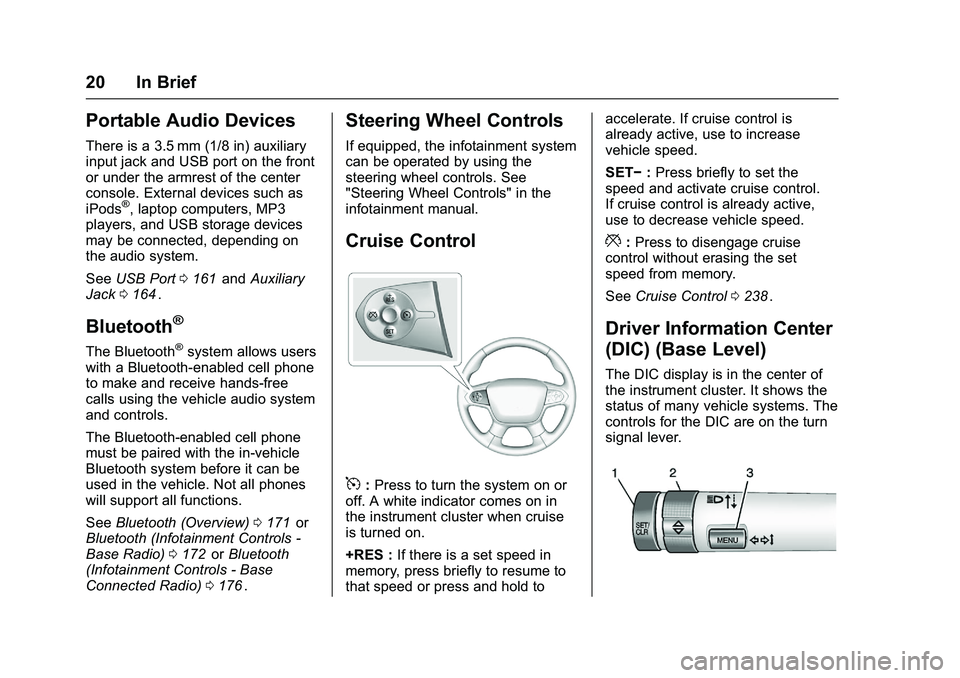
5:Press to turn the system on or
off. A white indicator comes on in
the instrument cluster when cruise
is turned on.
+RES : If there is a set speed in
memory, press briefly to resume to
that speed or press and hold to accelerate. If cruise control is
already active, use to increase
vehicle speed.
SET−
:Press briefly to set the
speed and activate cruise control.
If cruise control is already active,
use to decrease vehicle speed.
*: Press to disengage cruise
control without erasing the set
speed from memory.
See Cruise Control 0238
ii.
Driver Information Center
(DIC) (Base Level)
The DIC display is in the center of
the instrument cluster. It shows the
status of many vehicle systems. The
controls for the DIC are on the turn
signal lever.
Page 101 of 396
Chevrolet Colorado Owner Manual (GMNA-Localizing-U.S/Canada/Mexico-
9159327) - 2016 - crc - 8/28/15
100 Storage
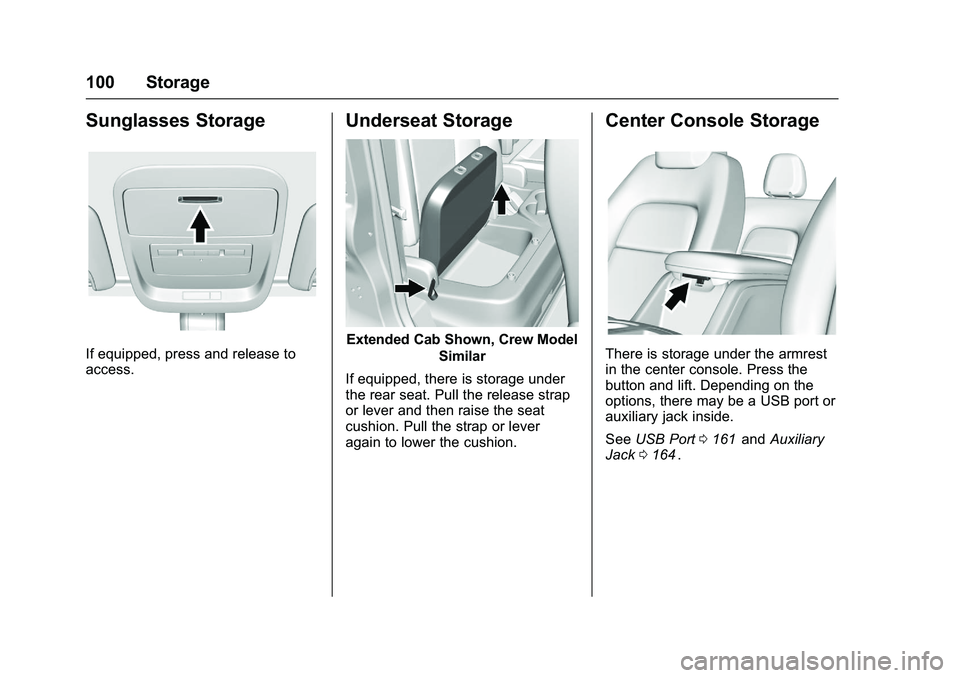
Sunglasses Storage
If equipped, press and release to
access.
Underseat Storage
Extended Cab Shown, Crew ModelSimilar
If equipped, there is storage under
the rear seat. Pull the release strap
or lever and then raise the seat
cushion. Pull the strap or lever
again to lower the cushion.
Center Console Storage
There is storage under the armrest
in the center console. Press the
button and lift. Depending on the
options, there may be a USB port or
auxiliary jack inside.
See USB Port 0161
iiand Auxiliary
Jack 0164ii.
Page 111 of 396
Chevrolet Colorado Owner Manual (GMNA-Localizing-U.S/Canada/Mexico-
9159327) - 2016 - crc - 8/28/15
110 Instruments and Controls
If the vehicle has a diesel engine,
see the Duramax diesel supplement
for more information.
Cluster Menu
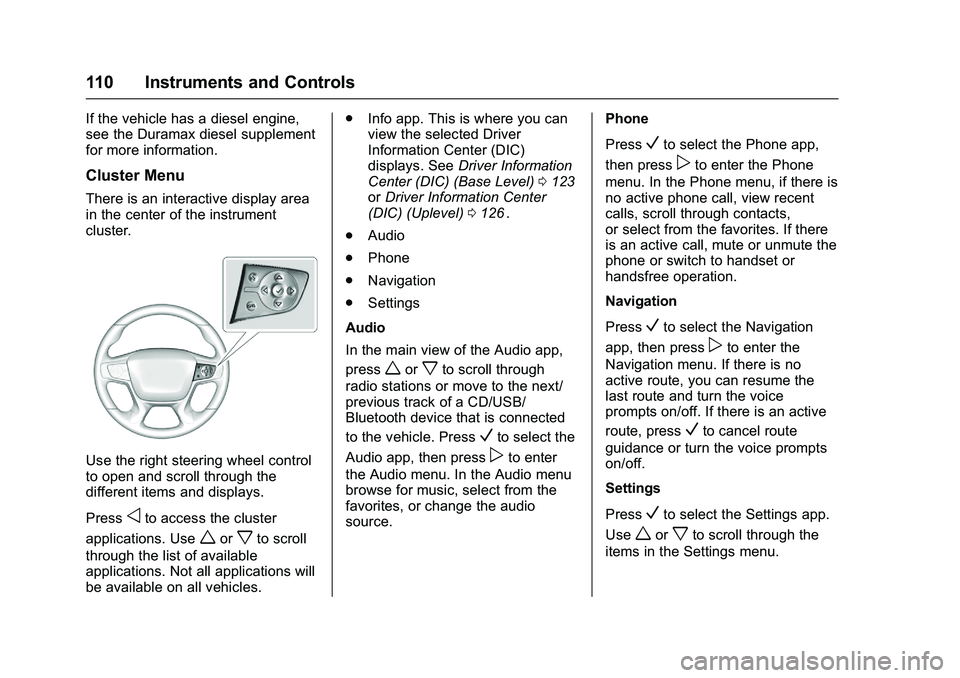
There is an interactive display area
in the center of the instrument
cluster.
Use the right steering wheel control
to open and scroll through the
different items and displays.
Press
oto access the cluster
applications. Use
worxto scroll
through the list of available
applications. Not all applications will
be available on all vehicles. .
Info app. This is where you can
view the selected Driver
Information Center (DIC)
displays. See Driver Information
Center (DIC) (Base Level) 0123
iior Driver Information Center
(DIC) (Uplevel) 0126ii.
. Audio
. Phone
. Navigation
. Settings
Audio
In the main view of the Audio app,
press
worxto scroll through
radio stations or move to the next/
previous track of a CD/USB/
Bluetooth device that is connected
to the vehicle. Press
Vto select the
Audio app, then press
pto enter
the Audio menu. In the Audio menu
browse for music, select from the
favorites, or change the audio
source. Phone
Press
Vto select the Phone app,
then press
pto enter the Phone
menu. In the Phone menu, if there is
no active phone call, view recent
calls, scroll through contacts,
or select from the favorites. If there
is an active call, mute or unmute the
phone or switch to handset or
handsfree operation.
Navigation
Press
Vto select the Navigation
app, then press
pto enter the
Navigation menu. If there is no
active route, you can resume the
last route and turn the voice
prompts on/off. If there is an active
route, press
Vto cancel route
guidance or turn the voice prompts
on/off.
Settings
Press
Vto select the Settings app.
Use
worxto scroll through the
items in the Settings menu.
Page 141 of 396
Chevrolet Colorado Owner Manual (GMNA-Localizing-U.S/Canada/Mexico-
9159327) - 2016 - crc - 8/28/15
140 Instruments and Controls
Remote Lock Feedback
This allows selection of what type of
feedback is given when locking the
vehicle with the RKE transmitter.
Select Off, Lights and Horn, Lights
Only, or Horn Only.
Remote Door Unlock
This allows selection of which doors
will unlock when pressing
Kon the
RKE transmitter.
Select All Doors or Driver Door.
Remote Start Auto Heat Seats
If equipped and turned on, this
feature will turn the heated seats on
when using remote start on
cold days.
Select Off or On.
Bluetooth
Select and the following may
display:
. Pair New Device
. Device Management
. Ringtones
. Voice Mail Numbers .
Text Message Alerts
Pair New Device
Select to pair a new device. See
“Pairing” underBluetooth
(Overview) 0171
iior Bluetooth
(Infotainment Controls - Base
Radio) 0172
iior Bluetooth
(Infotainment Controls - Base
Connected Radio) 0176
iior
“Pairing” in“Infotainment Controls”
under “Bluetooth” in the infotainment
manual.
Device Management
Select to connect to a different
phone source, disconnect a phone,
or delete a phone.
Ringtones
Press to change the ring tone for
the specific phone. The phone does
not need to be connected to change
the ring tones.
Voice Mail Numbers
This feature displays the voice mail
number for all connected phones.
To change the voice mail number,
select EDIT or press the EDIT button. Type a new number, then
select SAVE or press the SAVE
button.
Text Message Alerts
This allows the feature to be turned
on or off.
Select Off or On.Apple CarPlay™
Select and the following may
display:
.
Apple CarPlay
. Manage Apple CarPlay Devices
Apple CarPlay
This feature allows Apple devices to
be connected to the infotainment
system through a USB port. See
“Apple CarPlay and Android Auto”
under “Phone” in the infotainment
manual.
Select Off or On.
Page 142 of 396
Chevrolet Colorado Owner Manual (GMNA-Localizing-U.S/Canada/Mexico-
9159327) - 2016 - crc - 8/28/15
Instruments and Controls 141
Manage Apple CarPlay Devices
Select to manage Apple devices.
Apple CarPlay must be on for this
feature to be accessed. See“Apple
CarPlay and Android Auto” under
“Phone” in the infotainment manual.
Android Auto™
Select and the following may
display:
.
Android Auto
. Manage Android Auto Devices
Android Auto
This feature allows Android devices
to be connected to the infotainment
system through a USB port. See
“Apple CarPlay and Android Auto”
under “Phone” in the infotainment
manual.
Select Off or On.
Manage Android Auto Devices
Select to manage Android devices.
Android Auto must be on for this
feature to be accessed. See “Apple
CarPlay and Android Auto” under
“Phone” in the infotainment manual.
Voice
Select and the following may
display:
.
Confidence Threshold
. Prompt Length
. Audio Feedback Speed
. Display “What Can I Say?” Tips
Confidence Threshold
This feature allows the adjustment
of the sensitivity of the speech
recognition system.
Select Confirm More or
Confirm Less.
Prompt Length
This feature adjusts the voice
prompt length.
Select Short or Long.
Audio Feedback Speed
This feature adjusts the audio
feedback speed.
Select Slow, Medium, or Fast. Display
“What Can I Say?” Tips
This feature gives voice
command tips.
Select Off or On.
Display
Select and the following may
display:
. Mode
. Calibrate Touchscreen
. Turn Display Off
Mode
Select to change the display
screen mode.
Select Auto, Day, or Night.
Calibrate Touchscreen
Select to calibrate the touchscreen,
then follow the prompts.
Turn Display Off
Select to turn the display off. Press
anywhere on the display area or any
faceplate button to turn the
display on.
Page 151 of 396
Chevrolet Colorado Owner Manual (GMNA-Localizing-U.S/Canada/Mexico-
9159327) - 2016 - crc - 8/28/15
150 Infotainment System
Infotainment
System
Introduction
Infotainment . . . . . . . . . . . . . . . . . . 150
Theft-Deterrent Feature . . . . . . 151
Overview . . . . . . . . . . . . . . . . . . . . . 152
Home Page . . . . . . . . . . . . . . . . . . 153
Software Updates . . . . . . . . . . . . 155
Radio
AM-FM Radio . . . . . . . . . . . . . . . . 156
Satellite Radio . . . . . . . . . . . . . . . . 157
Radio Reception . . . . . . . . . . . . . . 157
Multi-Band Antenna . . . . . . . . . . 158
Pandora Internet Radio . . . . . . . 158
Audio Players
USB Port . . . . . . . . . . . . . . . . . . . . . 161
Auxiliary Jack . . . . . . . . . . . . . . . . 164
Bluetooth Audio . . . . . . . . . . . . . . 164
Voice Recognition
Voice Recognition . . . . . . . . . . . . 165
Phone
Bluetooth (Overview) . . . . . . . . . 171
Bluetooth (InfotainmentControls - Base Radio) . . . . . . 172
Bluetooth (Infotainment Controls - Base Connected
Radio) . . . . . . . . . . . . . . . . . . . . . . 176
Text Messaging . . . . . . . . . . . . . . . 180
Trademarks and License
Agreements
Trademarks and License Agreements . . . . . . . . . . . . . . . . . 181
Introduction
Infotainment
Base radio information is included in
this manual. See the infotainment
manual for information on other
available infotainment systems.
Read the following pages to
become familiar with these features.
{Warning
Taking your eyes off the road for
too long or too often while using
any infotainment feature can
cause a crash. You or others
could be injured or killed. Do not
give extended attention to
infotainment tasks while driving.
Limit your glances at the vehicle
displays and focus your attention
on driving. Use voice commands
whenever possible.
Page 154 of 396
Chevrolet Colorado Owner Manual (GMNA-Localizing-U.S/Canada/Mexico-
9159327) - 2016 - crc - 8/28/15
Infotainment System 153
5.oBACK
. Press to return to the
previous screen in a menu.
6.
{(Home Page)
. Press to go to the Home
Page from any point in the
system. See “Home Page”
following.
7. TONE .Press TONE to open the
Tone Settings menu.
8.
gorl(Seek)
. AM, FM, or SiriusXM (If
Equipped): Press
gorl
to seek to the previous or
next strong station.
9. RADIO .Press to change the audio
source between AM, FM,
or SiriusXM, if equipped.
10. MEDIA .Press to change the audio
source between USB, AUX,
and Bluetooth Audio,
if equipped. 11.
O(Power/Volume)
. Press to turn the audio on.
. Press and hold to turn it off.
. When on, press to mute the
system. Press again to
unmute.
. Turn to increase or
decrease the volume.
Home Page
Home Page Features
The infotainment system displays a
Home Page that makes it easy to
access all of the applications. Turn
the MENU knob to highlight feature
icons. Press the MENU knob to
access the feature’s options.
Various functions are disabled when
the vehicle is moving.
AUDIO : Select the AUDIO screen
icon to display the active source
page. The sources available are
AM, FM, SiriusXM
®(if equipped),
USB/iPod, AUX Input, and Bluetooth Audio (if equipped). See
AM-FM
Radio 0156
ii,Satellite Radio 0157ii,
Auxiliary Jack 0164ii, and Bluetooth
Audio 0164ii.
PHONE : Select the PHONE screen
icon to display the Phone main
page. See Bluetooth (Overview)
0 171
iior Bluetooth (Infotainment
Controls - Base Radio) 0172iior
Bluetooth (Infotainment Controls -
Base Connected Radio) 0176
ii.
NAV (Navigation, If Equipped) :
Select the NAV screen icon to
display the OnStar Turn-by-Turn
Navigation. See OnStar Overview
0 375
ii, if equipped.
SETTINGS : Select the SETTINGS
screen icon to display the Settings
main page. See “Setting Radio
Preferences” following.
Pandora (If Equipped)
Select the PANDORA icon to begin
Pandora. See Pandora Internet
Radio 0158
ii.
Page 155 of 396
Chevrolet Colorado Owner Manual (GMNA-Localizing-U.S/Canada/Mexico-
9159327) - 2016 - crc - 8/28/15
154 Infotainment System
Setting Radio Preferences
Select the SETTINGS screen icon
to display the Settings menu and
the following may display:
Time and Date :SeeClock 0104
ii.
Language (Current Language) :
This will set the display language in
the radio and instrument cluster.
Select to display a list of languages.
Select
oBACK to go back to the
previous menu.
Valet Mode:
Using the circular numeric keypad,
enter a four-digit code:
1. Turn the MENU knob to highlight a number.
2. Press the MENU knob to select it. Do this for each one of the
four digits. Select Enter to go to
the confirmation screen.
3. Re-enter the four-digit code. Select LOCK to lock the
system. 4. Enter the four-digit code to
unlock the system. Select
o
BACK to go back to the
previous menu.
Radio : See“Radio Setup” later in
this section.
Vehicle : SeeVehicle
Personalization 0137
ii.
Display : Press the MENU knob to
turn the display on or off.
Return to Factory Settings : See
“Return to Factory Settings” later in
this section.
Software Information (If
Equipped) : Press the MENU knob
to select Save Vehicle Info to USB.
Press the MENU knob again to start
downloading the vehicle information
to the USB. Radio Setup
Press the RADIO button and the
following may display:
Manage Favorites:
.
Turn the MENU knob and press
to select a favorite.
.To delete a favorite, press
the button just below the
DELETE screen button.
. To move a favorite, press the
MOVE screen button. Turn
the MENU knob to select a
new location, then press the
DROP screen button to
select the new location.
. Select
oBACK to go back to
the previous menu.
Number of Favorites Shown :
Select Auto and the system will
automatically adjust the number of
favorite pages when favorites are
added and removed, or select a
number from 5–25 to manually
adjust the number of favorites
shown.