reset CHEVROLET CORVETTE 2004 5.G User Guide
[x] Cancel search | Manufacturer: CHEVROLET, Model Year: 2004, Model line: CORVETTE, Model: CHEVROLET CORVETTE 2004 5.GPages: 384, PDF Size: 2.46 MB
Page 162 of 384
Driver Information Center (DIC)
The Driver Information Center (DIC) will display
information about how your vehicle is functioning, as
well as warning messages if a system problem is
detected. The DIC display area is located in the
instrument panel cluster below the speedometer and
tachometer, directly above the steering column.
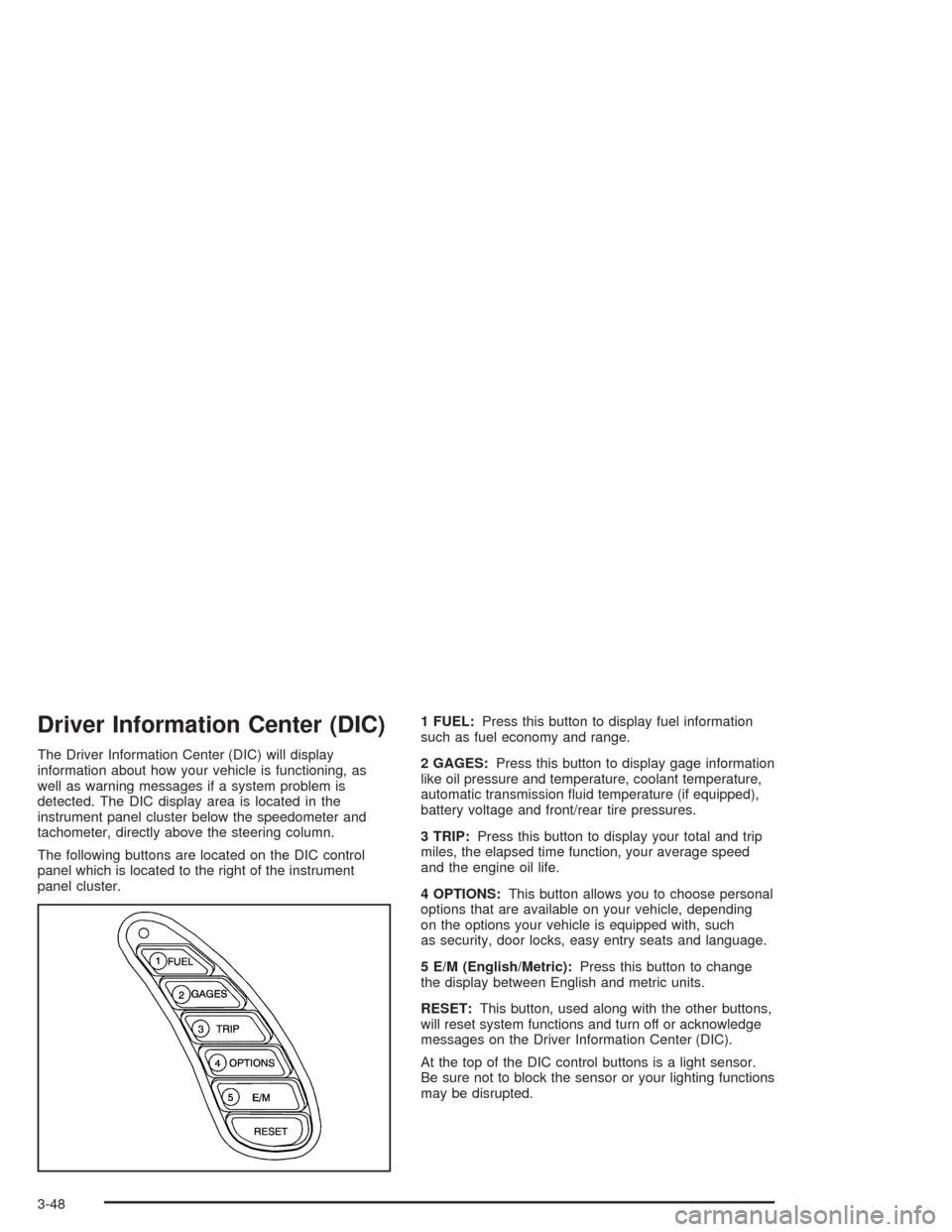
The following buttons are located on the DIC control
panel which is located to the right of the instrument
panel cluster.1 FUEL:Press this button to display fuel information
such as fuel economy and range.
2 GAGES:Press this button to display gage information
like oil pressure and temperature, coolant temperature,
automatic transmission fluid temperature (if equipped),
battery voltage and front/rear tire pressures.
3 TRIP:Press this button to display your total and trip
miles, the elapsed time function, your average speed
and the engine oil life.
4 OPTIONS:This button allows you to choose personal
options that are available on your vehicle, depending
on the options your vehicle is equipped with, such
as security, door locks, easy entry seats and language.
5 E/M (English/Metric):Press this button to change
the display between English and metric units.
RESET:This button, used along with the other buttons,
will reset system functions and turn off or acknowledge
messages on the Driver Information Center (DIC).
At the top of the DIC control buttons is a light sensor.
Be sure not to block the sensor or your lighting functions
may be disrupted.
3-48
Page 163 of 384
DIC Controls and Displays
Turn on the system by turning the ignition to ON. When
you turn on the ignition, the DIC will be in the mode
last displayed when the engine was turned off. Each DIC
button allows you to scroll through a menu. A blank
page ends each menu.
If a problem is detected, a diagnostic message will
appear on the display. Press RESET to acknowledge
any current warning or service messages. The following
pages will show the messages you can see on the
Driver Information Center (DIC) display by pressing the
DIC buttons.
1 FUEL
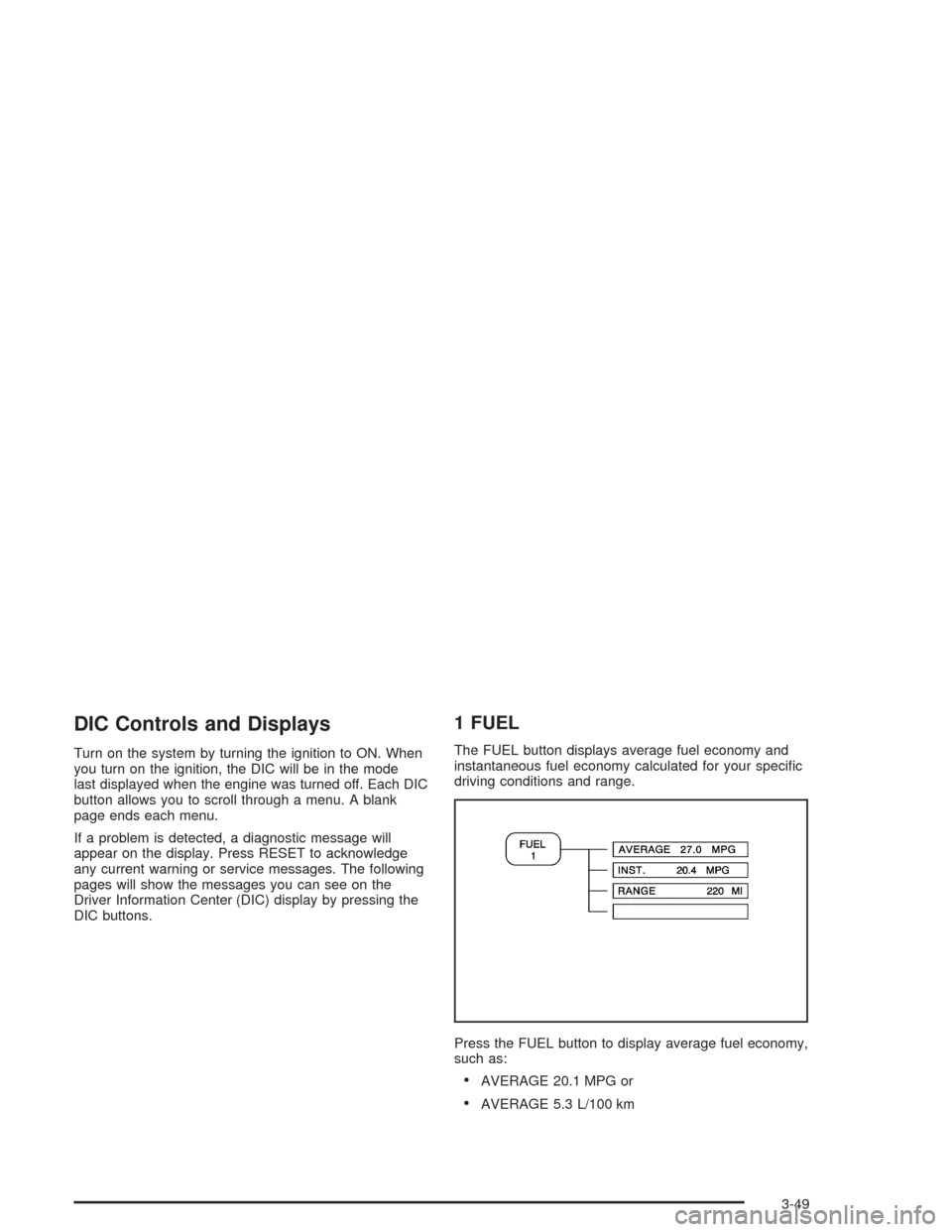
The FUEL button displays average fuel economy and
instantaneous fuel economy calculated for your specific
driving conditions and range.
Press the FUEL button to display average fuel economy,
such as:
•AVERAGE 20.1 MPG or
•AVERAGE 5.3 L/100 km
3-49
Page 164 of 384
The average fuel economy is viewed as a long-term
approximation of your overall driving conditions. If you
press RESET in this mode while you’re driving, the
system will begin figuring fuel economy from that point
in time.
Press FUEL again to display instantaneous fuel
economy, such as:
•INST. 20.1 MPG or
•INST. 5.3 L/100 km
Press FUEL again to display the range, such as:
•RANGE 20 MI or
•RANGE 32 km
The range calculates the remaining distance you can
drive without refueling. It’s based on fuel economy and
the fuel remaining in the tank.
If the range is lower than 30 miles (48 km), the display
will read RANGE LOW.
The fuel economy data used to determine fuel range is
an average of recent driving conditions. As your
driving conditions change, this data is gradually updated.
Resetting the fuel range causes the fuel economy
data to be updated immediately. Press RESET to reset
the fuel range.
2 GAGES
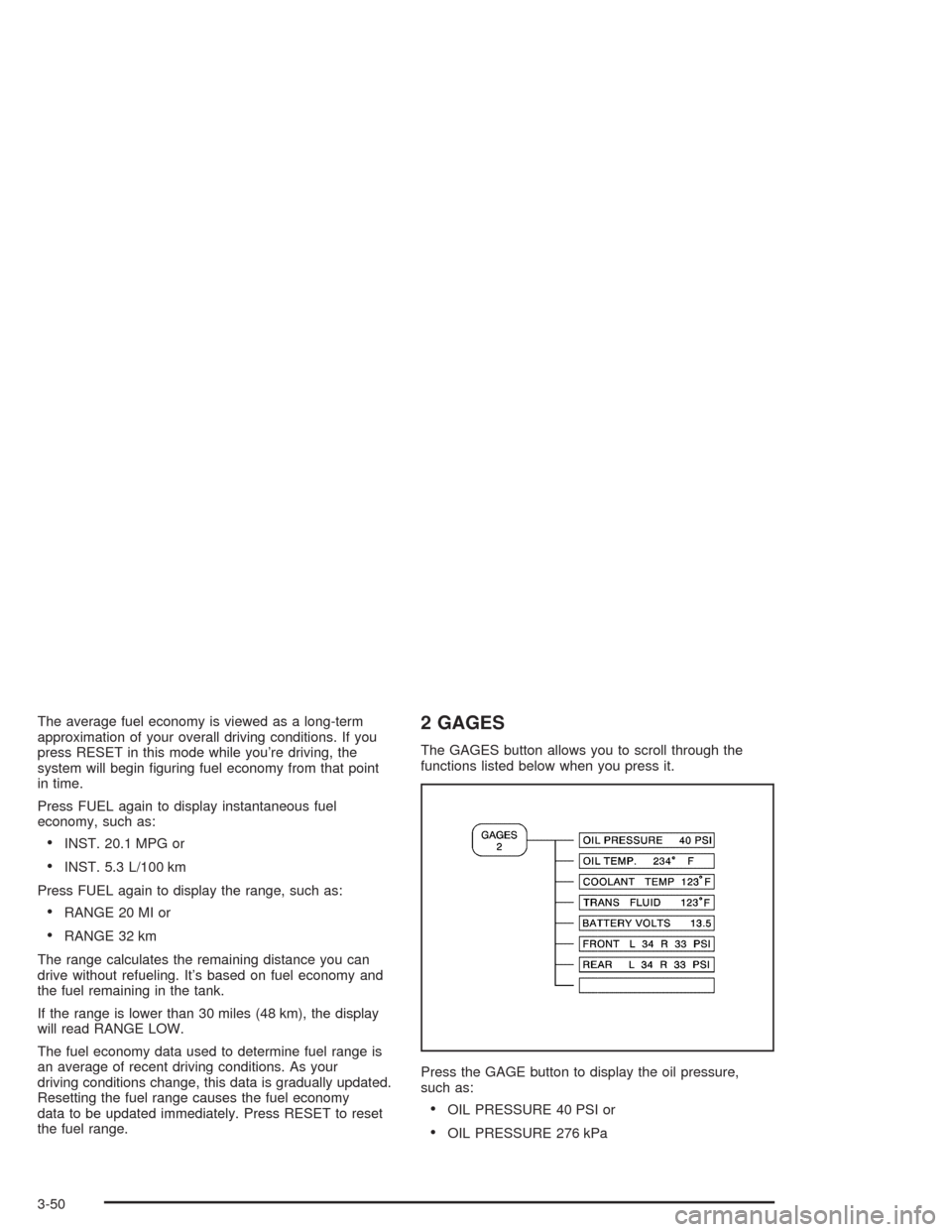
The GAGES button allows you to scroll through the
functions listed below when you press it.
Press the GAGE button to display the oil pressure,
such as:
•OIL PRESSURE 40 PSI or
•OIL PRESSURE 276 kPa
3-50
Page 166 of 384
3 TRIP
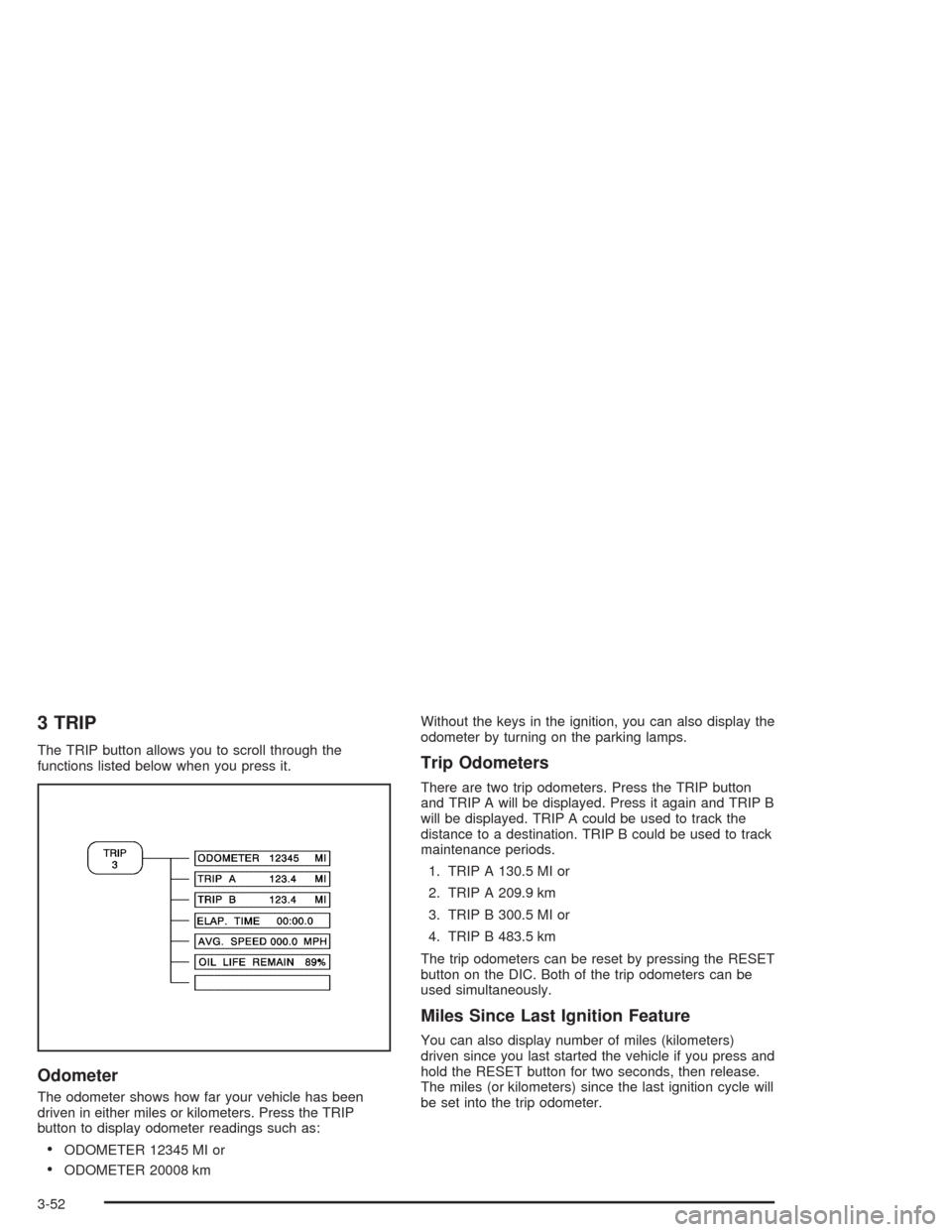
The TRIP button allows you to scroll through the
functions listed below when you press it.
Odometer
The odometer shows how far your vehicle has been
driven in either miles or kilometers. Press the TRIP
button to display odometer readings such as:
•ODOMETER 12345 MI or
•ODOMETER 20008 kmWithout the keys in the ignition, you can also display the
odometer by turning on the parking lamps.
Trip Odometers
There are two trip odometers. Press the TRIP button
and TRIP A will be displayed. Press it again and TRIP B
will be displayed. TRIP A could be used to track the
distance to a destination. TRIP B could be used to track
maintenance periods.
1. TRIP A 130.5 MI or
2. TRIP A 209.9 km
3. TRIP B 300.5 MI or
4. TRIP B 483.5 km
The trip odometers can be reset by pressing the RESET
button on the DIC. Both of the trip odometers can be
used simultaneously.
Miles Since Last Ignition Feature
You can also display number of miles (kilometers)
driven since you last started the vehicle if you press and
hold the RESET button for two seconds, then release.
The miles (or kilometers) since the last ignition cycle will
be set into the trip odometer.
3-52
Page 167 of 384
Elapsed Time
Press the TRIP button until ELAP. TIME is displayed,
such as ELAP. TIME 00:00:00.00.
When the ignition is in ON, the Driver Information
Center (DIC) can be used as a stopwatch. The display
can show hours, minutes, seconds and hundredths
of a second. The elapsed time indicator will record up to
99 hours, 59 minutes and 59 seconds, then it will
reset to zero and continue counting. (Hundredths are
shown up to 59 minutes, 59 seconds and
99 hundredths). The display appears as ELAP. TIME
00:00:00.00 in the elapsed time function.
You can start or stop the elapsed time by pressing
RESET. To reset the elapsed time to zero, stop the timer
by pressing RESET. Then press and hold RESET
until ELAP. TIME 00:00:00.00 appears in the DIC.
Average Speed
Press the TRIP button until the average speed is
displayed, such as:
•AVERAGE SPEED 62 MPH or
•AVERAGE SPEED 100 km/h
Press reset in this mode to start calculating the average
speed. Press and hold RESET to clear.
Engine Oil Life
Press the TRIP button until the engine oil life is
displayed, such as OIL LIFE REMAIN 89%.
This is an estimate of the engine oil’s remaining useful
life. It will show 100% when the system is reset after
an oil change. It will alert you to change your oil
on a schedule consistent with your driving conditions.
When the remaining oil life is low, the system will
alert you with the message CHANGE OIL SOON.
When the oil life is down to zero, you will receive the
message CHANGE OIL NOW.
Remember, you must reset the OIL LIFE yourself after
each oil change. It will not reset itself. Also, be
careful not to reset the OIL LIFE accidentally at any
time other than when the oil has just been changed. It
can’t be reset accurately until the next oil change.
To reset the system, see “How to Reset the Change Oil
Soon Message” underEngine Oil on page 5-13.
Also, seeEngine Oil on page 5-13andScheduled
Maintenance on page 6-4.
3-53
Page 168 of 384
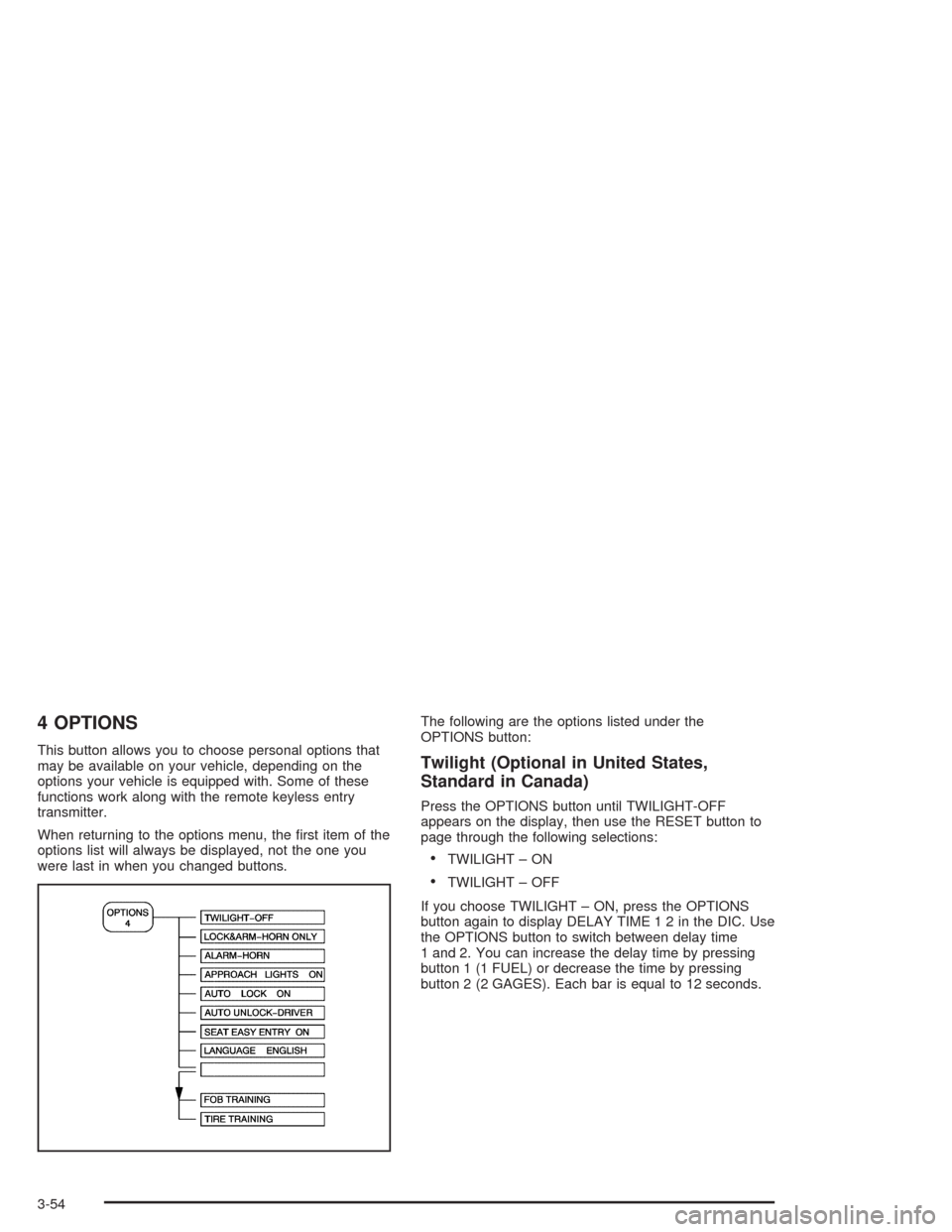
4 OPTIONS
This button allows you to choose personal options that
may be available on your vehicle, depending on the
options your vehicle is equipped with. Some of these
functions work along with the remote keyless entry
transmitter.
When returning to the options menu, the first item of the
options list will always be displayed, not the one you
were last in when you changed buttons.The following are the options listed under the
OPTIONS button:Twilight (Optional in United States,
Standard in Canada)
Press the OPTIONS button until TWILIGHT-OFF
appears on the display, then use the RESET button to
page through the following selections:
•TWILIGHT – ON
•TWILIGHT – OFF
If you choose TWILIGHT – ON, press the OPTIONS
button again to display DELAY TIME 1 2 in the DIC. Use
the OPTIONS button to switch between delay time
1 and 2. You can increase the delay time by pressing
button 1 (1 FUEL) or decrease the time by pressing
button 2 (2 GAGES). Each bar is equal to 12 seconds.
3-54
Page 169 of 384
Lock and Arm
Press the OPTIONS button until LOCK & ARM appears
on the display, then use the RESET button to page
through the following selections:
•LOCK & ARM – OFF
•LOCK & ARM – HORN ONLY
•LOCK & ARM – LIGHTS ONLY
•LOCK & ARM – HORN & LIGHTS
If you choose LOCK & ARM – OFF, you will receive no
security feedback when locking or unlocking your
vehicle.
If you choose LOCK & ARM – HORN ONLY, only the
horn will chirp to let you know when your alarm system
has armed when locking your vehicle.
If you choose LOCK & ARM – LIGHTS ONLY, only your
exterior lamps will flash to let you know when your
alarm system has armed when locking your vehicle.
If you choose LOCK & ARM – HORN & LIGHTS,
the horn will chirp and the exterior lamps will flash briefly
to let you know the system has armed when locking
your vehicle.
Alarm
Press the OPTIONS button until ALARM appears on the
display, then use the RESET button to page through
the following selections:
•ALARM-HORN
•ALARM HORN & LIGHTS
If you choose ALARM-HORN, the horn will sound during
an alarm.
If you choose ALARM HORN & LIGHTS, the horn will
sound and the interior and exterior lamps will flash
during an alarm.
Approach Lights
Press the OPTIONS button until APPROACH LIGHTS
appears on the display, then use the RESET button
to page through the following choices:
•APPROACH LIGHTS ON
•APPROACH LIGHTS OFF
If you choose APPROACH LIGHTS ON, the fog lamps,
front turn signal, rear back-up and courtesy lamps
will come on for 30 seconds when you press UNLOCK
on the remote keyless entry transmitter. This will
occur only when it is dark outside.
APPROACH LIGHTS OFF turns off this option.
SeeRemote Keyless Entry System on page 2-5for
more information.
3-55
Page 170 of 384
Auto Lock
Press the OPTIONS button until AUTO LOCK appears
on the display, then use the RESET button to page
through the following choices:
•AUTO LOCK ON
•AUTO LOCK OFF
If you choose AUTO LOCK ON, both doors will
automatically lock when the vehicle exceeds 10 mph
(16 km/h) in a manual transmission. In a vehicle with an
automatic transmission, both doors will automatically
lock when you move the shift lever out of PARK (P).
Choose AUTO LOCK OFF to turn this option off.
Auto Unlock
The AUTO UNLOCK will be available only if AUTO
LOCK is set to ON as described previously.
Press the OPTIONS button until AUTO UNLOCK
appears on the display, then use the RESET button to
page through the following choices:
•AUTO UNLOCK DRIVER
•AUTO UNLOCK BOTH
•AUTO UNLOCK OFF
If you choose AUTO UNLOCK DRIVER, the driver’s
door will automatically unlock when you turn the vehicle
off and pull the key out of the ignition.Choose AUTO UNLOCK BOTH, and both doors will
automatically unlock when you turn the vehicle off and
pull the key out of the ignition.
AUTO UNLOCK OFF turns off this option.
Easy Entry
The easy entry feature will only be available if the
vehicle is equipped with the memory option.
Press the OPTIONS button until SEAT EASY ENTRY
appears on the display, then use the RESET button
to page through the following choices:
•SEAT EASY ENTRY ON
•SEAT EASY ENTRY OFF
If you choose SEAT EASY ENTRY ON, when you turn
the ignition off and remove the key, the seat will
automatically move back and the telescopic steering
wheel (if equipped) will return to its full-forward position
for an easy exit or an easy entrance when returning
to the vehicle.
The seat will only return to the forward position if you
unlock the door with the keyless entry transmitter
or press the appropriate MEMORY button.
SEAT EASY ENTRY OFF turns off this option.
3-56
Page 171 of 384
Languages
You can select which language the DIC will display its
messages. Press the OPTIONS button until the
word LANGUAGES appears on the display, then use
the RESET button to page through the following choices:
•LANGUAGE ENGLISH
•LANGUAGE FRENCH
•LANGUAGE GERMAN
•LANGUAGE SPANISH
Blank Page
There is a blank page at the end of the OPTIONS
menu. When the blank page is displayed, you
can access the following items:
FOB TRAINING:This option allows you to match the
RKE transmitter(s) to your vehicle. You can access this
option by pressing and holding RESET for three
seconds while you are on the blank page at the end of
the OPTIONS menu. The message FOB TRAINING
will be displayed. See “Matching Transmitter(s) To Your
Vehicle” underRemote Keyless Entry System
Operation on page 2-6
.TIRE TRAINING (Except Z06):The Tire Pressure
Monitor (TPM) operates with battery-powered sensors
that are located inside the valve stems on each tire.
Each sensor has a unique ID code so the vehicle knows
the tire location of the sensor. When the vehicle
reaches a speed of greater than 15 mph (24 km/h), the
sensors begin to send the tire pressure readings to
a receiver inside the vehicle. These readings are
displayed when using the GAGES button on the DIC. If
you are unable to display your tire pressures while
the vehicle speed is greater than 15 mph (24 km/h), you
may need to have your sensor ID codes learned by
the vehicle. See your dealer.
3-57
Page 172 of 384
DIC Warnings and Messages
The following messages and warnings may appear in
the DIC display. The DIC display area is located in
the instrument panel cluster below the speedometer and
tachometer, directly above the steering column. You
may receive more than one message at a time.
Messages will appear one behind the other. To
acknowledge a message and remove it from the display,
press RESET. You may scroll through the messages
that may have been sent at the same time. The
message center is continuously updated with the vehicle
performance status.
ABS ACTIVE (Anti-Lock Brake System
Active):When your anti-lock system is adjusting brake
pressure to help avoid a braking skid, the ABS
ACTIVE message will be displayed.
Slippery road conditions may exist if this message is
displayed, so adjust your driving accordingly. The
message will stay on for a few seconds after the system
stops adjusting brake pressure.ACT HNDLG – WARMING UP:When you first start
your vehicle (especially during cold winter weather), and
begin to drive away (up to 6 mph (10 km/h)), the
message ACT HNDLG – WARMING UP may be
displayed in the DIC, the instrument panel cluster light
will be on, and a chime will sound. This is normal.
You can acknowledge this message by pressing the
RESET button. The Active Handling System
performance is affected until the next message WARM
UP COMPLETE is displayed in the DIC.
During hot or cold temperature conditions, this message
may be displayed in the DIC after exceeding 12 mph
(20 km/h) for 30 seconds. The Active Handling System is
off until the WARM UP COMPLETE message is
displayed.
ACTIVE HANDLING:Your vehicle is equipped with a
computer controlled system to assist the driver in
controlling the vehicle in difficult driving conditions. You
may feel or hear the system working and see the
ACTIVE HANDLING message displayed in the DIC.
This is normal when the system is operating. Also see
Braking on page 4-6.
3-58