phone CHEVROLET CORVETTE 2009 6.G Owner's Manual
[x] Cancel search | Manufacturer: CHEVROLET, Model Year: 2009, Model line: CORVETTE, Model: CHEVROLET CORVETTE 2009 6.GPages: 434, PDF Size: 2.53 MB
Page 241 of 434
Dual Tone Multi-Frequency (DTMF)
Tones
The in-vehicle Bluetooth system can send numbers and
numbers stored as name tags during a call. This is
used when calling a menu driven phone system.
Account numbers can be programmed into the
phonebook for retrieval during menu driven calls.
Sending a Number During a Call
1. Pressbg. The system responds with “Ready”
followed by a tone.
2. Say “Dial”. The system responds with “Say a
number to send tones” followed by a tone.
3. Say the number to send.
If the system clearly recognizes the number it
responds with “OK, Sending Number” and the
dial tones are sent and the call continues.
If the system is not sure it recognized the
number properly, it responds “Dial Number,
Please say yes or no?” followed by a tone.
If the number is correct, say “Yes”. The system
responds with “OK, Sending Number” and
the dial tones are sent and the call continues.
Sending a Stored Name Tag During a Call
1. Pressbg. The system responds with “Ready”
followed by a tone.
2. Say “Send name tag.” The system responds with
“Say a name tag to send tones” followed by a tone.
3. Say the name tag to send.
If the system clearly recognizes the name tag it
responds with “OK, Sending
the dial tones are sent and the call continues.
If the system is not sure it recognized the name
tag properly, it responds “Dial
Please say yes or no?” followed by a tone. If the
name tag is correct, say “Yes”. The system
responds with “OK, Sending
the dial tones are sent and the call continues.
Clearing the System
Unless information is deleted out of the in-vehicle
Bluetooth system, it will be retained indenitely.
This includes all saved name tags in the phonebook
and phone pairing information. For information on how
to delete this information, see the above sections
on Deleting a Paired Phone and Deleting Name Tags.
3-105
Page 243 of 434
bg(Mute/Push to Talk):Press to silence the vehicle
speakers only. Press again to turn the sound on.
For vehicles with OnStar
®or Bluetooth systems press
and hold
Vgfor longer than two seconds to
interact with those systems. SeeOnStar®System on
page 2-40andBluetooth®on page 3-96in this manual
for more information.
c(Phone On Hook):Press to reject an incoming
call, or end a current call.
wx(Next/Previous):Press to change radio stations
or select tracks on a CD.
To change radio stations:
Pressworxto go to the next or to the previous
radio station and stay there. The radio only seeks
stations with a strong signal that are in the
selected band.
Press and holdworxfor two seconds until SCAN
displays and a beep sounds to scan stations.
The radio goes to a station, plays for a few seconds,
then goes to the next station. Press again to stop
scanning.
Press and holdworxfor four seconds until
PRESET SCAN displays and a beep sounds to scan
presets. The radio goes to a station, plays for a
few seconds, then goes to the next station.
Press again to stop scanning.
To select tracks on a CD:
Pressworxto go to the next or to the previous
track when a CD is playing.
Press and holdworxfor more than two seconds
to scan the current CD. The CD goes to the next
track, plays the rst 10 seconds, then goes to
the next track. Press again to stop scanning.
Press and holdworxfor more than four seconds
to scan all of the CDs loaded. The CD goes to the
next CD, plays the rst 10 seconds of each
track, then goes to the next CD. Press again to
stop scanning.
+
e−e(Volume):Press to increase or to decrease
the radio volume.
1–6 (Preset Pushbuttons):Press to play stations that
are programmed on the radio preset pushbuttons.
3-107
Page 244 of 434
Radio Reception
Frequency interference and static can occur during
normal radio reception if items such as cell phone
chargers, vehicle convenience accessories, and external
electronic devices are plugged into the accessory power
outlet. If there is interference or static, unplug the
item from the accessory power outlet.
AM
The range for most AM stations is greater than for FM,
especially at night. The longer range can cause station
frequencies to interfere with each other. For better radio
reception, most AM radio stations boost the power levels
during the day, and then reduce these levels during the
night. Static can also occur when things like storms and
power lines interfere with radio reception. When this
happens, try reducing the treble on the radio.
FM Stereo
FM signals only reach about 10 to 40 miles (16 to 65 km).
Although the radio has a built-in electronic circuit that
automatically works to reduce interference, some static
can occur, especially around tall buildings or hills,
causing the sound to fade in and out.
XM™ Satellite Radio Service
XM Satellite Radio Service gives digital radio reception
from coast-to-coast in the 48 contiguous United States,
and in Canada. Just as with FM, tall buildings or hills caninterfere with satellite radio signals, causing the sound to
fade in and out. In addition, traveling or standing under
heavy foliage, bridges, garages, or tunnels may cause
loss of the XM signal for a period of time.
Cellular Phone Usage
Cellular phone usage may cause interference with the
vehicle’s radio. This interference may occur when
making or receiving phone calls, charging the phone’s
battery, or simply having the phone on. This interference
causes an increased level of static while listening to
the radio. If static is received while listening to the radio,
unplug the cellular phone and turn it off.
Diversity Antenna System
The AM-FM antenna is a hidden self tuning system.
It optimizes the AM and FM signals relative to the
vehicle’s position and radio station source.
No maintenance or adjustments are needed.
XM™ Satellite Radio Antenna System
For vehicles with XM Satellite Radio Service, the
antenna is located on the roof or on the trunk lid of the
vehicle. Keep the antenna clear of obstructions for
clear radio reception.
3-108
Page 281 of 434
Filling the Tank
{CAUTION:
Fuel vapor burns violently and a fuel re can
cause bad injuries. To help avoid injuries to you
and others, read and follow all the instructions on
the pump island. Turn off the engine when you are
refueling. Do not smoke if you are near fuel or
refueling the vehicle. Do not use cellular phones.
Keep sparks, ames, and smoking materials away
from fuel. Do not leave the fuel pump unattended
when refueling the vehicle. This is against the law
in some places. Do not re-enter the vehicle while
pumping fuel. Keep children away from the fuel
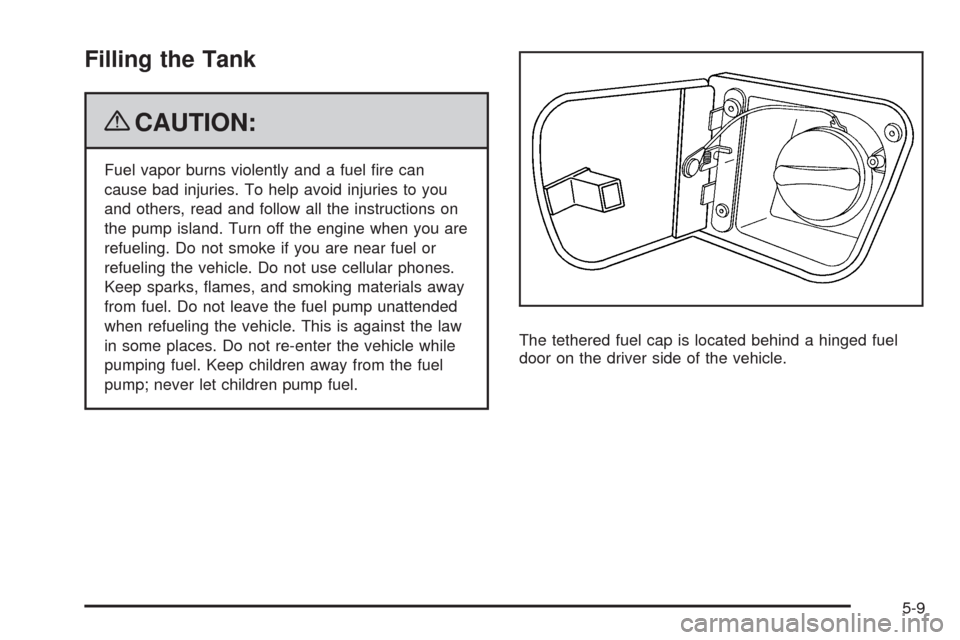
pump; never let children pump fuel.The tethered fuel cap is located behind a hinged fuel
door on the driver side of the vehicle.
5-9
Page 284 of 434
Filling a Portable Fuel Container
{CAUTION:
Never ll a portable fuel container while it is in
the vehicle. Static electricity discharge from the
container can ignite the fuel vapor. You can be
badly burned and the vehicle damaged if this
occurs. To help avoid injury to you and others:
Dispense fuel only into approved containers.
Do not ll a container while it is inside a
vehicle, in a vehicle’s trunk, pickup bed,
or on any surface other than the ground.
Bring the ll nozzle in contact with the inside
of the ll opening before operating the nozzle.
Contact should be maintained until the lling
is complete.
Do not smoke while pumping fuel.
Do not use a cellular phone while
pumping fuel.
Checking Things Under
the Hood
{CAUTION:
An electric fan under the hood can start up and
injure you even when the engine is not running.
Keep hands, clothing, and tools away from any
underhood electric fan.
{CAUTION:
Things that burn can get on hot engine parts and
start a re. These include liquids like fuel, oil,
coolant, brake uid, windshield washer and other
uids, and plastic or rubber. You or others could
be burned. Be careful not to drop or spill things
that will burn onto a hot engine.
5-12
Page 342 of 434
To locate the nearest GM or run-at servicing facility, call
Roadside Assistance. For phone numbers and Roadside
Service details seeRoadside Assistance Program on
page 7-7.
{CAUTION:
Run-at tires are constructed differently than other
tires and could explode during improper service.
You or others could be injured or killed if you
attempt to repair, replace, dismount, or mount a
run-at tire. Let only an authorized run-at service
center repair, replace, dismount, and mount run-at
tires.
The valve stems on your run-at tires have sensors that
are part of the Tire Pressure Monitor System (TPMS).
SeeTire Pressure Monitor System on page 5-73.
These sensors contain batteries which are designed
to last for 10 years under normal driving conditions.
See your dealer/retailer if you ever need to have a wheel
replaced, or if the sensors ever need replacement.
Notice:Using liquid sealants can damage the tire
valves and tire pressure monitor sensors in the
vehicle’s run-at tires. This damage would not be
covered by warranty. Do not use liquid sealants
in the vehicle’s run-at tires.
Ination - Tire Pressure
Tires need the correct amount of air pressure to
operate effectively.
Notice:Do not let anyone tell you that
under-ination or over-ination is all right.
It is not. If your tires do not have enough air
(under-ination), you can get the following:
Too much exing
Too much heat
Tire overloading
Premature or irregular wear
Poor handling
Reduced fuel economy
If your tires have too much air (over-ination),
you can get the following:
Unusual wear
Poor handling
Rough ride
Needless damage from road hazards
5-70
Page 403 of 434
Customer Assistance and Information...............7-2
Customer Satisfaction Procedure......................7-2
Online Owner Center......................................7-5
Customer Assistance for
Text Telephone (TTY) Users.........................7-6
Customer Assistance Offices............................7-6
GM Mobility Reimbursement Program................7-7
Roadside Assistance Program..........................7-7
Scheduling Service Appointments....................7-10
Courtesy Transportation.................................7-10
Collision Damage Repair................................7-11Reporting Safety Defects................................7-14
Reporting Safety Defects to the
United States Government..........................7-14
Reporting Safety Defects to the
Canadian Government................................7-15
Reporting Safety Defects to General Motors.....7-15
Service Publications Ordering Information.........7-15
Vehicle Data Recording and Privacy................7-16
Event Data Recorders...................................7-17
OnStar
®......................................................7-18
Navigation System........................................7-18
Radio Frequency Identication (RFID)..............7-18
Section 7 Customer Assistance Information
7-1
Page 405 of 434
STEP THREE — U.S. Owners:Both General Motors
and your dealer are committed to making sure you are
completely satised with your new vehicle. However, if
you continue to remain unsatised after following the
procedure outlined in Steps One and Two, you can le
with the Better Business Bureau (BBB) Auto Line
Program to enforce your rights.
The BBB Auto Line Program is an out of court program
administered by the Council of Better Business Bureaus
to settle automotive disputes regarding vehicle repairs or
the interpretation of the New Vehicle Limited Warranty.
Although you may be required to resort to this informal
dispute resolution program prior to ling a court action,
use of the program is free of charge and your case will
generally be heard within 40 days. If you do not agree
with the decision given in your case, you may reject it and
proceed with any other venue for relief available to you.You may contact the BBB Auto Line Program using the
toll-free telephone number or write them at the following
address:
BBB Auto Line Program
Council of Better Business Bureaus, Inc.
4200 Wilson Boulevard
Suite 800
Arlington, VA 22203-1838
Telephone: 1-800-955-5100
dr.bbb.org/goauto
This program is available in all 50 states and the District
of Columbia. Eligibility is limited by vehicle age, mileage,
and other factors. General Motors reserves the right to
change eligibility limitations and/or discontinue its
participation in this program.
7-3
Page 407 of 434
Online Owner Center
Online Owner Center (U.S.) —
www.gmownercenter.com/chevrolet
Information and services customized for your specic
vehicle — all in one convenient place.
Digital owner manual, warranty information,
and more
Online service and maintenance records
Find Chevrolet dealers for service nationwide
Exclusive privileges and offers
Recall notices for your specic vehicle
OnStar®and GM Cardmember Services Earnings
summaries
Other Helpful Links:
Chevrolet−www.chevrolet.com
Chevrolet Merchandise — www.chevymall.com
Help Center — www.chevrolet.com/helpcenter
FAQ
Contact Us
My GM Canada (Canada) — www.gm.ca
My GM Canada is a password-protected section of
www.gm.ca where you can save information on
GM vehicles, get personalized offers, and use handy
tools and forms with greater ease.
Here are a few of the valuable tools and services you
will have access to:
My Showroom: Find and save information on
vehicles and current offers in your area.
My Dealers/Retailers: Save details such as address
and phone number for each of your preferred GM
dealers/retailers.
My Driveway: Access quick links to parts and
service estimates, check trade-in values, or
schedule a service appointment by adding the
vehicles you own to your driveway prole.
My Preferences: Manage your prole and use tools
and forms with greater ease.
To sign up, visit the My GM Canada section within
www.gm.ca.
7-5
Page 408 of 434
Customer Assistance for Text
Telephone (TTY) Users
To assist customers who are deaf, hard of hearing, or
speech-impaired and who use Text Telephones (TTYs),
Chevrolet has TTY equipment available at its Customer
Assistance Center. Any TTY user in the U.S. can
communicate with Chevrolet by dialing: 1-800-833-CHEV
(2438). (TTY users in Canada can dial 1-800-263-3830.)
Customer Assistance Offices
Chevrolet encourages customers to call the toll-free
number for assistance. However, if a customer wishes
to write or e-mail Chevrolet, the letter should be
addressed to:
United States — Customer Assistance
Chevrolet Motor Division
Chevrolet Customer Assistance Center
P.O. Box 33170
Detroit, MI 48232-5170
Chevrolet.com
1-800-222-1020
1-800-833-2438 (For Text Telephone devices (TTYs))
Roadside Assistance: 1-800-CHEV-USA (243-8872)From Puerto Rico:
1-800-496-9992 (English)
1-800-496-9993 (Spanish)
From U.S. Virgin Islands:
1-800-496-9994
Canada — Customer Assistance
General Motors of Canada Limited
Customer Communication Centre, CA1-163-005
1908 Colonel Sam Drive
Oshawa, Ontario L1H 8P7
gmcanada.com
1-800-263-3777 (English)
1-800-263-7854 (French)
1-800-263-3830 (For Text Telephone devices (TTYs))
Roadside Assistance: 1-800-268-6800
Overseas — Customer Assistance
Please contact the local General Motors Business Unit.
7-6