radio CHEVROLET CORVETTE 2018 User Guide
[x] Cancel search | Manufacturer: CHEVROLET, Model Year: 2018, Model line: CORVETTE, Model: CHEVROLET CORVETTE 2018Pages: 358, PDF Size: 5.46 MB
Page 128 of 358
Chevrolet Corvette Owner Manual (GMNA-Localizing-U.S./Canada/Mexico-
11374030) - 2018 - CRC - 11/8/17
Instruments and Controls 127
Time and Date
Manually set the time and date. See
Clock098.
Driving Mode
Select and the following may
display:
.
Engine Sound Management
. Steering
Engine Sound Management
This allows the Engine Sound
Management feature to be set
independent of the Driver Mode
Selector. See Track Events and
Competitive Driving 0159.
Select Auto (Mode Selector),
Stealth, Tour, Sport, or Track.
Steering
This allows the Steering feature to
be turned on or off.
Select Auto (Mode Selector), Tour,
Sport, or Track.
Language
Select Language, then select from
the available language(s). The selected language will display
on the system, and voice
recognition will reflect the selected
language.
Valet Mode
This will lock the infotainment
system and steering wheel controls.
It may also limit access to vehicle
storage locations.
To enable Valet Mode:
1. Enter a four-digit code on the keypad.
2. Select Enter to go to the confirmation screen.
3. Re-enter the four-digit code.
Touch Lock or Unlock to lock or
unlock the system. Touch Back to
go back to the previous menu.
Radio
Select and the following may
display:
. Manage Favorites
. Number of Favorites Shown
. Audible Touch Feedback .
Bose AudioPilot
. Maximum Start Up Volume
Manage Favorites
This allows favorites to be edited.
See “Manage Favorites” in
“Settings” under“Radio” in the
infotainment manual.
Number of Favorites Shown
Touch to set the number of favorites
to display.
Select the desired number or select
Auto and the infotainment system
will automatically adjust the number
of favorites shown.
Audible Touch Feedback
This allows Audible Touch
Feedback to be turned on or off.
Select Off or On.
Bose AudioPilot
This feature adjusts the volume
based on the noise in the vehicle.
See “Bose AudioPilot Noise
Compensation Technology” under
“Infotainment System Settings” in
the infotainment manual.
Page 133 of 358
Chevrolet Corvette Owner Manual (GMNA-Localizing-U.S./Canada/Mexico-
11374030) - 2018 - CRC - 11/8/17
132 Instruments and Controls
Display
Select and the following may
display:
.Mode
. Calibrate Touchscreen
. Turn Display Off
Mode
Select to change the display screen
for day or night driving.
Select Auto, Day, or Night.
Calibrate Touchscreen
Select to calibrate the touchscreen,
then follow the prompts.
Turn Display Off
Select to turn the display off. Touch
anywhere on the infotainment
display or press any infotainment
control on the center stack to turn
the display on.
Rear Camera
Select and the following may
display:
. Guidance Lines Guidance Lines
Select to turn Off or On. See
Assistance Systems for Parking or
Backing
0208.
Return to Factory Settings
Select and the following may
display:
.
Restore Vehicle Settings
. Clear All Private Data
. Restore Radio Settings
Restore Vehicle Settings
This allows selection of restoring
vehicle settings.
Select Restore or Cancel.
Clear All Private Data
This allows selection to clear all
private information from the vehicle.
Select Delete or Cancel.
Restore Radio Settings
This allows selection to restore
radio settings.
Select Restore or Cancel.
Software Information
Select to update or view the
infotainment system current
software information.
Wi-Fi
Select and the following may
display:
. Wi-Fi
. Manage Wi-Fi Networks
Wi-Fi
This feature allows Wi-Fi networks
to be turned off or on.
Select Off or On.
Manage Wi-Fi Networks
Select to manage Wi-Fi networks.
Wi-Fi must be on for this feature to
be accessed.
Page 134 of 358
Chevrolet Corvette Owner Manual (GMNA-Localizing-U.S./Canada/Mexico-
11374030) - 2018 - CRC - 11/8/17
Instruments and Controls 133
Universal Remote
System
SeeRadio Frequency Statement
0 331.
The FCC Grant of Equipment
Authorization Certificate number is
NZLSAHL5B.
The Canadian Registration ID
number is 4112A-SAHL5B.
Universal Remote System
Programming
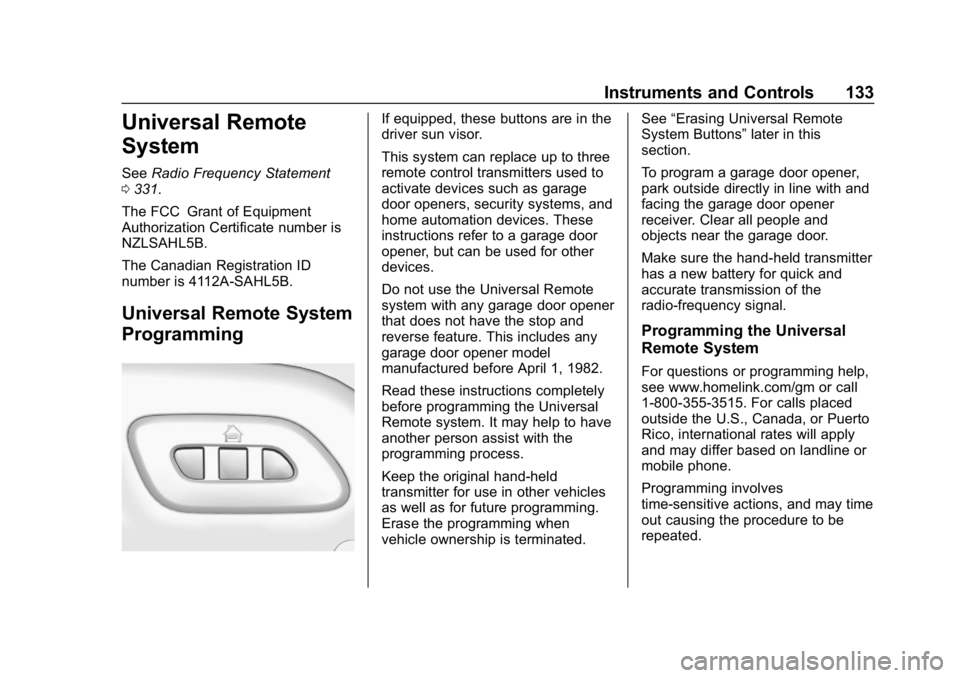
If equipped, these buttons are in the
driver sun visor.
This system can replace up to three
remote control transmitters used to
activate devices such as garage
door openers, security systems, and
home automation devices. These
instructions refer to a garage door
opener, but can be used for other
devices.
Do not use the Universal Remote
system with any garage door opener
that does not have the stop and
reverse feature. This includes any
garage door opener model
manufactured before April 1, 1982.
Read these instructions completely
before programming the Universal
Remote system. It may help to have
another person assist with the
programming process.
Keep the original hand-held
transmitter for use in other vehicles
as well as for future programming.
Erase the programming when
vehicle ownership is terminated. See
“Erasing Universal Remote
System Buttons” later in this
section.
To program a garage door opener,
park outside directly in line with and
facing the garage door opener
receiver. Clear all people and
objects near the garage door.
Make sure the hand-held transmitter
has a new battery for quick and
accurate transmission of the
radio-frequency signal.
Programming the Universal
Remote System
For questions or programming help,
see www.homelink.com/gm or call
1-800-355-3515. For calls placed
outside the U.S., Canada, or Puerto
Rico, international rates will apply
and may differ based on landline or
mobile phone.
Programming involves
time-sensitive actions, and may time
out causing the procedure to be
repeated.
Page 135 of 358
Chevrolet Corvette Owner Manual (GMNA-Localizing-U.S./Canada/Mexico-
11374030) - 2018 - CRC - 11/8/17
134 Instruments and Controls
To program up to three devices:1. Hold the end of the hand-held transmitter about 3 to 8 cm
(1 to 3 in) away from the
Universal Remote system
buttons with the indicator light
in view. The hand-held
transmitter was supplied by the
manufacturer of the garage
door opener receiver.
2. At the same time, press and hold both the hand-held
transmitter button and one of
the three Universal Remote
system buttons to be used to
operate the garage door. Do
not release either button until
the indicator light changes from
a slow to a rapid flash. Then
release both buttons.
Some garage door openers
may require substitution of
Step 2 with the procedure
under “Radio Signals for Some
Gate Operators” later in this
section. 3. Press and hold the newly
programmed Universal Remote
system button for five seconds
while watching the indicator
light and garage door
activation.
.If the indicator light stays on
continuously or the garage
door moves when the
button is pressed, then
programming is complete.
There is no need to
complete Steps 4–6.
. If the indicator light does
not come on or the garage
door does not move, a
second button press may
be required. For a second
time, press and hold the
newly programmed button
for five seconds. If the light
stays on or the garage door
moves, programming is
complete.
. If the indicator light blinks
rapidly for two seconds,
then changes to a solid light and the garage door does
not move, continue with
programming Steps 4–6.
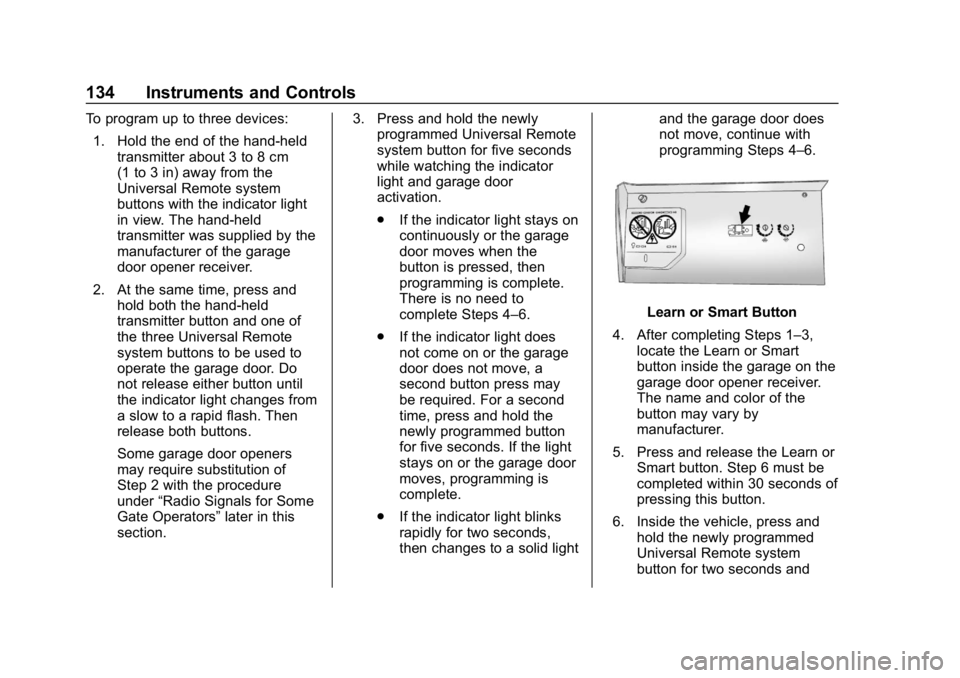
Learn or Smart Button
4. After completing Steps 1–3, locate the Learn or Smart
button inside the garage on the
garage door opener receiver.
The name and color of the
button may vary by
manufacturer.
5. Press and release the Learn or Smart button. Step 6 must be
completed within 30 seconds of
pressing this button.
6. Inside the vehicle, press and hold the newly programmed
Universal Remote system
button for two seconds and
Page 136 of 358
Chevrolet Corvette Owner Manual (GMNA-Localizing-U.S./Canada/Mexico-
11374030) - 2018 - CRC - 11/8/17
Instruments and Controls 135
then release it. If the garage
door does not move or the
lamp on the garage door
opener receiver does not flash,
press and hold the same
button a second time for
two seconds, then release it.
Again, if the door does not
move or the garage door lamp
does not flash, press and hold
the same button a third time for
two seconds, then release it.
The Universal Remote system
should now activate the
garage door.
Repeat the process to program the
two remaining buttons.
Radio Signals for Some Gate
Operators
For questions or programming help,
see www.homelink.com/gm or call
1-800-355-3515. For calls placed
outside the U.S., Canada, or Puerto
Rico, international rates will apply
and may differ based on landline or
mobile phone. Some gate operators and
radio-frequency laws require
transmitter signals to time out or quit
after several seconds of
transmission. This may not be long
enough for the Universal Remote
system to pick up the signal during
programming.
If the programming did not work,
replace Step 2 under
“Programming
the Universal Remote System” with
the following:
Press and hold the Universal
Remote system button while
pressing and releasing the
hand-held transmitter button every
two seconds until the signal has
been successfully accepted by the
Universal Remote system. The
Universal Remote system indicator
light will flash slowly at first and then
rapidly. Proceed with Step 3 under
“Programming the Universal Remote
System” to complete.
Universal Remote System
Operation
Using the Universal Remote
System
Press and hold the appropriate
Universal Remote system button for
at least one-half second. The
indicator light will come on while the
signal is being transmitted.
Erasing Universal Remote
System Buttons
Erase all programmed buttons when
vehicle ownership is terminated.
To erase:
1. Press and hold the two outside buttons until the indicator light
begins to flash. This should
take about 10 seconds.
2. Release both buttons.
Page 144 of 358
Chevrolet Corvette Owner Manual (GMNA-Localizing-U.S./Canada/Mexico-
11374030) - 2018 - CRC - 11/8/17
Infotainment System 143
Infotainment
System
Introduction
Infotainment . . . . . . . . . . . . . . . . . . 143
Performance Data
Recorder (PDR)
Performance DataRecorder (PDR) . . . . . . . . . . . . . 143
Introduction
Infotainment
See the infotainment manual for
information on the radio, audio
players, phone, navigation system,
and voice or speech recognition.
It also includes information on
settings.
Performance Data
Recorder (PDR)
If equipped, the PDR icon displays
on the Home Page.
Important Information
Use of the PDR may be prohibited
or legally restricted in certain
countries and situations. Ensure
compliance with applicable laws and
regulations, including, but not
limited to: privacy laws, laws related
to camera surveillance and
recordings, road traffic and security
laws, and laws on the protection of
publicity and personality rights.
. Do not use the PDR if it causes
distraction.
. Do not rely on camera footage to
steer the vehicle.
. Comply with any notice and
consent requirements before
capturing and/or recording the
voices or images of other
persons or before collecting
other personal data.
Page 157 of 358
Chevrolet Corvette Owner Manual (GMNA-Localizing-U.S./Canada/Mexico-
11374030) - 2018 - CRC - 11/8/17
156 Driving and Operating
Trailer Towing
General TowingInformation . . . . . . . . . . . . . . . . . . 214
Conversions and Add-Ons
Add-On ElectricalEquipment . . . . . . . . . . . . . . . . . . 214
Driving Information
Distracted Driving
Distraction comes in many forms
and can take your focus from the
task of driving. Exercise good
judgment and do not let other
activities divert your attention away
from the road. Many local
governments have enacted laws
regarding driver distraction. Become
familiar with the local laws in
your area.
To avoid distracted driving, keep
your eyes on the road, keep your
hands on the steering wheel, and
focus your attention on driving.
. Do not use a phone in
demanding driving situations.
Use a hands-free method to
place or receive necessary
phone calls.
. Watch the road. Do not read,
take notes, or look up
information on phones or other
electronic devices. .
Designate a front seat
passenger to handle potential
distractions.
. Become familiar with vehicle
features before driving, such as
programming favorite radio
stations and adjusting climate
control and seat settings.
Program all trip information into
any navigation device prior to
driving.
. Wait until the vehicle is parked
to retrieve items that have fallen
to the floor.
. Stop or park the vehicle to tend
to children.
. Keep pets in an appropriate
carrier or restraint.
. Avoid stressful conversations
while driving, whether with a
passenger or on a cell phone.
Page 179 of 358
Chevrolet Corvette Owner Manual (GMNA-Localizing-U.S./Canada/Mexico-
11374030) - 2018 - CRC - 11/8/17
178 Driving and Operating
Front Air Dam
If equipped, the front air dam has
minimal ground clearance.
Under normal operation, the
components will occasionally
contact some road surfaces (speed
bumps, driveway ramps, etc.). This
can be heard inside the vehicle as a
scraping noise. This is normal and
does not indicate a problem.
Use care when approaching bumps
or objects on road surfaces and
avoid them when possible.
Composite Materials
This vehicle may be equipped with
parts containing carbon fiber,
sheet-molding compound, or other
composite materials.
Dealer-installed accessories may
also contain composite materials.
These parts and accessories may
include the splitter or rocker
extensions.
{Warning
Exposed edges of parts
containing carbon fiber and other
composite materials can be
sharp. Contact with these parts
could result in injury. Use caution
to avoid contacting these parts,
including when washing the
vehicle. If the parts are damaged,
replace the parts promptly with
replacements from your dealer.
{Warning
Rocker extensions may break
under pressure, resulting in
property damage or injury. Do not
stand on the rocker extension or
use it as a step.
Ignition Positions
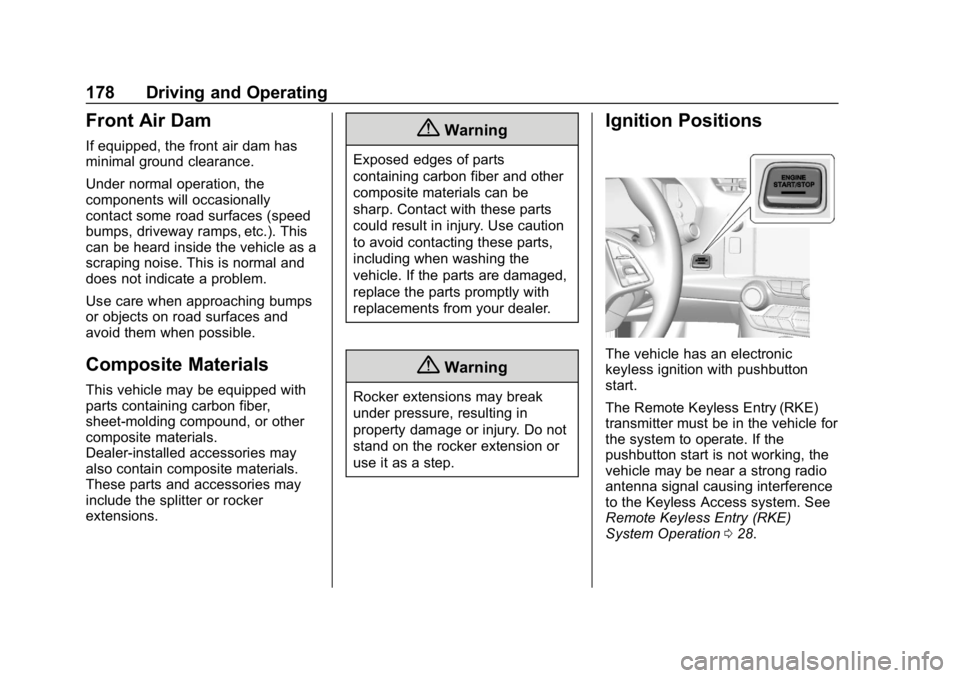
The vehicle has an electronic
keyless ignition with pushbutton
start.
The Remote Keyless Entry (RKE)
transmitter must be in the vehicle for
the system to operate. If the
pushbutton start is not working, the
vehicle may be near a strong radio
antenna signal causing interference
to the Keyless Access system. See
Remote Keyless Entry (RKE)
System Operation028.
Page 254 of 358
Chevrolet Corvette Owner Manual (GMNA-Localizing-U.S./Canada/Mexico-
11374030) - 2018 - CRC - 11/8/17
Vehicle Care 253
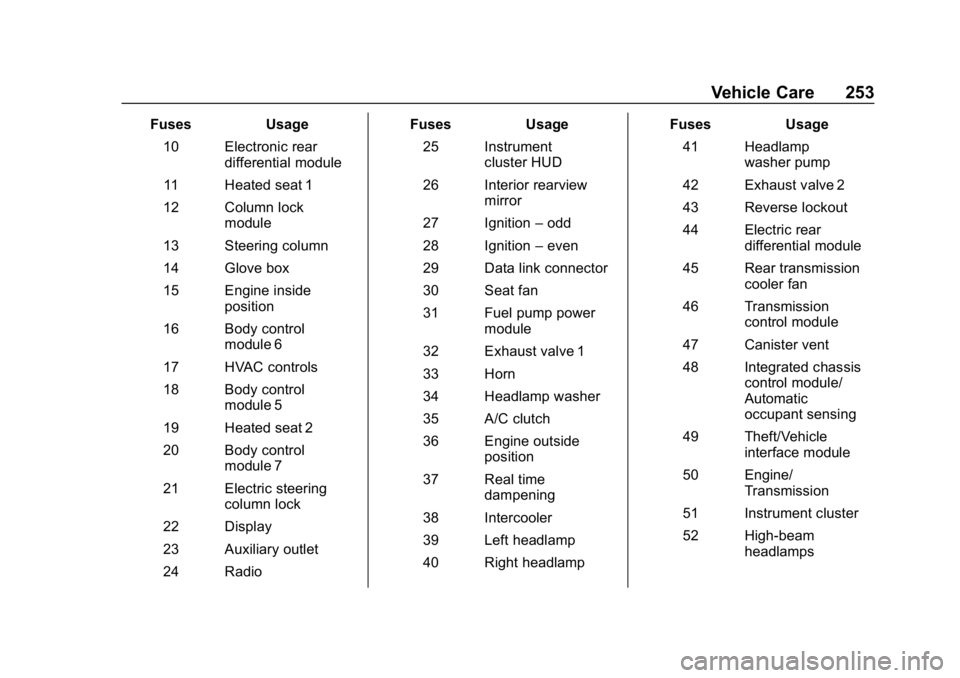
FusesUsage
10 Electronic rear differential module
11 Heated seat 1
12 Column lock module
13 Steering column
14 Glove box
15 Engine inside position
16 Body control module 6
17 HVAC controls
18 Body control module 5
19 Heated seat 2
20 Body control module 7
21 Electric steering column lock
22 Display
23 Auxiliary outlet
24 Radio Fuses
Usage
25 Instrument cluster HUD
26 Interior rearview mirror
27 Ignition –odd
28 Ignition –even
29 Data link connector
30 Seat fan
31 Fuel pump power module
32 Exhaust valve 1
33 Horn
34 Headlamp washer
35 A/C clutch
36 Engine outside position
37 Real time dampening
38 Intercooler
39 Left headlamp
40 Right headlamp Fuses
Usage
41 Headlamp washer pump
42 Exhaust valve 2
43 Reverse lockout
44 Electric rear differential module
45 Rear transmission cooler fan
46 Transmission control module
47 Canister vent
48 Integrated chassis control module/
Automatic
occupant sensing
49 Theft/Vehicle interface module
50 Engine/ Transmission
51 Instrument cluster
52 High-beam headlamps
Page 268 of 358
Chevrolet Corvette Owner Manual (GMNA-Localizing-U.S./Canada/Mexico-
11374030) - 2018 - CRC - 11/8/17
Vehicle Care 267
If the inflation pressure is low,
add air until the recommended
pressure is reached. If the
inflation pressure in high, press
on the metal stem in the center
of the tire valve to release air.
Re-check the tire pressure with
the tire gauge.
Put the valve caps back on the
valve stems to keep out dirt and
moisture and prevent leaks. Use
only valve caps designed for the
vehicle by GM. TPMS sensors
could be damaged and would
not be covered by the vehicle
warranty.
Tire Pressure for
High-Speed Operation
{Warning
Driving at high speeds, 160 km/h
(100 mph) or higher, puts
additional strain on tires.(Continued)
Warning (Continued)
Sustained high-speed driving
causes excessive heat buildup
and can cause sudden tire failure.
This could cause a crash, and
you or others could be killed.
Some high-speed rated tires
require inflation pressure
adjustment for high-speed
operation. When speed limits and
road conditions allow the vehicle
to be driven at high speeds, make
sure the tires are rated for
high-speed operation, are in
excellent condition, and are set to
the correct cold tire inflation
pressure for the vehicle load.
The tires require inflation pressure
adjustment when driving the vehicle
at speeds of 160 km/h (100 mph) or
higher, where it is legal. Set the cold
inflation pressure to the maximum
inflation pressure shown on the tire
sidewall, or 265 kPa (38 psi),
whichever is lower. See the
example following. Return the tires to the recommended cold tire
inflation pressure when high-speed
driving has ended. See
Vehicle
Load Limits 0173.
Example:
The maximum load and inflation
pressure molded on the tire
sidewall, in small letters, near the
rim flange. It will read something like
this: Maximum load
690 kg (1521 lbs) 300 kPa (44 psi)
Max. Press.
For this example, set the inflation
pressure for high-speed driving at
265 kPa (38 psi).
Racing or other competitive driving
may affect the warranty coverage of
the vehicle. See the warranty
booklet for more information.
Tire Pressure Monitor
System
The Tire Pressure Monitor System
(TPMS) uses radio and sensor
technology to check tire pressure
levels. The TPMS sensors monitor