infotainment CHEVROLET CORVETTE 2018 Owner's Guide
[x] Cancel search | Manufacturer: CHEVROLET, Model Year: 2018, Model line: CORVETTE, Model: CHEVROLET CORVETTE 2018Pages: 358, PDF Size: 5.46 MB
Page 149 of 358
Chevrolet Corvette Owner Manual (GMNA-Localizing-U.S./Canada/Mexico-
11374030) - 2018 - CRC - 11/8/17
148 Infotainment System
.Throttle Position: Displays
the percentage of throttle applied
from 0–100%.
. Active Handling Active Indicator:
The graphic only displays if the
active handling systems are
activated.
Naming Convention
The recorded video file name is
stored as the recorded date and the
length of the recording.
If the recorded session was
recorded while the system was in
Valet Mode, the file name will
display the mode, date, and length
of time.
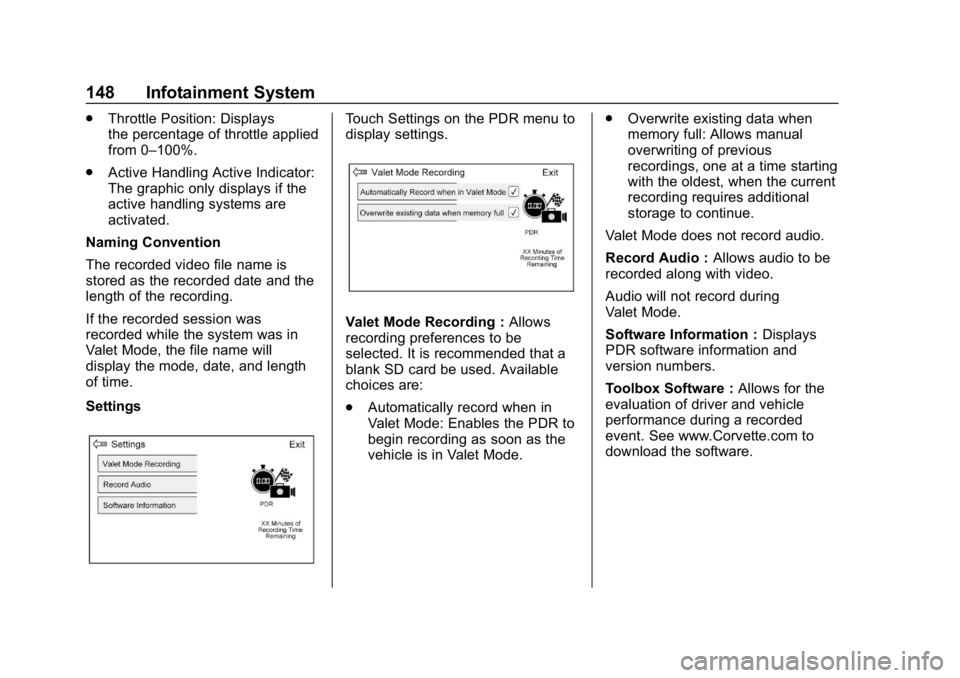
SettingsTouch Settings on the PDR menu to
display settings.
Valet Mode Recording : Allows
recording preferences to be
selected. It is recommended that a
blank SD card be used. Available
choices are:
. Automatically record when in
Valet Mode: Enables the PDR to
begin recording as soon as the
vehicle is in Valet Mode. .
Overwrite existing data when
memory full: Allows manual
overwriting of previous
recordings, one at a time starting
with the oldest, when the current
recording requires additional
storage to continue.
Valet Mode does not record audio.
Record Audio : Allows audio to be
recorded along with video.
Audio will not record during
Valet Mode.
Software Information : Displays
PDR software information and
version numbers.
Toolbox Software : Allows for the
evaluation of driver and vehicle
performance during a recorded
event. See www.Corvette.com to
download the software.
Page 158 of 358
Chevrolet Corvette Owner Manual (GMNA-Localizing-U.S./Canada/Mexico-
11374030) - 2018 - CRC - 11/8/17
Driving and Operating 157
{Warning
Taking your eyes off the road too
long or too often could cause a
crash resulting in injury or death.
Focus your attention on driving.
Refer to the infotainment manual for
more information on using that
system and the navigation system,
if equipped, including pairing and
using a cell phone.
Defensive Driving
Defensive driving means “always
expect the unexpected.” The first
step in driving defensively is to wear
the seat belt. See Seat Belts066.
. Assume that other road users
(pedestrians, bicyclists, and
other drivers) are going to be
careless and make mistakes.
Anticipate what they might do
and be ready.
. Allow enough following distance
between you and the driver in
front of you. .
Focus on the task of driving.
Drunk Driving
Death and injury associated with
drinking and driving is a global
tragedy.
{Warning
Drinking and then driving is very
dangerous. Your reflexes,
perceptions, attentiveness, and
judgment can be affected by even
a small amount of alcohol. You
can have a serious —or even
fatal —collision if you drive after
drinking.
Do not drink and drive or ride with
a driver who has been drinking.
Ride home in a cab; or if you are
with a group, designate a driver
who will not drink.
Control of a Vehicle
Braking, steering, and accelerating
are important factors in helping to
control a vehicle while driving.
Braking
Braking action involves perception
time and reaction time. Deciding to
push the brake pedal is perception
time. Actually doing it is
reaction time.
Average driver reaction time is
about three-quarters of a second. In
that time, a vehicle moving at
100 km/h (60 mph) travels 20 m
(66 ft), which could be a lot of
distance in an emergency.
Helpful braking tips to keep in mind
include:
. Keep enough distance between
you and the vehicle in front
of you.
. Avoid needless heavy braking.
. Keep pace with traffic.
If the engine ever stops while the
vehicle is being driven, brake
normally but do not pump the
brakes. Doing so could make the
pedal harder to push down. If the
engine stops, there will be some
power brake assist but it will be
used when the brake is applied.
Page 183 of 358
Chevrolet Corvette Owner Manual (GMNA-Localizing-U.S./Canada/Mexico-
11374030) - 2018 - CRC - 11/8/17
182 Driving and Operating
brake after turning off the engine by
pressing and holding ENGINE
START/STOP.
If the RKE transmitter is not
detected inside the vehicle when it
is turned off, the DIC displays a
message.
Retained Accessory
Power (RAP)
Some vehicle accessories may be
used after the ignition is turned off.
The power windows and sunroof,
if equipped, will continue to work for
up to 10 minutes or until any door is
opened.
The infotainment system will
continue to work for 10 minutes,
until the driver door is opened,
or until the ignition is turned on or
placed in ACC/ACCESSORY.
Shifting Into Park
1. Hold the brake pedal down andset the parking brake. See
Electric Parking Brake 0193. 2. Move the shift lever into
P (Park) by holding the button
on the lever and pushing the
lever all the way toward the
front of the vehicle.
3. Press ENGINE START/STOP to turn the engine off.
Leaving the Vehicle with the
Engine Running (Automatic
Transmission)
{Warning
It can be dangerous to leave the
vehicle with the engine running.
It could overheat and catch fire.
It is dangerous to get out of the
vehicle if the shift lever is not fully
in P (Park) with the parking brake
firmly set. The vehicle can roll.
Do not leave the vehicle when the
engine is running. If you have left
the engine running, the vehicle
can move suddenly. You or others
could be injured. To be sure the
(Continued)
Warning (Continued)
vehicle will not move, even when
you are on fairly level ground,
always set the parking brake and
move the shift lever to P (Park).
SeeShifting Into Park 0182.
If you have to leave the vehicle with
the engine running, be sure the
vehicle is in P (Park) and the
parking brake is firmly set before
you leave it. After moving the shift
lever into P (Park), hold down the
regular brake pedal. See if you can
move the shift lever away from
P (Park) without first pushing the
button on the lever. If you can, it
means that the shift lever was not
fully locked into P (Park).
Torque Lock (Automatic
Transmission)
If you are parking on a hill and you
do not shift the transmission into
P (Park) properly, the weight of
the vehicle may put too much
force on the parking pawl in the
Page 209 of 358
Chevrolet Corvette Owner Manual (GMNA-Localizing-U.S./Canada/Mexico-
11374030) - 2018 - CRC - 11/8/17
208 Driving and Operating
driver must select the proper
gear for the terrain or select D
(Drive) on the shift lever for full
automatic transmission
operation.
Ending Cruise Control
. Step lightly on the brake pedal.
. Press the clutch pedal for
several seconds or shift to
Neutral (manual transmissions).
. Shift the transmission to
N (Neutral) (automatic
transmissions).
. Press
*.
. To turn off cruise control,
press
1.
Erasing Speed Memory
The cruise control set speed is
erased from memory if
1is pressed
or if the ignition is turned off.
Driver Assistance
Systems
Assistance Systems for
Parking or Backing
If equipped, the Rear Vision Camera
(RVC) and Curb View Camera may
help the driver park or avoid objects.
Always check around the vehicle
when parking or backing.
Rear Vision Camera (RVC)
When the vehicle is shifted into
R (Reverse), the RVC displays an
image of the area behind the vehicle
in the infotainment display. The
previous screen displays when the
vehicle is shifted out of R (Reverse)
after a short delay. To return to the
previous screen sooner, press any
button on the infotainment system,
shift into P (Park), or reach a vehicle
speed of approximately 12
km/h (8 mph).
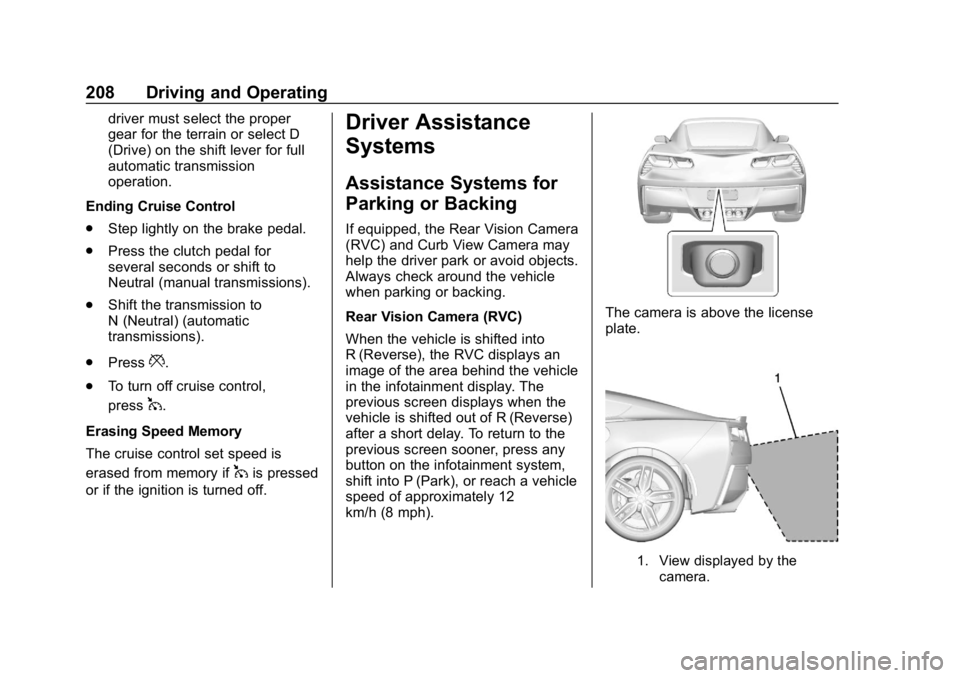
The camera is above the license
plate.
1. View displayed by the camera.
Page 210 of 358
Chevrolet Corvette Owner Manual (GMNA-Localizing-U.S./Canada/Mexico-
11374030) - 2018 - CRC - 11/8/17
Driving and Operating 209
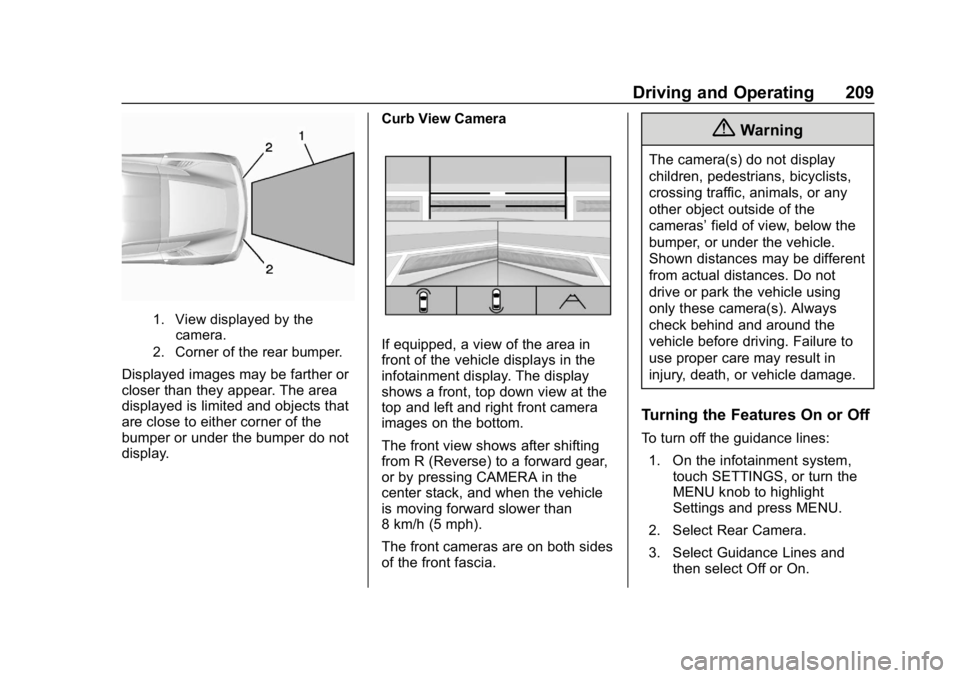
1. View displayed by thecamera.
2. Corner of the rear bumper.
Displayed images may be farther or
closer than they appear. The area
displayed is limited and objects that
are close to either corner of the
bumper or under the bumper do not
display. Curb View Camera
If equipped, a view of the area in
front of the vehicle displays in the
infotainment display. The display
shows a front, top down view at the
top and left and right front camera
images on the bottom.
The front view shows after shifting
from R (Reverse) to a forward gear,
or by pressing CAMERA in the
center stack, and when the vehicle
is moving forward slower than
8 km/h (5 mph).
The front cameras are on both sides
of the front fascia.
{Warning
The camera(s) do not display
children, pedestrians, bicyclists,
crossing traffic, animals, or any
other object outside of the
cameras’
field of view, below the
bumper, or under the vehicle.
Shown distances may be different
from actual distances. Do not
drive or park the vehicle using
only these camera(s). Always
check behind and around the
vehicle before driving. Failure to
use proper care may result in
injury, death, or vehicle damage.
Turning the Features On or Off
To turn off the guidance lines:
1. On the infotainment system, touch SETTINGS, or turn the
MENU knob to highlight
Settings and press MENU.
2. Select Rear Camera.
3. Select Guidance Lines and then select Off or On.
Page 322 of 358
Chevrolet Corvette Owner Manual (GMNA-Localizing-U.S./Canada/Mexico-
11374030) - 2018 - CRC - 11/8/17
Customer Information 321
Customer
Information
Customer Information
Customer SatisfactionProcedure . . . . . . . . . . . . . . . . . . . 321
Customer Assistance Offices . . . . . . . . . . . . . . . . . . . . . . 323
Customer Assistance for Text Telephone (TTY) Users . . . . . 324
Online Owner Center . . . . . . . . . 324
GM Mobility Reimbursement Program . . . . . . . . . . . . . . . . . . . . 325
Roadside Assistance Program . . . . . . . . . . . . . . . . . . . . 325
Scheduling Service Appointments . . . . . . . . . . . . . . . 327
Courtesy Transportation Program . . . . . . . . . . . . . . . . . . . . 327
Collision Damage Repair . . . . . 328
Service Publications Ordering Information . . . . . . . . . . . . . . . . . . 330
Radio Frequency Statement . . . . . . . . . . . . . . . . . . . 331
Reporting Safety Defects
Reporting Safety Defects tothe United States
Government . . . . . . . . . . . . . . . . . 332
Reporting Safety Defects to the Canadian
Government . . . . . . . . . . . . . . . . . 332
Reporting Safety Defects to General Motors . . . . . . . . . . . . . 333
Vehicle Data Recording and
Privacy
Vehicle Data Recording andPrivacy . . . . . . . . . . . . . . . . . . . . . . 333
Event Data Recorders . . . . . . . . 333
OnStar . . . . . . . . . . . . . . . . . . . . . . . 334
Infotainment System . . . . . . . . . . 334
Customer Information
Customer Satisfaction
Procedure
Your satisfaction and goodwill are
important to your dealer and to
Chevrolet. Normally, any concerns
with the sales transaction or the
operation of the vehicle will be
resolved by your dealer's sales or
service departments. Sometimes,
however, despite the best intentions
of all concerned, misunderstandings
can occur. If your concern has not
been resolved to your satisfaction,
the following steps should be taken:
STEP ONE : Discuss your concern
with a member of dealership
management. Normally, concerns
can be quickly resolved at that level.
If the matter has already been
reviewed with the sales, service,
or parts manager, contact the owner
of your dealership or the general
manager.
Page 335 of 358
Chevrolet Corvette Owner Manual (GMNA-Localizing-U.S./Canada/Mexico-
11374030) - 2018 - CRC - 11/8/17
334 Customer Information
These data can help provide a
better understanding of the
circumstances in which crashes and
injuries occur.
Note
EDR data are recorded by your
vehicle only if a non-trivial crash
situation occurs; no data are
recorded by the EDR under normal
driving conditions and no personal
data (e.g., name, gender, age, and
crash location) are recorded.
However, other parties, such as law
enforcement, could combine the
EDR data with the type of
personally identifying data routinely
acquired during a crash
investigation.
To read data recorded by an EDR,
special equipment is required, and
access to the vehicle or the EDR is
needed. In addition to the vehicle
manufacturer, other parties, such as
law enforcement, that have the
special equipment, can read the
information if they have access to
the vehicle or the EDR.GM will not access these data or
share it with others except: with the
consent of the vehicle owner or,
if the vehicle is leased, with the
consent of the lessee; in response
to an official request by police or
similar government office; as part of
GM's defense of litigation through
the discovery process; or, as
required by law. Data that GM
collects or receives may also be
used for GM research needs or may
be made available to others for
research purposes, where a need is
shown and the data is not tied to a
specific vehicle or vehicle owner.
OnStar
If the vehicle is equipped with
OnStar and has an active service
plan, additional data may be
collected through the OnStar
system. This includes information
about the vehicle’s operation;
collisions involving the vehicle; the
use of the vehicle and its features;
and, in certain situations, the
location and approximate GPS
speed of the vehicle. Refer to the
OnStar Terms and Conditions and
Privacy Statement on the OnStar
website.
See
OnStar Additional Information
0 341.
Infotainment System
If the vehicle is equipped with a
navigation system as part of the
infotainment system, use of the
system may result in the storage of
destinations, addresses, telephone
numbers, and other trip information.
See the infotainment manual for
information on stored data and for
deletion instructions.
Page 337 of 358
Chevrolet Corvette Owner Manual (GMNA-Localizing-U.S./Canada/Mexico-
11374030) - 2018 - CRC - 11/8/17
336 OnStar
Status Indicator
The OnStar system status light is
next to the OnStar controls on the
manual rearview mirror.
If the status light is:
.Solid Green: System is ready.
. Flashing Green: On a call.
. Red: Indicates a problem.
. Off: System is active. Press
|
twice to speak with an OnStar
Advisor.
For the automatic dimming rearview
mirror, the status is provided
through the Display on Demand
Icons.
. Three Color Icons: The system
is enabled and active.
. No Icons: The vehicle is in
motion or the OnStar service
plan is inactive.
. Blinking: Button has been
pressed.
. Solid: On a call.
.
~: Indicates a problem. OnStar Commands
Press
|or call 1-888-4ONSTAR
(1-888-466-7827) to speak to an
Advisor.
Functionality of the Voice Command
button may vary by vehicle and
region.
Press
Qto:
Open the OnStar app on the
infotainment display. See the
infotainment manual for information
on how to use the OnStar app.
OR
. Make a call, end a call,
or answer an incoming call.
. Give OnStar Hands-Free Calling
voice commands.
. Give OnStar Turn-by-Turn
Navigation voice commands.
. Obtain and customize the Wi-Fi
®
network name or SSID, and
password, if equipped. Press
|to connect to an
Advisor to:
. Verify account information or
update contact information.
. Get driving directions.
. Receive a Diagnostic check of
the vehicle's key operating
systems.
. Receive Roadside Assistance.
. Manage Wi-Fi Settings,
if equipped.
Press
Uto get a priority connection
to an OnStar Advisor available
24/7 to:
. Get help for an emergency.
. Be a Good Samaritan or
respond to an AMBER Alert.
. Get assistance in severe
weather or other crisis situations
and find evacuation routes.
Page 338 of 358
Chevrolet Corvette Owner Manual (GMNA-Localizing-U.S./Canada/Mexico-
11374030) - 2018 - CRC - 11/8/17
OnStar 337
OnStar Services
Emergency
Emergency Services require an
active, OnStar service plan
(excludes Basic Plan). With
Automatic Crash Response, built-in
sensors can automatically alert a
specially trained OnStar Advisor
who is immediately connected in to
the vehicle to help.
Press
Ufor a priority connection to
an OnStar Advisor who can contact
emergency service providers, direct
them to your exact location, and
relay important information.
With OnStar Crisis Assist, specially
trained Advisors are available
24 hours a day, 7 days a week, to
provide a central point of contact,
assistance, and information during a
crisis.
With Roadside Assistance, Advisors
can locate a nearby service provider
to help with a flat tire, a battery
jump, or an empty gas tank.
Security
If equipped, OnStar provides these
services:
. With Stolen Vehicle Assistance,
OnStar Advisors can use GPS to
pinpoint the vehicle and help
authorities quickly recover it.
. With Remote Ignition Block,
if equipped, OnStar can block
the engine from being restarted.
. With Stolen Vehicle Slowdown,
if equipped, OnStar can work
with law enforcement to
gradually slow the vehicle down.
Theft Alarm Notification
If equipped, if the doors are locked
and the vehicle alarm sounds, a
notification by text, e-mail, or phone
call will be sent. If the vehicle is
stolen, an OnStar Advisor can work
with authorities to recover the
vehicle.
Navigation
OnStar navigation requires a
specific OnStar service plan. Press
|to receive Turn-by-Turn
directions or have them sent to the
vehicle navigation screen,
if equipped.
Turn-by-Turn Navigation
1. Press|to connect to an
Advisor.
2. Request directions to be downloaded to the vehicle.
3. Follow the voice-guided commands.
Using Voice Commands
During a Planned Route
Functionality of the Voice Command
button may vary by vehicle and
region. For some vehicles, press
Q
to open the OnStar app on the
infotainment display. For other
vehicles press
Qas follows.
Cancel Route
1. Press
Q. System responds:
“OnStar ready,” then a tone.
Page 340 of 358
Chevrolet Corvette Owner Manual (GMNA-Localizing-U.S./Canada/Mexico-
11374030) - 2018 - CRC - 11/8/17
OnStar 339
1. To retrieve Wi-Fi hotspotinformation, press
Qto open
the OnStar app on the
infotainment display, then
select Wi-Fi Hotspot. On some
vehicles, touch Wi-Fi or Wi-Fi
Settings on the screen.
2. The Wi-Fi settings will display the Wi-Fi hotspot name (SSID),
password, and on some
vehicles, the connection type
(no Internet connection, 3G,
4G, 4G LTE), and signal quality
(poor, good, excellent).
3. To change the SSID or password, press
|or call
1-888-4ONSTAR to connect
with an Advisor. On some
vehicles, the SSID and
password can be changed in
the Wi-Fi Hotspot menu.
After initial set-up, your vehicle’s
Wi-Fi hotspot will connect
automatically to your mobile
devices. Manage data usage by
turning Wi-Fi on or off on your
mobile device, using the
myChevrolet mobile app, or by contacting an OnStar Advisor. On
some vehicles, Wi-Fi can also be
managed from the Wi-Fi
Hotspot menu.
MyChevrolet Mobile App (If
Available)
Download the myChevrolet mobile
app to compatible Apple and
Android smartphones. Chevrolet
users can access the following
services from a smartphone:
.
Remotely start/stop the vehicle,
if factory-equipped.
. Lock/unlock doors, if equipped
with automatic locks.
. Activate the horn and lamps.
. Check the vehicle’s fuel level, oil
life, or tire pressure,
if factory-equipped with the Tire
Pressure Monitor System.
. Send destinations to the vehicle.
. Locate the vehicle on a map
(U.S. market only). .
Turn the vehicle's Wi-Fi hotspot
on/off, manage settings, and
monitor data consumption,
if equipped.
. Locate a dealer and schedule
service.
. Request roadside assistance.
. Set a parking reminder with pin
drop, take a photo, make a note,
and set a timer.
. Connect with Chevrolet on social
media.
For myChevrolet mobile app
information and compatibility, see
www.my.chevrolet.com.
An active OnStar service,
compatible device, factory-installed
remote start, and power locks are
required. Data rates apply. See
www.onstar.com for details and
system limitations.
Remote Services
Contact an OnStar Advisor to
unlock the doors or sound the horn
and flash the lamps.