music CHEVROLET CORVETTE 2019 Infotainment Manual
[x] Cancel search | Manufacturer: CHEVROLET, Model Year: 2019, Model line: CORVETTE, Model: CHEVROLET CORVETTE 2019Pages: 90, PDF Size: 0.98 MB
Page 12 of 90
Chevrolet Corvette MyLink Infotainment System(GMNA-Localizing-U.S./
Canada-12145685) - 2019 - crc - 4/16/18
Radio 11
Bose AudioPilot Noise
Compensation Technology (If
Equipped) :When turned on,
AudioPilot technology detects noise
and vehicle speed to continuously
adjust the audio signal so that music
will sound the same at a set volume
level. This feature is most effective
at lower radio volume settings
where background noise can affect
how well the music is being played.
See www.boseautomotive.com. This
feature can be turned on or off.
Press
oBACK on the center stack
or touch the Back icon on the
infotainment display to go back to
the previous menu.
HD Radio (If Equipped) : For AM,
FM, and SXM (if equipped), touch to
turn HD Radio (if equipped)
reception on or off. Press
oBACK
on the center stack or touch the
Back icon on the infotainment
display to go back to the
previous menu.
Update Station List : For AM, FM,
and SXM (if equipped), touch to
update the station list. Press
o
BACK on the center stack or touch
the Back icon on the infotainment
display to go back to the
previous menu.
Finding a Station
Seeking a Station
Press
gordon the center stack
to search for the previous or next
strongest station.
Tuning a Station
Touch the Tune icon on the
infotainment display to switch to
Direct Tune. Touch the search
arrows on the infotainment display
to manually search for a station.
Direct Tune
Access Direct Tune by touching the
Tune icon to bring up the keypad.
Navigate up and down through all
frequencies or directly enter a
station using the keypad. When a
new station is entered, the
information about that station
displays on the right side. This
information will update with each
new valid frequency tuned to. The keypad will gray out entries that
do not contribute to a valid
frequency and will automatically
place a decimal point within the
frequency number.
A valid station will automatically
tune to the new frequency but not
close the Direct Tune display. Touch
the Back icon on the infotainment
display or Exit to close Direct Tune.
The tune arrows on the right side of
the Direct Tune display tune through
the complete station list one station
step at a time per touch. A touch
and hold advances 10 frequency
steps per second.
Touch (X) to delete one number at a
time. Touch and hold (X) to delete
all numbers.
In AM, FM, or SXM (if equipped)
modes, touch the arrows on the
right side of the Direct Tune display
for the radio to go to the next or
previous strong station or channel.
Touch Direct Tune to advance to the
next or previous frequency step in
Page 15 of 90
Chevrolet Corvette MyLink Infotainment System(GMNA-Localizing-U.S./
Canada-12145685) - 2019 - crc - 4/16/18
14 Radio
possible that a radio station could
broadcast incorrect information that
causes the radio features to work
improperly. If this happens, contact
the radio station.
When information is broadcast from
the current FM station, the station
name or call letters display on the
audio screen. RDS can provide a
program type (PTY) for current
programming and the name of the
program being broadcasted.
Satellite Radio
SiriusXM Satellite Radio
Service
If equipped, vehicles with a valid
SiriusXM satellite radio subscription
can receive SiriusXM programming.
SiriusXM satellite radio has a wide
variety of programming and
commercial-free music, coast to
coast, and in digital-quality sound.
See www.siriusxm.com or call
1-888-601-6296 in the U.S. In
Canada, see www.siriusxm.ca or
call 1-877-438-9677.
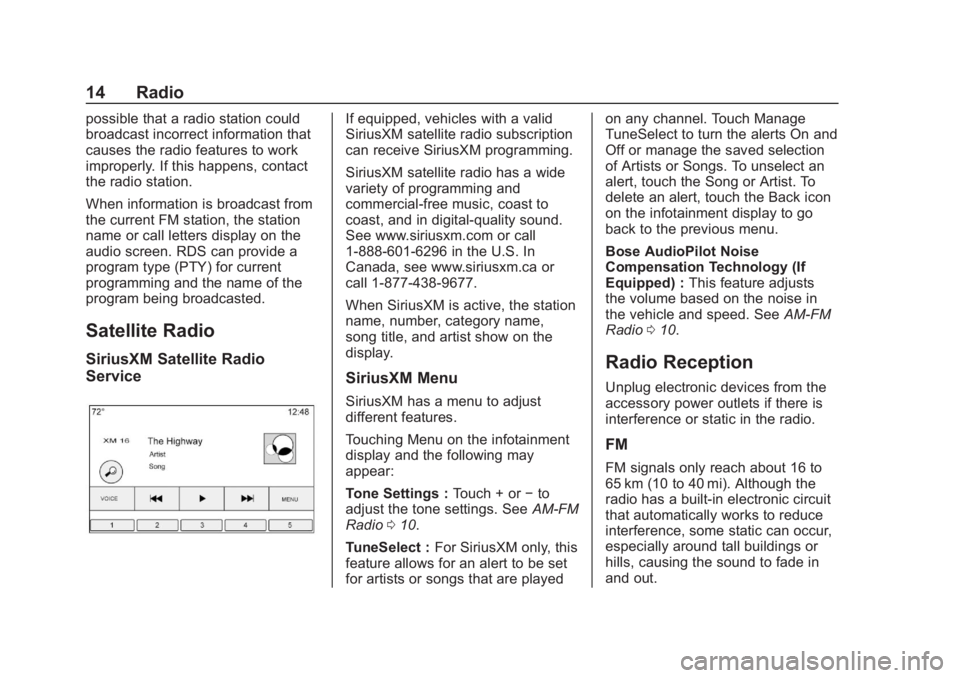
When SiriusXM is active, the station
name, number, category name,
song title, and artist show on the
display.
SiriusXM Menu
SiriusXM has a menu to adjust
different features.
Touching Menu on the infotainment
display and the following may
appear:
Tone Settings :Touch + or−to
adjust the tone settings. See AM-FM
Radio 010.
TuneSelect : For SiriusXM only, this
feature allows for an alert to be set
for artists or songs that are played on any channel. Touch Manage
TuneSelect to turn the alerts On and
Off or manage the saved selection
of Artists or Songs. To unselect an
alert, touch the Song or Artist. To
delete an alert, touch the Back icon
on the infotainment display to go
back to the previous menu.
Bose AudioPilot Noise
Compensation Technology (If
Equipped) :
This feature adjusts
the volume based on the noise in
the vehicle and speed. See AM-FM
Radio 010.
Radio Reception
Unplug electronic devices from the
accessory power outlets if there is
interference or static in the radio.
FM
FM signals only reach about 16 to
65 km (10 to 40 mi). Although the
radio has a built-in electronic circuit
that automatically works to reduce
interference, some static can occur,
especially around tall buildings or
hills, causing the sound to fade in
and out.
Page 17 of 90
Chevrolet Corvette MyLink Infotainment System(GMNA-Localizing-U.S./
Canada-12145685) - 2019 - crc - 4/16/18
16 Audio Players
Audio Players
Avoiding Untrusted Media
Devices
When using media devices such as
CDs, DVDs, Blu-ray Discs, SD
cards, USB devices, and mobile
devices, consider the source.
Untrusted media devices could
contain files that affect system
operation or performance. Avoid use
if the content or origin cannot be
trusted.
USB Port
This vehicle is equipped with two
USB ports in the center console.
These ports are for data and
charging. There is also a third USB
port in the storage area behind the
radio. See“Storage”in the owner ’s
manual.
Playing from a USB
A USB mass storage device can be
connected to the USB port. Gracenote
When plugging in a USB device,
Gracenote service builds voice tags
for music. Voice tags allow artists,
albums with hard to pronounce
names, and nicknames to be used
to play music through voice
recognition.
While indexing, infotainment
features are available.
My Media Library
This allows access to content from
all indexed media sources. Touch
the Media icon on the infotainment
display to scroll through the options
until MyMedia is selected. Use
gestures or touch-tap to scroll
through the content.
USB MP3 Player and USB Devices
.
The USB MP3 players and USB
devices connected must comply
with the USB Mass Storage
Class specification (USB MSC).
. Hard disk drives are not
supported. .
The following restrictions apply
for the data stored on a USB
MP3 player or USB device:
‐Applicable audio extensions
are mp3, wma, aac, m4a,
and aif.
‐ WMA and Apple lossless files
are not supported.
‐ Supported file systems are
FAT32 and NTFS.
To play a USB device, do one of the
following:
. Connect the USB.
. Touch the Media icon on the
infotainment display until the
connected device is shown.
Use the following when playing an
active USB source:
r: Touch to play the current media
source.
j: Touch to pause play of the
current media source.
Page 21 of 90
Chevrolet Corvette MyLink Infotainment System(GMNA-Localizing-U.S./
Canada-12145685) - 2019 - crc - 4/16/18
20 Audio Players
SD Card Reader
This vehicle may have an SD card
reader in the glove box.
This SD card reader is used with the
Performance Data Recorder system
and is used to store recorded
driving information. See
“Performance Data Recorder (PDR)”
in the owner’s manual.
Auxiliary Jack
This vehicle has an auxiliary input
jack in the center console under the
armrest. Possible auxiliary audio
sources include:
.
Laptop computer
. Audio music player
. Portable CD player
This jack is not an audio output. Do
not plug headphones into the
auxiliary input jack. Set up an
auxiliary device while the vehicle is
in P (Park).
Connect a 3.5 mm (1/8 in) cable
from the auxiliary device to the
auxiliary input jack. When a device is connected, the system can play
audio from the device over the
vehicle speakers.
If an auxiliary device has already
been connected, but a different
source is currently active, press
MEDIA on the center stack or touch
the Media icon on the infotainment
display to scroll through audio
source displays, until AUX Input
source displays.
Playing from the AUX Port
An auxiliary device is played
through the audio system and
controlled through the device itself.
AUX Menu
Press the MENU knob to display the
AUX Input menu and the following
may display:
Tone Settings :
Touch to adjust
Bass, Midrange, Treble, Balance,
Fade, and EQ (Equalizer). See
AM-FM Radio 010.
Bose AudioPilot Noise
Compensation Technology (If
Equipped) : This feature adjusts the volume based on the noise in
the vehicle and speed. See
AM-FM
Radio 010.
DSP Modes (If Equipped) : With a
Bose Centerpoint surround sound
system, this feature adjusts the DSP
modes. See “DSP Modes (If
Equipped)” inAM-FM Radio 010.
Bluetooth Audio
If equipped, music may be played
from a paired Bluetooth device.
See Bluetooth 062 orBluetooth
0 63 orBluetooth 066 for help
pairing a device.
The music can be controlled by
either the infotainment controls or
the controls on the device.
Music can be launched by touching
the Audio icon on the Home Page.
To play music through Bluetooth:
1. Power on the device, and pair to connect the device.
2. Once paired, go into the audio application from the Home
Page or through the
Page 22 of 90
Chevrolet Corvette MyLink Infotainment System(GMNA-Localizing-U.S./
Canada-12145685) - 2019 - crc - 4/16/18
Audio Players 21
applications tray. Touch the
Media icon on the infotainment
display until Bluetooth displays.
Bluetooth Audio Menu
Touch the Menu icon on the
infotainment display or press MENU
on the center stack to display the
Bluetooth Audio menu. The
following may be available:
Tone : Touch + or −to adjust the
tone settings. See AM-FM Radio
0 10.
Bose AudioPilot Noise
Compensation Technology (If
Equipped) : This feature adjusts
the volume based on the noise in
the vehicle and the speed. See
AM-FM Radio 010.
Manage Bluetooth Devices :
Touch to go to the Bluetooth page to
add or delete devices.
When using the Bluetooth audio
source, the radio may not be able to
launch specific applications on your
device. Use the device to start audio
playback when it is safe to do so. All devices launch audio differently.
When touching Bluetooth audio as a
source, the radio may show as
paused on the display. Press play
on the device or touch
rto begin
playback.
Some phones support sending
Bluetooth music information to
display on the radio. When the radio
receives this information, it will
check to see if any is available and
display it. For more information
about supported Bluetooth features,
see www.gm.com/bluetooth.
Touch the Back icon on the
infotainment display to go back to
the previous menu.
Page 60 of 90
Chevrolet Corvette MyLink Infotainment System(GMNA-Localizing-U.S./
Canada-12145685) - 2019 - crc - 4/16/18
Voice Recognition 59
Voice Recognition for Audio
My Media
If browsing MyMedia when the voice
icon is touched, the voice
recognition commands for MyMedia
features are available.
“Play Artist”:Begin a dialog to
enter a specific artist name.
“Play Artist
Begin playback of the media
selection identified in the command.
“Play Album” :Begin a dialog to
enter a specific album name.
“Play Album
Begin playback of the identified
album name in the command.
“Play Song” :Begin a dialog to
enter a specific song name.
“Play Song
playback of the identified song
name in the command.
“Play Genre” :Begin a dialog to
enter a specific genre.
“Play Genre
Begin playback of the media
selection identified in the command. “Play Playlist”
:Begin a dialog to
enter a specific playlist name.
“Play Playlist
Begin playback of the identified
playlist in the command.
“Play
music from a specific device
identified by name. The device
name is the name displayed on the
display when the device is first
selected as an audio sourced.
“Play Chapter” :Begin a dialog to
enter a specific name.
“Play Chapter
Begin playback of the media
selection identified in the command.
“Play Audiobook” :Begin a dialog
to enter a specific name.
“Play Audiobook
media selection identified in the
command.
“Play Episode” :Begin a dialog to
enter a specific name. “Play Episode
:Begin playback of the
media selection identified in the
command.
“Play Podcast” :Begin a dialog to
enter a specific name.
“Play Podcast
media selection identified in the
command.
“Play Video” :Begin a dialog to
enter a specific name.
“Play Video
Page 64 of 90
Chevrolet Corvette MyLink Infotainment System(GMNA-Localizing-U.S./
Canada-12145685) - 2019 - crc - 4/16/18
Phone 63
Bluetooth
For information about how to
navigate the menu system using the
infotainment controls, seeUsing the
System 07.
Pairing
A Bluetooth-enabled cell phone
must be paired to the Bluetooth
system and then connected to the
vehicle before it can be used. See
the cell phone manufacturer's user
guide for Bluetooth functions before
pairing the cell phone. If a Bluetooth
phone is not connected, calls can
be made using OnStar Hands-Free
Calling (if equipped). See “OnStar”
in the owner ’s manual.
Pairing Information
. A Bluetooth phone with music
capability can be paired to the
vehicle as a phone and a music
player at the same time.
. Up to 10 devices can be paired
to the Bluetooth system.
. The pairing process is disabled
when the vehicle is moving. .
Pairing only needs to be
completed once, unless the
pairing information on the cell
phone changes or the cell phone
is deleted from the system.
. One Bluetooth device can be
connected to the Bluetooth
system at a time.
. If multiple paired cell phones are
within range of the system, the
system connects to the paired
cell phone in the order that they
were last used in the system. To
link to a different paired phone,
see “Linking to a Different
Phone” later in this section.
Pairing a Phone 1. Touch the Phone icon on the Home Page.
2. Touch Phone and select Pair Device.
3. A four-digit Personal Identification Number (PIN)
appears on the display. The
PIN, if required, may be used
in Step 5. 4. Start the pairing process on the
cell phone to be paired to the
vehicle. See the cell phone
manufacturer's user guide for
information on this process.
5. Locate “Chevrolet MyLink” on
the display. Follow the
instructions on the cell phone
to enter the PIN provided in
Step 3 or confirm the six-digit
code shown on the display.
After the PIN is successfully
entered or the code is
confirmed, the system
responds with “
has been successfully paired”
when the pairing process is
complete.
6. If “Chevrolet MyLink” does not
appear, turn the phone off or
remove the phone battery and
retry.
7. If the phone prompts to accept connection or allow phone
book download, touch Always
Accept and Allow. The phone
book may not be available if
not accepted.
Page 78 of 90
Chevrolet Corvette MyLink Infotainment System(GMNA-Localizing-U.S./
Canada-12145685) - 2019 - crc - 4/16/18
Trademarks and License Agreements 77
Trademarks and
License Agreements
FCC Information
See“Radio Frequency Statement”
in the owner ’s manual.
"Made for iPod," and "Made for
iPhone," mean that an electronic
accessory has been designed to
connect specifically to iPod or
iPhone, respectively, and has been
certified by the developer to meet
Apple performance standards.
Apple is not responsible for the
operation of this device or its
compliance with safety and
regulatory standards. Please note
that the use of this accessory with
iPod or iPhone may affect wireless
performance. iPhone, iPod, iPod
classic, iPod nano, iPod shuffle, and iPod touch are trademarks of Apple
Inc., registered in the U.S. and other
countries.
Bose
Bose, AudioPilot and Centerpoint
Surround are registered trademarks
of Bose Corporation in the U.S. and
other countries.
DTS
Manufactured under license under
U.S.Patent Nos: 5,956,674;
5,974,380; 6,487,535 & other U.S.
and worldwide patents issued &
pending.
For DTS patents, see http://
patents.dts.com. Manufactured
under license from DTS Licensing
Limited. DTS, the Symbol, & DTS,
and the Symbol together are
registered trademarks, and DTS 2.0
Channel is a trademark of DTS, Inc.
©DTS, Inc. All Rights Reserved.
Dolby
Manufactured under license from
Dolby Laboratories. Dolby and the
double-D symbol are trademarks of
Dolby Laboratories.
Schedule I: Gracenote EULA
Music recognition technology and
related data are provided by
Gracenote. Gracenote is the
industry standard in music
recognition technology and related
content delivery. For more
information see
www.gracenote.com.
Music-related data from Gracenote,
Inc., copyright © 2000 to present
Gracenote. Gracenote Software,
copyright © 2000 to present
Gracenote. One or more patents
owned by Gracenote may apply to
this product and service. See the
Gracenote website for a
non-exhaustive list of applicable
Gracenote patents. Gracenote,
CDDB, MusicID, MediaVOCS, the
Gracenote logo and logotype, and
the "Powered by Gracenote" logo
Page 79 of 90
Chevrolet Corvette MyLink Infotainment System(GMNA-Localizing-U.S./
Canada-12145685) - 2019 - crc - 4/16/18
78 Trademarks and License Agreements
are either registered trademarks or
trademarks of Gracenote in the
United States and/or other
countries.
Gracenote Terms of Use
This application or device contains
software from Gracenote, Inc. of
Emeryville, California ("Gracenote").
The software from Gracenote (the
"Gracenote Software") enables this
application to do disc or file
identification and obtain
music-related information, including
name, artist, track, and title
information ("Gracenote Data") from
online servers or embedded
databases (collectively, "Gracenote
Servers") and to perform other
functions. You may use Gracenote
Data only by means of the intended
End-User functions of this
application or device.
This application or device may
contain content belonging to
Gracenote’s providers. If so, all of
the restrictions set forth herein with
respect to Gracenote Data shall
also apply to such content and such
content providers shall be entitled toall of the benefits and protections
set forth herein that are available to
Gracenote.
You agree that you will use
Gracenote Data, the Gracenote
Software, and Gracenote Servers
for your own personal
non-commercial use only. You agree
not to assign, copy, transfer or
transmit the Gracenote Software or
any Gracenote Data to any third
party. YOU AGREE NOT TO USE
OR EXPLOIT GRACENOTE DATA,
THE GRACENOTE SOFTWARE,
OR GRACENOTE SERVERS,
EXCEPT AS EXPRESSLY
PERMITTED HEREIN.
You agree that your non-exclusive
license to use the Gracenote Data,
the Gracenote Software, and
Gracenote Servers will terminate if
you violate these restrictions. If your
license terminates, you agree to
cease any and all use of the
Gracenote Data, the Gracenote
Software, and Gracenote Servers.
Gracenote reserves all rights in
Gracenote Data, the Gracenote
Software, and the Gracenote
Servers, including all ownership
rights. Under no circumstances will
Gracenote become liable for any
payment to you for any information
that you provide. You agree that
Gracenote may enforce its rights
under this Agreement against you
directly in its own name.
The Gracenote service uses a
unique identifier to track queries for
statistical purposes. The purpose of
a randomly assigned numeric
identifier is to allow the Gracenote
service to count queries without
knowing anything about who you
are. For more information, see the
web page for the Gracenote Privacy
Policy for the Gracenote service.
The Gracenote Software and each
item of Gracenote Data are licensed
to you "AS IS." Gracenote makes no
representations or warranties,
express or implied, regarding the
accuracy of any Gracenote Data.
Gracenote reserves the right to
delete data from the Gracenote
Servers or to change data
categories for any cause that
Gracenote deems sufficient. No