reset CHEVROLET CORVETTE 2019 Infotainment Manual
[x] Cancel search | Manufacturer: CHEVROLET, Model Year: 2019, Model line: CORVETTE, Model: CHEVROLET CORVETTE 2019Pages: 90, PDF Size: 0.98 MB
Page 4 of 90
Chevrolet Corvette MyLink Infotainment System(GMNA-Localizing-U.S./
Canada-12145685) - 2019 - crc - 4/16/18
Introduction 3
Before driving:
.Become familiar with the
operation by using the
infotainment display, controls on
the center stack, steering wheel
controls, and voice recognition.
. Set up the audio by presetting
favorite stations, setting the
tone, and adjusting the
speakers.
. Set up cell phone numbers in
advance so they can be called
easily by pressing a single
control or by using a single voice
command.
See “Distracted Driving” in the
owner ’s manual.
Automatic Switch-Off
If the infotainment system has been
turned on after the ignition is turned
off, the system will turn off
automatically after 10 minutes.
Infotainment System
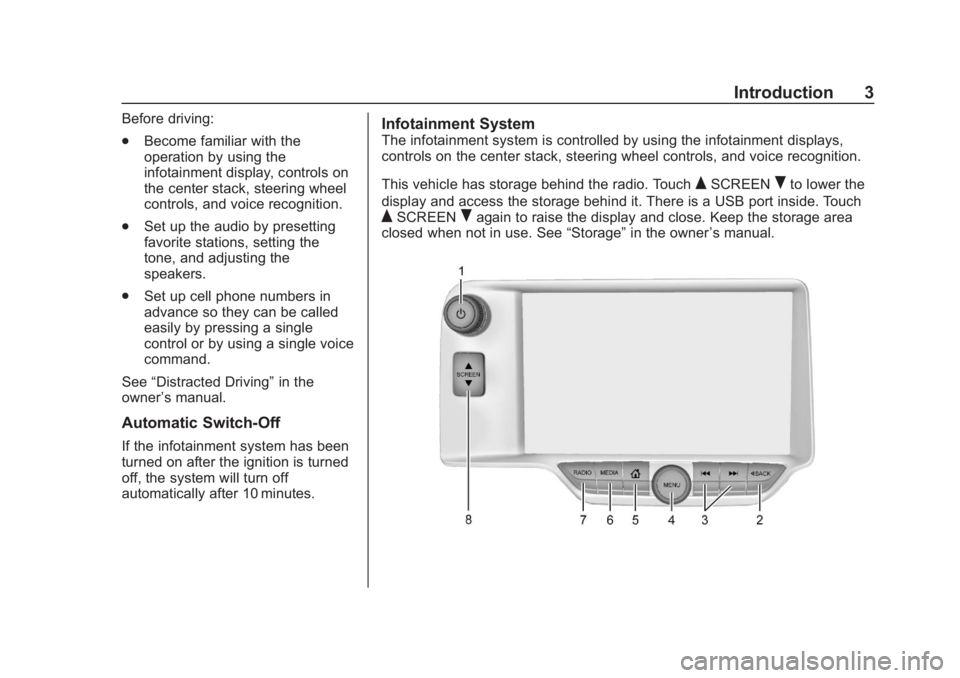
The infotainment system is controlled by using the infotainment displays,
controls on the center stack, steering wheel controls, and voice recognition.
This vehicle has storage behind the radio. Touch
QSCREENRto lower the
display and access the storage behind it. There is a USB port inside. Touch
QSCREENRagain to raise the display and close. Keep the storage area
closed when not in use. See “Storage”in the owner ’s manual.
Page 6 of 90
Chevrolet Corvette MyLink Infotainment System(GMNA-Localizing-U.S./
Canada-12145685) - 2019 - crc - 4/16/18
Introduction 5
Home Page
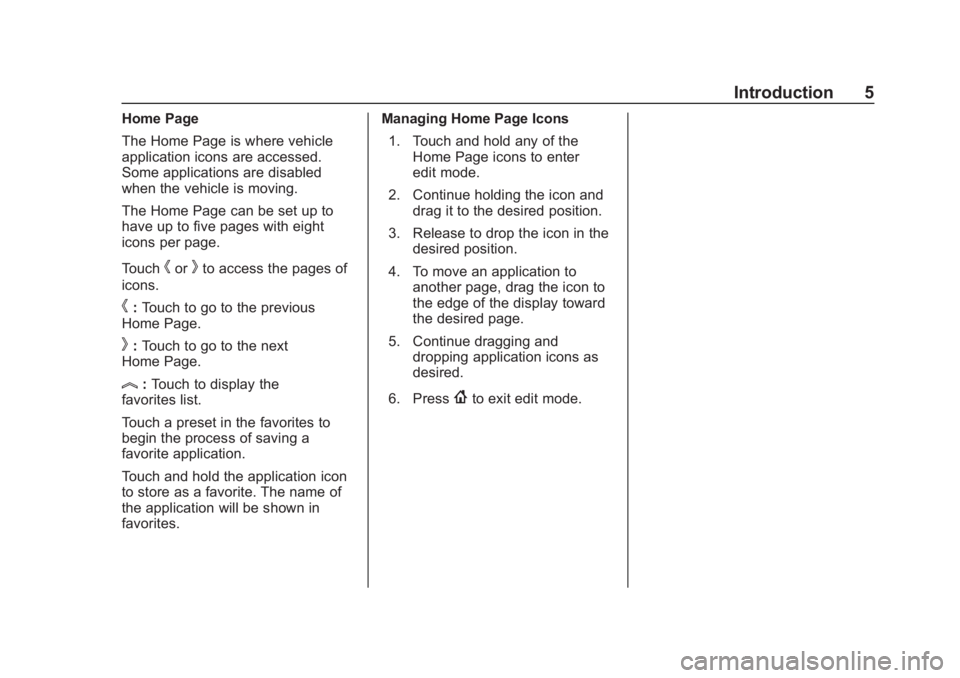
The Home Page is where vehicle
application icons are accessed.
Some applications are disabled
when the vehicle is moving.
The Home Page can be set up to
have up to five pages with eight
icons per page.
Touch
horkto access the pages of
icons.
h: Touch to go to the previous
Home Page.
k: Touch to go to the next
Home Page.
l: Touch to display the
favorites list.
Touch a preset in the favorites to
begin the process of saving a
favorite application.
Touch and hold the application icon
to store as a favorite. The name of
the application will be shown in
favorites. Managing Home Page Icons
1. Touch and hold any of the Home Page icons to enter
edit mode.
2. Continue holding the icon and drag it to the desired position.
3. Release to drop the icon in the desired position.
4. To move an application to another page, drag the icon to
the edge of the display toward
the desired page.
5. Continue dragging and dropping application icons as
desired.
6. Press{to exit edit mode.
Page 13 of 90
Chevrolet Corvette MyLink Infotainment System(GMNA-Localizing-U.S./
Canada-12145685) - 2019 - crc - 4/16/18
12 Radio
AM, FM, or SXM (if equipped) mode
or directly enter or tune to the
frequency on the keypad.
HD Radio multicast stations cannot
be tuned directly through the Direct
Tune feature. Only the analog or
HD1 station can use that feature.
Use the Tune icon to adjust to the
multicast stations.
AM-FM Categories
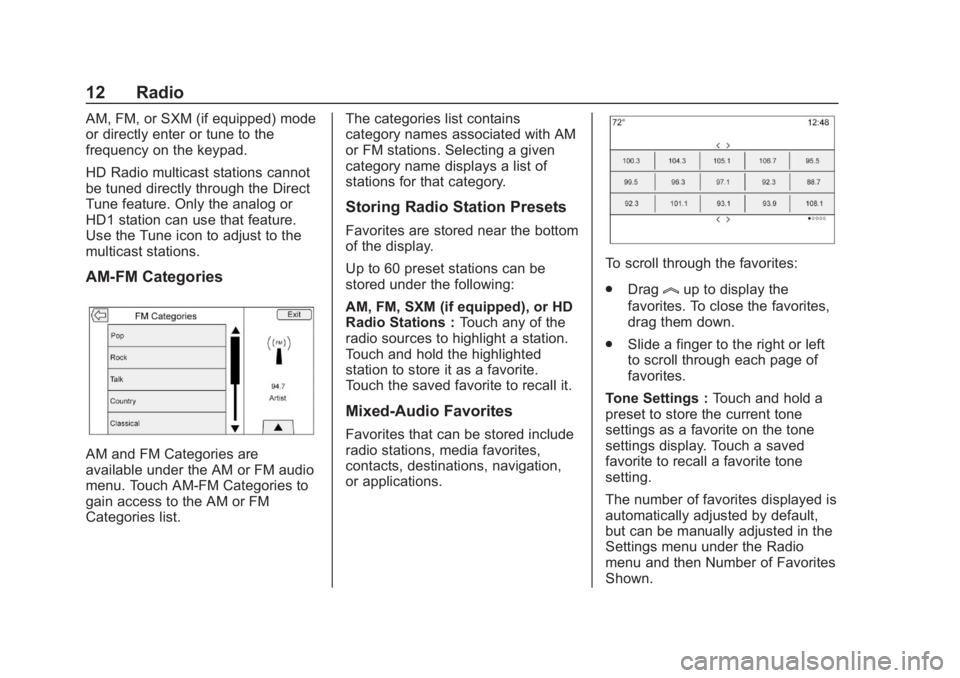
AM and FM Categories are
available under the AM or FM audio
menu. Touch AM-FM Categories to
gain access to the AM or FM
Categories list.The categories list contains
category names associated with AM
or FM stations. Selecting a given
category name displays a list of
stations for that category.
Storing Radio Station Presets
Favorites are stored near the bottom
of the display.
Up to 60 preset stations can be
stored under the following:
AM, FM, SXM (if equipped), or HD
Radio Stations :
Touch any of the
radio sources to highlight a station.
Touch and hold the highlighted
station to store it as a favorite.
Touch the saved favorite to recall it.
Mixed-Audio Favorites
Favorites that can be stored include
radio stations, media favorites,
contacts, destinations, navigation,
or applications.
To scroll through the favorites:
. Drag
lup to display the
favorites. To close the favorites,
drag them down.
. Slide a finger to the right or left
to scroll through each page of
favorites.
Tone Settings : Touch and hold a
preset to store the current tone
settings as a favorite on the tone
settings display. Touch a saved
favorite to recall a favorite tone
setting.
The number of favorites displayed is
automatically adjusted by default,
but can be manually adjusted in the
Settings menu under the Radio
menu and then Number of Favorites
Shown.
Page 20 of 90
Chevrolet Corvette MyLink Infotainment System(GMNA-Localizing-U.S./
Canada-12145685) - 2019 - crc - 4/16/18
Audio Players 19
connected phone is made, the
system will automatically mute the
iPhone audio.
If there is a loss of audio, playback
can be resumed by changing the
audio flow from Bluetooth to USB
cable.
To change the audio flow:1. While the iPhone is connected, double tap the phone’s
home page.
2. Swipe a finger to the left on the phone’s display. A box with a
triangle on the lower line of the
box that is highlighted shows.
Touch this box to display the
dock connector option.
3. Touch “Dock Connector.”
Other phones such as the Android
phones may have a similar reaction.
Bluetooth Streaming Audio and
Voice Recognition
See Bluetooth Audio 020 for
information using voice recognition
with Bluetooth streaming audio. Make sure all devices have the
latest software downloaded.
Storing and Recalling Media
Favorites
To store media favorites, touch and
hold an open favorite during media
playback to display a list of media
types. Select from this list.
The media types that may
display are:
Genres :
Touch and hold a preset
to store the current genre as a
favorite. Touch a saved favorite to
recall a favorite genre. The first
song of the genre begins to play.
Artists : Touch and hold a preset to
store the current artist as a favorite.
Touch a saved favorite to recall a
favorite artist. The first song in the
artist list begins to play.
Albums : Touch and hold a preset
to store the current album as a
favorite. Touch a saved favorite to
recall a favorite album. The first
song in the album list begins to play. Playlists :
Touch and hold a preset
to store the current playlist as a
favorite. Touch a saved favorite to
recall a favorite playlist. The first
song in the playlist begins to play.
Songs : Touch and hold a preset to
store the current song as a favorite.
Touch a saved favorite to recall a
favorite song.
Podcasts or Podcast Episode :
Touch and hold a preset to store the
current podcast as a favorite. Touch
a saved favorite to recall a favorite
podcast or podcast episode. The
podcast or podcast episode begins
to play.
Audiobooks : Touch and hold a
preset to store the current
audiobook as a favorite. Touch a
saved favorite to recall a favorite
audiobook. The first chapter in the
audiobook begins to play.
Page 29 of 90
Chevrolet Corvette MyLink Infotainment System(GMNA-Localizing-U.S./
Canada-12145685) - 2019 - crc - 4/16/18
28 Navigation
Route segment preferences are
other options showing on the
Routing Preferences menu.
These include:
.Use Toll Roads On-Off
. Use Freeways On-Off
. Use Carpool Lanes On-Off
. Avoid Slow Traffic On-Off
. Use Tunnels On-Off
. Use Time Restricted Roads
On-Off
Display Places of Interest Icons
Places of Interest (POI) icons can
be displayed on the map using
this view.. The POI icons can be turned On
and Off. Touch the check box
next to the POI icon to display
the icon.
. Touch Clear All to reset the
icons that are displayed on
the map.
. A subcategory can be selected
instead of the entire category.
Touch the list item rather than
the check box. The
subcategories will display. Touch
any of those categories to
navigate down the hierarchy.
. When a higher-level category
has some of its subcategories
selected, the checkmark next to
it is grayed out. This indicates
that only some of the categories
below are shown. Touch the
grayed-out checkmark to turn all
of the icons for that category on
or off. Personal Data
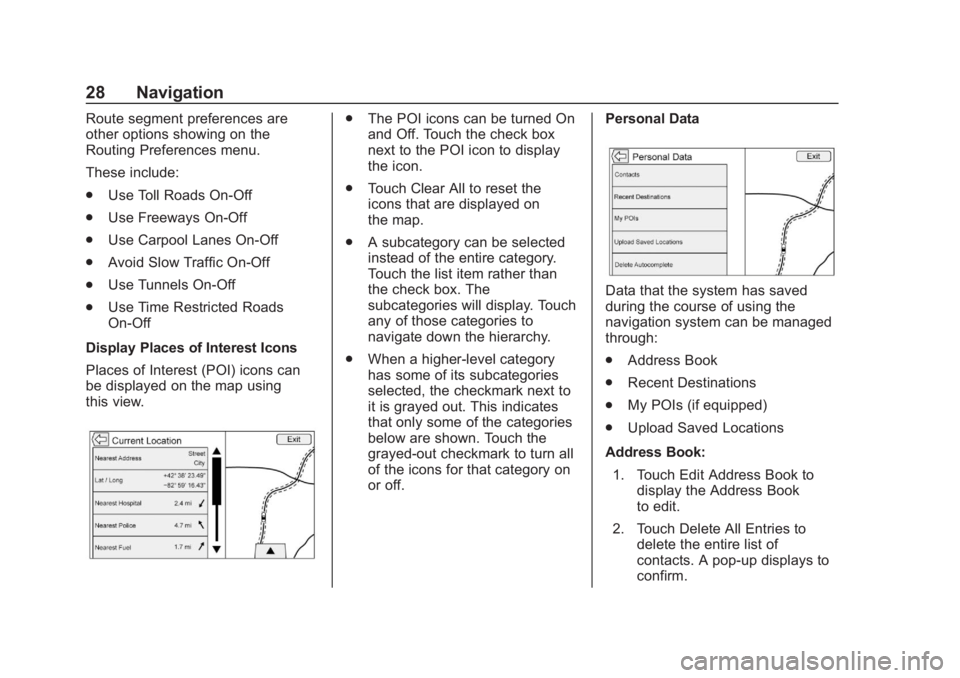
Data that the system has saved
during the course of using the
navigation system can be managed
through:
.
Address Book
. Recent Destinations
. My POIs (if equipped)
. Upload Saved Locations
Address Book: 1. Touch Edit Address Book to display the Address Book
to edit.
2. Touch Delete All Entries to delete the entire list of
contacts. A pop-up displays to
confirm.
Page 31 of 90
Chevrolet Corvette MyLink Infotainment System(GMNA-Localizing-U.S./
Canada-12145685) - 2019 - crc - 4/16/18
30 Navigation
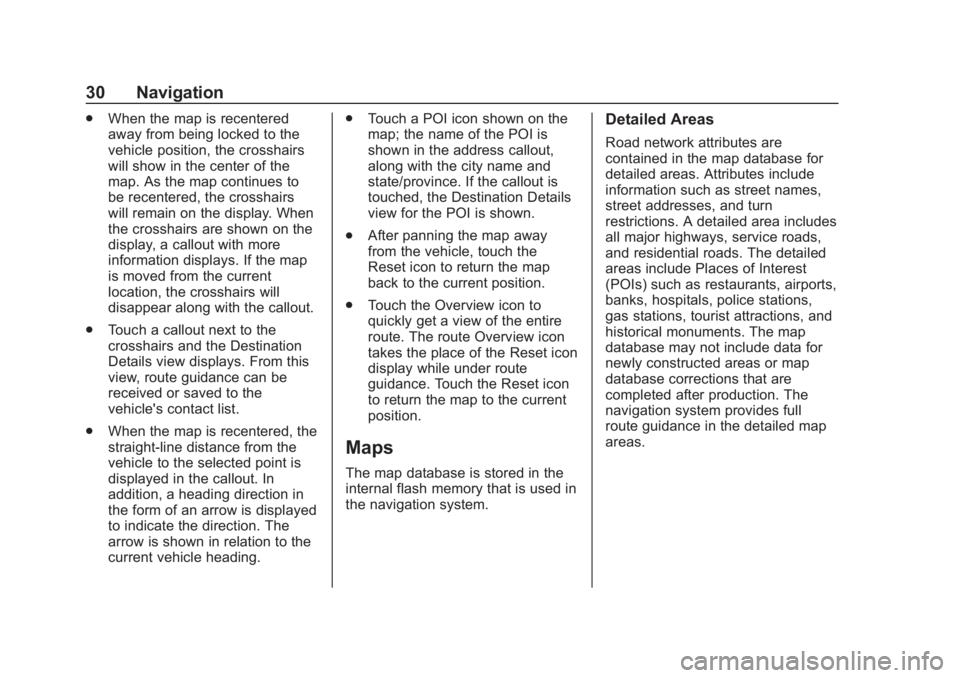
.When the map is recentered
away from being locked to the
vehicle position, the crosshairs
will show in the center of the
map. As the map continues to
be recentered, the crosshairs
will remain on the display. When
the crosshairs are shown on the
display, a callout with more
information displays. If the map
is moved from the current
location, the crosshairs will
disappear along with the callout.
. Touch a callout next to the
crosshairs and the Destination
Details view displays. From this
view, route guidance can be
received or saved to the
vehicle's contact list.
. When the map is recentered, the
straight-line distance from the
vehicle to the selected point is
displayed in the callout. In
addition, a heading direction in
the form of an arrow is displayed
to indicate the direction. The
arrow is shown in relation to the
current vehicle heading. .
Touch a POI icon shown on the
map; the name of the POI is
shown in the address callout,
along with the city name and
state/province. If the callout is
touched, the Destination Details
view for the POI is shown.
. After panning the map away
from the vehicle, touch the
Reset icon to return the map
back to the current position.
. Touch the Overview icon to
quickly get a view of the entire
route. The route Overview icon
takes the place of the Reset icon
display while under route
guidance. Touch the Reset icon
to return the map to the current
position.
Maps
The map database is stored in the
internal flash memory that is used in
the navigation system.
Detailed Areas
Road network attributes are
contained in the map database for
detailed areas. Attributes include
information such as street names,
street addresses, and turn
restrictions. A detailed area includes
all major highways, service roads,
and residential roads. The detailed
areas include Places of Interest
(POIs) such as restaurants, airports,
banks, hospitals, police stations,
gas stations, tourist attractions, and
historical monuments. The map
database may not include data for
newly constructed areas or map
database corrections that are
completed after production. The
navigation system provides full
route guidance in the detailed map
areas.
Page 39 of 90
Chevrolet Corvette MyLink Infotainment System(GMNA-Localizing-U.S./
Canada-12145685) - 2019 - crc - 4/16/18
38 Navigation
shown before continue to be
displayed and updated. The list
is also updated based on
where the map was panned or
zoomed. The search for POIs
is constrained to where the
map has been moved to.
6. If the search map is touched to recenter, the crosshairs are
shown to indicate the center of
the new search location. If a
POI icon is touched on while in
the full expanded map, a
callout for that location
displays. Touch the callout to
display the Destination
Details view.
7. Touch the map reset option to return the map to automatic
zooming and searching. It is
recentered around the vehicle’s
position, the route, the
destination, or another location
that was specified for the
search. The map Reset option
is only displayed if the map
was manually adjusted. If multiple types of matches are
found, the All list is shown with the
results sorted by confidence order
with the highest confidence result at
the top.
Using the Keyboard
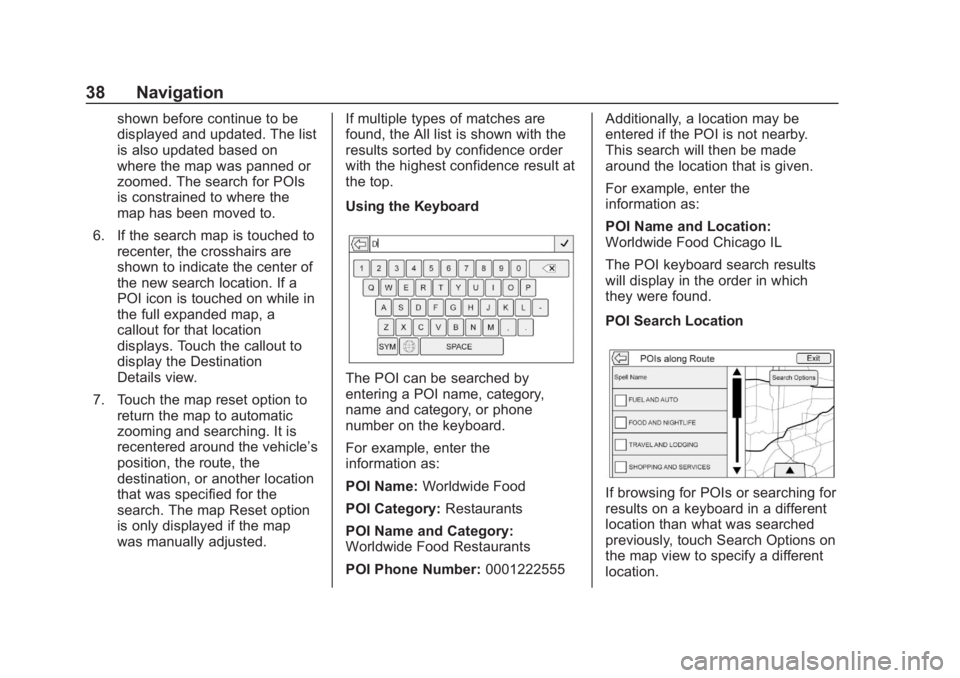
The POI can be searched by
entering a POI name, category,
name and category, or phone
number on the keyboard.
For example, enter the
information as:
POI Name:
Worldwide Food
POI Category: Restaurants
POI Name and Category:
Worldwide Food Restaurants
POI Phone Number: 0001222555Additionally, a location may be
entered if the POI is not nearby.
This search will then be made
around the location that is given.
For example, enter the
information as:
POI Name and Location:
Worldwide Food Chicago IL
The POI keyboard search results
will display in the order in which
they were found.
POI Search Location
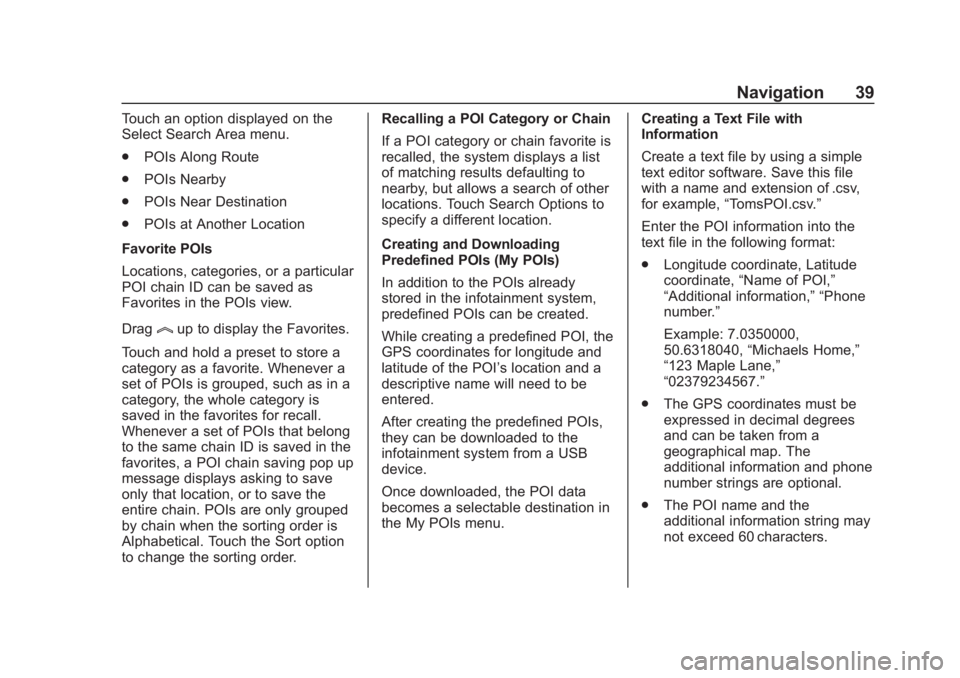
If browsing for POIs or searching for
results on a keyboard in a different
location than what was searched
previously, touch Search Options on
the map view to specify a different
location.
Page 40 of 90
Chevrolet Corvette MyLink Infotainment System(GMNA-Localizing-U.S./
Canada-12145685) - 2019 - crc - 4/16/18
Navigation 39
Touch an option displayed on the
Select Search Area menu.
.POIs Along Route
. POIs Nearby
. POIs Near Destination
. POIs at Another Location
Favorite POIs
Locations, categories, or a particular
POI chain ID can be saved as
Favorites in the POIs view.
Drag
lup to display the Favorites.
Touch and hold a preset to store a
category as a favorite. Whenever a
set of POIs is grouped, such as in a
category, the whole category is
saved in the favorites for recall.
Whenever a set of POIs that belong
to the same chain ID is saved in the
favorites, a POI chain saving pop up
message displays asking to save
only that location, or to save the
entire chain. POIs are only grouped
by chain when the sorting order is
Alphabetical. Touch the Sort option
to change the sorting order. Recalling a POI Category or Chain
If a POI category or chain favorite is
recalled, the system displays a list
of matching results defaulting to
nearby, but allows a search of other
locations. Touch Search Options to
specify a different location.
Creating and Downloading
Predefined POIs (My POIs)
In addition to the POIs already
stored in the infotainment system,
predefined POIs can be created.
While creating a predefined POI, the
GPS coordinates for longitude and
latitude of the POI’s location and a
descriptive name will need to be
entered.
After creating the predefined POIs,
they can be downloaded to the
infotainment system from a USB
device.
Once downloaded, the POI data
becomes a selectable destination in
the My POIs menu.
Creating a Text File with
Information
Create a text file by using a simple
text editor software. Save this file
with a name and extension of .csv,
for example,
“TomsPOI.csv.”
Enter the POI information into the
text file in the following format:
. Longitude coordinate, Latitude
coordinate, “Name of POI,”
“Additional information,” “Phone
number.”
Example: 7.0350000,
50.6318040, “Michaels Home,”
“123 Maple Lane,”
“02379234567.”
. The GPS coordinates must be
expressed in decimal degrees
and can be taken from a
geographical map. The
additional information and phone
number strings are optional.
. The POI name and the
additional information string may
not exceed 60 characters.
Page 42 of 90
Chevrolet Corvette MyLink Infotainment System(GMNA-Localizing-U.S./
Canada-12145685) - 2019 - crc - 4/16/18
Navigation 41
Changing POI Categories
POI categories can be assigned to a
different category by using the same
method as assigning a category for
an Address Book entry. When
editing, the right side of the display
shows the current category name.
Deleting POI Categories
POI categories can be deleted by
touching Edit and then Delete.
A pop-up displays to confirm the
deletion.
Saved Destinations
Touch a saved destination from the
Contacts or Recent Destinations.
Contacts
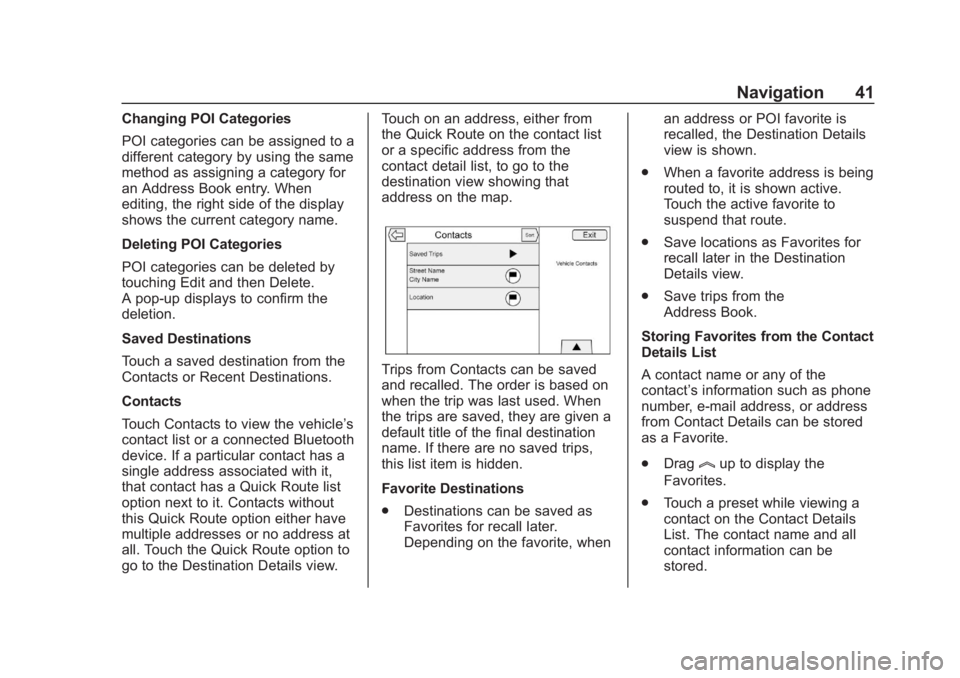
Touch Contacts to view the vehicle’s
contact list or a connected Bluetooth
device. If a particular contact has a
single address associated with it,
that contact has a Quick Route list
option next to it. Contacts without
this Quick Route option either have
multiple addresses or no address at
all. Touch the Quick Route option to
go to the Destination Details view. Touch on an address, either from
the Quick Route on the contact list
or a specific address from the
contact detail list, to go to the
destination view showing that
address on the map.
Trips from Contacts can be saved
and recalled. The order is based on
when the trip was last used. When
the trips are saved, they are given a
default title of the final destination
name. If there are no saved trips,
this list item is hidden.
Favorite Destinations
.
Destinations can be saved as
Favorites for recall later.
Depending on the favorite, when an address or POI favorite is
recalled, the Destination Details
view is shown.
. When a favorite address is being
routed to, it is shown active.
Touch the active favorite to
suspend that route.
. Save locations as Favorites for
recall later in the Destination
Details view.
. Save trips from the
Address Book.
Storing Favorites from the Contact
Details List
A contact name or any of the
contact’ s information such as phone
number, e-mail address, or address
from Contact Details can be stored
as a Favorite.
. Drag
lup to display the
Favorites.
. Touch a preset while viewing a
contact on the Contact Details
List. The contact name and all
contact information can be
stored.
Page 48 of 90
Chevrolet Corvette MyLink Infotainment System(GMNA-Localizing-U.S./
Canada-12145685) - 2019 - crc - 4/16/18
Navigation 47
Location
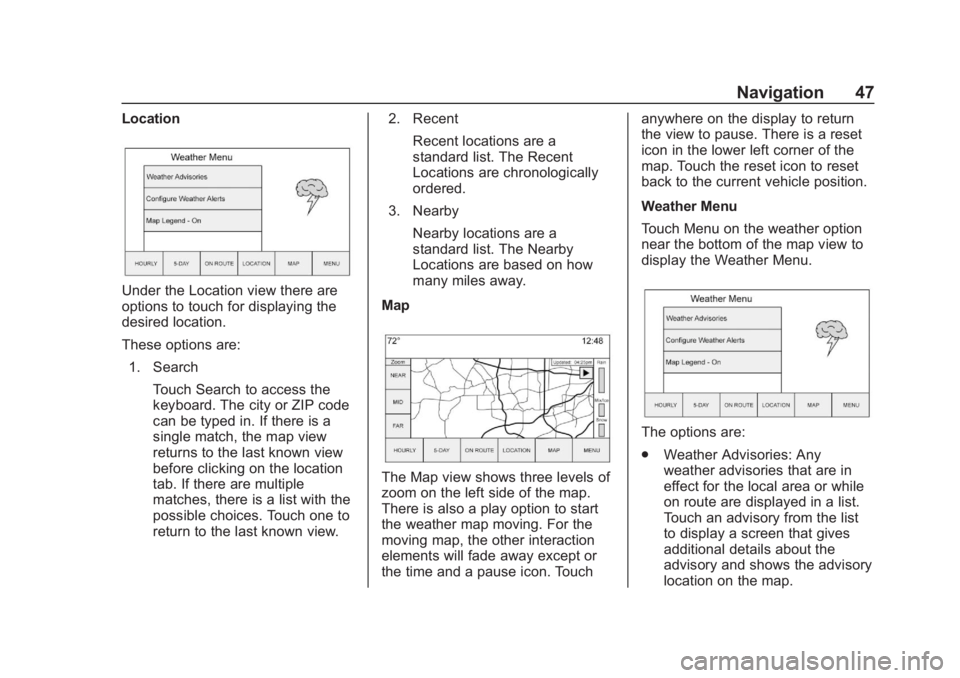
Under the Location view there are
options to touch for displaying the
desired location.
These options are:1. Search
Touch Search to access the
keyboard. The city or ZIP code
can be typed in. If there is a
single match, the map view
returns to the last known view
before clicking on the location
tab. If there are multiple
matches, there is a list with the
possible choices. Touch one to
return to the last known view. 2. Recent
Recent locations are a
standard list. The Recent
Locations are chronologically
ordered.
3. Nearby
Nearby locations are a
standard list. The Nearby
Locations are based on how
many miles away.
Map
The Map view shows three levels of
zoom on the left side of the map.
There is also a play option to start
the weather map moving. For the
moving map, the other interaction
elements will fade away except or
the time and a pause icon. Touch anywhere on the display to return
the view to pause. There is a reset
icon in the lower left corner of the
map. Touch the reset icon to reset
back to the current vehicle position.
Weather Menu
Touch Menu on the weather option
near the bottom of the map view to
display the Weather Menu.
The options are:
.
Weather Advisories: Any
weather advisories that are in
effect for the local area or while
on route are displayed in a list.
Touch an advisory from the list
to display a screen that gives
additional details about the
advisory and shows the advisory
location on the map.