steering CHEVROLET CORVETTE 2019 Owner's Guide
[x] Cancel search | Manufacturer: CHEVROLET, Model Year: 2019, Model line: CORVETTE, Model: CHEVROLET CORVETTE 2019Pages: 367, PDF Size: 6.8 MB
Page 99 of 367
Chevrolet Corvette Owner Manual (GMNA-Localizing-U.S./Canada/Mexico-
12032182) - 2019 - crc - 5/8/18
98 Instruments and Controls
Instruments and
Controls
Controls
Steering Wheel Adjustment . . . . 99
Steering Wheel Controls . . . . . . . 99
Horn . . . . . . . . . . . . . . . . . . . . . . . . . . . 99
Windshield Wiper/Washer . . . . . . 99
Compass . . . . . . . . . . . . . . . . . . . . . 100
Clock . . . . . . . . . . . . . . . . . . . . . . . . . 100
Power Outlets . . . . . . . . . . . . . . . . 101
Warning Lights, Gauges, and
Indicators
Warning Lights, Gauges, andIndicators . . . . . . . . . . . . . . . . . . . 102
Instrument Cluster . . . . . . . . . . . . 103
Speedometer . . . . . . . . . . . . . . . . . 108
Odometer . . . . . . . . . . . . . . . . . . . . . 108
Trip Odometer . . . . . . . . . . . . . . . . 108
Tachometer . . . . . . . . . . . . . . . . . . . 108
Fuel Gauge . . . . . . . . . . . . . . . . . . . 109
Boost Gauge (Z06 and ZR1) . . . . . . . . . . . . . . 110
Engine Coolant Temperature Gauge . . . . . . . . . . . . . . . . . . . . . . 110
Seat Belt Reminders . . . . . . . . . . 111
Airbag Readiness Light . . . . . . . 112 Passenger Airbag Status
Indicator . . . . . . . . . . . . . . . . . . . . . 112
Charging System Light . . . . . . . 113
Malfunction Indicator Lamp (Check Engine Light) . . . . . . . . 113
Brake System Warning Light . . . . . . . . . . . . . . . . . . . . . . . . 115
Electric Parking Brake Light . . . . . . . . . . . . . . . . . . . . . . . . 116
Service Electric Parking Brake Light . . . . . . . . . . . . . . . . . . . . . . . . 116
Antilock Brake System (ABS) Warning Light . . . . . . . . . . . . . . . 117
Traction Off Light . . . . . . . . . . . . . 117
Traction Control System (TCS)/ Electronic Stability Control
Light . . . . . . . . . . . . . . . . . . . . . . . . 117
Electronic Stability Control (ESC) Off Light . . . . . . . . . . . . . . 118
Engine Coolant Temperature Warning Light . . . . . . . . . . . . . . . 118
Tire Pressure Light . . . . . . . . . . . 118
Engine Oil Pressure Light . . . . . 119
Low Fuel Warning Light . . . . . . . 119
Security Light . . . . . . . . . . . . . . . . . 120
High-Beam On Light . . . . . . . . . . 120
Lamps On Reminder . . . . . . . . . 120
Cruise Control Light . . . . . . . . . . 120
Door Ajar Light . . . . . . . . . . . . . . . 120
Information Displays
Driver Information Center (DIC) . . . . . . . . . . . . . . . . 121
Head-Up Display (HUD) . . . . . . 123
Vehicle Messages
Vehicle Messages . . . . . . . . . . . . 127
Engine Power Messages . . . . . 128
Vehicle Speed Messages . . . . . 128
Vehicle Personalization
Vehicle Personalization . . . . . . . 128
Universal Remote System
Universal Remote System . . . . 135
Universal Remote System Programming . . . . . . . . . . . . . . . 135
Universal Remote System Operation . . . . . . . . . . . . . . . . . . . 138
Page 100 of 367
Chevrolet Corvette Owner Manual (GMNA-Localizing-U.S./Canada/Mexico-
12032182) - 2019 - crc - 5/8/18
Instruments and Controls 99
Controls
Steering Wheel
Adjustment
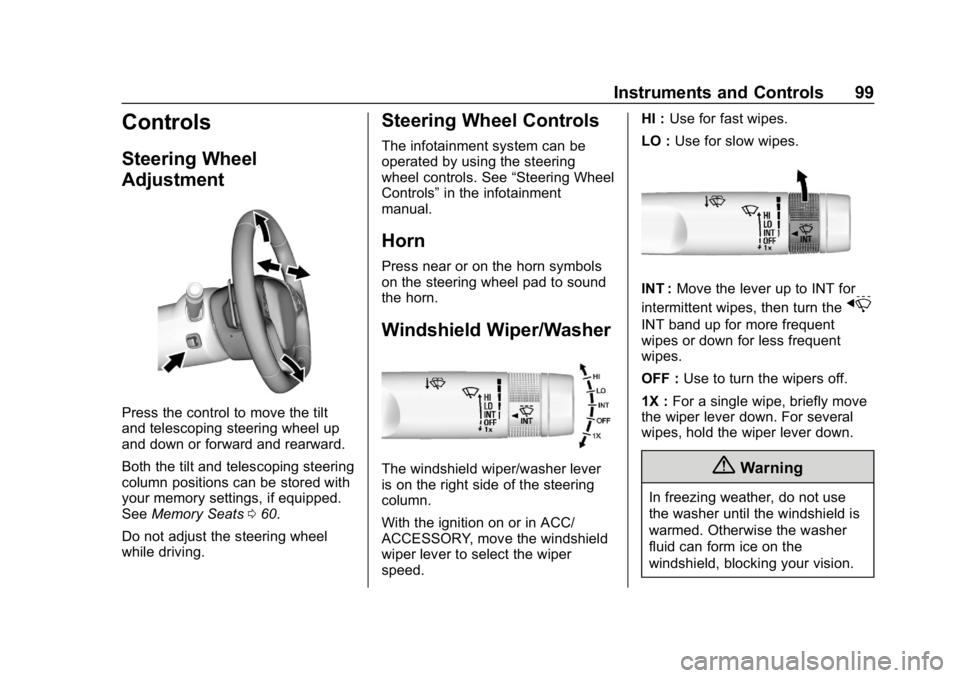
Press the control to move the tilt
and telescoping steering wheel up
and down or forward and rearward.
Both the tilt and telescoping steering
column positions can be stored with
your memory settings, if equipped.
SeeMemory Seats 060.
Do not adjust the steering wheel
while driving.
Steering Wheel Controls
The infotainment system can be
operated by using the steering
wheel controls. See “Steering Wheel
Controls” in the infotainment
manual.
Horn
Press near or on the horn symbols
on the steering wheel pad to sound
the horn.
Windshield Wiper/Washer
The windshield wiper/washer lever
is on the right side of the steering
column.
With the ignition on or in ACC/
ACCESSORY, move the windshield
wiper lever to select the wiper
speed. HI :
Use for fast wipes.
LO : Use for slow wipes.
INT : Move the lever up to INT for
intermittent wipes, then turn the
x
INT band up for more frequent
wipes or down for less frequent
wipes.
OFF : Use to turn the wipers off.
1X : For a single wipe, briefly move
the wiper lever down. For several
wipes, hold the wiper lever down.
{Warning
In freezing weather, do not use
the washer until the windshield is
warmed. Otherwise the washer
fluid can form ice on the
windshield, blocking your vision.
Page 107 of 367
Chevrolet Corvette Owner Manual (GMNA-Localizing-U.S./Canada/Mexico-
12032182) - 2019 - crc - 5/8/18
106 Instruments and Controls
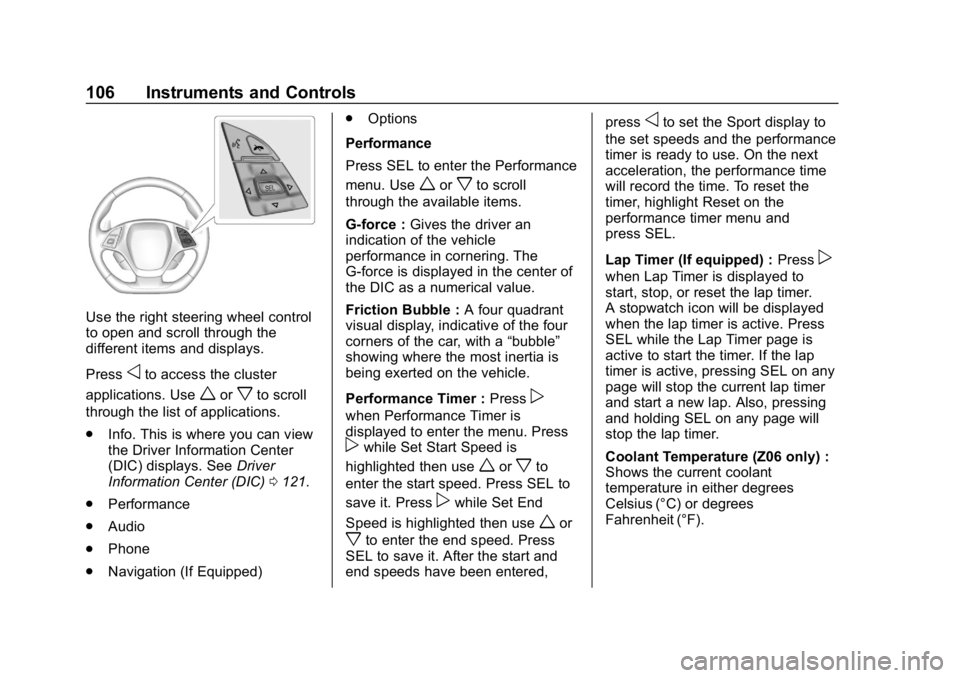
Use the right steering wheel control
to open and scroll through the
different items and displays.
Press
oto access the cluster
applications. Use
worxto scroll
through the list of applications.
. Info. This is where you can view
the Driver Information Center
(DIC) displays. See Driver
Information Center (DIC) 0121.
. Performance
. Audio
. Phone
. Navigation (If Equipped) .
Options
Performance
Press SEL to enter the Performance
menu. Use
worxto scroll
through the available items.
G-force : Gives the driver an
indication of the vehicle
performance in cornering. The
G-force is displayed in the center of
the DIC as a numerical value.
Friction Bubble : A four quadrant
visual display, indicative of the four
corners of the car, with a “bubble”
showing where the most inertia is
being exerted on the vehicle.
Performance Timer : Press
p
when Performance Timer is
displayed to enter the menu. Press
pwhile Set Start Speed is
highlighted then use
worxto
enter the start speed. Press SEL to
save it. Press
pwhile Set End
Speed is highlighted then use
wor
xto enter the end speed. Press
SEL to save it. After the start and
end speeds have been entered, press
oto set the Sport display to
the set speeds and the performance
timer is ready to use. On the next
acceleration, the performance time
will record the time. To reset the
timer, highlight Reset on the
performance timer menu and
press SEL.
Lap Timer (If equipped) : Press
p
when Lap Timer is displayed to
start, stop, or reset the lap timer.
A stopwatch icon will be displayed
when the lap timer is active. Press
SEL while the Lap Timer page is
active to start the timer. If the lap
timer is active, pressing SEL on any
page will stop the current lap timer
and start a new lap. Also, pressing
and holding SEL on any page will
stop the lap timer.
Coolant Temperature (Z06 only) :
Shows the current coolant
temperature in either degrees
Celsius (°C) or degrees
Fahrenheit (°F).
Page 109 of 367
Chevrolet Corvette Owner Manual (GMNA-Localizing-U.S./Canada/Mexico-
12032182) - 2019 - crc - 5/8/18
108 Instruments and Controls
on the steering wheel controls while
Head-up Display Rotation is
highlighted to enter Adjust Mode.
Press
worxto adjust the angle of
the HUD display. Press SEL to
confirm and save the setting. To
cancel the setting, press
o. The
vehicle must be in P (Park).
Speed Warning : The Speed
Warning display allows the driver to
set a speed that they do not want to
exceed. To set the Speed Warning,
press
pwhen Speed Warning is
displayed. Enable the speed
warning and then use
worxto
adjust the value. Press SEL to set
the speed. Once the speed is set,
this feature can be turned off by
pressing SEL while viewing this
page. If the selected speed limit is
exceeded, a pop-up warning is
displayed with a chime.
Pocket Gauges : Press
pwhile
Pocket Gauges is displayed to enter
the menu and select gauges that
can be displayed for the Sport
theme on the left or right of the
display area. Choose from Oil Pressure Gauge, Oil Temperature
Gauge, Battery Voltage,
Transmission Fluid Temperature
Gauge, Horsepower, or a blank
gauge.
Software Info :
Press
pwhile
Software Info is highlighted to
display open source software
information.
Speedometer
The speedometer shows the
vehicle's speed in either kilometers
per hour (km/h) or miles per
hour (mph).
Odometer
The odometer shows how far the
vehicle has been driven, in either
kilometers or miles.
Trip Odometer
The trip odometer shows how far
the vehicle has been driven since
the trip odometer was last reset. The trip odometer is accessed and
reset through the Driver Information
Center (DIC). See
Driver
Information Center (DIC) 0121.
Tachometer
The tachometer displays the engine
speed in revolutions per
minute (rpm).
Caution
If the engine is operated with the
rpm’s in the warning area at the
high end of the tachometer, the
vehicle could be damaged, and
the damage would not be covered
by the vehicle warranty. Do not
operate the engine with the rpm’s
in the warning area.
Page 116 of 367
Chevrolet Corvette Owner Manual (GMNA-Localizing-U.S./Canada/Mexico-
12032182) - 2019 - crc - 5/8/18
Instruments and Controls 115
.Poor fuel quality can cause
inefficient engine operation and
poor driveability, which may go
away once the engine is warmed
up. If this occurs, change the
fuel brand. It may require at
least one full tank of the proper
fuel to turn the light off.
See Recommended Fuel
(LT1 6.2L V8 Engine) 0212 or
Recommended Fuel (LT4 and
LT5 6.2L Supercharged
V8 Engines) 0213.
If the light remains on, see your
dealer.
Emissions Inspection and
Maintenance Programs
If the vehicle requires an Emissions
Inspection/Maintenance test, the
test equipment will likely connect to
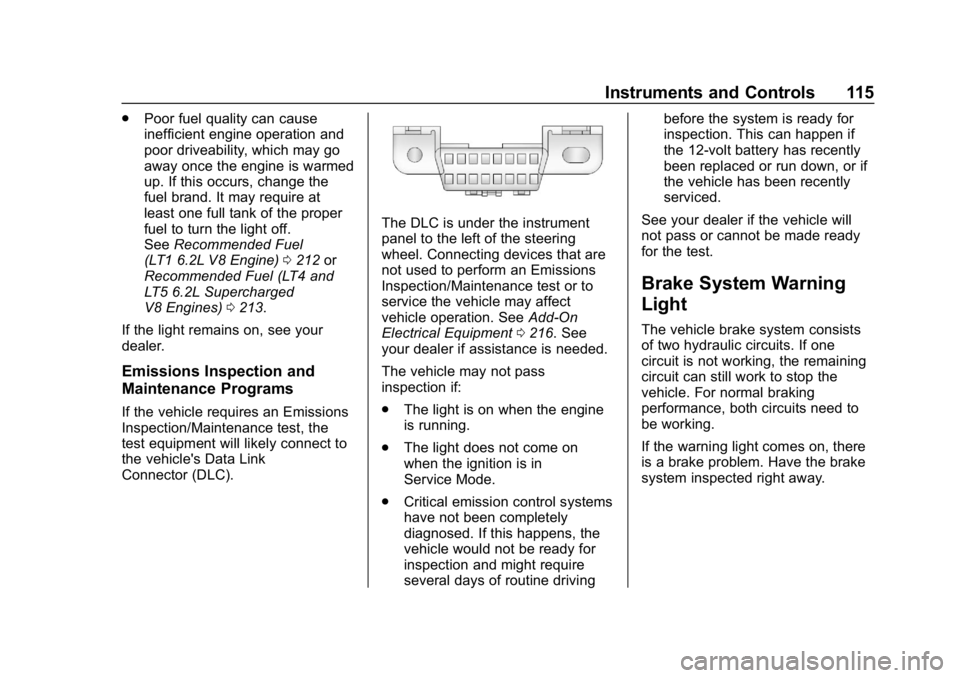
the vehicle's Data Link
Connector (DLC).
The DLC is under the instrument
panel to the left of the steering
wheel. Connecting devices that are
not used to perform an Emissions
Inspection/Maintenance test or to
service the vehicle may affect
vehicle operation. See Add-On
Electrical Equipment 0216. See
your dealer if assistance is needed.
The vehicle may not pass
inspection if:
. The light is on when the engine
is running.
. The light does not come on
when the ignition is in
Service Mode.
. Critical emission control systems
have not been completely
diagnosed. If this happens, the
vehicle would not be ready for
inspection and might require
several days of routine driving before the system is ready for
inspection. This can happen if
the 12-volt battery has recently
been replaced or run down, or if
the vehicle has been recently
serviced.
See your dealer if the vehicle will
not pass or cannot be made ready
for the test.
Brake System Warning
Light
The vehicle brake system consists
of two hydraulic circuits. If one
circuit is not working, the remaining
circuit can still work to stop the
vehicle. For normal braking
performance, both circuits need to
be working.
If the warning light comes on, there
is a brake problem. Have the brake
system inspected right away.
Page 122 of 367
Chevrolet Corvette Owner Manual (GMNA-Localizing-U.S./Canada/Mexico-
12032182) - 2019 - crc - 5/8/18
Instruments and Controls 121
Information Displays
Driver Information
Center (DIC)
The DIC displays are shown in the
center of the instrument cluster in
the Info application. SeeInstrument
Cluster 0103. The Info application
is only available when the ignition is
on. The displays show the status of
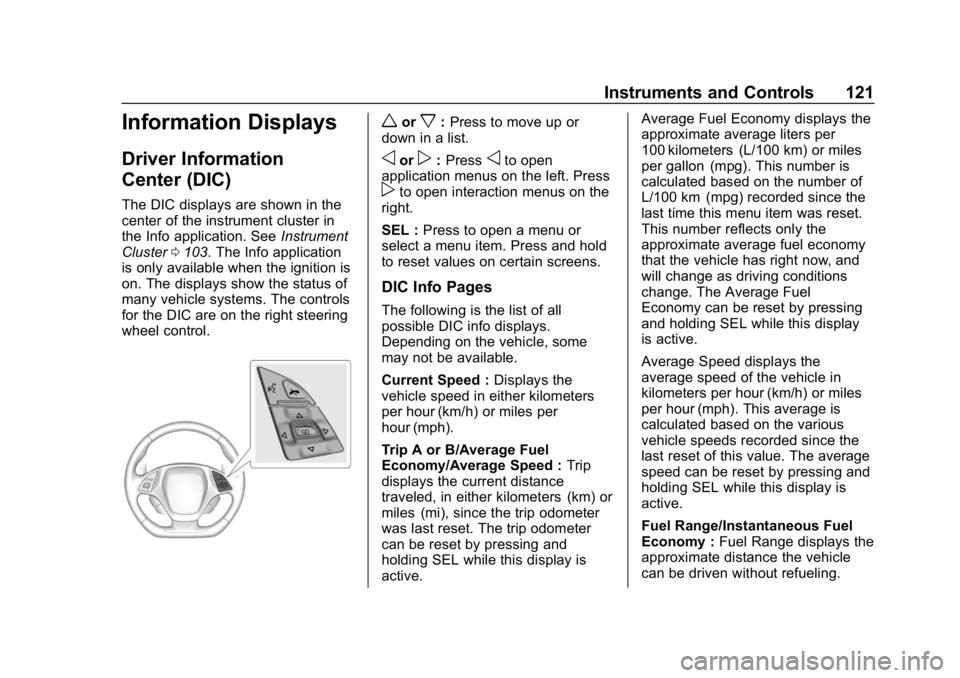
many vehicle systems. The controls
for the DIC are on the right steering
wheel control.
worx: Press to move up or
down in a list.
oorp: Pressoto open
application menus on the left. Press
pto open interaction menus on the
right.
SEL : Press to open a menu or
select a menu item. Press and hold
to reset values on certain screens.
DIC Info Pages
The following is the list of all
possible DIC info displays.
Depending on the vehicle, some
may not be available.
Current Speed : Displays the
vehicle speed in either kilometers
per hour (km/h) or miles per
hour (mph).
Trip A or B/Average Fuel
Economy/Average Speed : Trip
displays the current distance
traveled, in either kilometers (km) or
miles (mi), since the trip odometer
was last reset. The trip odometer
can be reset by pressing and
holding SEL while this display is
active. Average Fuel Economy displays the
approximate average liters per
100 kilometers (L/100 km) or miles
per gallon (mpg). This number is
calculated based on the number of
L/100 km (mpg) recorded since the
last time this menu item was reset.
This number reflects only the
approximate average fuel economy
that the vehicle has right now, and
will change as driving conditions
change. The Average Fuel
Economy can be reset by pressing
and holding SEL while this display
is active.
Average Speed displays the
average speed of the vehicle in
kilometers per hour (km/h) or miles
per hour (mph). This average is
calculated based on the various
vehicle speeds recorded since the
last reset of this value. The average
speed can be reset by pressing and
holding SEL while this display is
active.
Fuel Range/Instantaneous Fuel
Economy :
Fuel Range displays the
approximate distance the vehicle
can be driven without refueling.
Page 125 of 367
Chevrolet Corvette Owner Manual (GMNA-Localizing-U.S./Canada/Mexico-
12032182) - 2019 - crc - 5/8/18
124 Instruments and Controls
into the next higher gear. An
arrow pointing up will light up on
the display just prior to reaching
the engine fuel cut-off mode.
. G-Force Gauge
. Audio Information
. Upcoming Maneuver from
OnBoard Navigation
. Upcoming Maneuver from
OnStar
. Incoming Call
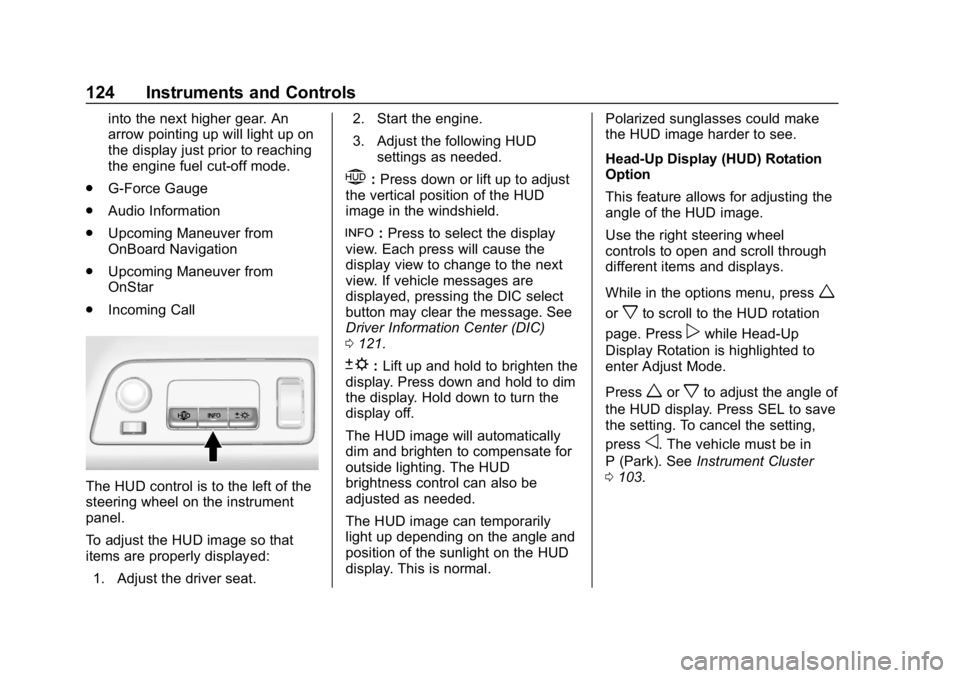
The HUD control is to the left of the
steering wheel on the instrument
panel.
To adjust the HUD image so that
items are properly displayed:
1. Adjust the driver seat. 2. Start the engine.
3. Adjust the following HUD
settings as needed.
$:Press down or lift up to adjust
the vertical position of the HUD
image in the windshield.
!: Press to select the display
view. Each press will cause the
display view to change to the next
view. If vehicle messages are
displayed, pressing the DIC select
button may clear the message. See
Driver Information Center (DIC)
0 121.
D:Lift up and hold to brighten the
display. Press down and hold to dim
the display. Hold down to turn the
display off.
The HUD image will automatically
dim and brighten to compensate for
outside lighting. The HUD
brightness control can also be
adjusted as needed.
The HUD image can temporarily
light up depending on the angle and
position of the sunlight on the HUD
display. This is normal. Polarized sunglasses could make
the HUD image harder to see.
Head-Up Display (HUD) Rotation
Option
This feature allows for adjusting the
angle of the HUD image.
Use the right steering wheel
controls to open and scroll through
different items and displays.
While in the options menu, press
w
orxto scroll to the HUD rotation
page. Press
pwhile Head-Up
Display Rotation is highlighted to
enter Adjust Mode.
Press
worxto adjust the angle of
the HUD display. Press SEL to save
the setting. To cancel the setting,
press
o. The vehicle must be in
P (Park). See Instrument Cluster
0 103.
Page 129 of 367
Chevrolet Corvette Owner Manual (GMNA-Localizing-U.S./Canada/Mexico-
12032182) - 2019 - crc - 5/8/18
128 Instruments and Controls
.Brakes
. Steering
. Ride Control Systems
. Driver Assistance Systems
. Cruise Control
. Lighting and Bulb Replacement
. Wiper/Washer Systems
. Doors and Windows
. Seat Belts
. Airbag Systems
. Engine and Transmission
. Tire Pressure
. Battery
Engine Power Messages
ENGINE POWER IS REDUCED
This message displays when the
vehicle's propulsion power is
reduced. Reduced propulsion power
can affect the vehicle's ability to
accelerate. If this message is on,
but there is no observed reduction
in performance, proceed to your
destination. The performance may be reduced the next time the vehicle
is driven. The vehicle may be driven
while this message is on, but
maximum acceleration and speed
may be reduced. Anytime this
message stays on, or displays
repeatedly, the vehicle should be
taken to your dealer for service as
soon as possible.
Vehicle Speed Messages
SPEED LIMITED TO
XXX KM/H (MPH)
This message shows that the
vehicle speed has been limited to
the speed displayed. The limited
speed is a protection for various
propulsion and vehicle systems,
such as lubrication, thermal,
suspension, or tires.
Vehicle
Personalization
Use the audio system controls to
access the personalization menus
for customizing vehicle features.
The following are all possible
personalization features. Depending
on the vehicle, some may not be
available.
Infotainment System Audio
System Controls
To access the
personalization menu:
1. Touch SETTINGS on the Home Page on the infotainment
display.
2. Touch the desired feature to display a list of available
options.
3. Touch to select the desired feature setting.
4. Press
oBACK on the center
stack or touch Back on the
infotainment display to return to
the previous menu.
Page 130 of 367
Chevrolet Corvette Owner Manual (GMNA-Localizing-U.S./Canada/Mexico-
12032182) - 2019 - crc - 5/8/18
Instruments and Controls 129
Personalization Menus
The following list of menu items may
be available:
.Time and Date
. Driving Mode
. Language
. Valet Mode
. Teen Driver
. Radio
. Vehicle
. Bluetooth
. Apple CarPlay
. Android Auto
. Voice
. Display
. Rear Camera
. Return to Factory Settings
. Software Information
. Wi-Fi
Each menu is detailed in the
following information.Time and Date
Manually set the time and date. See
Clock 0100.
Driving Mode
Select and the following may
display:
.
Engine Sound Management
. Steering
Engine Sound Management
This allows the Engine Sound
Management feature to be set
independent of the Driver Mode
Selector. See Track Events and
Competitive Driving 0161.
Select Auto (Mode Selector),
Stealth, Tour, Sport, or Track.
Steering
This allows the Steering feature to
be turned on or off.
Select Auto (Mode Selector), Tour,
Sport, or Track.
Language
Select Language, then select from
the available language(s). The selected language will display
on the system, and voice
recognition will reflect the selected
language.
Valet Mode
This will lock the infotainment
system and steering wheel controls.
It may also limit access to vehicle
storage locations.
To enable Valet Mode:
1. Enter a four-digit code on the keypad.
2. Select Enter to go to the confirmation screen.
3. Re-enter the four-digit code.
Touch Lock or Unlock to lock or
unlock the system. Touch Back to
go back to the previous menu.
Teen Driver
See “Teen Driver” under“Settings”
in the infotainment manual.
Page 150 of 367
Chevrolet Corvette Owner Manual (GMNA-Localizing-U.S./Canada/Mexico-
12032182) - 2019 - crc - 5/8/18
Infotainment System 149
.GPS Tracking Map: Shows the
vehicle’s current position relative
to a known route.
. Engine Rotations Per Minute
(RPMs): The vertical line and
triangle indicate current RPMs.
As the RPMs increase, the
backfill follows.
. Transmission State (Current
Gear): Same as Sport.
. Friction Bubble Graphic: Lateral
and longitudinal G-Forces are
displayed as a dot within a
bubble. A red dot displays when
the vehicle starts braking and
turns green when the vehicle
accelerates. The dot is white
when the vehicle is not moving.
A white dot is the default.
. Brake and Throttle Graphic:
Displays the percentage value of
brake and throttle pedal position
from 0–100%.
. Steering Angle: The graphic fills
from the center to the left or right
depending on the direction of steering. The numerical steering
angle displays below the
graphic.
. Active Handling Active Indicator:
The graphic only displays if the
active handling systems are
activated.
. Performance Traction
Management (PTM) Mode:
Displays the current PTM mode.
The options are Wet, Dry, Sport
1, Sport 2, or Race.
. Current Lap Time: Displays the
elapsed lap time if the finish line
is defined and the vehicle has
crossed the defined finish line at
least once.
. Event Odometer: This displays
the distance driven since the
recording began.
. Drive Mode: Displays the
vehicle’s current drive mode. Performance Timing:
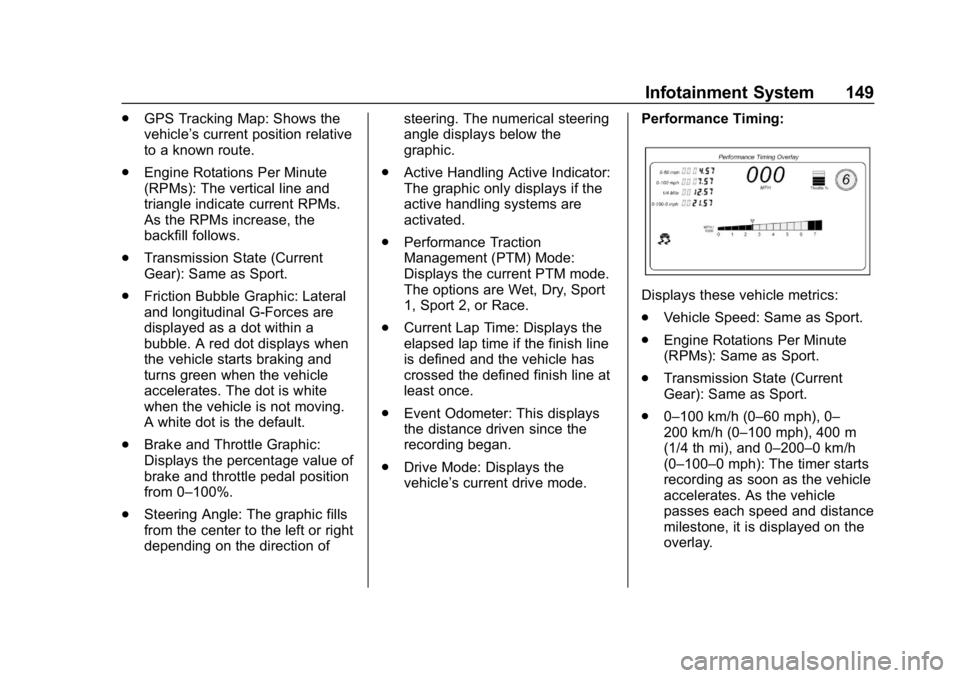
Displays these vehicle metrics:
.
Vehicle Speed: Same as Sport.
. Engine Rotations Per Minute
(RPMs): Same as Sport.
. Transmission State (Current
Gear): Same as Sport.
. 0–100 km/h (0–60 mph), 0–
200 km/h (0–100 mph), 400 m
(1/4 th mi), and 0–200–0 km/h
(0–100–0 mph): The timer starts
recording as soon as the vehicle
accelerates. As the vehicle
passes each speed and distance
milestone, it is displayed on the
overlay.