instrument cluster CHEVROLET CORVETTE 2021 User Guide
[x] Cancel search | Manufacturer: CHEVROLET, Model Year: 2021, Model line: CORVETTE, Model: CHEVROLET CORVETTE 2021Pages: 338, PDF Size: 6.56 MB
Page 95 of 338
Chevrolet Corvette Owner Manual (GMNA-Localizing-U.S./Canada/Mexico-
14622938) - 2021 - CRC - 2/10/21
94 Instruments and Controls
Fuel Economy :Displays the average fuel
economy, the best fuel economy over the
selected distance, and a bar graph showing
instantaneous fuel economy. Pressing the
thumbwheel will open a menu to change
the selected distance or reset the current
values.
Timer/Fuel Used : This display can be used
as a timer. To start/stop the timer, press the
thumbwheel while this display is active and
then select the start/stop the timer. The
display will show the amount of time that
has passed since the timer was last reset. To
reset the timer to zero, press the
thumbwheel to access the menu while this
display is active.
Fuel Used displays the approximate liters (L)
or gallons (gal) of fuel that have been used
since last reset. The fuel used can be reset
by pressing the thumbwheel and selecting
Reset Fuel Used in the menu.
Economy Trend : Shows the instantaneous
fuel economy and current gas mileage.
Speed Limit : Displays sign information,
which comes from a roadway database in
the on-board navigation. Engine Hours/Lifetime Revs :
Displays the
total number of hours the engine has run.
It also shows total engine revolutions
divided by 10,000.
Head-Up Display (HUD)
{Warning
If the HUD image is too bright, or too
high in your field of view, it may take
you more time to see things you need to
see when it is dark outside. Be sure to
keep the HUD image dim and placed low
in your field of view.
If equipped with HUD, some information
concerning the operation of the vehicle is
projected onto the windshield.
The HUD information appears as an image
focused out toward the front of the vehicle.
Caution
If you try to use the HUD image as a
parking aid, you may misjudge the
distance and damage your vehicle. Do not
use the HUD image as a parking aid. The HUD information can be displayed in
various languages. The speedometer reading
and other numerical values can be displayed
in either English or metric units.
The language selection is changed through
the radio and the units of measurement is
changed through the instrument cluster. See
Vehicle Personalization
098 and “Settings”
under Instrument Cluster 080.
The HUD may display different alerts and
information for vehicles equipped with these
features:
.Speedometer
.Tachometer
.Manual Paddle Shift Gear Indicator
These displays on the HUD are for use
when using the manual paddle shift
controls to shift the transmission. See
“Manual Paddle Shift” inDual Clutch
Transmission 0198.
.G-Force Gauge
.Upcoming Maneuver from On-Board
Navigation
.Upcoming Maneuver from OnStar
.Incoming Call
Page 96 of 338
Chevrolet Corvette Owner Manual (GMNA-Localizing-U.S./Canada/Mexico-
14622938) - 2021 - CRC - 2/10/21
Instruments and Controls 95
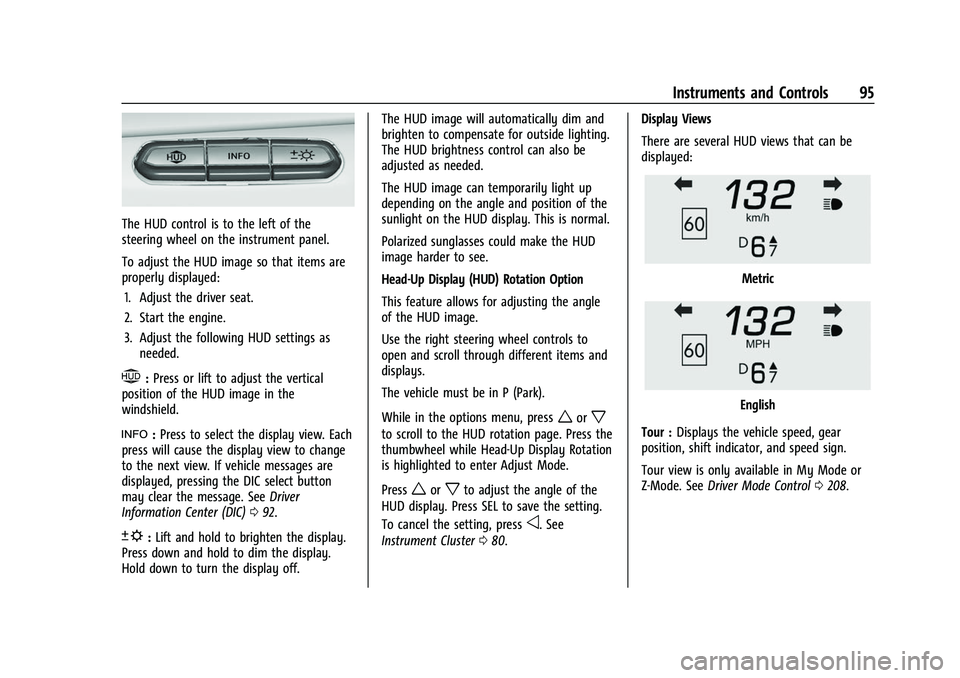
The HUD control is to the left of the
steering wheel on the instrument panel.
To adjust the HUD image so that items are
properly displayed:1. Adjust the driver seat.
2. Start the engine.
3. Adjust the following HUD settings as needed.
$:Press or lift to adjust the vertical
position of the HUD image in the
windshield.
!: Press to select the display view. Each
press will cause the display view to change
to the next view. If vehicle messages are
displayed, pressing the DIC select button
may clear the message. See Driver
Information Center (DIC) 092.
D:Lift and hold to brighten the display.
Press down and hold to dim the display.
Hold down to turn the display off. The HUD image will automatically dim and
brighten to compensate for outside lighting.
The HUD brightness control can also be
adjusted as needed.
The HUD image can temporarily light up
depending on the angle and position of the
sunlight on the HUD display. This is normal.
Polarized sunglasses could make the HUD
image harder to see.
Head-Up Display (HUD) Rotation Option
This feature allows for adjusting the angle
of the HUD image.
Use the right steering wheel controls to
open and scroll through different items and
displays.
The vehicle must be in P (Park).
While in the options menu, press
worx
to scroll to the HUD rotation page. Press the
thumbwheel while Head-Up Display Rotation
is highlighted to enter Adjust Mode.
Press
worxto adjust the angle of the
HUD display. Press SEL to save the setting.
To cancel the setting, press
o. See
Instrument Cluster 080. Display Views
There are several HUD views that can be
displayed:
Metric
English
Tour : Displays the vehicle speed, gear
position, shift indicator, and speed sign.
Tour view is only available in My Mode or
Z-Mode. See Driver Mode Control 0208.
Page 98 of 338
Chevrolet Corvette Owner Manual (GMNA-Localizing-U.S./Canada/Mexico-
14622938) - 2021 - CRC - 2/10/21
Instruments and Controls 97
Metric
English
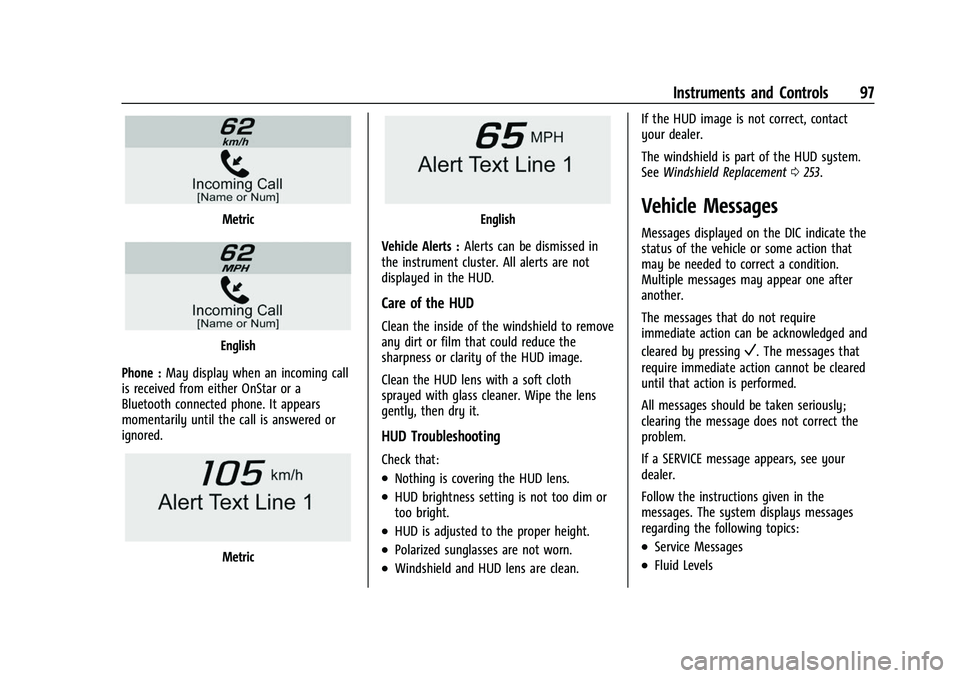
Phone : May display when an incoming call
is received from either OnStar or a
Bluetooth connected phone. It appears
momentarily until the call is answered or
ignored.
Metric
English
Vehicle Alerts : Alerts can be dismissed in
the instrument cluster. All alerts are not
displayed in the HUD.
Care of the HUD
Clean the inside of the windshield to remove
any dirt or film that could reduce the
sharpness or clarity of the HUD image.
Clean the HUD lens with a soft cloth
sprayed with glass cleaner. Wipe the lens
gently, then dry it.
HUD Troubleshooting
Check that:
.Nothing is covering the HUD lens.
.HUD brightness setting is not too dim or
too bright.
.HUD is adjusted to the proper height.
.Polarized sunglasses are not worn.
.Windshield and HUD lens are clean. If the HUD image is not correct, contact
your dealer.
The windshield is part of the HUD system.
See
Windshield Replacement 0253.
Vehicle Messages
Messages displayed on the DIC indicate the
status of the vehicle or some action that
may be needed to correct a condition.
Multiple messages may appear one after
another.
The messages that do not require
immediate action can be acknowledged and
cleared by pressing
V. The messages that
require immediate action cannot be cleared
until that action is performed.
All messages should be taken seriously;
clearing the message does not correct the
problem.
If a SERVICE message appears, see your
dealer.
Follow the instructions given in the
messages. The system displays messages
regarding the following topics:
.Service Messages
.Fluid Levels
Page 108 of 338
Chevrolet Corvette Owner Manual (GMNA-Localizing-U.S./Canada/Mexico-
14622938) - 2021 - CRC - 2/10/21
Lighting 107
This indicator light turns on in the
instrument cluster when the high-beam
headlamps are on.
Flash-to-Pass
To use the flash-to-pass feature, briefly pull
the turn signal lever toward you. The
high-beam indicator flashes to indicate to
the other driver that you intend to pass.
Daytime Running Lamps (DRL)
DRL can make it easier for others to see the
front of your vehicle during the day. DRL are
required on all vehicles first sold in Canada.
The DRL system makes the dedicated lamps
come on when the following conditions
are met:
.The ignition is on.
.The exterior lamp control is in the AUTO.
.The light sensor determines it is daytime.When DRL are on, only the front lamps will
be on. The parking lamps, taillamps,
instrument panel lights, or other exterior
lamps will not be on when the DRL are
being used.
When it is dark enough outside, the front
lamps dim to parking lamps and the normal
low-beam headlamps turn on.
The regular headlamp system should be
turned on when needed.
To turn off the DRL, turn the exterior lamp
control to
O. The DRL will stay off until the
control is toggled again.
Automatic Headlamp System
When the exterior lamp control is set to
AUTO and it is dark enough outside, the
headlamps and parking lamps come on
automatically.
There is a light sensor on top of the
instrument panel. Do not cover the sensor,
otherwise the headlamps will come on when
they are not needed.
The system may also turn on the headlamps
and parking lamps when driving through a
parking garage or tunnel.
If the vehicle is started in a dark garage, the
automatic headlamp system comes on
immediately. If it is light outside when the
vehicle leaves the garage, there is a slight
delay before the automatic headlamp
system changes to the DRL. During that
delay, the instrument cluster may not be as
bright as usual. Make sure the instrument
panel brightness control is in the full bright
position. See Instrument Panel Illumination
Control 0109.
Page 109 of 338
Chevrolet Corvette Owner Manual (GMNA-Localizing-U.S./Canada/Mexico-
14622938) - 2021 - CRC - 2/10/21
108 Lighting
When it is bright enough outside, the
headlamps and parking lamps will turn off
or may change to Daytime Running
Lamps (DRL).
The automatic headlamp system turns off
when the exterior lamp control is turned to
Oor the ignition is off.
To turn automatic headlamp system back
on, turn the band to
Oagain, then
release it.
If the automatic headlamp system has the
headlamps turned on and you turn the
ignition off, the headlamps will turn off.
When the driver door is opened the
headlamps and parking lamps will illuminate
for a period of time.
The length of the delayed illumination
period can be changed. See “Exit Lighting”
under Vehicle Personalization 098.
The regular headlamp system should be
turned on when needed.
Lights On with Wipers
If the windshield wipers are activated in
daylight with the engine on and the exterior
lamp control is in AUTO, the headlamps,
parking lamps, and other exterior lamps will
come on. The time it takes for the lamps to turn on depends on the wiper speed. When
the wipers are turned off, the lamps turn
off. To disable, move the exterior lamp
control to
Oor;.
Hazard Warning Flashers
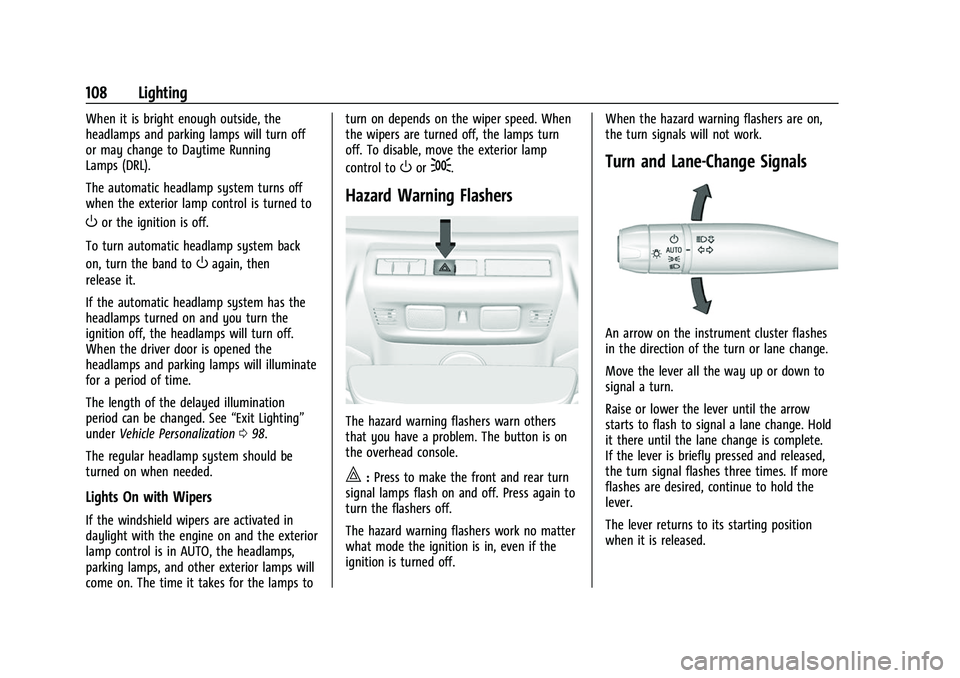
The hazard warning flashers warn others
that you have a problem. The button is on
the overhead console.
|:
Press to make the front and rear turn
signal lamps flash on and off. Press again to
turn the flashers off.
The hazard warning flashers work no matter
what mode the ignition is in, even if the
ignition is turned off. When the hazard warning flashers are on,
the turn signals will not work.
Turn and Lane-Change Signals
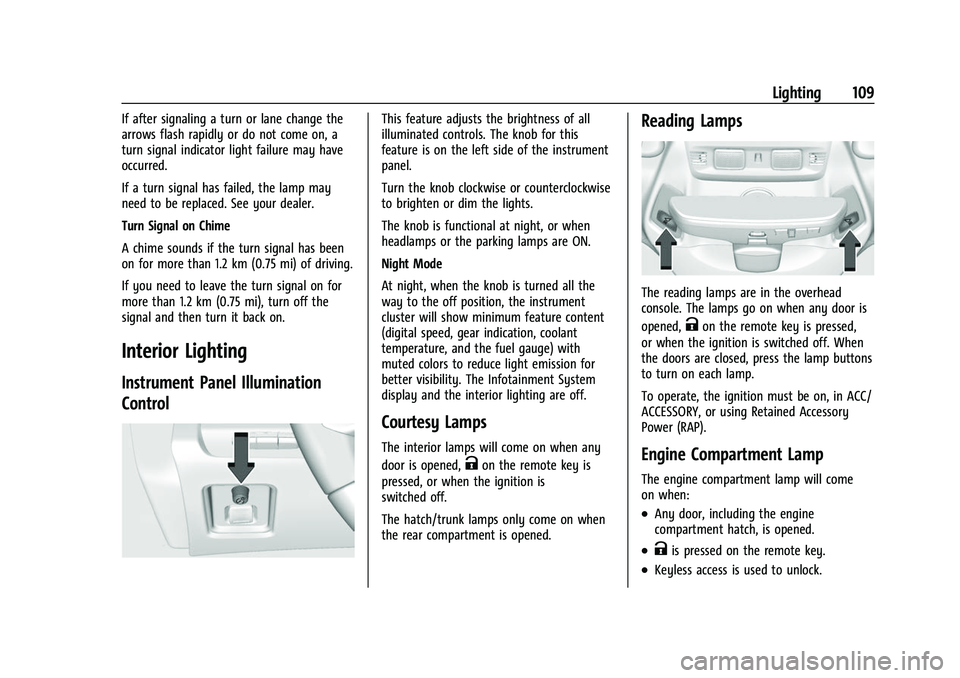
An arrow on the instrument cluster flashes
in the direction of the turn or lane change.
Move the lever all the way up or down to
signal a turn.
Raise or lower the lever until the arrow
starts to flash to signal a lane change. Hold
it there until the lane change is complete.
If the lever is briefly pressed and released,
the turn signal flashes three times. If more
flashes are desired, continue to hold the
lever.
The lever returns to its starting position
when it is released.
Page 110 of 338
Chevrolet Corvette Owner Manual (GMNA-Localizing-U.S./Canada/Mexico-
14622938) - 2021 - CRC - 2/10/21
Lighting 109
If after signaling a turn or lane change the
arrows flash rapidly or do not come on, a
turn signal indicator light failure may have
occurred.
If a turn signal has failed, the lamp may
need to be replaced. See your dealer.
Turn Signal on Chime
A chime sounds if the turn signal has been
on for more than 1.2 km (0.75 mi) of driving.
If you need to leave the turn signal on for
more than 1.2 km (0.75 mi), turn off the
signal and then turn it back on.
Interior Lighting
Instrument Panel Illumination
Control
This feature adjusts the brightness of all
illuminated controls. The knob for this
feature is on the left side of the instrument
panel.
Turn the knob clockwise or counterclockwise
to brighten or dim the lights.
The knob is functional at night, or when
headlamps or the parking lamps are ON.
Night Mode
At night, when the knob is turned all the
way to the off position, the instrument
cluster will show minimum feature content
(digital speed, gear indication, coolant
temperature, and the fuel gauge) with
muted colors to reduce light emission for
better visibility. The Infotainment System
display and the interior lighting are off.
Courtesy Lamps
The interior lamps will come on when any
door is opened,
Kon the remote key is
pressed, or when the ignition is
switched off.
The hatch/trunk lamps only come on when
the rear compartment is opened.
Reading Lamps
The reading lamps are in the overhead
console. The lamps go on when any door is
opened,
Kon the remote key is pressed,
or when the ignition is switched off. When
the doors are closed, press the lamp buttons
to turn on each lamp.
To operate, the ignition must be on, in ACC/
ACCESSORY, or using Retained Accessory
Power (RAP).
Engine Compartment Lamp
The engine compartment lamp will come
on when:
.Any door, including the engine
compartment hatch, is opened.
.Kis pressed on the remote key.
.Keyless access is used to unlock.
Page 112 of 338
Chevrolet Corvette Owner Manual (GMNA-Localizing-U.S./Canada/Mexico-
14622938) - 2021 - CRC - 2/10/21
Infotainment System 111
Infotainment System
Introduction
Introduction . . . . . . . . . . . . . . . . . . . . . . . . . . . . 111
Overview . . . . . . . . . . . . . . . . . . . . . . . . . . . . . . . 112
Steering Wheel Controls . . . . . . . . . . . . . . . 114
Using the System . . . . . . . . . . . . . . . . . . . . . . 115
Software Updates . . . . . . . . . . . . . . . . . . . . . . 117
Radio
AM-FM Radio . . . . . . . . . . . . . . . . . . . . . . . . . . . 117
HD Radio Technology . . . . . . . . . . . . . . . . . . 119
Radio Data System (RDS) . . . . . . . . . . . . . . 120
Satellite Radio . . . . . . . . . . . . . . . . . . . . . . . . . 120
Radio Reception . . . . . . . . . . . . . . . . . . . . . . . 120
Diversity Antenna System . . . . . . . . . . . . . . 121
Audio Players
Avoiding Untrusted Media Devices . . . . . 121
USB Port . . . . . . . . . . . . . . . . . . . . . . . . . . . . . . . 121
Auxiliary Jack . . . . . . . . . . . . . . . . . . . . . . . . . . 124
Bluetooth Audio . . . . . . . . . . . . . . . . . . . . . . . 124
OnStar System
OnStar System . . . . . . . . . . . . . . . . . . . . . . . . . 125
Navigation
Using the Navigation System . . . . . . . . . . 126
Maps . . . . . . . . . . . . . . . . . . . . . . . . . . . . . . . . . . 129
Navigation Symbols . . . . . . . . . . . . . . . . . . . 129
Destination . . . . . . . . . . . . . . . . . . . . . . . . . . . . 130OnStar System . . . . . . . . . . . . . . . . . . . . . . . . . 135
Global Positioning System (GPS) . . . . . . . 136
Vehicle Positioning . . . . . . . . . . . . . . . . . . . . 136
Problems with Route Guidance . . . . . . . . 137
If the System Needs Service . . . . . . . . . . . 137
Map Data Updates . . . . . . . . . . . . . . . . . . . . . 137
Database Coverage Explanations . . . . . . . 137
Voice Recognition
Voice Recognition . . . . . . . . . . . . . . . . . . . . . . 138
Performance Data Recorder (PDR)
Performance Data Recorder (PDR) . . . . . . 143
Phone
Bluetooth (Overview) . . . . . . . . . . . . . . . . . . 148
Bluetooth (Pairing and Using a
Phone) . . . . . . . . . . . . . . . . . . . . . . . . . . . . . . . 148
Apple CarPlay and Android Auto . . . . . . . 152
Settings
Settings . . . . . . . . . . . . . . . . . . . . . . . . . . . . . . . 154
Teen Driver . . . . . . . . . . . . . . . . . . . . . . . . . . . . 160
Trademarks and License Agreements
Trademarks and License Agreements . . . . . . . . . . . . . . . . . . . . . . . . . . 162
Introduction
Read the following pages to become familiar
with the features.
{Warning
Taking your eyes off the road for too
long or too often while using any
infotainment feature can cause a crash.
You or others could be injured or killed.
Do not give extended attention to
infotainment tasks while driving. Limit
your glances at the vehicle displays and
focus your attention on driving. Use voice
commands whenever possible.
The infotainment system has built-in
features intended to help avoid distraction
by disabling some features when driving.
These features may gray out when they are
unavailable. Many infotainment features are
also available through the instrument cluster
and steering wheel controls.
Before driving:
.Become familiar with the operation,
center stack controls, steering wheel
controls, and infotainment display.
Page 139 of 338
Chevrolet Corvette Owner Manual (GMNA-Localizing-U.S./Canada/Mexico-
14622938) - 2021 - CRC - 2/10/21
138 Infotainment System
Voice Recognition
If equipped, voice recognition allows for
hands-free operation within the navigation,
audio, phone, and weather applications. This
feature can be started by pressing
gon the
steering wheel or touching
gon the
infotainment display.
However, not all features within these areas
are supported by voice commands.
Generally, only complex tasks that require
multiple manual interactions to complete
are supported by voice commands.
For example, tasks that take more than one
or two touches, such as a song or artist to
play from a media device, would be
supported by voice commands. Other tasks,
like adjusting the volume or seeking up or
down, are audio features that are easily
performed by touching one or two options,
and are not supported by voice commands.
In general there are flexible ways to speak
commands for completing the tasks.
If your language supports it, try stating a
One-Shot command, such as “Directions to
address
while stating the address during the command. Another example of a One-Shot
Destination Entry command is,
“Directions to
Place of Interest at
commands do not work, try saying, “Take
me to Place of Interest” or“Find address”
and the system will walk you through by
asking additional questions.
Hybrid Speech Recognition
If equipped, this feature helps distinguish
words by using Internet-based information
along with the system’s voice recognition
database. This allows you to speak more
naturally when using voice recognition.
Using Voice Recognition
Voice recognition becomes available once
the system has been initialized. This begins
when the ignition is turned on. Initialization
may take a few moments.
1. Press
gon the steering wheel controls
to activate voice recognition.
2. The audio system mutes and the system plays a prompt.
3. Clearly speak one of the commands described in this section.
A voice recognition system prompt can
be interrupted while it is playing by
pressing
gagain. Once voice recognition is started, both the
infotainment display and instrument cluster
show the selections and visual dialog
content. These displays can be turned on or
off in the Tutorial Mode under
Settings
0 154.
There are three voice prompt modes
supported:
.Informative verbal prompts: This type of
prompt will provide more information
regarding the supported actions.
.Short prompts: This type of prompt will
provide simple instructions about what
can be stated.
.Auto informative prompts: This type of
prompt plays during the first few speech
sessions, then automatically switches to
the short prompt after some experience
has been gained through using the
system.
If a command is not spoken, the voice
recognition system says a help prompt.
Prompts and Infotainment Displays
While a voice recognition session is active,
there may be corresponding options
showing on the displays. A selection can be
made by manually touching the option,
or by speaking the number for the option to
Page 160 of 338
Chevrolet Corvette Owner Manual (GMNA-Localizing-U.S./Canada/Mexico-
14622938) - 2021 - CRC - 2/10/21
Infotainment System 159
Nav
Touch and the following may display:
.Set Up My Places
.Map Preferences
.Route Preferences
.Navigation Voice Control
.Traffic Preferences
.Alert Preferences
.Manage History
.About
See Using the Navigation System 0126.
Phone
Touch and the following may display:
.My Number: Displays the cell phone
number of the Bluetooth connected
device.
.Active Call View: Shows active call display
when answering a call.
Touch the controls on the infotainment
display to disable or enable.
.Privacy: Only show call alerts in the
instrument cluster.
Touch Off or On.
.Sort Contacts: Touch to sort by first or
last name.
.Re-sync Device Contacts:
This allows the device contacts to re-sync
if you are having difficulty accessing all of
the contacts on your cell phone.
.Delete All Vehicle Contacts: Touch to
delete all vehicle stored contacts.
.OnStar Phone TTY Mode: This enables
OnStar cell phone TTY mode.
Touch Disable or Enable.
Vehicle
This menu allows adjustment of different
vehicle features. See Vehicle Personalization
0 98.
Personal
If equipped, this menu allows adjustment of
different user profile settings. See “Users”in
Using the System 0115 for information on
setting up user profiles.
The menu may contain the following:
Name
Touch to edit your user name that will be
displayed in the vehicle. Vehicle Account Information
Touch to view the vehicle account
information and to change the account
password.
An
“unverified user account” pop-up will
display until the account information
verification process has been completed on
the Internet. Check your registered e-mail
account for an activation e-mail to complete
the verification process.
Profile Picture
Touch to choose or change your profile
picture.
Profile Identifiers
Touch to have the vehicle recognize the
identifier you choose.
Touch Vehicle Key 1 and/or Vehicle Key 2.
If the remote key is lost or stolen, see your
dealer.
Security
Touch to have your profile secured with
a PIN.
Touch No or Yes.
Vehicle Name
Touch to edit your vehicle name.
Page 162 of 338
Chevrolet Corvette Owner Manual (GMNA-Localizing-U.S./Canada/Mexico-
14622938) - 2021 - CRC - 2/10/21
Infotainment System 161
Manage Settings
Buckle To Drive :When turned ON, Buckle
to Drive prevents the driver from shifting
out of P (Park) for a period of time if driver
seat belt, and on some vehicles, the
passenger seat belt, is not buckled. See
Buckle To Drive 046 and
Vehicle Personalization 098.
Audio Volume Limit : Allows the audio
volume limit to be turned on or off. Touch
Set Audio Volume Limit to choose the
maximum allowable audio volume level.
Set Audio Volume Limit : Allows a
maximum radio volume to be set. Use the
arrows to choose the maximum allowable
level for the audio volume.
Teen Driver Speed Limiter : Limits the
maximum speed of the vehicle. When the
speed limiter is turned on and the vehicle is
started with a Teen Driver key, the DIC
displays a message that the top speed is
limited.
On certain vehicles, when the Speed Limiter
is turned ON, the vehicle’s maximum
acceleration will be limited. The DIC will
display a message that the acceleration is
limited. Teen Driver Speed Warning :
Allows the
speed warning to be turned on or off. Touch
Set Teen Driver Speed Warning to set the
warning speed.
Set Teen Driver Speed Warning : Displays a
warning in the DIC when exceeding a
selectable speed. Choose the desired speed
warning level. The speed warning does not
limit the speed of the vehicle.
SiriusXM Explicit Content Filter (if
equipped) : Allows the SiriusXM Explicit
Content Filter to be turned ON or OFF.
When ON, the teen driver will not be able
to listen to SiriusXM stations that contain
explicit content, and the Explicit Content
Filter selection in the Audio Settings will be
unavailable for change.
When Teen Driver is Active:
.The radio will mute when the driver, or in
some vehicles, the front passenger seat
belt, is not buckled. The audio from any
device paired to the vehicle will also be
muted.
.If an object, such as a briefcase, handbag,
grocery bag, laptop, or other electronic
device, is on the front passenger seat, it
could cause the radio to mute. If this
happens, remove the object from the
seat. See Passenger Sensing System 057.
.Some safety systems, such as Forward
Collision Alert, if equipped, cannot be
turned off.
.The gap setting for the Forward Collision
Alert and Adaptive Cruise Control,
if equipped, cannot be changed.
.When trying to change a safety feature
that is not configurable in Teen Driver,
the DIC displays a message indicating
that Teen Driver is active and the action
is not available.
.Super Cruise, if equipped, is not available.
.Enhanced Low Fuel Warning (if equipped)
–When the vehicle is low on fuel, the
low fuel light on the instrument cluster
flashes and the DIC low fuel warning
cannot be dismissed.
.Do not tow a trailer.
Report Card
The vehicle owner must secure the driver’s
consent to record certain vehicle data when
the vehicle is driven with a registered Teen
Driver key. There is one Report Card per
vehicle. Data is only recorded when a
registered Teen Driver key is used to
operate the vehicle.