mirror CHEVROLET CORVETTE 2021 User Guide
[x] Cancel search | Manufacturer: CHEVROLET, Model Year: 2021, Model line: CORVETTE, Model: CHEVROLET CORVETTE 2021Pages: 338, PDF Size: 6.56 MB
Page 42 of 338
Chevrolet Corvette Owner Manual (GMNA-Localizing-U.S./Canada/Mexico-
14622938) - 2021 - CRC - 2/10/21
Seats and Restraints 41
Reclining Seatbacks
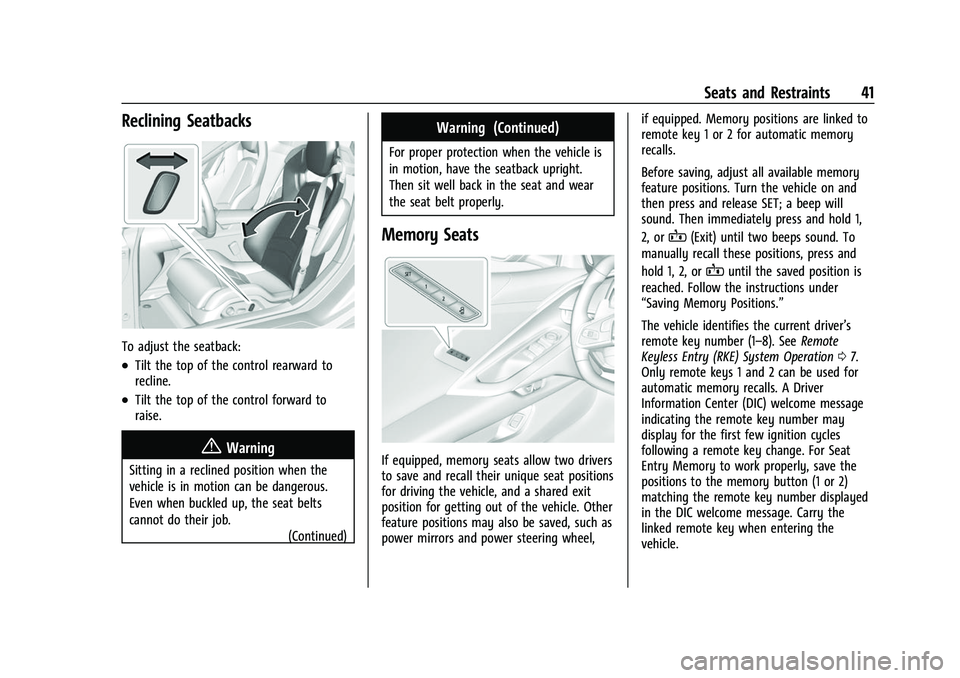
To adjust the seatback:
.Tilt the top of the control rearward to
recline.
.Tilt the top of the control forward to
raise.
{Warning
Sitting in a reclined position when the
vehicle is in motion can be dangerous.
Even when buckled up, the seat belts
cannot do their job.(Continued)
Warning (Continued)
For proper protection when the vehicle is
in motion, have the seatback upright.
Then sit well back in the seat and wear
the seat belt properly.
Memory Seats
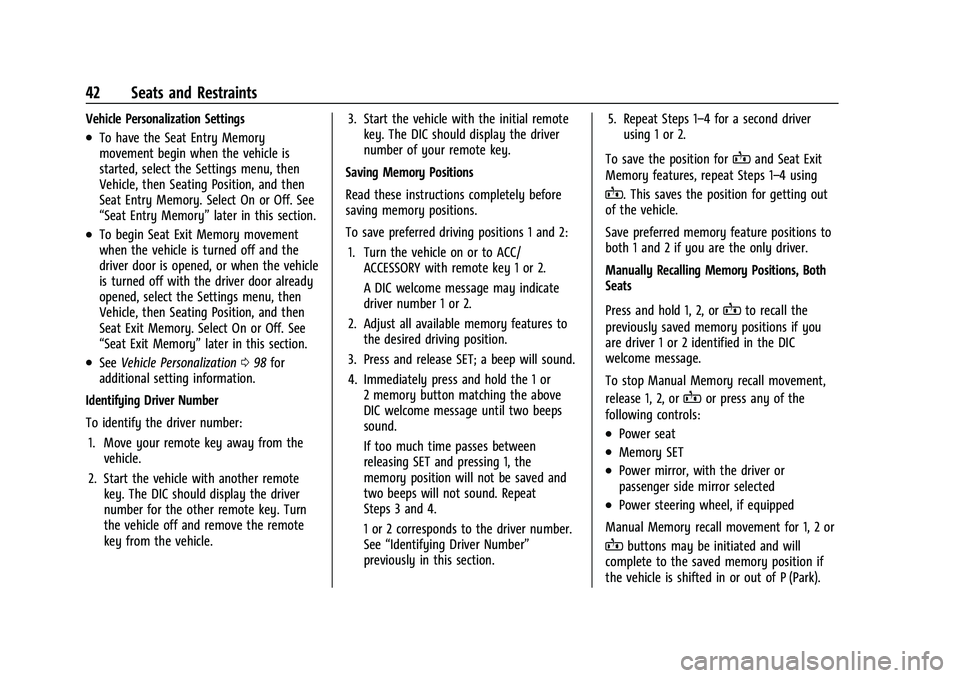
If equipped, memory seats allow two drivers
to save and recall their unique seat positions
for driving the vehicle, and a shared exit
position for getting out of the vehicle. Other
feature positions may also be saved, such as
power mirrors and power steering wheel, if equipped. Memory positions are linked to
remote key 1 or 2 for automatic memory
recalls.
Before saving, adjust all available memory
feature positions. Turn the vehicle on and
then press and release SET; a beep will
sound. Then immediately press and hold 1,
2, or
B(Exit) until two beeps sound. To
manually recall these positions, press and
hold 1, 2, or
Buntil the saved position is
reached. Follow the instructions under
“Saving Memory Positions.”
The vehicle identifies the current driver’s
remote key number (1–8). See Remote
Keyless Entry (RKE) System Operation 07.
Only remote keys 1 and 2 can be used for
automatic memory recalls. A Driver
Information Center (DIC) welcome message
indicating the remote key number may
display for the first few ignition cycles
following a remote key change. For Seat
Entry Memory to work properly, save the
positions to the memory button (1 or 2)
matching the remote key number displayed
in the DIC welcome message. Carry the
linked remote key when entering the
vehicle.
Page 43 of 338
Chevrolet Corvette Owner Manual (GMNA-Localizing-U.S./Canada/Mexico-
14622938) - 2021 - CRC - 2/10/21
42 Seats and Restraints
Vehicle Personalization Settings
.To have the Seat Entry Memory
movement begin when the vehicle is
started, select the Settings menu, then
Vehicle, then Seating Position, and then
Seat Entry Memory. Select On or Off. See
“Seat Entry Memory”later in this section.
.To begin Seat Exit Memory movement
when the vehicle is turned off and the
driver door is opened, or when the vehicle
is turned off with the driver door already
opened, select the Settings menu, then
Vehicle, then Seating Position, and then
Seat Exit Memory. Select On or Off. See
“Seat Exit Memory”later in this section.
.SeeVehicle Personalization 098 for
additional setting information.
Identifying Driver Number
To identify the driver number: 1. Move your remote key away from the vehicle.
2. Start the vehicle with another remote key. The DIC should display the driver
number for the other remote key. Turn
the vehicle off and remove the remote
key from the vehicle. 3. Start the vehicle with the initial remote
key. The DIC should display the driver
number of your remote key.
Saving Memory Positions
Read these instructions completely before
saving memory positions.
To save preferred driving positions 1 and 2: 1. Turn the vehicle on or to ACC/ ACCESSORY with remote key 1 or 2.
A DIC welcome message may indicate
driver number 1 or 2.
2. Adjust all available memory features to the desired driving position.
3. Press and release SET; a beep will sound.
4. Immediately press and hold the 1 or 2 memory button matching the above
DIC welcome message until two beeps
sound.
If too much time passes between
releasing SET and pressing 1, the
memory position will not be saved and
two beeps will not sound. Repeat
Steps 3 and 4.
1 or 2 corresponds to the driver number.
See “Identifying Driver Number”
previously in this section. 5. Repeat Steps 1–4 for a second driver
using 1 or 2.
To save the position for
Band Seat Exit
Memory features, repeat Steps 1–4 using
B. This saves the position for getting out
of the vehicle.
Save preferred memory feature positions to
both 1 and 2 if you are the only driver.
Manually Recalling Memory Positions, Both
Seats
Press and hold 1, 2, or
Bto recall the
previously saved memory positions if you
are driver 1 or 2 identified in the DIC
welcome message.
To stop Manual Memory recall movement,
release 1, 2, or
Bor press any of the
following controls:
.Power seat
.Memory SET
.Power mirror, with the driver or
passenger side mirror selected
.Power steering wheel, if equipped
Manual Memory recall movement for 1, 2 or
Bbuttons may be initiated and will
complete to the saved memory position if
the vehicle is shifted in or out of P (Park).
Page 44 of 338
Chevrolet Corvette Owner Manual (GMNA-Localizing-U.S./Canada/Mexico-
14622938) - 2021 - CRC - 2/10/21
Seats and Restraints 43
Seat Entry Memory, Driver Seat Only
The vehicle identifies the number of the
current driver’s remote key (1–8). See
Remote Keyless Entry (RKE) System
Operation07. If the remote key is 1 or 2,
and Seat Entry Memory is enabled in vehicle
personalization, the positions saved to the
same memory button number 1 or 2 are
automatically recalled when the vehicle is
turned on. Remote keys 3–8 will not provide
automatic memory recalls.
To turn Seat Entry Memory on or off, see
“Vehicle Personalization Settings” previously
in this section and Vehicle Personalization
0 98.
The vehicle must be in P (Park) to start Seat
Entry Memory. Seat Entry Memory recall
will complete if the vehicle is shifted out of
P (Park) prior to reaching the saved memory
position.
To stop Seat Entry Memory recall
movement, turn the vehicle off or press any
of the following controls:
.Power seat
.Memory SET, 1, 2, orB
.Power mirror, with the driver or
passenger side mirror selected
.Power steering wheel, if equipped If the saved memory seat position does not
automatically recall or recalls to the wrong
positions, the driver’s remote key number (1
or 2) may not match the memory button
number that positions were saved to. Try
storing the position to the other memory
button or try the other remote key.
If the seat or seatback movement rearward
or recline makes contact with the carpet
behind the seat, the seat will automatically
adjust forward a small distance. If it remains
in contact, memory recalls may not
complete. Move the seat and/or seatback
forward a small distance away from the
carpet behind the seat and try the memory
recall again.
Seat Exit Memory, Driver Seat Only
Seat Exit Memory is not linked to a remote
key. The position saved to
Bis used for all
drivers. To turn Seat Exit Memory on or off,
see "Vehicle Personalization Settings"
previously in this section and Vehicle
Personalization 098.
If turned on, the position saved to
Bis
automatically recalled when one of the
following occurs:
.The vehicle is turned off and the driver
door is opened within a short time.
.The vehicle is turned off with the driver
door open.
To stop Seat Exit Memory movement, press
any of the following memory controls:
.Power seat
.Memory SET, 1, 2, orB
.Power mirror, with the driver or
passenger side mirror selected
.Power steering wheel, if equipped
Seat Travel Limit
If the rearward or reclining seat or seatback
movement makes contact with the carpet
behind the seat, the seat will automatically
move forward a small distance. If it remains
in contact, memory recall may not
complete. Move the seat and/or seatback
forward a small distance away from the
carpet behind the seat and attempt the
memory recall again.
Obstructions
If something has blocked the driver seat
while recalling a memory position, the recall
may stop. Remove the obstruction and try
the recall again. If the memory position still
does not recall, see your dealer.
Page 101 of 338
Chevrolet Corvette Owner Manual (GMNA-Localizing-U.S./Canada/Mexico-
14622938) - 2021 - CRC - 2/10/21
100 Instruments and Controls
Park Assist
This allows the feature to be turned on or
off. SeeAssistance Systems for Parking or
Backing 0222.
Touch Off or On.
Side Blind Zone Alert
This allows this feature to be turned on or
off. See Side Blind Zone Alert (SBZA) 0224.
Touch Off or On.
Rear Cross Traffic Alert
This setting specifies if an alert will display
when the vehicle detects approaching rear
cross traffic when in R (Reverse). See
Assistance Systems for Parking or Backing
0 222.
Touch Off or On.
Comfort and Convenience
Touch and the following may display:
.Chime Volume
.Reverse Tilt Mirror
.Remote Mirror Folding
Chime Volume
This setting determines the chime volume
level. Touch the controls on the infotainment
system to adjust the volume.
Reverse Tilt Mirror
When on, the driver, passenger, or both
driver and passenger outside mirrors will tilt
downward when the vehicle is shifted into
R (Reverse) to improve visibility of the
ground near the rear wheels. They may
move from their tilted position when the
vehicle is shifted out of R (Reverse) or
turned off. See
Reverse Tilt Mirrors 026.
Touch Off, On - Driver and Passenger, On -
Driver, or On - Passenger.
Remote Mirror Folding
When on, the outside mirrors will
automatically fold or unfold when the
Qor
Kon the remote key is pressed. See
Folding Mirrors 025.
Touch Off or On.
Lighting
Touch and the following may display:
.Vehicle Locator Lights
.Exit Lighting Vehicle Locator Lights
This setting flashes the vehicle’s headlamps
and taillamps when
Kis pressed on the
remote key.
Touch Off or On.
Exit Lighting
This setting specifies how long the
headlamps stay on after the vehicle is
turned off and exited.
Touch Off, 30 Seconds, 60 Seconds,
or 120 Seconds.
Power Door Locks
Touch and the following may display:
.Auto Door Unlock
.Delayed Door Lock
Auto Door Unlock
This setting allows selection of which doors
will automatically unlock when the vehicle is
shifted into P (Park).
Touch Off, All Doors, or Driver Door.
Delayed Door Lock
This setting delays the locking of the vehicle
doors.
Touch Off or On.
Page 144 of 338
Chevrolet Corvette Owner Manual (GMNA-Localizing-U.S./Canada/Mexico-
14622938) - 2021 - CRC - 2/10/21
Infotainment System 143
Phone Assistant Voice Recognition
Press and holdgon the steering wheel
controls to pass through and launch Google
phone assistant or Siri.
For the low radio, whether connected by
Bluetooth or phone projection, the only
available voice recognition is either Siri
(iPhone) or the Google Assistant (Android).
Performance Data
Recorder (PDR)
If equipped, the PDR icon displays on the
Home Page.
Important Information
Use of the PDR may be prohibited or legally
restricted in certain countries and situations.
Ensure compliance with applicable laws and
regulations, including, but not limited to:
privacy laws, laws related to camera
surveillance and recordings, road traffic and
security laws, and laws on the protection of
publicity and personality rights.
.Do not use the PDR if it causes
distraction.
.Do not rely on camera footage to steer
the vehicle.
.Comply with any notice and consent
requirements before capturing and/or
recording the voices or images of other
persons or before collecting other
personal data.
.Notify other drivers of your vehicle about
the above rules and require them to
comply.
.General Motors does not accept any
responsibility or liability in connection
with use that is not permitted.
.Law enforcement authorities may have
the right to seize video recordings and
use them as evidence of criminal/driving
offenses against you or third parties.
The PDR records video, audio, and vehicle
data. The forward facing video and cabin
audio are captured by a camera and
microphone located behind the rear view
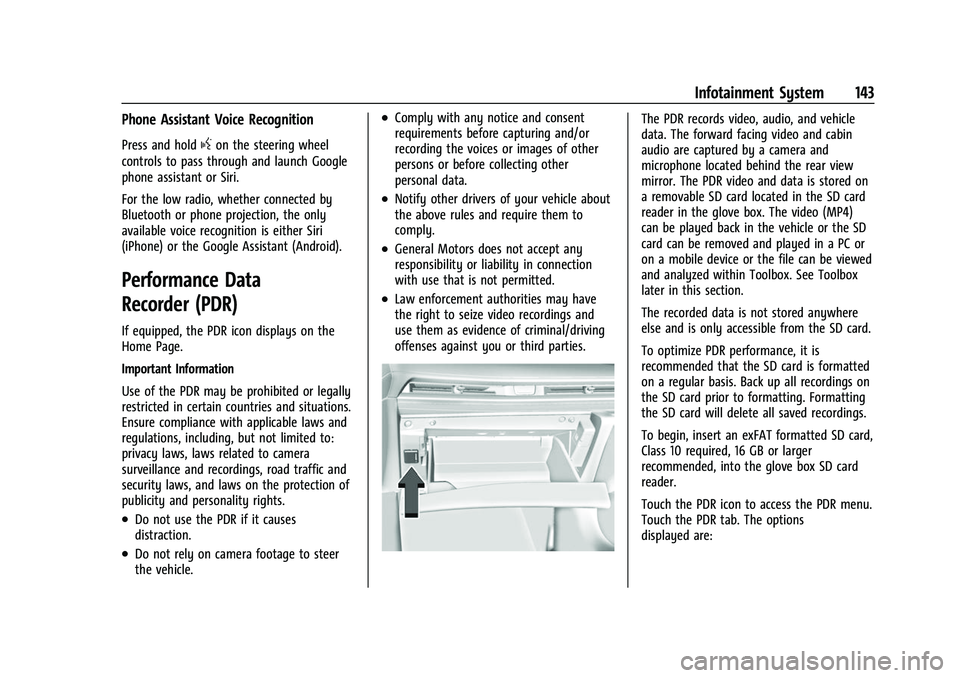
mirror. The PDR video and data is stored on
a removable SD card located in the SD card
reader in the glove box. The video (MP4)
can be played back in the vehicle or the SD
card can be removed and played in a PC or
on a mobile device or the file can be viewed
and analyzed within Toolbox. See Toolbox
later in this section.
The recorded data is not stored anywhere
else and is only accessible from the SD card.
To optimize PDR performance, it is
recommended that the SD card is formatted
on a regular basis. Back up all recordings on
the SD card prior to formatting. Formatting
the SD card will delete all saved recordings.
To begin, insert an exFAT formatted SD card,
Class 10 required, 16 GB or larger
recommended, into the glove box SD card
reader.
Touch the PDR icon to access the PDR menu.
Touch the PDR tab. The options
displayed are:
Page 174 of 338
Chevrolet Corvette Owner Manual (GMNA-Localizing-U.S./Canada/Mexico-
14622938) - 2021 - CRC - 2/15/21
Climate Controls 173
For automatic operation:1. Press AUTO.
2. Set the temperature. Allow the system time to stabilize. Adjust the temperature
as needed for best comfort.
Manual Operation
O:Press to turn the fan off or on.
hori:Press to increase or decrease the
fan speed.
Driver and Passenger Temperature
Controls : The temperature can be adjusted
separately for the driver and passenger.
SYNC : Press to link the passenger
temperature setting to the driver setting.
The SYNC indicator light will turn on. When
the passenger setting is adjusted, the SYNC
indicator light will turn off.
Air Delivery Mode Control : Press
Y,[,
or
zto change the direction of the airflow.
Any combination of the three controls can
be selected. An indicator light comes on in
the selected mode button.
Changing the mode cancels the automatic
operation and the system goes into manual
mode. Press AUTO to return to automatic
operation. To change the current mode, select one or
more of the following:
Y:
Air is directed to the a/c outlets.
[:Air is directed to the floor outlets,
with some air directed to the windshield,
and side window outlets.
z: Air is directed to the windshield and
side window outlets.
0MAX : Air is directed to the windshield
and the fan runs at a higher speed if not
already above a medium fan speed. This
mode overrides the previous mode selected
and clears fog or frost from the windshield
more quickly. When the control is pressed
again, the system returns to the previous
mode setting and fan speed.
For best results, clear all snow and ice from
the windshield before defrosting.
@: Press to turn on recirculation. An
indicator light comes on. Air is recirculated
to quickly cool the inside of the vehicle.
It can also be used to help reduce outside
air and odors that enter the vehicle. Avoid using recirculation for long periods of
time in cold or damp conditions. Using
recirculation in cold or damp conditions can
result in window fogging.
A/C :
Press to turn the air conditioning on
or off. An indicator light comes on to show
that the air conditioning is enabled. If the
fan is turned off, the air conditioner will not
run. The A/C light will stay on even if the
outside temperatures are below freezing.
If the A/C is turned off, the air temperature
coming through the climate control system
may be warmer than the ambient
temperature. It is recommended to use auto
climate control to maintain comfort.
Rear Window Defogger
1REAR : If equipped, press to turn the
rear window defogger on or off. An indicator
light on the button comes on to show that
the rear window defogger is on.
The rear window defogger only works when
the engine is running. The defogger turns
off if the ignition is turned off or to ACC/
ACCESSORY.
If equipped with heated outside mirrors,
press
1REAR to turn them on or off. See
Heated Mirrors 026.
Page 181 of 338
Chevrolet Corvette Owner Manual (GMNA-Localizing-U.S./Canada/Mexico-
14622938) - 2021 - CRC - 2/10/21
180 Driving and Operating
The vehicle's right wheels can drop off the
edge of a road onto the shoulder while
driving. Follow these tips:1. Ease off the accelerator and then, if there is nothing in the way, steer the
vehicle so that it straddles the edge of
the pavement.
2. Turn the steering wheel about one-eighth of a turn, until the right front
tire contacts the pavement edge.
3. Turn the steering wheel to go straight down the roadway.
Loss of Control
Skidding
There are three types of skids that
correspond to the vehicle's three control
systems:
.Braking Skid —wheels are not rolling.
.Steering or Cornering Skid —too much
speed or steering in a curve causes tires
to slip and lose cornering force.
.Acceleration Skid —too much throttle
causes the driving wheels to spin. Defensive drivers avoid most skids by taking
reasonable care suited to existing conditions,
and by not overdriving those conditions. But
skids are always possible.
If the vehicle starts to slide, follow these
suggestions:
.Ease your foot off the accelerator pedal
and steer the way you want the vehicle
to go. The vehicle may straighten out. Be
ready for a second skid if it occurs.
.Slow down and adjust your driving
according to weather conditions. Stopping
distance can be longer and vehicle control
can be affected when traction is reduced
by water, snow, ice, gravel, or other
material on the road. Learn to recognize
warning clues
—such as enough water,
ice, or packed snow on the road to make
a mirrored surface —and slow down
when you have any doubt.
.Try to avoid sudden steering, acceleration,
or braking, including reducing vehicle
speed by shifting to a lower gear. Any
sudden changes could cause the tires to
slide.
Remember: Antilock brakes help avoid only
the braking skid.
Track Events and Competitive
Driving (Z51 Only)
Vehicles without Z51 package should not be
used for track events and competitive
driving.
{Danger
High-performance features are intended
for use only on closed tracks by
experienced and qualified drivers and
should not be used on public roads.
High-speed driving, aggressive cornering,
hard braking, and other high-performance
driving can be dangerous. Improper driver
inputs for the conditions may result in
loss of control of the vehicle, which could
injure or kill you or others. Always drive
safely.
Participating in track events or other
competitive driving without following the
instructions provided may affect the vehicle
warranty. See the warranty manual before
using the vehicle for racing or other
competitive driving. See Competitive Driving
Mode 0215.
Page 189 of 338
Chevrolet Corvette Owner Manual (GMNA-Localizing-U.S./Canada/Mexico-
14622938) - 2021 - CRC - 2/10/21
188 Driving and Operating
Winter Driving
Driving on Snow or Ice
Snow or ice between the tires and the road
creates less traction or grip, so drive
carefully. Wet ice can occur at about 0 °C
(32 °F) when freezing rain begins to fall.
Avoid driving on wet ice or in freezing rain
until roads can be treated.
For Slippery Road Driving:
.Accelerate gently. Accelerating too quickly
causes the wheels to spin and makes the
surface under the tires slick.
.Turn on Traction Control. SeeTraction
Control/Electronic Stability Control 0206.
.The Antilock Brake System (ABS) improves
vehicle stability during hard stops, but
the brakes should be applied sooner than
when on dry pavement. See Antilock
Brake System (ABS) 0204.
.Allow greater following distance and
watch for slippery spots. Icy patches can
occur on otherwise clear roads in shaded
areas. The surface of a curve or an
overpass can remain icy when the
surrounding roads are clear. Avoid sudden
steering maneuvers and braking while
on ice.
.Turn off cruise control.
.Turn on Weather Mode. See Driver Mode
Control 0208.
Blizzard Conditions
Stop the vehicle in a safe place and signal
for help. Stay with the vehicle unless there
is help nearby. If possible, use Roadside
Assistance. See Roadside Assistance Program
0 311. To get help and keep everyone in the
vehicle safe:
.Turn on the hazard warning flashers.
.Tie a red cloth to an outside mirror.
{Warning
Snow can trap engine exhaust under the
vehicle. This may cause exhaust gases to
get inside. Engine exhaust contains
carbon monoxide (CO), which cannot be
seen or smelled. It can cause
unconsciousness and even death.
If the vehicle is stuck in snow:
.Clear snow from the base of the
vehicle, especially any blocking the
exhaust pipe.
(Continued)
Warning (Continued)
.Open a window about 5 cm (2 in) on
the vehicle side that is away from the
wind, to bring in fresh air.
.Fully open the air outlets on or under
the instrument panel.
.Adjust the climate control system to
circulate the air inside the vehicle and
set the fan speed to the highest
setting. See“Climate Control Systems.”
For more information about CO, see
Engine Exhaust 0197.
To save fuel, run the engine for short
periods to warm the vehicle and then shut
the engine off and partially close the
window. Moving about to keep warm also
helps.
If it takes time for help to arrive, when
running the engine, push the accelerator
pedal slightly so the engine runs faster than
the idle speed. This keeps the battery
charged to restart the vehicle and to signal
for help with the headlamps. Do this as
little as possible, to save fuel.
Page 223 of 338
Chevrolet Corvette Owner Manual (GMNA-Localizing-U.S./Canada/Mexico-
14622938) - 2021 - CRC - 2/10/21
222 Driving and Operating
.Front side and rear side panels
.Outside of the windshield in front of the
rearview mirror
.Rear side corner bumpers
.Rear Vision Camera above the license
plate
Radio Frequency
This vehicle may be equipped with driver
assistance systems that operate using radio
frequency. See Radio Frequency Statement
0 316.
Assistance Systems for Parking or
Backing
If equipped, the Rear Vision Camera (RVC),
Rear Park Assist (RPA), and Curb View
Camera may help the driver park or avoid
objects. Always check around the vehicle
when parking or backing.
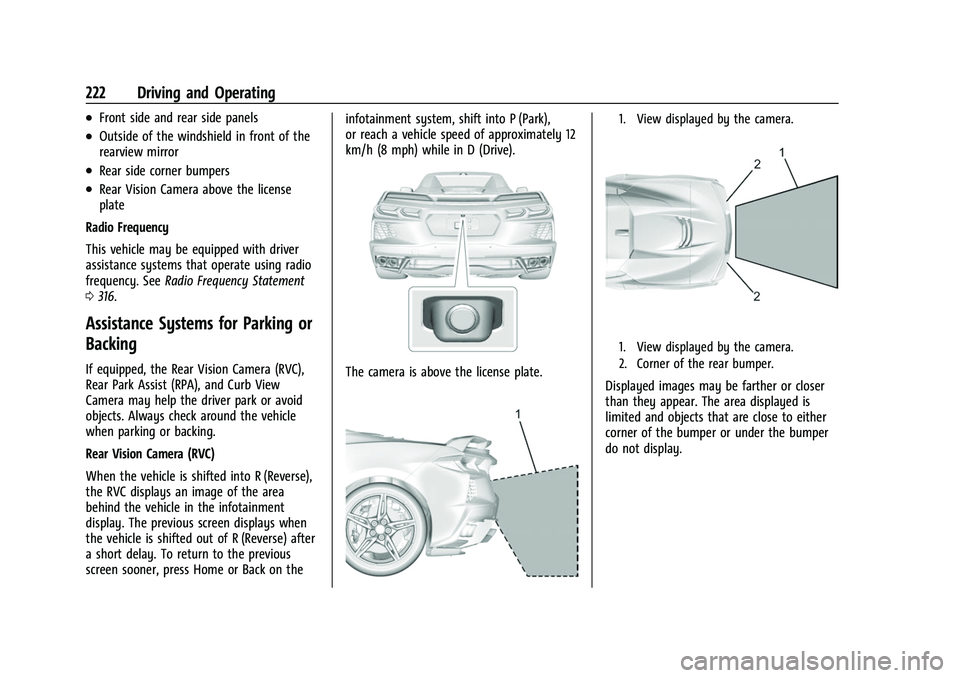
Rear Vision Camera (RVC)
When the vehicle is shifted into R (Reverse),
the RVC displays an image of the area
behind the vehicle in the infotainment
display. The previous screen displays when
the vehicle is shifted out of R (Reverse) after
a short delay. To return to the previous
screen sooner, press Home or Back on the infotainment system, shift into P (Park),
or reach a vehicle speed of approximately 12
km/h (8 mph) while in D (Drive).The camera is above the license plate.
1. View displayed by the camera.
1. View displayed by the camera.
2. Corner of the rear bumper.
Displayed images may be farther or closer
than they appear. The area displayed is
limited and objects that are close to either
corner of the bumper or under the bumper
do not display.
Page 224 of 338
Chevrolet Corvette Owner Manual (GMNA-Localizing-U.S./Canada/Mexico-
14622938) - 2021 - CRC - 2/10/21
Driving and Operating 223
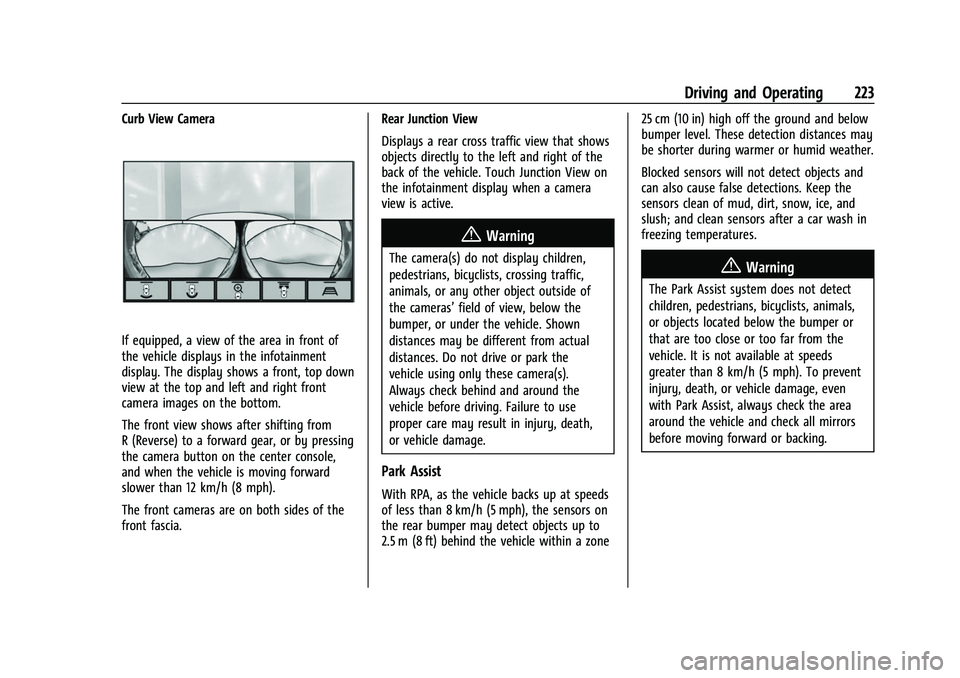
Curb View Camera
If equipped, a view of the area in front of
the vehicle displays in the infotainment
display. The display shows a front, top down
view at the top and left and right front
camera images on the bottom.
The front view shows after shifting from
R (Reverse) to a forward gear, or by pressing
the camera button on the center console,
and when the vehicle is moving forward
slower than 12 km/h (8 mph).
The front cameras are on both sides of the
front fascia.Rear Junction View
Displays a rear cross traffic view that shows
objects directly to the left and right of the
back of the vehicle. Touch Junction View on
the infotainment display when a camera
view is active.
{Warning
The camera(s) do not display children,
pedestrians, bicyclists, crossing traffic,
animals, or any other object outside of
the cameras’
field of view, below the
bumper, or under the vehicle. Shown
distances may be different from actual
distances. Do not drive or park the
vehicle using only these camera(s).
Always check behind and around the
vehicle before driving. Failure to use
proper care may result in injury, death,
or vehicle damage.
Park Assist
With RPA, as the vehicle backs up at speeds
of less than 8 km/h (5 mph), the sensors on
the rear bumper may detect objects up to
2.5 m (8 ft) behind the vehicle within a zone 25 cm (10 in) high off the ground and below
bumper level. These detection distances may
be shorter during warmer or humid weather.
Blocked sensors will not detect objects and
can also cause false detections. Keep the
sensors clean of mud, dirt, snow, ice, and
slush; and clean sensors after a car wash in
freezing temperatures.
{Warning
The Park Assist system does not detect
children, pedestrians, bicyclists, animals,
or objects located below the bumper or
that are too close or too far from the
vehicle. It is not available at speeds
greater than 8 km/h (5 mph). To prevent
injury, death, or vehicle damage, even
with Park Assist, always check the area
around the vehicle and check all mirrors
before moving forward or backing.