change time CHEVROLET CORVETTE 2022 User Guide
[x] Cancel search | Manufacturer: CHEVROLET, Model Year: 2022, Model line: CORVETTE, Model: CHEVROLET CORVETTE 2022Pages: 338, PDF Size: 7.6 MB
Page 106 of 338
Chevrolet Corvette Owner Manual (GMNA-Localizing-U.S./Canada/Mexico-
15342622) - 2022 - CRC - 5/4/21
Lighting 105
Lighting
Exterior Lighting
Exterior Lamp Controls . . . . . . . . . . . . . . . . 105
Exterior Lamps Off Reminder . . . . . . . . . . 105
Headlamp High/Low-Beam Changer . . . 105
Flash-to-Pass . . . . . . . . . . . . . . . . . . . . . . . . . . . 106
Daytime Running Lamps (DRL) . . . . . . . . 106
Automatic Headlamp System . . . . . . . . . . 106
Hazard Warning Flashers . . . . . . . . . . . . . . 107
Turn and Lane-Change Signals . . . . . . . . . 107
Interior Lighting
Instrument Panel IlluminationControl . . . . . . . . . . . . . . . . . . . . . . . . . . . . . . 108
Courtesy Lamps . . . . . . . . . . . . . . . . . . . . . . . 108
Reading Lamps . . . . . . . . . . . . . . . . . . . . . . . . 108
Engine Compartment Lamp . . . . . . . . . . . . 108
Lighting Features
Entry Lighting . . . . . . . . . . . . . . . . . . . . . . . . . 109
Exit Lighting . . . . . . . . . . . . . . . . . . . . . . . . . . . 109
Battery Power Protection . . . . . . . . . . . . . . 109
Exterior Lighting Battery Saver . . . . . . . . 109
Exterior Lighting
Exterior Lamp Controls
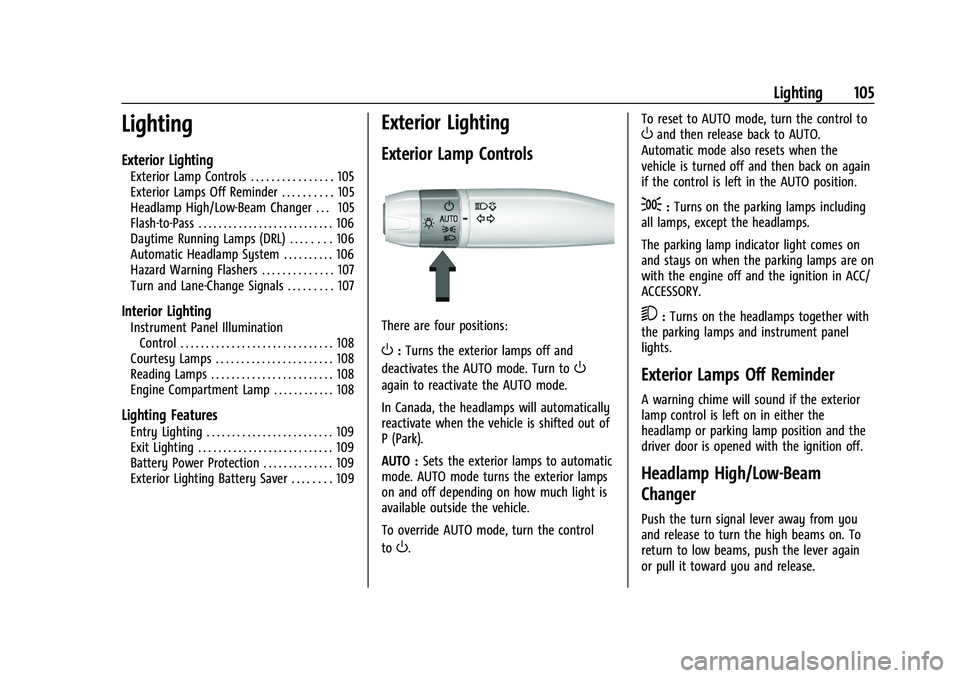
There are four positions:
O: Turns the exterior lamps off and
deactivates the AUTO mode. Turn to
O
again to reactivate the AUTO mode.
In Canada, the headlamps will automatically
reactivate when the vehicle is shifted out of
P (Park).
AUTO : Sets the exterior lamps to automatic
mode. AUTO mode turns the exterior lamps
on and off depending on how much light is
available outside the vehicle.
To override AUTO mode, turn the control
to
O. To reset to AUTO mode, turn the control to
Oand then release back to AUTO.
Automatic mode also resets when the
vehicle is turned off and then back on again
if the control is left in the AUTO position.
;: Turns on the parking lamps including
all lamps, except the headlamps.
The parking lamp indicator light comes on
and stays on when the parking lamps are on
with the engine off and the ignition in ACC/
ACCESSORY.
5: Turns on the headlamps together with
the parking lamps and instrument panel
lights.
Exterior Lamps Off Reminder
A warning chime will sound if the exterior
lamp control is left on in either the
headlamp or parking lamp position and the
driver door is opened with the ignition off.
Headlamp High/Low-Beam
Changer
Push the turn signal lever away from you
and release to turn the high beams on. To
return to low beams, push the lever again
or pull it toward you and release.
Page 107 of 338
Chevrolet Corvette Owner Manual (GMNA-Localizing-U.S./Canada/Mexico-
15342622) - 2022 - CRC - 5/4/21
106 Lighting
This indicator light turns on in the
instrument cluster when the high-beam
headlamps are on.
Flash-to-Pass
To use the flash-to-pass feature, briefly pull
the turn signal lever toward you. The
high-beam indicator flashes to indicate to
the other driver that you intend to pass.
Daytime Running Lamps (DRL)
DRL can make it easier for others to see the
front of your vehicle during the day. DRL are
required on all vehicles first sold in Canada.
The DRL system makes the dedicated lamps
come on when the following conditions
are met:
.The ignition is on.
.The exterior lamp control is in the AUTO.
.The light sensor determines it is daytime.When DRL are on, only the front lamps will
be on. The parking lamps, taillamps,
instrument panel lights, or other exterior
lamps will not be on when the DRL are
being used.
When it is dark enough outside, the front
lamps dim to parking lamps and the normal
low-beam headlamps turn on.
The regular headlamp system should be
turned on when needed.
To turn off the DRL, turn the exterior lamp
control to
O. The DRL will stay off until the
control is toggled again.
Automatic Headlamp System
When the exterior lamp control is set to
AUTO and it is dark enough outside, the
headlamps and parking lamps come on
automatically.
There is a light sensor on top of the
instrument panel. Do not cover the sensor,
otherwise the headlamps will come on when
they are not needed.
The system may also turn on the headlamps
and parking lamps when driving through a
parking garage or tunnel.
If the vehicle is started in a dark garage, the
automatic headlamp system comes on
immediately. If it is light outside when the
vehicle leaves the garage, there is a slight
delay before the automatic headlamp
system changes to the DRL. During that
delay, the instrument cluster may not be as
bright as usual. Make sure the instrument
panel brightness control is in the full bright
position. See Instrument Panel Illumination
Control 0108.
Page 108 of 338
Chevrolet Corvette Owner Manual (GMNA-Localizing-U.S./Canada/Mexico-
15342622) - 2022 - CRC - 5/4/21
Lighting 107
When it is bright enough outside, the
headlamps and parking lamps will turn off
or may change to Daytime Running
Lamps (DRL).
The automatic headlamp system turns off
when the exterior lamp control is turned to
Oor the ignition is off.
To turn automatic headlamp system back
on, turn the band to
Oagain, then
release it.
If the automatic headlamp system has the
headlamps turned on and you turn the
ignition off, the headlamps will turn off.
When the driver door is opened the
headlamps and parking lamps will illuminate
for a period of time.
The length of the delayed illumination
period can be changed. See “Exit Lighting”
under Vehicle Personalization 098.
The regular headlamp system should be
turned on when needed.
Lights On with Wipers
If the windshield wipers are activated in
daylight with the engine on and the exterior
lamp control is in AUTO, the headlamps,
parking lamps, and other exterior lamps will
come on. The time it takes for the lamps to turn on depends on the wiper speed. When
the wipers are turned off, the lamps turn
off. To disable, move the exterior lamp
control to
Oor;.
Hazard Warning Flashers
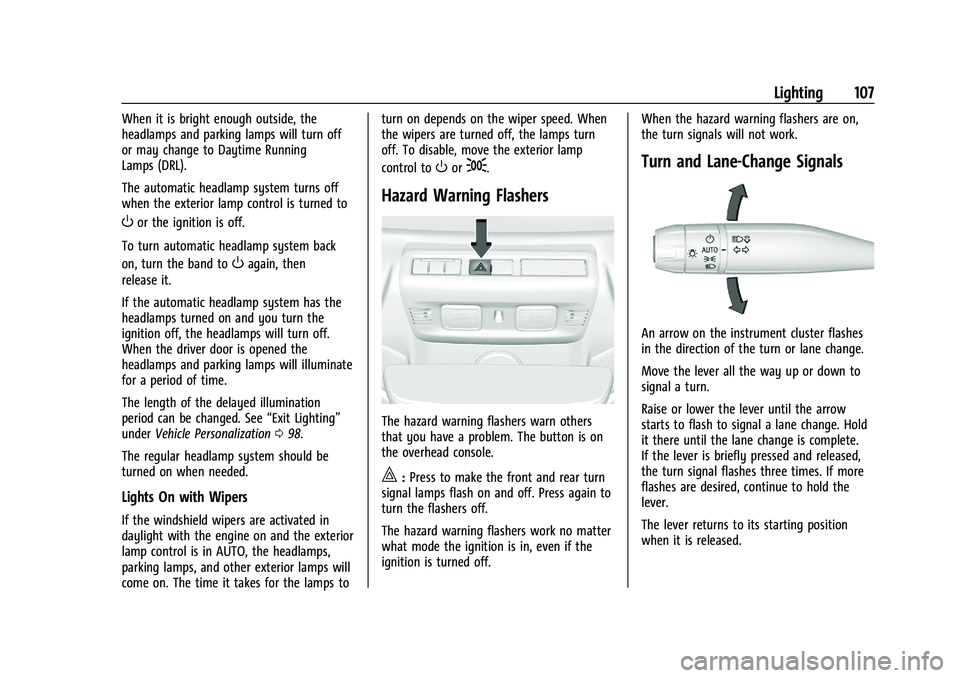
The hazard warning flashers warn others
that you have a problem. The button is on
the overhead console.
|:
Press to make the front and rear turn
signal lamps flash on and off. Press again to
turn the flashers off.
The hazard warning flashers work no matter
what mode the ignition is in, even if the
ignition is turned off. When the hazard warning flashers are on,
the turn signals will not work.
Turn and Lane-Change Signals
An arrow on the instrument cluster flashes
in the direction of the turn or lane change.
Move the lever all the way up or down to
signal a turn.
Raise or lower the lever until the arrow
starts to flash to signal a lane change. Hold
it there until the lane change is complete.
If the lever is briefly pressed and released,
the turn signal flashes three times. If more
flashes are desired, continue to hold the
lever.
The lever returns to its starting position
when it is released.
Page 110 of 338
Chevrolet Corvette Owner Manual (GMNA-Localizing-U.S./Canada/Mexico-
15342622) - 2022 - CRC - 5/4/21
Lighting 109
.Keyless access is used to unlock.
.The ignition is switched off.
The engine compartment lamp turns off
after all doors are closed.
If any door or the engine compartment
hatch/trunk remains open, while the vehicle
is off, a battery saver timer will turn the
lamp off after about 10 minutes.
Lighting Features
Entry Lighting
The interior lamps turn on when pressingK
on the remote key or opening any doors,
and the dome lamp control is in the DOOR
position.
Some exterior lamps also turn on when
pressing
Kon the remote key or opening
any doors. Low-Beam lamps will only turn
on briefly at night, or in areas with limited
lighting.
All lamps will gradually fade out after about
30 seconds. Entry lighting can be disabled manually by
closing all doors, pressing
Qon the remote
key, or starting the vehicle.
This feature can be changed. See “Vehicle
Locator Lights” underVehicle Personalization
0 98.
Exit Lighting
Some exterior lamps and interior lamps turn
on when the driver door is opened after the
ignition is turned off.
The interior lights turn on when the ignition
is turned off.
The exterior and interior lamps remain on
for a set amount of time, then automatically
turn off.
The exterior lamps turn off immediately by
turning the exterior lamp control off.
This feature can be changed. See Vehicle
Personalization 098.
Battery Power Protection
This feature helps prevent the battery from
being drained, if the interior courtesy lamps
or reading lamps are accidentally left on.
If any of these lamps are left on, they
automatically turn off after 10 minutes,
if the ignition is off. The lamps will not
come back on again until one of the
following occurs:
.The ignition is turned on.
.The doors are closed and then re-opened.
Exterior Lighting Battery Saver
The exterior lamps turn off about 10 minutes
after the ignition is turned off, if the parking
lamps or headlamps have been manually
left on. This protects against draining the
battery. To restart the 10-minute timer, turn
the exterior lamp control to the
Oposition
and then back to the
;or2position.
To keep the lamps on for more than
10 minutes, the ignition must be on or in
ACC/ACCESSORY.
Page 115 of 338
Chevrolet Corvette Owner Manual (GMNA-Localizing-U.S./Canada/Mexico-
15342622) - 2022 - CRC - 5/4/21
114 Infotainment System
Using the System
Audio
Touch the Audio icon to display the active
audio source page. Examples of available
sources may include AM, FM, SXM (if
equipped), MyMedia, USB, AUX, and
Bluetooth.
Phone
Touch the Phone icon to display the Phone
main page. SeeBluetooth (Overview) 0145
or
Bluetooth (Pairing and Using a Phone)
0 146.
Navigation
Touch the Navigation icon to display the
embedded navigation map. See Using the
Navigation System 0124.
Users
If equipped, touch the Users icon to sign in
or create a new user profile, and follow the
on-screen instructions.
Only four user profiles can be active at one
time in the vehicle. It may be necessary to
remove a profile from the menu before creating or signing into an existing profile.
The removed profile can be logged into at a
later time.
Settings
Touch the Settings icon to display the
Settings menu. See
Settings0151.
Apple CarPlay
Touch the Apple CarPlay icon to activate
Apple CarPlay (if equipped) after a
supported device is connected. See Apple
CarPlay and Android Auto 0150.
Android Auto
Touch the Android Auto icon to activate
Android Auto (if equipped) after a supported
device is connected. See Apple CarPlay and
Android Auto 0150.
Apps
If equipped, in-vehicle apps are available for
download. Touch the Apps icon on the
Home Page to begin.
Downloading and using in-vehicle apps
requires Internet connectivity which can be
accessed with a data plan through the
vehicle’s built-in 4G LTE Wi-Fi hotspot,
if equipped, or a compatible mobile device hotspot. On most mobile devices, activation
of the Wi-Fi hotspot is in the device’s
Settings menu under Mobile Network
Sharing, Personal Hotspot, Mobile Hotspot,
or similar.
Availability of apps and connectivity varies
by vehicle, conditions, and location. Data
plan rates apply. Features are subject to
change. For more information, see
www.my.chevrolet.com/learn.
OnStar Services
If equipped, touch the OnStar Services icon
to display the OnStar Services and Account
pages. See
OnStar Overview 0318.
Camera
If equipped, touch the Camera icon to access
the camera application. See Assistance
Systems for Parking or Backing 0220.
Shortcut Tray
The shortcut tray is near the bottom of the
display. It shows up to four applications.
Page 134 of 338
Chevrolet Corvette Owner Manual (GMNA-Localizing-U.S./Canada/Mexico-
15342622) - 2022 - CRC - 5/4/21
Infotainment System 133
Smart Fuel Station Icons
Fuel station prices are shown if available for
nearby stations when the vehicle is low
on fuel.
Smart Parking Icons
When reaching a densely populated
destination and the system determines that
parking may be limited, the system will
attempt to display nearby parking
destinations with pricing information,
if available.
Report an Issue Using POI Details (If
Equipped)
In the POI details page, a POI issue can be
reported if the data is not accurate or the
address is incorrect. Touch Report an Issue
near the bottom of the display to access the
issue selection page. Touch one of the
predefined issues on the selection page,
then touch Send. The system will send the
information for analysis.
Search
Touch Search on the infotainment display to
open the search display. It has a search field
entry box, quick category icon shortcuts,
recents icon, favorites icon, and keyboard.Auto Complete
Enter a partial location in the field entry box
on the search display. Auto complete will
attempt to complete the destination based
on what is being entered. Touch the
suggested item to search.
Search While in Motion with No Front Seat
Passenger Present
The search display will not allow changes or
text input with the keyboard when the
vehicle is in motion. As a result, a display
showing three rows of the most commonly
used categories appears. Touching the search
box will activate speech recognition.
Search While in Motion with Front Seat
Passenger Present
If the system detects that the front seat
passenger is present with both driver and
passenger seat belts buckled, touching the
search icon will display an alert message
that allows the passenger to search for a
destination as if the vehicle were stopped.
Connected Navigation
Connected Navigation is a subscription
service that enables certain capabilities
within the navigation system, such as
Traffic, Smart Search/Routing, and PredictiveNavigation capabilities. The system will
show an alert when the subscription is
expiring and will ask to renew the plan.
Global Positioning System (GPS)
If equipped, the position of the vehicle is
determined by using satellite signals, various
vehicle signals, and map data.
At times, other interference such as the
satellite condition, road configuration,
condition of the vehicle, and/or other
circumstances can affect the navigation
system's ability to determine the accurate
position of the vehicle.
The GPS shows the current position of the
vehicle using signals sent by GPS satellites.
When the vehicle is not receiving signals
from the satellites, a symbol appears in the
status bar.
This system might not be available or
interference can occur if any of the
following are true:
.Signals are obstructed by tall buildings,
trees, large trucks, or a tunnel.
.Satellites are being repaired or improved.
Page 135 of 338
Chevrolet Corvette Owner Manual (GMNA-Localizing-U.S./Canada/Mexico-
15342622) - 2022 - CRC - 5/4/21
134 Infotainment System
For more information if the GPS is not
functioning properly, seeProblems with
Route Guidance 0134 and
If the System Needs Service 0134.
Vehicle Positioning
At times, the position of the vehicle on the
map could be inaccurate due to one or more
of the following reasons:
.The road system has changed.
.The vehicle is driving on slippery road
surfaces such as sand, gravel, or snow.
.The vehicle is traveling on winding roads
or long, straight roads.
.The vehicle is approaching a tall building
or a large vehicle.
.The surface streets run parallel to a
freeway.
.The vehicle has been transferred by a
vehicle carrier or a ferry.
.The current position calibration is set
incorrectly.
.The vehicle is traveling at high speed.
.The vehicle changes directions more than
once, or the vehicle is turning on a turn
table in a parking lot.
.The vehicle is entering and/or exiting a
parking lot, garage, or a lot with a roof.
.The GPS signal is not received.
.A roof carrier is installed on the vehicle.
.Tire chains are installed on the vehicle.
.The tires are replaced or worn.
.The tire pressure for the tires is incorrect.
.This is the first navigation use after the
map data is updated.
.The 12-volt battery has been disconnected
for several days.
.The vehicle is driving in heavy traffic
where driving is at low speeds, and the
vehicle is stopped and started repeatedly.
Problems with Route Guidance
Inappropriate route guidance can occur
under one or more of the following
conditions:
.The turn was not made on the road
indicated.
.Route guidance might not be available
when using automatic rerouting for the
next right or left turn.
.The route might not be changed when
using automatic rerouting.
.There is no route guidance when turning
at an intersection.
.Plural names of places might be
announced occasionally.
.It could take a long time to operate
automatic rerouting during high-speed
driving.
.Automatic rerouting might display a route
returning to the set waypoint if heading
for a destination without passing through
a set waypoint.
.The route prohibits the entry of a vehicle
due to a regulation by time or season or
any other regulation which may be given.
.Some routes might not be searched.
.The route to the destination might not be
shown if there are new roads, if roads
have recently changed, or if certain roads
are not listed in the map data. See Maps
0 127.
To recalibrate the vehicle's position on the
map, park with the vehicle running for two
to five minutes, until the vehicle position
updates. Make sure the vehicle is parked in
a location that is safe and has a clear view
of the sky and away from large
obstructions.
If the System Needs Service
If the navigation system needs service, see
your dealer.
Page 138 of 338
Chevrolet Corvette Owner Manual (GMNA-Localizing-U.S./Canada/Mexico-
15342622) - 2022 - CRC - 5/4/21
Infotainment System 137
place, such as an Address, Intersection,
POI, or Contact. If Address or Intersection
is selected, the second command is to
say,“Change Country.” Once the system
responds, say the country before saying
the rest of the address and/or
intersection.
If POI is asked for, say “Change Location,”
then “Change Country.”
Direct commands might be more clearly
understood by the system. An example of a
direct command would be “Call
Examples of these direct commands are
displayed on most of the screens while a
voice session is active. If “Phone”or“Phone
Commands,” is spoken, the system
understands that a phone call is requested
and will respond with questions until
enough details are gathered to make a call.
If a cell phone number has been saved with
a name and a place, the direct command
should include both, for example “Call
Using Voice Recognition for List Options
When a list is displayed, a voice prompt will
ask to confirm or select an option from
that list. When a display contains a list, there may be
options that are available but not displayed.
The list on a voice recognition screen
functions the same as a list on other
displays. Scrolling or flinging can be used to
help display other entries from the list.
Manually scrolling or paging the list on a
display during a voice recognition session
suspends the current voice recognition event
and plays the prompt
“Please select
manually or touch the Back icon on the
infotainment display to try again.”
If manual selection takes more than
15 seconds, the session terminates and
prompts that it has timed out. The display
returns to the display where voice
recognition was initiated.
The Back Command
Say “Back” or touch the Back icon on the
infotainment display to go to the
previous menu.
If in voice recognition, and “Back”is spoken
all the way back to the starting display, and
then “Back” is spoken one more time, the
voice recognition session will cancel. Help
Say
“Help” on any voice recognition display
and the help prompt for the display is
played.
Voice Recognition for the Radio
If browsing the audio sources when voice is
touched, the voice recognition commands
for AM, FM, and SiriusXM (if equipped) are
available.
“Switch to AM” :Switch bands to AM and
tune to the last AM radio station.
“Switch to FM” :Switch bands to FM and
tune to the last FM radio station.
“Switch to SXM” :Switch bands to SiriusXM
and tune to the last SiriusXM channel.
“Tune to
the radio station whose frequency is
identified in the command (like “nine fifty”).
“Tune to
radio station whose frequency is identified
in the command (like “one oh one
point one”).
“Tune to
to the HD Radio station whose frequency is
identified in the command.
Page 142 of 338
Chevrolet Corvette Owner Manual (GMNA-Localizing-U.S./Canada/Mexico-
15342622) - 2022 - CRC - 5/4/21
Infotainment System 141
microphone located behind the rear view
mirror. The PDR video and data is stored on
a removable SD card located in the SD card
reader in the glove box. The video (MP4)
can be played back in the vehicle or the SD
card can be removed and played in a PC or
on a mobile device or the file can be viewed
and analyzed within Toolbox. See Toolbox
later in this section.
The recorded data is not stored anywhere
else and is only accessible from the SD card.
To optimize PDR performance, it is
recommended that the SD card is formatted
on a regular basis. Back up all recordings on
the SD card prior to formatting. Formatting
the SD card will delete all saved recordings.
If a system error code is seen on the
display, such as "System Error Code ####",
please check the health of the SD card.
It may need to be reformatted or replaced.
If the issue persists, please see your dealer.
To begin, insert an exFAT formatted SD card,
Class 10 required, 16 GB or larger
recommended, into the glove box SD card
reader.Touch the PDR icon to access the PDR menu.
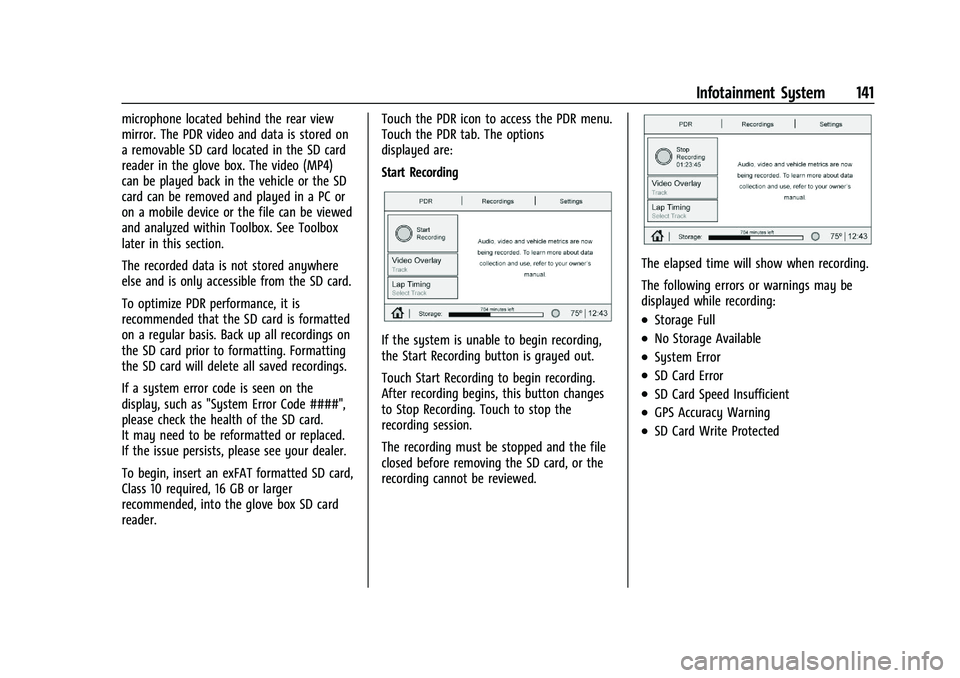
Touch the PDR tab. The options
displayed are:
Start Recording
If the system is unable to begin recording,
the Start Recording button is grayed out.
Touch Start Recording to begin recording.
After recording begins, this button changes
to Stop Recording. Touch to stop the
recording session.
The recording must be stopped and the file
closed before removing the SD card, or the
recording cannot be reviewed.
The elapsed time will show when recording.
The following errors or warnings may be
displayed while recording:
.Storage Full
.No Storage Available
.System Error
.SD Card Error
.SD Card Speed Insufficient
.GPS Accuracy Warning
.SD Card Write Protected
Page 145 of 338
Chevrolet Corvette Owner Manual (GMNA-Localizing-U.S./Canada/Mexico-
15342622) - 2022 - CRC - 5/4/21
144 Infotainment System
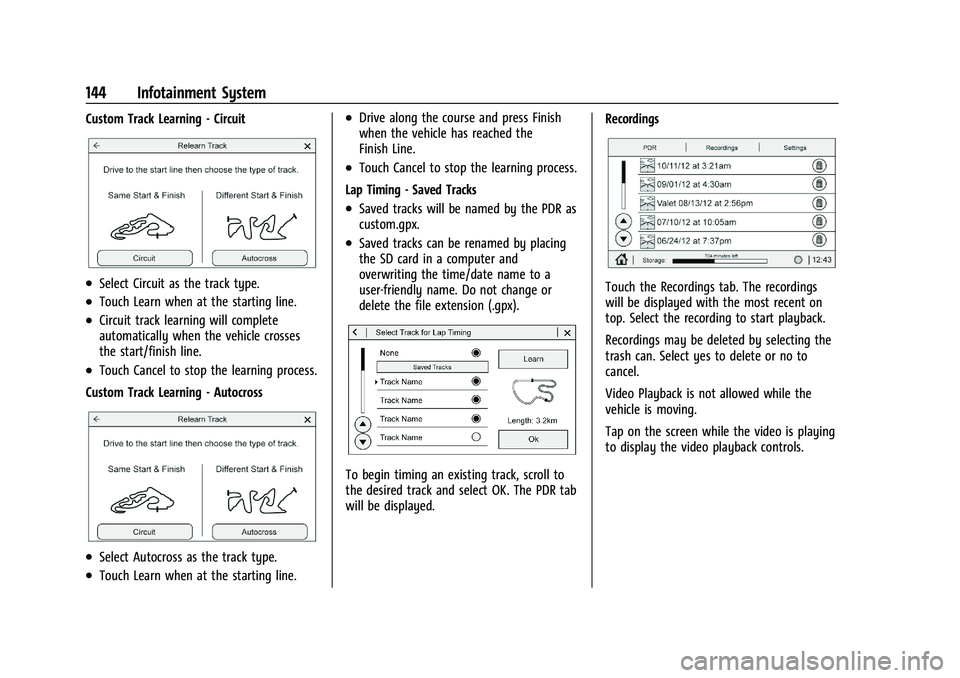
Custom Track Learning - Circuit
.Select Circuit as the track type.
.Touch Learn when at the starting line.
.Circuit track learning will complete
automatically when the vehicle crosses
the start/finish line.
.Touch Cancel to stop the learning process.
Custom Track Learning - Autocross
.Select Autocross as the track type.
.Touch Learn when at the starting line.
.Drive along the course and press Finish
when the vehicle has reached the
Finish Line.
.Touch Cancel to stop the learning process.
Lap Timing - Saved Tracks
.Saved tracks will be named by the PDR as
custom.gpx.
.Saved tracks can be renamed by placing
the SD card in a computer and
overwriting the time/date name to a
user-friendly name. Do not change or
delete the file extension (.gpx).
To begin timing an existing track, scroll to
the desired track and select OK. The PDR tab
will be displayed. Recordings
Touch the Recordings tab. The recordings
will be displayed with the most recent on
top. Select the recording to start playback.
Recordings may be deleted by selecting the
trash can. Select yes to delete or no to
cancel.
Video Playback is not allowed while the
vehicle is moving.
Tap on the screen while the video is playing
to display the video playback controls.