transmission CHEVROLET CORVETTE 2022 User Guide
[x] Cancel search | Manufacturer: CHEVROLET, Model Year: 2022, Model line: CORVETTE, Model: CHEVROLET CORVETTE 2022Pages: 338, PDF Size: 7.6 MB
Page 94 of 338
Chevrolet Corvette Owner Manual (GMNA-Localizing-U.S./Canada/Mexico-
15342622) - 2022 - CRC - 5/4/21
Instruments and Controls 93
DIC Info Pages
The following is the list of all possible DIC
info displays. Depending on the vehicle,
some may not be available.
Trip 1 or 2/Average Speed/Average Fuel
Economy :Trip displays the current distance
traveled, in either kilometers (km) or
miles (mi), since the trip odometer was last
reset. The trip odometer can be reset by
pressing and holding the thumbwheel while
this display is active.
Average Speed displays the average speed of
the vehicle in kilometers per hour (km/h) or
miles per hour (mph). This average is
calculated based on the various vehicle
speeds recorded since the last reset of this
value. The average speed can be reset by
pressing and holding the thumbwheel while
this display is active.
Average Fuel Economy displays the
approximate average liters per
100 kilometers (L/100 km) or miles per
gallon (mpg). This number is calculated
based on the number of L/100 km (mpg)
recorded since the last time this menu item
was reset. This number reflects only the
approximate average fuel economy that the
vehicle has right now, and will change as driving conditions change. The Average Fuel
Economy can be reset by pressing and
holding the thumbwheel while this display
is active.
Oil Life :
Displays an estimate of the oil's
remaining useful life. If REMAINING OIL LIFE
99% is displayed, that means 99% of the
current oil life remains.
When the remaining oil life is low, the
CHANGE ENGINE OIL SOON message will
appear on the display. The oil should be
changed as soon as possible. See Engine Oil
0 235. In addition to the engine oil life
system monitoring the oil life, additional
maintenance is recommended in the
Maintenance Schedule. See Maintenance
Schedule 0292.
The Oil Life display must be reset after each
oil change. It will not reset itself. Do not
reset the Oil Life display accidentally at any
time other than when the oil has just been
changed. It cannot be reset accurately until
the next oil change. To reset, see Engine Oil
Life System 0238.
Tire Pressure : Displays the approximate
pressures of all four tires. Tire pressure is
displayed in either kilopascal (kPa) or in
pounds per square inch (psi). If the pressure
is low, the value for that tire is shown in amber. See
Tire Pressure Monitor System
0 267 and
Tire Pressure Monitor Operation 0268.
Transmission Fluid Life : Displays an
estimate of the fluid's remaining useful life.
If REMAINING FLUID LIFE 99% is displayed,
that means 99% of the current fluid life
remains.
When the remaining fluid life is low, the
CHANGE TRANSMISSION FLUID SOON
message will appear on the display. The
fluid should be changed as soon as possible.
See Dual Clutch Transmission Fluid Life
System 0239. In addition to the
Transmission Fluid Life system monitoring
the fluid life, additional maintenance is
recommended in the Maintenance Schedule.
See Maintenance Schedule 0292.
The Fluid Life display must be reset after
each fluid change. It will not reset itself. Do
not reset the Fluid Life display accidentally
at any time other than when the fluid has
just been changed. It cannot be reset
accurately until the next fluid change. To
reset the Transmission Fluid Life system,
press and hold SEL for several seconds while
the Fluid Life display is active.
Page 95 of 338
Chevrolet Corvette Owner Manual (GMNA-Localizing-U.S./Canada/Mexico-
15342622) - 2022 - CRC - 5/4/21
94 Instruments and Controls
Fuel Economy :Displays the average fuel
economy, the best fuel economy over the
selected distance, and a bar graph showing
instantaneous fuel economy. Pressing the
thumbwheel will open a menu to change
the selected distance or reset the current
values.
Timer/Fuel Used : This display can be used
as a timer. To start/stop the timer, press the
thumbwheel while this display is active and
then select the start/stop the timer. The
display will show the amount of time that
has passed since the timer was last reset. To
reset the timer to zero, press the
thumbwheel to access the menu while this
display is active.
Fuel Used displays the approximate liters (L)
or gallons (gal) of fuel that have been used
since last reset. The fuel used can be reset
by pressing the thumbwheel and selecting
Reset Fuel Used in the menu.
Economy Trend : Shows the instantaneous
fuel economy and current gas mileage.
Speed Limit : Displays sign information,
which comes from a roadway database in
the on-board navigation. Engine Hours/Lifetime Revs :
Displays the
total number of hours the engine has run.
It also shows total engine revolutions
divided by 10,000.
Head-Up Display (HUD)
{Warning
If the HUD image is too bright, or too
high in your field of view, it may take
you more time to see things you need to
see when it is dark outside. Be sure to
keep the HUD image dim and placed low
in your field of view.
If equipped with HUD, some information
concerning the operation of the vehicle is
projected onto the windshield.
The HUD information appears as an image
focused out toward the front of the vehicle.
Caution
If you try to use the HUD image as a
parking aid, you may misjudge the
distance and damage your vehicle. Do not
use the HUD image as a parking aid. The HUD information can be displayed in
various languages. The speedometer reading
and other numerical values can be displayed
in either English or metric units.
The language selection is changed through
the radio and the units of measurement is
changed through the instrument cluster. See
Vehicle Personalization
098 and “Settings”
under Instrument Cluster 080.
The HUD may display different alerts and
information for vehicles equipped with these
features:
.Speedometer
.Tachometer
.Manual Paddle Shift Gear Indicator
These displays on the HUD are for use
when using the manual paddle shift
controls to shift the transmission. See
“Manual Paddle Shift” inDual Clutch
Transmission 0195.
.G-Force Gauge
.Upcoming Maneuver from On-Board
Navigation
.Upcoming Maneuver from OnStar
.Incoming Call
Page 99 of 338
Chevrolet Corvette Owner Manual (GMNA-Localizing-U.S./Canada/Mexico-
15342622) - 2022 - CRC - 5/4/21
98 Instruments and Controls
.Vehicle Security
.Brakes
.Steering
.Ride Control Systems
.Driver Assistance Systems
.Cruise Control
.Front Lift System
.Lighting and Bulb Replacement
.Wiper/Washer Systems
.Doors and Windows
.Seat Belts
.Airbag Systems
.Engine and Transmission
.Tire Pressure
.Battery
Engine Power Messages
REDUCED ACCELERATION DRIVE
WITH CARE
This message displays when the vehicle's
propulsion power is reduced. A reduction in
propulsion power can affect the vehicle's
ability to accelerate. If this message is on,
but there is no observed reduction in
performance, proceed to your destination.
Under certain conditions the performance
may be reduced the next time the vehicle isdriven. The vehicle may be driven while this
message is on, but maximum acceleration
and speed may be reduced. Anytime this
message stays on, or displays repeatedly,
the vehicle should be taken to your dealer
for service as soon as possible.
Under certain operating conditions,
propulsion will be disabled. Try restarting
after the ignition has been off for
two minutes.
Vehicle Speed Messages
SPEED LIMITED TO XXX KM/H (MPH)
This message shows that the vehicle speed
has been limited to the speed displayed. The
limited speed is a protection for various
propulsion and vehicle systems, such as
lubrication, thermal, brakes, suspension,
Teen Driver if equipped, or tires.
Vehicle Personalization
The following are all possible vehicle
personalization features. Depending on the
vehicle, some may not be available.
For System, Apps, and Personal features and
functions, see
Settings0151. To access the vehicle personalization menu:
1. Touch the Settings icon on the Home Page of the infotainment display.
2. Touch Vehicle to display a list of available options.
3. Touch to select the desired feature setting.
4. Touch
9orRto turn a feature off or on.
5. Touch
zto go to the top level of the
Settings menu.
The menu may contain the following:
Buckle to Drive
This feature can prevent shifting out of Park
when the driver, and if applicable the front
passenger, seat belt is not buckled. See
Buckle To Drive 046.
Touch Off or On.
Driver Mode Customization
Touch and the following may display:
.Z-Mode
.My Mode
.Visualization
Page 104 of 338
Chevrolet Corvette Owner Manual (GMNA-Localizing-U.S./Canada/Mexico-
15342622) - 2022 - CRC - 5/4/21
Instruments and Controls 103
Do not use the Universal Remote system
with any garage door opener that does not
have the stop and reverse feature. This
includes any garage door opener model
manufactured before April 1, 1982.
Keep the original hand-held transmitter for
use in other vehicles as well as for future
programming. Erase the programming when
vehicle ownership is terminated. See
“Erasing Universal Remote System Buttons”
later in this section.
To program a garage door opener, park
outside directly in line with and facing the
garage door opener receiver. Clear all people
and objects near the garage door.
Make sure the hand-held transmitter has a
new battery for quick and accurate
transmission of the radio-frequency signal.
Programming the Universal Remote
System
Programming involves time-sensitive actions
and may time out, requiring the procedure
to be repeated. Read these instructions
completely before programming the
Universal Remote system. It may help to
have another person assist with the
programming process.1. Hold the end of the hand-held
transmitter about 3 to 8 cm (1 to 3 in)
away from the Universal Remote system
buttons with the indicator light in view.
The hand-held transmitter was supplied
by the manufacturer of the garage door
opener receiver.
2. Press and release one of the three Universal Remote system buttons to be
programmed. Press and hold the
hand-held transmitter button. Do not
release the hand-held transmitter button
until the indicator light changes from a
slow to a rapid flash or continuous light.
Then release the hand-held transmitter
button.
Some garage door openers may require
substitution of Step 2 with the procedure
under “Radio Signals for Some Gate
Operators” later in this section.
3. Press and hold the newly programmed Universal Remote system button for
five seconds while watching the indicator
light and garage door activation.
.If the indicator light stays on
continuously or the garage door
moves when the button is pressed,
then programming is complete. There
is no need to complete Steps 4–6.
.If the indicator light does not come
on or the garage door does not
move, a second button press may be
required. For a second time, press
and hold the newly programmed
button for five seconds. If the
indicator light stays on continuously
or the garage door moves when the
button is pressed, then programming
is complete. There is no need to
complete Steps 4–6.
.If the garage door does not move,
continue with programming
Steps 4–6.
Learn or Smart Button
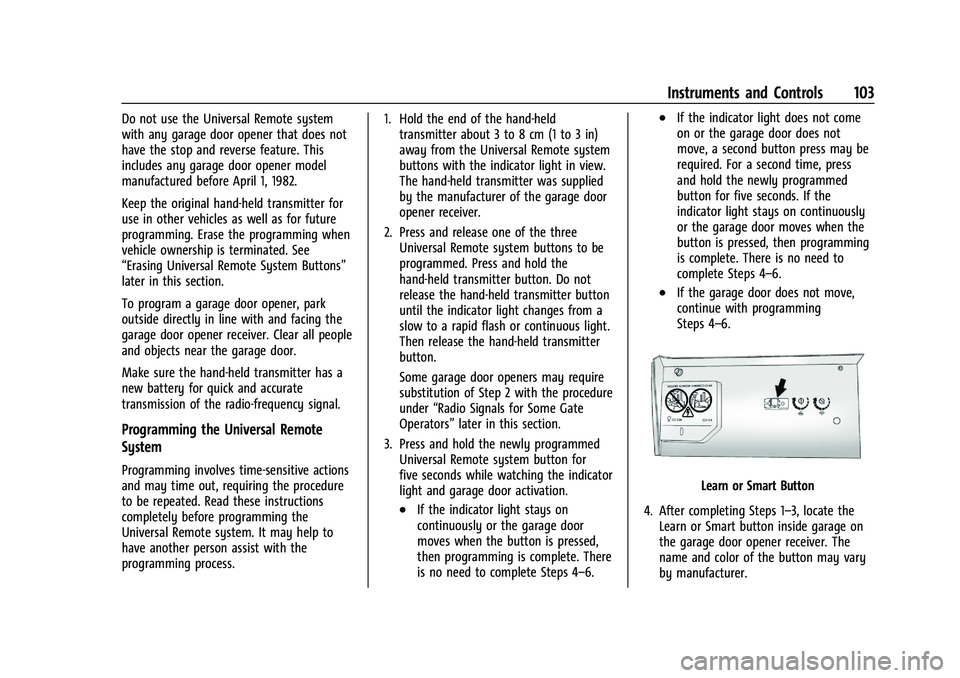
4. After completing Steps 1–3, locate the Learn or Smart button inside garage on
the garage door opener receiver. The
name and color of the button may vary
by manufacturer.
Page 105 of 338
Chevrolet Corvette Owner Manual (GMNA-Localizing-U.S./Canada/Mexico-
15342622) - 2022 - CRC - 5/4/21
104 Instruments and Controls
5. Press and release the Learn or Smartbutton. Step 6 must be completed within
30 seconds of pressing this button.
6. Return to the vehicle and firmly press and hold the trained Universal Remote
system button for two seconds and
release. Repeat the “press/hold/release”
sequence up to three times to complete
the training process.
The Universal Remote system should now
activate the garage door. Repeat the process
for programming the remaining two
buttons.
For questions or programming help, see
www.homelink.com/gm or call
1-800-355-3515. For calls placed outside the
U.S., Canada, or Puerto Rico, international
rates will apply and may differ based on
landline or mobile phone.
Radio Signals for Some Gate Operators
Some gate operators and radio-frequency
laws require transmitter signals to time out
or quit after several seconds of transmission.
This may not be long enough for the
Universal Remote system to pick up the
signal during programming. If the programming did not work, replace
Step 2 under
“Programming the Universal
Remote System” with the following:
Press and hold the Universal Remote system
button while pressing and releasing the
hand-held transmitter button every
two seconds until the signal has been
successfully accepted by the Universal
Remote system. The Universal Remote
system indicator light will flash slowly at
first and then change to a rapid flash or
continuous solid-light. Proceed with Step 3
under “Programming the Universal Remote
System” to complete.
Universal Remote System
Operation
Using the Universal Remote System
Press and hold the appropriate Universal
Remote system button for at least one-half
second. The indicator light will come on
while the signal is being transmitted.
Erasing Universal Remote System
Buttons
Erase all programmed buttons when vehicle
ownership is terminated.
To erase:
1. Press and hold the two outside buttons until the indicator light begins to flash.
This should take about 10 seconds.
2. Release both buttons.
Reprogramming a Single Universal
Remote System Button
To reprogram any of the system buttons: 1. Press and hold any one of the buttons. Do not release the button.
2. The indicator light will begin to flash after 20 seconds. Without releasing the
button, proceed with Step 1 under
“Programming the Universal Remote
System.”
Page 143 of 338
Chevrolet Corvette Owner Manual (GMNA-Localizing-U.S./Canada/Mexico-
15342622) - 2022 - CRC - 5/4/21
142 Infotainment System
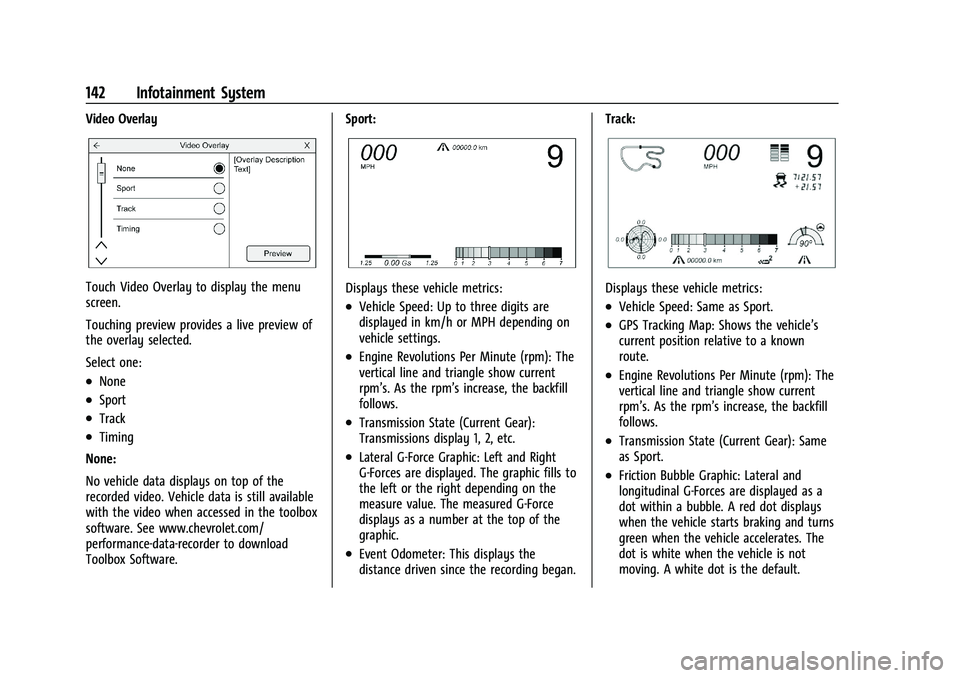
Video Overlay
Touch Video Overlay to display the menu
screen.
Touching preview provides a live preview of
the overlay selected.
Select one:
.None
.Sport
.Track
.Timing
None:
No vehicle data displays on top of the
recorded video. Vehicle data is still available
with the video when accessed in the toolbox
software. See www.chevrolet.com/
performance-data-recorder to download
Toolbox Software. Sport:
Displays these vehicle metrics:
.Vehicle Speed: Up to three digits are
displayed in km/h or MPH depending on
vehicle settings.
.Engine Revolutions Per Minute (rpm): The
vertical line and triangle show current
rpm’s. As the rpm’s increase, the backfill
follows.
.Transmission State (Current Gear):
Transmissions display 1, 2, etc.
.Lateral G-Force Graphic: Left and Right
G-Forces are displayed. The graphic fills to
the left or the right depending on the
measure value. The measured G-Force
displays as a number at the top of the
graphic.
.Event Odometer: This displays the
distance driven since the recording began.Track:
Displays these vehicle metrics:
.Vehicle Speed: Same as Sport.
.GPS Tracking Map: Shows the vehicle’s
current position relative to a known
route.
.Engine Revolutions Per Minute (rpm): The
vertical line and triangle show current
rpm’s. As the rpm’s increase, the backfill
follows.
.Transmission State (Current Gear): Same
as Sport.
.Friction Bubble Graphic: Lateral and
longitudinal G-Forces are displayed as a
dot within a bubble. A red dot displays
when the vehicle starts braking and turns
green when the vehicle accelerates. The
dot is white when the vehicle is not
moving. A white dot is the default.
Page 144 of 338
Chevrolet Corvette Owner Manual (GMNA-Localizing-U.S./Canada/Mexico-
15342622) - 2022 - CRC - 5/4/21
Infotainment System 143
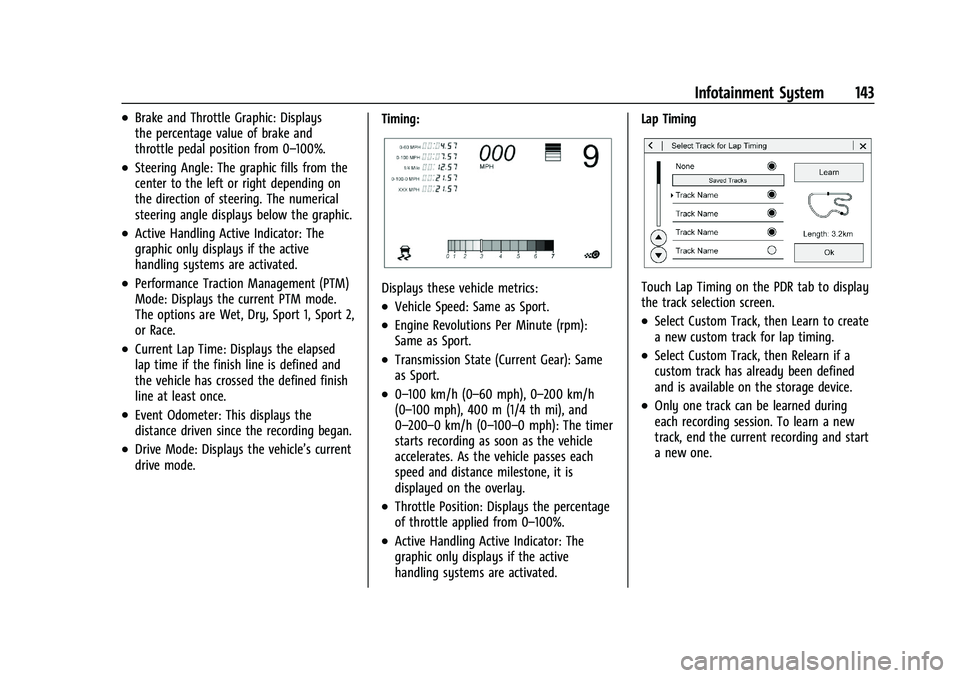
.Brake and Throttle Graphic: Displays
the percentage value of brake and
throttle pedal position from 0–100%.
.Steering Angle: The graphic fills from the
center to the left or right depending on
the direction of steering. The numerical
steering angle displays below the graphic.
.Active Handling Active Indicator: The
graphic only displays if the active
handling systems are activated.
.Performance Traction Management (PTM)
Mode: Displays the current PTM mode.
The options are Wet, Dry, Sport 1, Sport 2,
or Race.
.Current Lap Time: Displays the elapsed
lap time if the finish line is defined and
the vehicle has crossed the defined finish
line at least once.
.Event Odometer: This displays the
distance driven since the recording began.
.Drive Mode: Displays the vehicle’s current
drive mode.Timing:
Displays these vehicle metrics:
.Vehicle Speed: Same as Sport.
.Engine Revolutions Per Minute (rpm):
Same as Sport.
.Transmission State (Current Gear): Same
as Sport.
.0–100 km/h (0–60 mph), 0–200 km/h
(0–100 mph), 400 m (1/4 th mi), and
0–200–0 km/h (0–100–0 mph): The timer
starts recording as soon as the vehicle
accelerates. As the vehicle passes each
speed and distance milestone, it is
displayed on the overlay.
.Throttle Position: Displays the percentage
of throttle applied from 0–100%.
.Active Handling Active Indicator: The
graphic only displays if the active
handling systems are activated.Lap Timing
Touch Lap Timing on the PDR tab to display
the track selection screen.
.Select Custom Track, then Learn to create
a new custom track for lap timing.
.Select Custom Track, then Relearn if a
custom track has already been defined
and is available on the storage device.
.Only one track can be learned during
each recording session. To learn a new
track, end the current recording and start
a new one.
Page 159 of 338
Chevrolet Corvette Owner Manual (GMNA-Localizing-U.S./Canada/Mexico-
15342622) - 2022 - CRC - 5/4/21
158 Infotainment System
2. Create a Personal Identification Number(PIN) by choosing a four-digit PIN.
Re-enter the PIN to confirm. To change
the PIN, touch Change PIN.
The PIN is required to:
.Register or unregister keys.
.Change Teen Driver settings.
.Change or clear the Teen Driver PIN.
.Access or delete Report Card data.
Register keys to activate Teen Driver and
assign restrictions to the key:
Any vehicle key can be registered, up to a
maximum of eight keys. Label the key to
tell it apart from the other keys.
For a pushbutton start system: 1. Start the engine.
2. For automatic transmissions, the vehicle must be in P (Park). For manual
transmissions, the vehicle must be
stopped with the parking brake set.
3. From the Settings menu, touch Vehicle and then Teen Driver.
4. Enter the PIN. 5. Place the remote key you wish to
register in the transmitter pocket. The
key does not need to be the one that
started the vehicle. See Remote Keyless
Entry (RKE) System Operation 07for
transmitter pocket location.
6. From the Teen Driver menu, touch Setup Keys..If the remote key has not previously
been registered, the option to add
the key displays. Touch Setup and a
confirmation message displays. Teen
Driver restrictions will be applied
whenever this key is used to operate
the vehicle.
.If the remote key has already been
registered, the option to remove the
key displays. If Remove is touched,
the remote key is no longer
registered. A confirmation message
displays, and Teen Driver restrictions
will not be applied if this remote key
is used to operate the vehicle.
In vehicles with a pushbutton start system,
if a Teen Driver and a non-Teen Driver key
are both present at start up, the vehicle will
recognize the non-Teen Driver key to start
the vehicle. The Teen Driver settings will not
be active. Manage Settings
Buckle To Drive :
When turned ON, Buckle
to Drive prevents the driver from shifting
out of P (Park) for a period of time if driver
seat belt, and on some vehicles, the
passenger seat belt, is not buckled. See
Buckle To Drive 046 and
Vehicle Personalization 098.
Audio Volume Limit : Allows the audio
volume limit to be turned on or off. Touch
Set Audio Volume Limit to choose the
maximum allowable audio volume level.
Set Audio Volume Limit : Allows a
maximum radio volume to be set. Use the
arrows to choose the maximum allowable
level for the audio volume.
Teen Driver Speed Limiter : Limits the
maximum speed of the vehicle. When the
speed limiter is turned on and the vehicle is
started with a Teen Driver key, the DIC
displays a message that the top speed is
limited.
On certain vehicles, when the Speed Limiter
is turned ON, the vehicle’s maximum
acceleration will be limited. The DIC will
display a message that the acceleration is
limited.
Page 174 of 338
Chevrolet Corvette Owner Manual (GMNA-Localizing-U.S./Canada/Mexico-
15342622) - 2022 - CRC - 5/4/21
Driving and Operating 173
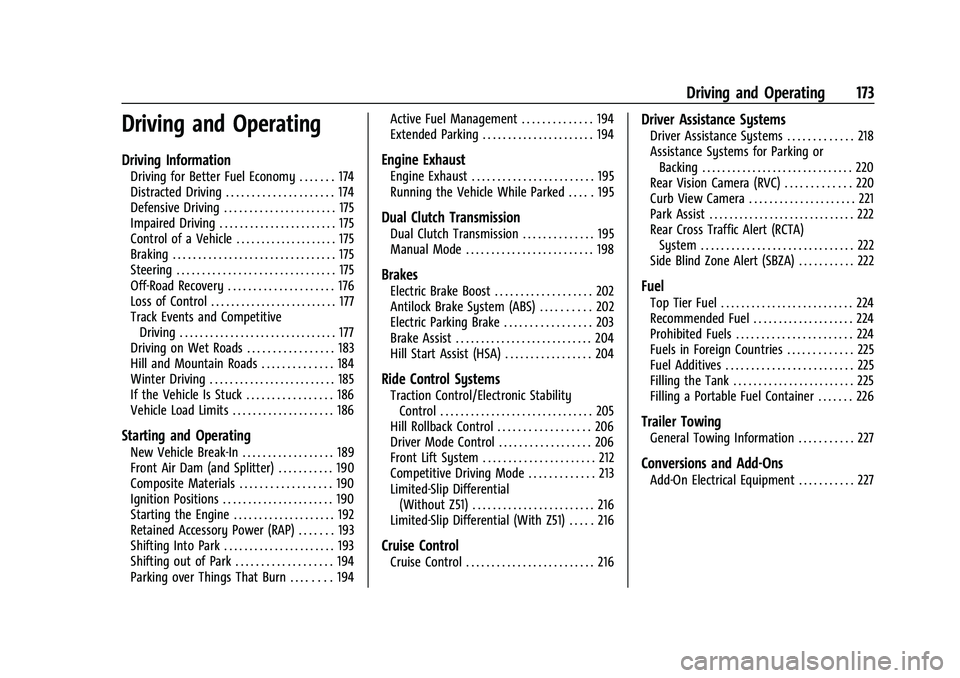
Driving and Operating
Driving Information
Driving for Better Fuel Economy . . . . . . . 174
Distracted Driving . . . . . . . . . . . . . . . . . . . . . 174
Defensive Driving . . . . . . . . . . . . . . . . . . . . . . 175
Impaired Driving . . . . . . . . . . . . . . . . . . . . . . . 175
Control of a Vehicle . . . . . . . . . . . . . . . . . . . . 175
Braking . . . . . . . . . . . . . . . . . . . . . . . . . . . . . . . . 175
Steering . . . . . . . . . . . . . . . . . . . . . . . . . . . . . . . 175
Off-Road Recovery . . . . . . . . . . . . . . . . . . . . . 176
Loss of Control . . . . . . . . . . . . . . . . . . . . . . . . . 177
Track Events and CompetitiveDriving . . . . . . . . . . . . . . . . . . . . . . . . . . . . . . . 177
Driving on Wet Roads . . . . . . . . . . . . . . . . . 183
Hill and Mountain Roads . . . . . . . . . . . . . . 184
Winter Driving . . . . . . . . . . . . . . . . . . . . . . . . . 185
If the Vehicle Is Stuck . . . . . . . . . . . . . . . . . 186
Vehicle Load Limits . . . . . . . . . . . . . . . . . . . . 186
Starting and Operating
New Vehicle Break-In . . . . . . . . . . . . . . . . . . 189
Front Air Dam (and Splitter) . . . . . . . . . . . 190
Composite Materials . . . . . . . . . . . . . . . . . . 190
Ignition Positions . . . . . . . . . . . . . . . . . . . . . . 190
Starting the Engine . . . . . . . . . . . . . . . . . . . . 192
Retained Accessory Power (RAP) . . . . . . . 193
Shifting Into Park . . . . . . . . . . . . . . . . . . . . . . 193
Shifting out of Park . . . . . . . . . . . . . . . . . . . 194
Parking over Things That Burn . . . . . . . . 194 Active Fuel Management . . . . . . . . . . . . . . 194
Extended Parking . . . . . . . . . . . . . . . . . . . . . . 194
Engine Exhaust
Engine Exhaust . . . . . . . . . . . . . . . . . . . . . . . . 195
Running the Vehicle While Parked . . . . . 195
Dual Clutch Transmission
Dual Clutch Transmission . . . . . . . . . . . . . . 195
Manual Mode . . . . . . . . . . . . . . . . . . . . . . . . . 198
Brakes
Electric Brake Boost . . . . . . . . . . . . . . . . . . . 202
Antilock Brake System (ABS) . . . . . . . . . . 202
Electric Parking Brake . . . . . . . . . . . . . . . . . 203
Brake Assist . . . . . . . . . . . . . . . . . . . . . . . . . . . 204
Hill Start Assist (HSA) . . . . . . . . . . . . . . . . . 204
Ride Control Systems
Traction Control/Electronic Stability
Control . . . . . . . . . . . . . . . . . . . . . . . . . . . . . . 205
Hill Rollback Control . . . . . . . . . . . . . . . . . . 206
Driver Mode Control . . . . . . . . . . . . . . . . . . 206
Front Lift System . . . . . . . . . . . . . . . . . . . . . . 212
Competitive Driving Mode . . . . . . . . . . . . . 213
Limited-Slip Differential (Without Z51) . . . . . . . . . . . . . . . . . . . . . . . . 216
Limited-Slip Differential (With Z51) . . . . . 216
Cruise Control
Cruise Control . . . . . . . . . . . . . . . . . . . . . . . . . 216
Driver Assistance Systems
Driver Assistance Systems . . . . . . . . . . . . . 218
Assistance Systems for Parking or Backing . . . . . . . . . . . . . . . . . . . . . . . . . . . . . . 220
Rear Vision Camera (RVC) . . . . . . . . . . . . . 220
Curb View Camera . . . . . . . . . . . . . . . . . . . . . 221
Park Assist . . . . . . . . . . . . . . . . . . . . . . . . . . . . . 222
Rear Cross Traffic Alert (RCTA) System . . . . . . . . . . . . . . . . . . . . . . . . . . . . . . 222
Side Blind Zone Alert (SBZA) . . . . . . . . . . . 222
Fuel
Top Tier Fuel . . . . . . . . . . . . . . . . . . . . . . . . . . 224
Recommended Fuel . . . . . . . . . . . . . . . . . . . . 224
Prohibited Fuels . . . . . . . . . . . . . . . . . . . . . . . 224
Fuels in Foreign Countries . . . . . . . . . . . . . 225
Fuel Additives . . . . . . . . . . . . . . . . . . . . . . . . . 225
Filling the Tank . . . . . . . . . . . . . . . . . . . . . . . . 225
Filling a Portable Fuel Container . . . . . . . 226
Trailer Towing
General Towing Information . . . . . . . . . . . 227
Conversions and Add-Ons
Add-On Electrical Equipment . . . . . . . . . . . 227
Page 175 of 338
Chevrolet Corvette Owner Manual (GMNA-Localizing-U.S./Canada/Mexico-
15342622) - 2022 - CRC - 5/4/21
174 Driving and Operating
Driving Information
Driving for Better Fuel Economy
Driving habits can affect fuel mileage. Here
are some driving tips to get the best fuel
economy possible:
.Set the climate controls to the desired
temperature after the engine is started,
or turn them off when not required.
.Avoid fast starts and accelerate smoothly.
.Brake gradually and avoid abrupt stops.
.Avoid idling the engine for long periods
of time.
.When road and weather conditions are
appropriate, use cruise control.
.Always follow posted speed limits or
drive more slowly when conditions
require.
.Keep vehicle tires properly inflated.
.Combine several trips into a single trip.
.Replace the vehicle's tires with the same
TPC Spec number molded into the tire's
sidewall near the size.
.Follow recommended scheduled
maintenance.
.Using Tour mode rather than Sport or
Track modes, will result in better Active
Fuel Management operation. SeeActive
Fuel Management 0194.
.For recommended shift speeds, see Dual
Clutch Transmission 0195.
Premium Fuel
Use the recommended fuel. See
Recommended Fuel 0224.
Distracted Driving
Distraction comes in many forms and can
take your focus from the task of driving.
Exercise good judgment and do not let other
activities divert your attention away from
the road. Many local governments have
enacted laws regarding driver distraction.
Become familiar with the local laws in
your area.
To avoid distracted driving, keep your eyes
on the road, keep your hands on the
steering wheel, and focus your attention on
driving.
.Do not use a phone in demanding driving
situations. Use a hands-free method to
place or receive necessary phone calls.
.Watch the road. Do not read, take notes,
or look up information on phones or
other electronic devices.
.Designate a front seat passenger to
handle potential distractions.
.Become familiar with vehicle features
before driving, such as programming
favorite radio stations and adjusting
climate control and seat settings. Program
all trip information into any navigation
device prior to driving.
.Wait until the vehicle is parked to
retrieve items that have fallen to the
floor.
.Stop or park the vehicle to tend to
children.
.Keep pets in an appropriate carrier or
restraint.
.Avoid stressful conversations while
driving, whether with a passenger or on a
cell phone.
{Warning
Taking your eyes off the road too long or
too often could cause a crash resulting in
injury or death. Focus your attention on
driving.