audio CHEVROLET CORVETTE 2022 Owner's Manual
[x] Cancel search | Manufacturer: CHEVROLET, Model Year: 2022, Model line: CORVETTE, Model: CHEVROLET CORVETTE 2022Pages: 338, PDF Size: 7.6 MB
Page 131 of 338
Chevrolet Corvette Owner Manual (GMNA-Localizing-U.S./Canada/Mexico-
15342622) - 2022 - CRC - 5/4/21
130 Infotainment System
Map Orientation
Touch
Aon the map to access map
orientation settings. Map orientation is 3D
Heading Up by default.
Available settings are:
.3D Heading Up (Default): 3D map with
the vehicle pointing up. In this mode, the
current location icon will always head up
and the map will rotate around it.
.2D Heading Up: 2D map with the vehicle
pointing up. In this mode, the current
location icon will always head up and the
map will rotate around it.
.2D North Up: 2D map with North pointing
up. In this mode, the current location icon
will shift as the vehicle turns left and
right.
Touch the icon to change the map type. The
icon and label will also update accordingly.
Depending on the zoom level of the 2D
Heading Up and 3D Heading Up maps, the
system may automatically switch to the 2D
North Up map.
When in AGV, the entire route can be
viewed in 2D North Up by touching the
traffic bar. The map will zoom out and
readjust to display the full route. When in 2D North Up Route View, the Recenter icon
will appear in the middle of the display.
Touch either the Recenter icon or the traffic
bar again to return to the previous view,
either 2D or 3D.
Lane Guidance
The map will display the lane information
for the upcoming maneuver if it is available.
Junction View
When a vehicle is on the highway and
approaching the exit, an image displays the
lane that the vehicle must stay in to
complete the next maneuver.
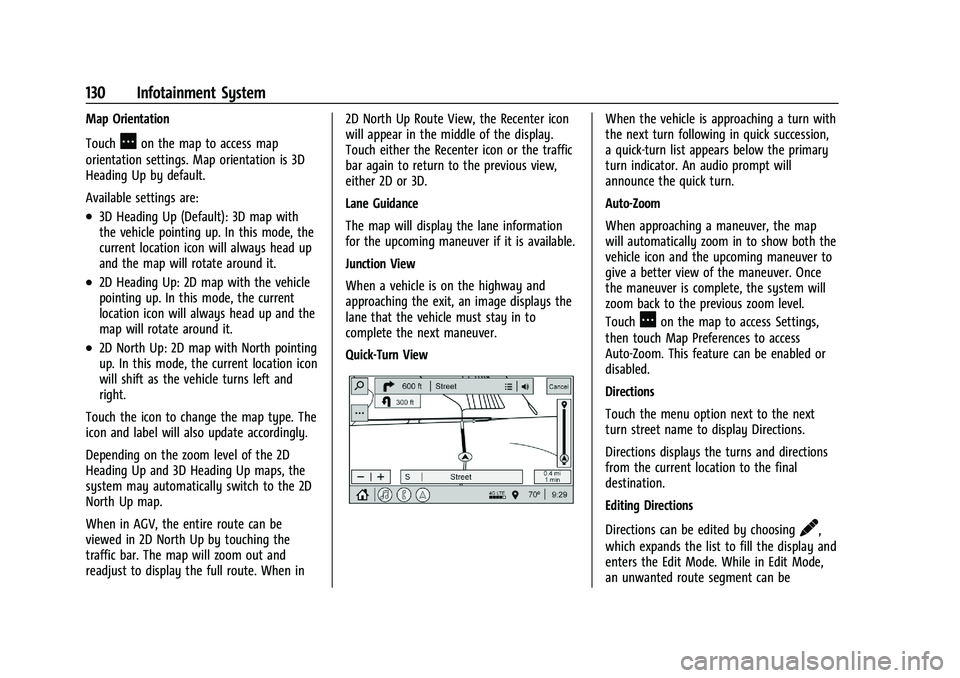
Quick-Turn View
When the vehicle is approaching a turn with
the next turn following in quick succession,
a quick-turn list appears below the primary
turn indicator. An audio prompt will
announce the quick turn.
Auto-Zoom
When approaching a maneuver, the map
will automatically zoom in to show both the
vehicle icon and the upcoming maneuver to
give a better view of the maneuver. Once
the maneuver is complete, the system will
zoom back to the previous zoom level.
Touch
Aon the map to access Settings,
then touch Map Preferences to access
Auto-Zoom. This feature can be enabled or
disabled.
Directions
Touch the menu option next to the next
turn street name to display Directions.
Directions displays the turns and directions
from the current location to the final
destination.
Editing Directions
Directions can be edited by choosing
y,
which expands the list to fill the display and
enters the Edit Mode. While in Edit Mode,
an unwanted route segment can be
Page 136 of 338
Chevrolet Corvette Owner Manual (GMNA-Localizing-U.S./Canada/Mexico-
15342622) - 2022 - CRC - 5/4/21
Infotainment System 135
Map Data Updates
The map data in the vehicle is the most
up-to-date information available when the
vehicle was produced.
See www.gmnavdisc.com for details on
ordering, purchasing, and installing a new or
replacement SD card. Features are subject to
change. For more information on this
feature, see my.chevrolet.com/learn.
Database Coverage Explanations
Coverage areas vary with respect to the
level of map detail available for any given
area. Some areas feature greater levels of
detail than others. If this happens, it does
not mean there is a problem with the
system. As the map data is updated, more
detail can become available for areas that
previously had limited detail. SeeMap Data
Updates 0135.
Voice Recognition
If equipped, voice recognition allows for
hands-free operation within the navigation,
audio, phone, and weather applications. This feature can be started by pressing
gon the
steering wheel or touching
gon the
infotainment display.
However, not all features within these areas
are supported by voice commands.
Generally, only complex tasks that require
multiple manual interactions to complete
are supported by voice commands.
For example, tasks that take more than one
or two touches, such as a song or artist to
play from a media device, would be
supported by voice commands. Other tasks,
like adjusting the volume or seeking up or
down, are audio features that are easily
performed by touching one or two options,
and are not supported by voice commands.
In general there are flexible ways to speak
commands for completing the tasks.
If your language supports it, try stating a
One-Shot command, such as “Directions to
address
while stating the address during the
command. Another example of a One-Shot
Destination Entry command is, “Directions to
Place of Interest at
commands do not work, try saying, “Takeme to Place of Interest”
or“Find address”
and the system will walk you through by
asking additional questions.
Hybrid Speech Recognition
If equipped, this feature helps distinguish
words by using Internet-based information
along with the system’s voice recognition
database. This allows you to speak more
naturally when using voice recognition.
Using Voice Recognition
Voice recognition becomes available once
the system has been initialized. This begins
when the ignition is turned on. Initialization
may take a few moments.
1. Press
gon the steering wheel controls
to activate voice recognition.
2. The audio system mutes and the system plays a prompt.
3. Clearly speak one of the commands described in this section.
A voice recognition system prompt can
be interrupted while it is playing by
pressing
gagain.
Once voice recognition is started, both the
infotainment display and instrument cluster
show the selections and visual dialog
Page 138 of 338
Chevrolet Corvette Owner Manual (GMNA-Localizing-U.S./Canada/Mexico-
15342622) - 2022 - CRC - 5/4/21
Infotainment System 137
place, such as an Address, Intersection,
POI, or Contact. If Address or Intersection
is selected, the second command is to
say,“Change Country.” Once the system
responds, say the country before saying
the rest of the address and/or
intersection.
If POI is asked for, say “Change Location,”
then “Change Country.”
Direct commands might be more clearly
understood by the system. An example of a
direct command would be “Call
Examples of these direct commands are
displayed on most of the screens while a
voice session is active. If “Phone”or“Phone
Commands,” is spoken, the system
understands that a phone call is requested
and will respond with questions until
enough details are gathered to make a call.
If a cell phone number has been saved with
a name and a place, the direct command
should include both, for example “Call
Using Voice Recognition for List Options
When a list is displayed, a voice prompt will
ask to confirm or select an option from
that list. When a display contains a list, there may be
options that are available but not displayed.
The list on a voice recognition screen
functions the same as a list on other
displays. Scrolling or flinging can be used to
help display other entries from the list.
Manually scrolling or paging the list on a
display during a voice recognition session
suspends the current voice recognition event
and plays the prompt
“Please select
manually or touch the Back icon on the
infotainment display to try again.”
If manual selection takes more than
15 seconds, the session terminates and
prompts that it has timed out. The display
returns to the display where voice
recognition was initiated.
The Back Command
Say “Back” or touch the Back icon on the
infotainment display to go to the
previous menu.
If in voice recognition, and “Back”is spoken
all the way back to the starting display, and
then “Back” is spoken one more time, the
voice recognition session will cancel. Help
Say
“Help” on any voice recognition display
and the help prompt for the display is
played.
Voice Recognition for the Radio
If browsing the audio sources when voice is
touched, the voice recognition commands
for AM, FM, and SiriusXM (if equipped) are
available.
“Switch to AM” :Switch bands to AM and
tune to the last AM radio station.
“Switch to FM” :Switch bands to FM and
tune to the last FM radio station.
“Switch to SXM” :Switch bands to SiriusXM
and tune to the last SiriusXM channel.
“Tune to
the radio station whose frequency is
identified in the command (like “nine fifty”).
“Tune to
radio station whose frequency is identified
in the command (like “one oh one
point one”).
“Tune to
to the HD Radio station whose frequency is
identified in the command.
Page 139 of 338
Chevrolet Corvette Owner Manual (GMNA-Localizing-U.S./Canada/Mexico-
15342622) - 2022 - CRC - 5/4/21
138 Infotainment System
“Tune to
the HD Radio station whose frequency is
identified in the command.
“Tune to
station whose frequency and HD channel are
identified in the command.
“Tune to SXM
Tune to the SiriusXM radio station whose
channel number is identified in the
command.
“Tune to SXM
to the SiriusXM radio station whose channel
name is identified in the command.
Voice Recognition for Audio MyMedia
The available voice recognition commands
for [browsing] MyMedia are:
“Play Artist” :Begin a dialog to enter a
specific artist name.
“Play Artist
of a specific artist.
“Play Album” :Begin a dialog to enter a
specific album name.
“Play Album
playback of a specific album. “Play Song”
:Begin a dialog to enter a
specific song name.
“Play Song
of a specific song, if available.
“Play Genre” :Begin a dialog to enter a
specific genre.
“Play Genre
playback of a specific genre.
“Play Playlist” :Begin a dialog to enter a
specific playlist name.
“Play Playlist
playback of a specific playlist.
“Play
specific device identified by name. The
device name is the name displayed on the
display when the device is first selected as
an audio source.
“Play Chapter” :Begin a dialog to enter a
specific name.
“Play Chapter
playback of a specific chapter.
“Play Audiobook” :Begin a dialog to enter
a specific audiobook.
“Play Audiobook
Begin playback of a specific audiobook. “Play Episode”
:Begin a dialog to enter a
specific name.
“Play Episode
playback of a specific episode.
“Play Podcast” :Begin a dialog to enter a
specific podcast.
“Play Podcast
playback of a specific podcast.
“My Media” :Begin a dialog to enter the
desired media content.
Handling Large Amounts of Media Content
It is expected that large amounts of media
content will be brought into the vehicle.
It may be necessary to handle large
amounts of media content in a different
way than smaller amounts of media. The
system may limit the options of voice
recognition by not allowing selection of files
by voice at the highest level if the number
of files exceeds the maximum limit.
Changes to voice commands due to media
content limits are:
.Files including other individual files of all
media types such as songs, audiobook
chapters, podcast episodes, and videos.
.Album type folders including types such
as albums and audiobooks.
Page 141 of 338
Chevrolet Corvette Owner Manual (GMNA-Localizing-U.S./Canada/Mexico-
15342622) - 2022 - CRC - 5/4/21
140 Infotainment System
“Switch Phone”:Select a different
connected cell phone for outgoing calls.
“Voice Keypad” :Begin a dialog to enter
special numbers like international numbers.
The numbers can be entered in groups of
digits with each group of digits being
repeated back by the system. If the group
of digits is not correct, the command
“Delete” will remove the last group of digits
and allow them to be re-entered. Once the
entire number has been entered, the
command “Call”will start dialing the
number.
Phone Assistant Voice Recognition
Press and holdgon the steering wheel
controls to pass through and launch Google
phone assistant or Siri.
For the low radio, whether connected by
Bluetooth or phone projection, the only
available voice recognition is either Siri
(iPhone) or the Google Assistant (Android).
Performance Data
Recorder (PDR)
If equipped, the PDR icon displays on the
Home Page.
Important Information
Use of the PDR may be prohibited or legally
restricted in certain countries and situations.
Ensure compliance with applicable laws and
regulations, including, but not limited to:
privacy laws, laws related to camera
surveillance and recordings, road traffic and
security laws, and laws on the protection of
publicity and personality rights.
.Do not use the PDR if it causes
distraction.
.Do not rely on camera footage to steer
the vehicle.
.Comply with any notice and consent
requirements before capturing and/or
recording the voices or images of other
persons or before collecting other
personal data.
.Notify other drivers of your vehicle about
the above rules and require them to
comply.
.General Motors does not accept any
responsibility or liability in connection
with use that is not permitted.
.Law enforcement authorities may have
the right to seize video recordings and
use them as evidence of criminal/driving
offenses against you or third parties.
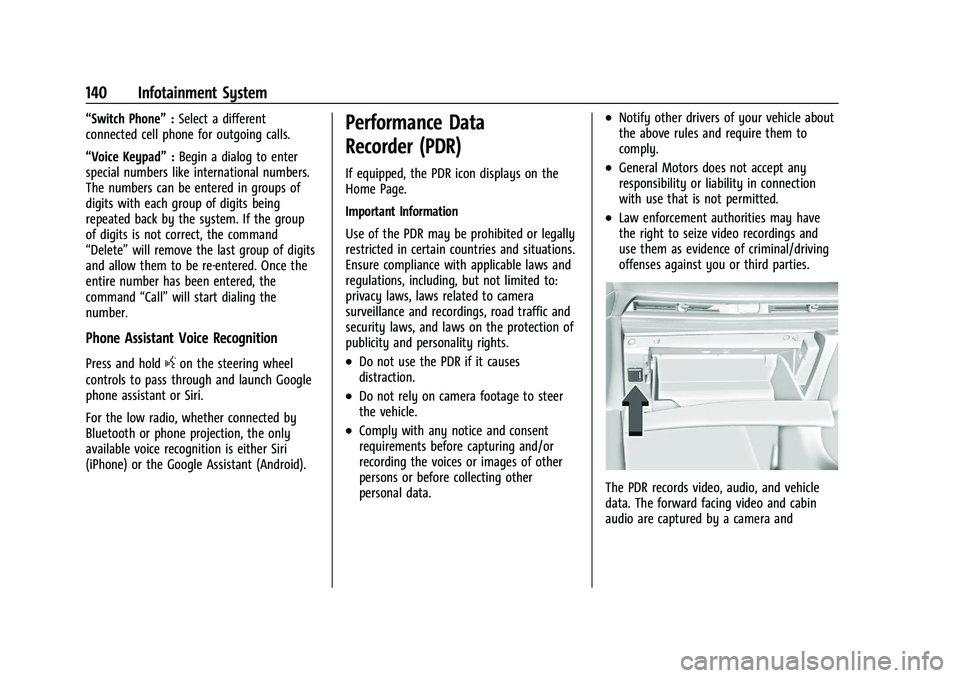
The PDR records video, audio, and vehicle
data. The forward facing video and cabin
audio are captured by a camera and
Page 146 of 338
Chevrolet Corvette Owner Manual (GMNA-Localizing-U.S./Canada/Mexico-
15342622) - 2022 - CRC - 5/4/21
Infotainment System 145
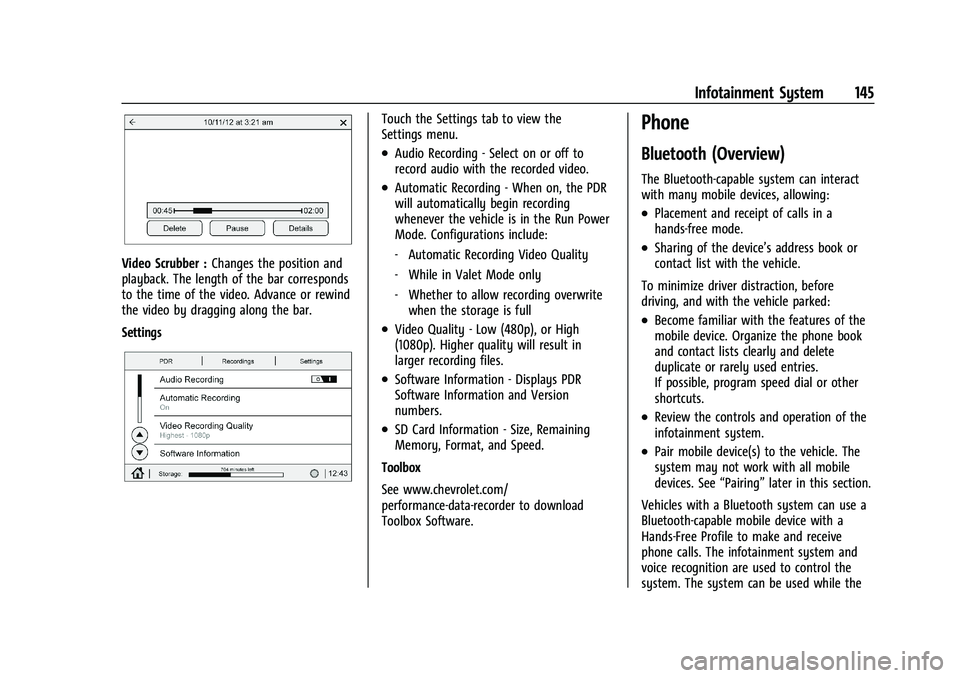
Video Scrubber :Changes the position and
playback. The length of the bar corresponds
to the time of the video. Advance or rewind
the video by dragging along the bar.
Settings
Touch the Settings tab to view the
Settings menu.
.Audio Recording - Select on or off to
record audio with the recorded video.
.Automatic Recording - When on, the PDR
will automatically begin recording
whenever the vehicle is in the Run Power
Mode. Configurations include:
‐ Automatic Recording Video Quality
‐ While in Valet Mode only
‐ Whether to allow recording overwrite
when the storage is full
.Video Quality - Low (480p), or High
(1080p). Higher quality will result in
larger recording files.
.Software Information - Displays PDR
Software Information and Version
numbers.
.SD Card Information - Size, Remaining
Memory, Format, and Speed.
Toolbox
See www.chevrolet.com/
performance-data-recorder to download
Toolbox Software.
Phone
Bluetooth (Overview)
The Bluetooth-capable system can interact
with many mobile devices, allowing:
.Placement and receipt of calls in a
hands-free mode.
.Sharing of the device’s address book or
contact list with the vehicle.
To minimize driver distraction, before
driving, and with the vehicle parked:
.Become familiar with the features of the
mobile device. Organize the phone book
and contact lists clearly and delete
duplicate or rarely used entries.
If possible, program speed dial or other
shortcuts.
.Review the controls and operation of the
infotainment system.
.Pair mobile device(s) to the vehicle. The
system may not work with all mobile
devices. See “Pairing”later in this section.
Vehicles with a Bluetooth system can use a
Bluetooth-capable mobile device with a
Hands-Free Profile to make and receive
phone calls. The infotainment system and
voice recognition are used to control the
system. The system can be used while the
Page 147 of 338
Chevrolet Corvette Owner Manual (GMNA-Localizing-U.S./Canada/Mexico-
15342622) - 2022 - CRC - 5/4/21
146 Infotainment System
ignition is on or in ACC/ACCESSORY. The
range of the Bluetooth system can be up to
9.1 m (30 ft). Not all mobile devices support
all functions and not all mobile devices work
with the Bluetooth system. See your dealer
for more information about compatible
mobile devices.
Controls
Use the controls on the center stack and the
steering wheel to operate the Bluetooth
system.
Steering Wheel Controls
g:Press to answer incoming calls and start
voice recognition on your connected
Bluetooth mobile device.
c: Press to end a call, decline a call,
or cancel an operation. Press to mute or
unmute the infotainment system when not
on a call.
Infotainment System Controls
For information about how to navigate the
menu system using the infotainment
controls, see Using the System 0114.
Audio System
When using the Bluetooth mobile device
system, sound comes through the vehicle's
front audio system speakers and overrides
the audio system. The volume level while on
a mobile device call can be adjusted by
pressing the steering wheel controls or the
volume control on the center stack. The
adjusted volume level remains in memory
for later calls.
Bluetooth (Pairing and Using a
Phone)
Pairing
A Bluetooth-enabled mobile device must be
paired to the Bluetooth system and then
connected to the vehicle before it can be
used. See the mobile device manufacturer's
user guide for Bluetooth functions before
pairing the device.
Pairing Information
.If no mobile device has been connected,
the Phone main page on the infotainment
display will show the Connect Phone
option. Touch this option to connect.
Another way to connect is to touch the
Phones tab at the top right of the display
and then touch Add Phone.
.A Bluetooth smartphone with music
capability can be paired to the vehicle as
a smartphone and a music player at the
same time.
.Up to 10 devices can be paired to the
Bluetooth system.
.The pairing process is disabled when the
vehicle is moving.
.Pairing only needs to be completed once,
unless the pairing information on the cell
phone changes or the cell phone is
deleted from the system.
.If multiple paired cell phones are within
range of the system, the system connects
to the paired cell phone that is set to
First to Connect. If there is no cell phone
set to First to Connect, it will link to the
cell phone which was used last. To link to
a different paired cell phone, see “Linking
to a Different Phone” later in this section.
Near Field Communication (NFC)
If equipped, Near Field Communication (NFC)
allows compatible smartphones to be paired
to the infotainment system. To begin the
pairing process: 1. Refer to the smartphone’s user manual to verify it is NFC-compatible.
2. Unlock the smartphone.
Page 153 of 338
Chevrolet Corvette Owner Manual (GMNA-Localizing-U.S./Canada/Mexico-
15342622) - 2022 - CRC - 5/4/21
152 Infotainment System
4. Touch the options on the infotainmentdisplay to disable or enable a feature.
5. Touch
zto go to the top level of the
Settings menu.
System
The menu may contain the following:
Time / Date
Use the following features to set the clock:
.Automatic Time and Date: Touch Off or
On to enable or disable automatic update
of the time and date. When this feature
is on, the time and date cannot be
manually set.
.Set Time: Touch to manually set the time
using the controls on the infotainment
display.
.Set Date: Touch to manually set the date
using the controls on the infotainment
display.
.Automatic Time Zone (If Equipped): Touch
Off or On to disable or enable automatic
update of the time zone based on vehicle
location. When this feature is on, the
time zone cannot be manually set.
.Select Time Zone: Touch to manually set
the time zone. Select a time zone from
the list.
.24-hour Format: Touch to specify the
clock format shown.
Touch Off or On to disable or enable.
Language
This will set the display language used on
the infotainment display. It may also use
the selected language for voice recognition
and audio feedback. Touch Language and
touch the appropriate language.
Phones
Touch to connect to a different cell phone or
mobile device source, disconnect a cell
phone or media device, or delete a cell
phone or media device.
Wi-Fi Networks
This will show connected and available Wi-Fi
networks.
If a 4G LTE data package is not active on the
vehicle, the infotainment system can be
connected to an external protected Wi-Fi
network, such as a mobile device or home
hotspot, to utilize connected services.
Wi-Fi Hotspot
Touch and the following may display:
.Wi-Fi Services: This allows devices to use
the vehicle hotspot. Touch the controls on the infotainment
display to disable or enable.
.Wi-Fi Name: Touch to change the vehicle
Wi-Fi name.
.Wi-Fi Password: Touch to change the
vehicle Wi-Fi password.
.Share Hotspot Data: Touch On to allow
devices to use the vehicle hotspot and its
data, or touch Off to allow devices to
only use the vehicle hotspot but not
its data.
.Connected Devices: Touch to show
connected devices.
Privacy
Touch and the following may display:
.Location Services: This setting enables or
disables sharing of vehicle location
outside the vehicle. Emergency services
will not be affected when Off is selected.
.Voice Recognition Sharing: This setting
determines if voice commands can be
shared with a cloud-based voice
recognition system. Touch Off to prevent
the sharing and possible recording of your
voice commands with this system. This
may limit the system’s ability to
understand your voice commands and
may disable some features.
Page 154 of 338
Chevrolet Corvette Owner Manual (GMNA-Localizing-U.S./Canada/Mexico-
15342622) - 2022 - CRC - 5/4/21
Infotainment System 153
.Types: This setting lists all
Android-defined as dangerous permissions
currently used by the infotainment
system, the number of applications that
have requested this permission, and the
number of applications that are allowed
to use this permission.
.Used By Applications: This setting lists all
applications that are requested or are
using Android-defined as dangerous
permissions. Only requested and active
permissions are shown.
Display
Touch and the following may display:
.Mode: This adjusts the appearance of the
navigation map view and any
downloaded apps optimized for day or
night time conditions. Set to Auto for the
display to automatically adjust based on
bright/dark conditions.
Touch Auto, Day, or Night to adjust the
display.
.Calibrate Touchscreen: Touch to calibrate
the infotainment display and follow the
prompts.
.Turn Display Off: Touch to turn the
display off. Touch anywhere on the
infotainment display or press any
infotainment control on the center stack
again to turn the display on.
Sounds
Touch and the following may display:
.Maximum Startup Volume: This feature
adjusts the maximum volume of the
infotainment system when you start your
vehicle. To set the maximum startup
volume, touch the controls on the
infotainment display to increase or
decrease.
.Audio Cues: This feature determines if
sounds play when the infotainment
system starts up and shuts down. This
feature can be turned off or on.
.Set Audio Cue Volume: This setting
controls the volume of Audio Cues played
on startup and shut down. Touch the
controls on the infotainment display to
increase or decrease.
.Audible Touch Feedback: This setting
determines if a sound plays when
touching the infotainment display or
radio controls. This feature can be turned
off or on. Voice
Touch and the following may display:
.Confirm More/Less: This setting specifies
how often the voice recognition system
confirms commands. Touch Confirm More
to have the system check with you more
often before acting on your commands.
.Prompt Length: This setting specifies the
amount of detail the voice recognition
system provides when giving you
feedback. Touch Auto to have the system
automatically adjust to your speech
habits. Touch Informative, Short, or Auto.
.Audio Feedback Speed: Touch Slow,
Medium, or Fast to adjust how quickly
the voice recognition system speaks.
.Friendly Prompts: This setting adjusts the
formality of voice prompts. Touch Off for
shorter prompts. Touch On to hear
prompts with more personality. Touch
Auto to have the prompt match your
command style.
.Tutorial Mode: Touch Off or On to
provide tutorial feedback on the display.
.Allow Prompt Interruptions: This setting
controls whether voice commands can be
spoken before voice prompts finish. Turn
this on to speak commands without
hearing the full prompt. Speaking while
Page 155 of 338
Chevrolet Corvette Owner Manual (GMNA-Localizing-U.S./Canada/Mexico-
15342622) - 2022 - CRC - 5/4/21
154 Infotainment System
the prompt is still playing will
immediately stop playing the current
prompt and recognize your command.
Background noise may cause accidental
interruptions. Touch Off or On.
Favorites
Touch and the following may display:
.Manage Favorites: Touch to display a list
of Audio, Phone, and Navigation favorites.
Favorites can be moved, renamed,
or deleted.
To move, touch and hold the favorite, and
then drag up or down to rearrange the
position.
.Set Number of Audio Favorites: Touch to
select how many favorites pages can be
viewed from the audio application. The
Auto setting will automatically adjust this
number based on the number of favorites
you have saved. Touch Auto, 5, 10, 15, 20,
25, 30, 35, or 40.
Updates
If equipped, the vehicle can download and
install select software updates over a
wireless connection. The system will prompt
for certain updates to be downloaded and
installed. There is also an option to check
for updates manually. To manually check for updates, touch
Settings on the Home Page and select the
System tab. Go to the Vehicle Software
section and touch Updates. Follow the
on-screen prompts. The steps to check for,
download, and install updates may vary by
vehicle.
The vehicle can be used normally during the
software download. Once the download is
complete, there may be a prompt to accept
the installation of the update upon the next
ignition cycle or the next time the vehicle is
shifted into P (Park). For most updates, the
vehicle will be disabled and cannot be driven
during the installation. The system will
deliver messages indicating success or error
during and after the download and
installation processes.
Downloading Over-the-Air vehicle software
updates requires Internet connectivity, which
can be accessed through the vehicle’s
built-in 4G LTE connection, if equipped and
active. If required, data plans are provided
by a third party. Optionally, a secure Wi-Fi
hotspot such as a compatible mobile device
hotspot, home hotspot, or public hotspot
can be used. Applicable data rates may
apply.
To connect the infotainment system to a
secured mobile device hotspot, home
hotspot, or public hotspot, touch Settings on
the Home Page, select the System tab,
followed by Wi-Fi Networks. Select the
appropriate Wi-Fi network, and follow the
on-screen prompts. Download speeds
may vary.
On most compatible mobile devices,
activation of the Wi-Fi hotspot is in the
Settings menu under Mobile Network
Sharing, Personal Hotspot, Mobile Hotspot,
or similar.
Availability of Over-the-Air software updates
varies by vehicle and country. Features are
subject to change. For more information on
this feature, see my.chevrolet.com/learn.
Preferences
Touch the controls on the infotainment
display to disable or enable the download of
new updates in the background.
About
Touch to view the infotainment system
software information.