remote control CHEVROLET CORVETTE 2023 User Guide
[x] Cancel search | Manufacturer: CHEVROLET, Model Year: 2023, Model line: CORVETTE, Model: CHEVROLET CORVETTE 2023Pages: 351, PDF Size: 6.28 MB
Page 100 of 351
Chevrolet Corvette Owner Manual (GMNA-Localizing-U.S./Canada/Mexico-
16287457) - 2023 - CRC - 3/10/22
Instruments and Controls 99
driven. The vehicle may be driven while this
message is on, but maximum acceleration
and speed may be reduced. Anytime this
message stays on, or displays repeatedly,
the vehicle should be taken to your dealer
for service as soon as possible.
Under certain operating conditions,
propulsion will be disabled. Try restarting
after the ignition has been off for
two minutes.
Vehicle Speed Messages
SPEED LIMITED TO XXX KM/H (MPH)
This message shows that the vehicle speed
has been limited to the speed displayed. The
limited speed is a protection for various
propulsion and vehicle systems, such as
lubrication, thermal, brakes, suspension,
Teen Driver if equipped, or tires.
Universal Remote System
SeeRadio Frequency Statement 0327.
The FCC Grant of Equipment Authorization
Certificate number is NZLSAHL5B.
The Canadian Registration ID number is
4112A-SAHL5B.
Universal Remote System
Programming
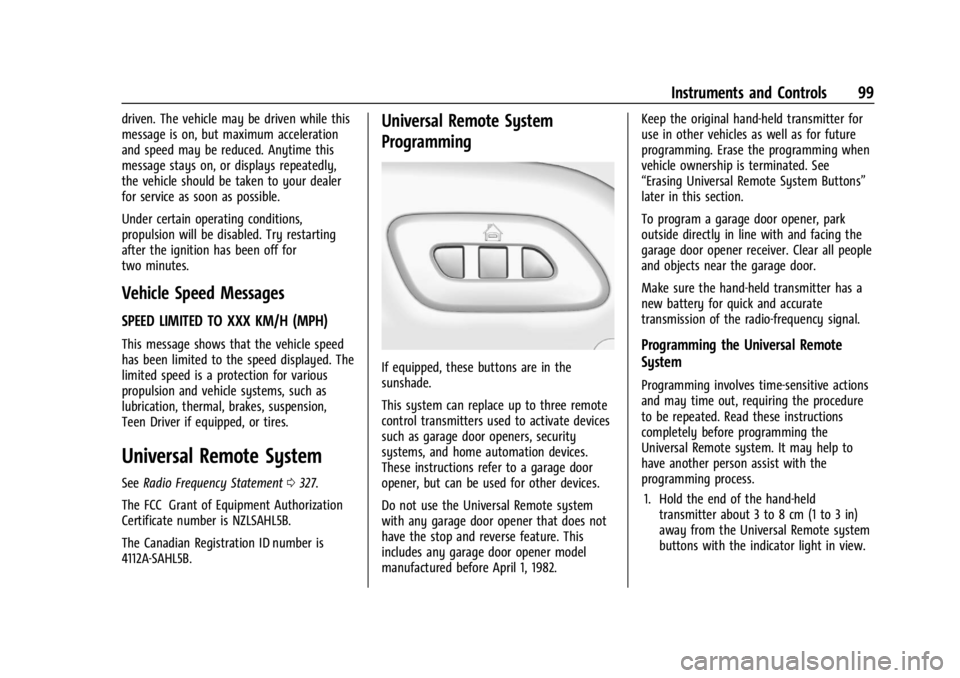
If equipped, these buttons are in the
sunshade.
This system can replace up to three remote
control transmitters used to activate devices
such as garage door openers, security
systems, and home automation devices.
These instructions refer to a garage door
opener, but can be used for other devices.
Do not use the Universal Remote system
with any garage door opener that does not
have the stop and reverse feature. This
includes any garage door opener model
manufactured before April 1, 1982. Keep the original hand-held transmitter for
use in other vehicles as well as for future
programming. Erase the programming when
vehicle ownership is terminated. See
“Erasing Universal Remote System Buttons”
later in this section.
To program a garage door opener, park
outside directly in line with and facing the
garage door opener receiver. Clear all people
and objects near the garage door.
Make sure the hand-held transmitter has a
new battery for quick and accurate
transmission of the radio-frequency signal.
Programming the Universal Remote
System
Programming involves time-sensitive actions
and may time out, requiring the procedure
to be repeated. Read these instructions
completely before programming the
Universal Remote system. It may help to
have another person assist with the
programming process.
1. Hold the end of the hand-held transmitter about 3 to 8 cm (1 to 3 in)
away from the Universal Remote system
buttons with the indicator light in view.
Page 101 of 351
Chevrolet Corvette Owner Manual (GMNA-Localizing-U.S./Canada/Mexico-
16287457) - 2023 - CRC - 3/10/22
100 Instruments and Controls
The hand-held transmitter was supplied
by the manufacturer of the garage door
opener receiver.
2. Press and release one of the three Universal Remote system buttons to be
programmed. Press and hold the
hand-held transmitter button. Do not
release the hand-held transmitter button
until the indicator light changes from a
slow to a rapid flash or continuous light.
Then release the hand-held transmitter
button.
Some garage door openers may require
substitution of Step 2 with the procedure
under “Radio Signals for Some Gate
Operators” later in this section.
3. Press and hold the newly programmed Universal Remote system button for
five seconds while watching the indicator
light and garage door activation.
.If the indicator light stays on
continuously or the garage door
moves when the button is pressed,
then programming is complete. There
is no need to complete Steps 4–6.
.If the indicator light does not come
on or the garage door does not
move, a second button press may be
required. For a second time, press
and hold the newly programmed
button for five seconds. If the
indicator light stays on continuously
or the garage door moves when the
button is pressed, then programming
is complete. There is no need to
complete Steps 4–6.
.If the garage door does not move,
continue with programming
Steps 4–6.
Learn or Smart Button
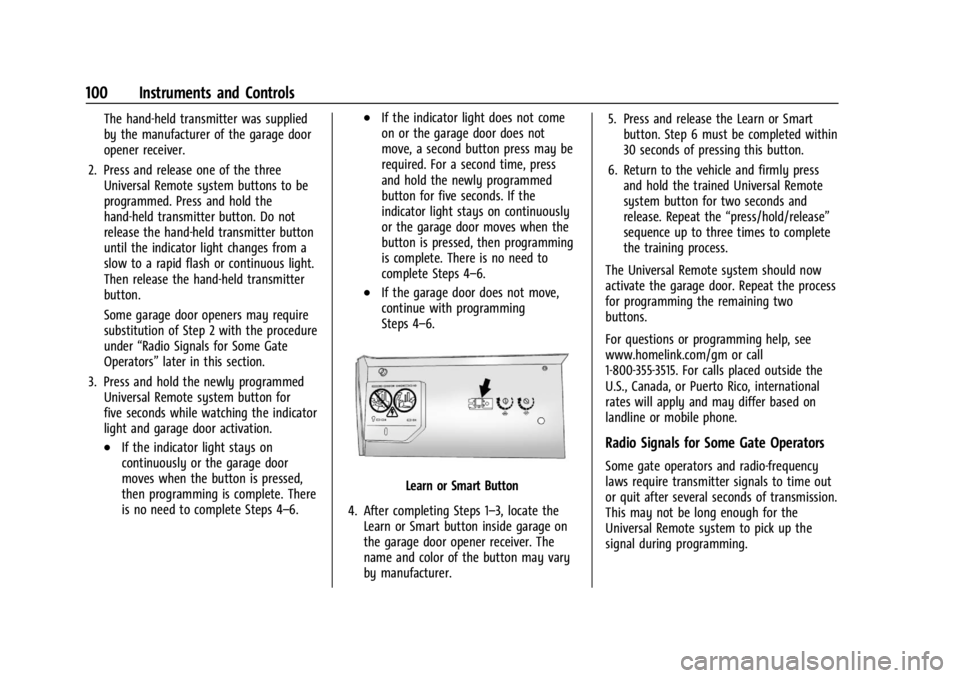
4. After completing Steps 1–3, locate the Learn or Smart button inside garage on
the garage door opener receiver. The
name and color of the button may vary
by manufacturer. 5. Press and release the Learn or Smart
button. Step 6 must be completed within
30 seconds of pressing this button.
6. Return to the vehicle and firmly press and hold the trained Universal Remote
system button for two seconds and
release. Repeat the “press/hold/release”
sequence up to three times to complete
the training process.
The Universal Remote system should now
activate the garage door. Repeat the process
for programming the remaining two
buttons.
For questions or programming help, see
www.homelink.com/gm or call
1-800-355-3515. For calls placed outside the
U.S., Canada, or Puerto Rico, international
rates will apply and may differ based on
landline or mobile phone.
Radio Signals for Some Gate Operators
Some gate operators and radio-frequency
laws require transmitter signals to time out
or quit after several seconds of transmission.
This may not be long enough for the
Universal Remote system to pick up the
signal during programming.
Page 102 of 351
Chevrolet Corvette Owner Manual (GMNA-Localizing-U.S./Canada/Mexico-
16287457) - 2023 - CRC - 3/10/22
Instruments and Controls 101
If the programming did not work, replace
Step 2 under“Programming the Universal
Remote System” with the following:
Press and hold the Universal Remote system
button while pressing and releasing the
hand-held transmitter button every
two seconds until the signal has been
successfully accepted by the Universal
Remote system. The Universal Remote
system indicator light will flash slowly at
first and then change to a rapid flash or
continuous solid-light. Proceed with Step 3
under “Programming the Universal Remote
System” to complete.
Universal Remote System
Operation
Using the Universal Remote System
Press and hold the appropriate Universal
Remote system button for at least one-half
second. The indicator light will come on
while the signal is being transmitted.
Erasing Universal Remote System
Buttons
Erase all programmed buttons when vehicle
ownership is terminated.
To erase:
1. Press and hold the two outside buttons until the indicator light begins to flash.
This should take about 10 seconds.
2. Release both buttons.
Reprogramming a Single Universal
Remote System Button
To reprogram any of the system buttons: 1. Press and hold any one of the buttons. Do not release the button.
2. The indicator light will begin to flash after 20 seconds. Without releasing the
button, proceed with Step 1 under
“Programming the Universal Remote
System.”
Page 106 of 351
Chevrolet Corvette Owner Manual (GMNA-Localizing-U.S./Canada/Mexico-
16287457) - 2023 - CRC - 3/10/22
Lighting 105
Raise or lower the lever until the arrow
starts to flash to signal a lane change. Hold
it there until the lane change is complete.
If the lever is briefly pressed and released,
the turn signal flashes three times. If more
flashes are desired, continue to hold the
lever.
The lever returns to its starting position
when it is released.
If after signaling a turn or lane change the
arrows flash rapidly or do not come on, a
turn signal indicator light failure may have
occurred.
If a turn signal has failed, the lamp may
need to be replaced. See your dealer.
Turn Signal on Chime
A chime sounds if the turn signal has been
on for more than 1.2 km (0.75 mi) of driving.
If you need to leave the turn signal on for
more than 1.2 km (0.75 mi), turn off the
signal and then turn it back on.Interior Lighting
Instrument Panel Illumination
Control
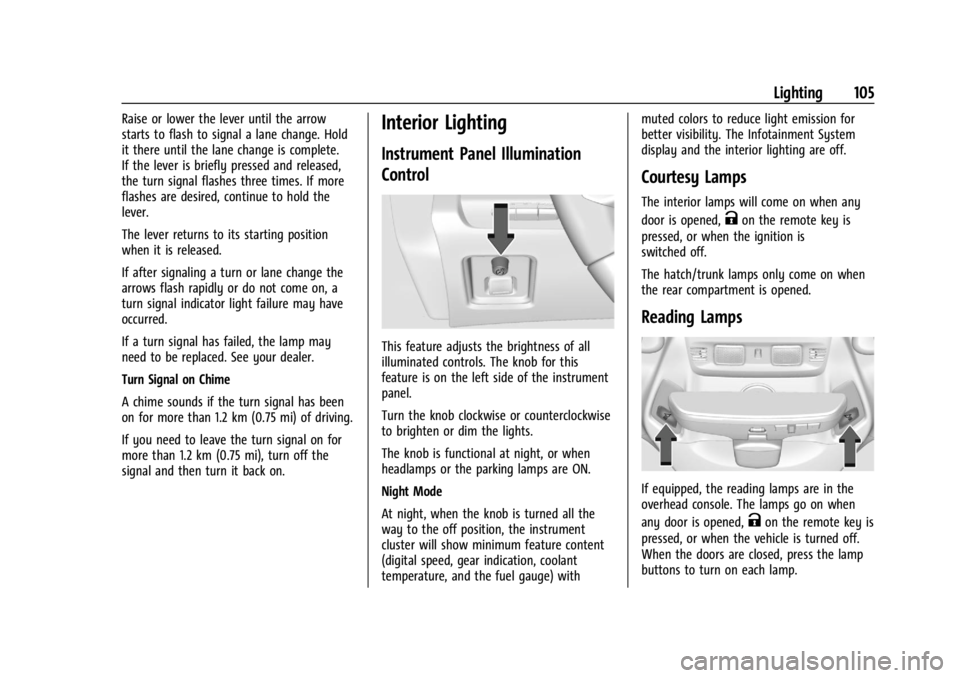
This feature adjusts the brightness of all
illuminated controls. The knob for this
feature is on the left side of the instrument
panel.
Turn the knob clockwise or counterclockwise
to brighten or dim the lights.
The knob is functional at night, or when
headlamps or the parking lamps are ON.
Night Mode
At night, when the knob is turned all the
way to the off position, the instrument
cluster will show minimum feature content
(digital speed, gear indication, coolant
temperature, and the fuel gauge) withmuted colors to reduce light emission for
better visibility. The Infotainment System
display and the interior lighting are off.
Courtesy Lamps
The interior lamps will come on when any
door is opened,
Kon the remote key is
pressed, or when the ignition is
switched off.
The hatch/trunk lamps only come on when
the rear compartment is opened.
Reading Lamps
If equipped, the reading lamps are in the
overhead console. The lamps go on when
any door is opened,
Kon the remote key is
pressed, or when the vehicle is turned off.
When the doors are closed, press the lamp
buttons to turn on each lamp.
Page 107 of 351
Chevrolet Corvette Owner Manual (GMNA-Localizing-U.S./Canada/Mexico-
16287457) - 2023 - CRC - 3/10/22
106 Lighting
To operate, the vehicle must be on, in
accessory mode, or using Retained Accessory
Power (RAP).
Engine Compartment Lamp
If equipped, the engine compartment lamp
will turn on briefly when:
.Kis pressed on the key.
.Keyless Access is used to unlock the door.
.Any door is opened.
.The engine compartment hatch is opened.
The engine compartment lamp will turn
off when:
.All doors and the engine compartment
hatch are closed.
.Qis pressed on the key.
.The vehicle begins to move after shifting
out of P (Park).
.The vehicle is started, or turned from off
to accessory mode.
If any door or the engine compartment
hatch/trunk remains open, while the vehicle
is off, a timer will turn the lamp off.
Lighting Features
Entry Lighting
The interior lamps turn on when pressingK
on the remote key or opening any doors,
and the dome lamp control is in the DOOR
position.
Some exterior lamps also turn on when
pressing
Kon the remote key or opening
any doors. Low-beam lamps will only turn
on briefly at night, or in areas with limited
lighting.
All lamps will gradually fade out after about
30 seconds.
Entry lighting can be disabled manually by
closing all doors, pressing
Qon the remote
key, or starting the vehicle.
This feature can be changed. On the
infotainment home screen, select the
Settings icon
TVehicleTVehicle Locator
Lights.
Exit Lighting
Some exterior lamps and interior lamps turn
on when the driver door is opened after the
vehicle is turned off.
The exterior and interior lamps remain on
for a set amount of time, then automatically
turn off.
The interior lights turn on when the vehicle
is turned off.
The exterior lamps turn off immediately by
turning the exterior lamp control off.
This feature can be changed. On the
infotainment home screen, select the
Settings icon
TVehicleTExit Lighting.
Battery Power Protection
This feature helps prevent the battery from
being drained, if the interior courtesy lamps
or reading lamps are accidentally left on.
If any of these lamps are left on, they
automatically turn off after 10 minutes,
if the ignition is off. The lamps will not
come back on again until one of the
following occurs:
.The ignition is turned on.
.The doors are closed and then re-opened.
Page 153 of 351
Chevrolet Corvette Owner Manual (GMNA-Localizing-U.S./Canada/Mexico-
16287457) - 2023 - CRC - 3/10/22
152 Infotainment System
Return to Factory Settings
Allows resetting the infotainment system
settings in the vehicle.
Apps
The menu may contain the following:
Android Auto
Allows interacting directly with a mobile
device on the infotainment display. See
Apple CarPlay and Android Auto0148.
Apple CarPlay
This feature allows you to interact directly
with your mobile device on the infotainment
display. See Apple CarPlay and Android Auto
0 148.
Apps
Shows app settings and information.
Audio
Adjusts different audio settings.
Climate
Adjusts different climate settings.
Navigation
Adjusts different navigation settings.
See Using the Navigation System 0122. Phone
Adjusts different phone settings.
Vehicle
The menu may contain the following:
Buckle to Drive
This feature can prevent shifting out of Park
when the driver, and if applicable the front
passenger, seat belt is not buckled. See
Buckle To Drive
045.
Driver Mode Customization
See “Driver Mode Customization” inDriver
Mode Control 0208.
Climate and Air Quality
Adjusts different climate settings.
Collision/Detection Systems
Adjusts different driver assistance system
settings.
Comfort and Convenience
Adjusts different comfort and convenience
settings.
Lighting
Adjusts different lighting settings. Power Door Locks
Adjusts different door lock settings.
Remote Lock, Unlock, and Start
Adjusts different remote lock settings.
Ride Height
See
Front Lift System 0214.
Seating Position
Adjusts different seat settings.
Teen Driver
See Teen Driver 0153.
Valet Mode
This will lock the infotainment system and
steering wheel controls. It may also limit
access to vehicle storage locations,
if equipped.
To enable valet mode: 1. Enter a four-digit code on the keypad.
2. Select Enter to go to the confirmation screen.
3. Re-enter the four-digit code.
Touch Lock or Unlock to lock or unlock the
system. Touch Back to go back to the
previous menu.
Page 167 of 351
Chevrolet Corvette Owner Manual (GMNA-Localizing-U.S./Canada/Mexico-
16287457) - 2023 - CRC - 3/10/22
166 Climate Controls
Caution
Using a razor blade or sharp object to
clear the inside rear window can damage
the rear window defogger. Repairs would
not be covered by the vehicle warranty.
Do not clear the inside rear window with
sharp objects.
Remote Start Climate Control Operation :
If equipped with remote start, the climate
control system may run when the vehicle is
started remotely. If equipped with heated or
ventilated seats or a heated steering wheel,
these features may come on during a
remote start. See Remote Vehicle Start 012,
Heated and Ventilated Front Seats 043, and
Heated Steering Wheel 073.
Afterblow Feature
If equipped, under certain conditions, the
fan may stay on or may turn on and off
several times after you turn off and lock the
vehicle. This is normal.
Air Vents
Use the tab on the air outlets to change the
direction of the airflow or shut the outlet. Operation Tips
.Clear away any ice, snow, or leaves from
the air inlets at the base of the
windshield that may block the flow of air
into the vehicle.
.Clear snow off the hood to improve
visibility and help decrease moisture
drawn into the vehicle.
.Use of non-GM approved hood deflectors
may adversely affect the performance of
the system.
.Keep the areas around the base of the
infotainment display and under the seats
clear to optimize air circulation.
Maintenance
Passenger Compartment Air Filter
The passenger compartment air filter
reduces dust, pollen, and other airborne
irritants from outside air that are pulled into
the vehicle. Reductions in airflow, which
may occur more often in dusty areas,
indicate that the filter may need to be
replaced. See
Maintenance Schedule 0306.
Caution
Driving without a passenger compartment
air filter in place can cause water and
small particles, like paper and leaves, to
be pulled into your climate control
system which may cause damage to it.
Make sure you always replace the old
filter with a new one.
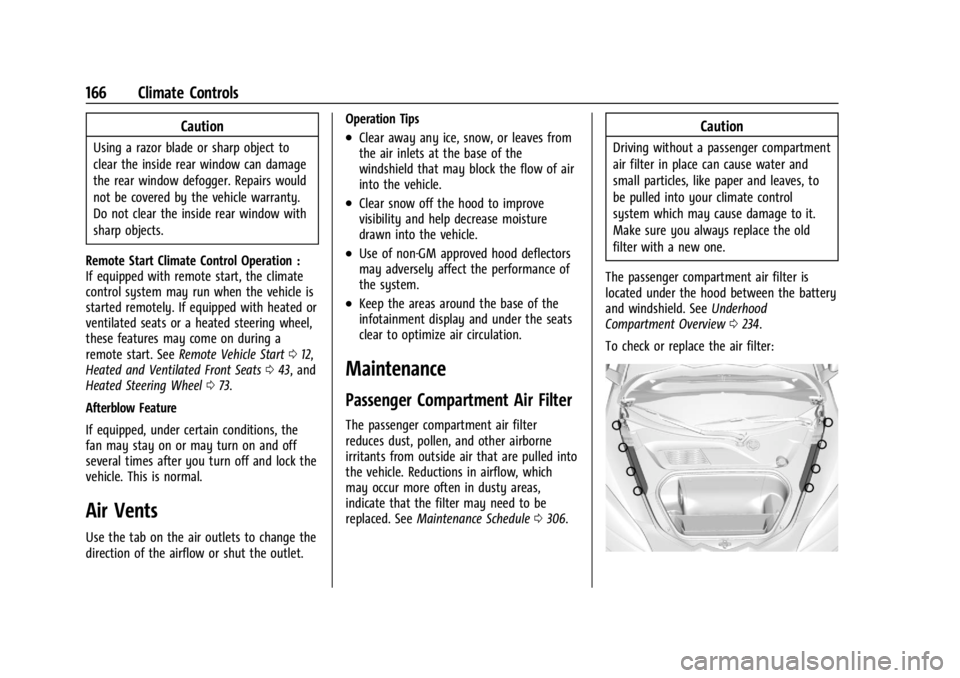
The passenger compartment air filter is
located under the hood between the battery
and windshield. See Underhood
Compartment Overview 0234.
To check or replace the air filter:
Page 268 of 351
Chevrolet Corvette Owner Manual (GMNA-Localizing-U.S./Canada/Mexico-
16287457) - 2023 - CRC - 3/10/22
Vehicle Care 267
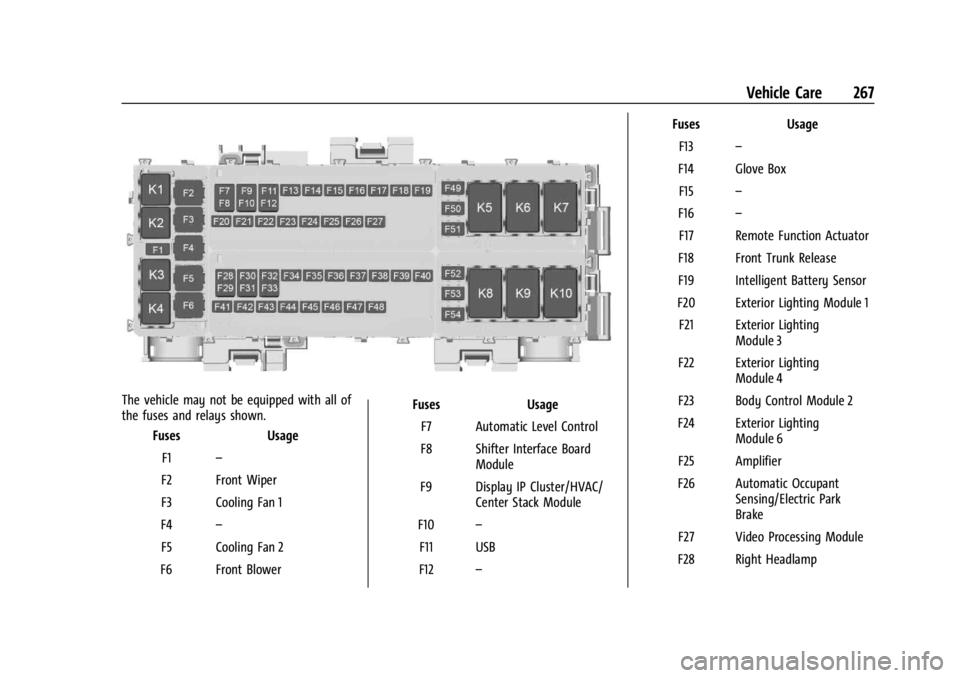
The vehicle may not be equipped with all of
the fuses and relays shown.Fuses Usage
F1 –
F2 Front Wiper
F3 Cooling Fan 1
F4 –
F5 Cooling Fan 2
F6 Front Blower Fuses Usage
F7 Automatic Level Control
F8 Shifter Interface Board Module
F9 Display IP Cluster/HVAC/ Center Stack Module
F10 –
F11 USB
F12 – Fuses Usage
F13 –
F14 Glove Box F15 –
F16 –
F17 Remote Function Actuator
F18 Front Trunk Release
F19 Intelligent Battery Sensor
F20 Exterior Lighting Module 1 F21 Exterior Lighting Module 3
F22 Exterior Lighting Module 4
F23 Body Control Module 2
F24 Exterior Lighting Module 6
F25 Amplifier
F26 Automatic Occupant Sensing/Electric Park
Brake
F27 Video Processing Module
F28 Right Headlamp
Page 334 of 351
Chevrolet Corvette Owner Manual (GMNA-Localizing-U.S./Canada/Mexico-
16287457) - 2023 - CRC - 3/10/22
OnStar 333
OnStar Additional
Information
In-Vehicle Audio Messages
Audio messages may play important
information at the following times:
.Prior to vehicle purchase. PressQto set
up an account.
.After change in ownership and at
90 days.
Transferring Service
PressQto request account transfer
eligibility information. The Advisor can
cancel or change account information.
Selling/Transferring the Vehicle
Call 1-888-4ONSTAR (1-888-466-7827)
immediately to terminate your OnStar or
connected services if the vehicle is disposed
of, sold, transferred, or if the lease ends.
Reactivation for Subsequent Owners
PressQand follow the prompts to speak to
an Advisor as soon as possible. The Advisor
will update vehicle records and explain
OnStar or connected service options.
How OnStar Service Works
Automatic Crash Response, Emergency
Services, Crisis Assist, Stolen Vehicle
Assistance, Remote Services, and Roadside
Assistance are available on most vehicles.
Not all OnStar services are available
everywhere or on all vehicles. For more
information, a full description of OnStar
services, system limitations, and OnStar User
Terms, Privacy Statement, and Software
Terms:
.Call 1-888-4ONSTAR (1-888-466-7827).
.See www.onstar.com (U.S.).
.See www.onstar.ca (Canada).
.Call TTY 1-877-248-2080.
.PressQto speak with an Advisor.
OnStar or connected services cannot work
unless the vehicle is in a place where OnStar
has an agreement with a wireless service
provider for service in that area. The
wireless service provider must also have
coverage, network capacity, reception, and
technology compatible with OnStar or
connected services. Service involving location
information about the vehicle cannot work
unless GPS signals are available,
unobstructed, and compatible with the
OnStar hardware. OnStar or connected services may not work if the OnStar
equipment is not properly installed or it has
not been properly maintained. If equipment
or software is added, connected,
or modified, OnStar or connected services
may not work. Other problems beyond the
control of OnStar
—such as hills, tall
buildings, tunnels, weather, electrical system
design and architecture of the vehicle,
damage to the vehicle in a crash, or wireless
phone network congestion or jamming —
may prevent service.
See Radio Frequency Statement 0327.
Services for People with Disabilities
Advisors provide services to help with
physical disabilities and medical conditions.
Press
Qto help:
.Locate a gas station with an attendant to
pump gas.
.Find a hotel, restaurant, etc., that meets
accessibility needs.
.Provide directions to the closest hospital
or pharmacy in urgent situations.
Page 338 of 351
Chevrolet Corvette Owner Manual (GMNA-Localizing-U.S./Canada/Mexico-
16287457) - 2023 - CRC - 3/10/22
Connected Services 337
Ensuring Security
.Change the default passwords for the
Wi-Fi hotspot and myChevrolet mobile
application. Make these passwords
different from each other and use a
combination of letters and numbers to
increase the security.
.Change the default name of the SSID
(Service Set Identifier). This is your
network’s name that is visible to other
wireless devices. Choose a unique name
and avoid family names or vehicle
descriptions.
Wi-Fi Hotspot (If Equipped)
The vehicle may have a built-in Wi-Fi
hotspot that provides access to the Internet
and web content at 4G LTE speed. Up to
seven mobile devices can be connected.
A data plan is required. Use the in-vehicle
controls only when it is safe to do so. 1. To retrieve Wi-Fi hotspot information, press
=to open the OnStar app on the
infotainment display, then select Wi-Fi
Hotspot. On some vehicles, touch Wi-Fi
or Wi-Fi Settings on the screen.
2. The Wi-Fi settings will display the Wi-Fi hotspot name (SSID), password, and on
some vehicles, the connection type (no Internet connection, 3G, 4G, 4G LTE), and
signal quality (poor, good, excellent). The
LTE icon shows connection to Wi-Fi. It is
possible that the icon may not illuminate
even though the vehicle has an active
connection.
3. To change the SSID or password, press
Qor call 1-888-4ONSTAR to connect
with an Advisor. On some vehicles, the
SSID and password can be changed in
the Wi-Fi Hotspot menu.
After initial set-up, your vehicle’s Wi-Fi
hotspot will connect automatically to your
mobile devices. Manage data usage by
turning Wi-Fi on or off on your mobile
device, using the myChevrolet mobile app,
or by contacting an OnStar Advisor. On
some vehicles, Wi-Fi can also be managed
from the Wi-Fi Hotspot menu.
MyChevrolet Mobile App (If Available)
Download the myChevrolet mobile app to
compatible Apple and Android smartphones.
Chevrolet users can access the following
services from a smartphone:
.Remotely start/stop the vehicle,
if factory-equipped.
.Lock/unlock doors, if equipped with
automatic locks.
.Activate the horn and lamps.
.Check the vehicle’s fuel level, oil life,
or tire pressure, if factory-equipped
with the Tire Pressure Monitor System.
.Send destinations to the vehicle.
.Locate the vehicle on a map
(U.S. market only).
.Turn the vehicle's Wi-Fi hotspot on/off,
manage settings, and monitor data
consumption, if equipped.
.Locate a dealer and schedule service.
.Request Roadside Assistance.
.Set a parking reminder with pin drop,
take a photo, make a note, and set a
timer.
.Connect with Chevrolet on social media.
Features are subject to change. For
myChevrolet mobile app information and
compatibility, see my.chevrolet.com.
An active OnStar or connected service plan
may be required. A compatible device,
factory-installed remote start, and power
locks are required. Data rates apply. See
www.onstar.com for details and system
limitations.