audio CHEVROLET CORVETTE 2024 User Guide
[x] Cancel search | Manufacturer: CHEVROLET, Model Year: 2024, Model line: CORVETTE, Model: CHEVROLET CORVETTE 2024Pages: 362, PDF Size: 6.62 MB
Page 123 of 362
Chevrolet Corvette Owner Manual (GMNA-Localizing-U.S./Canada/Mexico-
17272984) - 2024 - CRC - 2/20/23
122 Infotainment System
Cleaning High Gloss Surfaces and Vehicle
Information and Radio Displays
For vehicles with high gloss surfaces or
vehicle displays, use a microfiber cloth to
wipe surfaces. Before wiping the surface
with the microfiber cloth, use a soft bristle
brush to remove dirt that could scratch the
surface. Then use the microfiber cloth by
gently rubbing to clean. Never use window
cleaners or solvents. Periodically hand wash
the microfiber cloth separately, using mild
soap. Do not use bleach or fabric softener.
Rinse thoroughly and air dry before
next use.
Software Updates
Over-the-Air Software Updates
If equipped, see“Updates”underSettings
0 142 for details on software updates.
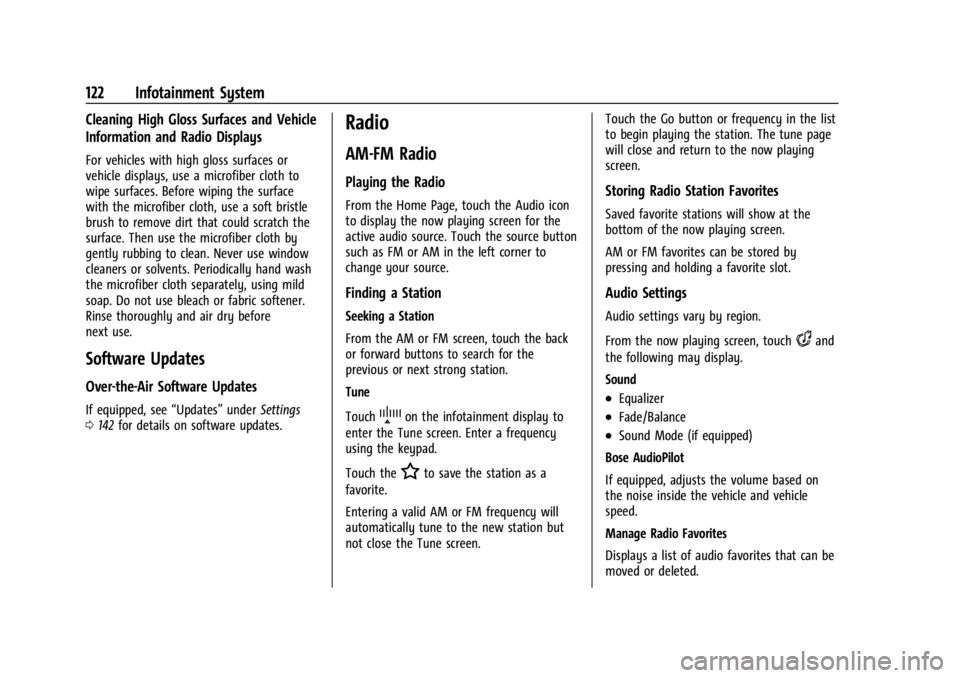
Radio
AM-FM Radio
Playing the Radio
From the Home Page, touch the Audio icon
to display the now playing screen for the
active audio source. Touch the source button
such as FM or AM in the left corner to
change your source.
Finding a Station
Seeking a Station
From the AM or FM screen, touch the back
or forward buttons to search for the
previous or next strong station.
Tune
Touch
Yon the infotainment display to
enter the Tune screen. Enter a frequency
using the keypad.
Touch the
Hto save the station as a
favorite.
Entering a valid AM or FM frequency will
automatically tune to the new station but
not close the Tune screen. Touch the Go button or frequency in the list
to begin playing the station. The tune page
will close and return to the now playing
screen.
Storing Radio Station Favorites
Saved favorite stations will show at the
bottom of the now playing screen.
AM or FM favorites can be stored by
pressing and holding a favorite slot.
Audio Settings
Audio settings vary by region.
From the now playing screen, touch
kand
the following may display.
Sound
.Equalizer
.Fade/Balance
.Sound Mode (if equipped)
Bose AudioPilot
If equipped, adjusts the volume based on
the noise inside the vehicle and vehicle
speed.
Manage Radio Favorites
Displays a list of audio favorites that can be
moved or deleted.
Page 124 of 362
Chevrolet Corvette Owner Manual (GMNA-Localizing-U.S./Canada/Mexico-
17272984) - 2024 - CRC - 2/20/23
Infotainment System 123
Radio Text (RDS)
When on, radio station call letters and
messages from radio stations will be shown.
Radio Text Category
When on, category information about
current radio content will be shown.
Radio Data System (RDS)
RDS relies on receiving specific RDS
information from radio stations and only
works when the information is available.
It is possible that a radio station could
broadcast information that causes the radio
to work improperly.
In addition, RDS features are region and
country of sale specific. This means specific
RDS content may not be available in your
listening area or in the country you operate
the vehicle.
To turn RDS features on or off, see "Audio
Settings" previously.
The following RDS features may be
supported by radio broadcasters in your
listening area:
RDS features
.Display radio station call letters
.Display messages from radio stations
.Provide radio station category information
(when available)
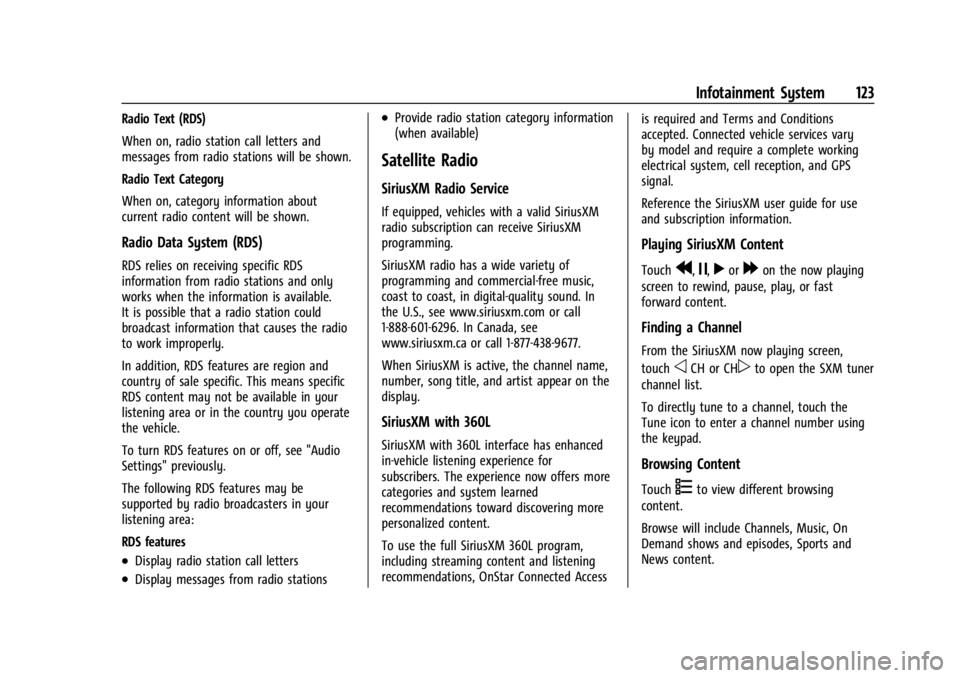
Satellite Radio
SiriusXM Radio Service
If equipped, vehicles with a valid SiriusXM
radio subscription can receive SiriusXM
programming.
SiriusXM radio has a wide variety of
programming and commercial-free music,
coast to coast, in digital-quality sound. In
the U.S., see www.siriusxm.com or call
1-888-601-6296. In Canada, see
www.siriusxm.ca or call 1-877-438-9677.
When SiriusXM is active, the channel name,
number, song title, and artist appear on the
display.
SiriusXM with 360L
SiriusXM with 360L interface has enhanced
in-vehicle listening experience for
subscribers. The experience now offers more
categories and system learned
recommendations toward discovering more
personalized content.
To use the full SiriusXM 360L program,
including streaming content and listening
recommendations, OnStar Connected Accessis required and Terms and Conditions
accepted. Connected vehicle services vary
by model and require a complete working
electrical system, cell reception, and GPS
signal.
Reference the SiriusXM user guide for use
and subscription information.
Playing SiriusXM Content
Touchr,j,ror[on the now playing
screen to rewind, pause, play, or fast
forward content.
Finding a Channel
From the SiriusXM now playing screen,
touch
oCH or CHpto open the SXM tuner
channel list.
To directly tune to a channel, touch the
Tune icon to enter a channel number using
the keypad.
Browsing Content
Touch(to view different browsing
content.
Browse will include Channels, Music, On
Demand shows and episodes, Sports and
News content.
Page 125 of 362
Chevrolet Corvette Owner Manual (GMNA-Localizing-U.S./Canada/Mexico-
17272984) - 2024 - CRC - 2/20/23
124 Infotainment System
SiriusXM Settings
From the SiriusXM now playing screen,
touch the user settings icon in the upper
right to display the SiriusXM settings
The settings include subscription
information, help and support, and listener
preferences.
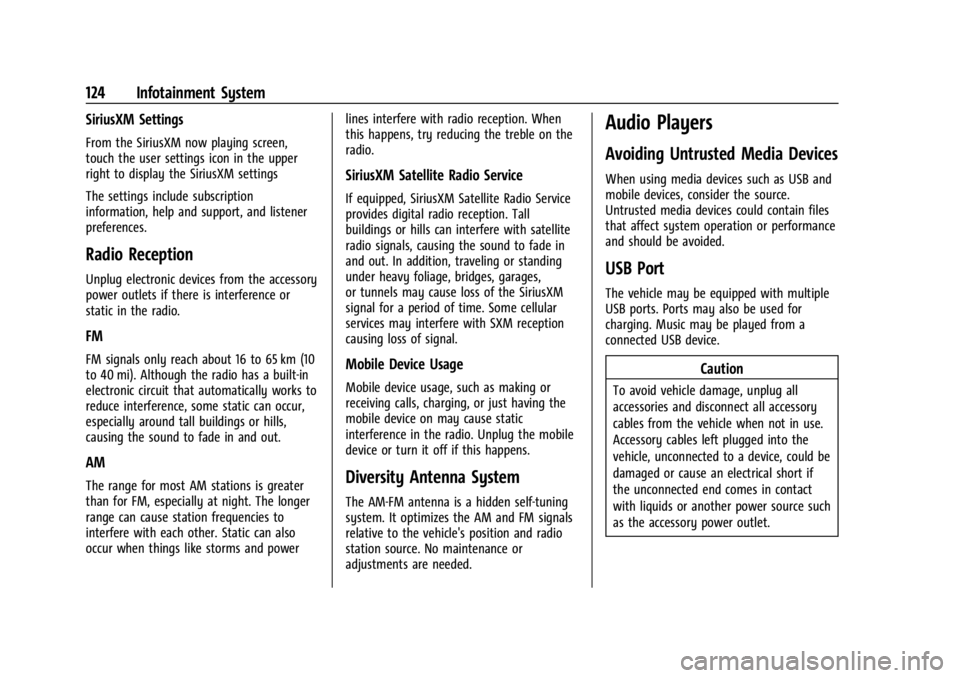
Radio Reception
Unplug electronic devices from the accessory
power outlets if there is interference or
static in the radio.
FM
FM signals only reach about 16 to 65 km (10
to 40 mi). Although the radio has a built-in
electronic circuit that automatically works to
reduce interference, some static can occur,
especially around tall buildings or hills,
causing the sound to fade in and out.
AM
The range for most AM stations is greater
than for FM, especially at night. The longer
range can cause station frequencies to
interfere with each other. Static can also
occur when things like storms and powerlines interfere with radio reception. When
this happens, try reducing the treble on the
radio.
SiriusXM Satellite Radio Service
If equipped, SiriusXM Satellite Radio Service
provides digital radio reception. Tall
buildings or hills can interfere with satellite
radio signals, causing the sound to fade in
and out. In addition, traveling or standing
under heavy foliage, bridges, garages,
or tunnels may cause loss of the SiriusXM
signal for a period of time. Some cellular
services may interfere with SXM reception
causing loss of signal.
Mobile Device Usage
Mobile device usage, such as making or
receiving calls, charging, or just having the
mobile device on may cause static
interference in the radio. Unplug the mobile
device or turn it off if this happens.
Diversity Antenna System
The AM-FM antenna is a hidden self-tuning
system. It optimizes the AM and FM signals
relative to the vehicle's position and radio
station source. No maintenance or
adjustments are needed.
Audio Players
Avoiding Untrusted Media Devices
When using media devices such as USB and
mobile devices, consider the source.
Untrusted media devices could contain files
that affect system operation or performance
and should be avoided.
USB Port
The vehicle may be equipped with multiple
USB ports. Ports may also be used for
charging. Music may be played from a
connected USB device.
Caution
To avoid vehicle damage, unplug all
accessories and disconnect all accessory
cables from the vehicle when not in use.
Accessory cables left plugged into the
vehicle, unconnected to a device, could be
damaged or cause an electrical short if
the unconnected end comes in contact
with liquids or another power source such
as the accessory power outlet.
Page 126 of 362
Chevrolet Corvette Owner Manual (GMNA-Localizing-U.S./Canada/Mexico-
17272984) - 2024 - CRC - 2/20/23
Infotainment System 125
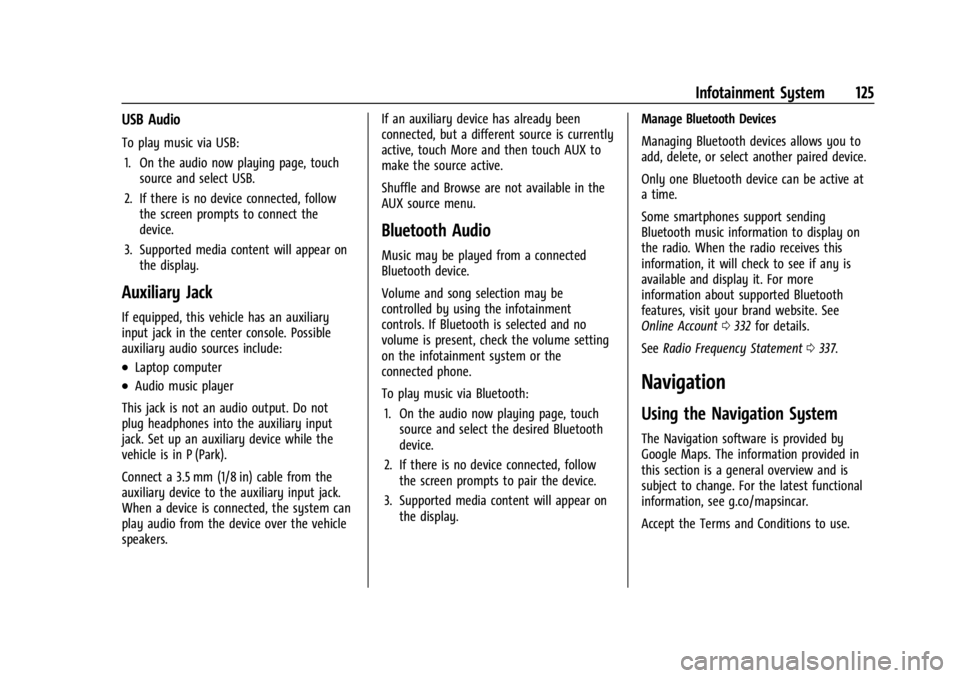
USB Audio
To play music via USB:1. On the audio now playing page, touch source and select USB.
2. If there is no device connected, follow the screen prompts to connect the
device.
3. Supported media content will appear on the display.
Auxiliary Jack
If equipped, this vehicle has an auxiliary
input jack in the center console. Possible
auxiliary audio sources include:
.Laptop computer
.Audio music player
This jack is not an audio output. Do not
plug headphones into the auxiliary input
jack. Set up an auxiliary device while the
vehicle is in P (Park).
Connect a 3.5 mm (1/8 in) cable from the
auxiliary device to the auxiliary input jack.
When a device is connected, the system can
play audio from the device over the vehicle
speakers. If an auxiliary device has already been
connected, but a different source is currently
active, touch More and then touch AUX to
make the source active.
Shuffle and Browse are not available in the
AUX source menu.
Bluetooth Audio
Music may be played from a connected
Bluetooth device.
Volume and song selection may be
controlled by using the infotainment
controls. If Bluetooth is selected and no
volume is present, check the volume setting
on the infotainment system or the
connected phone.
To play music via Bluetooth:
1. On the audio now playing page, touch source and select the desired Bluetooth
device.
2. If there is no device connected, follow the screen prompts to pair the device.
3. Supported media content will appear on the display. Manage Bluetooth Devices
Managing Bluetooth devices allows you to
add, delete, or select another paired device.
Only one Bluetooth device can be active at
a time.
Some smartphones support sending
Bluetooth music information to display on
the radio. When the radio receives this
information, it will check to see if any is
available and display it. For more
information about supported Bluetooth
features, visit your brand website. See
Online Account
0332 for details.
See Radio Frequency Statement 0337.
Navigation
Using the Navigation System
The Navigation software is provided by
Google Maps. The information provided in
this section is a general overview and is
subject to change. For the latest functional
information, see g.co/mapsincar.
Accept the Terms and Conditions to use.
Page 131 of 362
Chevrolet Corvette Owner Manual (GMNA-Localizing-U.S./Canada/Mexico-
17272984) - 2024 - CRC - 2/20/23
130 Infotainment System
“Play channel
SiriusXM”:Tune to the SiriusXM radio
station channel number identified in the
command. This command may require an
online connection.
“Play
Tune to the SiriusXM radio station channel
name identified in the command. This
command may require an online connection.
“Play
Page 132 of 362
Chevrolet Corvette Owner Manual (GMNA-Localizing-U.S./Canada/Mexico-
17272984) - 2024 - CRC - 2/20/23
Infotainment System 131
.Comply with any notice and consent
requirements before capturing and/or
recording the voices or images of other
persons or before collecting other
personal data.
.Notify other drivers of your vehicle about
the above rules and require them to
comply.
.General Motors does not accept any
responsibility or liability in connection
with use that is not permitted.
.Law enforcement authorities may have
the right to seize video recordings and
use them as evidence of criminal/driving
offenses against you or third parties.
The PDR records video, audio, and vehicle
data. The forward facing video and cabin
audio are captured by a camera and
microphone located behind the rear view
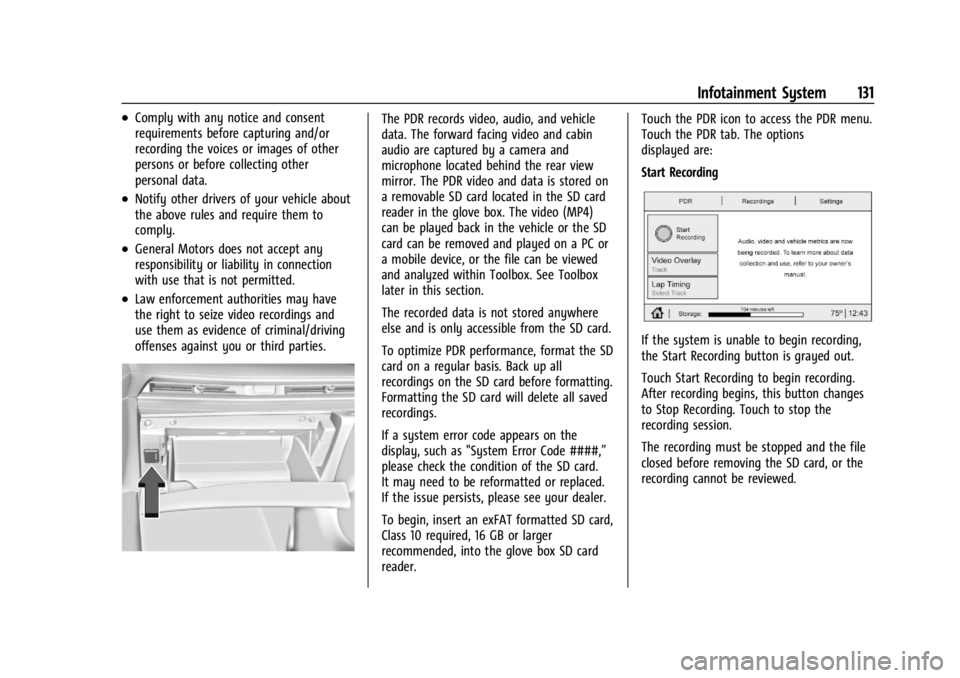
mirror. The PDR video and data is stored on
a removable SD card located in the SD card
reader in the glove box. The video (MP4)
can be played back in the vehicle or the SD
card can be removed and played on a PC or
a mobile device, or the file can be viewed
and analyzed within Toolbox. See Toolbox
later in this section.
The recorded data is not stored anywhere
else and is only accessible from the SD card.
To optimize PDR performance, format the SD
card on a regular basis. Back up all
recordings on the SD card before formatting.
Formatting the SD card will delete all saved
recordings.
If a system error code appears on the
display, such as "System Error Code ####,”
please check the condition of the SD card.
It may need to be reformatted or replaced.
If the issue persists, please see your dealer.
To begin, insert an exFAT formatted SD card,
Class 10 required, 16 GB or larger
recommended, into the glove box SD card
reader.Touch the PDR icon to access the PDR menu.
Touch the PDR tab. The options
displayed are:
Start Recording
If the system is unable to begin recording,
the Start Recording button is grayed out.
Touch Start Recording to begin recording.
After recording begins, this button changes
to Stop Recording. Touch to stop the
recording session.
The recording must be stopped and the file
closed before removing the SD card, or the
recording cannot be reviewed.
Page 136 of 362
Chevrolet Corvette Owner Manual (GMNA-Localizing-U.S./Canada/Mexico-
17272984) - 2024 - CRC - 2/20/23
Infotainment System 135
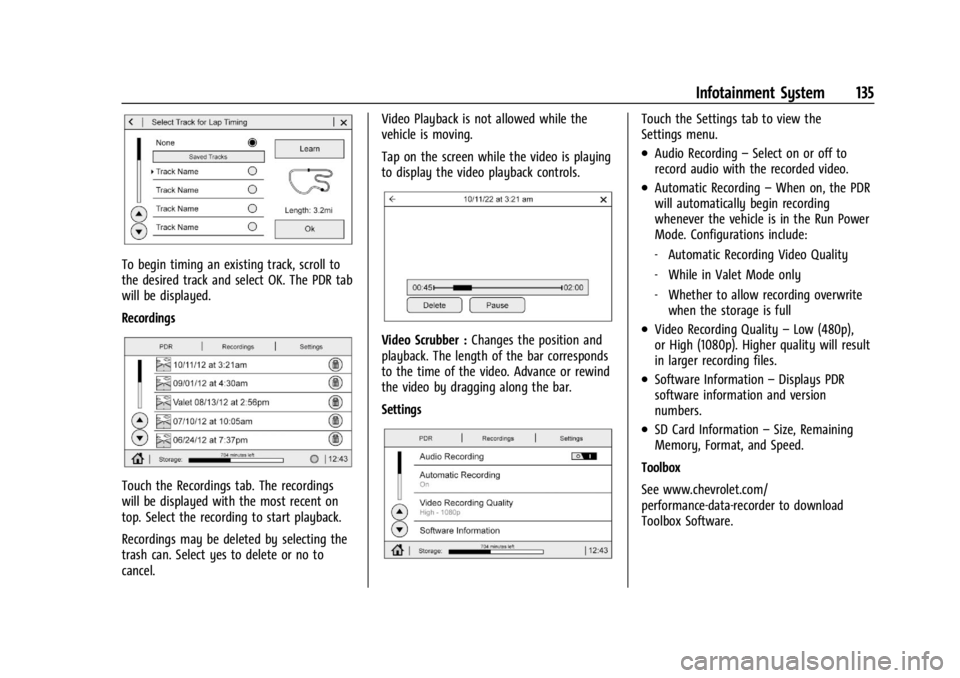
To begin timing an existing track, scroll to
the desired track and select OK. The PDR tab
will be displayed.
Recordings
Touch the Recordings tab. The recordings
will be displayed with the most recent on
top. Select the recording to start playback.
Recordings may be deleted by selecting the
trash can. Select yes to delete or no to
cancel.Video Playback is not allowed while the
vehicle is moving.
Tap on the screen while the video is playing
to display the video playback controls.
Video Scrubber :
Changes the position and
playback. The length of the bar corresponds
to the time of the video. Advance or rewind
the video by dragging along the bar.
Settings
Touch the Settings tab to view the
Settings menu.
.Audio Recording –Select on or off to
record audio with the recorded video.
.Automatic Recording –When on, the PDR
will automatically begin recording
whenever the vehicle is in the Run Power
Mode. Configurations include:
‐ Automatic Recording Video Quality
‐ While in Valet Mode only
‐ Whether to allow recording overwrite
when the storage is full
.Video Recording Quality –Low (480p),
or High (1080p). Higher quality will result
in larger recording files.
.Software Information –Displays PDR
software information and version
numbers.
.SD Card Information –Size, Remaining
Memory, Format, and Speed.
Toolbox
See www.chevrolet.com/
performance-data-recorder to download
Toolbox Software.
Page 137 of 362
Chevrolet Corvette Owner Manual (GMNA-Localizing-U.S./Canada/Mexico-
17272984) - 2024 - CRC - 2/20/23
136 Infotainment System
Phone
Bluetooth (Overview)
The Bluetooth-capable system can interact
with many mobile devices to:
.Place and receive calls in a
hands-free mode.
.Share the device’s address book or
contact list with the vehicle.
.Stream audio (music, podcasts).
.Notify receipt of text messages.
To minimize driver distraction, before
driving, and with the vehicle parked:
.Become familiar with the features of the
mobile device. Organize the phone book
and contact lists clearly and delete
duplicate or rarely used entries.
.Review the controls and operation of the
infotainment system.
.Pair mobile device(s) to the vehicle. The
system may not work with all mobile
devices. See “Pairing”later in this section.
Vehicles with a Bluetooth system can use a
Bluetooth-capable mobile device with a
Hands-Free Profile to make and receive
phone calls. The infotainment system and
voice recognition are used to control the system. The system can be used while the
vehicle is on or in accessory mode. The
range of the Bluetooth system can be up to
9.1 m (30 ft). Not all mobile devices support
all functions and not all mobile devices work
with the Bluetooth system. See
Online
Account 0332 for more information about
compatible mobile devices.
Controls
Use the controls on the infotainment display
and the steering wheel to operate the
Bluetooth system.
Steering Wheel Controls
g: Press and release to answer incoming
calls on your connected Bluetooth mobile
device. Press and hold for mobile device
assistant.
c: Press to end a call, decline a call,
or cancel an operation. Press to mute or
unmute the infotainment system when not
on a call.
Infotainment System Controls
For information about how to navigate the
menu system using the infotainment
controls, see Using the System 0120.
Audio System
When using the Bluetooth mobile device
system, sound comes through the vehicle's
front audio system speakers and overrides
the audio system. The volume level while on
a mobile device call can be adjusted by
pressing the steering wheel controls or the
volume controls for the infotainment
system. The adjusted volume level remains
in memory for later calls. The volume
cannot be lowered beyond a certain level.
Bluetooth (Pairing and Using a
Phone)
Pairing
A Bluetooth-enabled mobile device must be
paired to the Bluetooth system and then
connected to the vehicle before it can be
used. See the mobile device manufacturer's
user guide for Bluetooth functions before
pairing the device.
Pairing Information
.Touch the Phone icon on the home page
of the infotainment display.
.If no mobile device has been paired, a
message on the infotainment display will
show the Manage Phones option. Touch
Page 140 of 362
Chevrolet Corvette Owner Manual (GMNA-Localizing-U.S./Canada/Mexico-
17272984) - 2024 - CRC - 2/20/23
Infotainment System 139
Switching to Handset or
Hands-Free Mode
To switch between handset or
hands-free mode:
.While the active call is hands-free, touch
the Audio Output option, then touch
Phone to switch to the handset mode.
The mute icon will not be available or
functional while Handset mode is active.
.While the active call is on the handset,
touch the Audio Output option, then
touch Car Speakers to switch to the
hands-free mode.
Making a Call Using Contacts
Calls can be made through the Bluetooth
system using personal cell phone contact
information for all cell phones that support
the Phone Book feature. Become familiar
with the cell phone settings and operation
and that the phone is set to allow the
sharing of contacts over Bluetooth with the
vehicle. Verify the cell phone supports this
feature and that the phone is set to allow
the sharing of contacts over Bluetooth with
the vehicle.
The Contacts menu accesses the phone book
stored in the cell phone.To make a call using the Contacts menu:
1. Touch the Phone icon on the Home Page or on the shortcut tray near the left of
the display.
2. Touch Contacts.
3. There are two methods to search for contacts:
.Search bar –Touch the search icon
on the top right of the Phones
window and type the name or
number of the contact on the
keyboard. Search results will be
displayed corresponding to the user
input. Touch the name to call.
.Scroll –Touch the list and scroll,
or use the scrollbar on the left side
of the Phones window. Touch the
name to call.
Making a Call Using the Recents Menu
The Recents menu accesses the recents call
list from your cell phone.
To make a call using the Recents menu:
1. Touch the Phone icon on the Home Page or on the shortcut tray near the left of
the display.
2. Touch Recents.
3. Touch the name or number to call.
Making a Call Using the Keypad
To make a call by dialing the numbers: 1. Touch the Phone icon on the Home Page or on the shortcut tray near the left of
the display.
2. Touch Keypad and enter a phone number.
3. Touch the phone icon on the infotainment display to start dialing the
number.
Searching Contacts Using the Keypad
To search for contacts using the keypad:
1. Touch the Phone icon on the Home Page.
2. Touch Keypad and enter partial phone numbers or contact names using the
digits on the keypad to search.
Results appear on the right side of the
display. Touch one to place a call.
Accepting or Declining a Call
When an incoming call is received, the
infotainment system mutes and a ring tone
is heard in the vehicle.
Accepting a Call
There are two ways to accept a call:
.Pressgon the steering wheel controls.
Page 146 of 362
Chevrolet Corvette Owner Manual (GMNA-Localizing-U.S./Canada/Mexico-
17272984) - 2024 - CRC - 2/20/23
Infotainment System 145
5. Touch Setup Keys or Add/Remove TeenDriver Keys. The system displays
instructions for registering or
unregistering a key. A confirmation
message displays.
Manage Settings or Teen Driver Settings
Depending on the options of your vehicle,
the following menu items may be displayed:
Buckle to Drive : When turned ON, Buckle to
Drive prevents the driver from shifting out
of P (Park) for a period of time after the
brake pedal is pressed if the driver, or on
some vehicles the detected passenger, has
not buckled their seat belt. On some
vehicles, Buckle to Drive is always ON when
Teen Driver is active and is not configurable.
See Buckle To Drive 046.
Audio Volume Limit : Allows a maximum
audio volume to be set. Turn the audio
volume limit on or off. Use the arrows to
choose the maximum allowable level for the
audio volume. On some infotainment
systems, touch Set Audio Volume Limit to
choose the maximum allowable audio
volume level.
Set Audio Volume Limit : Use the arrows to
choose the maximum allowable level for the
audio volume. Teen Driver Speed Limiter :
Limits the
maximum speed of the vehicle. When the
speed limiter is turned on and the vehicle is
started with a Teen Driver key, the DIC
displays a message that the top speed is
limited.
On certain vehicles, when the Speed Limiter
is turned ON, the vehicle’s maximum
acceleration will be limited. The DIC will
display a message that the acceleration is
limited.
Teen Driver Speed Warning : Displays a
warning in the DIC when exceeding a
selectable speed. Turn the speed warning on
or off and choose the desired speed warning
level. The speed warning does not limit the
speed of the vehicle. On some infotainment
systems, touch Set Teen Driver Speed
Warning to set the warning speed.
Set Teen Driver Speed Warning : Choose the
desired speed warning level. The speed
warning does not limit the speed of the
vehicle.
SiriusXM Explicit Content Filter : Allows the
SiriusXM Explicit Content Filter to be turned
ON or OFF. When ON, the teen driver will
not be able to listen to SiriusXM stations that contain explicit content, and the Explicit
Content Filter selection in the Audio Settings
will be unavailable for change.
When Teen Driver is Active:
.If equipped, the radio will mute when the
driver seat belt, and in some vehicles the
front passenger seat belt, is not buckled.
The audio from any device paired to the
vehicle will also be muted.
.An object placed on the front passenger
seat, such as a briefcase, handbag,
grocery bag, laptop, or other electronic
device, could cause the passenger sensing
system to falsely sense an unbuckled
front passenger and mute the radio.
If this happens, remove the object from
the seat. See
Passenger Sensing System
0 57.
.Some safety systems, such as Automatic
Emergency Braking, if equipped, cannot
be turned off.
.The gap setting for Adaptive Cruise
Control and alert timing for Forward
Collision Alert, if equipped, cannot be
changed.
.When trying to change a safety feature
that is not configurable in Teen Driver,
the feature may be grayed out or
removed from the infotainment menu,