steering wheel CHEVROLET CORVETTE 2024 User Guide
[x] Cancel search | Manufacturer: CHEVROLET, Model Year: 2024, Model line: CORVETTE, Model: CHEVROLET CORVETTE 2024Pages: 362, PDF Size: 6.62 MB
Page 82 of 362
Chevrolet Corvette Owner Manual (GMNA-Localizing-U.S./Canada/Mexico-
17272984) - 2024 - CRC - 2/20/23
Instruments and Controls 81
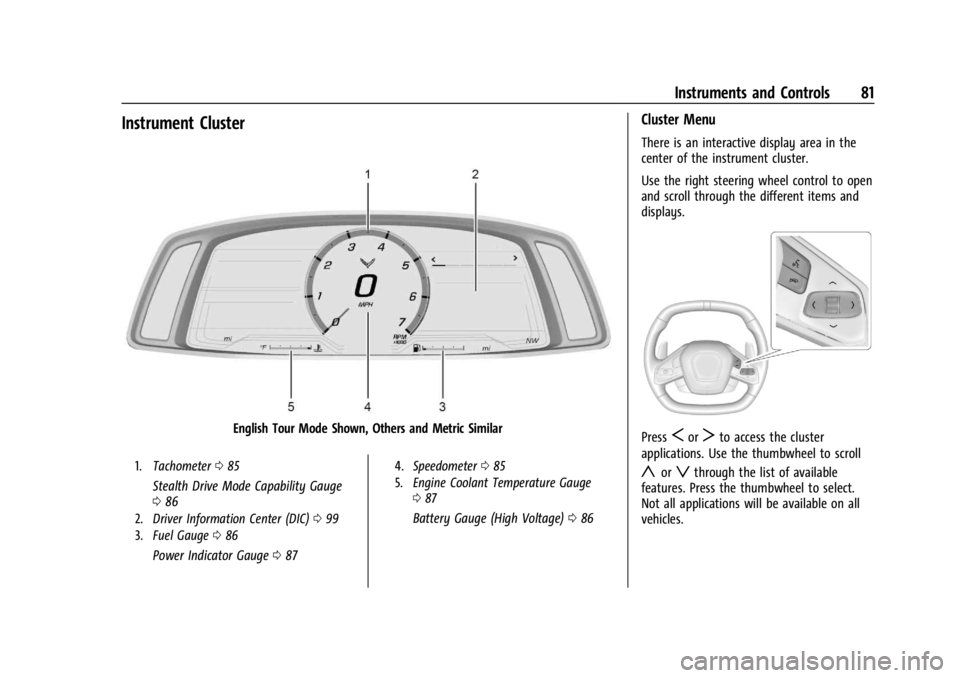
Instrument Cluster
English Tour Mode Shown, Others and Metric Similar
1.Tachometer 085
Stealth Drive Mode Capability Gauge
086
2. Driver Information Center (DIC) 099
3. Fuel Gauge 086
Power Indicator Gauge 087
4. Speedometer 085
5. Engine Coolant Temperature Gauge
087
Battery Gauge (High Voltage) 086
Cluster Menu
There is an interactive display area in the
center of the instrument cluster.
Use the right steering wheel control to open
and scroll through the different items and
displays.
PressSorTto access the cluster
applications. Use the thumbwheel to scroll
yorzthrough the list of available
features. Press the thumbwheel to select.
Not all applications will be available on all
vehicles.
Page 92 of 362
Chevrolet Corvette Owner Manual (GMNA-Localizing-U.S./Canada/Mexico-
17272984) - 2024 - CRC - 2/20/23
Instruments and Controls 91
To help prevent damage, reduce vehicle
speed and avoid hard accelerations and
uphill grades.
If the light continues to flash, find a safe
place to park. Turn the vehicle off and wait
at least 10 seconds before restarting the
engine. If the light is still flashing, follow
the previous guidelines and see your dealer
for service as soon as possible.
If the light is on steady :A malfunction has
been detected. Diagnosis and service may be
required.
Check the following:
.If fuel has been added to the vehicle
using the capless funnel adapter, make
sure that it has been removed. See
“Filling the Tank with a Portable Gas Can”
under Filling the Tank 0228. The
diagnostic system can detect if the
adapter has been left installed in the
vehicle, allowing fuel to evaporate into
the atmosphere. A few driving trips with
the adapter removed may turn off the
light.
.Poor fuel quality can cause inefficient
engine operation and poor driveability,
which may go away once the engine is
warmed up. If this occurs, change the fuel brand. It may require at least one full
tank of the proper fuel to turn the light
off. See
Recommended Fuel 0227.
If the light remains on, see your dealer.
Emissions Inspection and Maintenance
Programs
If the vehicle requires an Emissions
Inspection/Maintenance test, the test
equipment will likely connect to the
vehicle's Data Link Connector (DLC).
The DLC is under the instrument panel to
the left of the steering wheel. Connecting
devices that are not used to perform an
Emissions Inspection/Maintenance test or to
service the vehicle may affect vehicle
operation. See Add-On Electrical Equipment
0 230. See your dealer if assistance is
needed.
The vehicle may not pass inspection if:
.The light is on when the engine is
running.
.The light does not come on when the
ignition is in Service Mode.
.Critical emission control systems have not
been completely diagnosed. If this
happens, the vehicle would not be ready
for inspection and may require
several days of routine driving before the
system is ready for inspection. This can
happen if the 12-volt battery has recently
been replaced or run down, or if the
vehicle has been recently serviced.
See your dealer if the vehicle will not pass
or cannot be made ready for the test.
Front Lift System Light
If equipped, this light will flash to indicate
when the front of the vehicle is being raised
or lowered. An up or down arrow in the
light will display, depending on the direction
of movement. The light will stay lit while
the front is fully raised.
Page 95 of 362
Chevrolet Corvette Owner Manual (GMNA-Localizing-U.S./Canada/Mexico-
17272984) - 2024 - CRC - 2/20/23
94 Instruments and Controls
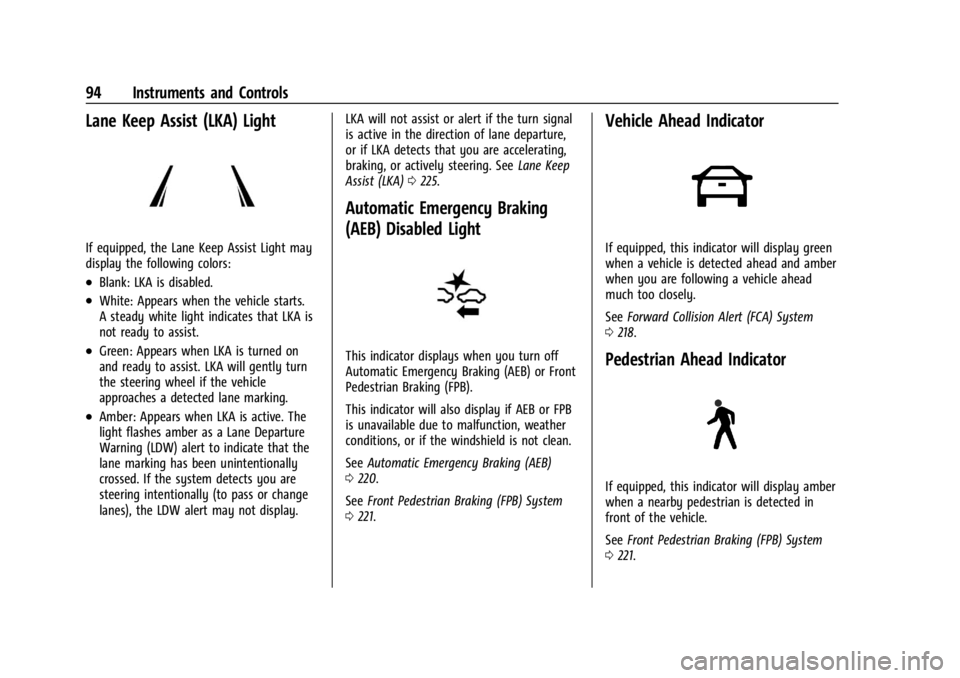
Lane Keep Assist (LKA) Light
If equipped, the Lane Keep Assist Light may
display the following colors:
.Blank: LKA is disabled.
.White: Appears when the vehicle starts.
A steady white light indicates that LKA is
not ready to assist.
.Green: Appears when LKA is turned on
and ready to assist. LKA will gently turn
the steering wheel if the vehicle
approaches a detected lane marking.
.Amber: Appears when LKA is active. The
light flashes amber as a Lane Departure
Warning (LDW) alert to indicate that the
lane marking has been unintentionally
crossed. If the system detects you are
steering intentionally (to pass or change
lanes), the LDW alert may not display.LKA will not assist or alert if the turn signal
is active in the direction of lane departure,
or if LKA detects that you are accelerating,
braking, or actively steering. See
Lane Keep
Assist (LKA) 0225.
Automatic Emergency Braking
(AEB) Disabled Light
This indicator displays when you turn off
Automatic Emergency Braking (AEB) or Front
Pedestrian Braking (FPB).
This indicator will also display if AEB or FPB
is unavailable due to malfunction, weather
conditions, or if the windshield is not clean.
See Automatic Emergency Braking (AEB)
0 220.
See Front Pedestrian Braking (FPB) System
0 221.
Vehicle Ahead Indicator
If equipped, this indicator will display green
when a vehicle is detected ahead and amber
when you are following a vehicle ahead
much too closely.
See Forward Collision Alert (FCA) System
0 218.
Pedestrian Ahead Indicator
If equipped, this indicator will display amber
when a nearby pedestrian is detected in
front of the vehicle.
See Front Pedestrian Braking (FPB) System
0 221.
Page 104 of 362
Chevrolet Corvette Owner Manual (GMNA-Localizing-U.S./Canada/Mexico-
17272984) - 2024 - CRC - 2/20/23
Instruments and Controls 103
.Upcoming Maneuver from On-Board
Navigation
.Upcoming Maneuver from OnStar
.Incoming Call
.Advanced Driver Assistance Systems
The HUD control is to the left of the
steering wheel on the instrument panel.
To adjust the HUD image so that items are
properly displayed:1. Adjust the driver seat.
2. Start the engine.
3. Adjust the following HUD settings as needed.
$:Press or lift to adjust the vertical
position of the HUD image in the
windshield.
!: Press to select the display view. Each
press will cause the display view to change
to the next view. If vehicle messages are displayed, pressing the DIC select button
may clear the message. See
Driver
Information Center (DIC) 099.
D:Lift and hold to brighten the display.
Press down and hold to dim the display.
Hold down to turn the display off.
The HUD image will automatically dim and
brighten to compensate for outside lighting.
The HUD brightness control can also be
adjusted as needed.
The HUD image can temporarily light up
depending on the angle and position of the
sunlight on the HUD display. This is normal.
Polarized sunglasses could make the HUD
image harder to see.
Head-Up Display (HUD) Rotation Option
This feature allows for adjusting the angle
of the HUD image.
Use the right steering wheel controls to
open and scroll through different items and
displays.
The vehicle must be in P (Park).
While in the options menu, press
worx
to scroll to the HUD rotation page. Press the
thumbwheel while Head-Up Display Rotation
is highlighted to enter Adjust Mode. Press
worxto adjust the angle of the
HUD display. Press SEL to save the setting.
To cancel the setting, press
o. See
Instrument Cluster 081.
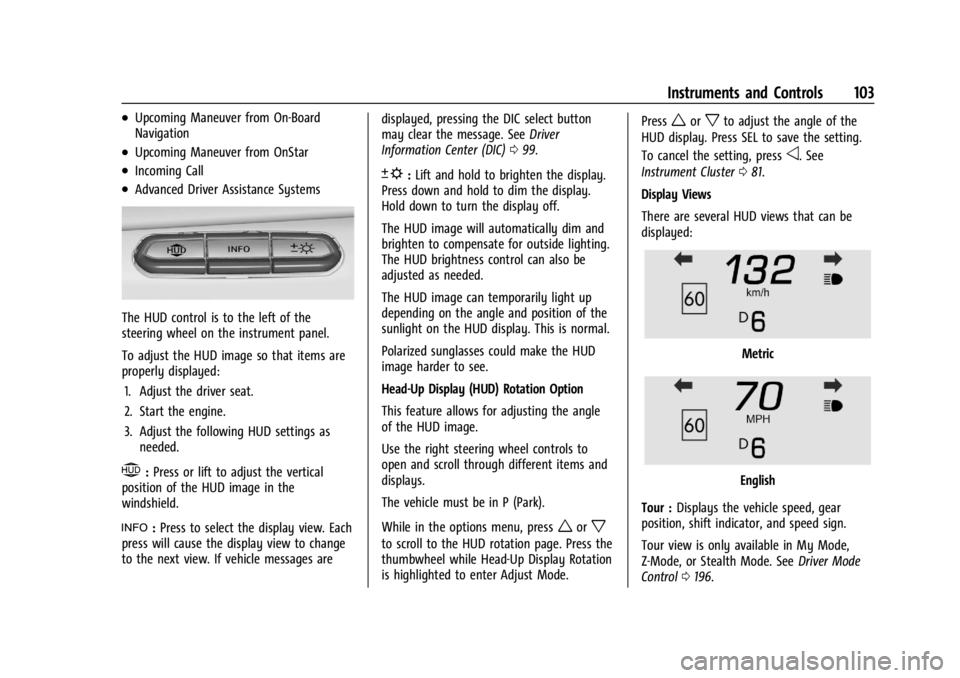
Display Views
There are several HUD views that can be
displayed:
Metric
English
Tour : Displays the vehicle speed, gear
position, shift indicator, and speed sign.
Tour view is only available in My Mode,
Z-Mode, or Stealth Mode. See Driver Mode
Control 0196.
Page 117 of 362
Chevrolet Corvette Owner Manual (GMNA-Localizing-U.S./Canada/Mexico-
17272984) - 2024 - CRC - 2/20/23
116 Infotainment System
Infotainment System
Introduction
Introduction . . . . . . . . . . . . . . . . . . . . . . . . . . . 116
Overview . . . . . . . . . . . . . . . . . . . . . . . . . . . . . . . 117
Steering Wheel Controls . . . . . . . . . . . . . . . 119
Using the System . . . . . . . . . . . . . . . . . . . . . 120
Software Updates . . . . . . . . . . . . . . . . . . . . . . 122
Radio
AM-FM Radio . . . . . . . . . . . . . . . . . . . . . . . . . . 122
Satellite Radio . . . . . . . . . . . . . . . . . . . . . . . . . 123
Radio Reception . . . . . . . . . . . . . . . . . . . . . . . 124
Diversity Antenna System . . . . . . . . . . . . . 124
Audio Players
Avoiding Untrusted Media Devices . . . . . 124
USB Port . . . . . . . . . . . . . . . . . . . . . . . . . . . . . . . 124
Auxiliary Jack . . . . . . . . . . . . . . . . . . . . . . . . . . 125
Bluetooth Audio . . . . . . . . . . . . . . . . . . . . . . . 125
Navigation
Using the Navigation System . . . . . . . . . . 125
Maps . . . . . . . . . . . . . . . . . . . . . . . . . . . . . . . . . . 126
Navigation Symbols . . . . . . . . . . . . . . . . . . . 126
Destination . . . . . . . . . . . . . . . . . . . . . . . . . . . . 127
Global Positioning System (GPS) . . . . . . . 128
Vehicle Positioning . . . . . . . . . . . . . . . . . . . . 128
Problems with Route Guidance . . . . . . . . 128
Voice Recognition
Voice Recognition . . . . . . . . . . . . . . . . . . . . . . 129
Performance Data Recorder (PDR)
Performance Data Recorder (PDR) . . . . . . 130
Phone
Bluetooth (Overview) . . . . . . . . . . . . . . . . . . 136
Bluetooth (Pairing and Using aPhone) . . . . . . . . . . . . . . . . . . . . . . . . . . . . . . . 136
Apple CarPlay and Android Auto . . . . . . 140
Settings
Settings . . . . . . . . . . . . . . . . . . . . . . . . . . . . . . . 142
Teen Driver . . . . . . . . . . . . . . . . . . . . . . . . . . . . 144
Trademarks and License Agreements
Trademarks and License Agreements . . . . . . . . . . . . . . . . . . . . . . . . . . 147
Introduction
Read the following pages to become familiar
with the features.
{Warning
Taking your eyes off the road for too
long or too often while using any
infotainment feature can cause a crash.
You or others could be injured or killed.
Do not give extended attention to
infotainment tasks while driving. Limit
your glances at the vehicle displays and
focus your attention on driving. Use voice
commands whenever possible.
The infotainment system has built-in
features intended to help avoid distraction
by disabling some features when driving.
These features may gray out when they are
unavailable. Many infotainment features are
also available through the instrument cluster
and steering wheel controls.
Page 118 of 362
Chevrolet Corvette Owner Manual (GMNA-Localizing-U.S./Canada/Mexico-
17272984) - 2024 - CRC - 2/20/23
Infotainment System 117
Before driving:
.Become familiar with the operation,
center stack controls, steering wheel
controls, and infotainment display.
.Set up the audio by presetting favorite
stations, setting the tone, and adjusting
the speakers.
.Set up phone numbers in advance so they
can be called easily by pressing a single
control or by using a single voice
command.
See Distracted Driving 0156.
Active Noise Cancellation (ANC)
If equipped, ANC reduces engine noise in the
vehicle’s interior. ANC requires the
factory-installed audio system, radio,
speakers, amplifier (if equipped), induction
system, and exhaust system to work
properly. Deactivation is required by your
dealer if related aftermarket equipment is
installed.
Overview
Infotainment System
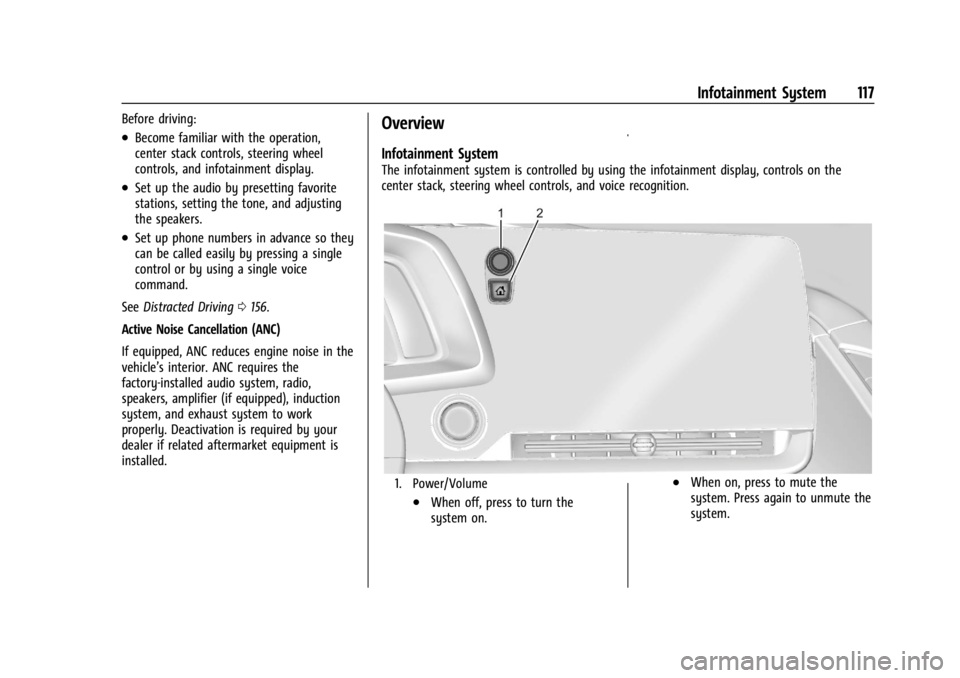
The infotainment system is controlled by using the infotainment display, controls on the
center stack, steering wheel controls, and voice recognition.
1. Power/Volume
.When off, press to turn the
system on.
.When on, press to mute the
system. Press again to unmute the
system.
Page 120 of 362
Chevrolet Corvette Owner Manual (GMNA-Localizing-U.S./Canada/Mexico-
17272984) - 2024 - CRC - 2/20/23
Infotainment System 119
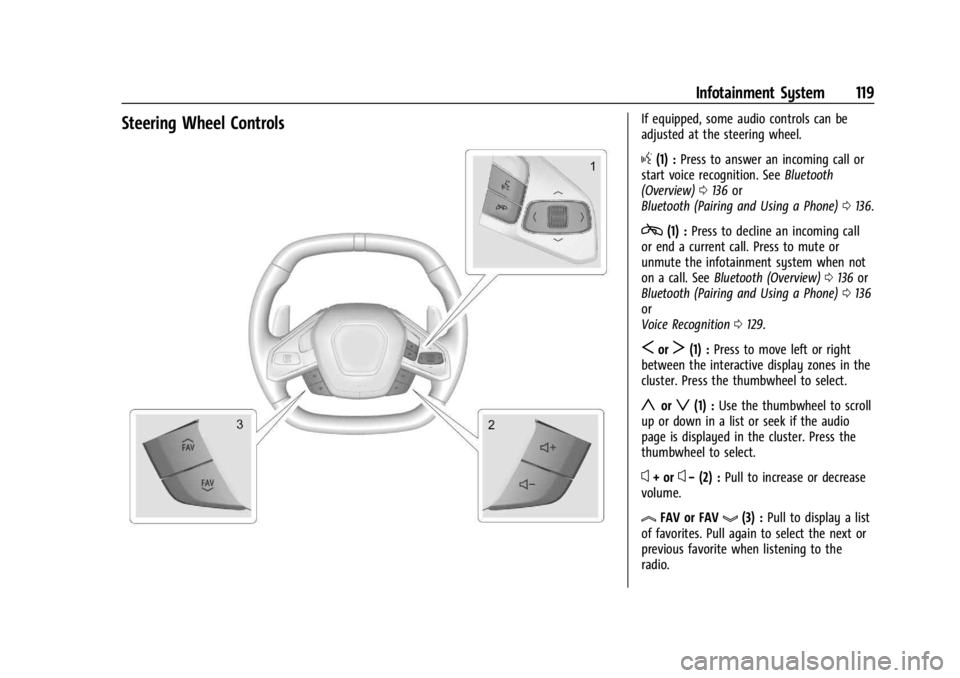
Steering Wheel ControlsIf equipped, some audio controls can be
adjusted at the steering wheel.
g(1) :Press to answer an incoming call or
start voice recognition. See Bluetooth
(Overview) 0136 or
Bluetooth (Pairing and Using a Phone) 0136.
c(1) : Press to decline an incoming call
or end a current call. Press to mute or
unmute the infotainment system when not
on a call. See Bluetooth (Overview) 0136 or
Bluetooth (Pairing and Using a Phone) 0136
or
Voice Recognition 0129.
SorT(1) : Press to move left or right
between the interactive display zones in the
cluster. Press the thumbwheel to select.
yorz(1) : Use the thumbwheel to scroll
up or down in a list or seek if the audio
page is displayed in the cluster. Press the
thumbwheel to select.
x+ orx− (2) : Pull to increase or decrease
volume.
lFAV or FAVg(3) : Pull to display a list
of favorites. Pull again to select the next or
previous favorite when listening to the
radio.
Page 130 of 362
Chevrolet Corvette Owner Manual (GMNA-Localizing-U.S./Canada/Mexico-
17272984) - 2024 - CRC - 2/20/23
Infotainment System 129
.The route prohibits the entry of a vehicle
due to a regulation by time or season or
any other regulation which may be given.
.Some routes might not be searched.
.The route to the destination might not be
shown if there are new roads, if roads
have recently changed, or if certain roads
are not listed in Maps.
To recalibrate the vehicle's position on the
map, park with the vehicle running for two
to five minutes, until the vehicle position
updates. Make sure the vehicle is parked in
a location that is safe and has a clear view
of the sky and away from large
obstructions.
Voice Recognition
If equipped, Google Assistant allows for
hands-free use of media and messaging,
navigation and climate control functionality
in the vehicle. This feature can be started by
pressing
gon the steering wheel, touching
Google Assistant on the Home screen, or by
using the wake up words “Hey Google”or
“OK Google.”
However, not all features within these areas
are supported by voice commands and
requires the user to have a valid data subscription plan or connected to WiFi in
order to use some of the Google Assistant
features.
Using Voice Recognition
Voice recognition becomes available once
the system is initialized. This begins when
the vehicle is turned on. Initialization may
take a few moments.
1. Press
gon the steering wheel controls,
touch Google Assistant on the Home
screen, or use the wake up words “Hey
Google” or“OK Google” to activate voice
recognition. Google Assistant must be set
as the Default Assistant for the
gand
the wake word options to work.
2. Clearly speak one of the commands described later in this section.
Canceling Google Assistant
.Presscon the steering wheel controls
to cancel the Google Assistant request.
Helpful Hints for Speaking Commands
Voice recognition identifies commands that
are naturally stated in sentence form,
or direct commands that state the
application and the task. For best results:
.Speak the command naturally, not too
fast, not too slow.
.Use direct commands without a lot of
extra words. For example,
“Call
at work,” “Play” followed by the artist or
song name, or “Play”followed by the
radio station number.
Direct commands are more clearly
understood by the system. An example of a
direct command is “Dial
If a cell phone number was saved with a
name and a place, the direct command
should include both. For example “Call
Voice Recognition for the Radio
When voice is started, the voice recognition
commands for AM, FM, SiriusXM (if
equipped), and media apps (if supported) are
available.
“Play
radio station frequency identified in the
command (like “nine fifty”).
“Play
radio station frequency identified in the
command (like “one oh one point one”).
Page 131 of 362
Chevrolet Corvette Owner Manual (GMNA-Localizing-U.S./Canada/Mexico-
17272984) - 2024 - CRC - 2/20/23
130 Infotainment System
“Play channel
SiriusXM”:Tune to the SiriusXM radio
station channel number identified in the
command. This command may require an
online connection.
“Play
Tune to the SiriusXM radio station channel
name identified in the command. This
command may require an online connection.
“Play
Page 137 of 362
Chevrolet Corvette Owner Manual (GMNA-Localizing-U.S./Canada/Mexico-
17272984) - 2024 - CRC - 2/20/23
136 Infotainment System
Phone
Bluetooth (Overview)
The Bluetooth-capable system can interact
with many mobile devices to:
.Place and receive calls in a
hands-free mode.
.Share the device’s address book or
contact list with the vehicle.
.Stream audio (music, podcasts).
.Notify receipt of text messages.
To minimize driver distraction, before
driving, and with the vehicle parked:
.Become familiar with the features of the
mobile device. Organize the phone book
and contact lists clearly and delete
duplicate or rarely used entries.
.Review the controls and operation of the
infotainment system.
.Pair mobile device(s) to the vehicle. The
system may not work with all mobile
devices. See “Pairing”later in this section.
Vehicles with a Bluetooth system can use a
Bluetooth-capable mobile device with a
Hands-Free Profile to make and receive
phone calls. The infotainment system and
voice recognition are used to control the system. The system can be used while the
vehicle is on or in accessory mode. The
range of the Bluetooth system can be up to
9.1 m (30 ft). Not all mobile devices support
all functions and not all mobile devices work
with the Bluetooth system. See
Online
Account 0332 for more information about
compatible mobile devices.
Controls
Use the controls on the infotainment display
and the steering wheel to operate the
Bluetooth system.
Steering Wheel Controls
g: Press and release to answer incoming
calls on your connected Bluetooth mobile
device. Press and hold for mobile device
assistant.
c: Press to end a call, decline a call,
or cancel an operation. Press to mute or
unmute the infotainment system when not
on a call.
Infotainment System Controls
For information about how to navigate the
menu system using the infotainment
controls, see Using the System 0120.
Audio System
When using the Bluetooth mobile device
system, sound comes through the vehicle's
front audio system speakers and overrides
the audio system. The volume level while on
a mobile device call can be adjusted by
pressing the steering wheel controls or the
volume controls for the infotainment
system. The adjusted volume level remains
in memory for later calls. The volume
cannot be lowered beyond a certain level.
Bluetooth (Pairing and Using a
Phone)
Pairing
A Bluetooth-enabled mobile device must be
paired to the Bluetooth system and then
connected to the vehicle before it can be
used. See the mobile device manufacturer's
user guide for Bluetooth functions before
pairing the device.
Pairing Information
.Touch the Phone icon on the home page
of the infotainment display.
.If no mobile device has been paired, a
message on the infotainment display will
show the Manage Phones option. Touch