rear view mirror CHEVROLET CORVETTE 2024 Owners Manual
[x] Cancel search | Manufacturer: CHEVROLET, Model Year: 2024, Model line: CORVETTE, Model: CHEVROLET CORVETTE 2024Pages: 362, PDF Size: 6.62 MB
Page 7 of 362
Chevrolet Corvette Owner Manual (GMNA-Localizing-U.S./Canada/Mexico-
17272984) - 2024 - CRC - 2/20/23
6 Keys, Doors, and Windows
Keys, Doors, and
Windows
Keys and Locks
Keys . . . . . . . . . . . . . . . . . . . . . . . . . . . . . . . . . . . . . 6
Remote Key . . . . . . . . . . . . . . . . . . . . . . . . . . . . . 7
Remote Key Operation . . . . . . . . . . . . . . . . . . . 7
Remote Vehicle Start . . . . . . . . . . . . . . . . . . . 12
Door Locks . . . . . . . . . . . . . . . . . . . . . . . . . . . . . . 13
Delayed Locking . . . . . . . . . . . . . . . . . . . . . . . . 16
Automatic Door Locks . . . . . . . . . . . . . . . . . . 16
Lockout Protection . . . . . . . . . . . . . . . . . . . . . . 16
Doors
Hood . . . . . . . . . . . . . . . . . . . . . . . . . . . . . . . . . . . 17
Hatch (Trunk) . . . . . . . . . . . . . . . . . . . . . . . . . . 20
Vehicle Security
Vehicle Security . . . . . . . . . . . . . . . . . . . . . . . . 22
Vehicle Alarm System . . . . . . . . . . . . . . . . . . 22
Immobilizer . . . . . . . . . . . . . . . . . . . . . . . . . . . . . 23
Immobilizer Operation . . . . . . . . . . . . . . . . . . 24
Exterior Mirrors
Convex Mirrors . . . . . . . . . . . . . . . . . . . . . . . . . 24
Power Mirrors . . . . . . . . . . . . . . . . . . . . . . . . . . 25
Folding Mirrors . . . . . . . . . . . . . . . . . . . . . . . . . 25
Heated Mirrors . . . . . . . . . . . . . . . . . . . . . . . . . 26
Automatic Dimming Mirror . . . . . . . . . . . . . 26
Reverse Tilt Mirrors . . . . . . . . . . . . . . . . . . . . 26
Interior Mirrors
Interior Rearview Mirrors . . . . . . . . . . . . . . . 26
Automatic Dimming Rearview Mirror . . . 26
Rear Camera Mirror . . . . . . . . . . . . . . . . . . . . . 27
Windows
Windows . . . . . . . . . . . . . . . . . . . . . . . . . . . . . . . 29
Power Windows . . . . . . . . . . . . . . . . . . . . . . . . 29
Rear Windows . . . . . . . . . . . . . . . . . . . . . . . . . . 30
Sun Visors . . . . . . . . . . . . . . . . . . . . . . . . . . . . . . 31
Roof
Roof Panel . . . . . . . . . . . . . . . . . . . . . . . . . . . . . . 31
Convertible Top . . . . . . . . . . . . . . . . . . . . . . . . 34
Keys and Locks
Keys
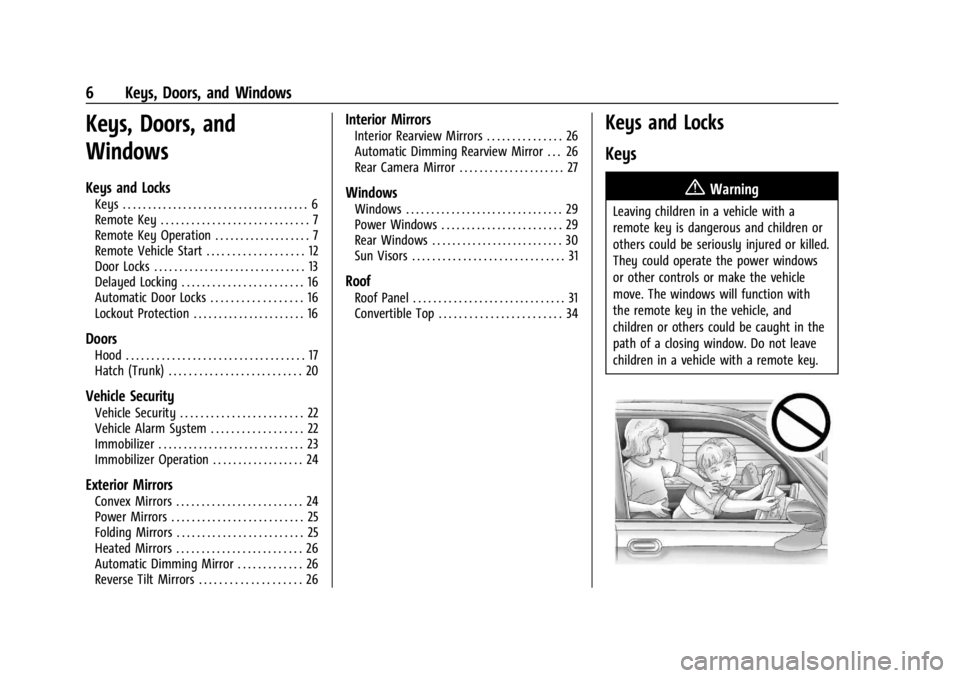
{Warning
Leaving children in a vehicle with a
remote key is dangerous and children or
others could be seriously injured or killed.
They could operate the power windows
or other controls or make the vehicle
move. The windows will function with
the remote key in the vehicle, and
children or others could be caught in the
path of a closing window. Do not leave
children in a vehicle with a remote key.
Page 27 of 362
Chevrolet Corvette Owner Manual (GMNA-Localizing-U.S./Canada/Mexico-
17272984) - 2024 - CRC - 2/20/23
26 Keys, Doors, and Windows
Remote Mirror Folding
If equipped with power folding mirrors and
the mirrors have not been folded with the
power folding mirror switch and the vehicle
is in P (Park), they may be automatically
folded/unfolded as follows:1. If doors are locked by double pressing
H
on the remote key, the mirrors may fold.
If doors are unlocked by double pressing
Ion the remote key, the mirrors may
unfold. See Remote Key Operation 07.
2. If doors are locked by pressing the door handle button, the mirrors will fold.
If doors are unlocked by pressing the
driver door handle button, the mirrors
may unfold. See “Keyless Unlocking/
Locking from the Driver Door” inRemote
Key Operation 07.
3. If passive locking is enabled and doors are locked by that feature, the mirrors
may fold. See “Passive Locking” in
Remote Key Operation 07.
If equipped with power folding mirrors,
remote mirror folding is on, and the mirrors
have been folded with the power folding
mirror switch, they may not be
automatically unfolded. To view available settings from the infotainment screen, touch
Settings > Vehicle > Comfort and
Convenience.
Heated Mirrors
1:
Press to heat the mirrors.
See “Rear Window Defogger” underDual
Automatic Climate Control System 0150.
Automatic Dimming Mirror
If equipped, the driver side mirror
automatically adjusts for the glare of
headlamps from behind.
Reverse Tilt Mirrors
If equipped with reverse tilt mirrors and
memory seats, the passenger and/or driver
mirror tilts to a preselected position when
the vehicle is in R (Reverse). This allows the
curb to be seen when parallel parking.
The mirror(s) may move from their tilted
position when:
.The vehicle is shifted out of R (Reverse) or
remains in R (Reverse) for about
30 seconds.
.The vehicle is turned off.
.The vehicle is driven in R (Reverse) above
a set speed.
To view available settings from the
infotainment screen, touch Settings >
Vehicle > Comfort and Convenience.
Interior Mirrors
Interior Rearview Mirrors
Adjust the rearview mirror for a clear view
of the area behind your vehicle.
Do not spray glass cleaner directly on the
mirror. Use a soft towel dampened with
water.
Automatic Dimming Rearview
Mirror
If equipped, automatic dimming reduces the
glare of headlamps from behind. The
dimming feature comes on when the vehicle
is started.
Page 28 of 362
Chevrolet Corvette Owner Manual (GMNA-Localizing-U.S./Canada/Mexico-
17272984) - 2024 - CRC - 2/20/23
Keys, Doors, and Windows 27
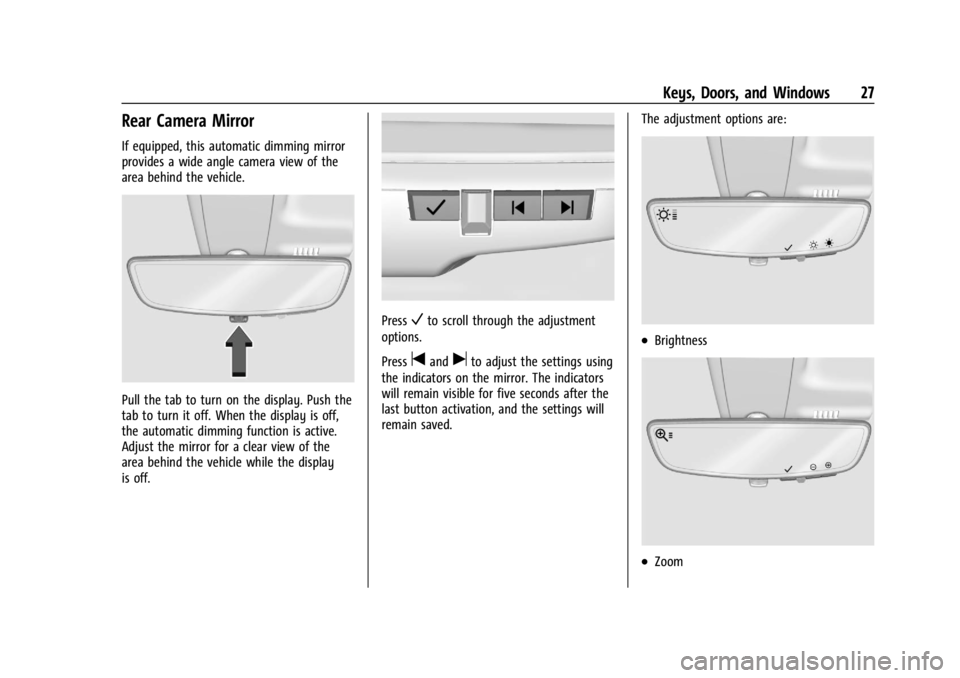
Rear Camera Mirror
If equipped, this automatic dimming mirror
provides a wide angle camera view of the
area behind the vehicle.
Pull the tab to turn on the display. Push the
tab to turn it off. When the display is off,
the automatic dimming function is active.
Adjust the mirror for a clear view of the
area behind the vehicle while the display
is off.
PressVto scroll through the adjustment
options.
Press
tanduto adjust the settings using
the indicators on the mirror. The indicators
will remain visible for five seconds after the
last button activation, and the settings will
remain saved. The adjustment options are:
.Brightness
.Zoom
Page 29 of 362
Chevrolet Corvette Owner Manual (GMNA-Localizing-U.S./Canada/Mexico-
17272984) - 2024 - CRC - 2/20/23
28 Keys, Doors, and Windows
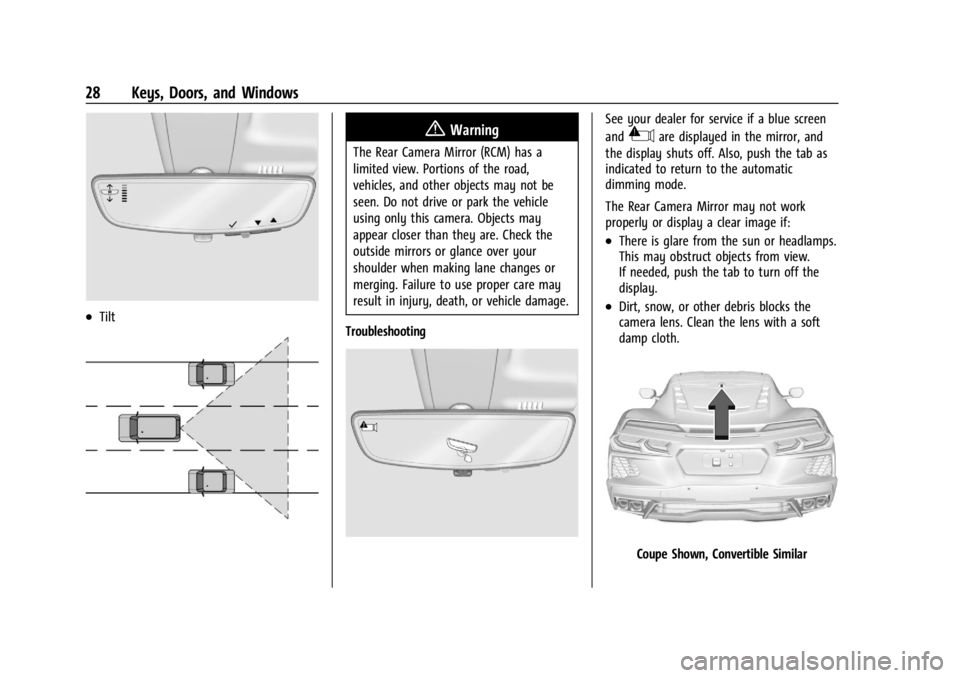
.Tilt
{Warning
The Rear Camera Mirror (RCM) has a
limited view. Portions of the road,
vehicles, and other objects may not be
seen. Do not drive or park the vehicle
using only this camera. Objects may
appear closer than they are. Check the
outside mirrors or glance over your
shoulder when making lane changes or
merging. Failure to use proper care may
result in injury, death, or vehicle damage.
Troubleshooting
See your dealer for service if a blue screen
and
3are displayed in the mirror, and
the display shuts off. Also, push the tab as
indicated to return to the automatic
dimming mode.
The Rear Camera Mirror may not work
properly or display a clear image if:
.There is glare from the sun or headlamps.
This may obstruct objects from view.
If needed, push the tab to turn off the
display.
.Dirt, snow, or other debris blocks the
camera lens. Clean the lens with a soft
damp cloth.
Coupe Shown, Convertible Similar
Page 132 of 362
Chevrolet Corvette Owner Manual (GMNA-Localizing-U.S./Canada/Mexico-
17272984) - 2024 - CRC - 2/20/23
Infotainment System 131
.Comply with any notice and consent
requirements before capturing and/or
recording the voices or images of other
persons or before collecting other
personal data.
.Notify other drivers of your vehicle about
the above rules and require them to
comply.
.General Motors does not accept any
responsibility or liability in connection
with use that is not permitted.
.Law enforcement authorities may have
the right to seize video recordings and
use them as evidence of criminal/driving
offenses against you or third parties.
The PDR records video, audio, and vehicle
data. The forward facing video and cabin
audio are captured by a camera and
microphone located behind the rear view
mirror. The PDR video and data is stored on
a removable SD card located in the SD card
reader in the glove box. The video (MP4)
can be played back in the vehicle or the SD
card can be removed and played on a PC or
a mobile device, or the file can be viewed
and analyzed within Toolbox. See Toolbox
later in this section.
The recorded data is not stored anywhere
else and is only accessible from the SD card.
To optimize PDR performance, format the SD
card on a regular basis. Back up all
recordings on the SD card before formatting.
Formatting the SD card will delete all saved
recordings.
If a system error code appears on the
display, such as "System Error Code ####,”
please check the condition of the SD card.
It may need to be reformatted or replaced.
If the issue persists, please see your dealer.
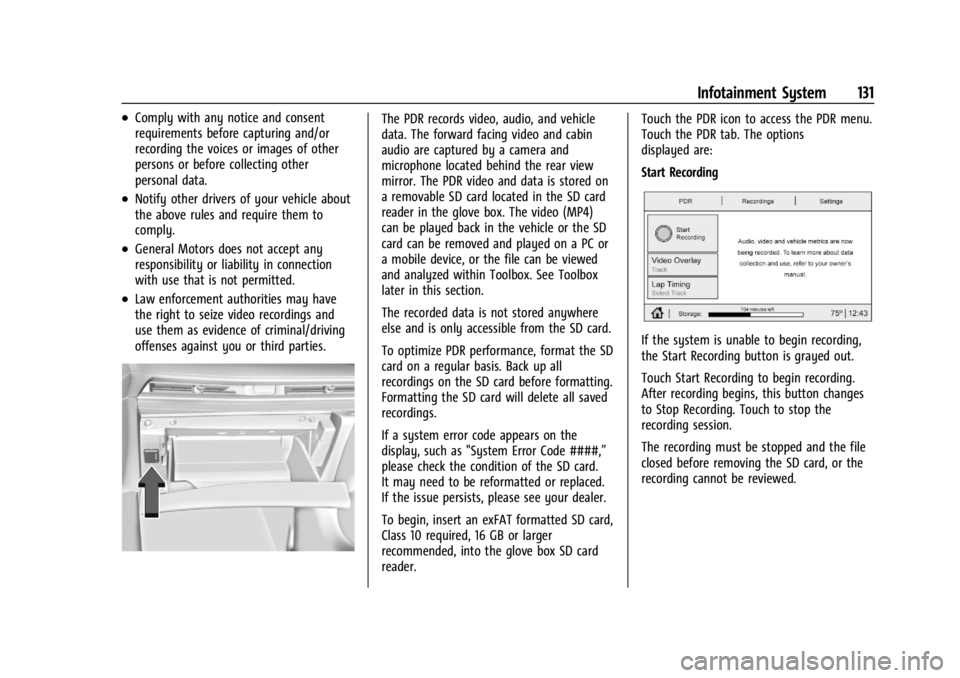
To begin, insert an exFAT formatted SD card,
Class 10 required, 16 GB or larger
recommended, into the glove box SD card
reader.Touch the PDR icon to access the PDR menu.
Touch the PDR tab. The options
displayed are:
Start Recording
If the system is unable to begin recording,
the Start Recording button is grayed out.
Touch Start Recording to begin recording.
After recording begins, this button changes
to Stop Recording. Touch to stop the
recording session.
The recording must be stopped and the file
closed before removing the SD card, or the
recording cannot be reviewed.
Page 216 of 362
Chevrolet Corvette Owner Manual (GMNA-Localizing-U.S./Canada/Mexico-
17272984) - 2024 - CRC - 2/20/23
Driving and Operating 215
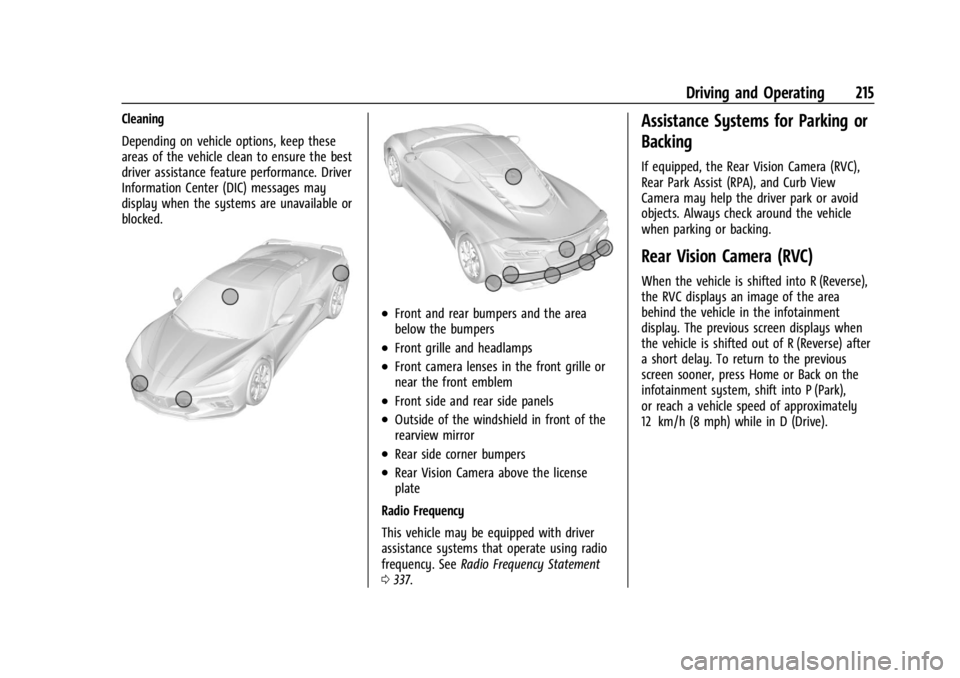
Cleaning
Depending on vehicle options, keep these
areas of the vehicle clean to ensure the best
driver assistance feature performance. Driver
Information Center (DIC) messages may
display when the systems are unavailable or
blocked.
.Front and rear bumpers and the area
below the bumpers
.Front grille and headlamps
.Front camera lenses in the front grille or
near the front emblem
.Front side and rear side panels
.Outside of the windshield in front of the
rearview mirror
.Rear side corner bumpers
.Rear Vision Camera above the license
plate
Radio Frequency
This vehicle may be equipped with driver
assistance systems that operate using radio
frequency. See Radio Frequency Statement
0 337.
Assistance Systems for Parking or
Backing
If equipped, the Rear Vision Camera (RVC),
Rear Park Assist (RPA), and Curb View
Camera may help the driver park or avoid
objects. Always check around the vehicle
when parking or backing.
Rear Vision Camera (RVC)
When the vehicle is shifted into R (Reverse),
the RVC displays an image of the area
behind the vehicle in the infotainment
display. The previous screen displays when
the vehicle is shifted out of R (Reverse) after
a short delay. To return to the previous
screen sooner, press Home or Back on the
infotainment system, shift into P (Park),
or reach a vehicle speed of approximately
12 km/h (8 mph) while in D (Drive).
Page 218 of 362
Chevrolet Corvette Owner Manual (GMNA-Localizing-U.S./Canada/Mexico-
17272984) - 2024 - CRC - 2/20/23
Driving and Operating 217
.The back of the vehicle is damaged. The
position and mounting angle of the
camera can change or the camera can be
affected. Be sure to have the camera and
its position and mounting angle checked
at your dealer.
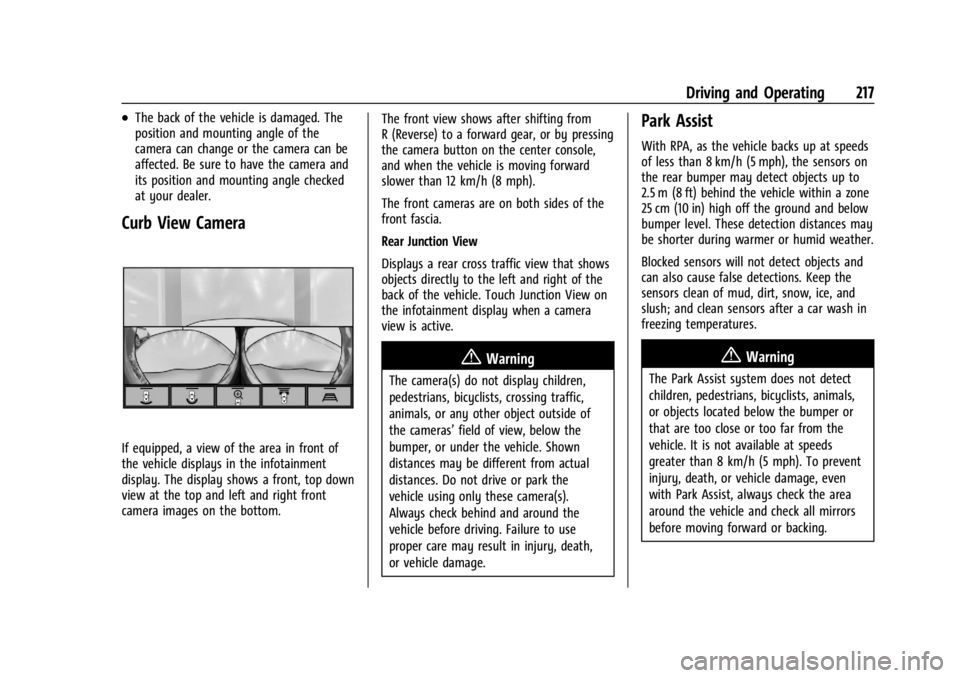
Curb View Camera
If equipped, a view of the area in front of
the vehicle displays in the infotainment
display. The display shows a front, top down
view at the top and left and right front
camera images on the bottom.The front view shows after shifting from
R (Reverse) to a forward gear, or by pressing
the camera button on the center console,
and when the vehicle is moving forward
slower than 12 km/h (8 mph).
The front cameras are on both sides of the
front fascia.
Rear Junction View
Displays a rear cross traffic view that shows
objects directly to the left and right of the
back of the vehicle. Touch Junction View on
the infotainment display when a camera
view is active.
{Warning
The camera(s) do not display children,
pedestrians, bicyclists, crossing traffic,
animals, or any other object outside of
the cameras’
field of view, below the
bumper, or under the vehicle. Shown
distances may be different from actual
distances. Do not drive or park the
vehicle using only these camera(s).
Always check behind and around the
vehicle before driving. Failure to use
proper care may result in injury, death,
or vehicle damage.
Park Assist
With RPA, as the vehicle backs up at speeds
of less than 8 km/h (5 mph), the sensors on
the rear bumper may detect objects up to
2.5 m (8 ft) behind the vehicle within a zone
25 cm (10 in) high off the ground and below
bumper level. These detection distances may
be shorter during warmer or humid weather.
Blocked sensors will not detect objects and
can also cause false detections. Keep the
sensors clean of mud, dirt, snow, ice, and
slush; and clean sensors after a car wash in
freezing temperatures.
{Warning
The Park Assist system does not detect
children, pedestrians, bicyclists, animals,
or objects located below the bumper or
that are too close or too far from the
vehicle. It is not available at speeds
greater than 8 km/h (5 mph). To prevent
injury, death, or vehicle damage, even
with Park Assist, always check the area
around the vehicle and check all mirrors
before moving forward or backing.
Page 221 of 362
Chevrolet Corvette Owner Manual (GMNA-Localizing-U.S./Canada/Mexico-
17272984) - 2024 - CRC - 2/20/23
220 Driving and Operating
The Collision Alert control is on the steering
wheel. Press
[to set the FCA timing to
Far, Medium, or Near. The first button press
shows the current setting on the DIC.
Additional button presses will change this
setting. The chosen setting will remain until
it is changed and will affect the timing of
both the Collision Alert and the Tailgating
Alert features. The timing of both alerts will
vary based on vehicle speed. The faster the
vehicle speed, the farther away the alert will
occur. Consider traffic and weather
conditions when selecting the alert timing.
The range of selectable alert timings may
not be appropriate for all drivers and driving
conditions.
Following Distance Indicator
The following distance to a moving vehicle
ahead in your path is indicated in following
time in seconds on the Driver Information
Center (DIC). The minimum following time is
0.5 seconds away. If there is no vehicle
detected ahead, or the vehicle ahead is out
of sensor range, dashes will be displayed.
Unnecessary Alerts
FCA may provide unnecessary alerts for
turning vehicles, vehicles in other lanes,
objects that are not vehicles, or shadows.
These alerts are normal operation and the
vehicle does not need service.
Cleaning the System
If the FCA system does not seem to operate
properly, this may correct the issue:
.Clean the outside of the windshield in
front of the rearview mirror.
.Clean the entire front of the vehicle.
.Clean the headlamps.
Automatic Emergency
Braking (AEB)
The AEB system may help avoid or reduce
the harm caused by front-end crashes. AEB
also includes Intelligent Brake Assist (IBA).
When the system detects a vehicle ahead in
your path that is traveling in the same
direction that you may be about to crash
into, it can provide a boost to braking or
automatically brake the vehicle. This can
help avoid or lessen the severity of crashes
when driving in a forward gear. Depending
on the situation, the vehicle may automatically brake moderately or hard.
Always wear a seat belt and ensure that all
passengers are properly restrained. This
automatic emergency braking can only occur
if a vehicle is detected. This is shown by the
FCA vehicle ahead indicator being lit. See
Forward Collision Alert (FCA) System
0218.
The system works when driving in a forward
gear between 8 km/h (5 mph) and 135 km/h
(84 mph). It can detect vehicles up to
approximately 60 m (197 ft).
{Warning
AEB is an emergency crash preparation
feature and is not designed to avoid
crashes. Do not rely on AEB to brake the
vehicle. AEB will not brake outside of its
operating speed range and only responds
to detected vehicles.
AEB may not:
.Detect a vehicle ahead on winding or
hilly roads.
.Detect all vehicles, especially vehicles
with a trailer, tractors, muddy
vehicles, etc. (Continued)
Page 224 of 362
Chevrolet Corvette Owner Manual (GMNA-Localizing-U.S./Canada/Mexico-
17272984) - 2024 - CRC - 2/20/23
Driving and Operating 223
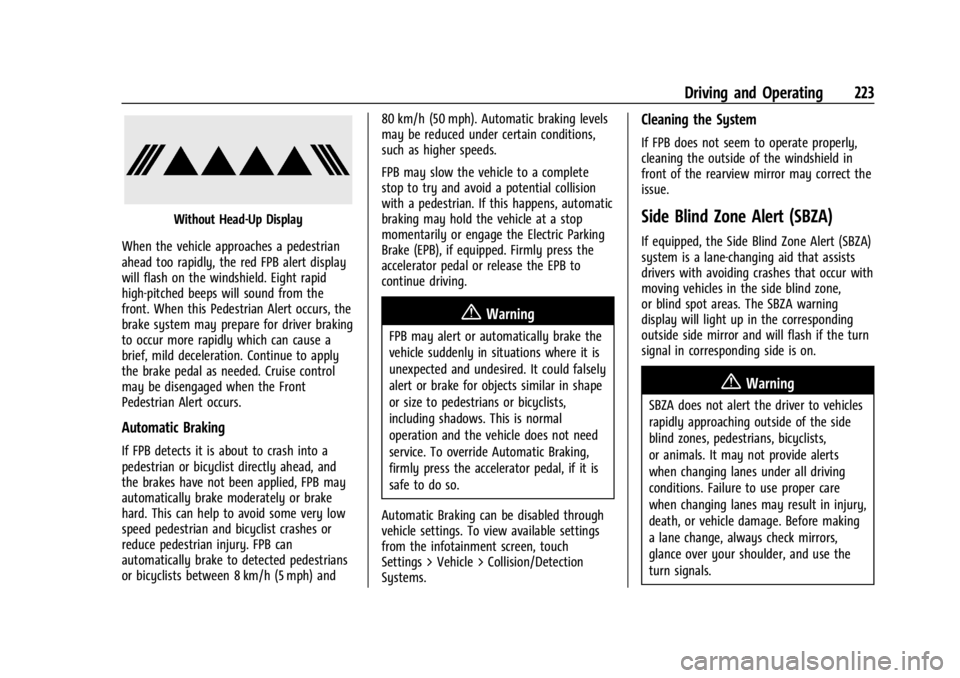
Without Head-Up Display
When the vehicle approaches a pedestrian
ahead too rapidly, the red FPB alert display
will flash on the windshield. Eight rapid
high-pitched beeps will sound from the
front. When this Pedestrian Alert occurs, the
brake system may prepare for driver braking
to occur more rapidly which can cause a
brief, mild deceleration. Continue to apply
the brake pedal as needed. Cruise control
may be disengaged when the Front
Pedestrian Alert occurs.
Automatic Braking
If FPB detects it is about to crash into a
pedestrian or bicyclist directly ahead, and
the brakes have not been applied, FPB may
automatically brake moderately or brake
hard. This can help to avoid some very low
speed pedestrian and bicyclist crashes or
reduce pedestrian injury. FPB can
automatically brake to detected pedestrians
or bicyclists between 8 km/h (5 mph) and 80 km/h (50 mph). Automatic braking levels
may be reduced under certain conditions,
such as higher speeds.
FPB may slow the vehicle to a complete
stop to try and avoid a potential collision
with a pedestrian. If this happens, automatic
braking may hold the vehicle at a stop
momentarily or engage the Electric Parking
Brake (EPB), if equipped. Firmly press the
accelerator pedal or release the EPB to
continue driving.
{Warning
FPB may alert or automatically brake the
vehicle suddenly in situations where it is
unexpected and undesired. It could falsely
alert or brake for objects similar in shape
or size to pedestrians or bicyclists,
including shadows. This is normal
operation and the vehicle does not need
service. To override Automatic Braking,
firmly press the accelerator pedal, if it is
safe to do so.
Automatic Braking can be disabled through
vehicle settings. To view available settings
from the infotainment screen, touch
Settings > Vehicle > Collision/Detection
Systems.
Cleaning the System
If FPB does not seem to operate properly,
cleaning the outside of the windshield in
front of the rearview mirror may correct the
issue.
Side Blind Zone Alert (SBZA)
If equipped, the Side Blind Zone Alert (SBZA)
system is a lane-changing aid that assists
drivers with avoiding crashes that occur with
moving vehicles in the side blind zone,
or blind spot areas. The SBZA warning
display will light up in the corresponding
outside side mirror and will flash if the turn
signal in corresponding side is on.
{Warning
SBZA does not alert the driver to vehicles
rapidly approaching outside of the side
blind zones, pedestrians, bicyclists,
or animals. It may not provide alerts
when changing lanes under all driving
conditions. Failure to use proper care
when changing lanes may result in injury,
death, or vehicle damage. Before making
a lane change, always check mirrors,
glance over your shoulder, and use the
turn signals.
Page 225 of 362
Chevrolet Corvette Owner Manual (GMNA-Localizing-U.S./Canada/Mexico-
17272984) - 2024 - CRC - 2/20/23
224 Driving and Operating
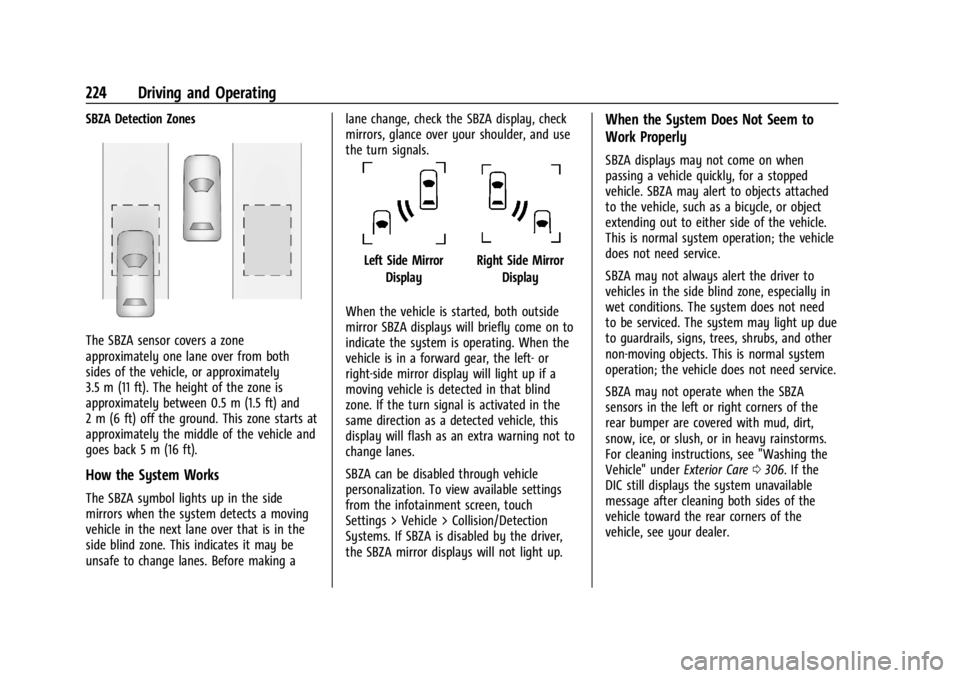
SBZA Detection Zones
The SBZA sensor covers a zone
approximately one lane over from both
sides of the vehicle, or approximately
3.5 m (11 ft). The height of the zone is
approximately between 0.5 m (1.5 ft) and
2 m (6 ft) off the ground. This zone starts at
approximately the middle of the vehicle and
goes back 5 m (16 ft).
How the System Works
The SBZA symbol lights up in the side
mirrors when the system detects a moving
vehicle in the next lane over that is in the
side blind zone. This indicates it may be
unsafe to change lanes. Before making alane change, check the SBZA display, check
mirrors, glance over your shoulder, and use
the turn signals.
Left Side Mirror
DisplayRight Side Mirror Display
When the vehicle is started, both outside
mirror SBZA displays will briefly come on to
indicate the system is operating. When the
vehicle is in a forward gear, the left- or
right-side mirror display will light up if a
moving vehicle is detected in that blind
zone. If the turn signal is activated in the
same direction as a detected vehicle, this
display will flash as an extra warning not to
change lanes.
SBZA can be disabled through vehicle
personalization. To view available settings
from the infotainment screen, touch
Settings > Vehicle > Collision/Detection
Systems. If SBZA is disabled by the driver,
the SBZA mirror displays will not light up.
When the System Does Not Seem to
Work Properly
SBZA displays may not come on when
passing a vehicle quickly, for a stopped
vehicle. SBZA may alert to objects attached
to the vehicle, such as a bicycle, or object
extending out to either side of the vehicle.
This is normal system operation; the vehicle
does not need service.
SBZA may not always alert the driver to
vehicles in the side blind zone, especially in
wet conditions. The system does not need
to be serviced. The system may light up due
to guardrails, signs, trees, shrubs, and other
non-moving objects. This is normal system
operation; the vehicle does not need service.
SBZA may not operate when the SBZA
sensors in the left or right corners of the
rear bumper are covered with mud, dirt,
snow, ice, or slush, or in heavy rainstorms.
For cleaning instructions, see "Washing the
Vehicle" under Exterior Care0306. If the
DIC still displays the system unavailable
message after cleaning both sides of the
vehicle toward the rear corners of the
vehicle, see your dealer.