engine CHEVROLET CORVETTE C7 2018 Owner's Guide
[x] Cancel search | Manufacturer: CHEVROLET, Model Year: 2018, Model line: CORVETTE C7, Model: CHEVROLET CORVETTE C7 2018Pages: 353, PDF Size: 6.48 MB
Page 116 of 353
Chevrolet Corvette Owner Manual (GMNA-Localizing-U.S./Canada/Mexico-
11374030) - 2018 - crc - 3/29/17
Instruments and Controls 115
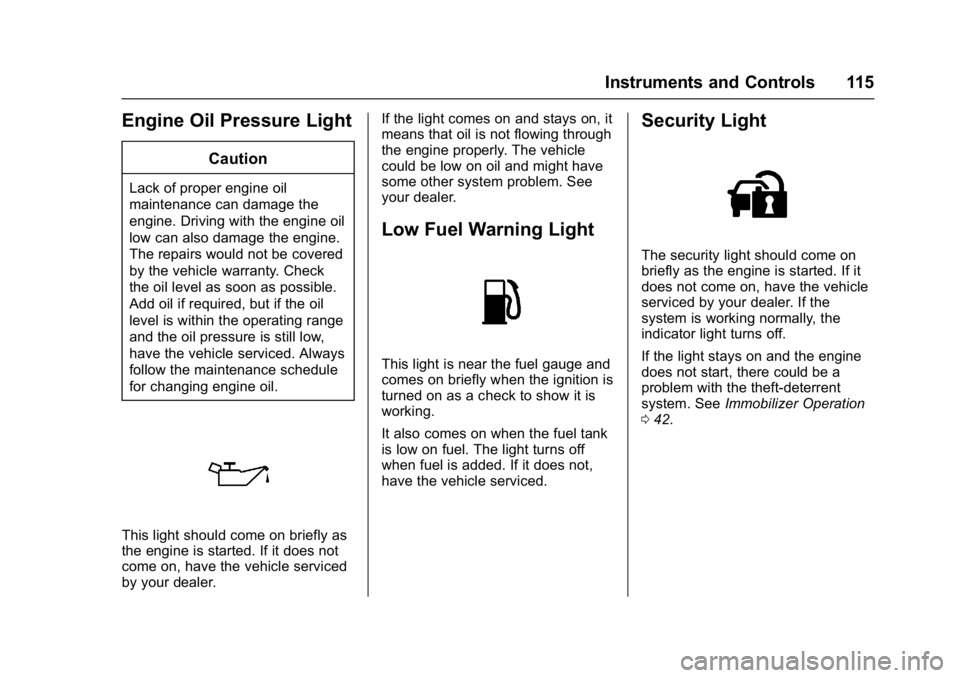
Engine Oil Pressure Light
Caution
Lack of proper engine oil
maintenance can damage the
engine. Driving with the engine oil
low can also damage the engine.
The repairs would not be covered
by the vehicle warranty. Check
the oil level as soon as possible.
Add oil if required, but if the oil
level is within the operating range
and the oil pressure is still low,
have the vehicle serviced. Always
follow the maintenance schedule
for changing engine oil.
This light should come on briefly as
the engine is started. If it does not
come on, have the vehicle serviced
by your dealer.If the light comes on and stays on, it
means that oil is not flowing through
the engine properly. The vehicle
could be low on oil and might have
some other system problem. See
your dealer.
Low Fuel Warning Light
This light is near the fuel gauge and
comes on briefly when the ignition is
turned on as a check to show it is
working.
It also comes on when the fuel tank
is low on fuel. The light turns off
when fuel is added. If it does not,
have the vehicle serviced.
Security Light
The security light should come on
briefly as the engine is started. If it
does not come on, have the vehicle
serviced by your dealer. If the
system is working normally, the
indicator light turns off.
If the light stays on and the engine
does not start, there could be a
problem with the theft-deterrent
system. See
Immobilizer Operation
0 42.
Page 118 of 353
Chevrolet Corvette Owner Manual (GMNA-Localizing-U.S./Canada/Mexico-
11374030) - 2018 - crc - 3/29/17
Instruments and Controls 117
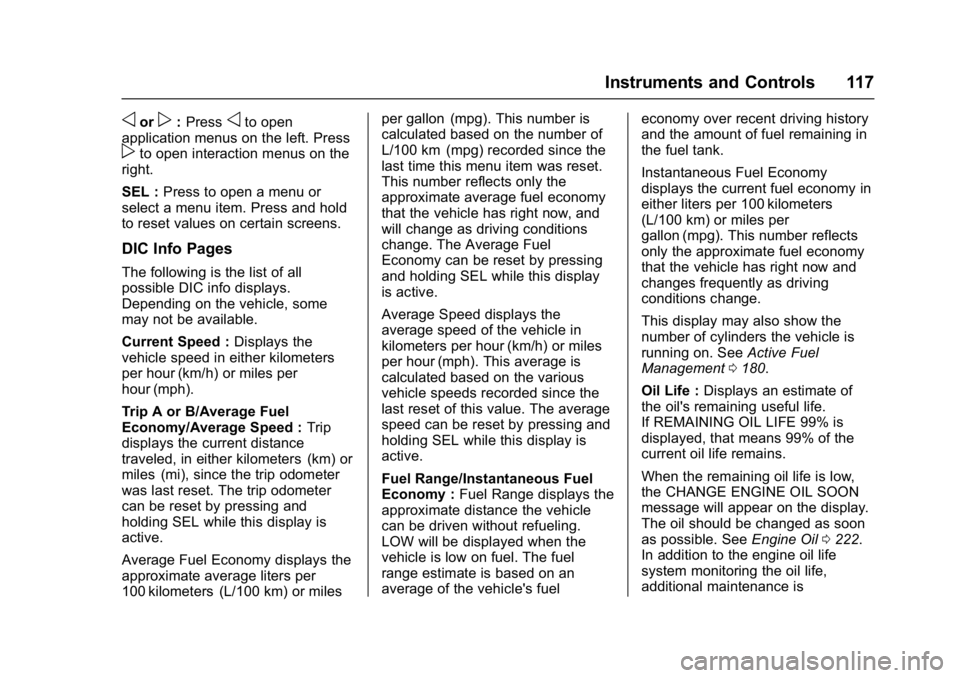
oorp:Pressoto open
application menus on the left. Press
pto open interaction menus on the
right.
SEL : Press to open a menu or
select a menu item. Press and hold
to reset values on certain screens.
DIC Info Pages
The following is the list of all
possible DIC info displays.
Depending on the vehicle, some
may not be available.
Current Speed : Displays the
vehicle speed in either kilometers
per hour (km/h) or miles per
hour (mph).
Trip A or B/Average Fuel
Economy/Average Speed : Trip
displays the current distance
traveled, in either kilometers (km) or
miles (mi), since the trip odometer
was last reset. The trip odometer
can be reset by pressing and
holding SEL while this display is
active.
Average Fuel Economy displays the
approximate average liters per
100 kilometers (L/100 km) or miles per gallon (mpg). This number is
calculated based on the number of
L/100 km (mpg) recorded since the
last time this menu item was reset.
This number reflects only the
approximate average fuel economy
that the vehicle has right now, and
will change as driving conditions
change. The Average Fuel
Economy can be reset by pressing
and holding SEL while this display
is active.
Average Speed displays the
average speed of the vehicle in
kilometers per hour (km/h) or miles
per hour (mph). This average is
calculated based on the various
vehicle speeds recorded since the
last reset of this value. The average
speed can be reset by pressing and
holding SEL while this display is
active.
Fuel Range/Instantaneous Fuel
Economy :
Fuel Range displays the
approximate distance the vehicle
can be driven without refueling.
LOW will be displayed when the
vehicle is low on fuel. The fuel
range estimate is based on an
average of the vehicle's fuel economy over recent driving history
and the amount of fuel remaining in
the fuel tank.
Instantaneous Fuel Economy
displays the current fuel economy in
either liters per 100 kilometers
(L/100 km) or miles per
gallon (mpg). This number reflects
only the approximate fuel economy
that the vehicle has right now and
changes frequently as driving
conditions change.
This display may also show the
number of cylinders the vehicle is
running on. See
Active Fuel
Management 0180.
Oil Life : Displays an estimate of
the oil's remaining useful life.
If REMAINING OIL LIFE 99% is
displayed, that means 99% of the
current oil life remains.
When the remaining oil life is low,
the CHANGE ENGINE OIL SOON
message will appear on the display.
The oil should be changed as soon
as possible. See Engine Oil0222.
In addition to the engine oil life
system monitoring the oil life,
additional maintenance is
Page 119 of 353
Chevrolet Corvette Owner Manual (GMNA-Localizing-U.S./Canada/Mexico-
11374030) - 2018 - crc - 3/29/17
118 Instruments and Controls
recommended in the Maintenance
Schedule. SeeMaintenance
Schedule 0299.
The Oil Life display must be reset
after each oil change. It will not
reset itself. Do not reset the Oil Life
display accidentally at any time
other than when the oil has just
been changed. It cannot be reset
accurately until the next oil change.
To reset the engine oil life system,
press and hold SEL for several
seconds while the Oil Life display is
active. See Engine Oil Life System
0 227.
Tire Pressure : Displays the
approximate pressures of all four
tires. Tire pressure is displayed in
either kilopascal (kPa) or in pounds
per square inch (psi). If the pressure
is low, the value for that tire is
shown in amber.
See Tire Pressure Monitor System
0 264 andTire Pressure Monitor
Operation 0265.
Best Average Fuel Economy :
Displays the average fuel economy,
the best fuel economy over the
selected distance, and a bar graph showing instantaneous fuel
economy. Press
pto change the
selected distance.
Fuel Used/Timer : Displays the
approximate liters (L) or
gallons (gal) of fuel that have been
used since last reset. The fuel used
can be reset by pressing and
holding SEL while this display is
active.
This display can also be used as a
timer. To start/stop the timer, press
pwhile this display is active and
then SEL to start/stop the timer. The
display will show the amount of time
that has passed since the timer was
last reset. To reset the timer to zero,
press and hold SEL or use
pto
access the menu while this display
is active.
ECO Index : Aids the driver in
determining how efficiently they are
driving.
This display may also show the
number of cylinders the vehicle is
running on. See Active Fuel
Management 0180. Speed Limit :
Displays sign
information, which comes from a
roadway database in the onboard
navigation.
Engine Hours/Lifetime Revs :
Displays the total number of hours
the engine has run. It also shows
total engine revolutions divided by
10,000.
Head-Up Display (HUD)
{Warning
If the HUD image is too bright,
or too high in your field of view, it
may take you more time to see
things you need to see when it is
dark outside. Be sure to keep the
HUD image dim and placed low in
your field of view.
If equipped with HUD, some
information concerning the
operation of the vehicle is projected
onto the windshield.
The HUD information appears as an
image focused out toward the front
of the vehicle.
Page 120 of 353
Chevrolet Corvette Owner Manual (GMNA-Localizing-U.S./Canada/Mexico-
11374030) - 2018 - crc - 3/29/17
Instruments and Controls 119
Caution
If you try to use the HUD image
as a parking aid, you may
misjudge the distance and
damage your vehicle. Do not use
the HUD image as a parking aid.
The HUD information can be
displayed in various languages. The
speedometer reading and other
numerical values can be displayed
in either English or metric units.
The language selection is changed
through the radio and the units of
measurement is changed through
the instrument cluster. See Vehicle
Personalization 0124 and“Settings”
under Instrument Cluster 099.
The HUD may display different
alerts and information for vehicles
equipped with these features:
. Speedometer
. Tachometer
. Manual Transmission Gear (If
Equipped) .
Manual Paddle Shift Gear
Indicator (If Equipped)
These displays on the HUD are
for use when using the manual
paddle shift controls to shift the
transmission. See “Manual
Paddle Shift” inManual Mode
0 183.
. Shift Light
This light is used for
performance driving to indicate
that the vehicle's best
performance level has been
reached to shift the transmission
into the next higher gear. An
arrow pointing up will light up on
the display just prior to reaching
the engine fuel cut-off mode.
. G-Force Gauge
. Audio Information
. Upcoming Maneuver from
OnBoard Navigation
. Upcoming Maneuver from
OnStar
. Incoming Call
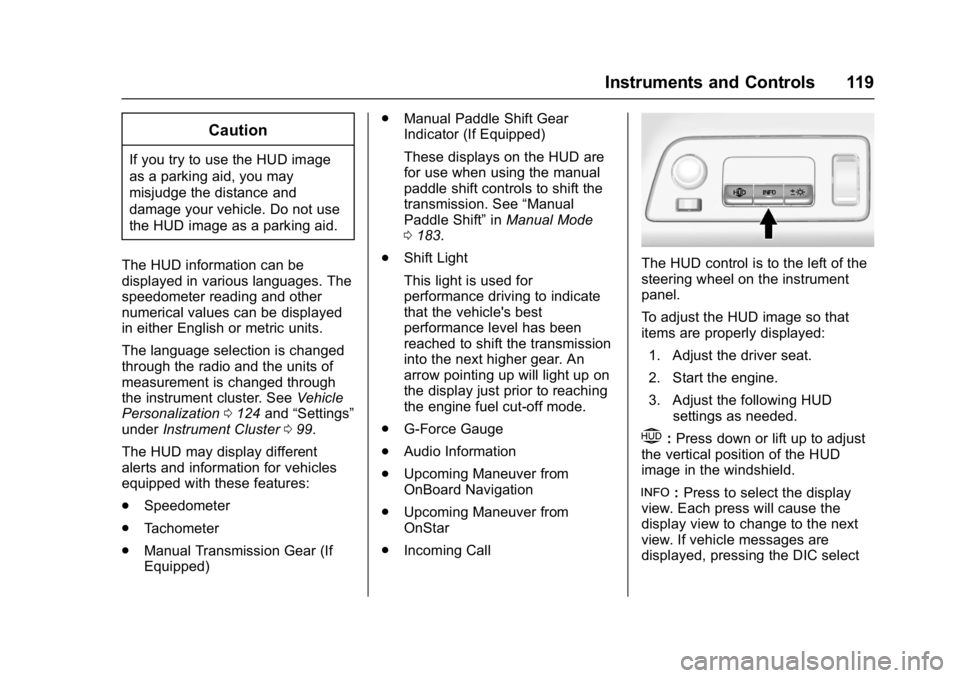
The HUD control is to the left of the
steering wheel on the instrument
panel.
To adjust the HUD image so that
items are properly displayed:
1. Adjust the driver seat.
2. Start the engine.
3. Adjust the following HUD settings as needed.
$:Press down or lift up to adjust
the vertical position of the HUD
image in the windshield.
!: Press to select the display
view. Each press will cause the
display view to change to the next
view. If vehicle messages are
displayed, pressing the DIC select
Page 124 of 353
Chevrolet Corvette Owner Manual (GMNA-Localizing-U.S./Canada/Mexico-
11374030) - 2018 - crc - 3/29/17
Instruments and Controls 123
.HUD is adjusted to the proper
height.
. Polarized sunglasses are
not worn.
. Windshield and HUD lens are
clean.
If the HUD image is not correct,
contact your dealer.
The windshield is part of the HUD
system. See Windshield
Replacement 0244.Vehicle Messages
Messages displayed on the DIC
indicate the status of the vehicle or
some action that may be needed to
correct a condition. Multiple
messages may appear one after
another.
The messages that do not require
immediate action can be
acknowledged and cleared by
pressing
V. The messages that
require immediate action cannot be
cleared until that action is
performed.
All messages should be taken
seriously; clearing the message
does not correct the problem.
If a SERVICE message appears,
see your dealer.
Follow the instructions given in the
messages. The system displays
messages regarding the following
topics:
. Service Messages
. Fluid Levels
. Vehicle Security .
Brakes
. Ride Control Systems
. Driver Assistance Systems
. Cruise Control
. Lighting and Bulb Replacement
. Wiper/Washer Systems
. Doors and Windows
. Seat Belts
. Airbag Systems
. Engine and Transmission
. Tire Pressure
. Battery
Engine Power Messages
ENGINE POWER IS REDUCED
This message displays when the
vehicle's propulsion power is
reduced. Reduced propulsion power
can affect the vehicle's ability to
accelerate. If this message is on,
but there is no observed reduction
in performance, proceed to your
destination. The performance may
be reduced the next time the vehicle
is driven. The vehicle may be driven
Page 126 of 353
Chevrolet Corvette Owner Manual (GMNA-Localizing-U.S./Canada/Mexico-
11374030) - 2018 - crc - 3/29/17
Instruments and Controls 125
Time and Date
Manually set the time and date. See
Clock096.
Driving Mode
Select and the following may
display:
.
Engine Sound Management
. Steering
Engine Sound Management
This allows the Engine Sound
Management feature to be set
independent of the Driver Mode
Selector. See Track Events and
Competitive Driving 0157.
Select Auto (Mode Selector) or
Stealth, Tour, Sport, or Track.
Steering
This allows the Steering feature to
be turned on or off.
Select Auto (Mode Selector), Tour,
Sport, or Track.
Language
Select Language, then select from
the available language(s). The selected language will display
on the system, and voice
recognition will reflect the selected
language.
Valet Mode
This will lock the infotainment
system and steering wheel controls.
It may also limit access to vehicle
storage locations.
To enable Valet Mode:
1. Enter a four-digit code on the keypad.
2. Select Enter to go to the confirmation screen.
3. Re-enter the four-digit code.
Touch LOCK or UNLOCK to lock or
unlock the system. Touch Back to
go back to the previous menu.
Radio
Select and the following may
display:
. Manage Favorites
. Number of Favorites Shown
. Audible Touch Feedback
. Bose Audio Pilot .
Maximum Start Up Volume
Manage Favorites
This allows favorites to be edited.
See “Manage Favorites” in
“Settings” under“Radio” in the
infotainment manual.
Number of Favorites Shown
Touch to set the number of favorites
to display.
Select the desired number or select
Auto and the infotainment system
will automatically adjust the number
of favorites shown.
Audible Touch Feedback
This allows Audible Touch
Feedback to be turned on or off.
Select Off or On.
Bose Audio Pilot
This feature adjusts the volume
based on the noise in the vehicle.
See “Bose AudioPilot Noise
Compensation Technology” under
“Infotainment System Settings” in
the infotainment manual.
Select Off or On.
Page 136 of 353
Chevrolet Corvette Owner Manual (GMNA-Localizing-U.S./Canada/Mexico-
11374030) - 2018 - crc - 3/29/17
Lighting 135
Lighting
Exterior Lighting
Exterior Lamp Controls . . . . . . . 135
Exterior Lamps OffReminder . . . . . . . . . . . . . . . . . . . 136
Headlamp High/Low-Beam Changer . . . . . . . . . . . . . . . . . . . . 136
Flash-to-Pass . . . . . . . . . . . . . . . . 136
Daytime Running Lamps (DRL) . . . . . . . . . . . . . . . 136
Automatic Headlamp System . . . . . . . . . . . . . . . . . . . . . . 137
Hazard Warning Flashers . . . . . 138
Turn and Lane-Change Signals . . . . . . . . . . . . . . . . . . . . . . 138
Interior Lighting
Instrument Panel IlluminationControl . . . . . . . . . . . . . . . . . . . . . . 139
Courtesy Lamps . . . . . . . . . . . . . . 139
Reading Lamps . . . . . . . . . . . . . . 139
Lighting Features
Entry Lighting . . . . . . . . . . . . . . . . 140
Exit Lighting . . . . . . . . . . . . . . . . . . 140
Battery Power Protection . . . . . 140
Exterior Lighting Battery Saver . . . . . . . . . . . . . . . . . . . . . . . 140
Exterior Lighting
Exterior Lamp Controls
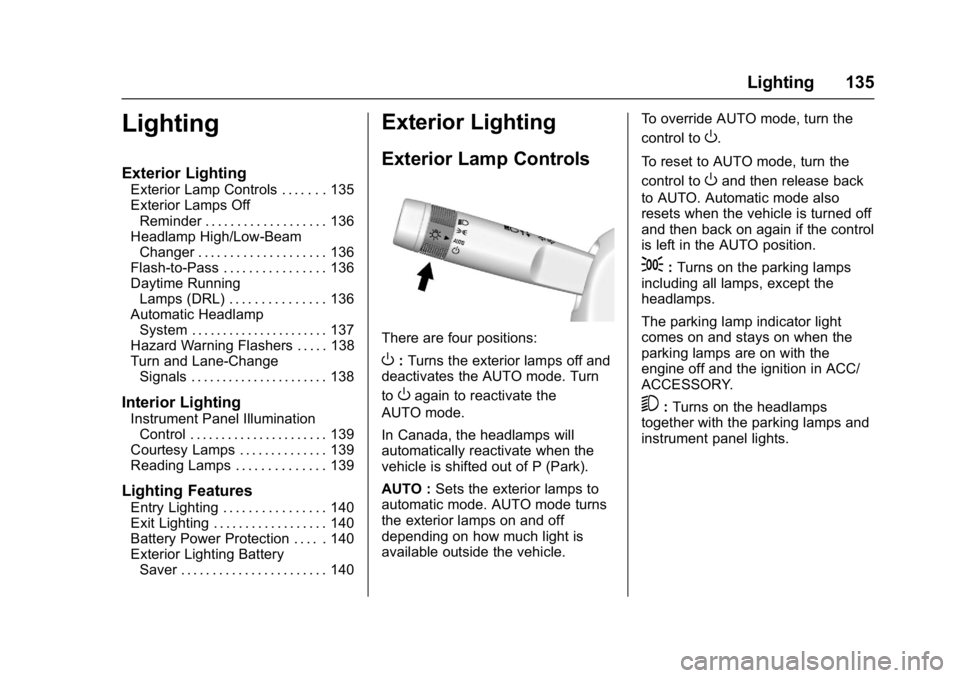
There are four positions:
O: Turns the exterior lamps off and
deactivates the AUTO mode. Turn
to
Oagain to reactivate the
AUTO mode.
In Canada, the headlamps will
automatically reactivate when the
vehicle is shifted out of P (Park).
AUTO : Sets the exterior lamps to
automatic mode. AUTO mode turns
the exterior lamps on and off
depending on how much light is
available outside the vehicle. To override AUTO mode, turn the
control to
O.
To reset to AUTO mode, turn the
control to
Oand then release back
to AUTO. Automatic mode also
resets when the vehicle is turned off
and then back on again if the control
is left in the AUTO position.
;: Turns on the parking lamps
including all lamps, except the
headlamps.
The parking lamp indicator light
comes on and stays on when the
parking lamps are on with the
engine off and the ignition in ACC/
ACCESSORY.
5: Turns on the headlamps
together with the parking lamps and
instrument panel lights.
Page 139 of 353
Chevrolet Corvette Owner Manual (GMNA-Localizing-U.S./Canada/Mexico-
11374030) - 2018 - crc - 3/29/17
138 Lighting
Lights On with Wipers
If the windshield wipers are
activated in daylight with the engine
on and the exterior lamp control is in
AUTO, the headlamps, parking
lamps, and other exterior lamps will
come on. The time it takes for the
lamps to turn on depends on the
wiper speed. When the wipers are
turned off, the lamps turn off. To
disable, move the exterior lamp
control to
Oor;.
Hazard Warning Flashers
The hazard warning flashers warn
others that you have a problem. The
button is near the center of the
instrument panel.
|:Press to make the front and
rear turn signal lamps flash on and
off. Press again to turn the
flashers off.
The hazard warning flashers work
no matter what mode the ignition is
in, even if the ignition is turned off.
When the hazard warning flashers
are on, the turn signals will
not work.
Turn and Lane-Change
Signals
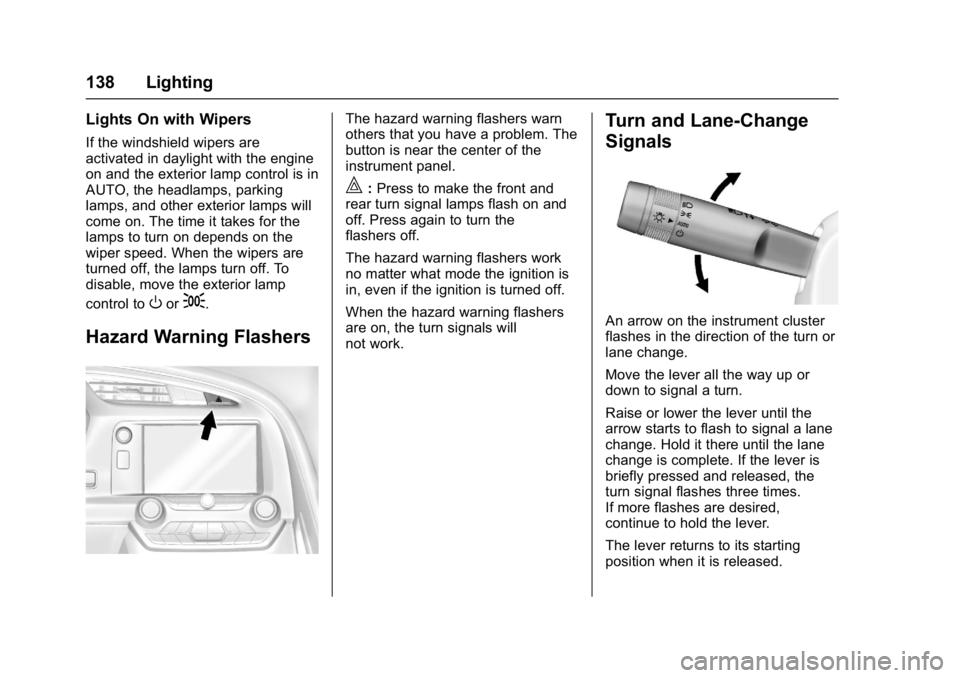
An arrow on the instrument cluster
flashes in the direction of the turn or
lane change.
Move the lever all the way up or
down to signal a turn.
Raise or lower the lever until the
arrow starts to flash to signal a lane
change. Hold it there until the lane
change is complete. If the lever is
briefly pressed and released, the
turn signal flashes three times.
If more flashes are desired,
continue to hold the lever.
The lever returns to its starting
position when it is released.
Page 145 of 353
Chevrolet Corvette Owner Manual (GMNA-Localizing-U.S./Canada/Mexico-
11374030) - 2018 - crc - 3/29/17
144 Infotainment System
Delete Recording :Touch to delete
the video. A confirmation screen
displays. Touch Yes to delete or No
to cancel.
Pause/Play : Touch to play or
pause the video. The button will
change when touched.
/: Touch to display the previous
screen.
Exit : Touch to exit the current
display.
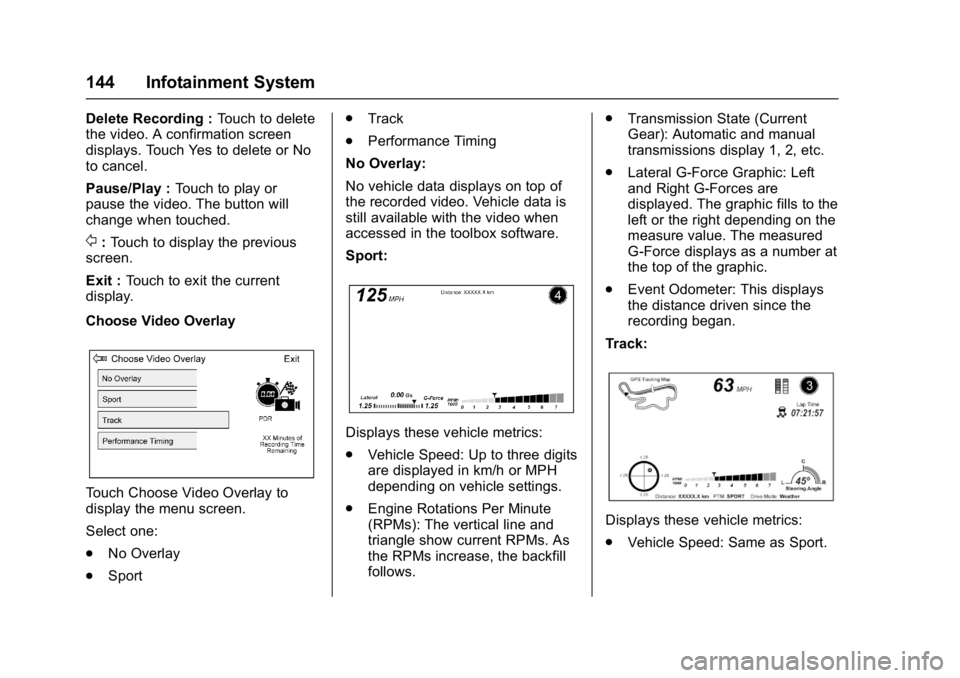
Choose Video Overlay
Touch Choose Video Overlay to
display the menu screen.
Select one:
. No Overlay
. Sport .
Track
. Performance Timing
No Overlay:
No vehicle data displays on top of
the recorded video. Vehicle data is
still available with the video when
accessed in the toolbox software.
Sport:
Displays these vehicle metrics:
. Vehicle Speed: Up to three digits
are displayed in km/h or MPH
depending on vehicle settings.
. Engine Rotations Per Minute
(RPMs): The vertical line and
triangle show current RPMs. As
the RPMs increase, the backfill
follows. .
Transmission State (Current
Gear): Automatic and manual
transmissions display 1, 2, etc.
. Lateral G-Force Graphic: Left
and Right G-Forces are
displayed. The graphic fills to the
left or the right depending on the
measure value. The measured
G-Force displays as a number at
the top of the graphic.
. Event Odometer: This displays
the distance driven since the
recording began.
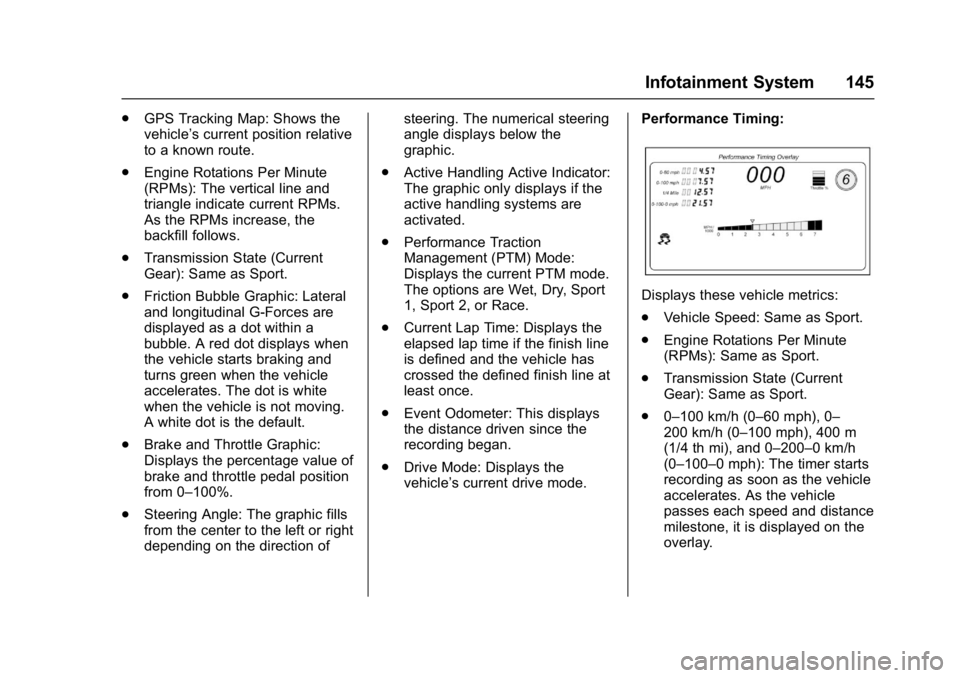
Track:
Displays these vehicle metrics:
. Vehicle Speed: Same as Sport.
Page 146 of 353
Chevrolet Corvette Owner Manual (GMNA-Localizing-U.S./Canada/Mexico-
11374030) - 2018 - crc - 3/29/17
Infotainment System 145
.GPS Tracking Map: Shows the
vehicle’s current position relative
to a known route.
. Engine Rotations Per Minute
(RPMs): The vertical line and
triangle indicate current RPMs.
As the RPMs increase, the
backfill follows.
. Transmission State (Current
Gear): Same as Sport.
. Friction Bubble Graphic: Lateral
and longitudinal G-Forces are
displayed as a dot within a
bubble. A red dot displays when
the vehicle starts braking and
turns green when the vehicle
accelerates. The dot is white
when the vehicle is not moving.
A white dot is the default.
. Brake and Throttle Graphic:
Displays the percentage value of
brake and throttle pedal position
from 0–100%.
. Steering Angle: The graphic fills
from the center to the left or right
depending on the direction of steering. The numerical steering
angle displays below the
graphic.
. Active Handling Active Indicator:
The graphic only displays if the
active handling systems are
activated.
. Performance Traction
Management (PTM) Mode:
Displays the current PTM mode.
The options are Wet, Dry, Sport
1, Sport 2, or Race.
. Current Lap Time: Displays the
elapsed lap time if the finish line
is defined and the vehicle has
crossed the defined finish line at
least once.
. Event Odometer: This displays
the distance driven since the
recording began.
. Drive Mode: Displays the
vehicle’s current drive mode. Performance Timing:
Displays these vehicle metrics:
.
Vehicle Speed: Same as Sport.
. Engine Rotations Per Minute
(RPMs): Same as Sport.
. Transmission State (Current
Gear): Same as Sport.
. 0–100 km/h (0–60 mph), 0–
200 km/h (0–100 mph), 400 m
(1/4 th mi), and 0–200–0 km/h
(0–100–0 mph): The timer starts
recording as soon as the vehicle
accelerates. As the vehicle
passes each speed and distance
milestone, it is displayed on the
overlay.