warning CHEVROLET CORVETTE C8 2021 Workshop Manual
[x] Cancel search | Manufacturer: CHEVROLET, Model Year: 2021, Model line: CORVETTE C8, Model: CHEVROLET CORVETTE C8 2021Pages: 339, PDF Size: 6.44 MB
Page 90 of 339
Chevrolet Corvette Owner Manual (GMNA-Localizing-U.S./Canada/Mexico-
14622938) - 2021 - CRC - 9/22/20
Instruments and Controls 89
If the light comes on while driving, stop as
soon as it is safely possible and turn off the
vehicle. Then start the engine again to reset
the system. If the ABS light stays on,
or comes on again while driving, the vehicle
needs service. A chime may also sound
when the light comes on steady.
If the ABS light is the only light on, the
vehicle has regular brakes, but the antilock
brakes are not functioning.
If both the ABS and the brake system
warning light are on, the vehicle's antilock
brakes are not functioning and there is a
problem with the regular brakes. See your
dealer for service.
SeeBrake System Warning Light 087.
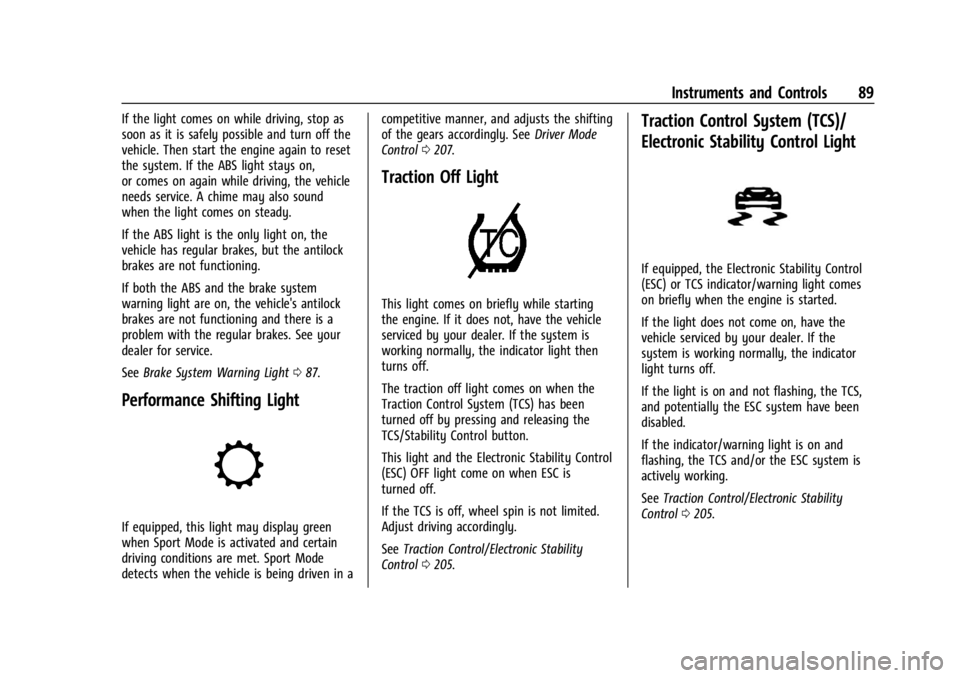
Performance Shifting Light
If equipped, this light may display green
when Sport Mode is activated and certain
driving conditions are met. Sport Mode
detects when the vehicle is being driven in a competitive manner, and adjusts the shifting
of the gears accordingly. See
Driver Mode
Control 0207.
Traction Off Light
This light comes on briefly while starting
the engine. If it does not, have the vehicle
serviced by your dealer. If the system is
working normally, the indicator light then
turns off.
The traction off light comes on when the
Traction Control System (TCS) has been
turned off by pressing and releasing the
TCS/Stability Control button.
This light and the Electronic Stability Control
(ESC) OFF light come on when ESC is
turned off.
If the TCS is off, wheel spin is not limited.
Adjust driving accordingly.
See Traction Control/Electronic Stability
Control 0205.
Traction Control System (TCS)/
Electronic Stability Control Light
If equipped, the Electronic Stability Control
(ESC) or TCS indicator/warning light comes
on briefly when the engine is started.
If the light does not come on, have the
vehicle serviced by your dealer. If the
system is working normally, the indicator
light turns off.
If the light is on and not flashing, the TCS,
and potentially the ESC system have been
disabled.
If the indicator/warning light is on and
flashing, the TCS and/or the ESC system is
actively working.
See Traction Control/Electronic Stability
Control 0205.
Page 91 of 339
Chevrolet Corvette Owner Manual (GMNA-Localizing-U.S./Canada/Mexico-
14622938) - 2021 - CRC - 9/22/20
90 Instruments and Controls
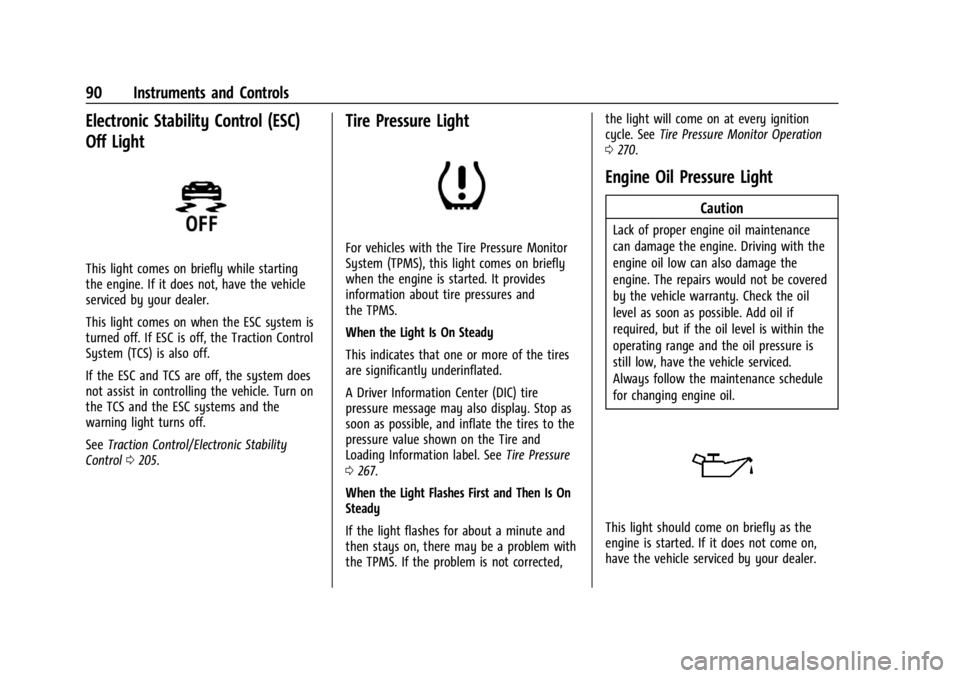
Electronic Stability Control (ESC)
Off Light
This light comes on briefly while starting
the engine. If it does not, have the vehicle
serviced by your dealer.
This light comes on when the ESC system is
turned off. If ESC is off, the Traction Control
System (TCS) is also off.
If the ESC and TCS are off, the system does
not assist in controlling the vehicle. Turn on
the TCS and the ESC systems and the
warning light turns off.
SeeTraction Control/Electronic Stability
Control 0205.
Tire Pressure Light
For vehicles with the Tire Pressure Monitor
System (TPMS), this light comes on briefly
when the engine is started. It provides
information about tire pressures and
the TPMS.
When the Light Is On Steady
This indicates that one or more of the tires
are significantly underinflated.
A Driver Information Center (DIC) tire
pressure message may also display. Stop as
soon as possible, and inflate the tires to the
pressure value shown on the Tire and
Loading Information label. See Tire Pressure
0 267.
When the Light Flashes First and Then Is On
Steady
If the light flashes for about a minute and
then stays on, there may be a problem with
the TPMS. If the problem is not corrected, the light will come on at every ignition
cycle. See
Tire Pressure Monitor Operation
0 270.
Engine Oil Pressure Light
Caution
Lack of proper engine oil maintenance
can damage the engine. Driving with the
engine oil low can also damage the
engine. The repairs would not be covered
by the vehicle warranty. Check the oil
level as soon as possible. Add oil if
required, but if the oil level is within the
operating range and the oil pressure is
still low, have the vehicle serviced.
Always follow the maintenance schedule
for changing engine oil.
This light should come on briefly as the
engine is started. If it does not come on,
have the vehicle serviced by your dealer.
Page 94 of 339
Chevrolet Corvette Owner Manual (GMNA-Localizing-U.S./Canada/Mexico-
14622938) - 2021 - CRC - 9/22/20
Instruments and Controls 93
amber. SeeTire Pressure Monitor System
0 269 and
Tire Pressure Monitor Operation 0270.
Transmission Fluid Life : Displays an
estimate of the fluid's remaining useful life.
If REMAINING FLUID LIFE 99% is displayed,
that means 99% of the current fluid life
remains.
When the remaining fluid life is low, the
CHANGE TRANSMISSION FLUID SOON
message will appear on the display. The
fluid should be changed as soon as possible.
See Dual Clutch Transmission Fluid Life
System 0242. In addition to the
Transmission Fluid Life system monitoring
the fluid life, additional maintenance is
recommended in the Maintenance Schedule.
See Maintenance Schedule 0293.
The Fluid Life display must be reset after
each fluid change. It will not reset itself. Do
not reset the Fluid Life display accidentally
at any time other than when the fluid has
just been changed. It cannot be reset
accurately until the next fluid change. To
reset the Transmission Fluid Life system,
press and hold SEL for several seconds while
the Fluid Life display is active. Fuel Economy :
Displays the average fuel
economy, the best fuel economy over the
selected distance, and a bar graph showing
instantaneous fuel economy. Pressing the
thumbwheel will open a menu to change
the selected distance or reset the current
values.
Timer/Fuel Used : This display can be used
as a timer. To start/stop the timer, press the
thumbwheel while this display is active and
then select the start/stop the timer. The
display will show the amount of time that
has passed since the timer was last reset. To
reset the timer to zero, press the
thumbwheel to access the menu while this
display is active.
Fuel Used displays the approximate liters (L)
or gallons (gal) of fuel that have been used
since last reset. The fuel used can be reset
by pressing the thumbwheel and selecting
Reset Fuel Used in the menu.
Economy Trend : Shows the instantaneous
fuel economy and current gas mileage.
Speed Limit : Displays sign information,
which comes from a roadway database in
the on-board navigation. Engine Hours/Lifetime Revs :
Displays the
total number of hours the engine has run.
It also shows total engine revolutions
divided by 10,000.
Head-Up Display (HUD)
{Warning
If the HUD image is too bright, or too
high in your field of view, it may take
you more time to see things you need to
see when it is dark outside. Be sure to
keep the HUD image dim and placed low
in your field of view.
If equipped with HUD, some information
concerning the operation of the vehicle is
projected onto the windshield.
The HUD information appears as an image
focused out toward the front of the vehicle.
Caution
If you try to use the HUD image as a
parking aid, you may misjudge the
distance and damage your vehicle. Do not
use the HUD image as a parking aid.
Page 106 of 339
Chevrolet Corvette Owner Manual (GMNA-Localizing-U.S./Canada/Mexico-
14622938) - 2021 - CRC - 9/22/20
Lighting 105
Lighting
Exterior Lighting
Exterior Lamp Controls . . . . . . . . . . . . . . . . 105
Exterior Lamps Off Reminder . . . . . . . . . . 105
Headlamp High/Low-Beam Changer . . . 105
Flash-to-Pass . . . . . . . . . . . . . . . . . . . . . . . . . . . 106
Daytime Running Lamps (DRL) . . . . . . . . 106
Automatic Headlamp System . . . . . . . . . . 106
Hazard Warning Flashers . . . . . . . . . . . . . . 107
Turn and Lane-Change Signals . . . . . . . . . 107
Interior Lighting
Instrument Panel IlluminationControl . . . . . . . . . . . . . . . . . . . . . . . . . . . . . . 108
Courtesy Lamps . . . . . . . . . . . . . . . . . . . . . . . 108
Reading Lamps . . . . . . . . . . . . . . . . . . . . . . . . 108
Engine Compartment Lamp . . . . . . . . . . . . 108
Lighting Features
Entry Lighting . . . . . . . . . . . . . . . . . . . . . . . . . 109
Exit Lighting . . . . . . . . . . . . . . . . . . . . . . . . . . . 109
Battery Power Protection . . . . . . . . . . . . . . 109
Exterior Lighting Battery Saver . . . . . . . . 109
Exterior Lighting
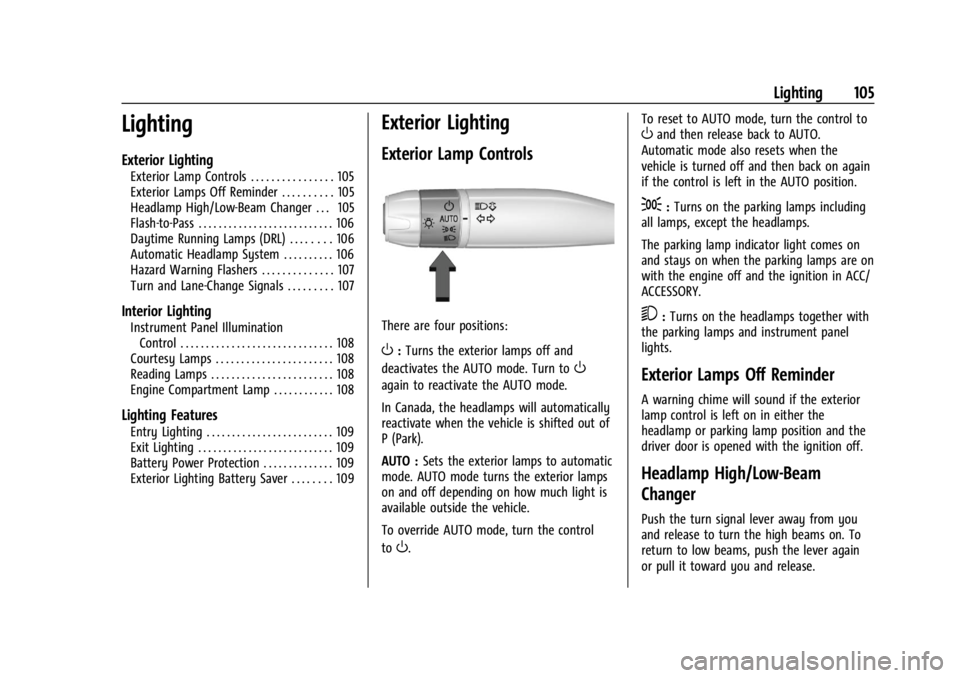
Exterior Lamp Controls
There are four positions:
O: Turns the exterior lamps off and
deactivates the AUTO mode. Turn to
O
again to reactivate the AUTO mode.
In Canada, the headlamps will automatically
reactivate when the vehicle is shifted out of
P (Park).
AUTO : Sets the exterior lamps to automatic
mode. AUTO mode turns the exterior lamps
on and off depending on how much light is
available outside the vehicle.
To override AUTO mode, turn the control
to
O. To reset to AUTO mode, turn the control to
Oand then release back to AUTO.
Automatic mode also resets when the
vehicle is turned off and then back on again
if the control is left in the AUTO position.
;: Turns on the parking lamps including
all lamps, except the headlamps.
The parking lamp indicator light comes on
and stays on when the parking lamps are on
with the engine off and the ignition in ACC/
ACCESSORY.
5: Turns on the headlamps together with
the parking lamps and instrument panel
lights.
Exterior Lamps Off Reminder
A warning chime will sound if the exterior
lamp control is left on in either the
headlamp or parking lamp position and the
driver door is opened with the ignition off.
Headlamp High/Low-Beam
Changer
Push the turn signal lever away from you
and release to turn the high beams on. To
return to low beams, push the lever again
or pull it toward you and release.
Page 108 of 339
Chevrolet Corvette Owner Manual (GMNA-Localizing-U.S./Canada/Mexico-
14622938) - 2021 - CRC - 9/22/20
Lighting 107
When it is bright enough outside, the
headlamps and parking lamps will turn off
or may change to Daytime Running
Lamps (DRL).
The automatic headlamp system turns off
when the exterior lamp control is turned to
Oor the ignition is off.
To turn automatic headlamp system back
on, turn the band to
Oagain, then
release it.
If the automatic headlamp system has the
headlamps turned on and you turn the
ignition off, the headlamps will turn off.
When the driver door is opened the
headlamps and parking lamps will illuminate
for a period of time.
The length of the delayed illumination
period can be changed. See “Exit Lighting”
under Vehicle Personalization 097.
The regular headlamp system should be
turned on when needed.
Lights On with Wipers
If the windshield wipers are activated in
daylight with the engine on and the exterior
lamp control is in AUTO, the headlamps,
parking lamps, and other exterior lamps will
come on. The time it takes for the lamps to turn on depends on the wiper speed. When
the wipers are turned off, the lamps turn
off. To disable, move the exterior lamp
control to
Oor;.
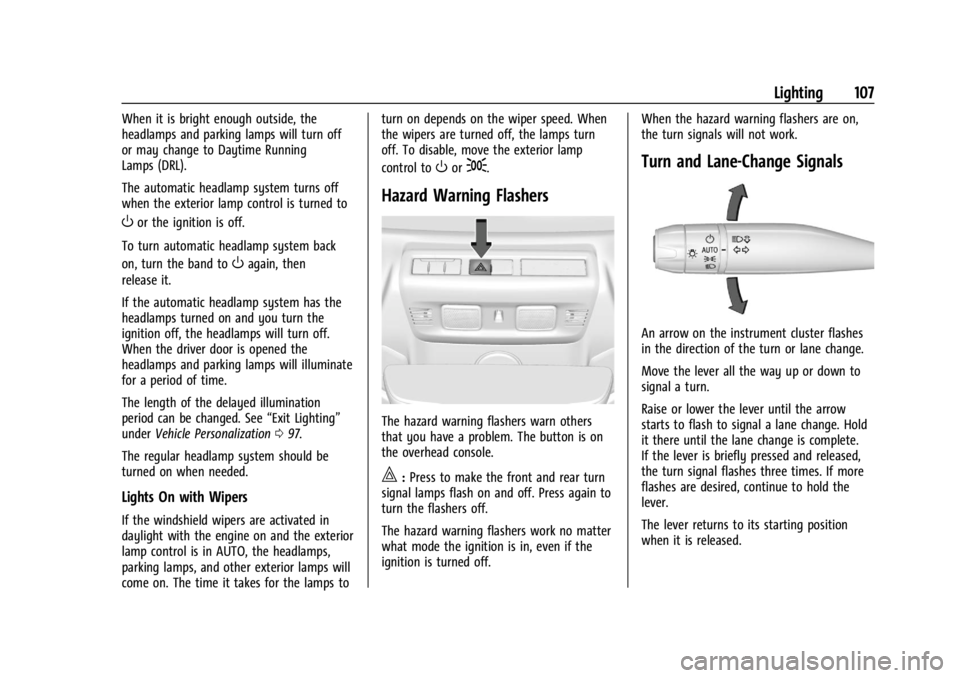
Hazard Warning Flashers
The hazard warning flashers warn others
that you have a problem. The button is on
the overhead console.
|:
Press to make the front and rear turn
signal lamps flash on and off. Press again to
turn the flashers off.
The hazard warning flashers work no matter
what mode the ignition is in, even if the
ignition is turned off. When the hazard warning flashers are on,
the turn signals will not work.
Turn and Lane-Change Signals
An arrow on the instrument cluster flashes
in the direction of the turn or lane change.
Move the lever all the way up or down to
signal a turn.
Raise or lower the lever until the arrow
starts to flash to signal a lane change. Hold
it there until the lane change is complete.
If the lever is briefly pressed and released,
the turn signal flashes three times. If more
flashes are desired, continue to hold the
lever.
The lever returns to its starting position
when it is released.
Page 111 of 339
Chevrolet Corvette Owner Manual (GMNA-Localizing-U.S./Canada/Mexico-
14622938) - 2021 - CRC - 9/22/20
110 Infotainment System
Infotainment System
Introduction
Introduction . . . . . . . . . . . . . . . . . . . . . . . . . . . 110
Overview . . . . . . . . . . . . . . . . . . . . . . . . . . . . . . . 111
Steering Wheel Controls . . . . . . . . . . . . . . . 113
Using the System . . . . . . . . . . . . . . . . . . . . . . 114
Software Updates . . . . . . . . . . . . . . . . . . . . . . 116
Radio
AM-FM Radio . . . . . . . . . . . . . . . . . . . . . . . . . . 116
HD Radio Technology . . . . . . . . . . . . . . . . . . 118
Radio Data System (RDS) . . . . . . . . . . . . . . 119
Satellite Radio . . . . . . . . . . . . . . . . . . . . . . . . . 119
Radio Reception . . . . . . . . . . . . . . . . . . . . . . . . 119
Diversity Antenna System . . . . . . . . . . . . . 120
Audio Players
Avoiding Untrusted Media Devices . . . . 120
USB Port . . . . . . . . . . . . . . . . . . . . . . . . . . . . . . 120
Auxiliary Jack . . . . . . . . . . . . . . . . . . . . . . . . . . 123
Bluetooth Audio . . . . . . . . . . . . . . . . . . . . . . . 123
OnStar System
OnStar System . . . . . . . . . . . . . . . . . . . . . . . . 124
Navigation
Using the Navigation System . . . . . . . . . . 125
Maps . . . . . . . . . . . . . . . . . . . . . . . . . . . . . . . . . . 128
Navigation Symbols . . . . . . . . . . . . . . . . . . . 128
Destination . . . . . . . . . . . . . . . . . . . . . . . . . . . . 129OnStar System . . . . . . . . . . . . . . . . . . . . . . . . 134
Global Positioning System (GPS) . . . . . . . 135
Vehicle Positioning . . . . . . . . . . . . . . . . . . . . . 135
Problems with Route Guidance . . . . . . . . 136
If the System Needs Service . . . . . . . . . . . 136
Map Data Updates . . . . . . . . . . . . . . . . . . . . 136
Database Coverage Explanations . . . . . . . 136
Voice Recognition
Voice Recognition . . . . . . . . . . . . . . . . . . . . . . 137
Performance Data Recorder (PDR)
Performance Data Recorder (PDR) . . . . . . 142
Phone
Bluetooth (Overview) . . . . . . . . . . . . . . . . . . 147
Bluetooth (Pairing and Using a
Phone) . . . . . . . . . . . . . . . . . . . . . . . . . . . . . . . 147
Apple CarPlay and Android Auto . . . . . . . 151
Settings
Settings . . . . . . . . . . . . . . . . . . . . . . . . . . . . . . . . 153
Teen Driver . . . . . . . . . . . . . . . . . . . . . . . . . . . . 159
Trademarks and License Agreements
Trademarks and License Agreements . . . . . . . . . . . . . . . . . . . . . . . . . . 162
Introduction
Read the following pages to become familiar
with the features.
{Warning
Taking your eyes off the road for too
long or too often while using any
infotainment feature can cause a crash.
You or others could be injured or killed.
Do not give extended attention to
infotainment tasks while driving. Limit
your glances at the vehicle displays and
focus your attention on driving. Use voice
commands whenever possible.
The infotainment system has built-in
features intended to help avoid distraction
by disabling some features when driving.
These features may gray out when they are
unavailable. Many infotainment features are
also available through the instrument cluster
and steering wheel controls.
Page 144 of 339
Chevrolet Corvette Owner Manual (GMNA-Localizing-U.S./Canada/Mexico-
14622938) - 2021 - CRC - 9/22/20
Infotainment System 143
If the system is unable to begin recording,
the Start Recording button is grayed out.
Touch Start Recording to begin recording.
After recording begins, this button changes
to Stop Recording. Touch to stop the
recording session.
The recording must be stopped and the file
closed before removing the SD card, or the
recording cannot be reviewed.
The elapsed time will show when recording.
The following errors or warnings may be
displayed while recording:
.Storage Full
.No Storage Available
.System Error
.SD Card Error
.SD Card Speed Insufficient
.GPS Accuracy Warning
.SD Card Write Protected
Video Overlay
Touch Video Overlay to display the menu
screen.
Touching preview provides a live preview of
the overlay selected.
Select one:
.None
.Sport
.Track
.Timing
None:
No vehicle data displays on top of the
recorded video. Vehicle data is still available
with the video when accessed in the toolbox
software. See www.chevrolet.com/
performance-data-recorder to download
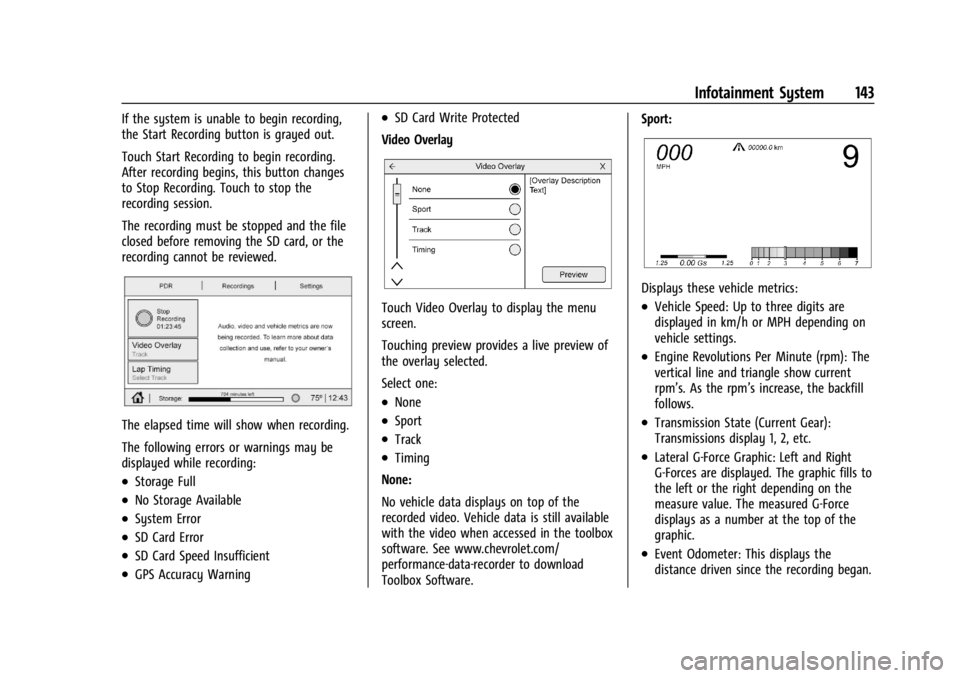
Toolbox Software. Sport:
Displays these vehicle metrics:
.Vehicle Speed: Up to three digits are
displayed in km/h or MPH depending on
vehicle settings.
.Engine Revolutions Per Minute (rpm): The
vertical line and triangle show current
rpm’s. As the rpm’s increase, the backfill
follows.
.Transmission State (Current Gear):
Transmissions display 1, 2, etc.
.Lateral G-Force Graphic: Left and Right
G-Forces are displayed. The graphic fills to
the left or the right depending on the
measure value. The measured G-Force
displays as a number at the top of the
graphic.
.Event Odometer: This displays the
distance driven since the recording began.
Page 161 of 339
Chevrolet Corvette Owner Manual (GMNA-Localizing-U.S./Canada/Mexico-
14622938) - 2021 - CRC - 9/22/20
160 Infotainment System
Driver restrictions will be applied
whenever this key is used to operate
the vehicle.
.If the remote key has already been
registered, the option to remove the
key displays. If Remove is touched,
the remote key is no longer
registered. A confirmation message
displays, and Teen Driver restrictions
will not be applied if this remote key
is used to operate the vehicle.
In vehicles with a pushbutton start system,
if a Teen Driver and a non-Teen Driver key
are both present at start up, the vehicle will
recognize the non-Teen Driver key to start
the vehicle. The Teen Driver settings will not
be active.
Manage Settings
Buckle To Drive : When turned ON, Buckle
to Drive prevents the driver from shifting
out of P (Park) for a period of time if driver
seat belt, and on some vehicles, the
passenger seat belt, is not buckled. See
Buckle To Drive 046.
Audio Volume Limit : Allows the audio
volume limit to be turned on or off. Touch
Set Audio Volume Limit to choose the
maximum allowable audio volume level. Set Audio Volume Limit :
Allows a
maximum radio volume to be set. Use the
arrows to choose the maximum allowable
level for the audio volume.
Teen Driver Speed Limiter : Limits the
maximum speed of the vehicle. When the
speed limiter is turned on and the vehicle is
started with a Teen Driver key, the DIC
displays a message that the top speed is
limited.
On certain vehicles, when the Speed Limiter
is turned ON, the vehicle’s maximum
acceleration will be limited. The DIC will
display a message that the acceleration is
limited.
Teen Driver Speed Warning : Allows the
speed warning to be turned on or off. Touch
Set Teen Driver Speed Warning to set the
warning speed.
Set Teen Driver Speed Warning : Displays a
warning in the DIC when exceeding a
selectable speed. Choose the desired speed
warning level. The speed warning does not
limit the speed of the vehicle.
SiriusXM Explicit Content Filter (if
equipped) : Allows the SiriusXM Explicit
Content Filter to be turned ON or OFF.
When ON, the teen driver will not be able to listen to SiriusXM stations that contain
explicit content, and the Explicit Content
Filter selection in the Audio Settings will be
unavailable for change.
When Teen Driver is Active:
.The radio will mute when the driver, or in
some vehicles, the front passenger seat
belt, is not buckled. The audio from any
device paired to the vehicle will also be
muted.
.An object placed on the front passenger
seat, such as a briefcase, handbag,
grocery bag, laptop, or other electronic
device, could cause the passenger sensing
system to falsely sense an unbuckled
front passenger, mute the radio, and
prevent shifting from P (Park) if Buckle to
Drive is ON. If this happens, remove the
object from the seat. See
Passenger
Sensing System 057.
.Some safety systems, such as Forward
Collision Alert, if equipped, cannot be
turned off.
.The gap setting for the Forward Collision
Alert and Adaptive Cruise Control,
if equipped, cannot be changed.
Page 162 of 339
Chevrolet Corvette Owner Manual (GMNA-Localizing-U.S./Canada/Mexico-
14622938) - 2021 - CRC - 9/22/20
Infotainment System 161
.When trying to change a safety feature
that is not configurable in Teen Driver,
the DIC displays a message indicating
that Teen Driver is active and the action
is not available.
.Super Cruise, if equipped, is not available.
.Enhanced Low Fuel Warning (if equipped)
–When the vehicle is low on fuel, the
low fuel light on the instrument cluster
flashes and the DIC low fuel warning
cannot be dismissed.
.Do not tow a trailer.
Report Card
The vehicle owner must secure the driver’s
consent to record certain vehicle data when
the vehicle is driven with a registered Teen
Driver key. There is one Report Card per
vehicle. Data is only recorded when a
registered Teen Driver key is used to
operate the vehicle.
The Report Card data is collected from the
time Teen Driver is activated or the last
time the Report Card was reset. The
following items may be recorded:
.Distance Driven –the total distance
driven.
.Maximum Speed –the maximum vehicle
speed detected.
.Overspeed Warnings –the number of
times the speed warning setting was
exceeded.
.Wide Open Throttle –the number of
times the accelerator pedal was pressed
nearly all the way down.
.Forward Collision Alerts –the number of
times the driver was notified when
approaching a vehicle ahead too quickly
and at potential risk for a crash.
.Forward Automatic Braking, also called
Automatic Emergency Braking (if
equipped) –the number of times the
vehicle detected that a forward collision
was imminent and applied the brakes.
.Reverse Automatic Braking (if equipped) –
the number of times the vehicle detected
that a rearward collision was imminent
and applied the brakes.
.Traction Control –the number of times
the Traction Control System activated to
reduce wheel spin or loss of traction.
.Stability Control –the number of events
which required the use of electronic
stability control.
.Antilock Braking System Active –The
number of Antilock Brake System
activations.
.Tailgating Alerts –the number of times
the driver was alerted for following a
vehicle ahead too closely.
Report Card Data
Cumulative Data is saved for all trips until
the Report Card is reset or until the
maximum count is exceeded. If the
maximum count is exceeded for a Report
Card line item, that item will no longer be
updated in the Report Card until it is reset.
Each item will report a maximum of
1,000 counts. The distance driven will report
a maximum of 64,374 km (40,000 mi).
To delete Report Card data, do one of the
following:
.From the Report Card display, touch
Reset.
.Touch Clear All Teen Keys and PIN from
the Teen Driver menu. This will also
unregister any Teen Driver keys and
delete the PIN.
Forgotten PIN
See your dealer to reset the PIN.
Page 167 of 339
Chevrolet Corvette Owner Manual (GMNA-Localizing-U.S./Canada/Mexico-
14622938) - 2021 - CRC - 9/22/20
166 Infotainment System
TERMS AND CONDITIONS
Personal Use Only: You agree to use this
Data for the solely personal, noncommercial
purposes for which you were licensed, and
not for service bureau, timesharing or other
similar purposes. Except as otherwise set
forth herein, you agree not to otherwise
reproduce, copy, modify, decompile,
disassemble or reverse engineer any portion
of this Data, and may not transfer or
distribute it in any form, for any purpose,
except to the extent permitted by
mandatory laws. You may transfer the Data
and all accompanying materials on a
permanent basis if you retain no copies and
the recipient agrees to the terms of this End
User License Agreement. Multi-disc sets may
only be transferred or sold as a complete
set as provided to you and not as a subset
thereof.
Restrictions
Except where you have been specifically
licensed to do so by HERE and without
limiting the preceding paragraph, you may
not (a) use this Data with any products,
systems, or applications installed or
otherwise connected to or in communication
with vehicles capable of vehicle navigation,
positioning, dispatch, real time routeguidance, fleet management or similar
applications; or (b) with, or in
communication with, including without
limitation, cellular phones, palmtop and
handheld computers, pagers, and personal
digital assistants or PDAs.
Warning
This Data may contain inaccurate or
incomplete information due to the passage
of time, changing circumstances, sources
used, and the nature of collecting
comprehensive geographic data, any of
which may lead to incorrect results.
No Warranty
This Data is provided to you
“as is,”and you
agree to use it at your own risk. HERE and
its licensors (and their licensors and
suppliers) make no guarantees,
representations, or warranties of any kind,
express or implied, arising by law or
otherwise, including but not limited to,
content, quality, accuracy, completeness,
effectiveness, reliability, fitness for a
particular purpose, usefulness, use or results
to be obtained from this Data, or that the
Data or server will be uninterrupted or
error free. Disclaimer of Warranty
THE DATABASE IS PROVIDED ON AN
“AS IS”
AND “WITH ALL FAULTS BASIS” AND
HARMAN (AND THEIR LICENSORS AND
SUPPLIERS) EXPRESSLY DISCLAIM ALL OTHER
WARRANTIES, EXPRESS OR IMPLIED,
INCLUDING BUT NOT LIMITED TO, THE
IMPLIED WARRANTIES OF
NON-INFRINGEMENT, MERCHANTABILITY,
SATISFACTORY QUALITY, ACCURACY, TITLE
AND FITNESS FOR A PARTICULAR PURPOSE.
NO ORAL OR WRITTEN ADVICE OR
INFORMATION PROVIDED BY HARMAN (OR
ANY OF THEIR LICENSORS, AGENTS,
EMPLOYEES, OR THIRD PARTY PROVIDERS)
SHALL CREATE A WARRANTY, AND YOU ARE
NOT ENTITLED TO RELY ON ANY SUCH
ADVICE OR INFORMATION. THIS DISCLAIMER
OF WARRANTIES IS AN ESSENTIAL CONDITION
OF THIS AGREEMENT.
Disclaimer of Liability
HERE AND ITS LICENSORS (INCLUDING THEIR
LICENSORS AND SUPPLIERS) SHALL NOT BE
LIABLE TO YOU IN RESPECT OF ANY CLAIM,
DEMAND OR ACTION, IRRESPECTIVE OF THE
NATURE OF THE CAUSE OF THE CLAIM,
DEMAND OR ACTION ALLEGING ANY LOSS,
INJURY OR DAMAGES, DIRECT OR INDIRECT,
WHICH MAY RESULT FROM THE USE OR