CD player CHEVROLET CRUZE 2012 1.G Owners Manual
[x] Cancel search | Manufacturer: CHEVROLET, Model Year: 2012, Model line: CRUZE, Model: CHEVROLET CRUZE 2012 1.GPages: 400, PDF Size: 6.88 MB
Page 1 of 400

Black plate (1,1)Chevrolet Cruze Owner Manual - 2012
2012 Chevrolet Cruze Owner ManualM
In Brief. . . . . . . . . . . . . . . . . . . . . . . . 1-1
Instrument Panel . . . . . . . . . . . . . . 1-2
Initial Drive Information . . . . . . . . 1-4
Vehicle Features . . . . . . . . . . . . . 1-15
Performance and Maintenance . . . . . . . . . . . . . . . . 1-19
Keys, Doors, and Windows . . . . . . . . . . . . . . . . . . . . 2-1
Keys and Locks . . . . . . . . . . . . . . . 2-2
Doors . . . . . . . . . . . . . . . . . . . . . . . . 2-12
Vehicle Security . . . . . . . . . . . . . . 2-14
Exterior Mirrors . . . . . . . . . . . . . . . 2-15
Interior Mirrors . . . . . . . . . . . . . . . . 2-17
Windows . . . . . . . . . . . . . . . . . . . . . 2-18
Roof . . . . . . . . . . . . . . . . . . . . . . . . . . 2-21 Seats and Restraints
. . . . . . . . . 3-1
Head Restraints . . . . . . . . . . . . . . . 3-2
Front Seats . . . . . . . . . . . . . . . . . . . . 3-3
Rear Seats . . . . . . . . . . . . . . . . . . . . 3-8
Safety Belts . . . . . . . . . . . . . . . . . . 3-10
Airbag System . . . . . . . . . . . . . . . . 3-19
Child Restraints . . . . . . . . . . . . . . 3-33
Storage . . . . . . . . . . . . . . . . . . . . . . . 4-1
Storage Compartments . . . . . . . . 4-1
Additional Storage
Features . . . . . . . . . . . . . . . . . . . . . 4-2
Instruments and Controls . . . . 5-1
Controls . . . . . . . . . . . . . . . . . . . . . . . 5-2
Warning Lights, Gauges, and
Indicators . . . . . . . . . . . . . . . . . . . . 5-7
Information Displays . . . . . . . . . . 5-23
Vehicle Messages . . . . . . . . . . . . 5-28
Vehicle Personalization . . . . . . . 5-34 Lighting
. . . . . . . . . . . . . . . . . . . . . . . 6-1
Exterior Lighting . . . . . . . . . . . . . . . 6-1
Interior Lighting . . . . . . . . . . . . . . . . 6-5
Lighting Features . . . . . . . . . . . . . . 6-6
Infotainment System . . . . . . . . . 7-1
Introduction . . . . . . . . . . . . . . . . . . . . 7-2
Radio . . . . . . . . . . . . . . . . . . . . . . . . . 7-12
Audio Players . . . . . . . . . . . . . . . . 7-18
Phone . . . . . . . . . . . . . . . . . . . . . . . . 7-23
Trademarks and License
Agreements . . . . . . . . . . . . . . . . . 7-35
Climate Controls . . . . . . . . . . . . . 8-1
Climate Control Systems . . . . . . 8-1
Air Vents . . . . . . . . . . . . . . . . . . . . . . . 8-6
Page 23 of 400
Black plate (17,1)Chevrolet Cruze Owner Manual - 2012
In Brief 1-17
Portable Audio Devices
Some vehicles have a 3.5 mm
(1/8 in) auxiliary input and a USB
port located in the center console.
External devices such as iPods
®,
laptop computers, MP3 players,
CD changers, and USB storage
devices may be connected,
depending on the audio system.
For more information, see Auxiliary
Devices on page 7‑20.
Bluetooth®
The Bluetooth system allows users
with a Bluetooth-enabled cell phone
to make and receive hands-free
calls using the vehicle audio
system, microphone, and controls.
The Bluetooth-enabled cell phone
must be paired with the in-vehicle
Bluetooth system before it can be
used in the vehicle. Not all phones
will support all functions. See
Bluetooth (Overview) on
page 7‑23 orBluetooth
(Infotainment Controls) on
page 7‑25 orBluetooth (Voice
Recognition) on page 7‑29.
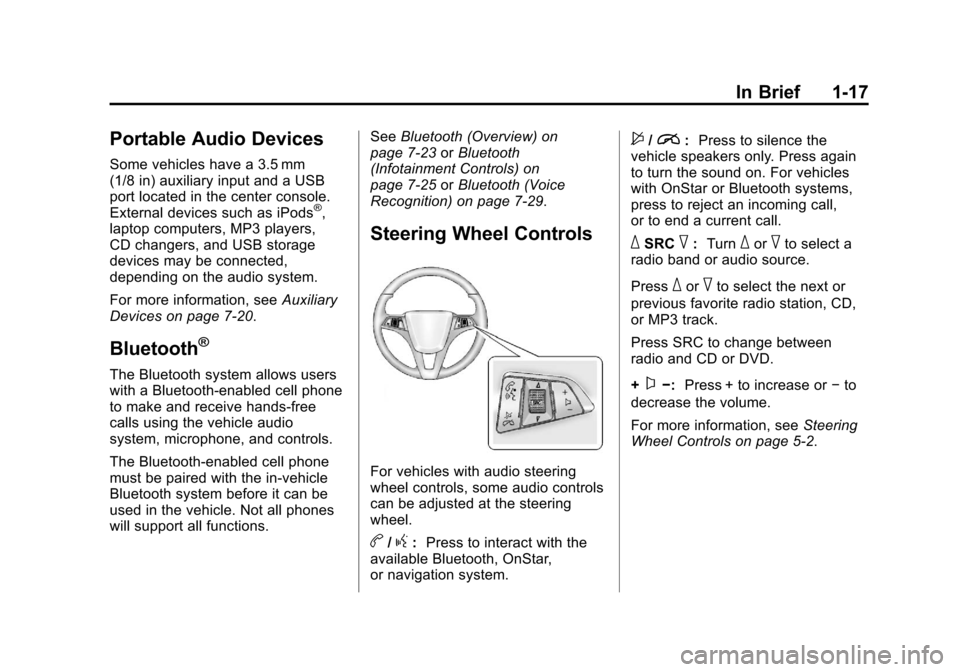
Steering Wheel Controls
For vehicles with audio steering
wheel controls, some audio controls
can be adjusted at the steering
wheel.
b/g: Press to interact with the
available Bluetooth, OnStar,
or navigation system.
$/i: Press to silence the
vehicle speakers only. Press again
to turn the sound on. For vehicles
with OnStar or Bluetooth systems,
press to reject an incoming call,
or to end a current call.
_SRC^: Turn_or^to select a
radio band or audio source.
Press
_or^to select the next or
previous favorite radio station, CD,
or MP3 track.
Press SRC to change between
radio and CD or DVD.
+
x−: Press + to increase or −to
decrease the volume.
For more information, see Steering
Wheel Controls on page 5‑2.
Page 24 of 400
Black plate (18,1)Chevrolet Cruze Owner Manual - 2012
1-18 In Brief
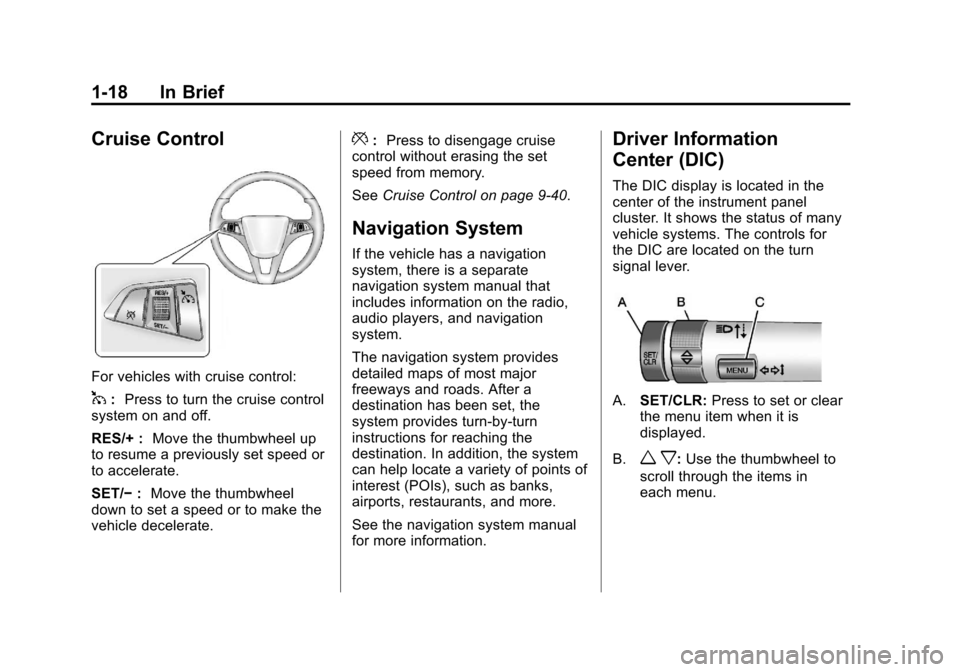
Cruise Control
For vehicles with cruise control:
1:Press to turn the cruise control
system on and off.
RES/+ : Move the thumbwheel up
to resume a previously set speed or
to accelerate.
SET/− :Move the thumbwheel
down to set a speed or to make the
vehicle decelerate.
*: Press to disengage cruise
control without erasing the set
speed from memory.
See Cruise Control on page 9‑40.
Navigation System
If the vehicle has a navigation
system, there is a separate
navigation system manual that
includes information on the radio,
audio players, and navigation
system.
The navigation system provides
detailed maps of most major
freeways and roads. After a
destination has been set, the
system provides turn-by-turn
instructions for reaching the
destination. In addition, the system
can help locate a variety of points of
interest (POIs), such as banks,
airports, restaurants, and more.
See the navigation system manual
for more information.
Driver Information
Center (DIC)
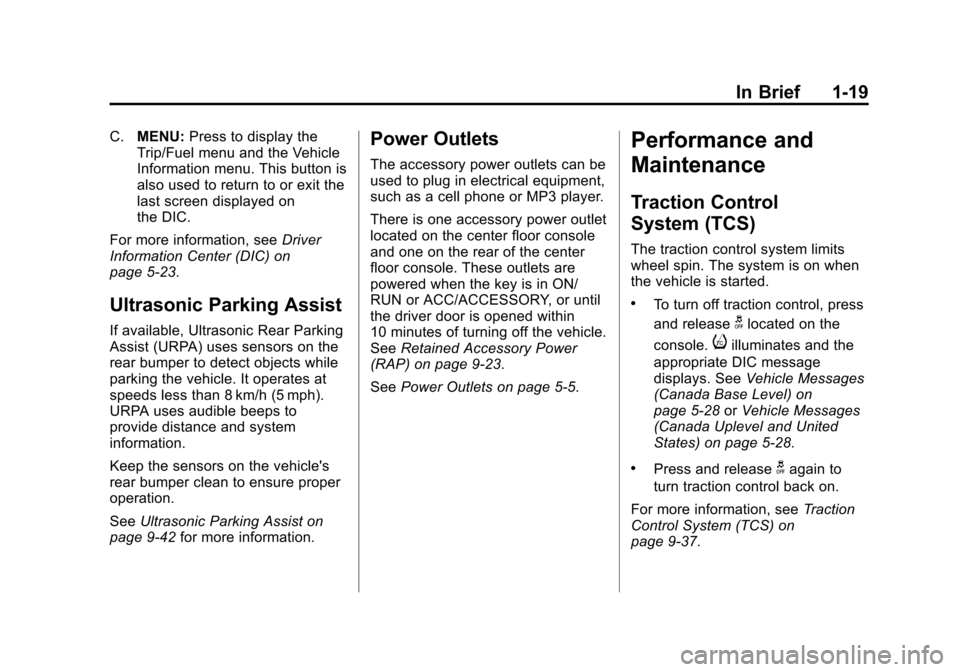
The DIC display is located in the
center of the instrument panel
cluster. It shows the status of many
vehicle systems. The controls for
the DIC are located on the turn
signal lever.
A.SET/CLR: Press to set or clear
the menu item when it is
displayed.
B.
w x: Use the thumbwheel to
scroll through the items in
each menu.
Page 25 of 400
Black plate (19,1)Chevrolet Cruze Owner Manual - 2012
In Brief 1-19
C.MENU: Press to display the
Trip/Fuel menu and the Vehicle
Information menu. This button is
also used to return to or exit the
last screen displayed on
the DIC.
For more information, see Driver
Information Center (DIC) on
page 5‑23.
Ultrasonic Parking Assist
If available, Ultrasonic Rear Parking
Assist (URPA) uses sensors on the
rear bumper to detect objects while
parking the vehicle. It operates at
speeds less than 8 km/h (5 mph).
URPA uses audible beeps to
provide distance and system
information.
Keep the sensors on the vehicle's
rear bumper clean to ensure proper
operation.
See Ultrasonic Parking Assist on
page 9‑42 for more information.
Power Outlets
The accessory power outlets can be
used to plug in electrical equipment,
such as a cell phone or MP3 player.
There is one accessory power outlet
located on the center floor console
and one on the rear of the center
floor console. These outlets are
powered when the key is in ON/
RUN or ACC/ACCESSORY, or until
the driver door is opened within
10 minutes of turning off the vehicle.
SeeRetained Accessory Power
(RAP) on page 9‑23.
See Power Outlets on page 5‑5.
Performance and
Maintenance
Traction Control
System (TCS)
The traction control system limits
wheel spin. The system is on when
the vehicle is started.
.To turn off traction control, press
and release
glocated on the
console.
iilluminates and the
appropriate DIC message
displays. See Vehicle Messages
(Canada Base Level) on
page 5‑28 orVehicle Messages
(Canada Uplevel and United
States) on page 5‑28.
.Press and releasegagain to
turn traction control back on.
For more information, see Traction
Control System (TCS) on
page 9‑37.
Page 113 of 400
Black plate (5,1)Chevrolet Cruze Owner Manual - 2012
Instruments and Controls 5-5
SeeCompass Messages on
page 5‑29 for more information on
the messages that may be
displayed for the compass.
Clock
The infotainment system controls
are used to access the time and
date settings through the menu
system. The clock menu can be
only be used with the radio on while
in ON/RUN or ACC/ACCESSORY.
See Operation on page 7‑6 for
information about how to use the
menu system. For vehicles with a
navigation system, see the separate
navigation manual.
Setting the Time
1. Press the CONFIG button and select Time Settings.
2. Select Set Time. 3. Turn the MENU or MENU/SEL
knob to adjust the highlighted
number.
4. Press the MENU or MENU/SEL knob to select the next number.
5. To save the time and return to the Time Settings menu, press
the BACK button at any time or
press the MENU or MENU/SEL
knob after adjusting the minutes.
Setting the 12/24 Hour Format
1. Press the CONFIG button andselect Time Settings.
2. Highlight 12/24 Hour Format.
3. Press the MENU or MENU/SEL knob to select the 12 hour or
24 hour display format.
Power Outlets
The accessory power outlets can be
used to plug in electrical equipment,
such as a cell phone or MP3 player.
There is one accessory power outlet
located on the center floor console
and one on the rear of the center
floor console. These outlets are
powered when the key is in ON/
RUN or ACC/ACCESSORY, or until
the driver door is opened within
10 minutes of turning off the vehicle.
See Retained Accessory Power
(RAP) on page 9‑23.
Page 153 of 400
Black plate (1,1)Chevrolet Cruze Owner Manual - 2012
Infotainment System 7-1
Infotainment
System
Introduction
Infotainment . . . . . . . . . . . . . . . . . . . 7-2
Theft-Deterrent Feature . . . . . . . 7-2
Overview (Base Radio) . . . . . . . 7-3
Overview (Up-Level Radio) . . . 7-5
Operation . . . . . . . . . . . . . . . . . . . . . 7-6
Radio
AM-FM Radio . . . . . . . . . . . . . . . . 7-12
Satellite Radio . . . . . . . . . . . . . . . 7-14
Radio Reception . . . . . . . . . . . . . 7-17
Satellite Radio Antenna . . . . . . 7-18
Multi-Band Antenna . . . . . . . . . . 7-18
Audio Players
CD Player . . . . . . . . . . . . . . . . . . . 7-18
Auxiliary Devices . . . . . . . . . . . . 7-20
Phone
Bluetooth (Overview) . . . . . . . . 7-23
Bluetooth (InfotainmentControls) . . . . . . . . . . . . . . . . . . . 7-25
Bluetooth (Voice Recognition) . . . . . . . . . . . . . . . 7-29
Trademarks and License
Agreements
Trademarks and LicenseAgreements . . . . . . . . . . . . . . . . 7-35
Page 156 of 400

Black plate (4,1)Chevrolet Cruze Owner Manual - 2012
7-4 Infotainment System
I. INFO
.Radio: Shows available
information about the
current station.
.CD: Shows available
information about the
current track.
J. TONE
.Opens the tone menu.
K. AS
.Radio: Opens the
autostore stations list.
L. BAND
.Changes the band while
listening to the radio.
.Selects the radio when
listening to a different
audio source. M. CD/AUX
.Selects the CD player or
an external audio source.
N. CD Slot
.Insert a CD.
O. CONFIG
.Opens the settings menu.
P.
5\>
.Opens the phone
main menu.
.Mutes the audio system.
Q. FAV
.Radio: Opens the
favorites list.
R. BACK
.Menu: Moves one
level back.
.Character Input: Deletes
the last character. S. MENU or MENU/SEL
.Turn to open menus,
highlight menu items,
or set numeric values
while in a menu.
.Press to select menu
items.
.Radio: Manually selects
radio stations.
.CD: Selects tracks.
T.
Y
.Removes a disc from
the CD slot.
Page 158 of 400
Black plate (6,1)Chevrolet Cruze Owner Manual - 2012
7-6 Infotainment System
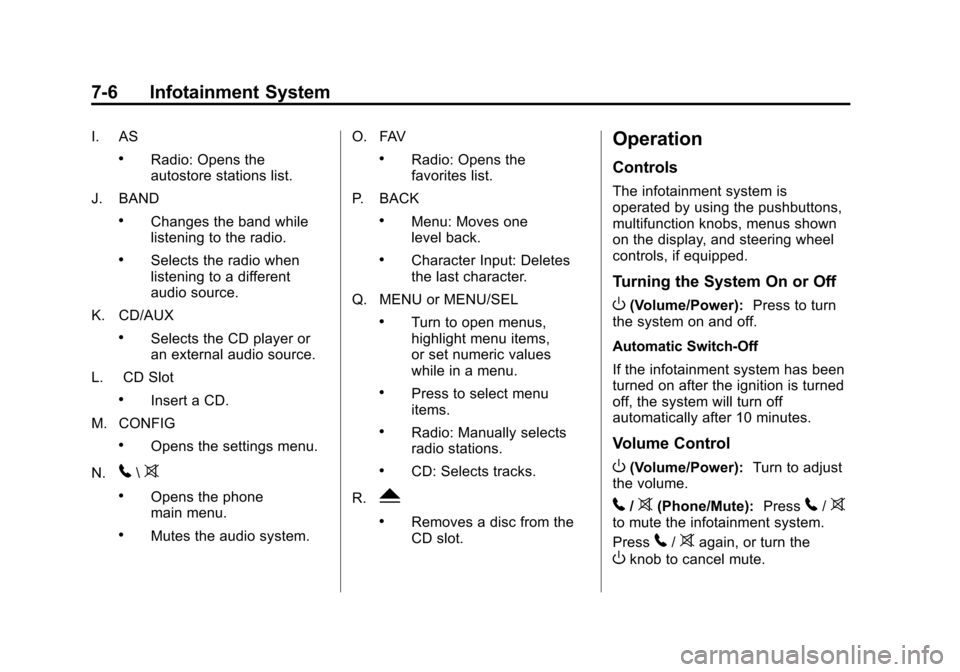
I. AS
.Radio: Opens the
autostore stations list.
J. BAND
.Changes the band while
listening to the radio.
.Selects the radio when
listening to a different
audio source.
K. CD/AUX
.Selects the CD player or
an external audio source.
L. CD Slot
.Insert a CD.
M. CONFIG
.Opens the settings menu.
N.
5\>
.Opens the phone
main menu.
.Mutes the audio system. O. FAV
.Radio: Opens the
favorites list.
P. BACK
.Menu: Moves one
level back.
.Character Input: Deletes
the last character.
Q. MENU or MENU/SEL
.Turn to open menus,
highlight menu items,
or set numeric values
while in a menu.
.Press to select menu
items.
.Radio: Manually selects
radio stations.
.CD: Selects tracks.
R.
Y
.Removes a disc from the
CD slot.
Operation
Controls
The infotainment system is
operated by using the pushbuttons,
multifunction knobs, menus shown
on the display, and steering wheel
controls, if equipped.
Turning the System On or Off
O(Volume/Power): Press to turn
the system on and off.
Automatic Switch‐Off
If the infotainment system has been
turned on after the ignition is turned
off, the system will turn off
automatically after 10 minutes.
Volume Control
O(Volume/Power): Turn to adjust
the volume.
5/>(Phone/Mute): Press5/>to mute the infotainment system.
Press
5/>again, or turn the
Oknob to cancel mute.
Page 162 of 400
Black plate (10,1)Chevrolet Cruze Owner Manual - 2012
7-10 Infotainment System
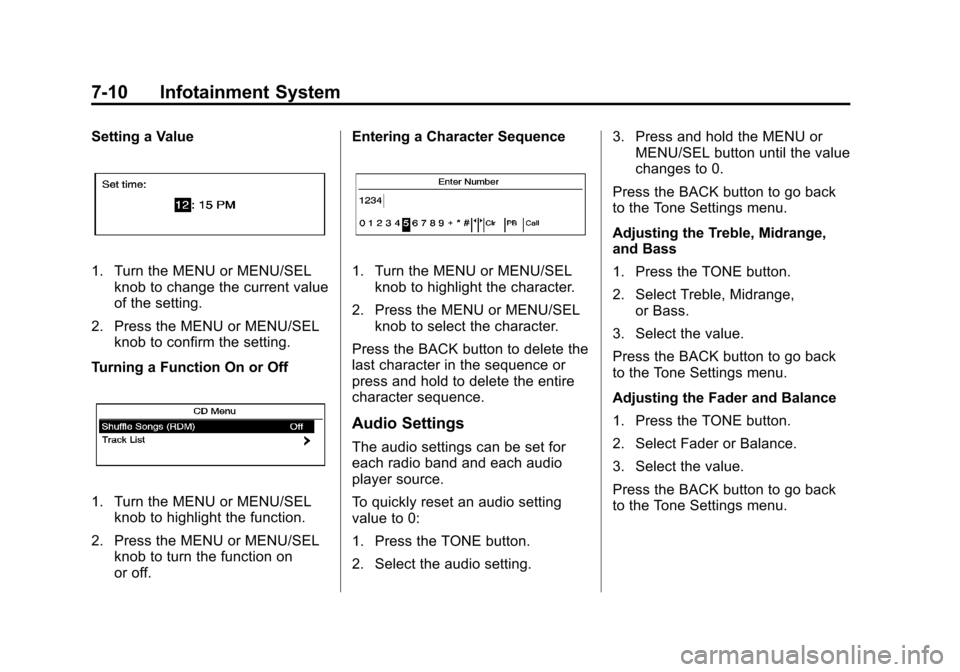
Setting a Value
1. Turn the MENU or MENU/SELknob to change the current value
of the setting.
2. Press the MENU or MENU/SEL knob to confirm the setting.
Turning a Function On or Off
1. Turn the MENU or MENU/SEL knob to highlight the function.
2. Press the MENU or MENU/SEL knob to turn the function on
or off. Entering a Character Sequence
1. Turn the MENU or MENU/SEL
knob to highlight the character.
2. Press the MENU or MENU/SEL knob to select the character.
Press the BACK button to delete the
last character in the sequence or
press and hold to delete the entire
character sequence.
Audio Settings
The audio settings can be set for
each radio band and each audio
player source.
To quickly reset an audio setting
value to 0:
1. Press the TONE button.
2. Select the audio setting. 3. Press and hold the MENU or
MENU/SEL button until the value
changes to 0.
Press the BACK button to go back
to the Tone Settings menu.
Adjusting the Treble, Midrange,
and Bass
1. Press the TONE button.
2. Select Treble, Midrange, or Bass.
3. Select the value.
Press the BACK button to go back
to the Tone Settings menu.
Adjusting the Fader and Balance
1. Press the TONE button.
2. Select Fader or Balance.
3. Select the value.
Press the BACK button to go back
to the Tone Settings menu.
Page 170 of 400
Black plate (18,1)Chevrolet Cruze Owner Manual - 2012
7-18 Infotainment System
Satellite Radio Antenna
The XM Satellite Radio antenna is
located on the roof of the vehicle.
Keep the antenna clear of
obstructions for clear radio
reception.
If the vehicle has a sunroof, the
performance of the XM system may
be affected if the sunroof is open.
Multi-Band Antenna
The multi-band antenna is on the
roof of the vehicle. The antenna is
used for the AM‐FM radio, OnStar,
the XM Satellite Radio Service
System, and GPS (Global
Positioning System), if the vehicle
has these features. Keep the
antenna clear of obstructions for
clear reception.
Audio Players
CD Player
The CD player can play audio CDs
and MP3 CDs.
The CD player will not play
8 cm (3 in) CDs.
Care of CDs
Sound quality can be reduced due
to disc quality, recording method,
quality of the music recorded, and
how the disc has been handled.
Handle discs carefully and store
them in their original cases or other
protective cases away from direct
sunlight and dust. If the bottom
surface of a disc is damaged, the
disc may not play properly or at all.
Do not touch the bottom surface of
a disc while handling it; this could
damage the surface. Pick up discs
by grasping the outer edges or the
edge of the hole and the outer edge.
If the bottom surface of a disc is
dirty, take a soft lint‐free cloth,
or dampen a clean soft cloth in amild neutral detergent solution
mixed with water, and clean it.
Wipe the disc from the center to
the outer edge.
Care of the CD Player
Do not add a label to a disc, as it
could get caught in the CD player.
If a label is needed, label the top of
the recorded disc with a
marking pen.
Do not use disc lens cleaners
because they could contaminate the
lens of the disc optics and damage
the CD player.
Notice:
If a label is added to a
CD, more than one CD is inserted
into the slot at a time, or an
attempt is made to play scratched
or damaged CDs, the CD player
could be damaged. While using
the CD player, use only CDs in
good condition without any label,
load one CD at a time, and keep
the CD player and the loading slot
free of foreign materials, liquids,
and debris.