buttons CHEVROLET CRUZE 2016 1.G Owners Manual
[x] Cancel search | Manufacturer: CHEVROLET, Model Year: 2016, Model line: CRUZE, Model: CHEVROLET CRUZE 2016 1.GPages: 377, PDF Size: 6.35 MB
Page 8 of 377

Chevrolet Cruze Owner Manual (GMNA-Localizing-U.S./Canada/Mexico-
9234744) - 2016 - CRC - 3/9/16
In Brief 7
1.Air Vents 0191.
2. Headlamp High/Low-Beam
Changer 0153.
Turn Signal Lever. See Turn
and Lane-Change
Signals 0155.
Driver Information Center (DIC)
Buttons (If Equipped). See
Driver Information Center (DIC)
(Uplevel Cluster) 0133 or
Driver Information Center (DIC)
(Base Level Cluster) 0130.
3. Instrument Cluster (Base
Level) 0112 orInstrument
Cluster (Uplevel) 0114.
4. Windshield Wiper/
Washer 0105.
5. Infotainment 0159.
6. Light Sensor. See Automatic
Headlamp System 0153.
7. Hazard Warning
Flashers 0154.
8. Heated Front Seats 060 (If
Equipped).
9. Instrument Panel Fuse
Block 0272. 10.
Climate Control Systems (With
Air Conditioning) 0185 or
Climate Control Systems (With
Heater Only) 0187.
Automatic Climate Control
System 0188 (If Equipped).
11. Power Outlets 0108.
USB Port 0167.
12. Wireless Charging Pocket (If Equipped). See Wireless
Charging 0110.
13. Traction Control/Electronic
Stability Control 0221.
Assistance Systems for
Parking or Backing 0226.
14. Shift Lever. See Automatic
Transmission 0214 orManual
Transmission 0217.
15. Steering Wheel Controls 0104.
Driver Information Center (DIC)
Controls (If Equipped). See
Driver Information Center (DIC)
(Uplevel Cluster) 0133 or
Driver Information Center (DIC)
(Base Level Cluster) 0130.
16. Horn 0105. 17.
Steering Wheel
Adjustment 0104.
18. Cruise Control 0223.
Heated Steering Wheel 0105
(If Equipped).
Forward Collision Alert (FCA)
System 0229 (If Equipped).
Lane Keep Assist (LKA) 0233
(If Equipped).
19. Hood Release. See Hood 0244.
20. Data Link Connector (DLC) (Out of View). See Malfunction
Indicator Lamp (Check Engine
Light) 0122.
21. Exterior Lamp Controls 0151.
Fog Lamps 0155 (If
Equipped).
Instrument Panel Illumination
Control 0156.
Page 21 of 377
Chevrolet Cruze Owner Manual (GMNA-Localizing-U.S./Canada/Mexico-
9234744) - 2016 - CRC - 3/9/16
20 In Brief
Vehicle Features
Infotainment System
Base radio information is included in
this manual. See the infotainment
manual for information on other
available infotainment systems.
Read the following pages to
become familiar with these features.
{Warning
Taking your eyes off the road for
too long or too often while using
any infotainment feature can
cause a crash. You or others
could be injured or killed. Do not
give extended attention to
infotainment tasks while driving.
Limit your glances at the vehicle
displays and focus your attention
on driving. Use voice commands
whenever possible.The infotainment system has built-in
features intended to help avoid
distraction by disabling some
functions when driving. These
functions may gray out when they
are unavailable. Many infotainment
features are also available through
the instrument cluster and steering
wheel controls.
Before driving:
.
Become familiar with the
operation, faceplate buttons, and
screen buttons.
. Set up the audio by presetting
favorite stations, setting the
tone, and adjusting the
speakers.
. Set up phone numbers in
advance so they can be called
easily by pressing a single
button or by using a single voice
command if equipped with
Bluetooth phone capability.
See Defensive Driving 0194.
To play the infotainment system with
the ignition off, see Retained
Accessory Power (RAP) 0211.
Radio(s)
O
:
. Press to turn the power on.
. Press and hold to turn the
power off.
. Press to mute/unmute the
system when on.
. Turn to decrease or increase the
volume.
g:
. Radio: Press and release to fast
seek the strongest previous
station or channel.
. USB/Music/Pictures: Press to go
to the previous content. Press
and hold to fast rewind.
d:
. Radio: Press and release to fast
seek the next strongest station
or channel.
. USB/Music/Pictures: Press to go
to the next content. Press and
hold to fast forward.
Page 32 of 377
Chevrolet Cruze Owner Manual (GMNA-Localizing-U.S./Canada/Mexico-
9234744) - 2016 - CRC - 3/9/16
Keys, Doors, and Windows 31
Remote Keyless Entry
(RKE) System Operation
(Key Access)
The transmitter functions may work
up to 60 m (197 ft) away from the
vehicle.
Keep in mind that other conditions,
such as those previously stated, can
impact the performance of the
transmitter.
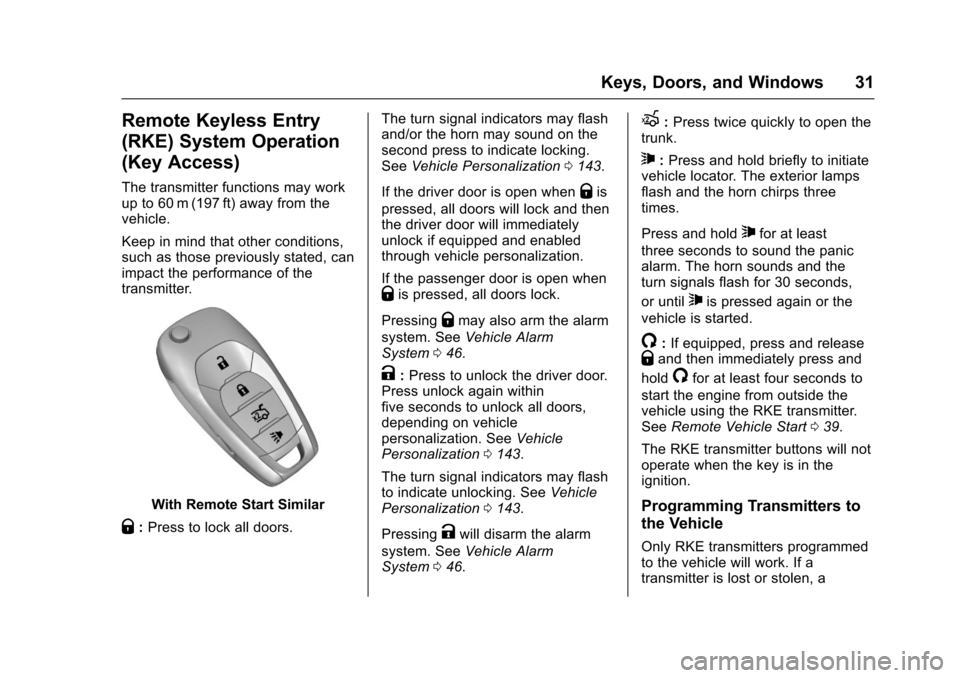
With Remote Start Similar
Q:Press to lock all doors. The turn signal indicators may flash
and/or the horn may sound on the
second press to indicate locking.
See
Vehicle Personalization 0143.
If the driver door is open when
Qis
pressed, all doors will lock and then
the driver door will immediately
unlock if equipped and enabled
through vehicle personalization.
If the passenger door is open when
Qis pressed, all doors lock.
Pressing
Qmay also arm the alarm
system. See Vehicle Alarm
System 046.
K:Press to unlock the driver door.
Press unlock again within
five seconds to unlock all doors,
depending on vehicle
personalization. See Vehicle
Personalization 0143.
The turn signal indicators may flash
to indicate unlocking. See Vehicle
Personalization 0143.
Pressing
Kwill disarm the alarm
system. See Vehicle Alarm
System 046.
X:Press twice quickly to open the
trunk.
7: Press and hold briefly to initiate
vehicle locator. The exterior lamps
flash and the horn chirps three
times.
Press and hold
7for at least
three seconds to sound the panic
alarm. The horn sounds and the
turn signals flash for 30 seconds,
or until
7is pressed again or the
vehicle is started.
/: If equipped, press and releaseQand then immediately press and
hold
/for at least four seconds to
start the engine from outside the
vehicle using the RKE transmitter.
See Remote Vehicle Start 039.
The RKE transmitter buttons will not
operate when the key is in the
ignition.
Programming Transmitters to
the Vehicle
Only RKE transmitters programmed
to the vehicle will work. If a
transmitter is lost or stolen, a
Page 63 of 377
Chevrolet Cruze Owner Manual (GMNA-Localizing-U.S./Canada/Mexico-
9234744) - 2016 - CRC - 3/9/16
62 Seats and Restraints
{Warning
A safety belt that is improperly
routed, not properly attached,
or twisted will not provide the
protection needed in a crash. The
person wearing the belt could be
seriously injured. After raising the
rear seatback, always check to be
sure that the safety belts are
properly routed and attached, and
are not twisted.
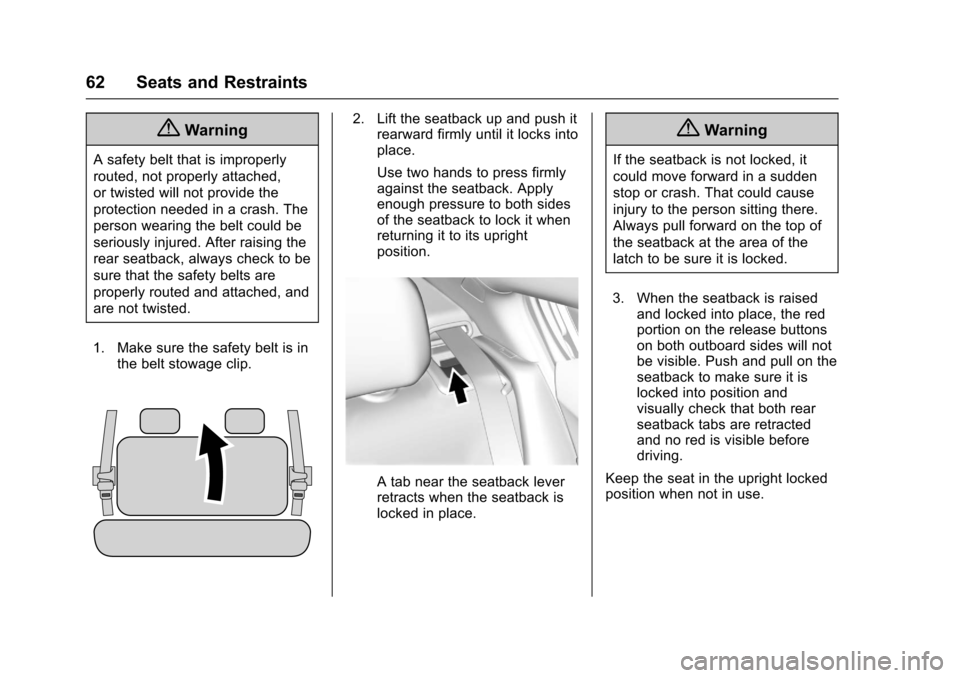
1. Make sure the safety belt is in the belt stowage clip.
2. Lift the seatback up and push itrearward firmly until it locks into
place.
Use two hands to press firmly
against the seatback. Apply
enough pressure to both sides
of the seatback to lock it when
returning it to its upright
position.
A tab near the seatback lever
retracts when the seatback is
locked in place.
{Warning
If the seatback is not locked, it
could move forward in a sudden
stop or crash. That could cause
injury to the person sitting there.
Always pull forward on the top of
the seatback at the area of the
latch to be sure it is locked.
3. When the seatback is raised and locked into place, the red
portion on the release buttons
on both outboard sides will not
be visible. Push and pull on the
seatback to make sure it is
locked into position and
visually check that both rear
seatback tabs are retracted
and no red is visible before
driving.
Keep the seat in the upright locked
position when not in use.
Page 64 of 377
Chevrolet Cruze Owner Manual (GMNA-Localizing-U.S./Canada/Mexico-
9234744) - 2016 - CRC - 3/9/16
Seats and Restraints 63
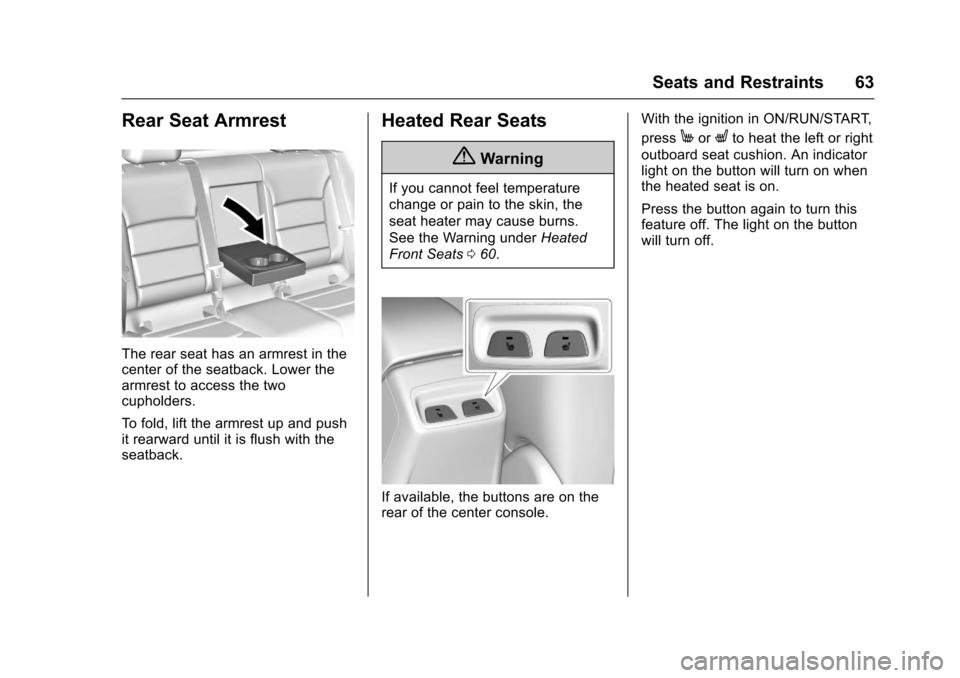
Rear Seat Armrest
The rear seat has an armrest in the
center of the seatback. Lower the
armrest to access the two
cupholders.
To fold, lift the armrest up and push
it rearward until it is flush with the
seatback.
Heated Rear Seats
{Warning
If you cannot feel temperature
change or pain to the skin, the
seat heater may cause burns.
See the Warning underHeated
Front Seats 060.
If available, the buttons are on the
rear of the center console. With the ignition in ON/RUN/START,
press
MorLto heat the left or right
outboard seat cushion. An indicator
light on the button will turn on when
the heated seat is on.
Press the button again to turn this
feature off. The light on the button
will turn off.
Page 95 of 377
Chevrolet Cruze Owner Manual (GMNA-Localizing-U.S./Canada/Mexico-
9234744) - 2016 - CRC - 3/9/16
94 Seats and Restraints
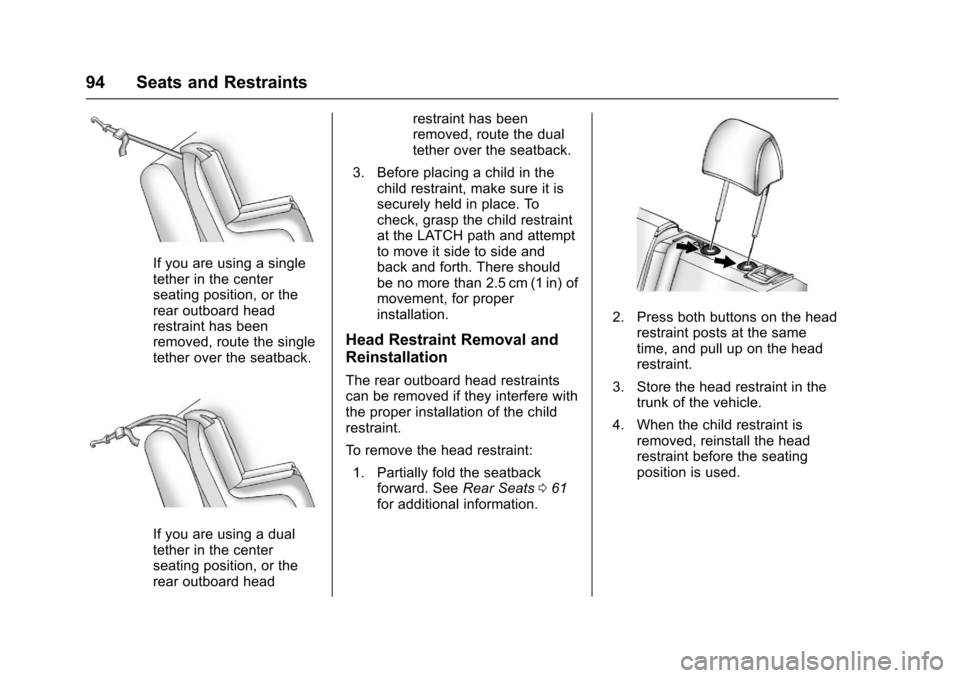
If you are using a single
tether in the center
seating position, or the
rear outboard head
restraint has been
removed, route the single
tether over the seatback.
If you are using a dual
tether in the center
seating position, or the
rear outboard headrestraint has been
removed, route the dual
tether over the seatback.
3. Before placing a child in the child restraint, make sure it is
securely held in place. To
check, grasp the child restraint
at the LATCH path and attempt
to move it side to side and
back and forth. There should
be no more than 2.5 cm (1 in) of
movement, for proper
installation.
Head Restraint Removal and
Reinstallation
The rear outboard head restraints
can be removed if they interfere with
the proper installation of the child
restraint.
To remove the head restraint:
1. Partially fold the seatback forward. See Rear Seats061
for additional information.
2. Press both buttons on the head restraint posts at the same
time, and pull up on the head
restraint.
3. Store the head restraint in the trunk of the vehicle.
4. When the child restraint is removed, reinstall the head
restraint before the seating
position is used.
Page 131 of 377
Chevrolet Cruze Owner Manual (GMNA-Localizing-U.S./Canada/Mexico-
9234744) - 2016 - CRC - 3/9/16
130 Instruments and Controls
Information Displays
Driver Information Center
(DIC) (Base Level Cluster)
The DIC displays information about
your vehicle. It also displays
warning messages if a system
problem is detected. SeeVehicle
Messages 0136. All messages
appear in the DIC display in the
center of the instrument cluster.
DIC Operation and Displays
The DIC has different displays
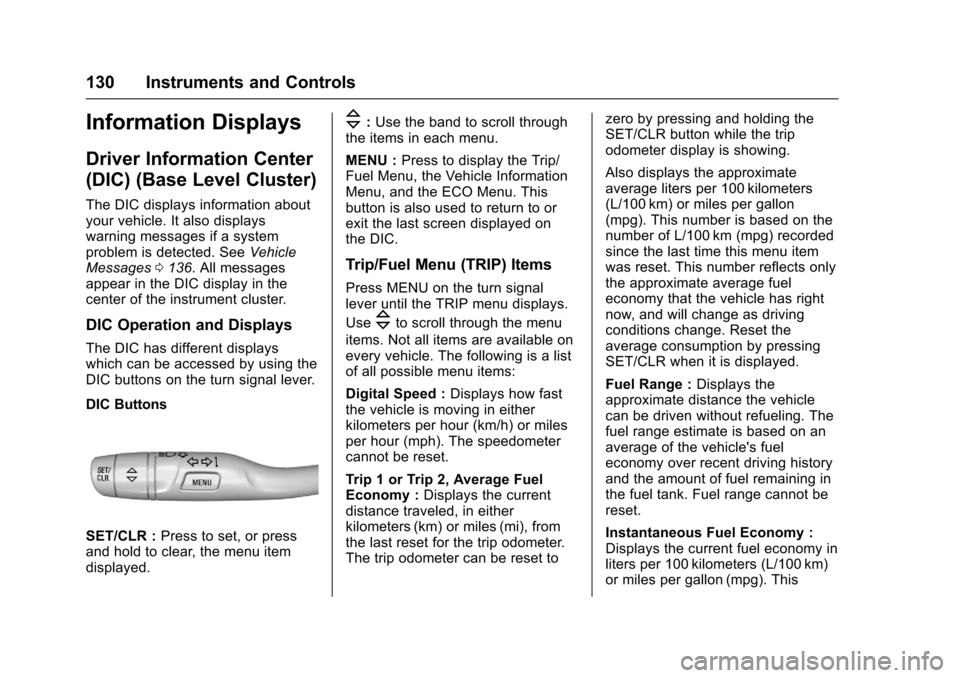
which can be accessed by using the
DIC buttons on the turn signal lever.
DIC Buttons
SET/CLR : Press to set, or press
and hold to clear, the menu item
displayed.
\: Use the band to scroll through
the items in each menu.
MENU : Press to display the Trip/
Fuel Menu, the Vehicle Information
Menu, and the ECO Menu. This
button is also used to return to or
exit the last screen displayed on
the DIC.
Trip/Fuel Menu (TRIP) Items
Press MENU on the turn signal
lever until the TRIP menu displays.
Use
\to scroll through the menu
items. Not all items are available on
every vehicle. The following is a list
of all possible menu items:
Digital Speed : Displays how fast
the vehicle is moving in either
kilometers per hour (km/h) or miles
per hour (mph). The speedometer
cannot be reset.
Trip 1 or Trip 2, Average Fuel
Economy : Displays the current
distance traveled, in either
kilometers (km) or miles (mi), from
the last reset for the trip odometer.
The trip odometer can be reset to zero by pressing and holding the
SET/CLR button while the trip
odometer display is showing.
Also displays the approximate
average liters per 100 kilometers
(L/100 km) or miles per gallon
(mpg). This number is based on the
number of L/100 km (mpg) recorded
since the last time this menu item
was reset. This number reflects only
the approximate average fuel
economy that the vehicle has right
now, and will change as driving
conditions change. Reset the
average consumption by pressing
SET/CLR when it is displayed.
Fuel Range :
Displays the
approximate distance the vehicle
can be driven without refueling. The
fuel range estimate is based on an
average of the vehicle's fuel
economy over recent driving history
and the amount of fuel remaining in
the fuel tank. Fuel range cannot be
reset.
Instantaneous Fuel Economy :
Displays the current fuel economy in
liters per 100 kilometers (L/100 km)
or miles per gallon (mpg). This
Page 161 of 377
Chevrolet Cruze Owner Manual (GMNA-Localizing-U.S./Canada/Mexico-
9234744) - 2016 - CRC - 3/9/16
160 Infotainment System
The infotainment system has built-in
features intended to help avoid
distraction by disabling some
functions when driving. These
functions may gray out when they
are unavailable. Many infotainment
features are also available through
the instrument cluster and steering
wheel controls.
Before driving:
.Become familiar with the
operation, faceplate buttons, and
screen buttons.
. Set up the audio by presetting
favorite stations, setting the
tone, and adjusting the
speakers. .
Set up phone numbers in
advance so they can be called
easily by pressing a single
button or by using a single voice
command if equipped with
Bluetooth phone capability.
See Defensive Driving 0194.
To play the infotainment system with
the ignition off, see Retained
Accessory Power (RAP) 0211.Theft-Deterrent Feature
The infotainment system has an
electronic security system installed
to prevent theft.
The infotainment system only works
in the vehicle in which it was first
installed, and cannot be used in
another vehicle.
Page 163 of 377
Chevrolet Cruze Owner Manual (GMNA-Localizing-U.S./Canada/Mexico-
9234744) - 2016 - CRC - 3/9/16
162 Infotainment System
.USB/Music/Pictures: Press
to go to the next content.
Press and hold to fast
forward.
5.
5
. Press and release to
access the phone screen,
answer an incoming call,
or access the device home
screen.
Home Page
Touchscreen Buttons
Touchscreen buttons show on the
screen when available. When a
function is unavailable, the button
may gray out. When a function is
selected, the button may highlight.
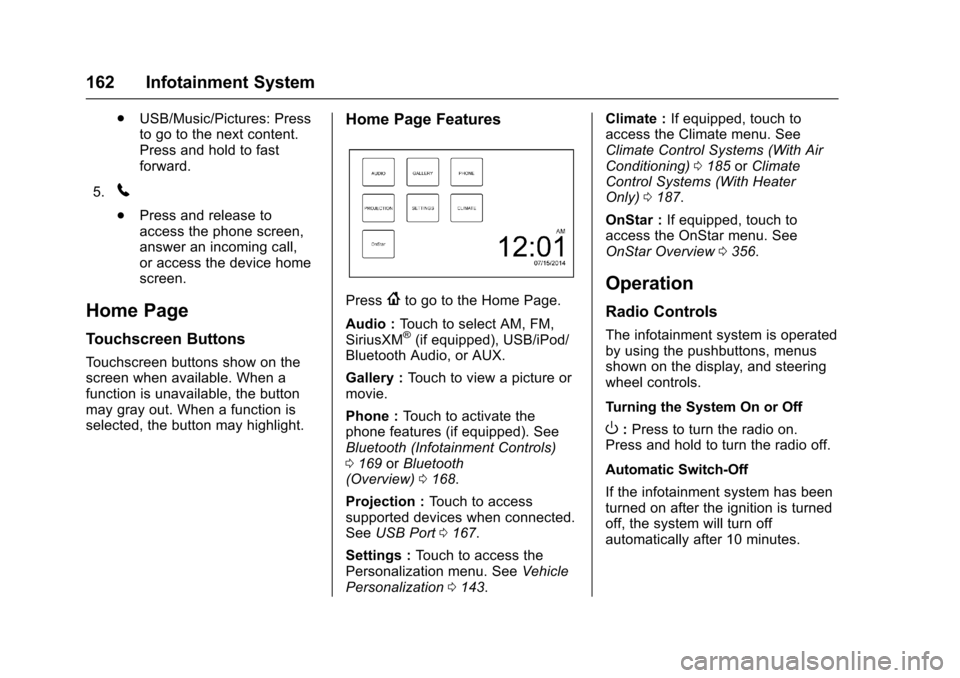
Home Page Features
Press{to go to the Home Page.
Audio : Touch to select AM, FM,
SiriusXM
®(if equipped), USB/iPod/
Bluetooth Audio, or AUX.
Gallery : Touch to view a picture or
movie.
Phone : Touch to activate the
phone features (if equipped). See
Bluetooth (Infotainment Controls)
0 169 orBluetooth
(Overview) 0168.
Projection : Touch to access
supported devices when connected.
See USB Port 0167.
Settings : Touch to access the
Personalization menu. See Vehicle
Personalization 0143. Climate :
If equipped, touch to
access the Climate menu. See
Climate Control Systems (With Air
Conditioning) 0185 orClimate
Control Systems (With Heater
Only) 0187.
OnStar : If equipped, touch to
access the OnStar menu. See
OnStar Overview 0356.
Operation
Radio Controls
The infotainment system is operated
by using the pushbuttons, menus
shown on the display, and steering
wheel controls.
Turning the System On or Off
O:Press to turn the radio on.
Press and hold to turn the radio off.
Automatic Switch-Off
If the infotainment system has been
turned on after the ignition is turned
off, the system will turn off
automatically after 10 minutes.
Page 165 of 377
Chevrolet Cruze Owner Manual (GMNA-Localizing-U.S./Canada/Mexico-
9234744) - 2016 - CRC - 3/9/16
164 Infotainment System
Selecting a Station
Seek Tuning
If the radio station is not known:
Press
gordto automatically
search for available radio stations.
Direct Tune
From the AM or FM menu:
1. Touch Tune.
2. Enter the station number.
3. Touch Go.
Favorites
1. Touch
SorTto scroll through
the favorite pages.
2. Touch the station to select it.
Update Station List
. From the AM or FM menu, touch
Menu, then touch Update Station
List. The broadcasting list
updating will begin.
. During the AM or FM
broadcasting list update, touch
Cancel to stop the updates. Station List
1. From the AM or FM menu, touch Menu.
2. Select Station List.
3. Touch
QorRto scroll through
the list. Touch the station to
select it.
Menu
Touch to choose between available
menus for the current source.
Storing a Station as a Favorite
Stations from all bands can be
stored in any order in the favorite
pages.
Up to 25 stations can be stored.
Storing Stations
To store the station to a position in
the list, touch the corresponding
button 1−5 until a beep is heard.
1. Select the desired station.
2. Touch
SorTto select the
desired page of saved
favorites. 3. Touch and hold any of the
preset buttons to save the
current radio station to that
button of the selected
favorites page.
To change a preset button, tune to
the new desired radio station and
touch and hold the preset button.
Satellite Radio
If equipped, vehicles with an
SiriusXM®Satellite Radio tuner and
a valid SiriusXM Satellite Radio
subscription can receive SiriusXM
programming.
SiriusXM Satellite Radio
Service
SiriusXM is a satellite radio service
based in the 48 contiguous United
States and 10 Canadian provinces.
SiriusXM Satellite Radio has a wide
variety of programming and
commercial-free music, coast to
coast, and in digital-quality sound.
During your trial or when you
subscribe, you will get unlimited
access to SiriusXM Radio Online for
when you are not in the vehicle.