phone CHEVROLET CRUZE 2017 2.G Owner's Manual
[x] Cancel search | Manufacturer: CHEVROLET, Model Year: 2017, Model line: CRUZE, Model: CHEVROLET CRUZE 2017 2.GPages: 405, PDF Size: 6.76 MB
Page 183 of 405
Chevrolet Cruze Owner Manual (GMNA-Localizing-U.S./Canada/Mexico-
9803785) - 2017 - CRC - 4/13/16
182 Infotainment System
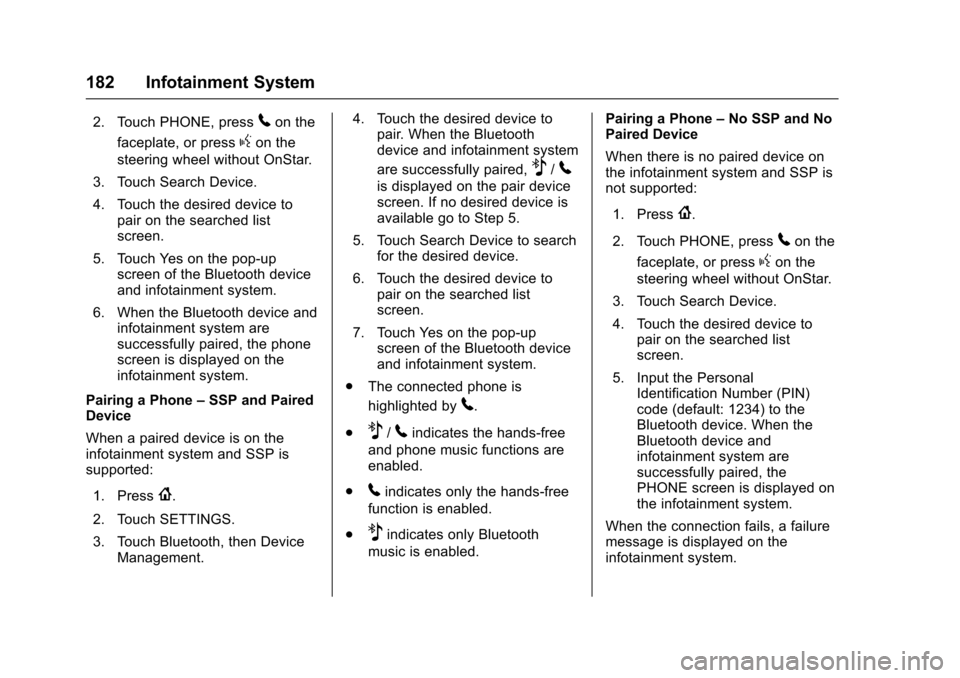
2. Touch PHONE, press5on the
faceplate, or press
gon the
steering wheel without OnStar.
3. Touch Search Device.
4. Touch the desired device to pair on the searched list
screen.
5. Touch Yes on the pop-up screen of the Bluetooth device
and infotainment system.
6. When the Bluetooth device and infotainment system are
successfully paired, the phone
screen is displayed on the
infotainment system.
Pairing a Phone –SSP and Paired
Device
When a paired device is on the
infotainment system and SSP is
supported:
1. Press
{.
2. Touch SETTINGS.
3. Touch Bluetooth, then Device Management. 4. Touch the desired device to
pair. When the Bluetooth
device and infotainment system
are successfully paired,
Z/5
is displayed on the pair device
screen. If no desired device is
available go to Step 5.
5. Touch Search Device to search for the desired device.
6. Touch the desired device to pair on the searched list
screen.
7. Touch Yes on the pop-up screen of the Bluetooth device
and infotainment system.
. The connected phone is
highlighted by
5.
.
Z/5indicates the hands-free
and phone music functions are
enabled.
.
5indicates only the hands-free
function is enabled.
.
Zindicates only Bluetooth
music is enabled. Pairing a Phone
–No SSP and No
Paired Device
When there is no paired device on
the infotainment system and SSP is
not supported:
1. Press
{.
2. Touch PHONE, press
5on the
faceplate, or press
gon the
steering wheel without OnStar.
3. Touch Search Device.
4. Touch the desired device to pair on the searched list
screen.
5. Input the Personal Identification Number (PIN)
code (default: 1234) to the
Bluetooth device. When the
Bluetooth device and
infotainment system are
successfully paired, the
PHONE screen is displayed on
the infotainment system.
When the connection fails, a failure
message is displayed on the
infotainment system.
Page 184 of 405
Chevrolet Cruze Owner Manual (GMNA-Localizing-U.S./Canada/Mexico-
9803785) - 2017 - CRC - 4/13/16
Infotainment System 183
If a Bluetooth device was previously
connected, the infotainment system
executes the auto connection.
However, if the Bluetooth setting on
the Bluetooth device is turned off, a
failure message is displayed on the
infotainment system.
Pairing a Phone–No SSP and
Paired Device
When a paired device is on the
infotainment system and SSP is not
supported:
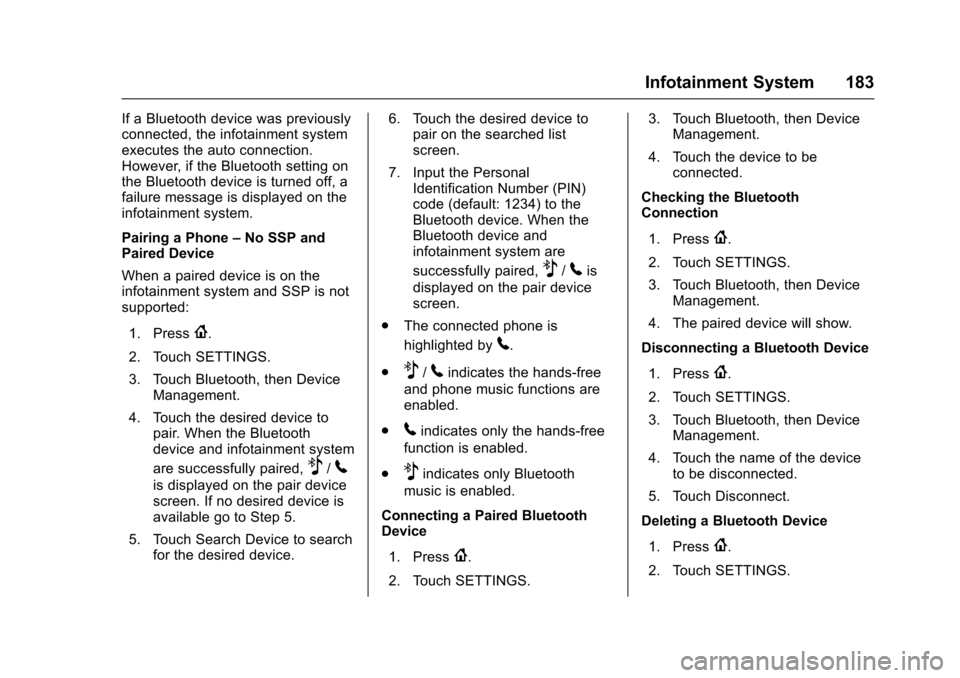
1. Press
{.
2. Touch SETTINGS.
3. Touch Bluetooth, then Device Management.
4. Touch the desired device to pair. When the Bluetooth
device and infotainment system
are successfully paired,
Z/5
is displayed on the pair device
screen. If no desired device is
available go to Step 5.
5. Touch Search Device to search for the desired device. 6. Touch the desired device to
pair on the searched list
screen.
7. Input the Personal Identification Number (PIN)
code (default: 1234) to the
Bluetooth device. When the
Bluetooth device and
infotainment system are
successfully paired,
Z/5is
displayed on the pair device
screen.
. The connected phone is
highlighted by
5.
.
Z/5indicates the hands-free
and phone music functions are
enabled.
.
5indicates only the hands-free
function is enabled.
.
Zindicates only Bluetooth
music is enabled.
Connecting a Paired Bluetooth
Device
1. Press
{.
2. Touch SETTINGS. 3. Touch Bluetooth, then Device
Management.
4. Touch the device to be connected.
Checking the Bluetooth
Connection
1. Press
{.
2. Touch SETTINGS.
3. Touch Bluetooth, then Device Management.
4. The paired device will show.
Disconnecting a Bluetooth Device
1. Press
{.
2. Touch SETTINGS.
3. Touch Bluetooth, then Device Management.
4. Touch the name of the device to be disconnected.
5. Touch Disconnect.
Deleting a Bluetooth Device
1. Press
{.
2. Touch SETTINGS.
Page 185 of 405
Chevrolet Cruze Owner Manual (GMNA-Localizing-U.S./Canada/Mexico-
9803785) - 2017 - CRC - 4/13/16
184 Infotainment System
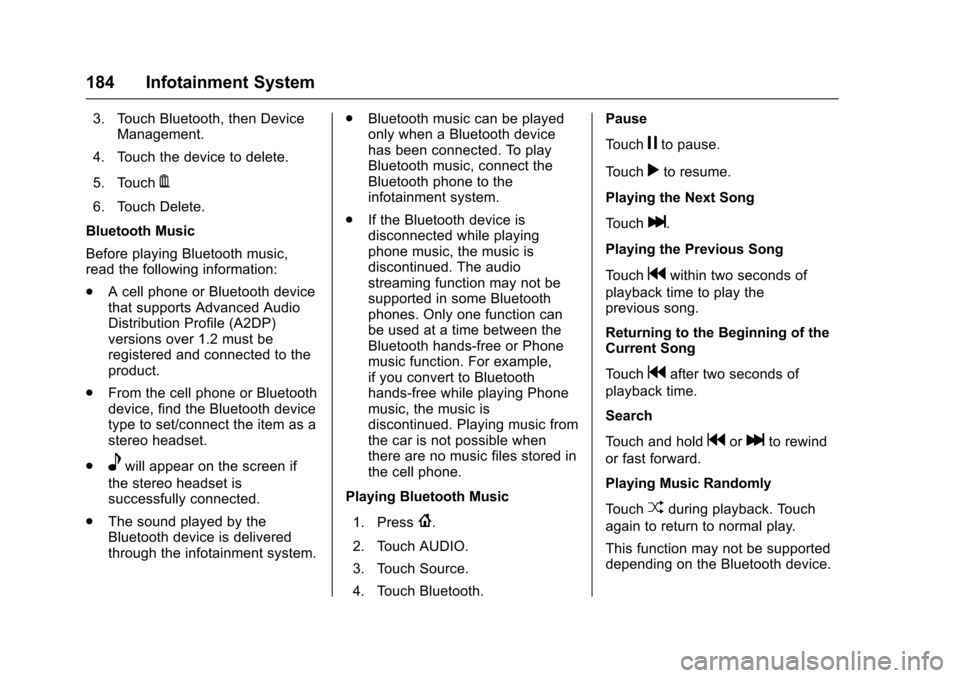
3. Touch Bluetooth, then DeviceManagement.
4. Touch the device to delete.
5. Touch
Y.
6. Touch Delete.
Bluetooth Music
Before playing Bluetooth music,
read the following information:
. A cell phone or Bluetooth device
that supports Advanced Audio
Distribution Profile (A2DP)
versions over 1.2 must be
registered and connected to the
product.
. From the cell phone or Bluetooth
device, find the Bluetooth device
type to set/connect the item as a
stereo headset.
.
ewill appear on the screen if
the stereo headset is
successfully connected.
. The sound played by the
Bluetooth device is delivered
through the infotainment system. .
Bluetooth music can be played
only when a Bluetooth device
has been connected. To play
Bluetooth music, connect the
Bluetooth phone to the
infotainment system.
. If the Bluetooth device is
disconnected while playing
phone music, the music is
discontinued. The audio
streaming function may not be
supported in some Bluetooth
phones. Only one function can
be used at a time between the
Bluetooth hands-free or Phone
music function. For example,
if you convert to Bluetooth
hands-free while playing Phone
music, the music is
discontinued. Playing music from
the car is not possible when
there are no music files stored in
the cell phone.
Playing Bluetooth Music
1. Press
{.
2. Touch AUDIO.
3. Touch Source.
4. Touch Bluetooth. Pause
Touch
jto pause.
Touch
rto resume.
Playing the Next Song
Touch
l.
Playing the Previous Song
Touch
gwithin two seconds of
playback time to play the
previous song.
Returning to the Beginning of the
Current Song
Touch
gafter two seconds of
playback time.
Search
Touch and hold
gorlto rewind
or fast forward.
Playing Music Randomly
Touch
Zduring playback. Touch
again to return to normal play.
This function may not be supported
depending on the Bluetooth device.
Page 186 of 405
Chevrolet Cruze Owner Manual (GMNA-Localizing-U.S./Canada/Mexico-
9803785) - 2017 - CRC - 4/13/16
Infotainment System 185
Do not change the track too quickly
when playing Bluetooth music.
Conditions that may occur when
playing Bluetooth music:
.It takes time to transmit data
from the Bluetooth device to the
infotainment system.
. If the cell phone or Bluetooth
device is not in the waiting
screen mode, it may not
automatically play.
. The infotainment system
transmits the order to play from
the Bluetooth device in the
Bluetooth music play mode.
If this is done in a different
mode, then the device transmits
the order to stop. Depending on
the Bluetooth device options,
this order to play/stop may take
time to activate.
. If the Bluetooth music playback
is not functioning, then check to
see if the Bluetooth device is in
the waiting screen mode.
. Sounds may be cut off during
the Bluetooth music playback. .
The infotainment system outputs
the audio from the cell phone or
Bluetooth device as it is
transmitted.
Apple CarPlay and
Android Auto
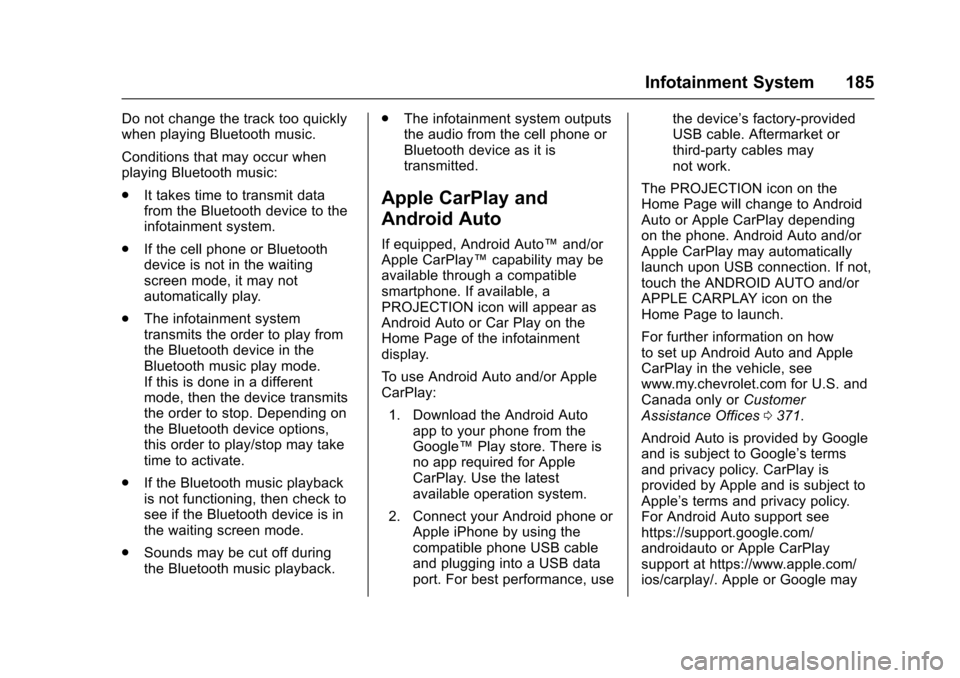
If equipped, Android Auto™ and/or
Apple CarPlay™ capability may be
available through a compatible
smartphone. If available, a
PROJECTION icon will appear as
Android Auto or Car Play on the
Home Page of the infotainment
display.
To use Android Auto and/or Apple
CarPlay:
1. Download the Android Auto app to your phone from the
Google™ Play store. There is
no app required for Apple
CarPlay. Use the latest
available operation system.
2. Connect your Android phone or Apple iPhone by using the
compatible phone USB cable
and plugging into a USB data
port. For best performance, use the device’
s factory-provided
USB cable. Aftermarket or
third-party cables may
not work.
The PROJECTION icon on the
Home Page will change to Android
Auto or Apple CarPlay depending
on the phone. Android Auto and/or
Apple CarPlay may automatically
launch upon USB connection. If not,
touch the ANDROID AUTO and/or
APPLE CARPLAY icon on the
Home Page to launch.
For further information on how
to set up Android Auto and Apple
CarPlay in the vehicle, see
www.my.chevrolet.com for U.S. and
Canada only or Customer
Assistance Offices 0371.
Android Auto is provided by Google
and is subject to Google’s terms
and privacy policy. CarPlay is
provided by Apple and is subject to
Apple’ s terms and privacy policy.
For Android Auto support see
https://support.google.com/
androidauto or Apple CarPlay
support at https://www.apple.com/
ios/carplay/. Apple or Google may
Page 187 of 405
Chevrolet Cruze Owner Manual (GMNA-Localizing-U.S./Canada/Mexico-
9803785) - 2017 - CRC - 4/13/16
186 Infotainment System
change or suspend availability at
any time. Android Auto is a
trademark of Google Inc.; Apple
CarPlay is a trademark of Apple Inc.
Hands-Free Phone
General Information
Vehicles with a Hands-Free Phone
system can use a Bluetooth-capable
cell phone with a hands-free profile
to make and receive phone calls.
The infotainment system and voice
control are used to operate the
system. Not all phones support all
functions and not all phones work
with the Hands-Free Phone system.
Hands-Free Phone Controls
Use the buttons on the infotainment
system and the steering wheel to
operate the Hands-Free Phone
system.
Steering Wheel Controls
Steering wheel controls can be
used to:
.Answer incoming calls.
. Confirm system information. .
End a call.
. Decline a call.
. Cancel an operation.
. Make outgoing calls using the
call list.
g:Press to answer incoming calls.
c:Press to end a call, decline a
call, or cancel an operation.
Making a Call by Entering a Phone
Number
. Press
5on the faceplate.
. Press
{, then touch PHONE on
the screen.
. Press
gon the steering wheel.
If a wrong number is entered, touch
}to delete the number one digit at
a time, or touch and hold
}to
delete all digits of the number.
Switching a Call to the Cell Phone
(Private Mode)
To switch the call from the cell
phone to hands-free:
1. Touch
0. 2. Touch
0again to switch back
to hands-free.
Turning the Microphone On
and Off
Touch
3to turn the microphone on
or off.
Calling by Redial
To call by using redial:
. Press
gon the steering wheel
controls to display the redial
guidance screen.
. Touch
5on the phone screen.
Redialing is not possible when there
is no call history.
Taking Calls
When a phone call comes through
the connected Bluetooth cell phone,
the audio system will be muted or
paused and the phone will ring with
the relevant information displayed.
Press
gon the steering wheel
controls, touch
5on the screen,
or press
5on the faceplate.
Page 188 of 405
Chevrolet Cruze Owner Manual (GMNA-Localizing-U.S./Canada/Mexico-
9803785) - 2017 - CRC - 4/13/16
Infotainment System 187
To decline the call, presscon the
steering wheel controls or touch
Reject on the screen.
Using the Contacts Menu
1. Touch contacts on the phone screen.
2. Touch
QorRto scroll through
the list.
3. Touch the phone book entry to call.
4. If there is more than one number associated with the
name, touch the number
to dial.
Searching for Contacts Entries 1. Touch contacts on the phone screen.
2. Touch
9on the contacts
screen.
3. Use the keypad to input the name to search. For details,
see “Searching for a Name”
following. 4. Touch the phone book entry
to call.
5. If there is more than one number associated with the
name, touch the number
to dial.
When the Bluetooth device and
infotainment system are
successfully paired, the phone book
will download. Some phones may
not download automatically. If this
happens, connect it again or
proceed with the phone book
download on the phone.
Searching for a Name
Select characters by using the
keypad on the phone book screen.
As characters are selected, the
names that include those characters
will display on the phone book
screen. As more characters of the
name are entered, the list of
possible names is shortened. To search for the name Alex:
1. Touch (abc) to select the first character.
2. Touch (jkl) three times to select the second character.
3. Touch (def) two times to select the third character.
4. Touch (wxy) two times to select the fourth character.
Making a Call from Call History 1. Touch Call History on the phone screen.
2. Touch one of the following for:
.
WAll calls history.
.
[Dialed calls.
.
YMissed calls.
.
XReceived calls.
3. Select the contact entry to call.
Page 189 of 405
Chevrolet Cruze Owner Manual (GMNA-Localizing-U.S./Canada/Mexico-
9803785) - 2017 - CRC - 4/13/16
188 Infotainment System
Making a Call with Speed Dial
Numbers
Touch and hold the speed dial
number using the keypad on the
phone screen.
Only speed dial numbers already
stored on the cell phone can be
used for speed dial calls. Up to
two-digit speed dial numbers are
supported.
For two-digit speed dial numbers,
press and hold the second digit to
make a call to the speed dial
number.Trademarks and
License Agreements
FCC Information
SeeRadio Frequency
Statement 0379.
Bluetooth
®
The Bluetooth word mark and logos
are owned by the Bluetooth®SIG,
Inc. and any use of such marks by
General Motors is under license.
Other trademarks and trade names
are those of their respective owners.
DivX Certified®to play DivX®video,
including premium content.
Covered by one or more of the
following U.S. patents: 7,295,673;
7,460,668; 7,515,710; 7,519,274. DivX
®, DivX Certified®and
associated logos are trademarks of
Rovi Corporation or its subsidiaries
and are used under license.
“Made for iPod” and“Made for
iPhone” mean that an electronic
accessory has been designed to
connect specifically to iPod or
iPhone and has been certified by
the developer to meet Apple
performance standards.
iPod and iPhone are trademarks of
Apple Computer, Inc., registered in
the U.S. and other countries.
Page 201 of 405
Chevrolet Cruze Owner Manual (GMNA-Localizing-U.S./Canada/Mexico-
9803785) - 2017 - CRC - 4/13/16
200 Driving and Operating
Cold Weather Operation(Diesel) . . . . . . . . . . . . . . . . . . . . . 255
Water in Fuel (Diesel) . . . . . . . . 255
Running Out of Fuel (Diesel) . . . . . . . . . . . . . . . . . . . . . 258
Fuel Filter Replacement (Diesel) . . . . . . . . . . . . . . . . . . . . . 258
Filling the Tank . . . . . . . . . . . . . . . 259
Filling a Portable Fuel Container . . . . . . . . . . . . . . . . . . . 261
Trailer Towing
General TowingInformation . . . . . . . . . . . . . . . . . . 261
Conversions and Add-Ons
Add-On ElectricalEquipment . . . . . . . . . . . . . . . . . . 262
Driving Information
Distracted Driving
Distraction comes in many forms
and can take your focus from the
task of driving. Exercise good
judgment and do not let other
activities divert your attention away
from the road. Many local
governments have enacted laws
regarding driver distraction. Become
familiar with the local laws in
your area.
To avoid distracted driving, always
keep your eyes on the road, hands
on the wheel, and mind on the drive.
. Do not use a phone in
demanding driving situations.
Use a hands-free method to
place or receive necessary
phone calls.
. Watch the road. Do not read,
take notes, or look up
information on phones or other
electronic devices.
. Designate a front seat
passenger to handle potential
distractions. .
Become familiar with vehicle
features before driving, such as
programming favorite radio
stations and adjusting climate
control and seat settings.
Program all trip information into
any navigation device prior to
driving.
. Wait until the vehicle is parked
to retrieve items that have fallen
to the floor.
. Stop or park the vehicle to tend
to children.
. Keep pets in an appropriate
carrier or restraint.
. Avoid stressful conversations
while driving, whether with a
passenger or on a cell phone.
{Warning
Taking your eyes off the road too
long or too often could cause a
crash resulting in injury or death.
Focus your attention on driving.
Page 202 of 405
Chevrolet Cruze Owner Manual (GMNA-Localizing-U.S./Canada/Mexico-
9803785) - 2017 - CRC - 4/13/16
Driving and Operating 201
Refer to the infotainment section for
more information on using that
system and the navigation system,
if equipped, including pairing and
using a cell phone.
Defensive Driving
Defensive driving means“always
expect the unexpected.” The first
step in driving defensively is to wear
the safety belt. See Safety
Belts 067.
. Assume that other road users
(pedestrians, bicyclists, and
other drivers) are going to be
careless and make mistakes.
Anticipate what they might do
and be ready.
. Allow enough following distance
between you and the driver in
front of you.
. Focus on the task of driving.
Drunk Driving
Death and injury associated with
drinking and driving is a global
tragedy.
{Warning
Drinking and then driving is very
dangerous. Your reflexes,
perceptions, attentiveness, and
judgment can be affected by even
a small amount of alcohol. You
can have a serious —or even
fatal —collision if you drive after
drinking.
Do not drink and drive or ride with
a driver who has been drinking.
Ride home in a cab; or if you are
with a group, designate a driver
who will not drink.
Control of a Vehicle
Braking, steering, and accelerating
are important factors in helping to
control a vehicle while driving.
Braking
Braking action involves perception
time and reaction time. Deciding to
push the brake pedal is perception
time. Actually doing it is
reaction time. Average driver reaction time is
about three-quarters of a second. In
that time, a vehicle moving at
100 km/h (60 mph) travels 20 m
(66 ft), which could be a lot of
distance in an emergency.
Helpful braking tips to keep in mind
include:
.
Keep enough distance between
you and the vehicle in front
of you.
. Avoid needless heavy braking.
. Keep pace with traffic.
If the engine ever stops while the
vehicle is being driven, brake
normally but do not pump the
brakes. Doing so could make the
pedal harder to push down. If the
engine stops, there will be some
power brake assist but it will be
used when the brake is applied.
Once the power assist is used up, it
can take longer to stop and the
brake pedal will be harder to push.
Page 225 of 405
Chevrolet Cruze Owner Manual (GMNA-Localizing-U.S./Canada/Mexico-
9803785) - 2017 - CRC - 4/13/16
224 Driving and Operating
It is normal to hear the DEF system
purge fluid back into the tank after
the vehicle is shut off.
Locating Diesel Exhaust Fluid
DEF can be purchased at a
Chevrolet dealer. It can also be
purchased at authorized vehicle
dealerships. Additionally, some
diesel fueling stations or retailers
may have DEF for purchase. For
vehicles with an active OnStar
subscription, OnStar can help to
locate a DEF retailer. SeeCustomer
Assistance Offices 0371 for phone
numbers to assist in contacting a
GM dealer. See Recommended
Fluids and Lubricants 0361.
Filling the DEF Tank
Caution
Use only DEF that is GM
approved, or fluid containing the
API certified or ISO 22241 label.
The use of other fluids could
damage the system, requiring
costly repairs that will not be
covered by the vehicle warranty. When adding DEF to an empty or
very low tank, always add at least
7.6 L (2 gal) of fluid to release the
vehicle from speed limitation.
To prevent damage to the system,
do not overfill the DEF tank. When
fluid reaches the top of the fill pipe,
stop filling. Do not top off the
DEF tank.
If you spill DEF during filling, wipe
any affected surface with a damp
cloth.
For information on the DEF tank,
see
Filling the Tank 0259.
Exhaust Fluid Low
A full DEF tank will last for several
thousand kilometers (miles),
depending on vehicle usage. As the
exhaust fluid level drops, warnings
will automatically be displayed in the
DIC. Exhaust fluid level status is
available on the DIC under the
Vehicle Information menu. See
“Diesel Exhaust Fluid Level (Diesel
Engine Only)” inDriver Information
Center (DIC) (Uplevel) 0137 or
Driver Information Center (DIC)
(Base Level) 0134. To avoid vehicle speed limitations,
the DEF tank should be refilled at
the first opportunity after a low
warning indication. If DEF is added
before the EXHAUST FLUID
EMPTY REFILL NOW message
appears, it may take several km/mi
for the DIC message to update.
If the vehicle speed has been
limited and DEF has been added, it
may take up to 30 seconds after
engine start with the vehicle
stopped for the EXHAUST FLUID
EMPTY REFILL NOW message to
clear. If the vehicle is driven prior to
the DIC message clearing, the
vehicle speed will still be limited.
If the DIC message clears while
driving, the speed limitation will be
removed gradually.
If DEF is added under freezing
conditions, additional time may be
required to remove speed limitations
and may require less fluid to fill the
DEF tank.
The following actions describe
strategies required by the U.S.
Environmental Protection Agency