steering CHEVROLET CRUZE 2018 Owner's Guide
[x] Cancel search | Manufacturer: CHEVROLET, Model Year: 2018, Model line: CRUZE, Model: CHEVROLET CRUZE 2018Pages: 404, PDF Size: 4.64 MB
Page 134 of 404
Chevrolet Cruze Owner Manual (GMNA-Localizing-U.S./Canada/Mexico-
11348462) - 2018 - crc - 5/15/17
Instruments and Controls 133
The Antilock Brake System (ABS)
light comes on briefly when the
engine is started.
If the light does not come on, have it
fixed so it will be ready to warn if
there is a problem.
If the ABS light comes on and stays
on while driving, stop as soon as
possible and turn the ignition off.
Start the engine again to reset the
system. If the light stays on after
driving at a speed above 20 km/h
(13 mph), see your dealer for
service. A chime may also sound
when the light comes on steady.
If the regular brake system warning
light is not on, the vehicle still has
brakes, but not antilock brakes.
If the regular brake system warning
light is also on, the vehicle does not
have antilock brakes and there is a
problem with the regular brakes.
SeeBrake System Warning Light
0 132.
A DIC message may display.Up-Shift Light
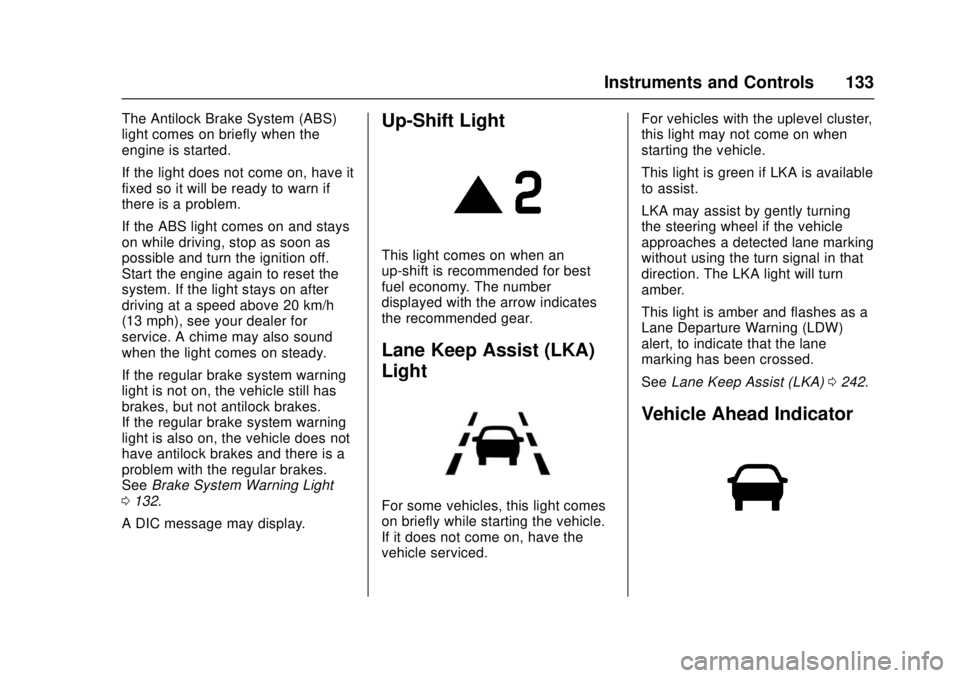
This light comes on when an
up-shift is recommended for best
fuel economy. The number
displayed with the arrow indicates
the recommended gear.
Lane Keep Assist (LKA)
Light
For some vehicles, this light comes
on briefly while starting the vehicle.
If it does not come on, have the
vehicle serviced. For vehicles with the uplevel cluster,
this light may not come on when
starting the vehicle.
This light is green if LKA is available
to assist.
LKA may assist by gently turning
the steering wheel if the vehicle
approaches a detected lane marking
without using the turn signal in that
direction. The LKA light will turn
amber.
This light is amber and flashes as a
Lane Departure Warning (LDW)
alert, to indicate that the lane
marking has been crossed.
See
Lane Keep Assist (LKA) 0242.
Vehicle Ahead Indicator
Page 142 of 404
Chevrolet Cruze Owner Manual (GMNA-Localizing-U.S./Canada/Mexico-
11348462) - 2018 - crc - 5/15/17
Instruments and Controls 141
recent distance on the right side.
Press and hold SET/CLR to clear
the graph.
Driver Information Center
(DIC) (Uplevel)
The DIC displays are shown in the
center of the instrument cluster in
the Info app. SeeInstrument Cluster
0 120. The displays show the status
of many vehicle systems. The
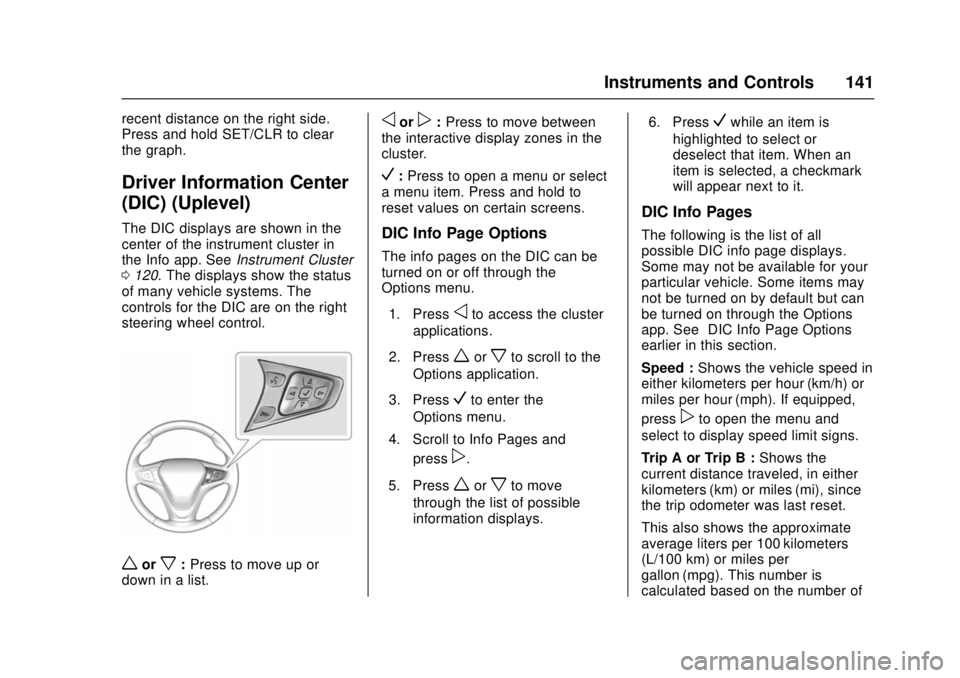
controls for the DIC are on the right
steering wheel control.
worx: Press to move up or
down in a list.
oorp: Press to move between
the interactive display zones in the
cluster.
V: Press to open a menu or select
a menu item. Press and hold to
reset values on certain screens.
DIC Info Page Options
The info pages on the DIC can be
turned on or off through the
Options menu.
1. Press
oto access the cluster
applications.
2. Press
worxto scroll to the
Options application.
3. Press
Vto enter the
Options menu.
4. Scroll to Info Pages and press
p.
5. Press
worxto move
through the list of possible
information displays. 6. Press
Vwhile an item is
highlighted to select or
deselect that item. When an
item is selected, a checkmark
will appear next to it.
DIC Info Pages
The following is the list of all
possible DIC info page displays.
Some may not be available for your
particular vehicle. Some items may
not be turned on by default but can
be turned on through the Options
app. See “DIC Info Page Options”
earlier in this section.
Speed : Shows the vehicle speed in
either kilometers per hour (km/h) or
miles per hour (mph). If equipped,
press
pto open the menu and
select to display speed limit signs.
Trip A or Trip B : Shows the
current distance traveled, in either
kilometers (km) or miles (mi), since
the trip odometer was last reset.
This also shows the approximate
average liters per 100 kilometers
(L/100 km) or miles per
gallon (mpg). This number is
calculated based on the number of
Page 147 of 404
Chevrolet Cruze Owner Manual (GMNA-Localizing-U.S./Canada/Mexico-
11348462) - 2018 - crc - 5/15/17
146 Instruments and Controls
Teen Driver
See“Teen Driver” under“Settings”
in the infotainment manual.
Valet Mode
This will lock the infotainment
system and steering wheel controls.
It may also limit access to vehicle
storage locations, if equipped.
To enable valet mode:
1. Enter a four-digit code on the keypad.
2. Select Enter to go to the confirmation screen.
3. Re-enter the four-digit code.
Touch Lock or Unlock to lock or
unlock the system. Touch Back to
go back to the previous menu.
Radio
Select and the following may
display:
. Manage Favorites
. Number of Favorites Shown
. Audible Touch Feedback
. Text Scroll .
Tone Settings
. Auto Volume
. Maximum Startup Volume
. Audio Cue Volume
Manage Favorites
This allows favorites to be edited.
See “Storing a Station as a
Favorite” inAM-FM Radio 0166 or
“Manage Favorites” in“Settings”
under “Radio” in the infotainment
manual.
Number of Favorites Shown
Select to set the number of favorites
to display.
Select the desired number or select
Auto and the infotainment system
will automatically adjust the number
of favorites shown.
Audible Touch Feedback
This allows Audible Touch
Feedback to be turned on or off.
Select Off or On. Text Scroll
Select to see text scroll on the
screen.
Select Off or On.
Tone Settings
Select to adjust the radio tone. See
Operation
0164 or“Tone Settings”
under “AM-FM Radio” in the
infotainment manual.
Auto Volume
This feature adjusts the volume
based on vehicle speed and
ambient noise.
Select Off, Low, Medium-Low,
Medium, Medium-High, or High.
Maximum Startup Volume
This feature sets the maximum
startup volume. If the vehicle is
started and the volume is greater
than this level, the volume is
adjusted to this level. To set the
maximum startup volume, turn the
MENU knob or touch + or −to
increase or decrease.
Page 154 of 404
Chevrolet Cruze Owner Manual (GMNA-Localizing-U.S./Canada/Mexico-
11348462) - 2018 - crc - 5/15/17
Lighting 153
Lighting
Exterior Lighting
Exterior Lamp Controls . . . . . . . 153
Headlamp High/Low-BeamChanger . . . . . . . . . . . . . . . . . . . . 155
Flash-to-Pass . . . . . . . . . . . . . . . . 155
Daytime Running Lamps (DRL) . . . . . . . . . . . . . . . 155
Automatic Headlamp System . . . . . . . . . . . . . . . . . . . . . . 155
Hazard Warning Flashers . . . . . 156
Turn and Lane-Change Signals . . . . . . . . . . . . . . . . . . . . . . 157
Fog Lamps . . . . . . . . . . . . . . . . . . . 157
Interior Lighting
Instrument Panel Illumination Control . . . . . . . . . . . . . . . . . . . . . . 158
Courtesy Lamps . . . . . . . . . . . . . . 158
Dome Lamps . . . . . . . . . . . . . . . . . 158
Reading Lamps . . . . . . . . . . . . . . 158
Lighting Features
Entry Lighting . . . . . . . . . . . . . . . . 159
Exit Lighting . . . . . . . . . . . . . . . . . . 159
Battery Power Protection . . . . . 160
Exterior Lighting Battery Saver . . . . . . . . . . . . . . . . . . . . . . . 160
Exterior Lighting
Exterior Lamp Controls
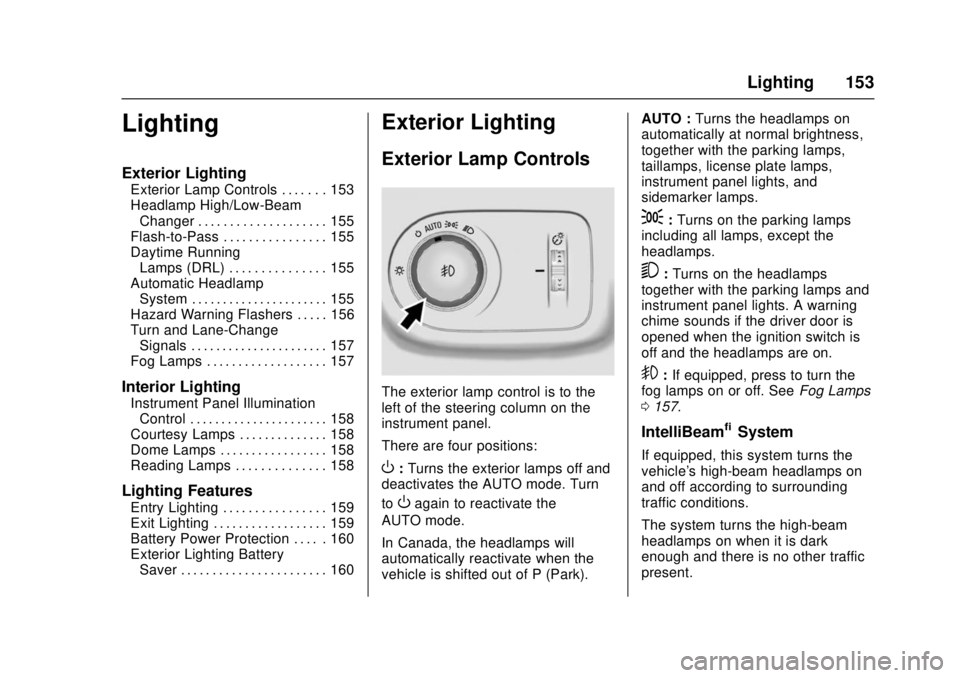
The exterior lamp control is to the
left of the steering column on the
instrument panel.
There are four positions:
O: Turns the exterior lamps off and
deactivates the AUTO mode. Turn
to
Oagain to reactivate the
AUTO mode.
In Canada, the headlamps will
automatically reactivate when the
vehicle is shifted out of P (Park). AUTO :
Turns the headlamps on
automatically at normal brightness,
together with the parking lamps,
taillamps, license plate lamps,
instrument panel lights, and
sidemarker lamps.
;: Turns on the parking lamps
including all lamps, except the
headlamps.
5: Turns on the headlamps
together with the parking lamps and
instrument panel lights. A warning
chime sounds if the driver door is
opened when the ignition switch is
off and the headlamps are on.
9: If equipped, press to turn the
fog lamps on or off. See Fog Lamps
0 157.
IntelliBeam®System
If equipped, this system turns the
vehicle's high-beam headlamps on
and off according to surrounding
traffic conditions.
The system turns the high-beam
headlamps on when it is dark
enough and there is no other traffic
present.
Page 158 of 404
Chevrolet Cruze Owner Manual (GMNA-Localizing-U.S./Canada/Mexico-
11348462) - 2018 - crc - 5/15/17
Lighting 157
Turn and Lane-Change
Signals
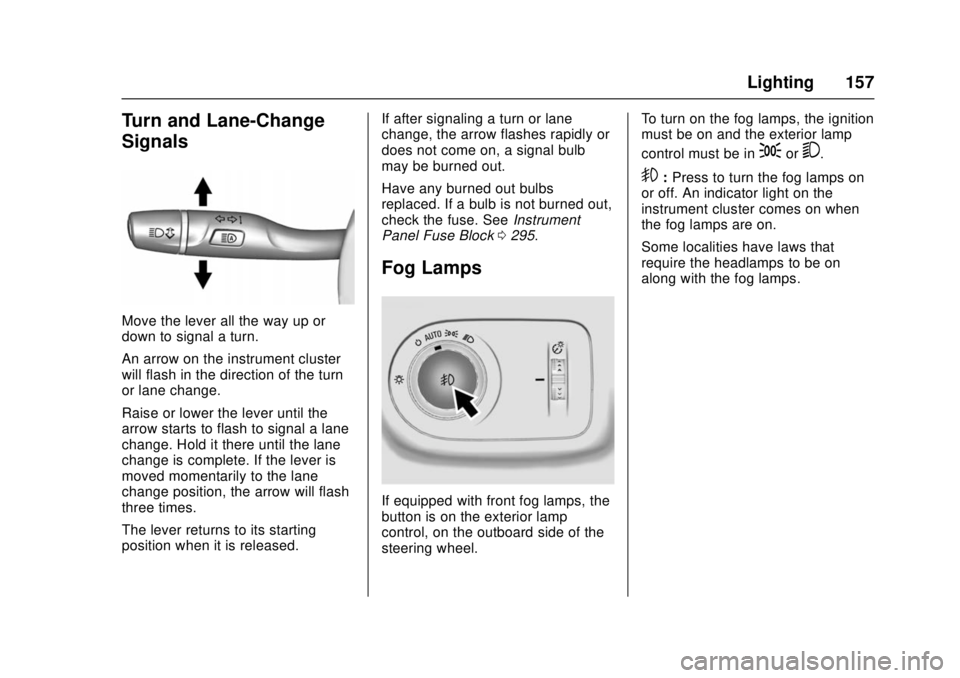
Move the lever all the way up or
down to signal a turn.
An arrow on the instrument cluster
will flash in the direction of the turn
or lane change.
Raise or lower the lever until the
arrow starts to flash to signal a lane
change. Hold it there until the lane
change is complete. If the lever is
moved momentarily to the lane
change position, the arrow will flash
three times.
The lever returns to its starting
position when it is released.If after signaling a turn or lane
change, the arrow flashes rapidly or
does not come on, a signal bulb
may be burned out.
Have any burned out bulbs
replaced. If a bulb is not burned out,
check the fuse. See
Instrument
Panel Fuse Block 0295.
Fog Lamps
If equipped with front fog lamps, the
button is on the exterior lamp
control, on the outboard side of the
steering wheel. To turn on the fog lamps, the ignition
must be on and the exterior lamp
control must be in
;or5.
9:
Press to turn the fog lamps on
or off. An indicator light on the
instrument cluster comes on when
the fog lamps are on.
Some localities have laws that
require the headlamps to be on
along with the fog lamps.
Page 163 of 404
Chevrolet Cruze Owner Manual (GMNA-Localizing-U.S./Canada/Mexico-
11348462) - 2018 - crc - 5/15/17
162 Infotainment System
functions may gray out when they
are unavailable. Many infotainment
features are also available through
the instrument cluster and steering
wheel controls.
Before driving:
.Become familiar with the
operation, center stack controls,
and infotainment display
controls.
. Set up the audio by presetting
favorite stations, setting the
tone, and adjusting the
speakers.
. Set up phone numbers in
advance so they can be called
easily by pressing a single
control or by using a single voice
command if equipped with
Bluetooth phone capability.
See Defensive Driving 0197.
To play the infotainment system with
the ignition off, see Retained
Accessory Power (RAP) 0215.Theft-Deterrent Feature
The infotainment system has an
electronic security system installed
to prevent theft.
The infotainment system only works
in the vehicle in which it was first
installed, and cannot be used in
another vehicle.
Page 165 of 404
Chevrolet Cruze Owner Manual (GMNA-Localizing-U.S./Canada/Mexico-
11348462) - 2018 - crc - 5/15/17
164 Infotainment System
4.d
.Radio: Press and release to
go to the next station or
channel. Press and hold to
fast seek the next track or
strongest station or
channel.
. USB/Music/Pictures: Press
to go to the next content.
Press and hold to fast
forward.
5.
5
. Press and release to
access the phone screen,
answer an incoming call,
or access the device home
screen.
Home Page
Infotainment Display Buttons
Infotainment display controls on the
screen when available. When a
function is unavailable, the function
may gray out. When a function is
selected, the function may highlight.
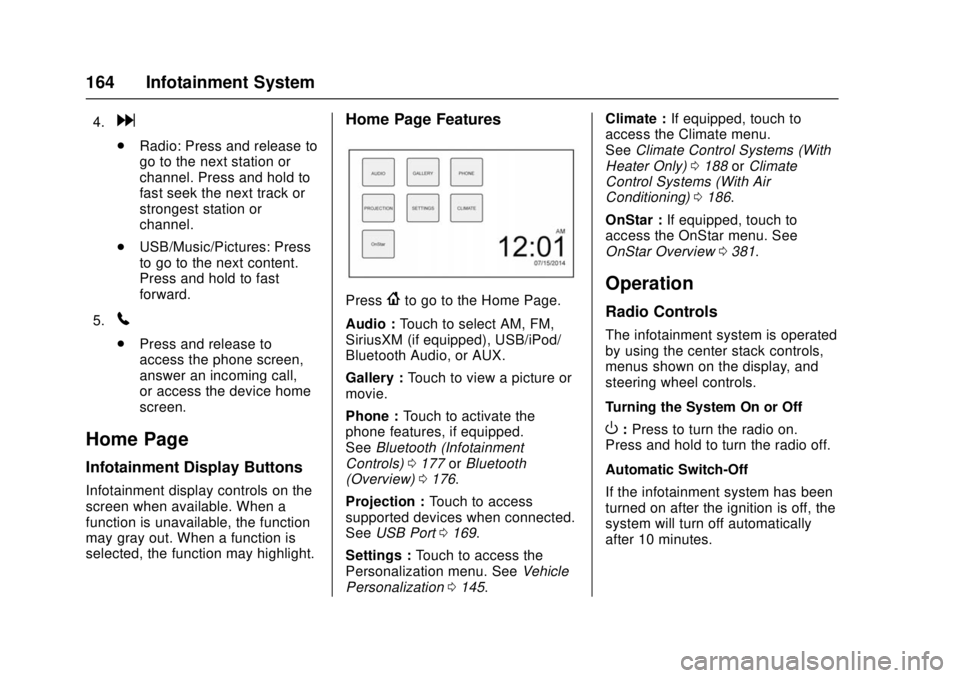
Home Page Features
Press{to go to the Home Page.
Audio : Touch to select AM, FM,
SiriusXM (if equipped), USB/iPod/
Bluetooth Audio, or AUX.
Gallery : Touch to view a picture or
movie.
Phone : Touch to activate the
phone features, if equipped.
See Bluetooth (Infotainment
Controls) 0177 orBluetooth
(Overview) 0176.
Projection : Touch to access
supported devices when connected.
See USB Port 0169.
Settings : Touch to access the
Personalization menu. See Vehicle
Personalization 0145. Climate :
If equipped, touch to
access the Climate menu.
See Climate Control Systems (With
Heater Only) 0188 orClimate
Control Systems (With Air
Conditioning) 0186.
OnStar : If equipped, touch to
access the OnStar menu. See
OnStar Overview 0381.Operation
Radio Controls
The infotainment system is operated
by using the center stack controls,
menus shown on the display, and
steering wheel controls.
Turning the System On or Off
O:Press to turn the radio on.
Press and hold to turn the radio off.
Automatic Switch-Off
If the infotainment system has been
turned on after the ignition is off, the
system will turn off automatically
after 10 minutes.
Page 177 of 404
Chevrolet Cruze Owner Manual (GMNA-Localizing-U.S./Canada/Mexico-
11348462) - 2018 - crc - 5/15/17
176 Infotainment System
Phone
Bluetooth (Overview)
If equipped with Bluetooth capability,
the system can interact with many
Bluetooth phones, PDAs, or other
devices to:
.Place and receive hands-free
calls.
. Transmit hands-free data.
. Play audio streaming files.
The device must be paired first. See
“Pairing” later in this section.
To minimize driver distraction,
before driving, and with the vehicle
parked:
. Become familiar with the
features of the cell phone.
Organize the phone book and
contact lists clearly and delete
duplicate or rarely used entries.
If possible, program speed dial
or other shortcuts.
. Review the controls and
operation of the infotainment
system. .
Pair cell phone(s) to the vehicle.
The system may not work with
all cell phones. See “Pairing”
later in this section.
{Warning
When using a cell phone, it can
be distracting to look too long or
too often at the screen of the
phone or the infotainment system.
Taking your eyes off the road too
long or too often could cause a
crash resulting in injury or death.
Focus your attention on driving.
Vehicles with a Bluetooth system
can use a Bluetooth-capable cell
phone with a Hands-Free Profile to
make and receive phone calls. The
infotainment system is used to
control the system. The system can
be used while the ignition is on or in
ACC/ACCESSORY.
See Ignition Positions (Key Access)
0 206 orIgnition Positions (Keyless
Access) 0208. Not all phones
support all functions and not all
phones work with the Bluetooth
system. See www.gm.com/bluetooth for more information about
compatible phones in the U.S. and
Canada only.
There may be restrictions on using
Bluetooth wireless technology in
some locations.
Due to the variety of Bluetooth
devices and their firmware versions,
the device may respond differently
when performing over Bluetooth.
Refer to the cell phone
manufacturer
’s user guide for
questions about the phone's
Bluetooth functionality.
Bluetooth Controls
For vehicles equipped with
Bluetooth capability, use the buttons
on the infotainment system and the
steering wheel to operate the
system.
Steering Wheel Controls
See Steering Wheel Controls 0110.
Page 178 of 404
Chevrolet Cruze Owner Manual (GMNA-Localizing-U.S./Canada/Mexico-
11348462) - 2018 - crc - 5/15/17
Infotainment System 177
Bluetooth (Infotainment
Controls)
To use infotainment controls to
access the menu system, see
Overview0163.
Pairing
A Bluetooth-enabled cell phone
must be paired to the Bluetooth
system and then connected to the
vehicle before it can be used. See
your cell phone manufacturer's user
guide for Bluetooth functions before
pairing the cell phone. If a Bluetooth
phone is not connected, calls will be
made using OnStar Hands-Free
Calling, if available. See OnStar
Overview 0381.
Pairing Information
. A Bluetooth phone with MP3
capability cannot be paired to
the vehicle as a phone and an
MP3 player at the same time.
. Up to 10 cell phones can be
paired to the Bluetooth system.
. The pairing process is disabled
when the vehicle is moving. .
Pairing only needs to be
completed once, unless the
pairing information on the cell
phone changes or the cell phone
is deleted from the system.
. Only one paired cell phone can
be connected to the Bluetooth
system at a time.
. If multiple paired cell phones are
within range of the system, the
system connects to the first
available paired cell phone in the
order that they were first paired.
When the Bluetooth device and
infotainment system are
successfully paired, the phone book
is downloaded automatically. This is
dependent on the type of phone
paired. If the automatic download
does not occur, proceed with the
phone book download on the
phone.
Pairing a Phone –SSP and No
Paired Device
When there is no paired device on
the infotainment system and Simple
Secure Pairing (SSP) is supported:
1. Press
{. 2. Touch Phone, press
5on the
center stack, or press
b/gon
the steering wheel without
OnStar.
3. Touch Search Device.
4. Touch the desired device to pair on the searched list
screen.
5. Touch Yes on the pop-up screen of the Bluetooth device
and infotainment system.
6. When the Bluetooth device and infotainment system are
successfully paired, the phone
screen is displayed on the
infotainment system.
Pairing a Phone –SSP and Paired
Device
When a paired device is on the
infotainment system and SSP is
supported:
1. Press
{.
2. Touch Settings.
3. Touch Bluetooth, then Device Management.
Page 179 of 404
Chevrolet Cruze Owner Manual (GMNA-Localizing-U.S./Canada/Mexico-
11348462) - 2018 - crc - 5/15/17
178 Infotainment System
4. Touch the desired device topair. When the Bluetooth
device and infotainment system
are successfully paired,
Z/5
is displayed on the pair device
screen. If no desired device is
available go to Step 5.
5. Touch Search Device to search for the desired device.
6. Touch the desired device to pair on the searched list
screen.
7. Touch Yes on the pop-up screen of the Bluetooth device
and infotainment system.
. The connected phone is
highlighted by
5.
.
Z/5indicates the hands-free
and phone music functions are
enabled.
.
5indicates only the hands-free
function is enabled.
.
Zindicates only Bluetooth
music is enabled. Pairing a Phone
–No SSP and No
Paired Device
When there is no paired device on
the infotainment system and SSP is
not supported:
1. Press
{.
2. Touch Phone, press
5on the
center stack, or press
b/gon
the steering wheel without
OnStar.
3. Touch Search Device.
4. Touch the desired device to pair on the searched list
screen.
5. Input the Personal Identification Number (PIN)
code (default: 1234) to the
Bluetooth device. When the
Bluetooth device and
infotainment system are
successfully paired, the
PHONE screen is displayed on
the infotainment system.
When the connection fails, a failure
message is displayed on the
infotainment system. If a Bluetooth device was previously
connected, the infotainment system
executes the auto connection.
However, if the Bluetooth setting on
the Bluetooth device is turned off, a
failure message is displayed on the
infotainment system.
Pairing a Phone
–No SSP and
Paired Device
When a paired device is on the
infotainment system and SSP is not
supported:
1. Press
{.
2. Touch Settings.
3. Touch Bluetooth, then Device Management.
4. Touch the desired device to pair. When the Bluetooth
device and infotainment system
are successfully paired,
Z/5
is displayed on the pair device
screen. If no desired device is
available go to Step 5.
5. Touch Search Device to search for the desired device.