ad blue CHEVROLET CRUZE 2019 Owner's Manual
[x] Cancel search | Manufacturer: CHEVROLET, Model Year: 2019, Model line: CRUZE, Model: CHEVROLET CRUZE 2019Pages: 20, PDF Size: 2.8 MB
Page 8 of 20
8
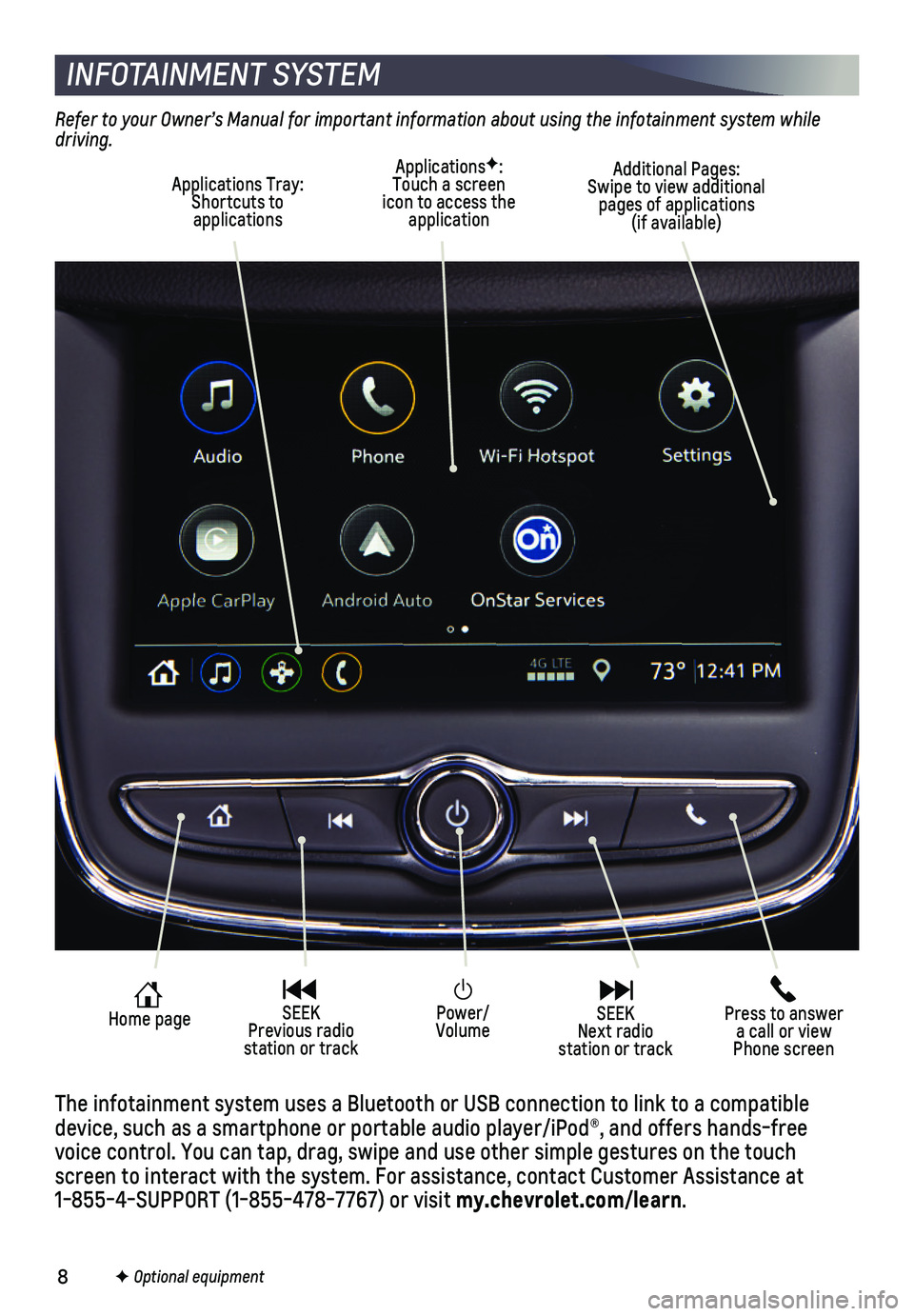
Power/Volume
Press to answer a call or view Phone screen
Home page SEEK Previous radio station or track
SEEK Next radio station or track
INFOTAINMENT SYSTEM
Refer to your Owner’s Manual for important information about using the infotainment system while driving.
F Optional equipment
The infotainment system uses a Bluetooth or USB connection to link to a \
compatible device, such as a smartphone or portable audio player/iPod®, and offe\
rs hands-free voice control. You can tap, drag, swipe and use other simple gestures on\
the touch screen to interact with the system. For assistance, contact Customer Ass\
istance at 1-855-4-SUPPORT (1-855-478-7767) or visit my.chevrolet.com/learn.
ApplicationsF: Touch a screen icon to access the application
Applications Tray: Shortcuts to applications
Additional Pages: Swipe to view additional pages of applications (if available)
Page 10 of 20

10
Refer to your Owner’s Manual for important information about using the Bluetooth system while driving.
Before using a Bluetooth-enabled device in the vehicle, it must be paire\
d with the in- vehicle Bluetooth system. The pairing process is disabled when the vehic\
le is moving. Not all devices will support all functions. Visit my.chevrolet.com/learn for more information.
PAIR A PHONE
1. To use voice recognition, press the
Push to Talk button; after the beep, say “Pair phone,” or use the Phone but-ton or touch the Phone icon and then select Connect Phones > Add Phone.
2. Start the pairing process on the phone. From your phone’s Bluetooth settings, select the name shown on the infotain-ment screen.
3. Confirm the codes that appear on the infotainment screen and the phone\
.
4. When pairing is complete, the phone screen is displayed on the infotainm\
ent system. Depending on the phone, the phone book is downloaded automatically.
See your Infotainment System Manual.
BLUETOOTH® SYSTEM
APPLE CARPLAY
Apple CarPlay capability is available through a compatible smartphone us\
ing the Apple CarPlay icon on the Home page of the infotainment system. No app is requ\
ired.
1. Connect your compatible phone by plugging the Lightning cable into a USB\
data port. Use your device’s factory-provided Lightning cable. Aftermarket cable\
s may not work.
2. The Apple CarPlay icon will illuminate. Touch the Apple CarPlay icon to \
have your apps displayed.
ANDROID AUTO
Android Auto capability is available through a compatible smartphone usi\
ng the Android Auto icon on the Home page of the infotainment system.
1. Download the Android Auto app to your phone from the Google Play Store.
2. Connect your compatible phone by plugging the phone USB cable into a USB\
data port. Use your device’s factory-provided USB cable. Aftermarket cables may \
not work.
3. The Android Auto icon will illuminate. Touch the Android Auto icon to ha\
ve your apps displayed.
See your Infotainment System Manual.
INFOTAINMENT SYSTEM
F Optional equipment
Page 11 of 20
11F Optional equipment
AUDIO STEERING WHEEL CONTROLSF
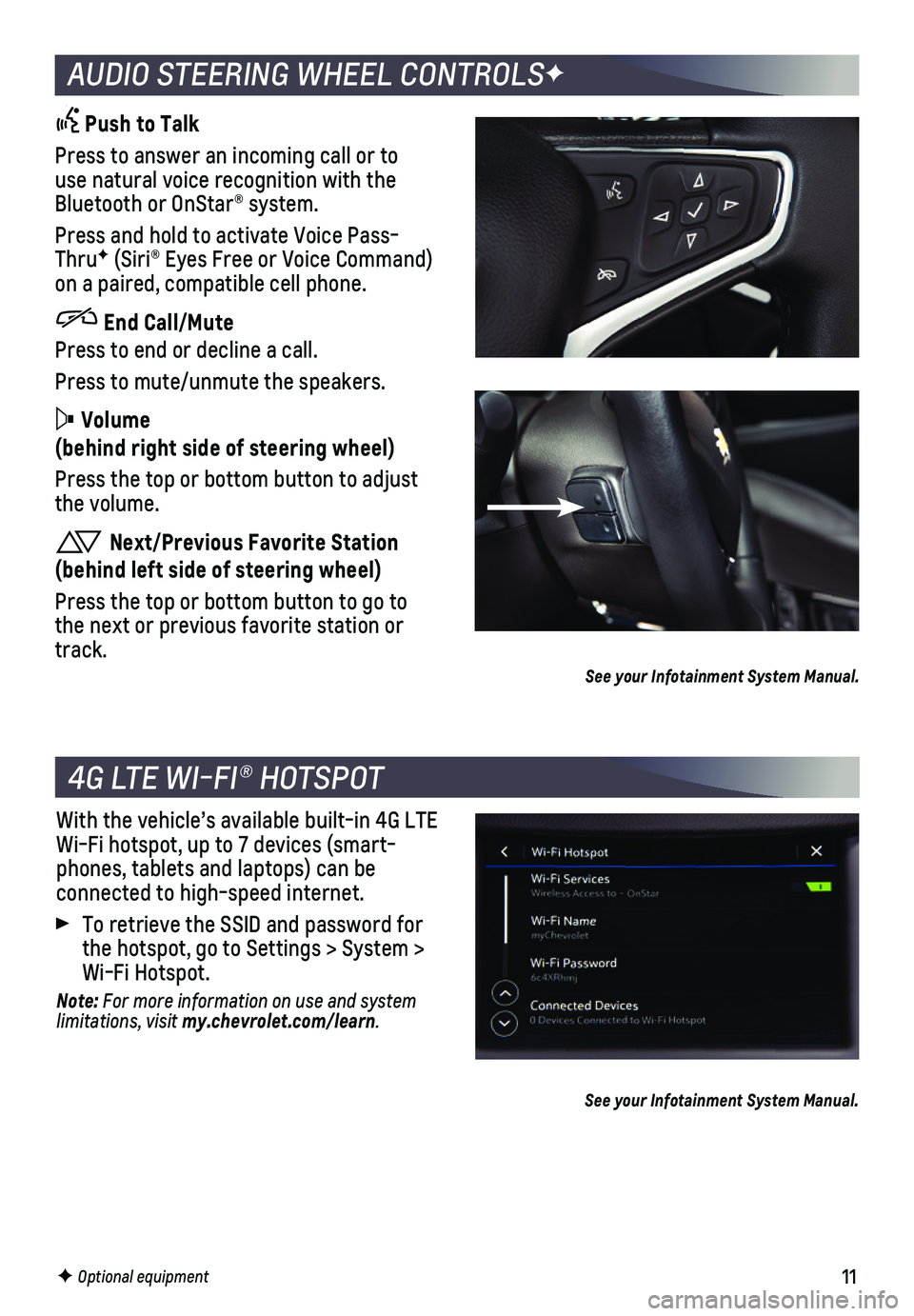
Push to Talk
Press to answer an incoming call or to use natural voice recognition with the Bluetooth or OnStar® system.
Press and hold to activate Voice Pass-ThruF (Siri® Eyes Free or Voice Command) on a paired, compatible cell phone.
End Call/Mute
Press to end or decline a call.
Press to mute/unmute the speakers.
Volume
(behind right side of steering wheel)
Press the top or bottom button to adjust the volume.
Next/Previous Favorite Station
(behind left side of steering wheel)
Press the top or bottom button to go to the next or previous favorite station or track.See your Infotainment System Manual.
4G LTE WI-FI® HOTSPOT
With the vehicle’s available built-in 4G LTE Wi-Fi hotspot, up to 7 devices (smart-phones, tablets and laptops) can be
connected to high-speed internet.
To retrieve the SSID and password for the hotspot, go to Settings > System > Wi-Fi Hotspot.
Note: For more information on use and system limitations, visit my.chevrolet.com/learn.
See your Infotainment System Manual.
Page 20 of 20
 TTY Users: 1-888-889-2438
As the owner of a new Chevrolet, you are automatically enrolled in the C\
hevrolet Roadside Assistance")
20
ROADSIDE ASSISTANCE
1-800-CHEV-USA (1-800-243-8872) TTY Users: 1-888-889-2438
As the owner of a new Chevrolet, you are automatically enrolled in the C\
hevrolet Roadside Assistance program for up to 5 years/60,000 miles, whichever oc\
curs first, at no expense to you. Chevrolet’s Roadside Assistance toll-free numbe\
r is staffed by a team of trained advisors who are available 24 hours a day, 365 days a ye\
ar, to contact a service provider for light services (fuel delivery, jump-starts, flat\
tire and lock-outs) or make arrangements to tow your vehicle to the nearest Chevrolet dealer fo\
r any repairs.
OnStar Roadside Assistance
If you have a current OnStar Safety & Security plan, push the blue OnStar button or red Emergency button to get the help you need. An OnStar advisor will use GPS technol\
ogy to pinpoint your vehicle location and contact the nearest service provid\
er.
To learn more about OnStar services, press the blue OnStar button, visit onstar.com, call 1-888-4-ONSTAR (1-888-466-7827), or refer to your Owner’s Manual.
CHEVROLET OWNER CENTER
Get to know your vehicle inside and out with the Chevrolet Owner Center.\
Check out personalized information, including an online Owner’s Manual and help\
ful how-to videos, track your service history and warranty status, manage your OnStar and C\
onnected Services vehicle plans, review your current Vehicle Diagnostics report (\
active service required) and more. Create an account today at my.chevrolet.com.
Download the myChevrolet app to your compatible smartphone (or device)\
and, if your vehicle is properly equipped, you can start or turn off your engine, loc\
k or unlock your doors, view key diagnostic information, set parking information and more\
.
The app is available on select Apple and Android devices. Service availa\
bility, features and functionality vary by vehicle, device and data plan. Device data con\
nection required. Visit onstar.com for more details. Download the mobile app from your compatible mobile device’s app store.
84169516 A!84169516=A!
Certain restrictions, precautions and safety procedures apply to your ve\
hicle. Please read your Owner’s Manual for complete instructions. All information contained in this guide is ba\
sed on the latest information available at the time of printing and is subject to change without notice. Copyright \
2018 General Motors. All rights reserved.
We recommend always using ACDelco or genuine GM service parts.
MYCHEVROLET MOBILE APP