display CHEVROLET CRUZE HATCHBACK 2017 User Guide
[x] Cancel search | Manufacturer: CHEVROLET, Model Year: 2017, Model line: CRUZE HATCHBACK, Model: CHEVROLET CRUZE HATCHBACK 2017Pages: 405, PDF Size: 6.76 MB
Page 41 of 405
Chevrolet Cruze Owner Manual (GMNA-Localizing-U.S./Canada/Mexico-
9803785) - 2017 - CRC - 4/13/16
40 Keys, Doors, and Windows
6. Return the vehicle key backinto the transmitter.
Programming without Recognized
Transmitters (Keyless Access
Vehicles Only)
If two currently recognized
transmitters are not available, follow
this procedure to program up to
eight transmitters. This feature is
not available in Canada. This
procedure will take approximately
30 minutes to complete. The vehicle
must be off and all of the
transmitters you wish to program
must be with you. 1. Remove the key lock cylinder cap on the driver door handle.
See Door Locks 044. Insert
the vehicle key of the
transmitter into the key lock
cylinder on the outside of the
driver door and turn the key to
the unlock position five times
within 10 seconds. The Driver Information Center
(DIC) displays REMOTE
LEARN PENDING,
PLEASE WAIT.
2. Wait for 10 minutes until the DIC displays PRESS ENGINE
START BUTTON TO LEARN
and then press ENGINE
START/STOP.
The DIC displays will again
show REMOTE LEARN
PENDING, PLEASE WAIT.
3. Repeat Step 2 two additional times. After the third time all
previously known transmitters
will no longer work with the
vehicle. Remaining transmitters
can be relearned during the
next steps.
The DIC display should now
show READY FOR REMOTE
# 1.
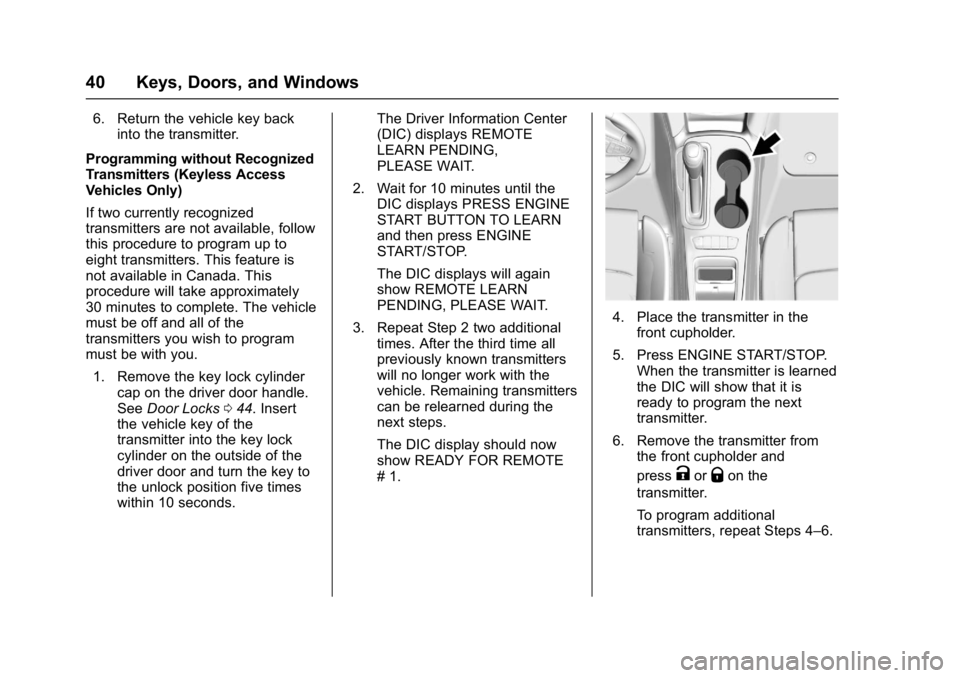
4. Place the transmitter in thefront cupholder.
5. Press ENGINE START/STOP. When the transmitter is learned
the DIC will show that it is
ready to program the next
transmitter.
6. Remove the transmitter from the front cupholder and
press
KorQon the
transmitter.
To program additional
transmitters, repeat Steps 4–6.
Page 42 of 405
Chevrolet Cruze Owner Manual (GMNA-Localizing-U.S./Canada/Mexico-
9803785) - 2017 - CRC - 4/13/16
Keys, Doors, and Windows 41
When all additional transmitters
are programmed, press and
hold ENGINE START/STOP for
12 seconds to exit
programming mode.
7. Return the vehicle key back into the transmitter.
Starting the Vehicle with a Low
Transmitter Battery
If the transmitter battery is weak or if
there is interference with the signal
when tying to start the vehicle, the
DIC may display NO REMOTE
DETECTED or NO REMOTE KEY
WAS DETECTED PLACE KEY IN
TRANSMITTER POCKET THEN
START YOUR VEHICLE. The
REPLACE BATTERY IN REMOTE
KEY message may also be
displayed at this time.
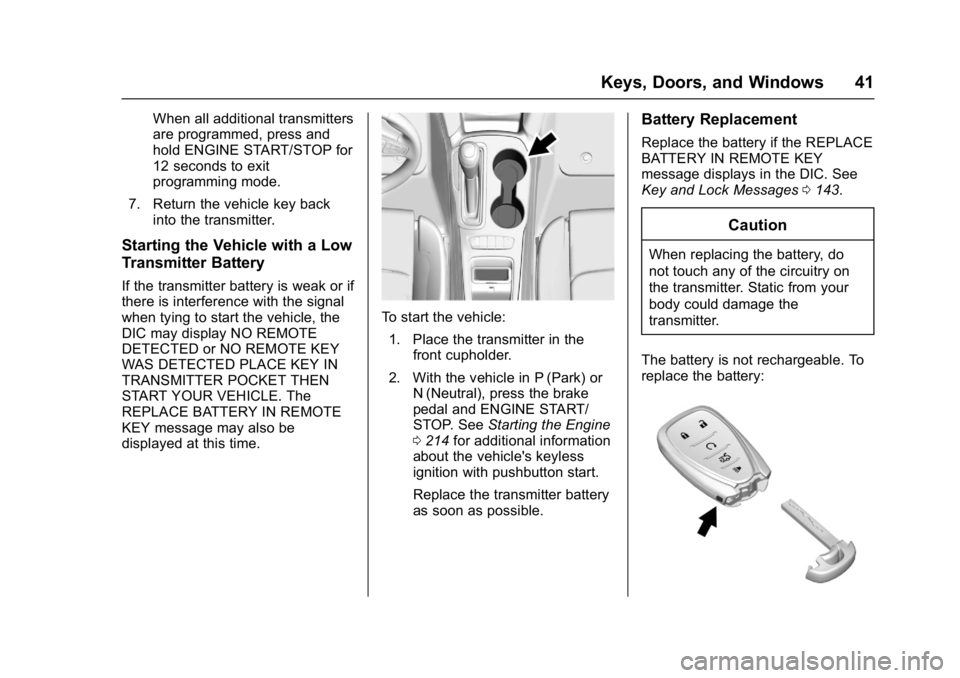
To start the vehicle:
1. Place the transmitter in the front cupholder.
2. With the vehicle in P (Park) or N (Neutral), press the brake
pedal and ENGINE START/
STOP. See Starting the Engine
0 214 for additional information
about the vehicle's keyless
ignition with pushbutton start.
Replace the transmitter battery
as soon as possible.
Battery Replacement
Replace the battery if the REPLACE
BATTERY IN REMOTE KEY
message displays in the DIC. See
Key and Lock Messages 0143.
Caution
When replacing the battery, do
not touch any of the circuitry on
the transmitter. Static from your
body could damage the
transmitter.
The battery is not rechargeable. To
replace the battery:
Page 108 of 405
Chevrolet Cruze Owner Manual (GMNA-Localizing-U.S./Canada/Mexico-
9803785) - 2017 - CRC - 4/13/16
Instruments and Controls 107
Instruments and
Controls
Controls
Steering Wheel Adjustment . . . 108
Steering Wheel Controls . . . . . . 108
Heated Steering Wheel . . . . . . . 109
Horn . . . . . . . . . . . . . . . . . . . . . . . . . . 109
Windshield Wiper/Washer . . . . 109
Compass . . . . . . . . . . . . . . . . . . . . . 110
Clock . . . . . . . . . . . . . . . . . . . . . . . . . 111
Power Outlets . . . . . . . . . . . . . . . . 112
Wireless Charging . . . . . . . . . . . . 114
Warning Lights, Gauges, and
Indicators
Warning Lights, Gauges, andIndicators . . . . . . . . . . . . . . . . . . . 115
Instrument Cluster . . . . . . . . . . . . 116
Speedometer . . . . . . . . . . . . . . . . . 121
Odometer . . . . . . . . . . . . . . . . . . . . . 121
Trip Odometer . . . . . . . . . . . . . . . . 121
Tachometer . . . . . . . . . . . . . . . . . . . 121
Fuel Gauge . . . . . . . . . . . . . . . . . . . 122
Engine Coolant Temperature Gauge . . . . . . . . . . . . . . . . . . . . . . 123
Safety Belt Reminders . . . . . . . . 124
Airbag Readiness Light . . . . . . . 125 Passenger Airbag Status
Indicator . . . . . . . . . . . . . . . . . . . . 125
Charging System Light . . . . . . . 126
Malfunction Indicator Lamp . . . 126
Brake System Warning Light . . . . . . . . . . . . . . . . . . . . . . . . 128
Antilock Brake System (ABS) Warning Light . . . . . . . . . . . . . . . 129
Up-Shift Light . . . . . . . . . . . . . . . . . 129
Lane Keep Assist (LKA) Light . . . . . . . . . . . . . . . . . . . . . . . . 129
Vehicle Ahead Indicator . . . . . . 130
Traction Off Light . . . . . . . . . . . . . 130
StabiliTrak
®OFF Light . . . . . . . . 130
Traction Control System (TCS)/ StabiliTrak
®Light . . . . . . . . . . . 131
Wait-to-Start Light . . . . . . . . . . . . 131
Tire Pressure Light . . . . . . . . . . . 131
Engine Oil Pressure Light . . . . 132
Low Fuel Warning Light . . . . . . 132
Diesel Exhaust Fluid (DEF) Warning Light . . . . . . . . . . . . . . . 132
Security Light . . . . . . . . . . . . . . . . . 133
High-Beam On Light . . . . . . . . . . 133
Front Fog Lamp Light . . . . . . . . . 133
Lamps On Reminder . . . . . . . . . 133
Cruise Control Light . . . . . . . . . . 133
Door Ajar Light . . . . . . . . . . . . . . . 134
Information Displays
Driver Information Center (DIC) (Base Level) . . . . . . . . . . . . . . . . 134
Driver Information Center (DIC) (Uplevel) . . . . . . . . . . . . . . . . . . . . 137
Vehicle Messages
Vehicle Messages . . . . . . . . . . . . 140
Battery Voltage and ChargingMessages . . . . . . . . . . . . . . . . . . . 140
Brake System Messages . . . . . 140
Compass Messages . . . . . . . . . . 140
Cruise Control Messages . . . . . 141
Door Ajar Messages . . . . . . . . . . 141
Engine Cooling System Messages . . . . . . . . . . . . . . . . . . . 141
Engine Oil Messages . . . . . . . . . 142
Engine Power Messages . . . . . 142
Fuel System Messages . . . . . . . 142
Diesel Exhaust Fluid Messages . . . . . . . . . . . . . . . . . . . 142
Diesel Particulate Filter Messages . . . . . . . . . . . . . . . . . . . 143
Key and Lock Messages . . . . . 143
Lamp Messages . . . . . . . . . . . . . . 144
Object Detection System Messages . . . . . . . . . . . . . . . . . . . 144
Ride Control System Messages . . . . . . . . . . . . . . . . . . . 146
Airbag System Messages . . . . 146
Safety Belt Messages . . . . . . . . 146
Page 110 of 405
Chevrolet Cruze Owner Manual (GMNA-Localizing-U.S./Canada/Mexico-
9803785) - 2017 - CRC - 4/13/16
Instruments and Controls 109
c:Press to reject an incoming
call or end a current call. Press to
mute or unmute the infotainment
system when not on a call.
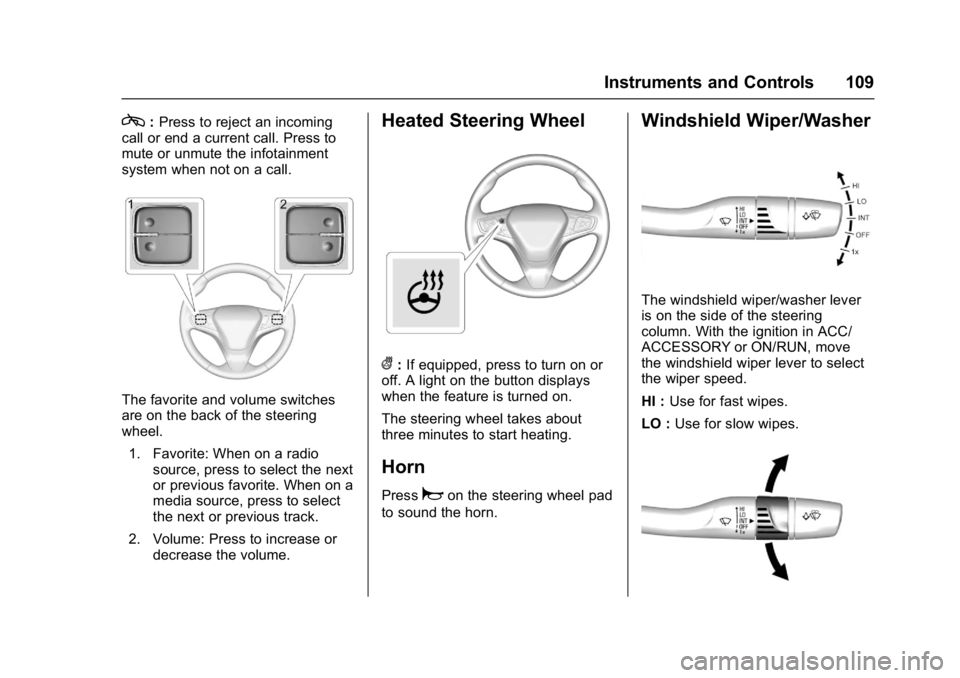
The favorite and volume switches
are on the back of the steering
wheel.
1. Favorite: When on a radio source, press to select the next
or previous favorite. When on a
media source, press to select
the next or previous track.
2. Volume: Press to increase or decrease the volume.
Heated Steering Wheel
(:If equipped, press to turn on or
off. A light on the button displays
when the feature is turned on.
The steering wheel takes about
three minutes to start heating.
Horn
Pressaon the steering wheel pad
to sound the horn.
Windshield Wiper/Washer
The windshield wiper/washer lever
is on the side of the steering
column. With the ignition in ACC/
ACCESSORY or ON/RUN, move
the windshield wiper lever to select
the wiper speed.
HI : Use for fast wipes.
LO : Use for slow wipes.
Page 111 of 405
Chevrolet Cruze Owner Manual (GMNA-Localizing-U.S./Canada/Mexico-
9803785) - 2017 - CRC - 4/13/16
110 Instruments and Controls
INT :Move the lever up to INT for
intermittent wipes, then adjust the
band to control the frequency of
wipes.
OFF : Use to turn the wipers off.
1X : For a single wipe, briefly move
the lever down. For several wipes,
hold the lever down.
Clear snow and ice from the wiper
blades and windshield before using
them. If frozen to the windshield,
carefully loosen or thaw them.
Damaged blades should be
replaced. See Wiper Blade
Replacement 0288.
Heavy snow or ice can overload the
wiper motor. If the wiper motor
overheats, the windshield wipers will
stop until the motor cools and the
wiper control is turned off. See
Electrical System Overload 0293.
Wiper Parking
If the vehicle is turned to LOCK/OFF
while the wipers are on LO, HI, or
INT, they will immediately stop. If the windshield wiper lever is then
moved to OFF before the driver
door is opened or within 10 minutes,
the wipers will restart and move to
the base of the windshield.
If the vehicle is turned to LOCK/OFF
while the wipers are performing
wipes due to windshield washing,
the wipers continue to run until they
reach the base of the windshield.
f:
Pull the windshield wiper
lever toward you to spray windshield
washer fluid and activate the wipers.
The wipers will continue until the
lever is released or the maximum
wash time is reached. When the
lever is released, additional wipes
may occur depending on how long
the windshield washer had been
activated. See Washer Fluid0282
for information on filling the
windshield washer fluid reservoir.
{Warning
In freezing weather, do not use
the washer until the windshield is
warmed. Otherwise the washer
fluid can form ice on the
windshield, blocking your vision.
Compass
The vehicle may have a compass
display in the Driver Information
Center (DIC). The compass receives
its heading and other information
from the Global Positioning
System (GPS) antenna, StabiliTrak,
and vehicle speed information.
Avoid covering the GPS antenna,
located on the roof, for long periods
of time with objects that may
interfere with the antenna's ability to
receive a satellite signal. The
compass system is designed to
operate for a certain number of
miles or degrees of turn before
needing a signal from the GPS
satellites. When the compass
display shows CAL, drive the
vehicle for a short distance in an
Page 112 of 405
Chevrolet Cruze Owner Manual (GMNA-Localizing-U.S./Canada/Mexico-
9803785) - 2017 - CRC - 4/13/16
Instruments and Controls 111
open area where it can receive a
GPS signal. The compass system
will automatically determine when
the GPS signal is restored and
provide a heading again. See
Compass Messages0140 for more
information on the messages that
may be displayed for the compass.
Clock
Base Radio
The infotainment system controls
are used to access the time and
date settings through the menu
system. See Operation0169 on
how to use the menu system.
Setting the Time and Date
When Auto Set is enabled the time
cannot be manually set.
1. Press
{, then touch
SETTINGS.
2. Touch Time and Date, then Set Time or Set Date.
3. Touch + or −to adjust the
value. 4. Touch
RorQto adjust AM or
PM for 12 hour format.
5. Touch
0.
Using Auto Set
1. Press{, then touch
SETTINGS.
2. Touch Time and Date, then Auto Set.
3. Select from the available selections.
4. Touch
0.
Setting the 12/24 Hour Format
1. Press{, then touch
SETTINGS.
2. Touch Time and Date, then select 12h or 24h format.
3. Touch
0.
Setting the Month and Day
Format
1. Press{, then touch
SETTINGS. 2. Touch Time and Date, then Set
Date Format.
3. Select DD/MM/YYYY (day/ month/year), MM/DD/YYYY
(month/day/year), or YYYY/
MM/DD (year/month/day)
format.
4. Touch
0.
Uplevel Radio Using Faceplate
Controls
To set the time or date: 1. Select Home Page, then select SETTINGS.
2. Select Time and Date, then the desired function.
3. Turn the MENU knob to increase or decrease the value.
4. Press the MENU knob to go to the next value. After the last
value is selected, the system
will update and return to the
Settings menu. Press
oBACK
to go to the last menu and
save the changes.
Auto Set requires an OnStar
subscription.
Page 113 of 405
Chevrolet Cruze Owner Manual (GMNA-Localizing-U.S./Canada/Mexico-
9803785) - 2017 - CRC - 4/13/16
112 Instruments and Controls
If auto timing is set, the time
displayed on the clock may not
update immediately when driving
into a new time zone.
To set the clock display:1. Select SETTINGS from the Home Page, then select Time
and Date.
2. Select Clock Display.
3. Turn the MENU knob to Off or On.
4. Press the MENU knob to select.
Press
oBACK to go to the last
menu and save the changes.
Uplevel Radio Using
Touchscreen Controls
The infotainment system controls
are used to access the time and
date settings through the menu
system. See “Using the System”
under “Introduction” in the
infotainment manual. To set the time:
1. Touch SETTINGS from the Home Page, then touch Time
and Date.
2. Touch Set Time and touch
«
orªto increase or decrease
hours, minutes, and AM or PM.
Touch 12–24 Hr for 12 or
24 hour clock.
3. Touch
}to go back to the
previous menu.
Auto Set requires an OnStar
subscription.
If auto timing is set, the time
displayed on the clock may not
update immediately when driving
into a new time zone.
To set the date: 1. Touch SETTINGS from the Home Page, then touch Time
and Date.
2. Touch Set Date and touch
«
orªto increase or decrease
month, day, or year. 3. Touch
}to go back to the
previous menu.
To set the clock display: 1. Touch SETTINGS and touch Time and Date.
2. Touch Clock Display and touch OFF or ON to turn the clock
display off or on.
3. Touch
}to go back to the
previous menu.
The clock settings can also be
accessed by touching the time
display, then touching Set.
Power Outlets
Power Outlet 12-Volt Direct
Current
The accessory power outlet can be
used to plug in electrical equipment,
such as a cell phone or MP3 player.
There is an accessory power outlet
on the center floor console in front
of the shift lever. This outlet is
powered when the ignition is in the
ON/RUN or ACC/ACCESSORY
position, or until the driver door is
Page 116 of 405

Chevrolet Cruze Owner Manual (GMNA-Localizing-U.S./Canada/Mexico-
9803785) - 2017 - CRC - 4/13/16
Instruments and Controls 115
Wireless Charger (Vehicle withFixed Armrest shown)
Wireless Charger (Vehicle withSliding Armrest shown) To charge a mobile device:
1. Remove all objects from the charging pocket. The system
may not charge if there are any
objects in the charging pocket.
2. With the mobile device screen facing the rear of the vehicle,
slowly insert the device into the
charging pocket until
}
displays on the infotainment
screen. This indicates that the
mobile device is properly
positioned and charging. If a
phone is inserted into the
pocket and
}does not
display, remove the phone from
the pocket, turn 180 degrees
and wait three seconds before
inserting the phone into the
pocket again.
Warning Lights,
Gauges, and
Indicators
Warning lights and gauges can
signal that something is wrong
before it becomes serious enough
to cause an expensive repair or
replacement. Paying attention to the
warning lights and gauges could
prevent injury.
Some warning lights come on briefly
when the engine is started to
indicate they are working. When
one of the warning lights comes on
and stays on while driving, or when
one of the gauges shows there may
be a problem, check the section that
explains what to do. Waiting to do
repairs can be costly and even
dangerous.
Page 121 of 405
Chevrolet Cruze Owner Manual (GMNA-Localizing-U.S./Canada/Mexico-
9803785) - 2017 - CRC - 4/13/16
120 Instruments and Controls
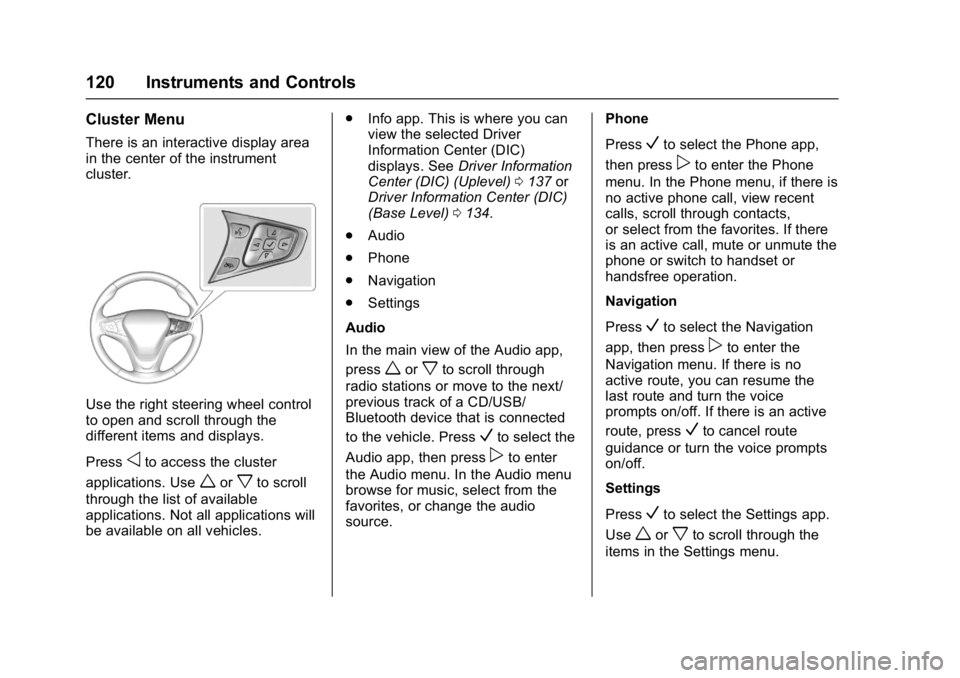
Cluster Menu
There is an interactive display area
in the center of the instrument
cluster.
Use the right steering wheel control
to open and scroll through the
different items and displays.
Press
oto access the cluster
applications. Use
worxto scroll
through the list of available
applications. Not all applications will
be available on all vehicles. .
Info app. This is where you can
view the selected Driver
Information Center (DIC)
displays. See Driver Information
Center (DIC) (Uplevel) 0137 or
Driver Information Center (DIC)
(Base Level) 0134.
. Audio
. Phone
. Navigation
. Settings
Audio
In the main view of the Audio app,
press
worxto scroll through
radio stations or move to the next/
previous track of a CD/USB/
Bluetooth device that is connected
to the vehicle. Press
Vto select the
Audio app, then press
pto enter
the Audio menu. In the Audio menu
browse for music, select from the
favorites, or change the audio
source. Phone
Press
Vto select the Phone app,
then press
pto enter the Phone
menu. In the Phone menu, if there is
no active phone call, view recent
calls, scroll through contacts,
or select from the favorites. If there
is an active call, mute or unmute the
phone or switch to handset or
handsfree operation.
Navigation
Press
Vto select the Navigation
app, then press
pto enter the
Navigation menu. If there is no
active route, you can resume the
last route and turn the voice
prompts on/off. If there is an active
route, press
Vto cancel route
guidance or turn the voice prompts
on/off.
Settings
Press
Vto select the Settings app.
Use
worxto scroll through the
items in the Settings menu.
Page 122 of 405
Chevrolet Cruze Owner Manual (GMNA-Localizing-U.S./Canada/Mexico-
9803785) - 2017 - CRC - 4/13/16
Instruments and Controls 121
Units :Presspwhile Units is
displayed to enter the Units menu.
Choose U.S. or metric units by
pressing
Vwhile the desired item is
highlighted.
Info Pages : Press
pwhile Info
Pages is displayed to enter the Info
Pages menu and select the items to
be displayed in the Info app. See
Driver Information Center (DIC)
(Uplevel) 0137 orDriver Information
Center (DIC) (Base Level) 0134.
Speed Warning : The Speed
Warning display allows the driver to
set a speed that they do not want to
exceed. To set the Speed Warning,
press
pwhen Speed Warning is
displayed. Press
worxto adjust
the value. Press
Vto set the speed.
Once the speed is set, this feature
can be turned off by pressing
V
while viewing this page. If the
selected speed limit is exceeded, a
pop-up warning is displayed with a
chime.
Speedometer
The speedometer shows the
vehicle's speed in either kilometers
per hour (km/h) or miles per
hour (mph).
Odometer
The odometer shows how far the
vehicle has been driven, in either
kilometers or miles.
Trip Odometer
The trip odometer shows how far
the vehicle has been driven since
the trip odometer was last reset.
The trip odometer is accessed and
reset through the Driver Information
Center (DIC). See Driver
Information Center (DIC) (Uplevel)
0 137 orDriver Information Center
(DIC) (Base Level) 0134.
Tachometer
The tachometer displays the engine
speed in revolutions per
minute (rpm). For vehicles with the Stop/Start
system, when the ignition is in ON/
RUN, the tachometer indicates the
vehicle status. When pointing to
AUTO STOP, the engine is off but
the vehicle is on and can move. The
engine could auto start at any time.
When the indicator points to OFF,
the vehicle is off.
When the engine is on, the
tachometer will indicate the engine’s
revolutions per minute (rpm). The
tachometer may vary by several
hundred rpm’s, during Auto Stop
mode, when the engine is shutting
off and restarting.
A slight bump may be felt when the
transmission is determining the
most fuel efficient operating range.
Caution
If the engine is operated with the
rpm’s in the warning area at the
high end of the tachometer, the
vehicle could be damaged, and
the damage would not be covered
(Continued)