steering wheel CHEVROLET CRUZE HATCHBACK 2017 Owner's Manual
[x] Cancel search | Manufacturer: CHEVROLET, Model Year: 2017, Model line: CRUZE HATCHBACK, Model: CHEVROLET CRUZE HATCHBACK 2017Pages: 405, PDF Size: 6.76 MB
Page 131 of 405
Chevrolet Cruze Owner Manual (GMNA-Localizing-U.S./Canada/Mexico-
9803785) - 2017 - CRC - 4/13/16
130 Instruments and Controls
For vehicles with the uplevel cluster,
this light may not come on when
starting the vehicle.
This light is green if LKA is available
to assist.
LKA may assist by gently turning
the steering wheel if the vehicle
approaches a detected lane marking
without using the turn signal in that
direction. The LKA light will turn
amber.
This light is amber and flashes as a
Lane Departure Warning (LDW)
alert, to indicate that the lane
marking has been crossed.
SeeLane Keep Assist (LKA) 0247.
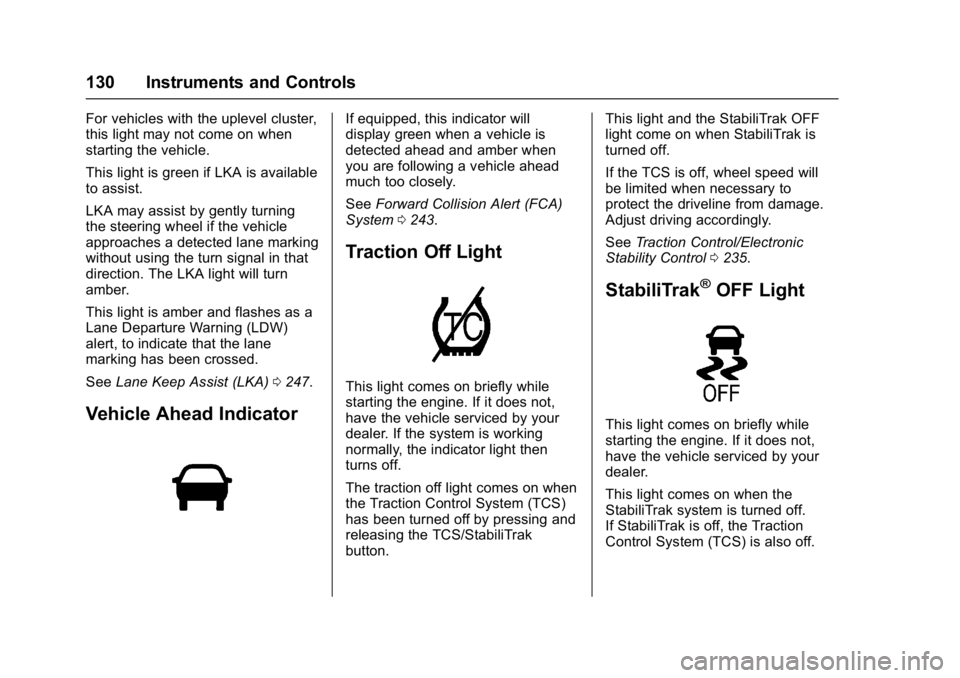
Vehicle Ahead Indicator
If equipped, this indicator will
display green when a vehicle is
detected ahead and amber when
you are following a vehicle ahead
much too closely.
See Forward Collision Alert (FCA)
System 0243.
Traction Off Light
This light comes on briefly while
starting the engine. If it does not,
have the vehicle serviced by your
dealer. If the system is working
normally, the indicator light then
turns off.
The traction off light comes on when
the Traction Control System (TCS)
has been turned off by pressing and
releasing the TCS/StabiliTrak
button. This light and the StabiliTrak OFF
light come on when StabiliTrak is
turned off.
If the TCS is off, wheel speed will
be limited when necessary to
protect the driveline from damage.
Adjust driving accordingly.
See
Traction Control/Electronic
Stability Control 0235.
StabiliTrak®OFF Light
This light comes on briefly while
starting the engine. If it does not,
have the vehicle serviced by your
dealer.
This light comes on when the
StabiliTrak system is turned off.
If StabiliTrak is off, the Traction
Control System (TCS) is also off.
Page 138 of 405
Chevrolet Cruze Owner Manual (GMNA-Localizing-U.S./Canada/Mexico-
9803785) - 2017 - CRC - 4/13/16
Instruments and Controls 137
value will show“- - -“until the
selected distance has been
traveled.
The display provides feedback on
how current driving behavior in the
bar graph affects the running
average in the top display and how
well recent driving compares to the
best that has been achieved.
Top Consumers : Shows a list of
the features that are currently
impacting the fuel economy, in order
from highest to lowest. If a feature is
turned off, it will be removed from
the list.
Economy Trend : Shows history of
the Average Fuel Economy from the
last 50 km (30 mi). Each bar
represents about 5 km (3 mi) of
driving. During driving the bars will
shift to always reflect the most
recent distance on the right side.
Press and hold
Vto clear the graph
or press
pto reset through
the menu.
Driver Information Center
(DIC) (Uplevel)
The DIC displays are shown in the
center of the instrument cluster in
the Info app. See Instrument Cluster
0 116. The displays show the status
of many vehicle systems. The
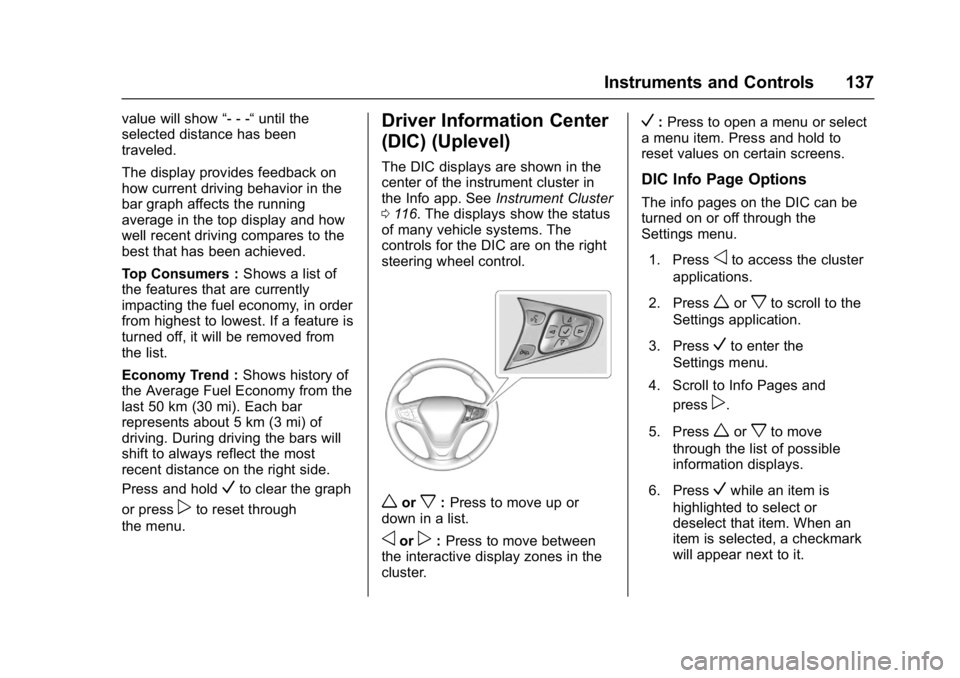
controls for the DIC are on the right
steering wheel control.
worx: Press to move up or
down in a list.
oorp: Press to move between
the interactive display zones in the
cluster.
V: Press to open a menu or select
a menu item. Press and hold to
reset values on certain screens.
DIC Info Page Options
The info pages on the DIC can be
turned on or off through the
Settings menu.
1. Press
oto access the cluster
applications.
2. Press
worxto scroll to the
Settings application.
3. Press
Vto enter the
Settings menu.
4. Scroll to Info Pages and press
p.
5. Press
worxto move
through the list of possible
information displays.
6. Press
Vwhile an item is
highlighted to select or
deselect that item. When an
item is selected, a checkmark
will appear next to it.
Page 146 of 405
Chevrolet Cruze Owner Manual (GMNA-Localizing-U.S./Canada/Mexico-
9803785) - 2017 - CRC - 4/13/16
Instruments and Controls 145
LANE KEEPING ASSIST
UNAVAILABLE
This message displays when the
Lane Keep Assist (LKA) and Lane
Departure Warning (LDW) system is
temporarily unavailable. The LKA
system does not need service.
This message could be due to the
camera being blocked. Cleaning the
outside of the windshield behind the
rearview mirror may correct the
issue.
PARK ASSIST OFF
This message displays when the
Parking Assist system has been
turned off or when there is a
temporary condition causing the
system to be disabled.
SERVICE DRIVER ASSIST
SYSTEM
If this message displays, take the
vehicle to your dealer to repair the
system.
Forward Collision Alert (FCA),
Assistance Systems for Parking or
Backing, and/or Lane Keep Assist(LKA) system may not work. Do not
use these systems until the vehicle
has been repaired.
SERVICE FRONT CAMERA
If this message remains on after
continued driving, take the vehicle
to your dealer for service. Do not
use the Lane Keep Assist (LKA),
Lane Departure Warning (LDW),
and Forward Collision Alert (FCA)
features.
SERVICE PARK ASSIST
This message displays if there is a
problem with the Parking Assist
system. Do not use this system to
help you park. See your dealer for
service.
SERVICE SIDE DETECTION
SYSTEM
If this message remains on after
continued driving, the vehicle needs
service. Side Blind Zone Alert
(SBZA), Lane Change Alert (LCA),
and Rear Cross Traffic Alert (RCTA)
features will not work. Take the
vehicle to your dealer.
SIDE DETECTION SYSTEM
UNAVAILABLE
This message indicates that Side
Blind Zone Alert (SBZA), Lane
Change Alert (LCA), and Rear
Cross Traffic Alert (RCTA) are
disabled either because the sensor
is blocked and cannot detect
vehicles in the blind zone, or the
vehicle is passing through an open
area, such as the desert, where
there is insufficient data for
operation. This message may also
activate during heavy rain or due to
road spray. The vehicle does not
need service. For cleaning, see
"Washing the Vehicle" under
Exterior Care
0342.
TAKE STEERING
If LKA does not detect active driver
steering, an alert and chime may be
provided. Move the steering wheel
to dismiss. See Lane Keep Assist
(LKA) 0247.
Page 148 of 405
Chevrolet Cruze Owner Manual (GMNA-Localizing-U.S./Canada/Mexico-
9803785) - 2017 - CRC - 4/13/16
Instruments and Controls 147
Service Vehicle Messages
SERVICE KEYLESS START
SYSTEM
This message is displayed if there is
a problem with the pushbutton start
system. Take the vehicle to your
dealer for service.
SERVICE POWER STEERING
This message displays and a chime
may sound when there may be a
problem with the power steering
system. If this message displays
and a reduction in steering
performance or loss of power
steering assistance is noticed, see
your dealer.
SERVICE STEERING
COLUMN LOCK
This message displays if there is a
problem with the steering column
lock. Take the vehicle to your dealer
for service.
SERVICE VEHICLE SOON
This message displays if there is a
problem with the vehicle. Take the
vehicle to your dealer for service.
Starting the Vehicle
Messages
PRESS BRAKE TO START or
PRESS CLUTCH TO START
This message displays when
attempting to start the vehicle
without first pressing the brake or
clutch pedal.
TURN STEERING WHEEL
START VEHICLE AGAIN
This message displays when you try
to start the vehicle, but the column
remains locked. Try turning the
steering wheel while starting the
vehicle to unlock the steering
column. If the vehicle still does not
start, turn the steering wheel the
other way, and try starting the
vehicle again.
Tire Messages
SERVICE TIRE MONITOR
SYSTEM
This message displays if there is a
problem with the Tire Pressure
Monitor System (TPMS). SeeTire
Pressure Monitor Operation 0311.
TIRE LEARNING ACTIVE
This message displays when the
system is learning new tires. See
Tire Pressure Monitor
Operation 0311.
TIRE PRESSURE LOW ADD
AIR TO TIRE
On vehicles with the Tire Pressure
Monitor System (TPMS), this
message displays when the
pressure in one or more of the
vehicle's tires is low.
The low tire pressure warning light
will also come on. See Tire
Pressure Light 0131.
Page 152 of 405
Chevrolet Cruze Owner Manual (GMNA-Localizing-U.S./Canada/Mexico-
9803785) - 2017 - CRC - 4/13/16
Instruments and Controls 151
.Rear Camera
. Return to Factory Settings
. Software Information
Detailed information for each menu
follows.
Time and Date
Manually set the time and date. See
Clock 0111.
Language (Language)
Select Language, then select from
the available language(s).
The selected language will display
on the system, and voice
recognition will reflect the selected
language.
Rear Seat Reminder
This allows for a chime and a
message ‘Look in Rear Seat’ when
the rear door has been opened
before or during operation of the
vehicle.
Select Off or On.
Teen Driver
See “Teen Driver” under“Settings”
in the infotainment manual.
Valet Mode
This will lock the infotainment
system and steering wheel controls.
It may also limit access to vehicle
storage locations (if equipped).
To enable valet mode:
1. Enter a four-digit code on the keypad.
2. Select Enter to go to the confirmation screen.
3. Re-enter the four-digit code.
Press LOCK or UNLOCK to lock or
unlock the system. Press Back to go
back to the previous menu.
Radio
Press and the following may
display:
. Manage Favorites
. Number of Favorites Shown
. Audible Touch Feedback
. Text Scroll .
Tone Settings
. Auto Volume
. Maximum Startup Volume
. Audio Cue Volume
Manage Favorites
This allows favorites to be edited.
See “Storing a Station as a
Favorite” inAM-FM Radio 0170 or
“Manage Favorites” in“Settings”
under “Radio” in the infotainment
manual.
Number of Favorites Shown
Press to set the number of favorites
to display.
Select the desired number or select
Auto and the infotainment system
will automatically adjust the number
of favorites shown.
Audible Touch Feedback
This allows Audible Touch
Feedback to be turned on or off.
Select Off or On.
Page 163 of 405
Chevrolet Cruze Owner Manual (GMNA-Localizing-U.S./Canada/Mexico-
9803785) - 2017 - CRC - 4/13/16
162 Lighting
Turn and Lane-Change
Signals
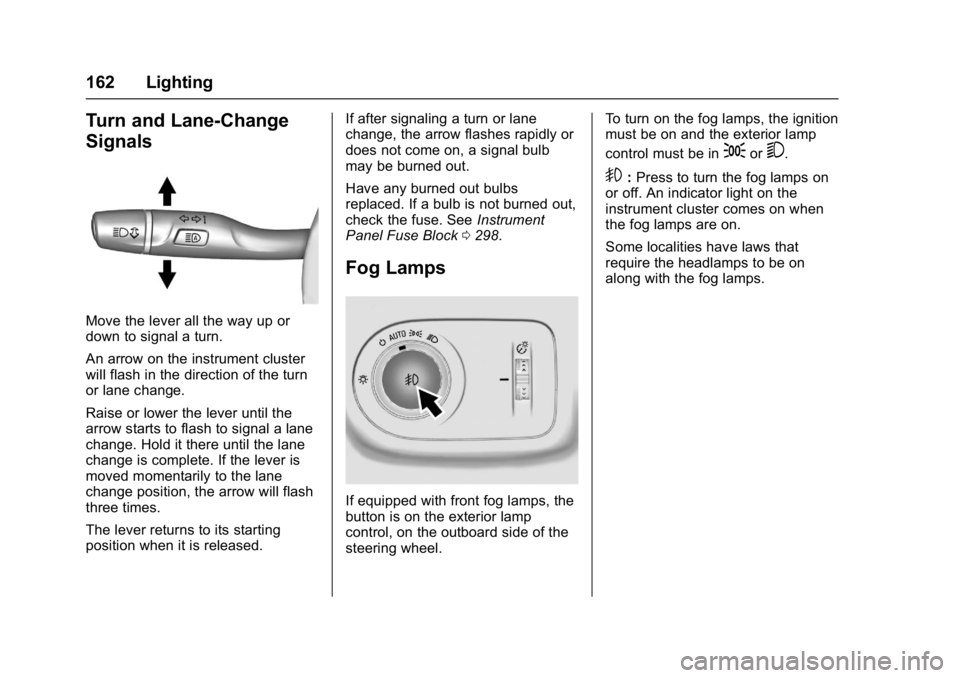
Move the lever all the way up or
down to signal a turn.
An arrow on the instrument cluster
will flash in the direction of the turn
or lane change.
Raise or lower the lever until the
arrow starts to flash to signal a lane
change. Hold it there until the lane
change is complete. If the lever is
moved momentarily to the lane
change position, the arrow will flash
three times.
The lever returns to its starting
position when it is released.If after signaling a turn or lane
change, the arrow flashes rapidly or
does not come on, a signal bulb
may be burned out.
Have any burned out bulbs
replaced. If a bulb is not burned out,
check the fuse. See
Instrument
Panel Fuse Block 0298.
Fog Lamps
If equipped with front fog lamps, the
button is on the exterior lamp
control, on the outboard side of the
steering wheel. To turn on the fog lamps, the ignition
must be on and the exterior lamp
control must be in
;or5.
9:
Press to turn the fog lamps on
or off. An indicator light on the
instrument cluster comes on when
the fog lamps are on.
Some localities have laws that
require the headlamps to be on
along with the fog lamps.
Page 168 of 405
Chevrolet Cruze Owner Manual (GMNA-Localizing-U.S./Canada/Mexico-
9803785) - 2017 - CRC - 4/13/16
Infotainment System 167
The infotainment system has built-in
features intended to help avoid
distraction by disabling some
functions when driving. These
functions may gray out when they
are unavailable. Many infotainment
features are also available through
the instrument cluster and steering
wheel controls.
Before driving:
.Become familiar with the
operation, faceplate buttons, and
screen buttons. .
Set up the audio by presetting
favorite stations, setting the
tone, and adjusting the
speakers.
. Set up phone numbers in
advance so they can be called
easily by pressing a single
button or by using a single voice
command if equipped with
Bluetooth phone capability.
See Defensive Driving 0201.
To play the infotainment system with
the ignition off, see Retained
Accessory Power (RAP) 0219.Theft-Deterrent Feature
The infotainment system has an
electronic security system installed
to prevent theft.
The infotainment system only works
in the vehicle in which it was first
installed, and cannot be used in
another vehicle.
Page 170 of 405
Chevrolet Cruze Owner Manual (GMNA-Localizing-U.S./Canada/Mexico-
9803785) - 2017 - CRC - 4/13/16
Infotainment System 169
.USB/Music/Pictures: Press
to go to the next content.
Press and hold to fast
forward.
5.
5
. Press and release to
access the phone screen,
answer an incoming call,
or access the device home
screen.
Home Page
Touchscreen Buttons
Touchscreen buttons show on the
screen when available. When a
function is unavailable, the button
may gray out. When a function is
selected, the button may highlight.
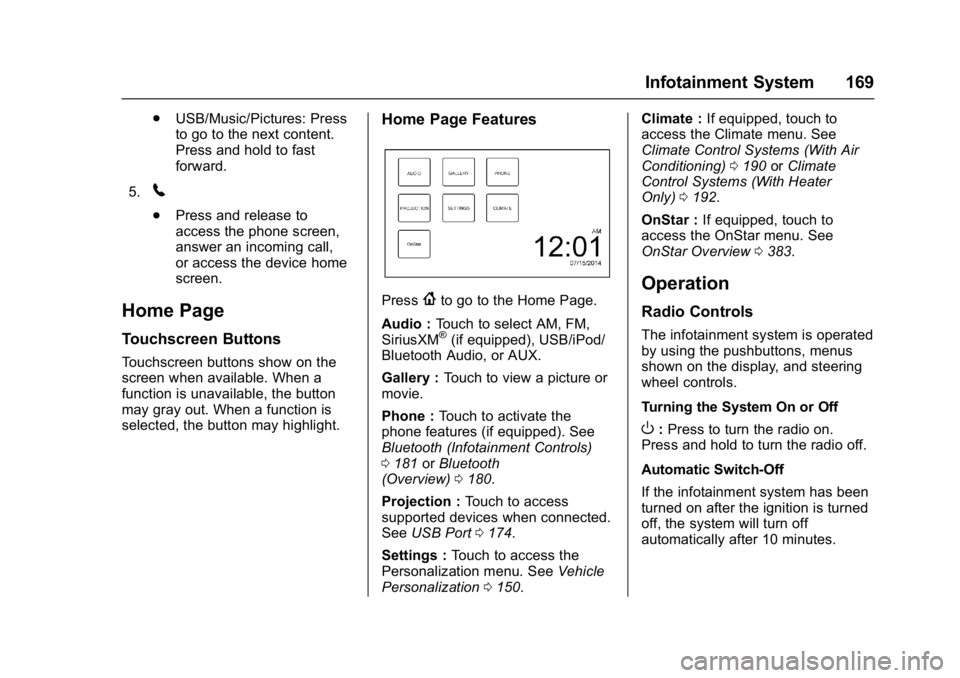
Home Page Features
Press{to go to the Home Page.
Audio : Touch to select AM, FM,
SiriusXM
®(if equipped), USB/iPod/
Bluetooth Audio, or AUX.
Gallery : Touch to view a picture or
movie.
Phone : Touch to activate the
phone features (if equipped). See
Bluetooth (Infotainment Controls)
0 181 orBluetooth
(Overview) 0180.
Projection : Touch to access
supported devices when connected.
See USB Port 0174.
Settings : Touch to access the
Personalization menu. See Vehicle
Personalization 0150. Climate :
If equipped, touch to
access the Climate menu. See
Climate Control Systems (With Air
Conditioning) 0190 orClimate
Control Systems (With Heater
Only) 0192.
OnStar : If equipped, touch to
access the OnStar menu. See
OnStar Overview 0383.
Operation
Radio Controls
The infotainment system is operated
by using the pushbuttons, menus
shown on the display, and steering
wheel controls.
Turning the System On or Off
O:Press to turn the radio on.
Press and hold to turn the radio off.
Automatic Switch-Off
If the infotainment system has been
turned on after the ignition is turned
off, the system will turn off
automatically after 10 minutes.
Page 181 of 405
Chevrolet Cruze Owner Manual (GMNA-Localizing-U.S./Canada/Mexico-
9803785) - 2017 - CRC - 4/13/16
180 Infotainment System
Phone
Bluetooth (Overview)
If equipped with Bluetooth®
capability, the system can interact
with many Bluetooth phones, PDAs,
or other devices to:
.Place and receive hands-free
calls.
. Transmit hands-free data.
. Play audio streaming files.
The device must be paired first. See
“Pairing” later in this section.
To minimize driver distraction,
before driving, and with the vehicle
parked:
. Become familiar with the
features of the cell phone.
Organize the phone book and
contact lists clearly and delete
duplicate or rarely used entries.
If possible, program speed dial
or other shortcuts.
. Review the controls and
operation of the infotainment
system. .
Pair cell phone(s) to the vehicle.
The system may not work with
all cell phones. See “Pairing”
later in this section.{Warning
When using a cell phone, it can
be distracting to look too long or
too often at the screen of the
phone or the infotainment system.
Taking your eyes off the road too
long or too often could cause a
crash resulting in injury or death.
Focus your attention on driving.
Vehicles with a Bluetooth system
can use a Bluetooth-capable cell
phone with a Hands-Free Profile to
make and receive phone calls. The
infotainment system is used to
control the system. The system can
be used while in ACC/ACCESSORY
or ON/RUN. See Ignition Positions
(Keyless Access) 0212 orIgnition
Positions (Key Access) 0210. Not
all phones support all functions and
not all phones work with the
Bluetooth system. See
www.gm.com/bluetooth for more information about compatible
phones in the U.S. and
Canada only.
There may be restrictions on using
Bluetooth wireless technology in
some locations.
Due to the variety of Bluetooth
devices and their firmware versions,
the device may respond differently
when performing over Bluetooth.
Refer to the cell phone
manufacturer
’s user guide for
questions about the phone's
Bluetooth functionality.
Bluetooth Controls
For vehicles equipped with
Bluetooth capability, use the buttons
on the infotainment system and the
steering wheel to operate the
system.
Page 182 of 405
Chevrolet Cruze Owner Manual (GMNA-Localizing-U.S./Canada/Mexico-
9803785) - 2017 - CRC - 4/13/16
Infotainment System 181
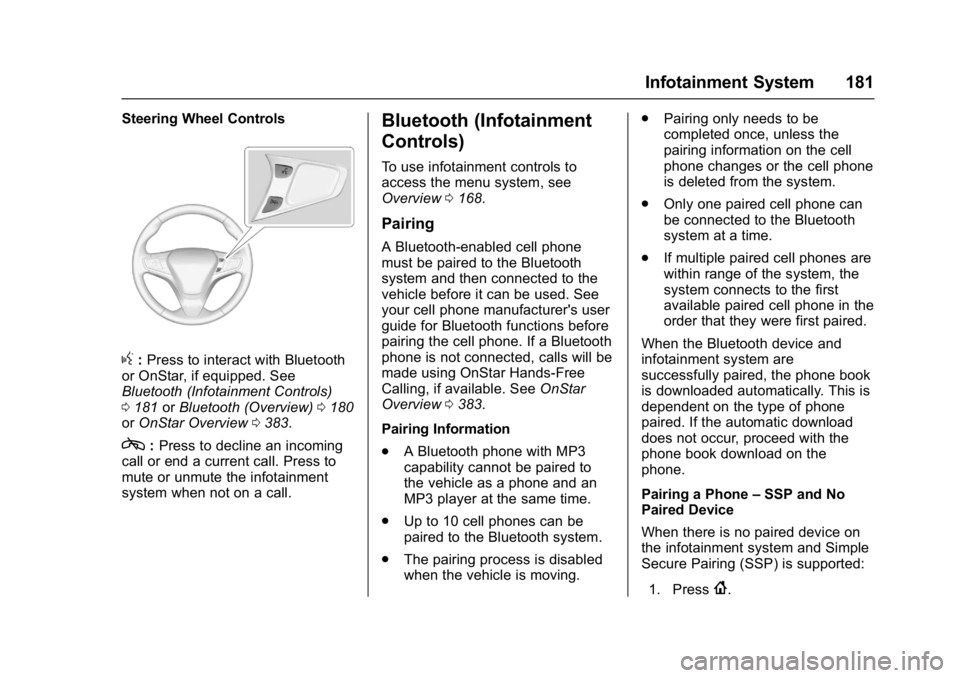
Steering Wheel Controls
g:Press to interact with Bluetooth
or OnStar, if equipped. See
Bluetooth (Infotainment Controls)
0 181 orBluetooth (Overview) 0180
or OnStar Overview 0383.
c:Press to decline an incoming
call or end a current call. Press to
mute or unmute the infotainment
system when not on a call.
Bluetooth (Infotainment
Controls)
To use infotainment controls to
access the menu system, see
Overview 0168.
Pairing
A Bluetooth-enabled cell phone
must be paired to the Bluetooth
system and then connected to the
vehicle before it can be used. See
your cell phone manufacturer's user
guide for Bluetooth functions before
pairing the cell phone. If a Bluetooth
phone is not connected, calls will be
made using OnStar Hands-Free
Calling, if available. See OnStar
Overview 0383.
Pairing Information
. A Bluetooth phone with MP3
capability cannot be paired to
the vehicle as a phone and an
MP3 player at the same time.
. Up to 10 cell phones can be
paired to the Bluetooth system.
. The pairing process is disabled
when the vehicle is moving. .
Pairing only needs to be
completed once, unless the
pairing information on the cell
phone changes or the cell phone
is deleted from the system.
. Only one paired cell phone can
be connected to the Bluetooth
system at a time.
. If multiple paired cell phones are
within range of the system, the
system connects to the first
available paired cell phone in the
order that they were first paired.
When the Bluetooth device and
infotainment system are
successfully paired, the phone book
is downloaded automatically. This is
dependent on the type of phone
paired. If the automatic download
does not occur, proceed with the
phone book download on the
phone.
Pairing a Phone –SSP and No
Paired Device
When there is no paired device on
the infotainment system and Simple
Secure Pairing (SSP) is supported:
1. Press
{.