clock CHEVROLET EQUINOX 2009 1.G User Guide
[x] Cancel search | Manufacturer: CHEVROLET, Model Year: 2009, Model line: EQUINOX, Model: CHEVROLET EQUINOX 2009 1.GPages: 442, PDF Size: 2.46 MB
Page 200 of 442
Adjusting the Speakers (Balance/Fade)
BAL/FADE (Balance/Fade):To adjust balance or
fade, press the
fknob until the speaker control tabs
display. Continue pressing to highlight the desired
tab, or press the pushbutton positioned under the
desired tab. Turn the
fknob clockwise or
counterclockwise to adjust the highlighted setting.
The highlighted setting can also be adjusted by pressing
the SEEK arrows,
\FWD, orsREV button until
the desired levels are obtained.
To quickly adjust balance or fade to the middle position,
press the pushbutton positioned under the BAL or
FADE tab for more than two seconds. A beep sounds
and the level adjusts to the middle position.
To quickly adjust all speaker and tone controls to the
middle position, press the
fknob for more than
two seconds until a beep sounds.
Finding a Category (CAT) Station
If the radio has XM, the CAT button can be used to nd
XM stations when the radio is in the XM mode.
CAT (Category):To nd XM channels within a desired
category, perform the following:
1. Press the BAND button until the XM frequency is
displayed. Press the CAT button to display the
category tabs on the radio display. Continue
pressing the CAT button until the desired category
name displays.
Depending on the radio, another way to navigate
the category list is to press the
sREV button
or the
\FWD button.
2. Press either of the two buttons below the desired
category tab to immediately tune to the rst
XM station associated with that category.
3. Turn the
fknob, press the buttons below the right
or left arrows displayed, or press the Seek arrows
to go to the previous or to the next XM station within
the selected category.
4. To exit the category search mode, press the FAV
button or BAND button to display the favorites again.
3-72
Page 208 of 442
Using the DVD Player
The DVD player is controlled by the buttons on the
remote control, by the RSA system, or by the buttons
on the radio faceplate. See “Remote Control” under
Rear Seat Entertainment (RSE) System on page 3-107
for more information.
The DVD player is only compatible with DVDs of the
appropriate region code that is printed on the jacket of
most DVDs.
The DVD slot of the radio is compatible with most audio
CDs, CD-R, CD-RW, DVD-Video, DVD-Audio,
DVD-R/RW, DVD+R/RW media along with MP3 and
WMA formats.
If an error message appears on the video screen or
the radio, see “DVD Display Error Messages” under
Rear Seat Entertainment (RSE) System on page 3-107
and “DVD Radio Error Messages” in this section for
more information.
Playing a DVD
DVD/CD AUX (Auxiliary):Press to cycle through
DVD, CD, or Auxiliary when listening to the radio.
The DVD/CD text tab and a message showing track or
chapter number displays when a disc is in either
slot. Press again and the system automatically searches
for an auxiliary input device, such as a portable audio
player. If a portable audio player is not connected,
“No Aux Input Device” displays. If a disc is in both the
DVD slot and the CD slot the DVD/CD AUX button
cycles between the two sources and does not indicate
“No Aux Input Device”. If a front auxiliary device is
connected, the DVD/CD AUX button cycles through all
available options, such as: DVD slot, CD slot, Front
AUX, and Rear AUX (if available). See “Using the
Auxiliary Input Jack(s)” later in this section, orRear Seat
Entertainment (RSE) System on page 3-107,
“Audio/Video (A/V) Jacks” for more information.
O(Power):Press to turn the radio on or off. Turn
clockwise or counterclockwise to increase or decrease
the volume. Press and hold for more than two seconds
turns off the entire radio and Rear Seat Entertainment
(RSE) system and starts the parental control feature
which prevents the rear seat occupant from operating
the Rear Seat Audio (RSA) system or remote control.
3-80
Page 209 of 442
A lock symbol appears next to the clock display.
The parental control feature remains on until a
subsequent press and hold of the power button is
performed (more than two seconds), or until the driver
turns the ignition off and exits the vehicle.
f(Tune):Turn to change tracks on a CD or DVD,
to manually tune a radio station, or to change clock or
date settings, while in the clock or date setting mode.
See the information given earlier in this section specic
to the radio, CD, and the DVD. Also, seeSetting the
Clock on page 3-64, for setting the clock and date.
©SEEK (Previous Track/Chapter):Press to return to
the start of the current track or chapter. Press again
to go to the previous track or chapter. This button might
not work when the DVD is playing the copyright
information or the previews.
SEEK
¨(Next Track/Chapter):Press to go to the
next track or chapter. This button might not work when
the DVD is playing the copyright information or the
previews.
sREV (Fast Reverse):Press to fast reverse the
CD or DVD, ve times the normal speed. The radio
displays the elapsed time while in fast reverse. To stop
fast reversing, press again. This button might not
work when the DVD is playing the copyright information
or the previews.
\FWD (Fast Forward):Press to fast forward the
CD or DVD. The radio displays the elapsed time and
fast forwards ve times the normal speed. To stop fast
forwarding, press again. This button might not work
when the DVD is playing the copyright information or
the previews.
Z(Eject):Press to eject a CD or DVD. If a CD or
DVD is ejected, but not removed, the player
automatically pulls it back in after 15 seconds.
If loading and reading of a CD cannot be completed,
such as unknown format, etc., and the disc fails to eject,
press and hold for more than ve seconds to force
the disc to eject.
3-81
Page 213 of 442
Using the Auxiliary Input Jack
The radio system has an auxiliary input jack located on
the lower right side of the faceplate. This is not an
audio output; do not plug the headphone set into the
front auxiliary input jack. An external audio device such
as an iPod, laptop computer, MP3 player, CD changer,
etc. can be connected to the auxiliary input jack for
use as another source for audio listening.
Drivers are encouraged to set up any auxiliary device
while the vehicle is in P (Park). SeeDefensive Driving on
page 4-2for more information on driver distraction.
To use a portable audio player, connect a 3.5 mm
(1/8 inch) cable to the radio’s front auxiliary input jack.
When a device is connected, press the radio CD/AUX
button to begin playing audio from the device over
the vehicle speakers.
O(Power/Volume):Turn clockwise or counterclockwise
to increase or decrease the volume of the portable player.
Additional volume adjustments might need to be made
from the portable device if the volume does not go loud
or soft enough.
BAND:Press to listen to the radio when a portable
audio device is playing. The portable audio device
continues playing until it is powered off.CD/AUX (CD/Auxiliary):Press to play a CD when a
portable audio device is playing. Press again and
the system begins playing audio from the connected
portable audio player. If a portable audio player is
not connected, No Input Device Found or No Aux
may display.
DVD/CD AUX (CD/Auxiliary) (Radio with CD and
DVD):Press to cycle through DVD, CD, or Auxiliary
while listening to the radio. The DVD/CD text tab and a
message showing track or chapter number displays
when a disc is in either slot. Press again and the system
automatically searches for an auxiliary input device,
such as a portable audio player. If a portable audio
player is not connected, “No Aux Input Device” displays.
If a disc is in both the DVD slot and the CD slot the
DVD/CD AUX button cycles between the two sources
and does not indicate “No Aux Input Device”. If a
front auxiliary device is connected, the DVD/CD AUX
button cycles through all available options, such
as: DVD slot, CD slot, Front AUX, and Rear AUX
(if available). See “Using the Auxiliary Input Jack(s)”
later in this section, orRear Seat Entertainment (RSE)
System on page 3-107, “Audio/Video (A/V) Jacks”
for more information.
3-85
Page 256 of 442
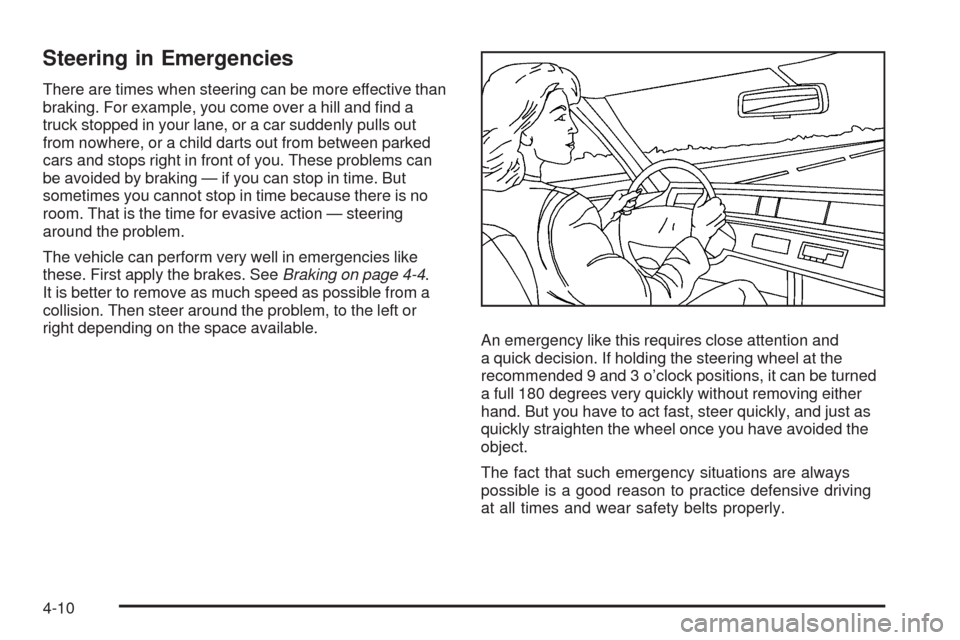
Steering in Emergencies
There are times when steering can be more effective than
braking. For example, you come over a hill and nd a
truck stopped in your lane, or a car suddenly pulls out
from nowhere, or a child darts out from between parked
cars and stops right in front of you. These problems can
be avoided by braking — if you can stop in time. But
sometimes you cannot stop in time because there is no
room. That is the time for evasive action — steering
around the problem.
The vehicle can perform very well in emergencies like
these. First apply the brakes. SeeBraking on page 4-4.
It is better to remove as much speed as possible from a
collision. Then steer around the problem, to the left or
right depending on the space available.
An emergency like this requires close attention and
a quick decision. If holding the steering wheel at the
recommended 9 and 3 o’clock positions, it can be turned
a full 180 degrees very quickly without removing either
hand. But you have to act fast, steer quickly, and just as
quickly straighten the wheel once you have avoided the
object.
The fact that such emergency situations are always
possible is a good reason to practice defensive driving
at all times and wear safety belts properly.
4-10
Page 294 of 442
Filling the Tank
{CAUTION:
Fuel vapor burns violently and a fuel re can
cause bad injuries. To help avoid injuries to you
and others, read and follow all the instructions on
the pump island. Turn off the engine when you are
refueling. Do not smoke if you are near fuel or
refueling the vehicle. Do not use cellular phones.
Keep sparks, ames, and smoking materials away
from fuel. Do not leave the fuel pump unattended
when refueling the vehicle. This is against the law
in some places. Do not re-enter the vehicle while
pumping fuel. Keep children away from the fuel
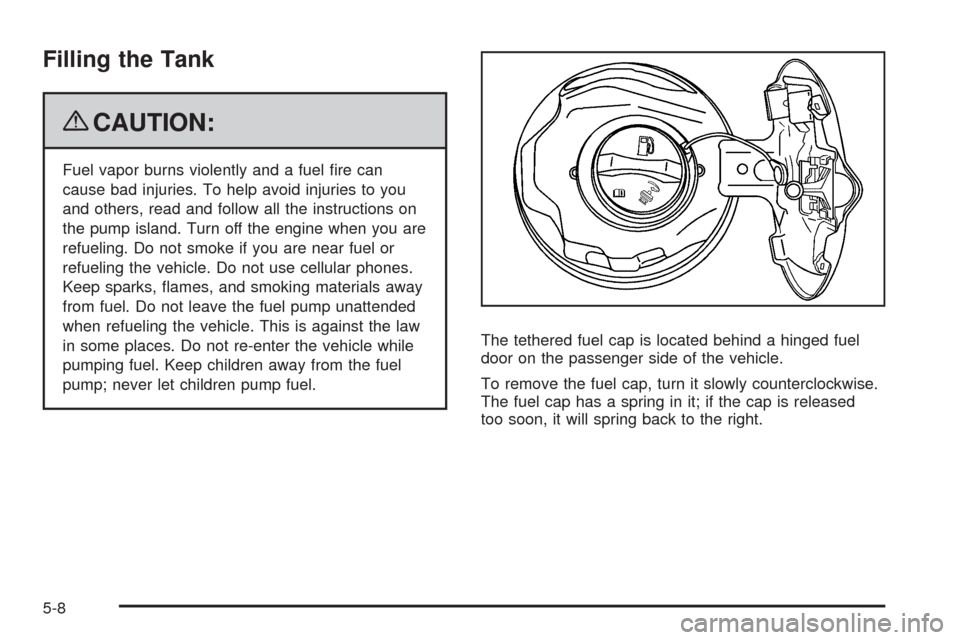
pump; never let children pump fuel.The tethered fuel cap is located behind a hinged fuel
door on the passenger side of the vehicle.
To remove the fuel cap, turn it slowly counterclockwise.
The fuel cap has a spring in it; if the cap is released
too soon, it will spring back to the right.
5-8
Page 295 of 442
{CAUTION:
Fuel can spray out on you if you open the fuel cap
too quickly. If you spill fuel and then something
ignites it, you could be badly burned. This spray
can happen if the tank is nearly full, and is more
likely in hot weather. Open the fuel cap slowly and
wait for any hiss noise to stop. Then unscrew the
cap all the way.
Be careful not to spill fuel. Do not top off or overll the
tank and wait a few seconds after you have nished
pumping before removing the nozzle. Clean fuel from
painted surfaces as soon as possible. SeeWashing
Your Vehicle on page 5-92.
When replacing the fuel cap, turn it clockwise until it
clicks. Make sure the cap is fully installed. The diagnostic
system can determine if the fuel cap has been left off or
improperly installed. This would allow fuel to evaporate
into the atmosphere. SeeMalfunction Indicator Lamp on
page 3-33.
{CAUTION:
If a re starts while you are refueling, do not
remove the nozzle. Shut off the ow of fuel by
shutting off the pump or by notifying the station
attendant. Leave the area immediately.
Notice:If you need a new fuel cap, be sure to get
the right type. Your dealer/retailer can get one for
you. If you get the wrong type, it may not t properly.
This may cause the malfunction indicator lamp to
light and may damage the fuel tank and emissions
system. SeeMalfunction Indicator Lamp on
page 3-33.
5-9
Page 312 of 442
{CAUTION:
Steam and scalding liquids from a hot cooling
system can blow out and burn you badly. They are
under pressure, and if you turn the coolant surge
tank pressure cap — even a little — they can
come out at high speed. Never turn the cap when
the cooling system, including the coolant surge
tank pressure cap, is hot. Wait for the cooling
system and coolant surge tank pressure cap to
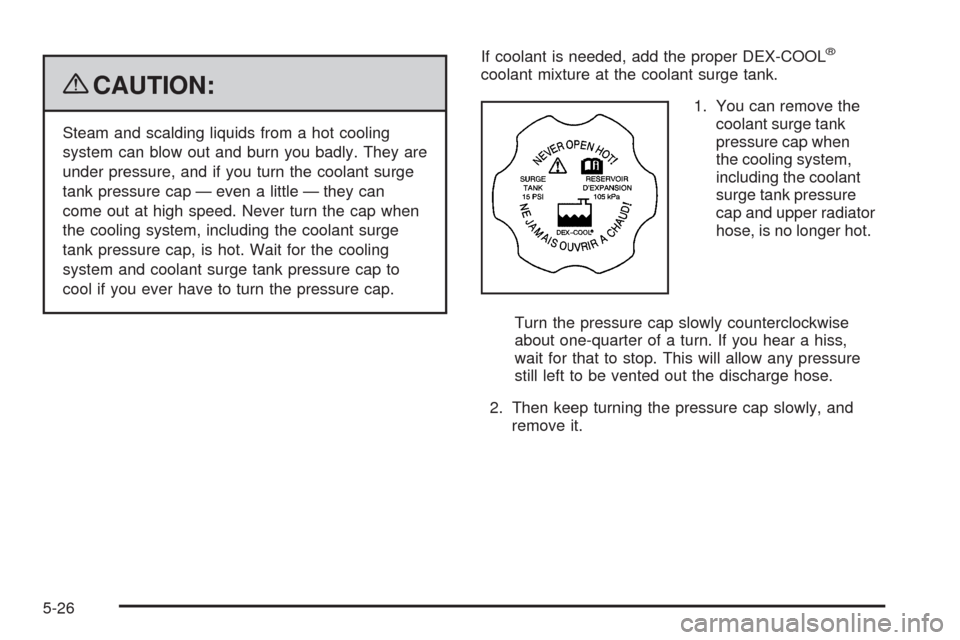
cool if you ever have to turn the pressure cap.If coolant is needed, add the proper DEX-COOL
®
coolant mixture at the coolant surge tank.
1. You can remove the
coolant surge tank
pressure cap when
the cooling system,
including the coolant
surge tank pressure
cap and upper radiator
hose, is no longer hot.
Turn the pressure cap slowly counterclockwise
about one-quarter of a turn. If you hear a hiss,
wait for that to stop. This will allow any pressure
still left to be vented out the discharge hose.
2. Then keep turning the pressure cap slowly, and
remove it.
5-26
Page 333 of 442
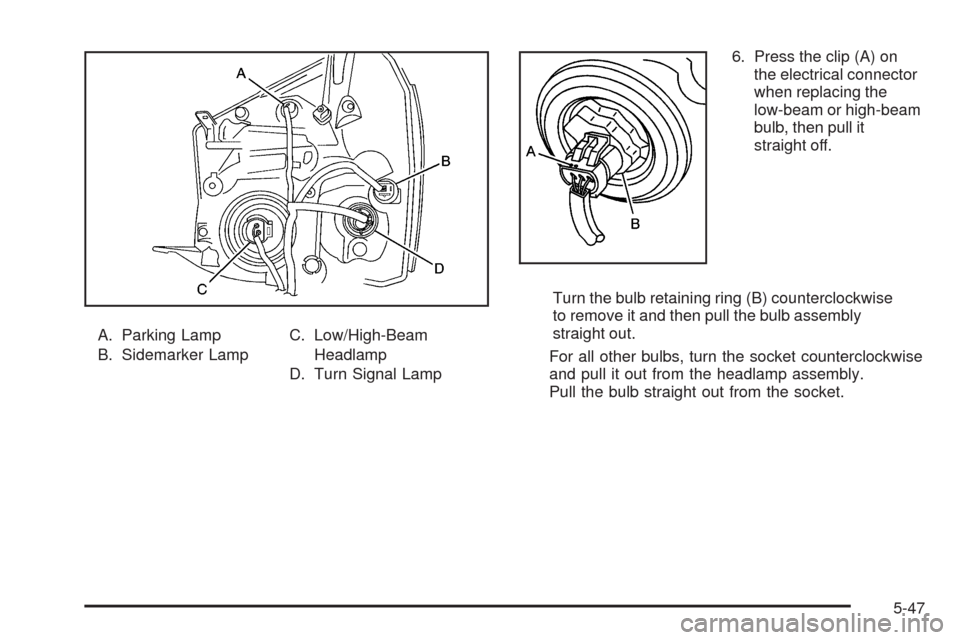
A. Parking Lamp
B. Sidemarker LampC. Low/High-Beam
Headlamp
D. Turn Signal Lamp6. Press the clip (A) on
the electrical connector
when replacing the
low-beam or high-beam
bulb, then pull it
straight off.
Turn the bulb retaining ring (B) counterclockwise
to remove it and then pull the bulb assembly
straight out.
For all other bulbs, turn the socket counterclockwise
and pull it out from the headlamp assembly.
Pull the bulb straight out from the socket.
5-47
Page 334 of 442
7. Push the new bulb into the socket and reinstall the
socket into the headlamp assembly by turning it
clockwise.
For the low-beam or high-beam bulb, install the new
bulb being sure to align the notches in the bulb
with the notches in the headlamp assembly.
8. Place the retaining ring over the bulb/socket and
turn it clockwise to tighten it and secure the
bulb/socket.
9. Connect the electrical connector.
10. Reverse Steps 1 through 5 to reinstall the headlamp
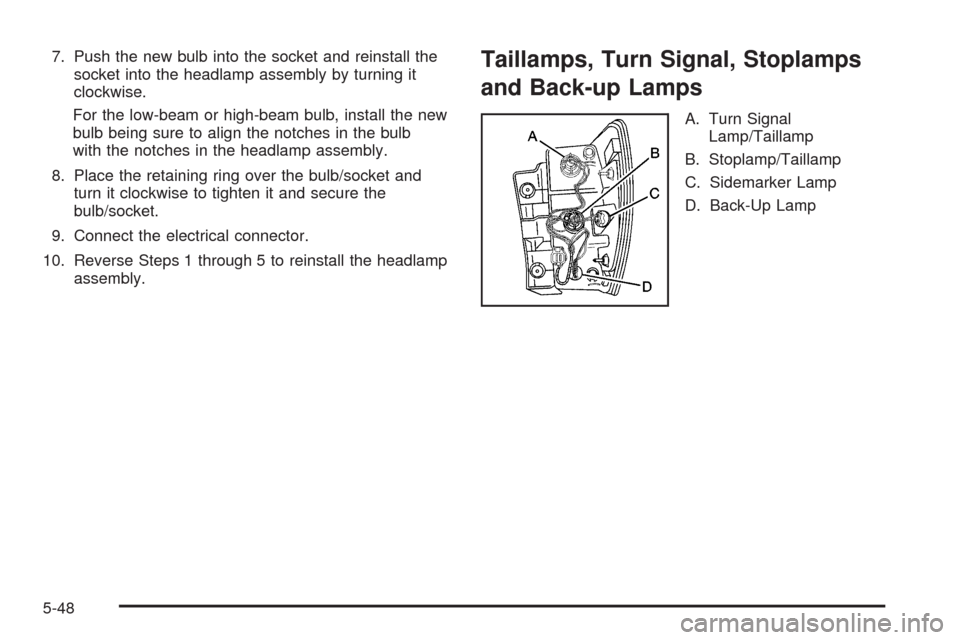
assembly.Taillamps, Turn Signal, Stoplamps
and Back-up Lamps
A. Turn Signal
Lamp/Taillamp
B. Stoplamp/Taillamp
C. Sidemarker Lamp
D. Back-Up Lamp
5-48