audio CHEVROLET EQUINOX 2010 2.G Owner's Manual
[x] Cancel search | Manufacturer: CHEVROLET, Model Year: 2010, Model line: EQUINOX, Model: CHEVROLET EQUINOX 2010 2.GPages: 394, PDF Size: 5.7 MB
Page 162 of 394
6-32 Infotainment System
Connecting and Controlling
an iPod™
Not all iPod's can be controlled by
the Infotainment System.
Connecting an iPod
Connect the iPod to the USB port.
Selecting a Track
Using the control buttons:
.PressgSEEK orlSEEK to
select the previous or next track.
.Turn the MENU/SEL knob to
select the track in the current
sub menu. The track will start
to play.
Playing Tracks in Random Order
Press the MENU/SEL knob and set
Shuffle Songs to On or Off.
Shuffle On: Plays current tracks in
random order.
Shuffle Off: Plays current tracks in
sequential order. Searching For a Track
Tracks can be searched for by:
.Playlists
.Artists
.Albums
.Song Titles
.Genres
.Composers
.Audiobooks
The number of objects in each
category is shown in parentheses
after the category.
To search for tracks:
1. Press the MENU/SEL knob.
2. Select Search.
3. Select: Playlists, Artists, Albums, Song Titles, Genres,
Composers, or Audiobooks.
4. Select the track. The search rate increases if the MENU/SEL knob
is continuously turned while
searching in a list.
Connecting and Controlling a
USB Drive
Files that are not stored in folders
are displayed in the root
directory (USB).
Connecting a USB Drive
Connect the USB drive to the
USB port.
Disconnecting a USB Drive
A USB drive should be ejected from
the USB port before disconnecting
it. To eject a USB drive:
1. Press the MENU/SEL knob.
2. Select USB Eject.
Playing Tracks in Random Order
Press the MENU/SEL knob and
then set Shuffle Songs to On.
Page 163 of 394
Infotainment System 6-33
Selecting a Track
Using the control buttons:
.PressgSEEK orlSEEK to
select the previous or next track.
.Turn the MENU/SEL knob to
select a track in the current sub
menu. The track will start to play.
Selecting a track in a different
folder:
1. Press the MENU/SEL knob.
2. Select Folder List.
3. Select the folder.
4. Select the track.
Searching for Tracks
It is normal for the search feature
to take some time to display the
information after reading the device
due to the amount of information
stored.
Files that do not have any meta
data stored in the ID3 tag display
as Unknown. Tracks can be searched by:
.Playlists
.Artists
.Albums
.Song Titles
.Genres
The number of objects in each
category is shown in parentheses
after the category.
To search for tracks:
1. Press the MENU/SEL knob.
2. Select Search.
3. Select: Playlists, Artists, Albums, Song Titles, Genres,
Composers, or Audiobooks.
4. Select the track. The search rate increases if the MENU/SEL knob
is continuously turned while
searching in a list.
Recording Tracks to MEM
See Mass Storage Media (MEM)
on
page 6‑25for more information.
Rear Seat
Infotainment
Rear Seat Entertainment
(RSE) System
The vehicle may have a DVD Rear
Seat Entertainment (RSE) system.
The RSE system works with the
vehicle's infotainment system. The
DVD player is part of the front radio.
The RSE system includes a radio
with a DVD player, two rear seat
video display screens, audio/video
jacks, two wireless headphones,
and a remote control. See CD/DVD
Player
on page 6‑21or the
separate navigation system manual
for more information on the vehicle's
DVD system.
Page 165 of 394
Infotainment System 6-35
Infrared transmitters are on the top
of the left seatback video screen.
The headphones shut off
automatically to save the battery
power if the RSE system is shut
off or if the headphones are out of
range of the transmitters for more
than three minutes. Moving too far
forward or stepping out of the
vehicle, can cause the headphones
to lose the signal or have static.
The headphones may automatically
turn off after four hours of
continuous use.
To adjust the volume on the
headphones, use the volume
control.
For best audio performance, the
headphones must be worn correctly,
with the headband over the top of
the head. L (Left) and R (Right)
are above the ear pads and are
indicators as to how the
headphones should be placed
on the head.Notice:
Do not store the
headphones in heat or direct
sunlight. This could damage the
headphones and repairs will not
be covered by the warranty.
Storage in extreme cold can
weaken the batteries. Keep the
headphones stored in a cool, dry
place.
If the foam ear pads become worn
or damaged, they can be replaced
separately from the headphones.
See your dealer for more
information.
Battery Replacement
To change the batteries:
1. Loosen the screw to the battery door located on the left side of
the headphones.
2. Slide the battery door open.
3. Replace the two AAA batteries.
4. Replace the battery door and tighten the screw. Remove the batteries if the
headphones are not going to be
used for a long period of time.
Audio/Video (A/V) Jacks
If available, the A/V jacks are
located on the rear of the floor
console. They allow audio or video
cables to be connected from an
auxiliary device such as a
camcorder or a video game system.
The A/V jacks are color coded:
.Yellow for video input.
.White for left audio input.
.Red for right audio input.
Power for auxiliary devices is not
supplied by the radio system.
To use the auxiliary inputs of the
RSE system:
1. Connect the auxiliary device cables to the A/V jacks.
2. Power on both the auxiliary device and the RSE video
screen.
Page 166 of 394
6-36 Infotainment System
Changing the Source on the Video
Display Screens
The image from the auxiliary device
can be switched between the video
display screens.
To change the display:
1. Press the AUX button on theremote control to change the
source of both video screens
from the DVD player to the
auxiliary device.
2. Press the AUX button a second time to change the left video
screen source to the DVD player
and the right video screen to the
auxiliary device.
3. Press the AUX button a third time to change the left video
screen source to the auxiliary
device and the right video
screen to the DVD player. 4. Press the AUX button a fourth
time to change the source of
both video screens to the DVD
player.
How to Change the RSE Video
Screen Settings
The screen display mode,
brightness, and language can be
changed from the setup menu using
the remote control. To change a
setting:
1. Press
z.
2. Use
n,q,p,oandrto
select the settings.
3. Press
zagain to exit the
setup menu.
Audio Output
Audio from the DVD player or
auxiliary inputs can be heard
through the following:
.Wireless Headphones
.Vehicle Speakers
The RSE system transmits the
audio signal to the wireless
headphones if an audio signal is
available. See “Headphones” earlier
in this section for more information.
The front seat passengers are able
to listen to playback from the A/V
jacks through the vehicle speakers
by selecting Rear A/V as the source
on the radio.
Page 169 of 394

Infotainment System 6-39
u(Next Track/Chapter):Press to
go to the beginning of the next
chapter or track. This button might
not work when the DVD is playing
the copyright information or the
previews.
r(Fast Reverse): Press to
quickly reverse the DVD or CD. To
stop fast reversing a DVD video,
press
s. To stop fast reversing a
DVD audio or CD, release
r. This
button might not work when the
DVD is playing the copyright
information or the previews.
[(Fast Forward): Press to fast
forward the DVD or CD. To stop fast
forwarding a DVD video, press
s.
To stop fast forwarding a DVD audio
or CD, release
[. This button might
not work when the DVD is playing
the copyright information or the
previews.
e(Audio): Press to change audio
tracks on DVDs that have this
feature when the DVD is playing.
{(Subtitles): Press to turn
ON/OFF subtitles and to move
through subtitle options when a
DVD is playing.
AUX (Auxiliary): Press to switch
the video display between the DVD
player and an auxiliary source.
d(Camera): Press to change the
camera angle on DVDs that have
this feature when the DVD is
playing.
\(Clear) (If Available): Press this
button within three seconds after
inputting a numeric selection, to
clear all numeric inputs.
}10 (Double Digit Entries)
(If Available): Press this button to
select chapter or track numbers
greater than 9. Press this button
before inputting the number.
1 through 0 (Numeric Keypad):
The numbered keypad provides the
capability of direct chapter or track
number selection.
Replacing the Remote Control
If the remote control becomes lost
or damaged, a new universal
remote control can be purchased.
Use a Toshiba
®code set for
replacement universal remote
controls.
Page 171 of 394
Infotainment System 6-41
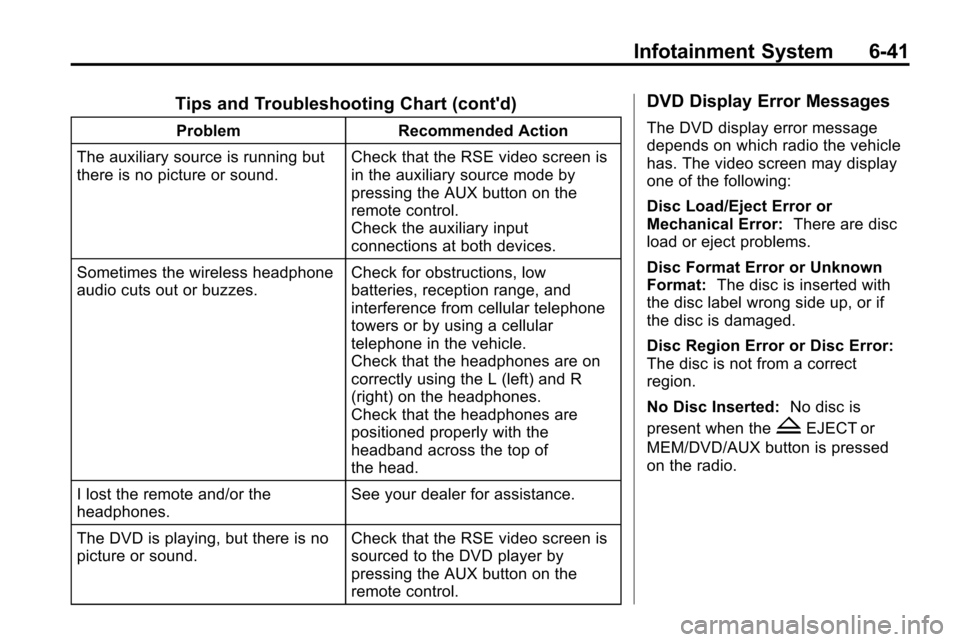
Tips and Troubleshooting Chart (cont'd)
ProblemRecommended Action
The auxiliary source is running but
there is no picture or sound. Check that the RSE video screen is
in the auxiliary source mode by
pressing the AUX button on the
remote control.
Check the auxiliary input
connections at both devices.
Sometimes the wireless headphone
audio cuts out or buzzes. Check for obstructions, low
batteries, reception range, and
interference from cellular telephone
towers or by using a cellular
telephone in the vehicle.
Check that the headphones are on
correctly using the L (left) and R
(right) on the headphones.
Check that the headphones are
positioned properly with the
headband across the top of
the head.
I lost the remote and/or the
headphones. See your dealer for assistance.
The DVD is playing, but there is no
picture or sound. Check that the RSE video screen is
sourced to the DVD player by
pressing the AUX button on the
remote control.
DVD Display Error Messages
The DVD display error message
depends on which radio the vehicle
has. The video screen may display
one of the following:
Disc Load/Eject Error or
Mechanical Error:
There are disc
load or eject problems.
Disc Format Error or Unknown
Format: The disc is inserted with
the disc label wrong side up, or if
the disc is damaged.
Disc Region Error or Disc Error:
The disc is not from a correct
region.
No Disc Inserted: No disc is
present when the
ZEJECT or
MEM/DVD/AUX button is pressed
on the radio.
Page 173 of 394
Infotainment System 6-43
When to Speak:A tone sounds to
indicate that the system is ready for
a voice command. Wait for the tone
and then speak.
How to Speak: Speak clearly in a
calm and natural voice.
Audio System
When using the Bluetooth system,
sound comes through the vehicle's
front audio system speakers and
overrides the audio system. Use the
VOL/
Oknob during a call to
change the volume level. The
adjusted volume level remains in
memory for later calls. The system
maintains a minimum volume level.
Other Information
The Bluetooth®word mark and
logos are owned by the Bluetooth®
SIG, Inc. and any use of such marks
by General Motors is under license.
Other trademarks and trade names
are those of their respective owners.
See Radio Frequency Statement
on
page 12‑16for FCC information.
Bluetooth (Infotainment
Controls)
For information about how to
navigate the menu system using the
infotainment controls, see Operation
on page 6‑7.
Pairing
A Bluetooth enabled cell phone
must be paired to the Bluetooth
system first and then connected to
the vehicle before it can be used.
See the cell phone manufacturer
user guide for Bluetooth functions
before pairing the cell phone. If a
Bluetooth phone is not connected,
calls will be made using OnStar
®
Hands‐Free Calling, if available.
Refer to the OnStar Owner's Guide
for more information.
The pairing process can be started
by using the voice recognition
system or the controls on the
infotainment system. Pairing Information:
.Up to five cell phones can be
paired to the Bluetooth system.
.The pairing process is disabled
when the vehicle is moving.
.The Bluetooth system links with
the first available paired cell
phone in the order the phone
was paired.
.Only one paired cell phone can
be connected to the Bluetooth
system at a time.
.Pairing should only need to be
completed once, unless changes
to the pairing information have
been made or the phone is
deleted.
To link to a different paired phone,
see “Linking to a Different Phone”
later in this section.
Page 184 of 394
6-54 Infotainment System
Using the Call Command
1. Press
b/g.
.For vehicles without a
navigation system, the
system responds“Ready”,
followed by a tone.
.For vehicles with a
navigation system, the
system responds with a
tone. After the tone say
“Hands Free”. The system
responds “Ready”, followed
by a tone.
2. Say “Call”. The system responds
“Call using
Please say the name tag”,
followed by a tone. 3. Say the name tag of the person
to call.
.If the system recognizes
the name tag it responds
“OK, calling,
and dials the number.
.If the system does not
recognize the name tag, it
confirms the name tag
followed by a tone. If the
name tag is correct, say
“Yes”. The system responds
with “OK, calling,
If the name tag is not
correct, say “No”. The
system will ask for the
name tag again.
Once connected, the person called
will be heard through the audio
speakers. Using the Re‐dial Command
1. Press
b/g.
.For vehicles without a
navigation system, the
system responds
“Ready”,
followed by a tone.
.For vehicles with a
navigation system, the
system responds with a
tone. After the tone say
“Hands Free”. The system
responds with “Ready”,
followed by a tone.
2. After the tone, say “Re‐dial”. The
system responds “Re‐dial using
last number called from the
connected Bluetooth phone.
Once connected, the person called
will be heard through the audio
speakers.
Page 185 of 394
Infotainment System 6-55
Receiving a Call
When an incoming call is received,
the audio system mutes and a ring
tone is heard in the vehicle.
.Pressbgto answer the call.
.Pressc/$to ignore a call.
Call Waiting
Call waiting must be supported on
the Bluetooth phone and enabled by
the wireless service carrier.
.Pressbgto answer an
incoming call when another call
is active. The original call is
placed on hold.
.Pressb gagain to return to the
original call.
.To ignore the incoming call, no
action is required.
.Pressc/$to disconnect the
current call and switch to the call
on hold.
Three‐Way Calling
Three‐way calling must be
supported on the Bluetooth phone
and enabled by the wireless service
carrier.
1. While on a call, press
b g. The
system responds with “Ready”,
followed by a tone.
2. Say “Three‐way call”.
The system responds with
“Three‐way call, please say
dial or call”.
3. Use the dial or call command to dial the number of the third party
to be called.
4. Once the call is connected, press
bgto link all the callers
together.
Ending a Call
Pressc/$to end a call.
Muting a Call
During a call, all sounds from inside
the vehicle can be muted so that the
person on the other end of the call
cannot hear them.
To Mute a call
1. Press
b g. The system
responds “Ready”, followed by
a tone.
2. Say “Mute Call”. The system
responds “Call muted”.
To Cancel Mute
1. Press
b g. The system
responds “Ready”, followed by
a tone.
2. After the tone, say “Mute Call”.
The system responds
“Resuming call”.
Page 186 of 394
6-56 Infotainment System
Transferring a Call
Audio can be transferred between
the in‐vehicle Bluetooth system and
the cell phone.
To Transfer Audio to the Cell
Phone
During a call with the audio in the
vehicle:
1. Press
bg. The system
responds “Ready”, followed by
a tone.
2. Say “Transfer Call.” The system
responds “Transferring call” and
the audio transfers to the cell
phone.
To Transfer Audio to the In-Vehicle
Bluetooth System
The cell phone must be paired
and connected with the Bluetooth
system before a call can be
transferred. The connection process
can take up to two minutes after the
ignition is turned to ON/RUN or
ACC/ACCESSORY. For vehicles without a navigation
system, press
b
gduring a call
with the audio on the cell phone,
the audio transfers to the vehicle.
For vehicles with a navigation
system, press
b gduring a call
with the audio on the cell phone.
If the audio does not transfer to the
vehicle, use the audio transfer
feature on the cell phone. See the
cell phone manufacturers user guide
for more information.
Voice Pass-Thru
Voice pass‐thru allows access to the
voice recognition commands on the
cell phone. See the cell phone
manufacturers user guide to see if
the cell phone supports this feature. To access contacts stored in the cell
phone:
1. Press
b/g.
.For vehicles without a
navigation system, the
system responds
“Ready”,
followed by a tone.
.For vehicles with a
navigation system, the
system responds with a
tone. After the tone say
“Hands Free”. The system
responds “Ready”, followed
by a tone.
2. Say “Bluetooth”. The system
responds “Bluetooth ready”,
followed by a tone.
3. Say “Voice”. The system
responds “OK, accessing
.The cell phone's normal
prompt messages will go
through its cycle according
to the phone's operating
instructions.