AUX CHEVROLET EQUINOX 2010 2.G Owners Manual
[x] Cancel search | Manufacturer: CHEVROLET, Model Year: 2010, Model line: EQUINOX, Model: CHEVROLET EQUINOX 2010 2.GPages: 394, PDF Size: 5.7 MB
Page 131 of 394
Infotainment System 6-1
Infotainment
System
Introduction
Introduction . . . . . . . . . . . . . . . . . . . 6-1
Theft-Deterrent Feature . . . . . . . 6-2
Overview (Radio with CD) . . . . . 6-3
Overview (Radio withCD/DVD/MEM) . . . . . . . . . . . . . 6-5
Operation . . . . . . . . . . . . . . . . . . . . . 6-7
Radio
AM-FM Radio . . . . . . . . . . . . . . . . 6-11
Satellite Radio . . . . . . . . . . . . . . . 6-14
Radio Reception . . . . . . . . . . . . . 6-18
Multi-Band Antenna . . . . . . . . . . 6-18
Audio Players
CD Player . . . . . . . . . . . . . . . . . . . 6-19
CD/DVD Player . . . . . . . . . . . . . . 6-21
Mass Storage Media (MEM) . . . . . . . . . . . . . . . 6-25
Auxiliary Devices (Radio
with CD) . . . . . . . . . . . . . . . . . . . . 6-28
Auxiliary Devices (Radio with CD/DVD/MEM) . . . . . . . 6-31
Rear Seat Infotainment
Rear Seat Entertainment(RSE) System . . . . . . . . . . . . . . 6-33
Phone
Bluetooth (Overview) . . . . . . . . 6-42
Bluetooth (InfotainmentControls) . . . . . . . . . . . . . . . . . . . 6-43
Bluetooth (Voice Recognition) . . . . . . . . . . . . . . . 6-46
Bluetooth (Navigation) . . . . . . . 6-58
Introduction
Read the following pages to
become familiar with the audio
system's features.
{WARNING
Taking your eyes off the road for
extended periods could cause a
crash resulting in injury or death
to you or others. Do not give
extended attention to
entertainment tasks while driving.
This system provides access to
many audio and non audio listings.
To minimize taking your eyes off the
road while driving, do the following
while the vehicle is parked:
.Become familiar with the
operation and controls of the
audio system.
.Set up the tone, speaker
adjustments, and preset radio
stations.
Page 133 of 394
Infotainment System 6-3
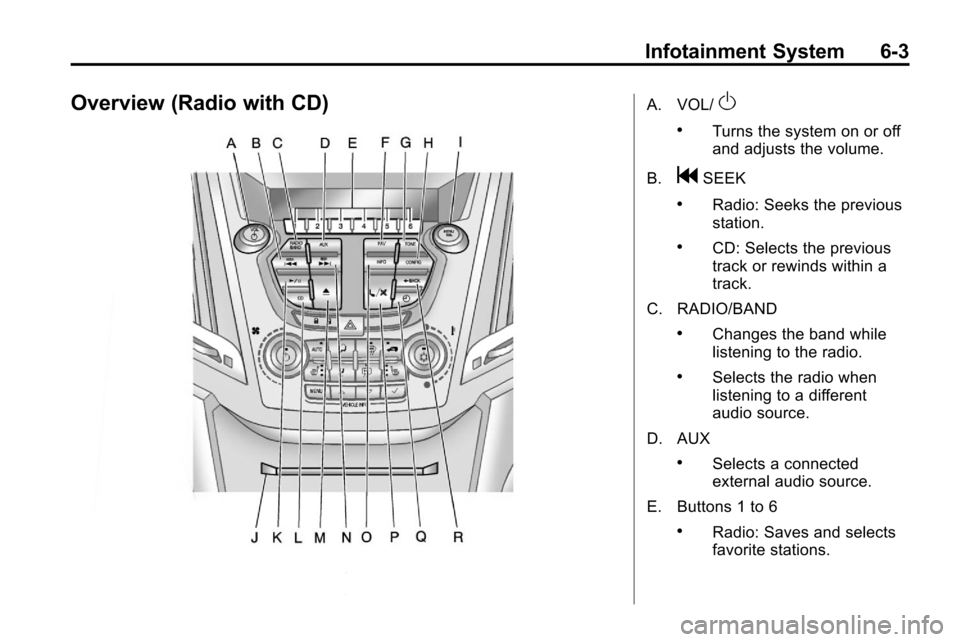
Overview (Radio with CD)A. VOL/O
.Turns the system on or off
and adjusts the volume.
B.
gSEEK
.Radio: Seeks the previous
station.
.CD: Selects the previous
track or rewinds within a
track.
C. RADIO/BAND
.Changes the band while
listening to the radio.
.Selects the radio when
listening to a different
audio source.
D. AUX
.Selects a connected
external audio source.
E. Buttons 1 to 6
.Radio: Saves and selects
favorite stations.
Page 135 of 394
Infotainment System 6-5
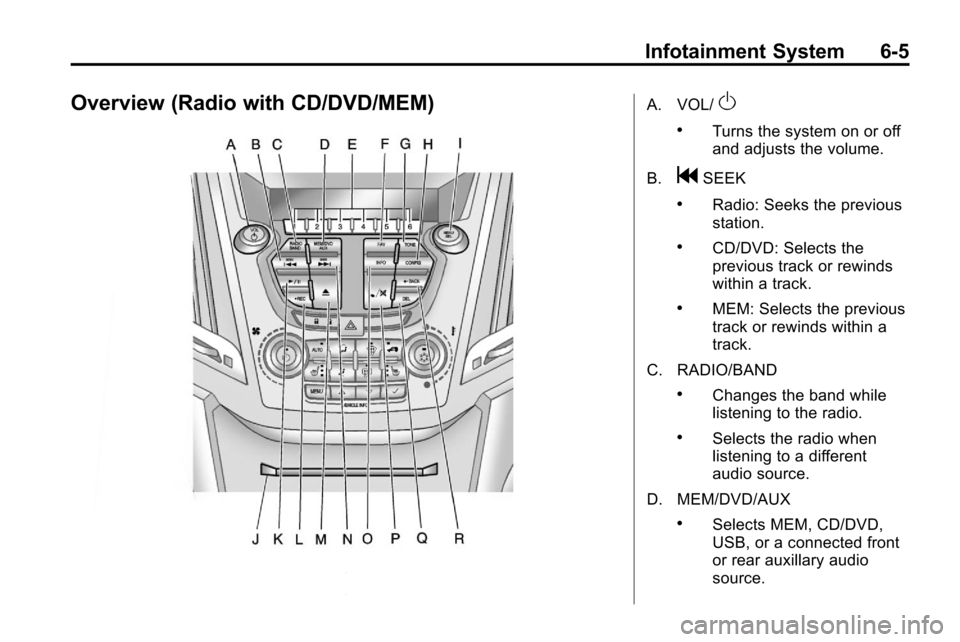
Overview (Radio with CD/DVD/MEM)A. VOL/O
.Turns the system on or off
and adjusts the volume.
B.
gSEEK
.Radio: Seeks the previous
station.
.CD/DVD: Selects the
previous track or rewinds
within a track.
.MEM: Selects the previous
track or rewinds within a
track.
C. RADIO/BAND
.Changes the band while
listening to the radio.
.Selects the radio when
listening to a different
audio source.
D. MEM/DVD/AUX
.Selects MEM, CD/DVD,
USB, or a connected front
or rear auxillary audio
source.
Page 136 of 394

6-6 Infotainment System
E. Buttons 1 to 6
.Radio: Saves and selects
favorite stations.
.MEM: Saves and selects
favorite tracks and
playlists.
F. FAV
.Radio: Opens the
favorites list.
.MEM: Opens the
favorites list.
G. TONE
.Opens the tone menu.
H. CONFIG
.Opens the settings menu.
I. MENU/SEL
.Press: Opens menus and
selects menu items.
.Turn: Highlights menu
items or sets values while
in a menu. Manually
selects radio stations while
listening to the radio. J. CD/DVD Slot
.Insert a disc.
K.
k(Play/Pause)
.Radio: Pauses time shifted
content.
.CD/DVD: Pauses CD/DVD‐
A and DVD‐V playback.
Stops DVD‐V playback.
.MEM: Pauses MEM
playback.
L.
OREC
.CD/DVD: Records content
from audio CDs and MP3/
WMA CDs.
.AUX: Records content
from USB mass storage
devices.
M.
ZCD Eject
.Removes a disc from the
CD/DVD slot. N.
lSEEK
.Radio: Seeks the next
station.
.CD/DVD: Selects the next
track or fast forwards
within a track.
.MEM: Selects the next
track or fast forwards
within a track.
O. INFO
.Radio: Shows available
information about the
current station.
.CD/DVD: Shows available
information about the
current track.
.MEM: Shows available
information about the
current track.
P.
5/0(Phone/Mute)
.Opens the phone
main menu.
.Mutes the audio system.
Page 149 of 394
Infotainment System 6-19
Audio Players
CD Player
The CD player can play audio CDs
and MP3 CDs.
The CD player will not play
8 cm (3 in.) CDs.
Care of CDs
Sound quality can be reduced due
to disc quality, recording method,
quality of the music recorded, and
how the disc has been handled.
Handle discs carefully and store
them in their original cases or other
protective cases away from direct
sunlight and dust. If the bottom
surface of a disc is damaged, the
disc may not play properly or at all.
Do not touch the bottom surface of
a disc while handling it; this could
damage the surface. Pick up discs
by grasping the outer edges or the
edge of the hole and the outer edge.If the bottom surface of a disc is
dirty, take a soft lint free cloth,
or dampen a clean soft cloth in a
mild neutral detergent solution
mixed with water, and clean it. Wipe
the disc from the center to the
outer edge.
Care of the CD Player
Do not add a label to a disc, as it
could get caught in the CD player.
If a label is needed, label the top of
the recorded disc with a
marking pen.
Do not use disc lens cleaners
because they could contaminate the
lens of the disc optics and damage
the CD player.
Notice:
If a label is added to a
CD, or more than one CD is
inserted into the slot at a time,
or an attempt is made to play
scratched or damaged CDs, the
CD player could be damaged. While using the CD player, use
only CDs in good condition
without any label, load one CD at
a time, and keep the CD player
and the loading slot free of
foreign materials, liquids, and
debris.
Control Buttons
The buttons used to control the CD
player are:
CD:
Press to choose between the
CD and AUX player.
lSEEK orgSEEK : Press to
select tracks or to fast forward or
rewind within a track.
INFO: Press to display additional
information about the CD that may
be available.
MENU/SEL: Turn to select tracks.
Z(Eject):Press to remove
the CD.
k: Press to pause a CD or MP3
track, press again to resume
playback.
Page 152 of 394
6-22 Infotainment System
Control Buttons
The buttons used to control the
CD/DVD player are:
MEM/DVD/AUX:Press to choose
between the MEM, CD/DVD,
and AUX.
lSEEK orgSEEK : Press to
select tracks or to fast forward or
rewind within a track.
INFO: Press to display additional
information about the disc that may
be available.
MENU/SEL: Turn to select tracks.
Z(Eject):Press to remove
a disc.
k: Press to pause a CD, DVD‐A,
or DVD‐V, press again to resume
playback. Press and hold to stop a
DVD‐V disc.
Inserting a CD or DVD
With the printed side facing up,
insert a disc into the slot until it is
drawn in.
Removing a CD or DVD
Press theZbutton.
The disc is pushed out of the
CD/DVD slot.
If the disc is not removed after it is
ejected, it is pulled back in after a
few seconds.
Playing a CD or DVD‐A Disc
Press the MEM/DVD/AUX button if
there is a disc in the player, it
begins playing.
Information about the disc and
current track is shown on the
display depending on the data
stored.
Selecting CD or DVD‐A Tracks
Using the control buttons:
.Press thegSEEK orlSEEK
button to select the previous or
next track.
.Turn the MENU/SEL knob. Using the menu:
1. Press the MENU/SEL knob.
2. Select Tracks List.
3. Select the track.
Pausing a CD or DVD‐A Track
Press the
kbutton to pause a CD
or DVD‐A track. Press the
kbutton
again to continue playing the track.
Playing CD or DVD‐A Tracks in
Random Order
Press the MENU/SEL knob and
then set Shuffle Songs to On.
Fast Forward and Rewind
Press and hold the
lSEEK or
gSEEK button to fast forward or
rewind within the current track.
Page 154 of 394
6-24 Infotainment System
Playing a DVD‐V
SeeRear Seat Entertainment (RSE)
Systemon page 6‑33for
information about how to control a
Video DVD using the wireless
remote control.
Selecting a Chapter
Using the control buttons:
.Press thegSEEK orlSEEK
button to select the previous or
next track.
.Turn the MENU/SEL knob.
Using DVD Menu:
1. Press the MENU/SEL knob.
2. Select Chapter List.
3. Select the chapter.
Selecting a Title
1. Press the MENU/SEL knob.
2. Select Title List.
3. Select the title. Changing the Audio Stream
1. Press the MENU/SEL knob.
2. Select Audio Stream.
3. Select Change Audio Stream.
4. Press MENU/SEL to change the
selection.
Select Cancel to exit the menu.
Pausing a DVD
1. Press the MENU/SEL knob.
2. Select Pause, to pause the disc. Select Unpause to start
playback.
Navigating the DVD‐V Disc Menu
Use the following actions to
navigate the title menu on a
DVD‐V Disc.
.Select / Enter
.Cursor UP
.Cursor DOWN
.Cursor RIGHT
.Cursor LEFT
.Up Menu
Use the following actions to
navigate the menu on a DVD‐V
Disc while playing chapters.
.Pause (Play)
.Chapter List
.Title List
.DVD/DVD
.DVD/AUX
.AUX/DVD
.AUX/AUX
To navigate the menu:
1. Press the MENU/SEL knob.
2. Select the action.
Page 155 of 394
Infotainment System 6-25
Mass Storage
Media (MEM)
Infotainment systems with MEM
storage are able to record up to
1.1 GB (gigabyte) of music from
Audio CDs, MP3/WMA/AAC discs,
and USB storage devices. The MEM
player can also time shift audio from
AM, FM, and XM™radio.
Music or content that is stored in
MEM that you did not create,
or have the right to distribute, must
be deleted before the sale or end of
the lease of the vehicle.
Control Buttons
The buttons used to control the
MEM player are:
MEM/DVD/AUX: Press to select
the MEM player.
lSEEK orgSEEK: Press to
select tracks or to fast forward or
rewind within a track. INFO:
Press to display additional
information about the MEM track
that may be available.
k: Press to pause the track
currently playing, press again to
resume playback.
OREC: Press to record music
from a CD, DVD-A, or USB drive.
FAV (Favorites): Press to display
MEM favorites.
1‐6: Press to select a track or a
stored playlist.
MENU/SEL: Turn to select tracks.
Recording From Audio CDs
The infotainment system can record
the current song playing or all songs
from an audio CD to MEM. A status
bar appears on the top of the
display when the recording process
starts and disappears when the
process has ended. Copy protected
CDs cannot be recorded to MEM. Recording to MEM
Press
OREC, then select Record
Current Song or Record All Songs
on Disc. If the track has started
playing, the system will restart the
track and begin recording from the
beginning of the track. When the
song recording is completed, the
message Song Recorded to MEM
displays, and there may be a slight
pause.
Songs recorded to MEM are stored
as the current date, disc and track
number.
Re-recording a Previously
Recorded Disc
If the disc or track has already been
recorded to MEM, the message The
Song(s) is Already Recorded
displays.
Page 158 of 394
6-28 Infotainment System
Album:Saves the album
associated with the currently playing
track in the indicated favorites
position.
Genre: Saves the genre associated
with the currently playing track in
the indicated favorites position.
Creating Playlists
To create a playlist using tracks
stored in MEM:
1. Select Playlist from the MEM
favorites.
2. Select the track to be stored in the playlist.
3. Press and hold one of the 1 to 6 buttons until the track
can be heard again to store the
track.
4. Repeat steps 1 though 3 to store additional tracks in the playlist.Auxiliary Devices
(Radio with CD)
The auxiliary input allows portable
devices to be connected using the
3.5 mm (1/8 in) input jack or the
optional USB port.
Portable devices are controlled by
using the menu system described in
Operation on page 6‑7.
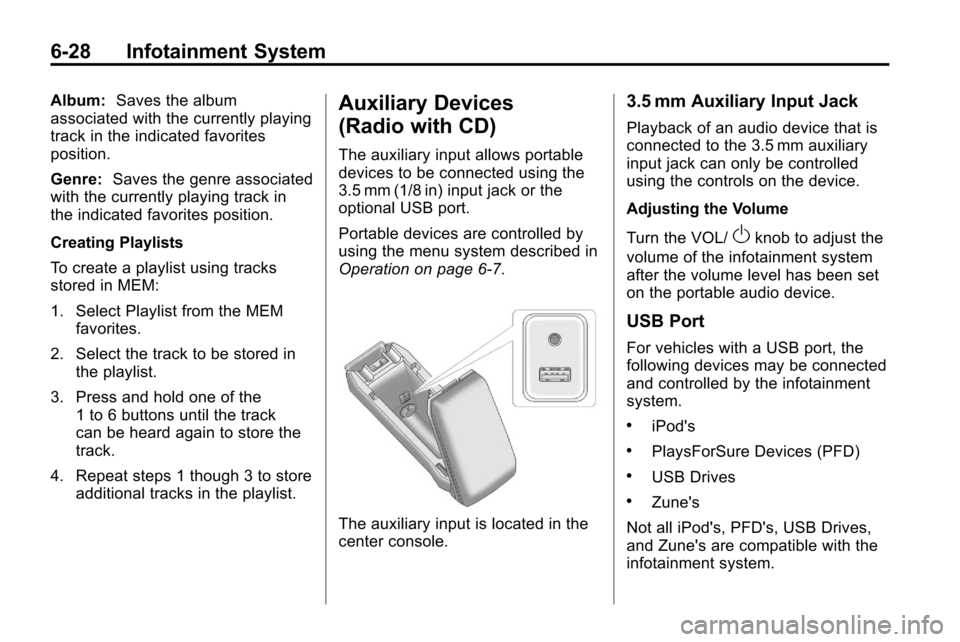
The auxiliary input is located in the
center console.
3.5 mm Auxiliary Input Jack
Playback of an audio device that is
connected to the 3.5 mm auxiliary
input jack can only be controlled
using the controls on the device.
Adjusting the Volume
Turn the VOL/
Oknob to adjust the
volume of the infotainment system
after the volume level has been set
on the portable audio device.
USB Port
For vehicles with a USB port, the
following devices may be connected
and controlled by the infotainment
system.
.iPod's
.PlaysForSure Devices (PFD)
.USB Drives
.Zune's
Not all iPod's, PFD's, USB Drives,
and Zune's are compatible with the
infotainment system.
Page 161 of 394
Infotainment System 6-31
Shuffle Functionality
Press the MENU/SEL knob and set
Shuffle Songs (Random) to On
or Off.
On:Plays current tracks in random
order.
Off: Plays current tracks in
sequential order.
Repeat Functionality
Press the MENU/SEL knob and set
Repeat to On or Off.
Repeat On: Repeats the current
track.
Repeat Off: Playback starts from
the beginning of the current track
after the last track finishes.Auxiliary Devices (Radio
with CD/DVD/MEM)
The auxiliary input allows portable
devices to be connected using the
3.5 mm (1/8 in) input jack or the
optional USB port.
Portable devices are controlled by
using the menu system described in
Operation on page 6‑7.
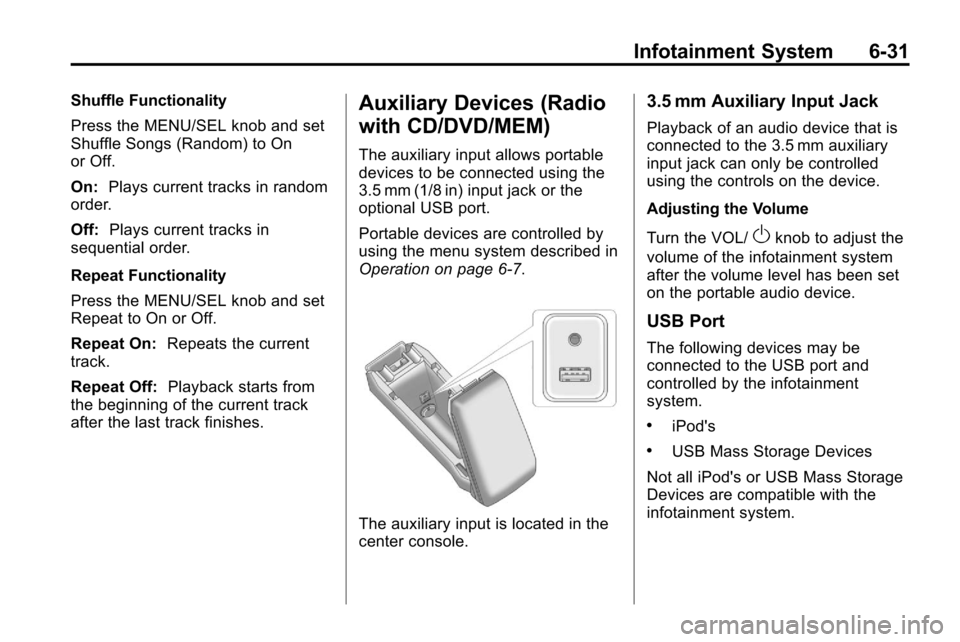
The auxiliary input is located in the
center console.
3.5 mm Auxiliary Input Jack
Playback of an audio device that is
connected to the 3.5 mm auxiliary
input jack can only be controlled
using the controls on the device.
Adjusting the Volume
Turn the VOL/
Oknob to adjust the
volume of the infotainment system
after the volume level has been set
on the portable audio device.
USB Port
The following devices may be
connected to the USB port and
controlled by the infotainment
system.
.iPod's
.USB Mass Storage Devices
Not all iPod's or USB Mass Storage
Devices are compatible with the
infotainment system.