display CHEVROLET EQUINOX 2014 2.G Owner's Guide
[x] Cancel search | Manufacturer: CHEVROLET, Model Year: 2014, Model line: EQUINOX, Model: CHEVROLET EQUINOX 2014 2.GPages: 390, PDF Size: 5.29 MB
Page 140 of 390
Black plate (36,1)Chevrolet Equinox Owner Manual (GMNA-Localizing-U.S./Canada-
6081479) - 2014 - crc2 - 10/23/13
5-36 Instruments and Controls
Languages
Select Languages, then select from
the available language(s).
Lighting
Select and the following may
display:
.Vehicle Locator Lights
.Exit Lighting
Vehicle Locator Lights
This allows the vehicle locator lights
to be turned on or off.
Select On or Off.
Exit Lighting
This allows the selection of how
long the exterior lamps stay on
when leaving the vehicle when it is
dark outside.
Select Off, 30 Seconds, 1 Minute,
or 2 Minutes.
Power Door Locks
Select and the following may
display:
.Unlocked Door Anti Lock Out
.Auto Door Unlock
.Delayed Door Lock
Unlocked Door Anti Lock Out
When on, this feature will keep the
driver door from locking when the
door is open. If off is selected, the
Delayed Door Lock menu will be
available.
Select On or Off.
Auto Door Unlock
This allows selection of which of the
doors will automatically unlock when
the vehicle is shifted into P (Park).
Select All Doors, Driver Door, or Off. Delayed Door Lock
When on, this feature will delay the
locking of the doors. If you want to
override the delay you can press the
power door lock on the instrument
panel.
Select On or Off.
Remote Lock/Unlock/Start
Select and the following may
display:
.Remote Unlock Light Feedback
.Remote Lock Feedback
.Remote Door Unlock
Remote Unlock Light Feedback
When on, the exterior lamps will
flash when unlocking the vehicle
with the RKE transmitter.
Select Flash Lights or Off.
Page 149 of 390
Black plate (5,1)Chevrolet Equinox Owner Manual (GMNA-Localizing-U.S./Canada-
6081479) - 2014 - crc2 - 10/23/13
Lighting 6-5
Lighting Features
Entry Lighting
The dome lamp, cargo lamp, and
foot lamp inside the vehicle come
on when any door is opened, if the
dome lamp is in the door position. In
addition, these lamps come on
when the Remote Keyless Entry
(RKE) unlock button is pressed.
They stay on for 20 seconds or until
a door is opened. After the door is
opened and then closed, the light
remains on for 20 seconds, or until
the ignition is turned to ON/RUN.
Battery Load
Management
The vehicle has Electric Power
Management (EPM) that estimates
the battery's temperature and state
of charge. It then adjusts the voltage
for best performance and extended
life of the battery.When the battery's state of charge
is low, the voltage is raised slightly
to quickly bring the charge back up.
When the state of charge is high,
the voltage is lowered slightly to
prevent overcharging. If the vehicle
has a voltmeter gauge or a voltage
display on the Driver Information
Center (DIC), you may see the
voltage move up or down. This is
normal. If there is a problem, an
alert will be displayed.
The battery can be discharged at
idle if the electrical loads are very
high. This is true for all vehicles.
This is because the generator
(alternator) may not be spinning fast
enough at idle to produce all of the
power needed for very high
electrical loads.
A high electrical load occurs when
several of the following are on, such
as: headlamps, high beams, fog
lamps, rear window defogger,
climate control fan at high speed,
heated seats, engine cooling fans,
trailer loads, and loads plugged into
accessory power outlets.EPM works to prevent excessive
discharge of the battery. It does this
by balancing the generator's output
and the vehicle's electrical needs.
It can increase engine idle speed to
generate more power whenever
needed. It can temporarily reduce
the power demands of some
accessories.
Normally, these actions occur in
steps or levels, without being
noticeable. In rare cases at the
highest levels of corrective action,
this action may be noticeable to the
driver. If so, a DIC message might
be displayed and it is recommended
that the driver reduce the electrical
loads as much as possible. See
Battery Voltage and Charging
Messages on page 5-27.
Page 154 of 390
Black plate (4,1)Chevrolet Equinox Owner Manual (GMNA-Localizing-U.S./Canada-
6081479) - 2014 - crc2 - 10/23/13
7-4 Infotainment System
Operation
Controls
The infotainment system is operated
by using the pushbuttons,
multifunction knobs, display menus,
and steering wheel controls,
if equipped.
Turning the System On or Off
VOL/O(Volume/Power):Press to
turn the system on and off.
Automatic Switch-Off
If the infotainment system has been
turned on after the ignition is turned
off, the system will turn off
automatically after 10 minutes.
Volume Control
VOL/O(Volume/Power): Turn to
adjust the volume.
5/?(Mute): For vehicles with
OnStar, press and hold
5/?to
mute the infotainment system. Press
and hold
5/?again, or turn the
VOL/
Oknob to cancel mute.
For vehicles without OnStar, press
5/?to mute the infotainment
system. Press
5/?again, or turn
the VOL/
Oknob to cancel mute.
Menu System
Controls
The MENU/SEL knob and the
E
BACK button are used to navigate
the menu system.
MENU/SEL (Menu/Select):
Press to:
.Enter the menu system.
.Select or activate the highlighted
menu option.
.Confirm a set value.
.Turn a system setting on or off. Turn to:
.Highlight a menu option.
.Select a value.
EBACK:
Press to:
.Exit a menu.
.Return from a submenu screen
to the previous menu screen.
.Delete the last character in a
sequence.
RADIO/BAND: Press to:
.Displays menu of AM, FM, XM,
CD, or AUX.
.Press to toggle through menu.
Selecting a Menu Option
1. Turn the MENU/SEL knob to move the highlighted bar.
Page 158 of 390
Black plate (8,1)Chevrolet Equinox Owner Manual (GMNA-Localizing-U.S./Canada-
6081479) - 2014 - crc2 - 10/23/13
7-8 Infotainment System
RDS (Radio Data System)
The radio may have RDS. The RDS
feature is available for use only on
FM stations that broadcast RDS
information. This feature only works
when the information from the radio
station is available. In rare cases, a
radio station could broadcast
incorrect information that causes the
radio features to work improperly.
If this happens, contact the radio
station.
While the radio is tuned to an
FM-RDS station, the station name
or call letters display.
Radio Menus
Radio menus are available for AM
and FM.
Press the MENU/SEL knob to open
the main radio menu for that band.
Selecting a Band
Press the RADIO/BAND button to
choose AM, FM, or SiriusXM,
if equipped. The last station that
was playing starts playing again.
Selecting a Station
Seek Tuning
If the radio station is not known:
Briefly press
gSEEK orlSEEK,
to automatically search for the next
available station. If a station is not
found, the radio switches to a more
sensitive search level. If a station
still is not found, the frequency that
was last active begins to play.
If the radio station is known:
Press and hold
gSEEK orl
SEEK until the station on the
display is reached, then release the
button.
Manual Tuning
Turn the MENU/SEL knob to select
the frequency on the display.
Favorites List
1. Press the MENU/SEL knob.
2. Select Favorites List.
3. Select the station. Station Lists
1. Press the MENU/SEL knob.
2. Select AM Station List or FM
Station List. All receivable
stations in the current reception
area are displayed. If a station
list has not been created, an
automatic station search
is done.
3. Select the station.
Category Lists
Most stations that broadcast an
RDS program type code specify the
type of programming transmitted.
Some stations change the program
type code depending on the
content. The system stores the RDS
stations sorted by program type in
the FM category list.
To search for a programming type
determined by station:
1. Press the MENU/SEL knob.
2. Select FM Category List. A list of all programming types available
displays.
Page 159 of 390
Black plate (9,1)Chevrolet Equinox Owner Manual (GMNA-Localizing-U.S./Canada-
6081479) - 2014 - crc2 - 10/23/13
Infotainment System 7-9
3. Select the programming type.A list of stations that transmit
programming of the selected
type displays.
4. Select the station. The category lists are updated
when the station lists are
updated.
Updating Station & Category Lists
If stations stored in the station list
can no longer be received:
1. Press the MENU/SEL knob.
2. Select Update AM Station List or Update FM Station List, if the
stations stored in the station list
are no longer received. A station
search will be completed and the
first station in the updated list
will play.
To cancel the station search, press
the MENU/SEL knob.Storing a Station as a Favorite
Stations from all bands can be
stored in any order in the favorite
pages.
Up to six stations can be stored in
each favorite page and the number
of available favorite pages can
be set.
Storing a Station as a Favorite
To store the station to a position in
the list, press the corresponding
button 1 to 6 until a beep is heard.
Retrieving Stations
Press the FAV button to open a
favorite page or to switch to another
favorite page. Briefly press one of
the 1 to 6 buttons to retrieve the
station.
Satellite Radio
Vehicles with an SiriusXM®Satellite
Radio tuner and a valid SiriusXM
Satellite Radio subscription can
receive SiriusXM programming.
SiriusXM Satellite Radio
Service
SiriusXM is a satellite radio service
based in the 48 contiguous United
States and 10 Canadian provinces.
SiriusXM Satellite Radio has a wide
variety of programming and
commercial-free music, coast to
coast, and in digital-quality sound.
If SiriusXM service needs to be
reactivated, the radio will display
“No Subscription Please Renew on
channel XM1.” A service fee is
required to receive the SiriusXM
service. For more information,
contact SiriusXM at
www.siriusxm.com or
1-866-635-2349 (U.S.), and
www.xmradio.ca or 1-877-209-0079
(Canada).
Page 164 of 390
Black plate (14,1)Chevrolet Equinox Owner Manual (GMNA-Localizing-U.S./Canada-
6081479) - 2014 - crc2 - 10/23/13
7-14 Infotainment System
of the music that has been
recorded, or the way the disc has
been handled.
There can be increased skipping,
difficulty in recording tracks,
difficulty in finding tracks, and/or
difficulty in loading and ejecting.
If these problems occur, check the
disc for damage or try a known
good disc.
To avoid damage to the CD player:
.Do not use scratched or
damaged discs.
.Do not apply labels to discs. The
labels could get caught in the
player.
.Insert only one disc at a time.
.Keep the loading slot free of
foreign materials, liquids, and
debris.
.Use a marking pen to label the
top of the disc.
Loading and Ejecting Discs
To load a disc:
1. Turn the vehicle on.
2. Insert a disc into the slot, labelside up. The player pulls it in the
rest of the way. If the disc is
damaged or improperly loaded,
there is an error and the disc
ejects.
The disc automatically plays once
loaded.
Press
Xto eject a disc from the
CD player. If the disc is not removed
within a short period of time, it is
automatically pulled back into the
player.
Control Buttons
The buttons used to control the CD
player are:
CD: Press to choose between the
CD and AUX player.
lSEEK orgSEEK: Press to
select tracks or to fast forward or
rewind within a track. INFO:
Press to display additional
information about the CD that may
be available.
MENU/SEL: Turn to select tracks.
X(Eject):Press to remove
the CD.
k: Press to pause a CD or MP3
track; press again to resume
playback.
Playing an Audio CD
Press the CD button. If there is a
disc in the player it begins playing.
Information about the disc and
current track is shown on the
display depending on the data
stored.
Selecting a CD Track
Using the control buttons:
.PressgSEEK orlSEEK to
select the previous or next track.
.Turn the MENU/SEL knob.
Using the CD Menu:
1. Press the MENU/SEL knob.
Page 165 of 390
Black plate (15,1)Chevrolet Equinox Owner Manual (GMNA-Localizing-U.S./Canada-
6081479) - 2014 - crc2 - 10/23/13
Infotainment System 7-15
2. Select Track List.
3. Select the track.
Playing Tracks in Random Order
Press the MENU/SEL knob and
then set Shuffle Songs to On.
Fast Forward and Rewind
Press and hold
lSEEK org
SEEK to fast forward or rewind
within the current track.
Selecting an MP3 Track
Using the control buttons:
.PressgSEEK orlSEEK to
select the previous or next track.
.Turn the MENU/SEL knob.
Using the CD Menu:
1. Press the MENU/SEL knob.
2. Select Playlists/Folders.
3. Select the playlist or folder.
4. Select the track. Searching for MP3 Tracks
The search feature may take some
time to display the information after
reading the disc due to the amount
of information stored on the disc.
FM automatically plays while the
disc is being read.
Tracks can be searched by:
.Playlists
.Artists
.Albums
.Song Titles
.Genres
.Folder View
To search for tracks:
1. Press the MENU/SEL knob.
2. Select Search.
3. Select: Playlists, Artists, Albums, Song Titles, Genres,
or Folder View.
4. Select the track.
Error Messages
If Disc Error displays and/or the disc
comes out, it could be for one of the
following reasons:
.The disc has an invalid or
unknown format.
.The disc is very hot. Try the disc
again when the temperature
returns to normal.
.The road is very rough. Try the
disc again when the road is
smoother.
.The disc is dirty, scratched, wet,
or upside down.
.The air is very humid. Try the
disc again later.
.There was a problem while
burning the disc.
.The label is caught in the CD
player.
If the CD is not playing correctly, for
any other reason, try a known
good CD.
Page 166 of 390
Black plate (16,1)Chevrolet Equinox Owner Manual (GMNA-Localizing-U.S./Canada-
6081479) - 2014 - crc2 - 10/23/13
7-16 Infotainment System
If any error continues, contact your
dealer.
MP3
Playing an MP3 CD
See the infotainment manual for
more information.
To play an MP3 CD, follow the same
instructions as“Playing an
Audio CD.”
The following guidelines must be
met when creating an MP3 disc,
otherwise the CD might not play:
.Sampling rate: 16 kHz,
22.05 kHz, 24 kHz, 32 kHz,
44.1 kHz, and 48 kHz.
.Bit rates supported: 8, 16, 24,
32, 40, 48, 56, 64, 80, 96, 112,
128, 144, 160, 192, 224, 256,
and 320 kbps.
.Maximum number of folders:
eight folders with 255 files per
folder.
.Maximum of 1,000 files on
a disc.
.Recorded on a CD-R or CD-RW
with a maximum capacity of
700 MB.
.The Artist/Album/Song Titles/
Genre information requires a CD
to be fully scanned before the
music navigator works with
these menus.
MP3 Music Menu
Press the Menu screen button while
that source is active to access
the menu.
Press any of the following buttons
on the MP3 Menu:
Shuffle Songs: Press to play the
tracks randomly. Press again to stop
shuffle.
Playlists: Press to view the
playlists stored on the disc. Select a
playlist to view the list of all songs in
that playlist. There might be a delay
before the list displays. Select a
song from the list to begin playback.
Artists: Press to view the list of
artists stored on the disc. Select an
artist name to view a list of all songs by the artist. There might be a delay
before the list displays. Select a
song from the list to begin playback.
Albums:
Press to view the albums
on the disc. Select the album to
view a list of all songs on the album.
There might be a delay before the
list displays. Select a song from the
list to begin playback.
Song Titles: Press to display a list
of all songs on the disc. Songs are
displayed as stored on the disc.
There might be a delay before the
list displays. To begin playback,
select a song from the list.
Genres: Press to view the genres.
Select a genre to view a list of all
songs of that genre. Select a song
from the list to begin playback.
Folders: Press to open a folder list
to access the files within the folder
structure.
Page 167 of 390
Black plate (17,1)Chevrolet Equinox Owner Manual (GMNA-Localizing-U.S./Canada-
6081479) - 2014 - crc2 - 10/23/13
Infotainment System 7-17
Root Directory
The root directory is treated as a
folder. All files contained directly
under the root directory are
accessed prior to any root directory
folders.
Empty Folders
If a root directory or folder is empty
or contains only folders, the player
advances to the next folder in the
file structure that contains a
compressed audio file. The empty
folder(s) are not displayed or
numbered.
No Folder
When the CD only contains
compressed audio files without any
folders or playlists, all files are
under the root folder.
File System and Naming
The song titles, artists, albums, and
genres are taken from the file's ID3
tag and are only displayed if present
in the tag. If a song title is notpresent in the ID3 tag, the radio
displays the file name as the
track name.
Preprogrammed Playlists
The radio recognizes
preprogrammed playlists; however,
there is no editing capability. These
playlists are treated as special
folders containing compressed
audio song files.
Auxiliary Devices
See the infotainment manual for
more information.
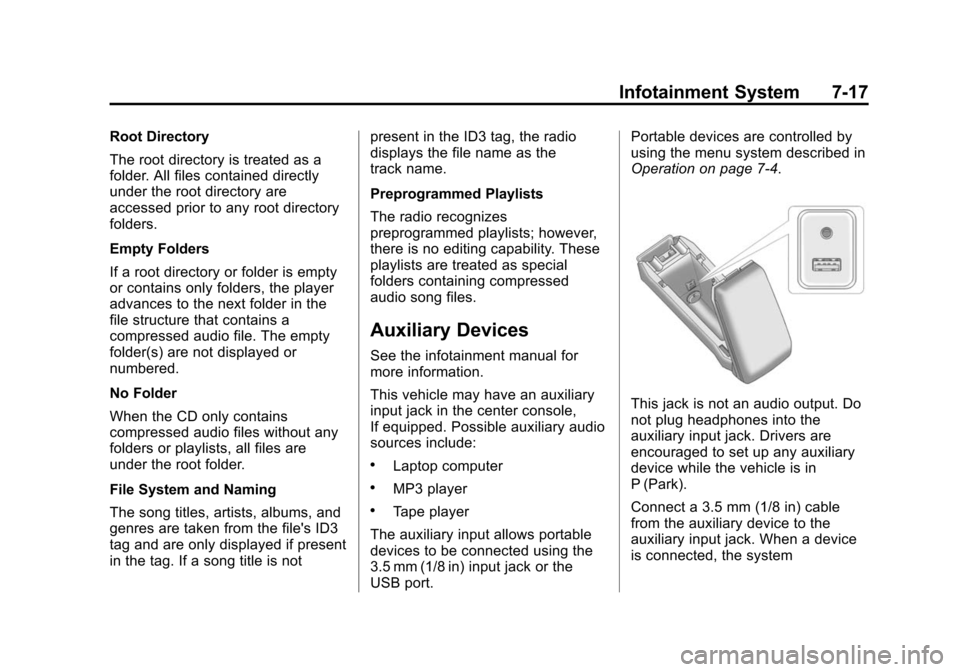
This vehicle may have an auxiliary
input jack in the center console,
If equipped. Possible auxiliary audio
sources include:
.Laptop computer
.MP3 player
.Tape player
The auxiliary input allows portable
devices to be connected using the
3.5 mm (1/8 in) input jack or the
USB port. Portable devices are controlled by
using the menu system described in
Operation on page 7-4.
This jack is not an audio output. Do
not plug headphones into the
auxiliary input jack. Drivers are
encouraged to set up any auxiliary
device while the vehicle is in
P (Park).
Connect a 3.5 mm (1/8 in) cable
from the auxiliary device to the
auxiliary input jack. When a device
is connected, the system
Page 169 of 390
Black plate (19,1)Chevrolet Equinox Owner Manual (GMNA-Localizing-U.S./Canada-
6081479) - 2014 - crc2 - 10/23/13
Infotainment System 7-19
Searching for a Track
Tracks can be searched for by:
.Playlists
.Artists
.Albums
.Song Titles
.Podcasts
.Genres
To search for tracks:
1. Press the MENU/SEL knob.
2. Select Search.
3. Select: Playlists, Artists, Albums, Song Titles, Podcasts,
or Genres.
4. Select the track.
Shuffle Functionality
Press the MENU/SEL knob and set
Shuffle Songs (Random) to On
or Off.
On: Plays current tracks in random
order. Off:
Plays current tracks in
sequential order.
Repeat Functionality
Press the MENU/SEL knob and set
Repeat to On or Off.
Repeat On: Repeats the current
track.
Repeat Off: Playback starts from
the beginning of the current track
after the last track finishes.
USB Menu
Select any of the following buttons
on the USB Menu:
Shuffle Songs: Select to play the
tracks randomly. Select again to
stop shuffle.
Playlists: Select to view the
playlists stored on the USB. Select
a playlist to view the list of all songs
in that playlist. There might be a
delay before the list displays. Select
a song from the list to begin
playback. Artists:
Select to view the list of
artists stored on the USB. Select an
artist name to view a list of all
albums by the artist. There might be
a delay before the list displays. To
select a song, touch All Songs then
select a song or touch an album
then select a song from the list to
begin playback.
Albums: Select to view the albums
on the USB. Select the album to
view a list of all songs on the album.
There might be a delay before the
list displays. Select a song from the
list to begin playback.
Song Titles: Select to display a list
of all songs on the USB. Songs are
displayed as stored on the disc.
There might be a delay before the
list displays. To begin playback,
select a song from the list.
Genres: Select to view the genres
on the USB. Select a genre to view
a list of all songs of that genre.
Select a song from the list to begin
playback.