bluetooth CHEVROLET EQUINOX 2021 User Guide
[x] Cancel search | Manufacturer: CHEVROLET, Model Year: 2021, Model line: EQUINOX, Model: CHEVROLET EQUINOX 2021Pages: 369, PDF Size: 8.71 MB
Page 157 of 369
Chevrolet Equinox Owner Manual (GMNA-Localizing-U.S./Canada/Mexico-
14420010) - 2021 - CRC - 11/10/20
156 Infotainment System
for information on this process. Once the
cell phone is paired, it will show under
Connected.
8. If the vehicle name does not appear on your cell phone, there are a few ways to
start the pairing process over:
.Turn the cell phone off and then
back on.
.Go back to the beginning of the
Phone menus on the infotainment
display and restart the pairing
process.
.Reset the cell phone, but this step
should be done as a last effort.
9. If the cell phone prompts to accept connection or allow phone book
download, touch Always Accept and
Allow. The phone book may not be
available if not accepted.
10. Repeat Steps 1−8 to pair additional cell phones.
First to Connect Paired Phones
If multiple paired cell phones are within
range of the system, the system connects to
the paired cell phone that is set as First to
Connect. To enable a paired cell phone as
the First to Connect phone: 1. Make sure the cell phone is turned on. 2. Touch Settings, then touch System.
3. Touch Phones to access all paired and all
connected cell phones and mobile
devices.
4. Touch the information icon to the right of the cell phone to open the cell
phone’s settings menu.
5. Touch the First to Connect option, to enable the setting for that device.
Cell phones and mobile devices can be
added, removed, connected, and
disconnected. A sub-menu will display
whenever a request is made to add or
manage cell phones and mobile devices.
Secondary Phone
A cell phone can be enabled as a Secondary
Phone by touching the information icon to
the right of the paired cell phone name to
open the phone settings menu. If a cell
phone is enabled as a Secondary Phone, it
can connect simultaneously alongside
another Bluetooth mobile device. In doing
so, the Secondary Phone will be labeled as
Incoming Calls. This means the mobile
device can only receive calls. The Address
Book of a Secondary Phone will not be
available and hands-free outgoing calls
cannot be placed using this cell phone. If needed, touch the Secondary Phone while
in the Phones list to swap it into the
Outgoing and Incoming role. This role makes
it possible to place outgoing calls from the
Contacts and Recents list.
Listing All Paired and Connected Phones
1. Touch the Phone icon on the Home Page or the phone icon on the shortcut tray
near the bottom of the display.
2. Touch Phones.
Disconnecting a Connected Phone 1. Touch the Phone icon on the Home Page.
2. Touch Phones.
3. Touch the information icon next to the connected cell phone or mobile device to
show the cell phone’s or mobile device’s
information display.
4. Touch Disconnect.
Deleting a Paired Phone 1. Touch the Phone icon on the Home Page or the phone icon on the shortcut tray
near the bottom of the display.
2. Touch Phones.
Page 158 of 369
Chevrolet Equinox Owner Manual (GMNA-Localizing-U.S./Canada/Mexico-
14420010) - 2021 - CRC - 11/10/20
Infotainment System 157
3. Touch the information icon next to theconnected cell phone to display the cell
phone’s or mobile device’s information
display.
4. Touch Forget Device.
Linking to a Different Phone
To link to a different cell phone, the new
cell phone must be in the vehicle and paired
to the Bluetooth system. 1. Touch the Phone icon on the Home Page or the phone icon on the shortcut tray
near the bottom of the display.
2. Touch Phones.
3. Touch the new cell phone to link to from the not connected phone list. See “First
to Connect Paired Phones” and
“Secondary Phone” previously in this
section.
Switching to Handset or
Handsfree Mode
To switch between handset or
handsfree mode:
.While the active call is hands-free, touch
the Handset option to switch to the
handset mode.
The mute icon will not be available or
functional while Handset mode is active.
.While the active call is on the handset,
touch the Handset option to switch to the
hands-free mode.
Making a Call Using Contacts and Recent
Calls
Calls can be made through the Bluetooth
system using personal cell phone contact
information for all cell phones that support
the Phone Book feature. Become familiar
with the cell phone settings and operation.
Verify the cell phone supports this feature.
The Contacts menu accesses the phone book
stored in the cell phone.
The Recents menu accesses the recents call
list from your cell phone.
To make a call using the Contacts menu:
1. Touch the Phone icon on the Home Page.
2. Touch Contacts.
3. The Contacts list can be searched by using the first character. Touch A-Z on
the infotainment display to scroll
through the list of names.
Touch the name to call.
4. Touch the desired contact number to call. To make a call using the Recents menu:
1. Touch Phone on the Home Page.
2. Touch Recents.
3. Touch the name or number to call.Making a Call Using the Keypad
To make a call by dialing the numbers:1. Touch the Phone icon on the Home Page.
2. Touch Keypad and enter a phone number.
3. Touch
#on the infotainment display to
start dialing the number.
Searching Contacts Using the Keypad
To search for contacts using the keypad:
1. Touch the Phone icon on the Home Page.
2. Touch Keypad and enter partial phone numbers or contact names using the
digits on the keypad to search.
Results will show on the right side of the
display. Touch one to place a call.
Accepting or Declining a Call
When an incoming call is received, the
infotainment system mutes and a ring tone
is heard in the vehicle.
Page 159 of 369
Chevrolet Equinox Owner Manual (GMNA-Localizing-U.S./Canada/Mexico-
14420010) - 2021 - CRC - 11/10/20
158 Infotainment System
Accepting a Call
There are two ways to accept a call:
.Pressgon the steering wheel controls.
.Touch Answer on the infotainment
display.
Declining a Call
There are two ways to decline a call:
.Pression the steering wheel controls.
.Touch Ignore on the infotainment display.
Call Waiting
Call waiting must be supported on the
Bluetooth cell phone and enabled by the
wireless service carrier to work.
Accepting a Call
Press
gto answer, then touch Switch on
the infotainment display.
Declining a Call
Press
ito decline, then touch Ignore on
the infotainment display Switching Between Calls (Call Waiting
Calls Only)
To switch between calls, touch Phone on the
Home Page to display Call View. While in
Call View, touch the call information of the
call on hold to change calls.
Three-Way Calling
Three-way calling must be supported on the
Bluetooth cell phone and enabled by the
wireless service carrier to work.
To start a three-way call while in a
current call:
1. In the Call View, touch Add Call to add another call.
2. Initiate the second call by selecting from Recents, Contacts, or Keypad.
3. When the second call is active, touch the merge icon to conference the three-way
call together.
Ending a Call
.Pression the steering wheel controls.
.Touch#on the infotainment display,
next to a call, to end only that call.
Dual Tone Multi-Frequency (DTMF) Tones
The in-vehicle Bluetooth system can send
numbers during a call. This is used when
calling a menu-driven phone system. Use the
Keypad to enter the number.
Apple CarPlay and Android Auto
If equipped, Android Auto and/or Apple
CarPlay capability may be available through
a compatible smartphone. If available, the
Android Auto and Apple CarPlay icons will
change from gray to color on the Home
Page of the infotainment display.
To use Android Auto and/or Apple CarPlay:
1. Download the Android Auto app to your smartphone from the Google Play store.
There is no app required for Apple
CarPlay.
2. Connect your Android phone or Apple iPhone by using the factory-provided
phone USB cable and plugging into a
USB data port. For best performance, it is
highly recommended to use the device’s
factory-provided USB cable. Aftermarket
or third-party cables may not work.
Page 165 of 369
Chevrolet Equinox Owner Manual (GMNA-Localizing-U.S./Canada/Mexico-
14420010) - 2021 - CRC - 11/10/20
164 Infotainment System
.Set Number of Audio Favorites: Touch to
select how many favorites pages can be
viewed from the audio application. The
Auto setting will automatically adjust this
number based on the number of favorites
you have saved. Touch Auto, 5, 10, 15, 20,
25, 30, 35, or 40.
.RDS: This allows the Radio Data System
(RDS) to be turned on or off.
Touch the controls on the infotainment
display to disable or enable.
.HD Radio: This allows HD Radio reception
to be turned on or off.
Touch the controls on the infotainment
display to disable or enable.
.Explicit Content Filter: This setting allows
access to explicit content SiriusXM
channels.
Touch Off or On.
.Manage Phones: Select to connect to a
different phone source, disconnect a
phone, or delete a phone.
.Reset Music Index: This allows the music
index to be reset if you are having
difficulty accessing all of the media
content on your device.
Touch Yes or No.Climate
Touch and the following may display:
.Auto Fan Speed: This setting specifies the
amount of airflow when the climate
control fan setting is Auto Fan.
Touch Low, Medium, or High.
.Air Quality Sensor: This setting switches
the system into Recirculation Mode based
on the quality of the outside air.
Touch Off, Low Sensitivity, or High
Sensitivity.
.Auto Cooled Seats: This setting
automatically turns on and regulates the
ventilated seats when the cabin
temperature is warm.
Touch the controls on the infotainment
display to disable or enable.
.Auto Heated Seats: This setting
automatically turns on and regulates the
heated seats when the cabin temperature
is cool. The auto heated seats can be
turned off by using the heated seat
controls on the center stack.
Touch the controls on the infotainment
display to disable or enable.
.Auto Defog: This setting automatically
turns the front defogger on when the
vehicle engine is started. Touch the controls on the infotainment
display to disable or enable.
.Auto Rear Defog: This setting
automatically turns the rear window
defogger on when the vehicle engine is
started.
Touch the controls on the infotainment
display to disable or enable.
Navigation
Touch and the following may display:
.Set Up My Places
.Map Preferences
.Route Preferences
.Navigation Voice Control
.Traffic Preferences
.Alert Preferences
.Manage History
.Predictive Navigation
.About
See Using the Navigation System 0137.
Phone
Touch and the following may display:
.My Number: Displays the cell phone
number of the Bluetooth connected
device.
Page 171 of 369
Chevrolet Equinox Owner Manual (GMNA-Localizing-U.S./Canada/Mexico-
14420010) - 2021 - CRC - 11/10/20
170 Infotainment System
Bose
Bose AudioPilot and Bose Centerpoint
surround are registered trademarks of Bose
Corporation in the U.S. and other countries.
HD Radio Technology
HD Radio Technology manufactured under
license from iBiquity Digital Corporation.
U.S. and Foreign Patents. For patents see
http://dts.com/patents. HD Radio and the
HD, HD Radio, and“ARC”logos are
registered trademarks or trademarks of
iBiquity Digital Corporation in the United
States and/or other countries.
Bluetooth
The Bluetooth word mark and logos are
owned by the Bluetooth SIG, Inc. and any
use of such marks by General Motors is
under license. Other trademarks and trade
names are those of their respective owners. Java
Java is a registered trademark of Oracle
and/or its affiliates.
Schedule I: Gracenote EULA
Music recognition technology and related
data are provided by Gracenote. Gracenote
is the industry standard in music recognition
technology and related content delivery. For
more information see www.gracenote.com.
Music-related data from Gracenote, Inc.,
copyright © 2000 to present Gracenote.
Gracenote Software, copyright © 2000 to
present Gracenote. One or more patents
owned by Gracenote may apply to this
product and service. See the Gracenote
website for a non-exhaustive list of
applicable Gracenote patents. Gracenote,
CDDB, MusicID, MediaVOCS, the Gracenote
logo and logotype, and the "Powered by
Gracenote" logo are either registered
trademarks or trademarks of Gracenote in
the United States and/or other countries.
Gracenote Terms of Use
This application or device contains software
from Gracenote, Inc. of Emeryville, California
("Gracenote"). The software from Gracenote
(the "Gracenote Software") enables this
application to do disc or file identification
and obtain music-related information,
including name, artist, track, and title
information ("Gracenote Data") from online
servers or embedded databases (collectively,
"Gracenote Servers") and to perform other
functions. You may use Gracenote Data only
by means of the intended End-User
functions of this application or device.
This application or device may contain
content belonging to Gracenote’s providers.
If so, all of the restrictions set forth herein
with respect to Gracenote Data shall also
apply to such content and such content
providers shall be entitled to all of the
benefits and protections set forth herein
that are available to Gracenote.
You agree that you will use Gracenote Data,
the Gracenote Software, and Gracenote
Servers for your own personal
non-commercial use only. You agree not to
Page 349 of 369
Chevrolet Equinox Owner Manual (GMNA-Localizing-U.S./Canada/Mexico-
14420010) - 2021 - CRC - 11/10/20
348 Customer Information
Bluetooth, WIFI or similar technology). In
the event you suspect any security incident
impacting your data or the safe operation of
your vehicle, please stop operating your
vehicle and contact your dealer.
Event Data Recorders
This vehicle is equipped with an event data
recorder (EDR). The main purpose of an EDR
is to record, in certain crash or near
crash-like situations, such as an air bag
deployment or hitting a road obstacle, data
that will assist in understanding how a
vehicle’s systems performed. The EDR is
designed to record data related to vehicle
dynamics and safety systems for a short
period of time, typically 30 seconds or less.
The EDR in this vehicle is designed to record
such data as:
.How various systems in your vehicle were
operating;
.Whether or not the driver and passenger
safety belts were buckled/fastened;
.How far (if at all) the driver was
depressing the accelerator and/or brake
pedal; and,
.How fast the vehicle was traveling.These data can help provide a better
understanding of the circumstances in which
crashes and injuries occur.
Note
EDR data are recorded by your vehicle only
if a non-trivial crash situation occurs; no
data are recorded by the EDR under normal
driving conditions and no personal data
(e.g., name, gender, age, and crash location)
are recorded. However, other parties, such
as law enforcement, could combine the EDR
data with the type of personally identifying
data routinely acquired during a crash
investigation.
To read data recorded by an EDR, special
equipment is required, and access to the
vehicle or the EDR is needed. In addition to
the vehicle manufacturer, other parties, such
as law enforcement, that have the special
equipment, can read the information if they
have access to the vehicle or the EDR.
GM will not access these data or share it
with others except: with the consent of the
vehicle owner or, if the vehicle is leased,
with the consent of the lessee; in response
to an official request by police or similar
government office; as part of GM's defense
of litigation through the discovery process;
or, as required by law. Data that GM collects or receives may also be used for GM
research needs or may be made available to
others for research purposes, where a need
is shown and the data is not tied to a
specific vehicle or vehicle owner.
OnStar
If the vehicle is equipped with OnStar and
has an active service plan, additional data
may be collected and transmitted through
the OnStar system. This includes information
about the vehicle’s operation; collisions
involving the vehicle; the use of the vehicle
and its features, including infotainment; and
the location and approximate GPS speed of
the vehicle. Refer to the OnStar Terms and
Conditions and Privacy Statement on the
OnStar website.
See
OnStar Additional Information 0350.
Infotainment System
If the vehicle is equipped with a navigation
system as part of the infotainment system,
use of the system may result in the storage
of destinations, addresses, telephone
numbers, and other trip information. See the
infotainment section for information on
stored data and for deletion instructions.
Page 358 of 369
Chevrolet Equinox Owner Manual (GMNA-Localizing-U.S./Canada/Mexico-
14420010) - 2021 - CRC - 11/10/20
Index 357
IndexA
About Driving the Vehicle . . . . . . . . . . . . . . . . . .2
Accessories and Modifications . . . . . . . . . . . 252
Accessory Power . . . . . . . . . . . . . . . . . . . . . . . . . 204
Adaptive Cruise Control . . . . . . . . . . . . . . . . . . . 217
Add-On Electrical Equipment . . . . . . . . . . . . . 249
Additional InformationOnStar . . . . . . . . . . . . . . . . . . . . . . . . . . . . . . . . . 350
Additional Maintenance and Care . . . . . . . . 328
Adjustments Lumbar, Front Seats . . . . . . . . . . . . . . . . . . . . 32
Agreements Trademarks and License . . . . . . . . . . . . . . . 168
Air Cleaner/Filter, Engine . . . . . . . . . . . . . . . . 258
Air Conditioning . . . . . . . . . . . . . . . . . . . . . 177, 179
Air Filter
Life System . . . . . . . . . . . . . . . . . . . . . . . . . . . . 258
Air Filter, Passenger Compartment . . . . . . . .182
Air Vents . . . . . . . . . . . . . . . . . . . . . . . . . . . . . . . . . 181
Airbag System Check . . . . . . . . . . . . . . . . . . . . . . . . . . . . . . . . . . . 56
How Does an Airbag Restrain? . . . . . . . . . . 50
Passenger Sensing System . . . . . . . . . . . . . . . 51
What Makes an Airbag Inflate? . . . . . . . . . 50
What Will You See after an AirbagInflates? . . . . . . . . . . . . . . . . . . . . . . . . . . . . . . 50
When Should an Airbag Inflate? . . . . . . . . 49
Where Are the Airbags? . . . . . . . . . . . . . . . . 48 Airbags
Adding Equipment to the Vehicle . . . . . . . 55
Passenger Status Indicator . . . . . . . . . . . . . . 93
Readiness Light . . . . . . . . . . . . . . . . . . . . . . . . . 92
Servicing Airbag-Equipped Vehicles . . . . . . 55
System Check . . . . . . . . . . . . . . . . . . . . . . . . . . . 46
Alarm
Vehicle Security . . . . . . . . . . . . . . . . . . . . . . . . 22
Alert Lane Change . . . . . . . . . . . . . . . . . . . . . . . . . . . 235
Side Blind Zone (SBZA) . . . . . . . . . . . . . . . . . 235
All-Season Tires . . . . . . . . . . . . . . . . . . . . . . . . . . 280
All-Wheel Drive . . . . . . . . . . . . . . . . . . . . . 209, 266
AM-FM Radio . . . . . . . . . . . . . . . . . . . . . . . . . . . . 129
Antenna Multi-band . . . . . . . . . . . . . . . . . . . . . . . . . . . . . 132
Antilock Brake System (ABS) . . . . . . . . . . . . . 209 Warning Light . . . . . . . . . . . . . . . . . . . . . . . . . . 96
Appearance Care Exterior . . . . . . . . . . . . . . . . . . . . . . . . . . . . . . . . 314
Interior . . . . . . . . . . . . . . . . . . . . . . . . . . . . . . . . 318
Apple CarPlay and Android Auto . . . . . . . . . .158
Assistance Program, Roadside . . . . . . . . . . . . .341
Assistance Systems for Driving . . . . . . . . . . 230
Assistance Systems for Parking and Backing . . . . . . . . . . . . . . . . . . . . . . . . . . . . . . . . 227
Audio Bluetooth . . . . . . . . . . . . . . . . . . . . . . . . . . . . . . 135
Page 359 of 369
Chevrolet Equinox Owner Manual (GMNA-Localizing-U.S./Canada/Mexico-
14420010) - 2021 - CRC - 11/10/20
358 Index
Auto StopStop/Start System . . . . . . . . . . . . . . . . . . . . . 201
Automatic Dimming Mirrors . . . . . . . . . . . . . . . . . . . . . . . 25
Door Locks . . . . . . . . . . . . . . . . . . . . . . . . . . . . . . 16
Emergency Braking (AEB) . . . . . . . . . . . . . . 232
Headlamp System . . . . . . . . . . . . . . . . . . . . . . 118
Transmission . . . . . . . . . . . . . . . . . . . . . . . . . . . 206
Transmission Fluid . . . . . . . . . . . . . . . . . . . . . 258
Automatic Transmission Manual Mode . . . . . . . . . . . . . . . . . . . . . . . . . 208
Shift Lock Control Function Check . . . . . . 267
Avoiding Untrusted Media Devices . . . . . . . . 132
B
Battery Exterior Lighting Battery Saver . . . . . . . . 122
Load Management . . . . . . . . . . . . . . . . . . . . . . 121
Power Protection . . . . . . . . . . . . . . . . . . . . . . 122
Battery - North America . . . . . . . . . . . . 266, 308
Blade Replacement, Wiper . . . . . . . . . . . . . . . 267
Bluetooth Overview . . . . . . . . . . . . . . . . . . . . . . . . . . 154, 155
Bluetooth Audio . . . . . . . . . . . . . . . . . . . . . . . . . . 135
Brake Parking, Electric . . . . . . . . . . . . . . . . . . . . . . . . 210
System Warning Light . . . . . . . . . . . . . . . . . . 95
Brakes . . . . . . . . . . . . . . . . . . . . . . . . . . . . . . . . . . . 264 Brakes (cont'd)
Antilock . . . . . . . . . . . . . . . . . . . . . . . . . . . . . . . . 209
Assist . . . . . . . . . . . . . . . . . . . . . . . . . . . . . . . . . . . 211
Fluid . . . . . . . . . . . . . . . . . . . . . . . . . . . . . . . . . . . 265
Braking . . . . . . . . . . . . . . . . . . . . . . . . . . . . . . . . . . .187 Automatic Emergency (AEB) . . . . . . . . . . . 232
Braking System
Front Pedestrian (FPB) . . . . . . . . . . . . . . . . . 233
Break-In, New Vehicle . . . . . . . . . . . . . . . . . . . . 198
Bulb Replacement Front Turn Signal and Fog Lamps . . . . . . . 271
Halogen Bulbs . . . . . . . . . . . . . . . . . . . . . . . . . 270
Headlamp Aiming . . . . . . . . . . . . . . . . . . . . . . 270
Headlamps . . . . . . . . . . . . . . . . . . . . . . . . . . . . 270
High Intensity Discharge (HID)Lighting . . . . . . . . . . . . . . . . . . . . . . . . . . . . . . 270
License Plate Lamps . . . . . . . . . . . . . . . . . . . 272
Taillamps . . . . . . . . . . . . . . . . . . . . . . . . . . . . . . . 271
Buying New Tires . . . . . . . . . . . . . . . . . . . . . . . . 292
C
Calibration . . . . . . . . . . . . . . . . . . . . . . . . . . . . . . . . .81
California Perchlorate Materials Requirements . . . 251
California Proposition 65 Warning . . . . . . . . . . . . . . . . . . 251, 266, 308,
Back Cover
Canadian Vehicle Owners . . . . . . . . . . . . . . . . . . . 1 Capacities and Specifications . . . . . . . . . . . . . 335
Carbon Monoxide
Engine Exhaust . . . . . . . . . . . . . . . . . . . . . . . . 205
Liftgate . . . . . . . . . . . . . . . . . . . . . . . . . . . . . . . . . 18
Winter Driving . . . . . . . . . . . . . . . . . . . . . . . . . 193
Cargo Cover . . . . . . . . . . . . . . . . . . . . . . . . . . . . . . . . . . . 75
Tie-Downs . . . . . . . . . . . . . . . . . . . . . . . . . . . . . . 76
Caution, Danger, and Warning . . . . . . . . . . . . . .2
Center Console Storage . . . . . . . . . . . . . . . . . . . .75
Chains, Tire . . . . . . . . . . . . . . . . . . . . . . . . . . . . . . 295
Charging Wireless . . . . . . . . . . . . . . . . . . . . . . . . . . . . . . . . 83
Charging System Light . . . . . . . . . . . . . . . . . . . . 93
Check Engine Light (Malfunction Indicator) . . . . 94
Child Restraints Infants and Young Children . . . . . . . . . . . . . 58
Lower Anchors and Tethers forChildren . . . . . . . . . . . . . . . . . . . . . . . . . . . . . . . 62
Older Children . . . . . . . . . . . . . . . . . . . . . . . . . . 56
Securing . . . . . . . . . . . . . . . . . . . . . . . . . . . . 69, 70
Systems . . . . . . . . . . . . . . . . . . . . . . . . . . . . . . . . 60
Circuit Breakers . . . . . . . . . . . . . . . . . . . . . . . . . . 273
Cleaning Exterior Care . . . . . . . . . . . . . . . . . . . . . . . . . . . 314
Interior Care . . . . . . . . . . . . . . . . . . . . . . . . . . . 318
Climate Control Systems . . . . . . . . . . . . . . . . . . 177
Page 365 of 369
Chevrolet Equinox Owner Manual (GMNA-Localizing-U.S./Canada/Mexico-
14420010) - 2021 - CRC - 11/10/20
364 Index
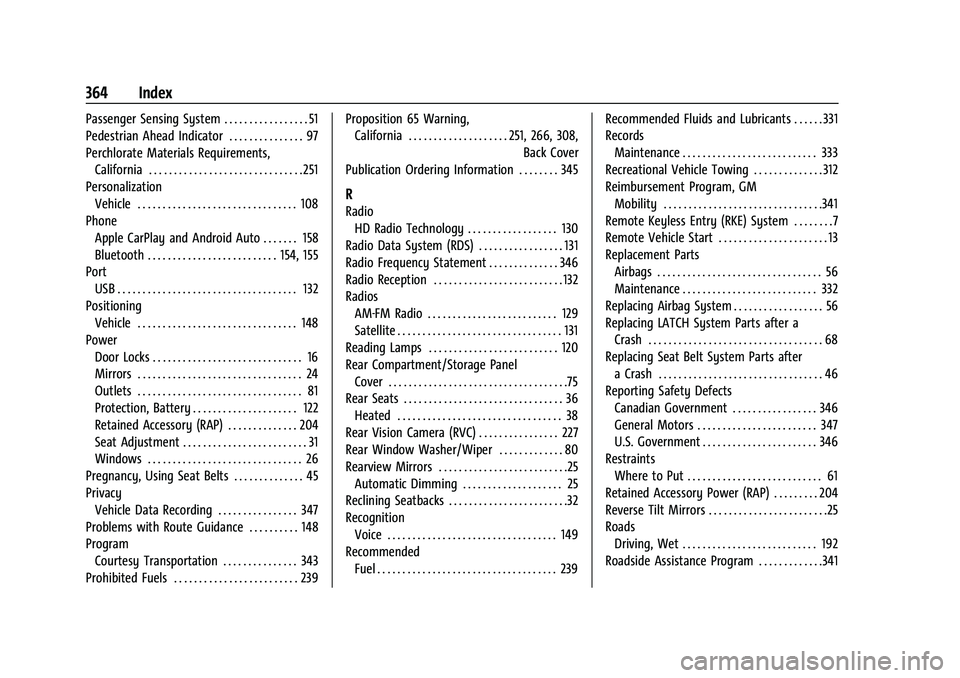
Passenger Sensing System . . . . . . . . . . . . . . . . . 51
Pedestrian Ahead Indicator . . . . . . . . . . . . . . . 97
Perchlorate Materials Requirements,California . . . . . . . . . . . . . . . . . . . . . . . . . . . . . . . 251
Personalization Vehicle . . . . . . . . . . . . . . . . . . . . . . . . . . . . . . . . 108
Phone
Apple CarPlay and Android Auto . . . . . . . 158
Bluetooth . . . . . . . . . . . . . . . . . . . . . . . . . . 154, 155
Port USB . . . . . . . . . . . . . . . . . . . . . . . . . . . . . . . . . . . . 132
Positioning Vehicle . . . . . . . . . . . . . . . . . . . . . . . . . . . . . . . . 148
Power Door Locks . . . . . . . . . . . . . . . . . . . . . . . . . . . . . . 16
Mirrors . . . . . . . . . . . . . . . . . . . . . . . . . . . . . . . . . 24
Outlets . . . . . . . . . . . . . . . . . . . . . . . . . . . . . . . . . 81
Protection, Battery . . . . . . . . . . . . . . . . . . . . . 122
Retained Accessory (RAP) . . . . . . . . . . . . . . 204
Seat Adjustment . . . . . . . . . . . . . . . . . . . . . . . . . 31
Windows . . . . . . . . . . . . . . . . . . . . . . . . . . . . . . . 26
Pregnancy, Using Seat Belts . . . . . . . . . . . . . . 45
Privacy Vehicle Data Recording . . . . . . . . . . . . . . . . 347
Problems with Route Guidance . . . . . . . . . . 148
Program
Courtesy Transportation . . . . . . . . . . . . . . . 343
Prohibited Fuels . . . . . . . . . . . . . . . . . . . . . . . . . 239 Proposition 65 Warning,
California . . . . . . . . . . . . . . . . . . . . 251, 266, 308,
Back Cover
Publication Ordering Information . . . . . . . . 345
R
Radio HD Radio Technology . . . . . . . . . . . . . . . . . . 130
Radio Data System (RDS) . . . . . . . . . . . . . . . . . 131
Radio Frequency Statement . . . . . . . . . . . . . . 346
Radio Reception . . . . . . . . . . . . . . . . . . . . . . . . . . 132
Radios AM-FM Radio . . . . . . . . . . . . . . . . . . . . . . . . . . 129
Satellite . . . . . . . . . . . . . . . . . . . . . . . . . . . . . . . . . 131
Reading Lamps . . . . . . . . . . . . . . . . . . . . . . . . . . 120
Rear Compartment/Storage Panel Cover . . . . . . . . . . . . . . . . . . . . . . . . . . . . . . . . . . . .75
Rear Seats . . . . . . . . . . . . . . . . . . . . . . . . . . . . . . . . 36 Heated . . . . . . . . . . . . . . . . . . . . . . . . . . . . . . . . . 38
Rear Vision Camera (RVC) . . . . . . . . . . . . . . . . 227
Rear Window Washer/Wiper . . . . . . . . . . . . . 80
Rearview Mirrors . . . . . . . . . . . . . . . . . . . . . . . . . .25 Automatic Dimming . . . . . . . . . . . . . . . . . . . . 25
Reclining Seatbacks . . . . . . . . . . . . . . . . . . . . . . . .32
Recognition Voice . . . . . . . . . . . . . . . . . . . . . . . . . . . . . . . . . . 149
Recommended Fuel . . . . . . . . . . . . . . . . . . . . . . . . . . . . . . . . . . . . 239 Recommended Fluids and Lubricants . . . . . . 331
Records
Maintenance . . . . . . . . . . . . . . . . . . . . . . . . . . . 333
Recreational Vehicle Towing . . . . . . . . . . . . . . 312
Reimbursement Program, GM Mobility . . . . . . . . . . . . . . . . . . . . . . . . . . . . . . . .341
Remote Keyless Entry (RKE) System . . . . . . . .7
Remote Vehicle Start . . . . . . . . . . . . . . . . . . . . . . 13
Replacement Parts
Airbags . . . . . . . . . . . . . . . . . . . . . . . . . . . . . . . . . 56
Maintenance . . . . . . . . . . . . . . . . . . . . . . . . . . . 332
Replacing Airbag System . . . . . . . . . . . . . . . . . . 56
Replacing LATCH System Parts after a Crash . . . . . . . . . . . . . . . . . . . . . . . . . . . . . . . . . . . 68
Replacing Seat Belt System Parts after a Crash . . . . . . . . . . . . . . . . . . . . . . . . . . . . . . . . . 46
Reporting Safety Defects Canadian Government . . . . . . . . . . . . . . . . . 346
General Motors . . . . . . . . . . . . . . . . . . . . . . . . 347
U.S. Government . . . . . . . . . . . . . . . . . . . . . . . 346
Restraints
Where to Put . . . . . . . . . . . . . . . . . . . . . . . . . . . 61
Retained Accessory Power (RAP) . . . . . . . . . 204
Reverse Tilt Mirrors . . . . . . . . . . . . . . . . . . . . . . . .25
Roads Driving, Wet . . . . . . . . . . . . . . . . . . . . . . . . . . . 192
Roadside Assistance Program . . . . . . . . . . . . .341